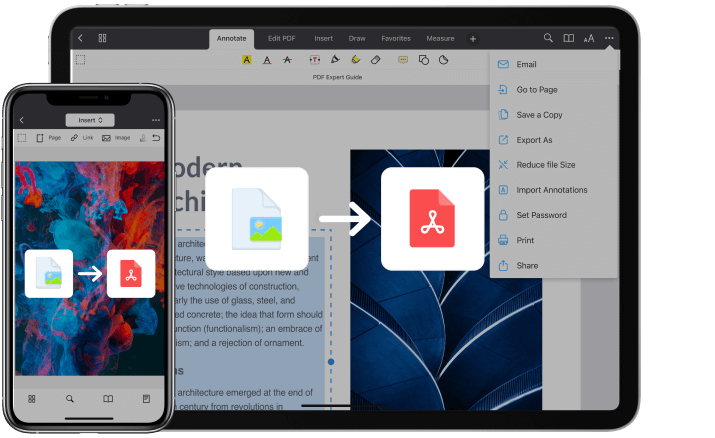
You see something beautiful, something that touches your heart, you point the camera of your favourite device — Click!... and it's done.
We try to capture the best moments of our lives. We take photos of the wonderful world around us, family, friends, our lovely pets, and we take screenshots when we come across interesting pieces of information. There must be hundreds or thousands of images sitting in your storage by now. And all they are likely to be in various file types, such as HEIC, JPEG, PNG, etc.
But even if you're the lucky owner of 1TB of storage in your device, you might be wondering how to save photos as a PDF on your iPhone 13. In this guide, we will show you four simple tricks of turning any image to PDF. No magic is needed, only apps.
How to Save a Picture as a PDF on iPhone
You can use iPhone’s native apps to convert images into PDF files, such as Files, Books, and Photos. Or, you can use apps which not only act as a converter but also allow you to make edits to your files.
Method #1: How to Use Files app to Convert Pictures into PDF
Files makes it easy for you to quickly convert photos to PDF, scan documents, compress files, and more. The format of photos doesn't matter when you use this app to convert images. It can preserve the original quality of photos when converting them to PDF. The only thing is that the photo must be saved in Files.
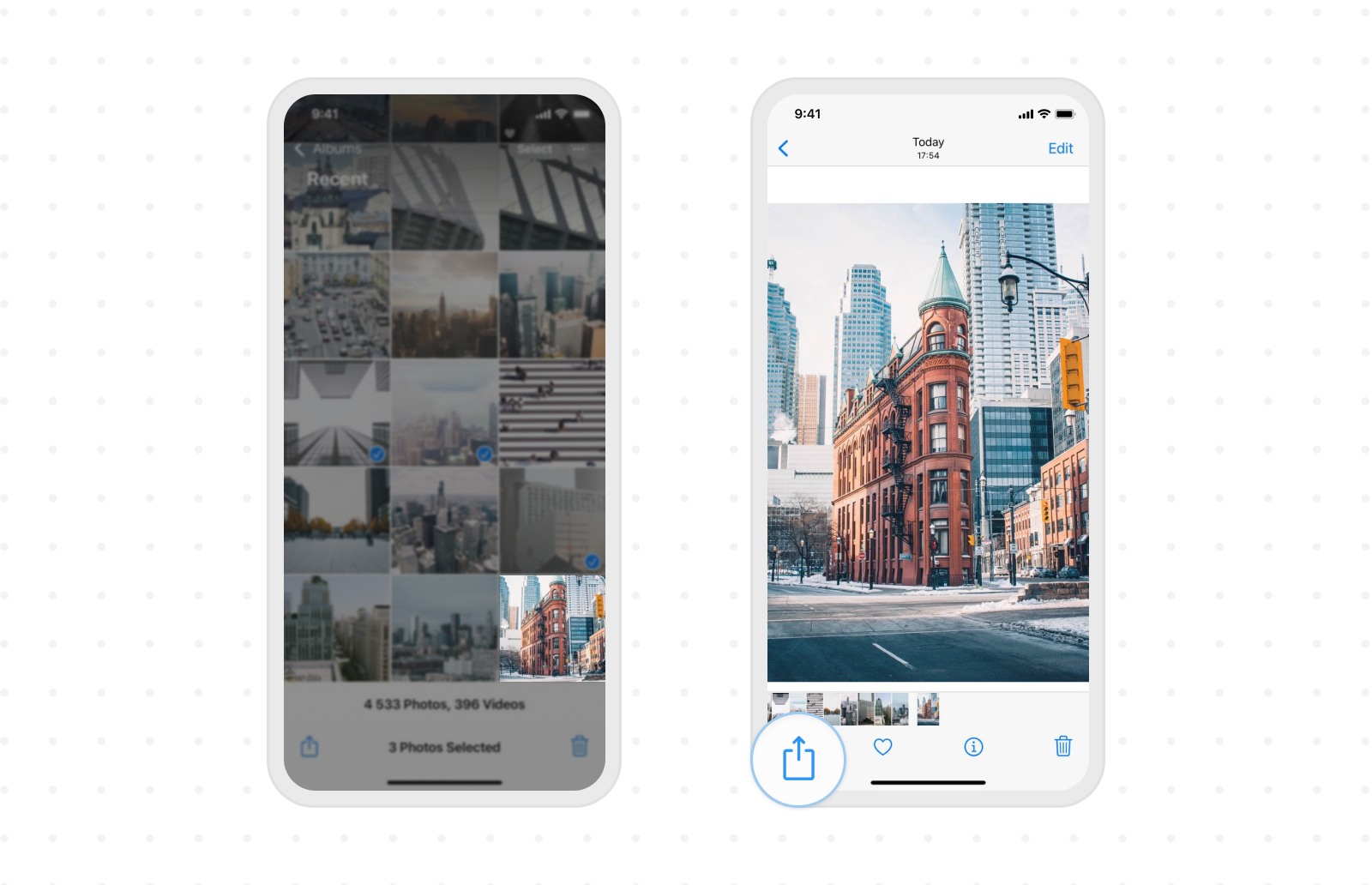
So, if you already have images here, follow the following steps. If not, copy the pictures from Photos to Files: Select the images inside Photos → tap Share button → Save to Files.
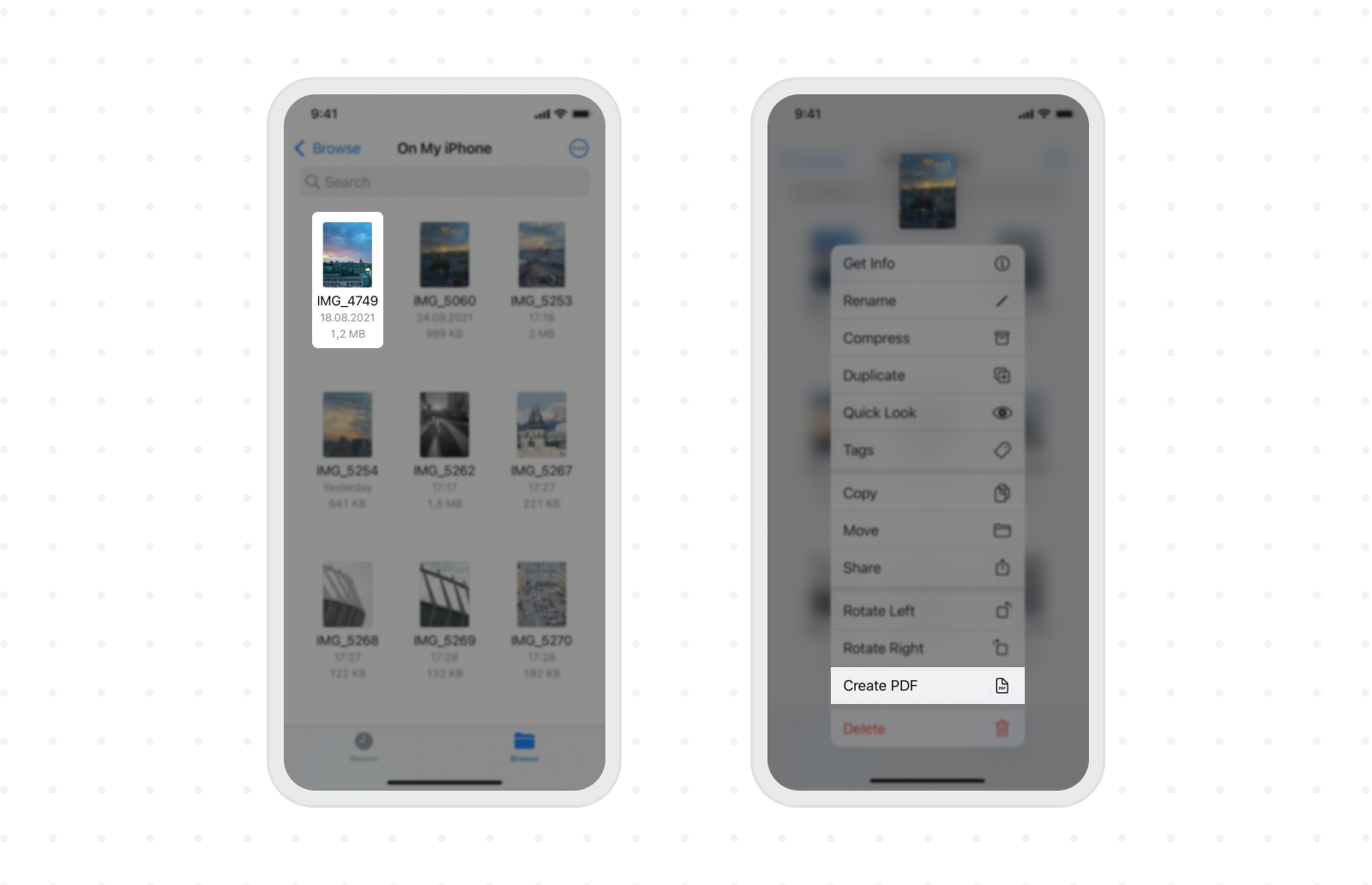
- Open Files and locate an image
- To convert an image into PDF: Press on the image for a while and Choose Create PDF.
- A PDF file with the same image named will be saved in your iPhone.
What if you want to format many more photos? This one will take no more time, just the to-take steps will be slightly different.:
- To convert several images into a PDF: tap More (those three dots) and tap on Select present at the top right corner of the file.
- Tap multiple photos and then choose More from the list.
- Now tap create PDF.
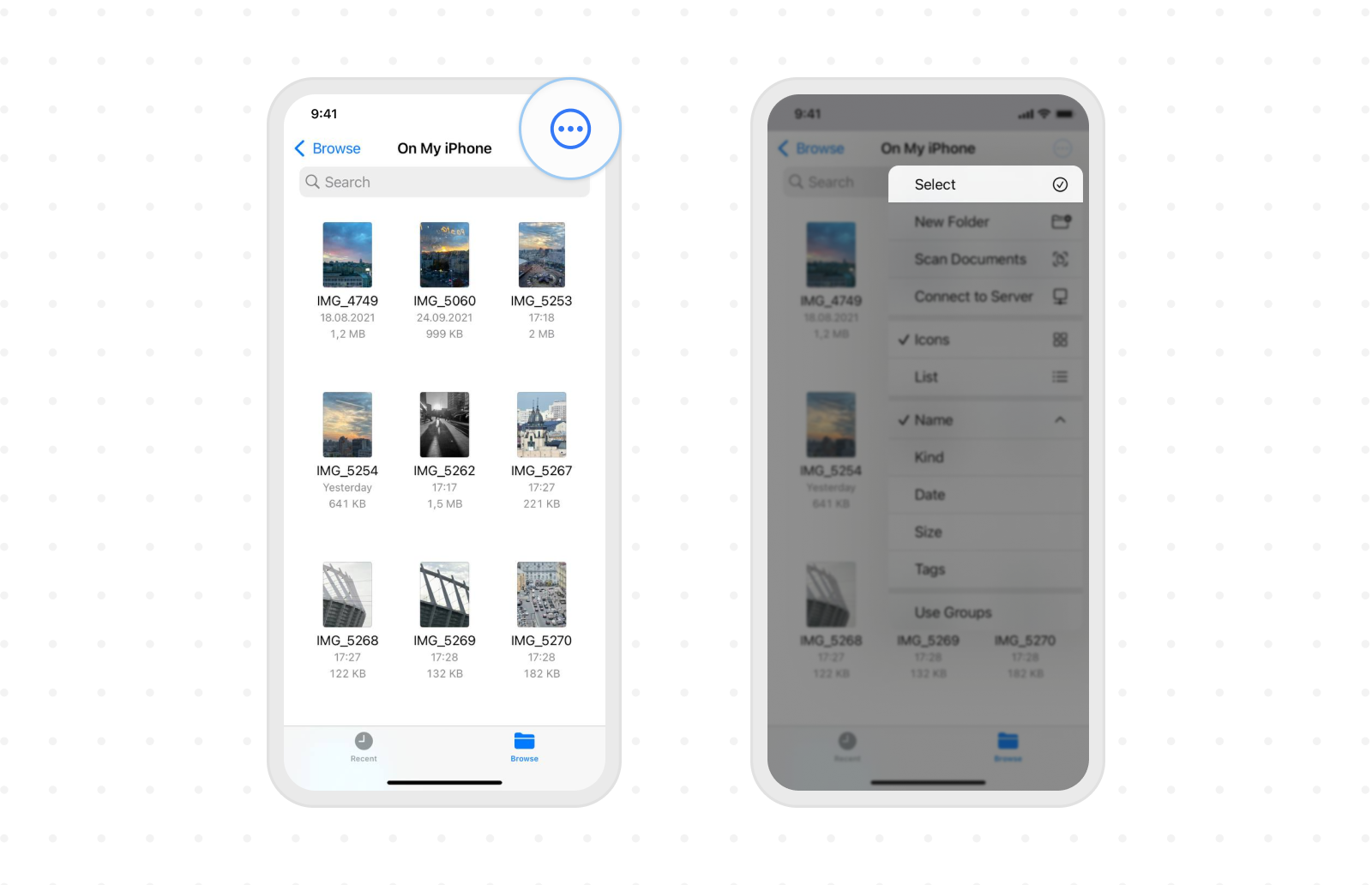
Files will create a PDF file from these images. Once created, you will have it saved in the same location as the original images.
Method #2: How to Convert an Image to PDF Using Printer Options
This is a very simple way, you may have already guessed that you just have to go to Photos on your iPhone to do it. The only thing is that you can make no edits to your file.
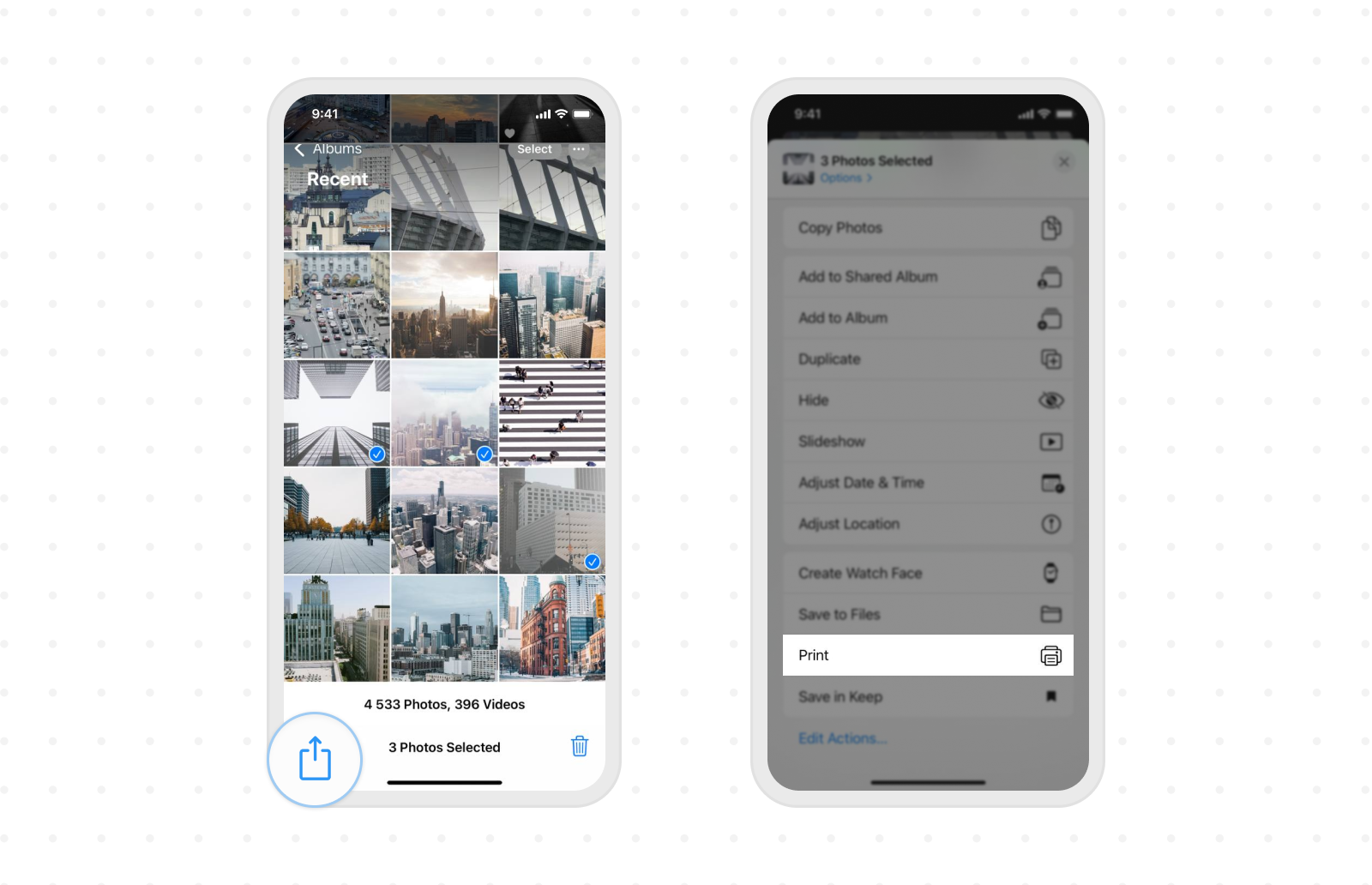
- Open Photos and tap Albums.
- Now tap Select and choose one or multiple images.
- Tap the Share option on your screen.
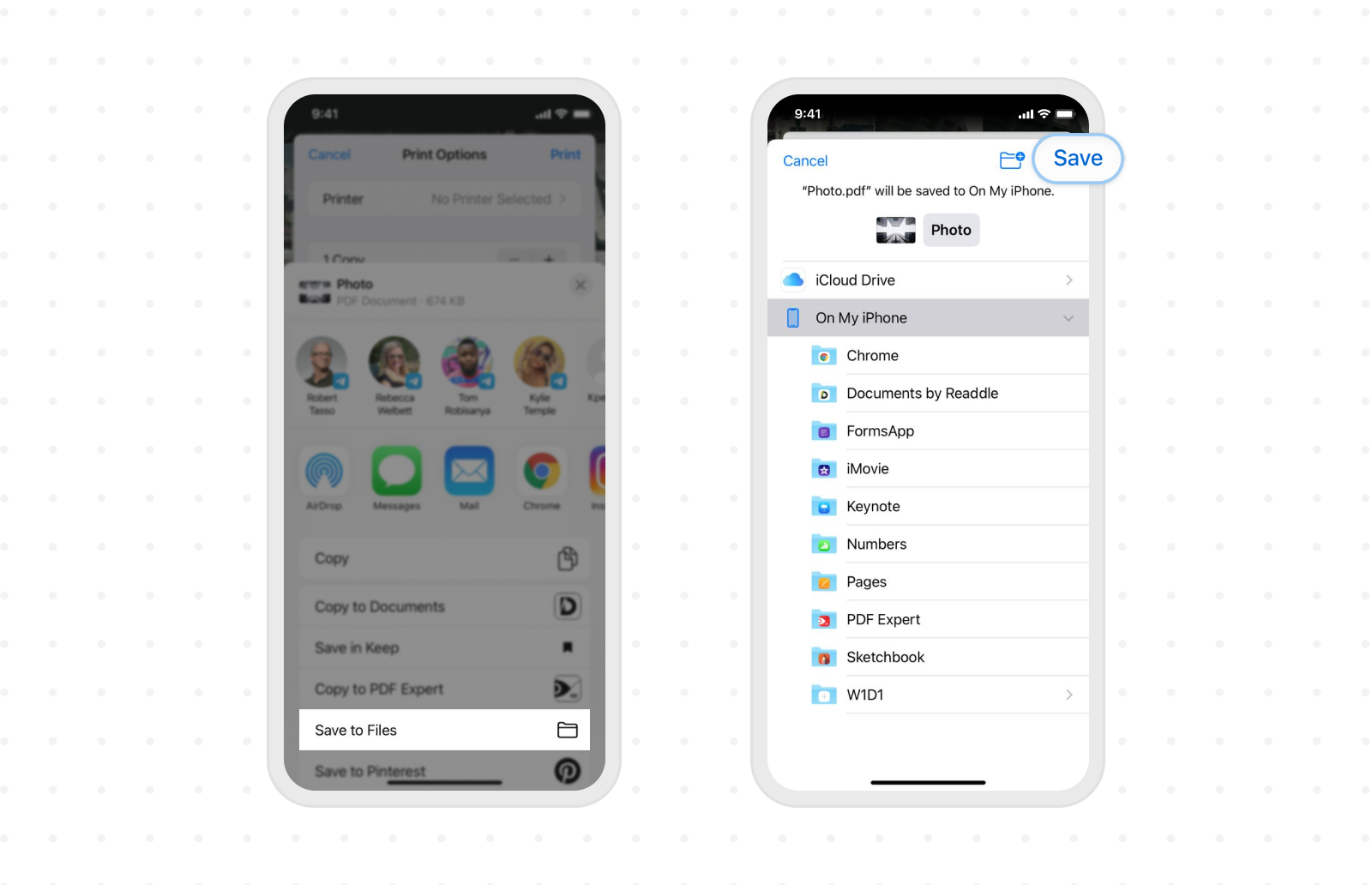
- Choose Print from the Share sheet.
- Select the Save to Files option to make a PDF file.
Method #3: How to Select Books on the Share Sheet to Save iPhone Photo as PDF File
Yes, it turns out you can do more than just read with the native Books app. Regardless of your iPhone model, you can easily use this app to create PDFs from your photos, images or screenshots.
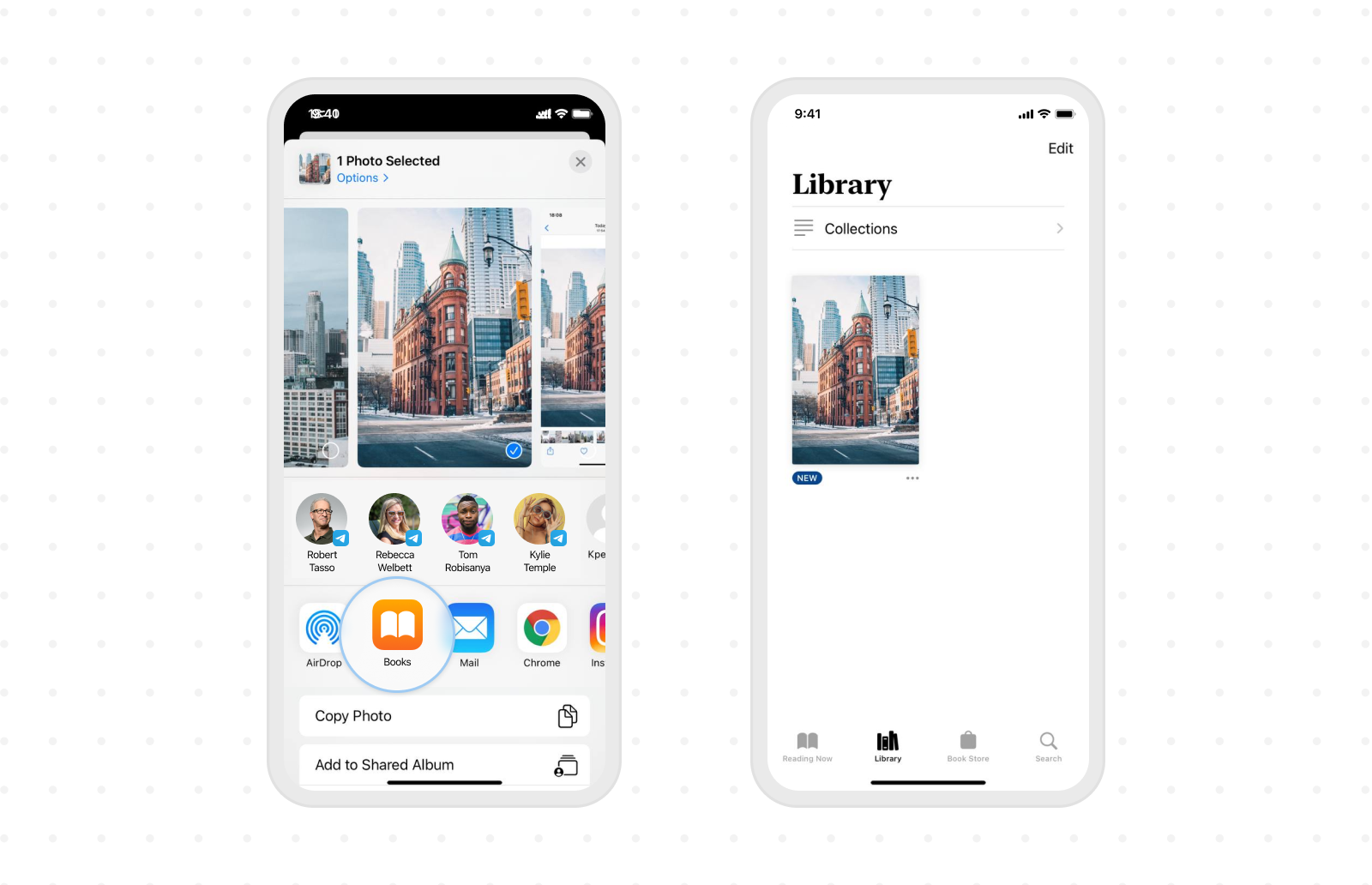
- Select Photos and tap Share.
- Tap Books. If needed, swipe horizontally on the row of the app icons.
- The Image will be converted into a PDF file and opened in Books. It will be saved there.
Method #4: How to Save a Picture as PDF on iPhone using the PDF Expert app
There are many shortcuts, and the most popular ones have been mentioned above. However, none of these ways are relatively straightforward. Rather, they are a clever trick, the result of ingenuity. Without exaggeration, what works better with PDF format than an app designed for it?
With PDF Expert not only you can convert any of your images into PDF file but also you can edit them, mark up, add notes or annotations, and much more you can do — It’s your personal iPhone app to edit PDF files.
- Launch the app.
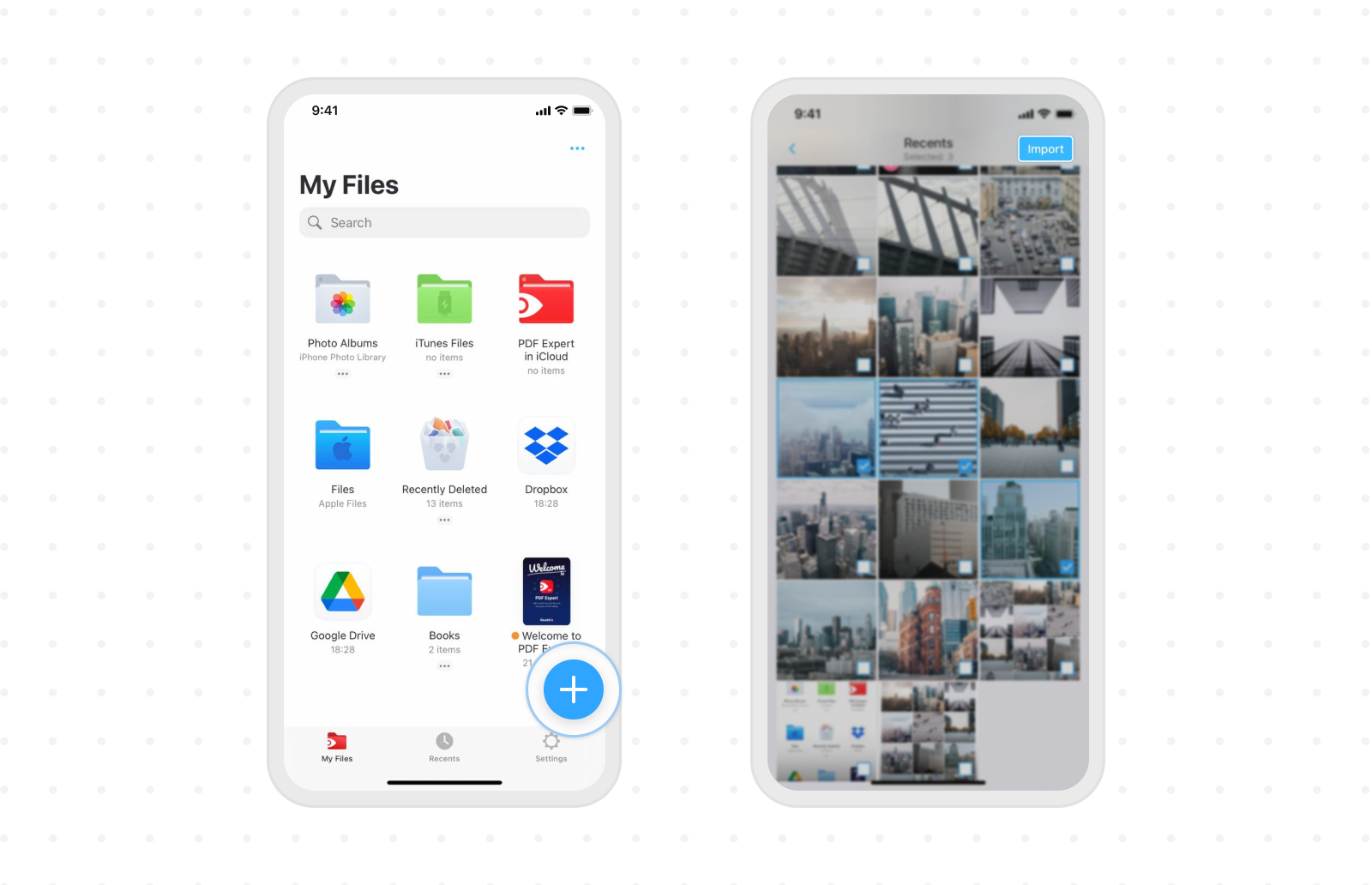
- Tap on Photo Albums or the Plus sign at the bottom. You can import an image you want to convert from Photos, Files, or cloud storage.
- Choose an image and tap the PDF sign above.
- And that’s it! Your new PDF file is already in your files.
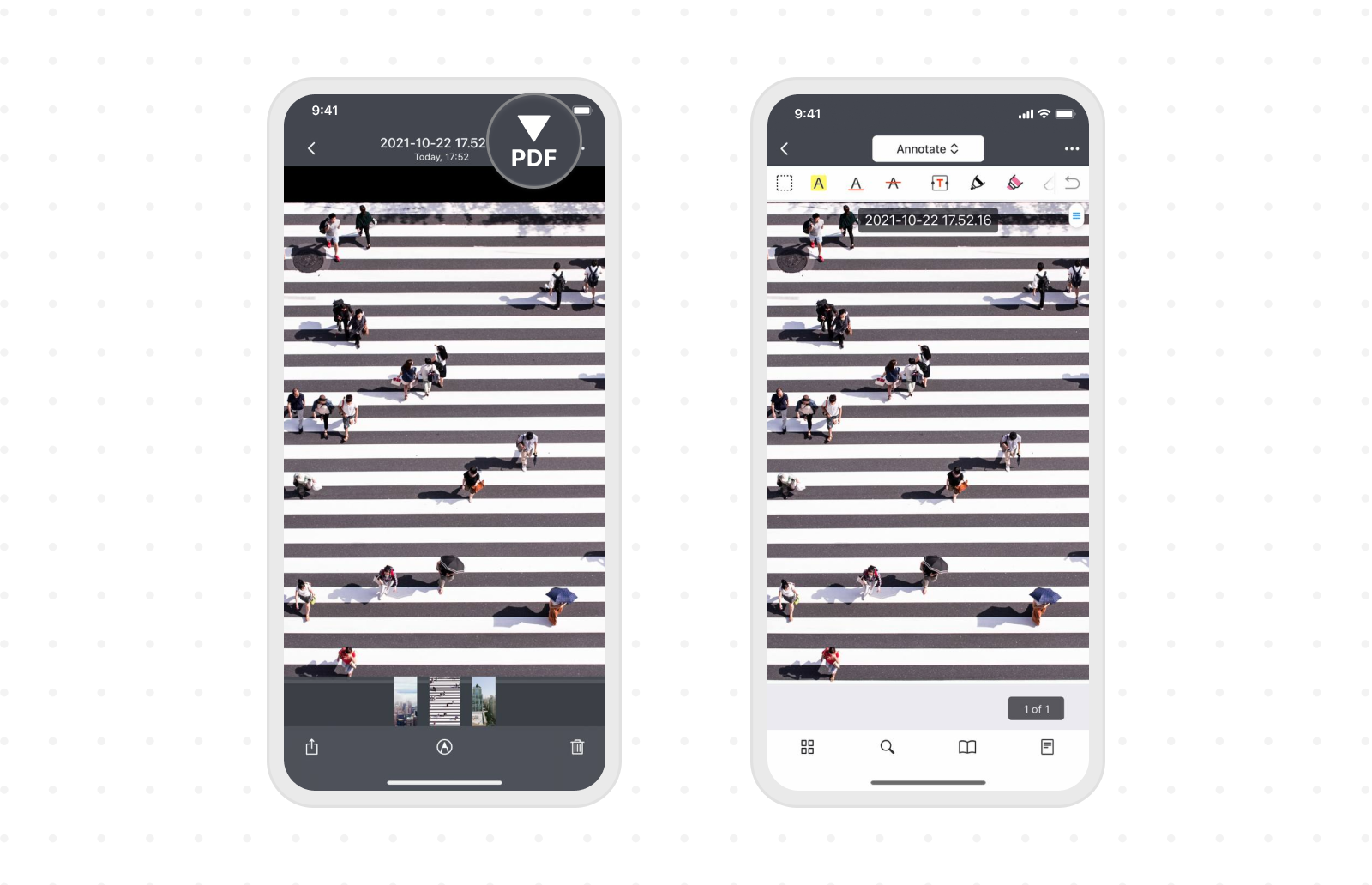
Or, there’s one more way.
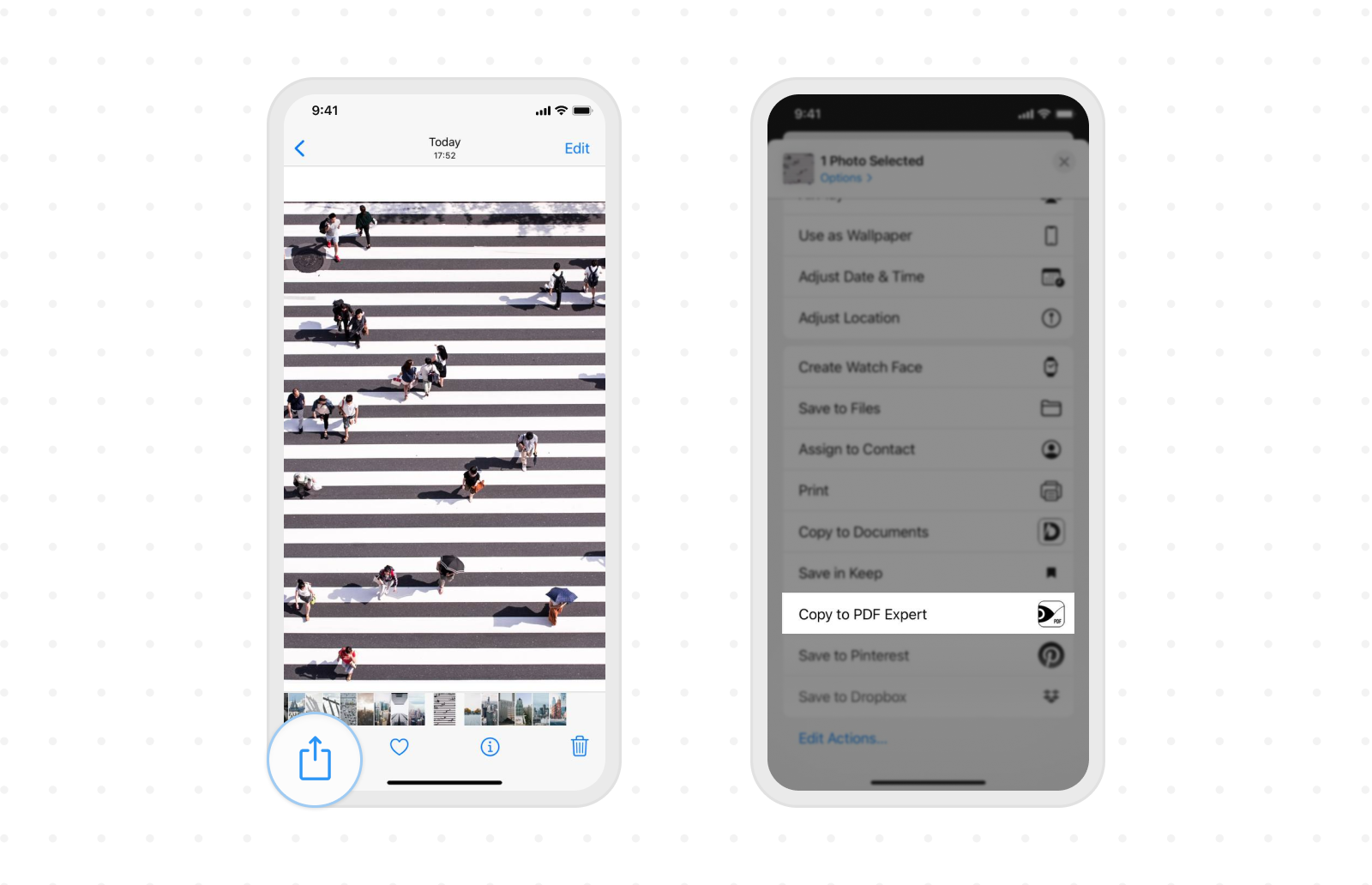
- Open Photos and Choose an image you wish to save as a PDF file.
- Tap Share and Choose Copy to PDF Expert from the list.
- Tap the PDF sign above.
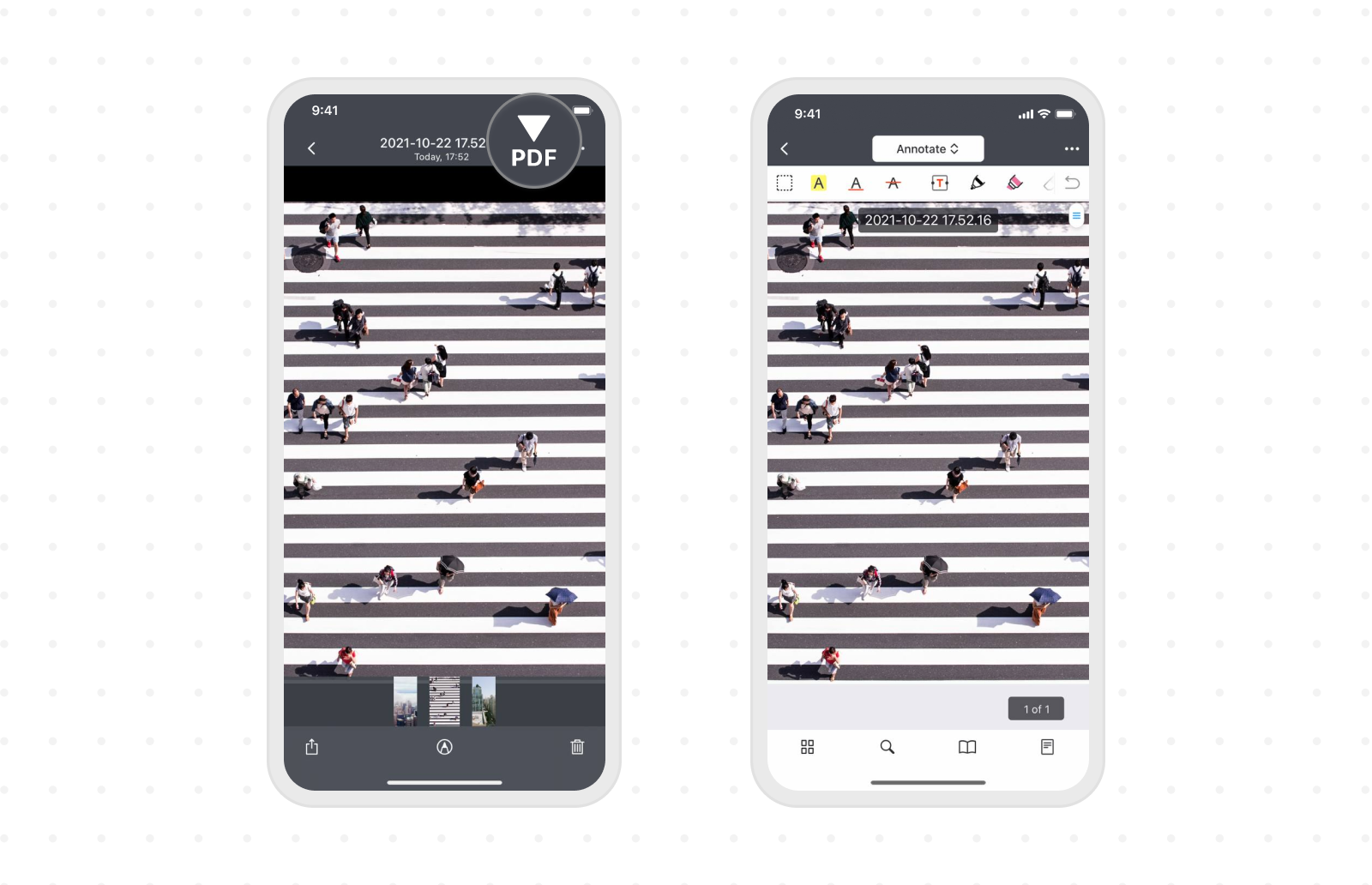
Note: If you want to save a copy, tap More => Save a copy. If you want to send the file right away, tap More => Share.
If You’re Still Wondering Why you Should Save Photos as PDFs…
Just in case you’re wondering, "Wait. Why do I need that?" — These are some of the main points that justify the need to create a PDF of your photos.
- PDF files are fairly easy to share in almost any medium. So, you can share a collection of screenshots of your document or your professional images via PDF.
- The reduced size is one of the most favorable factors that can be attributed to PDF files.
- In addition, you can create the fanciest album from your photos without sacrificing quality.
We hope this guide was helpful to you in converting photos to PDF on your iPhone. All four methods are equally viable and allow you to quickly create a PDF file. And after learning some of these tricks, you may be eager to try them out. Choose an option from the list above and save your photo to PDF within seconds.
Get PDF Expert for Free and start saving PDFs on your iPhone or iPad.

