Translate PDF on iPhone, iPad, and Mac

Instantly translate PDFs on your device. With no internet required, you get clean, readable results in seconds — making any document easy to understand.

4.7 • 211K ratings
Translate PDF on iPhone, iPad, and Mac

Work 100% offline

No internet? No problem.
Translate PDFs anytime, even without Wi-Fi or mobile data. Everything happens on your device using Apple’s Translation framework, so your documents never leave your Mac, iPhone, or iPad.

What makes PDF Expert the best way to translate PDFs?

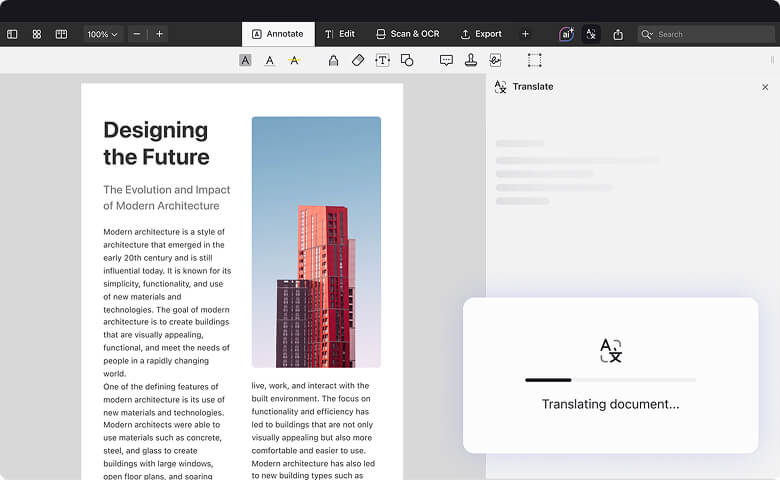
Translate full documents in seconds

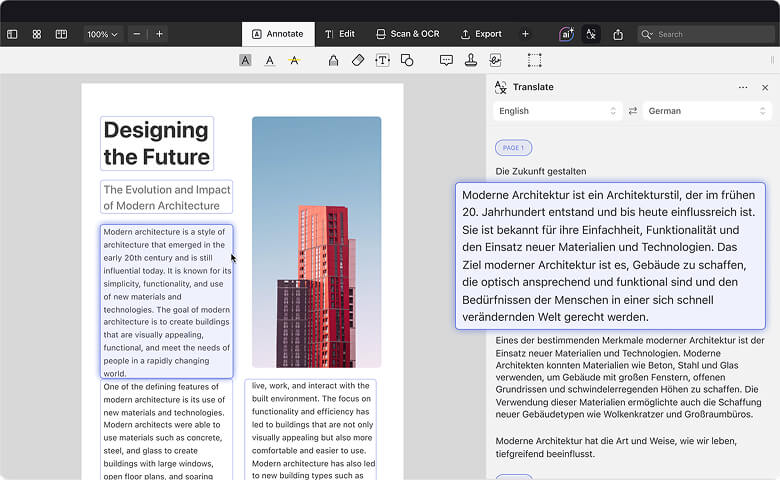
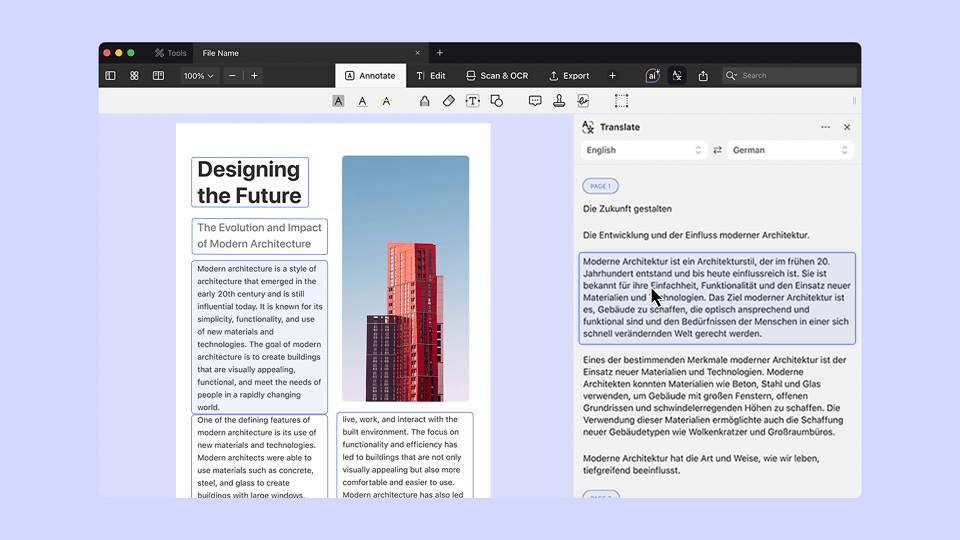
PDF Expert auto-detects the document's language and suggests the right target  language instantly.

Stay in sync

The translation window follows your document for easy comparing and editing.

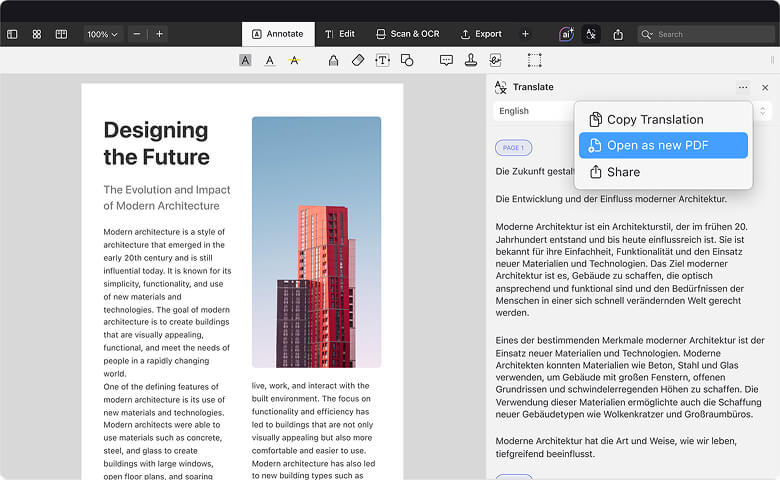
Export or keep editing

Save as a new PDF or keep working — add images, adjust formatting, edit text, annotate, or use PDF Copilot for quick insights.

Get started with
PDF Expert today

Secure and private

Because translation runs entirely on your device, nothing is ever uploaded to external servers. Your sensitive files stay securely inside PDF Expert at all times. Apple’s Translation framework handles everything locally, so your privacy is always protected.

How to translate PDFs with

PDF Expert

1

Open your document → Click in the toolbar.

2

We auto-detect the language and suggest a translation. Change this as needed.

3

The translation appears in the right panel.

4

You can then scroll together, copy text, or export as a new PDF.

1

Open your document → Click in the top-right corner → Translate PDF.

2

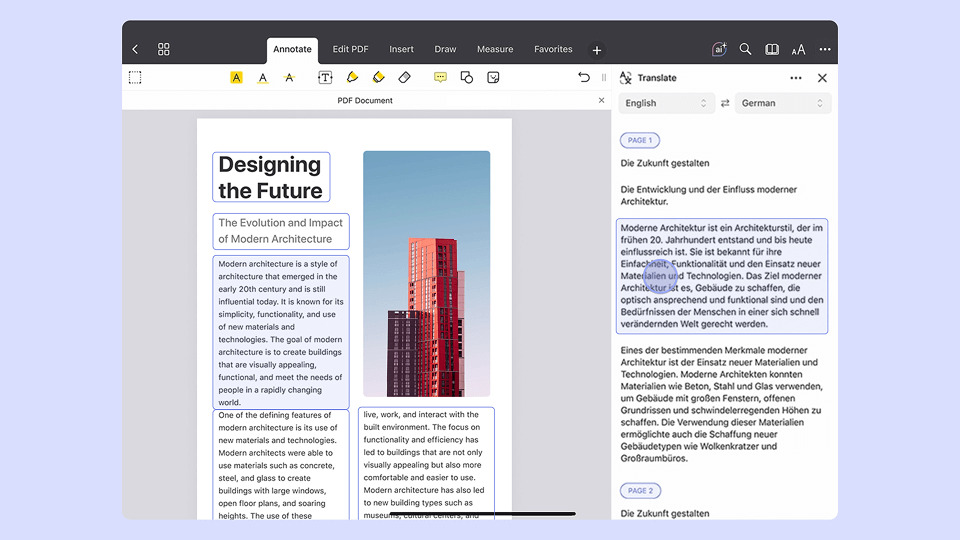
Language is detected automatically. Adjust the suggested translation as required.

3

View the translated text in the right panel.

4

Use the panel to scroll together, copy, or export as a new PDF.

Read more

Break language barriers

Available in English (US), English (UK), Spanish, German, French, Dutch, Portuguese, Italian, Arabic*, Hindi, Indonesian, Thai, Vietnamese, Turkish, Mandarin Chinese*, Japanese*, Korean*, Polish, Ukrainian, and Russian. Supported languages may evolve with future releases.

Get started with
PDF Expert today

Frequently Asked Questions

Who can access this feature?

Premium subscribers on macOS 15+ or iOS 18+. New users can try it during the 7-day free trial.

How do I ensure the best translation?

Since translations are processed locally on your device, the language data should be stored locally. If it isn't, a simple system prompt will appear. Just follow those instructions to download the language, and you're good to go!

Can I translate large PDF files?

You can translate large PDF files, there's no set limit. Hardware limitations might cause issues with bigger documents on older devices.

Can I translate scanned PDFs or images within PDFs?

You can translate images within PDFs using the Mac version of PDF Expert, but only after running OCR to recognize the text. This is not possible on iPhone or iPad.

Will the original layout and formatting of my PDF be preserved after translation?

No, the original layout and formatting will not be preserved.

Can I translate a PDF into multiple languages at once?

You can translate a document into multiple languages, but only one at a time, not in a parallel process.

Why can’t I find the Translate icon on iPhone/iPad?

On mobile, translation is available under … → Translate PDF, not in the main toolbar.

*PDF Expert supports all languages currently available through Apple’s Translation framework. Some language-specific constraints apply — for example, translating from Arabic is supported, while translating into Arabic is not. For Mandarin Chinese, Japanese, and Korean, only horizontal text orientation is supported.

Apple updates language availability over time, so supported languages may evolve with future OS releases.

Get started with
PDF Expert today

We make it easy to edit, annotate, sign and organize PDFs.

Don't miss out!

Enjoy premium features FREE for 7 days.

Nothing to set up. Just download.

Download now

Discover PDF Copilot on Web

PDF Expert isn’t available on Windows — but you can still work smarter with PDFs directly in your browser.

Try PDF Copilot on Web