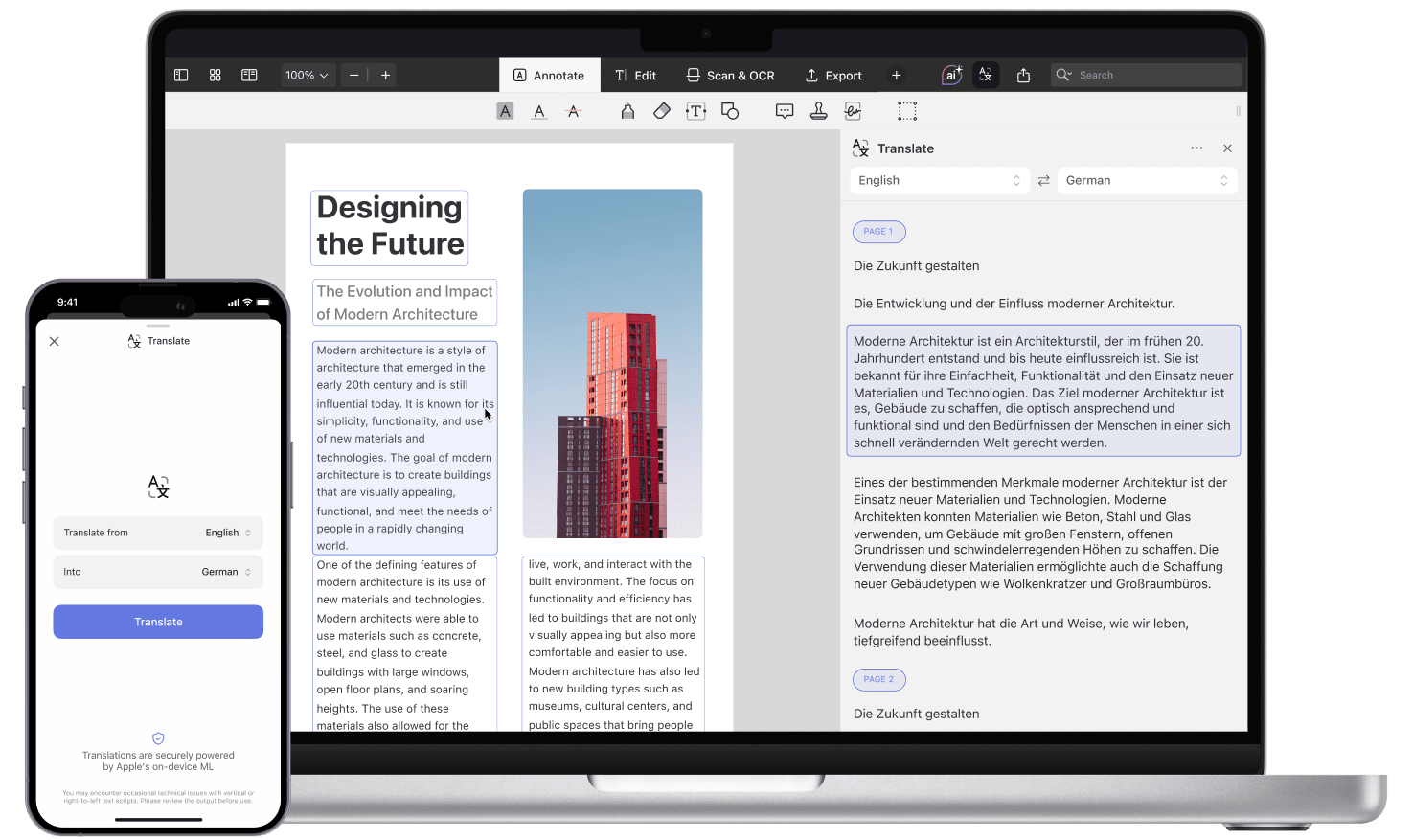
Working with PDFs in different languages is now effortless with PDF Expert. The Translation tool is designed to instantly translate complete PDFs into your desired language, even when you're offline. This is invaluable whether you're a student engaging with global research, a professional analyzing documents from other countries, or just reading content written in a non-native language. The Translation Tool is included with the PDF Expert Premium subscription. New users can explore it as part of the 7-day free trial.
Availability:
- iPhone and iPad: Version 7.25.0 or later and iOS 18 or higher are required.
- Mac: Version 3.11.0 or later and macOS 15 or higher are required.
How to translate a PDF on iPhone or iPad
- Open PDF Expert and select the PDF you want to translate.
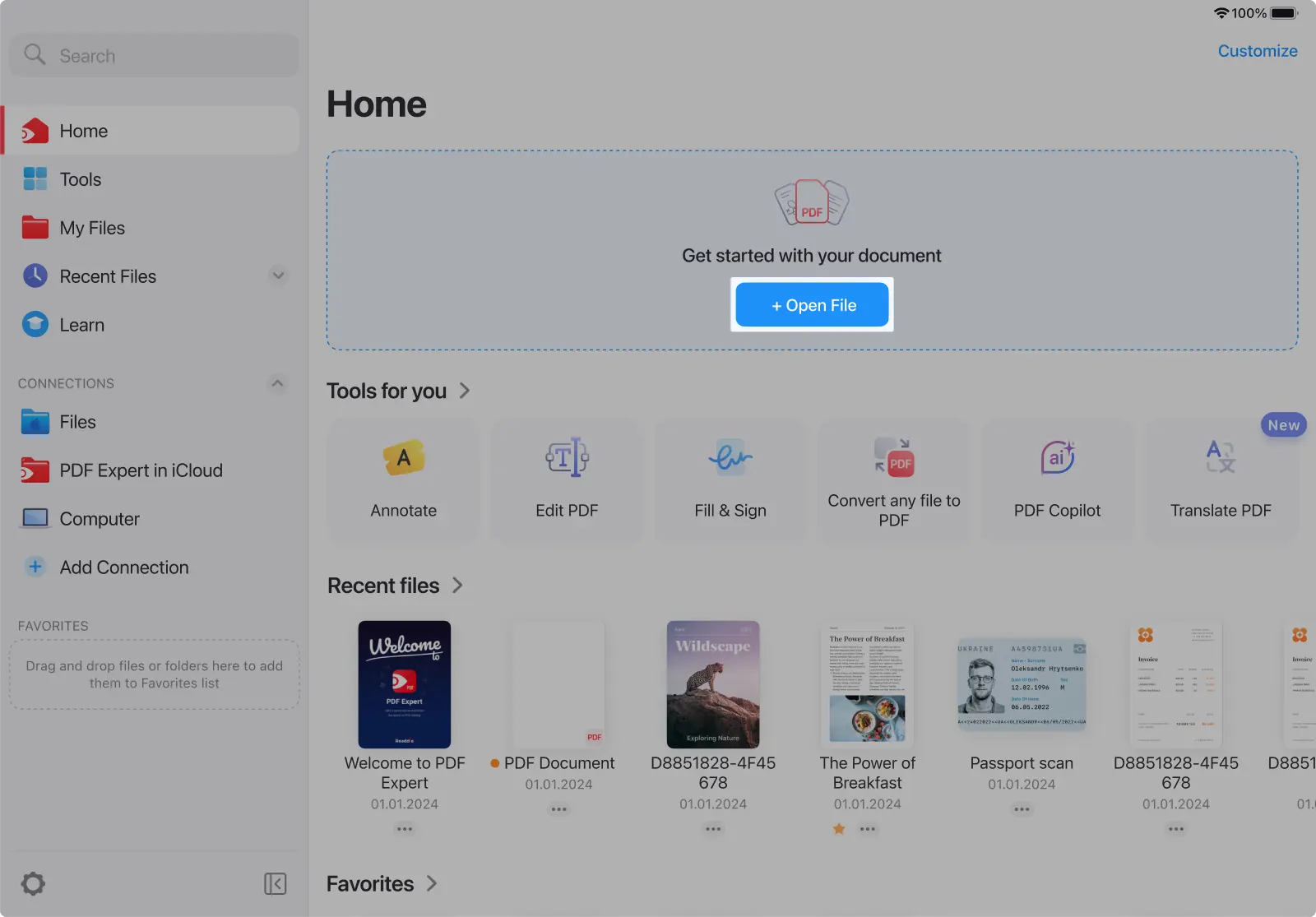
- Click the three dots in the top-right corner of the toolbar.
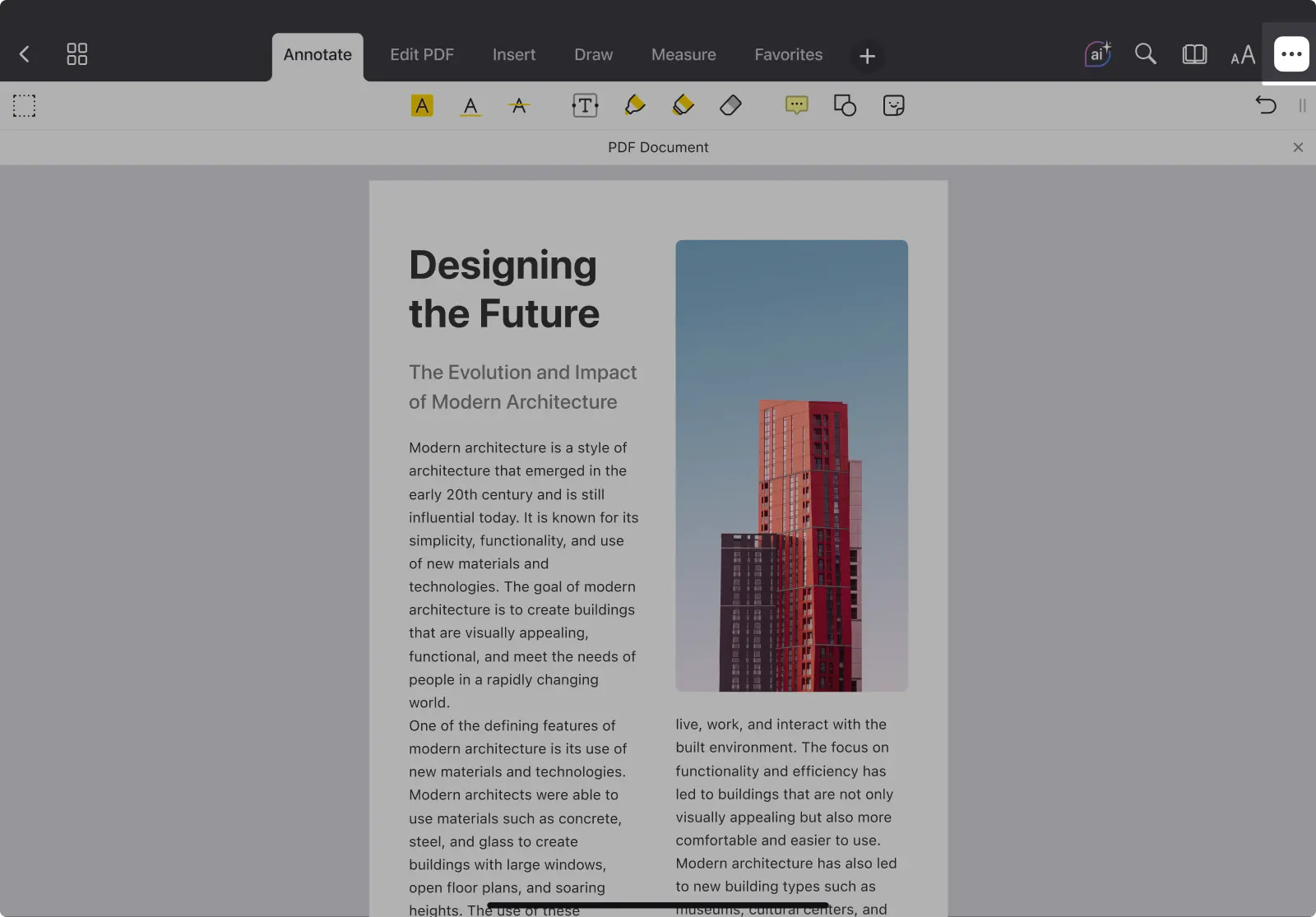
- Select Translate PDF from the dropdown menu.
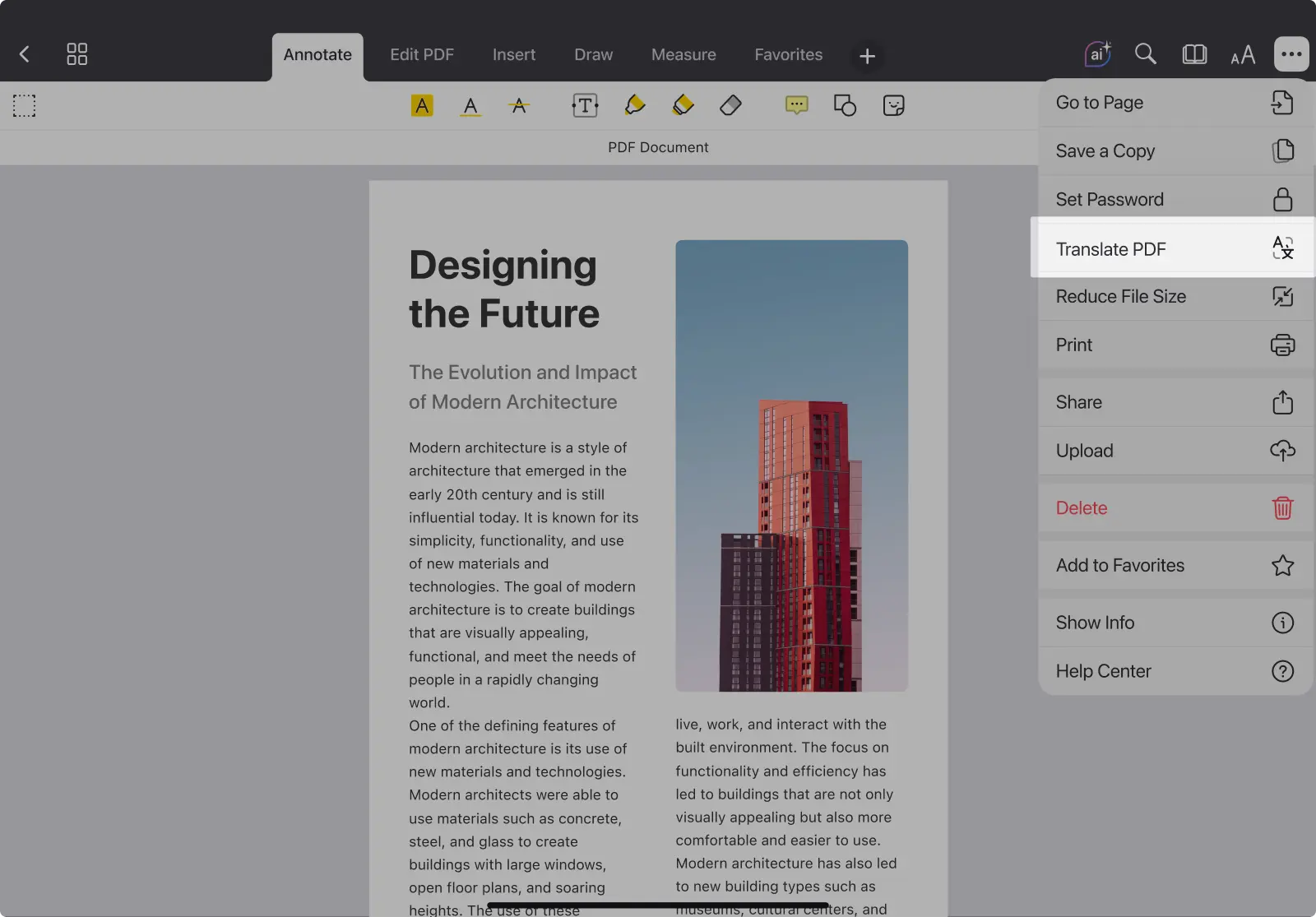
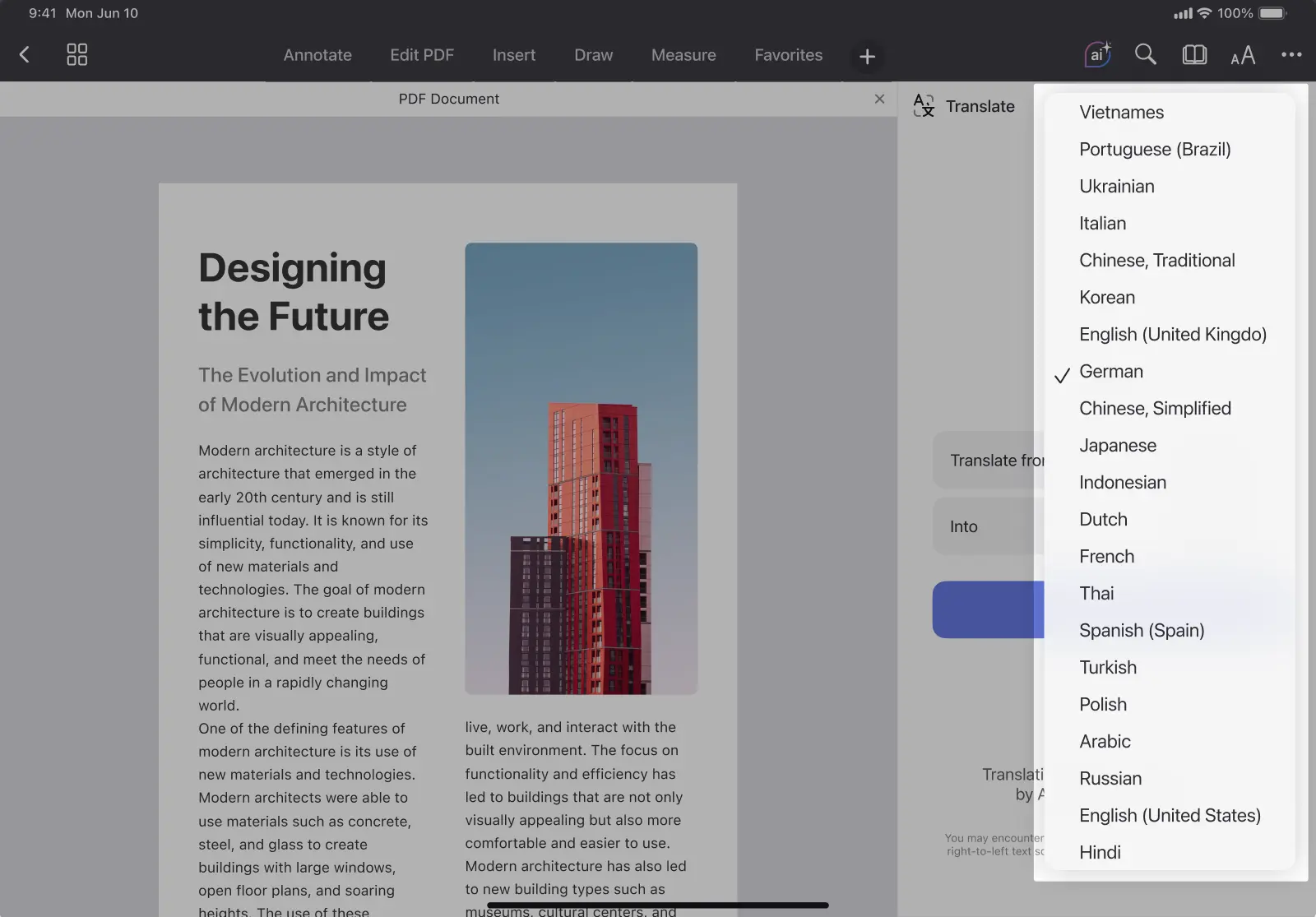
- Select the language you’d like to translate into.
- The app automatically detects the original language.
- By default, it suggests your system language as the target.
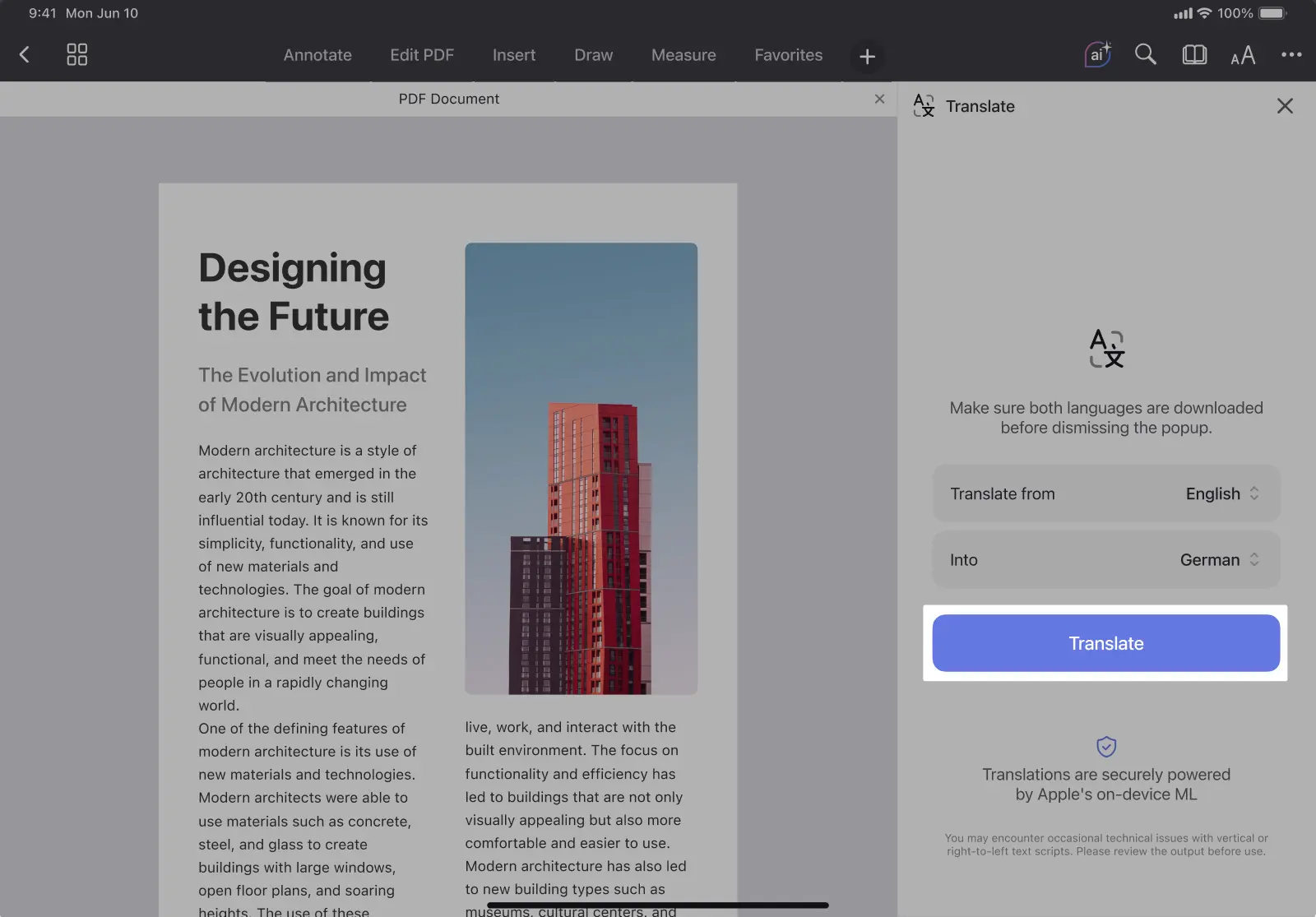
- Tap Translate.
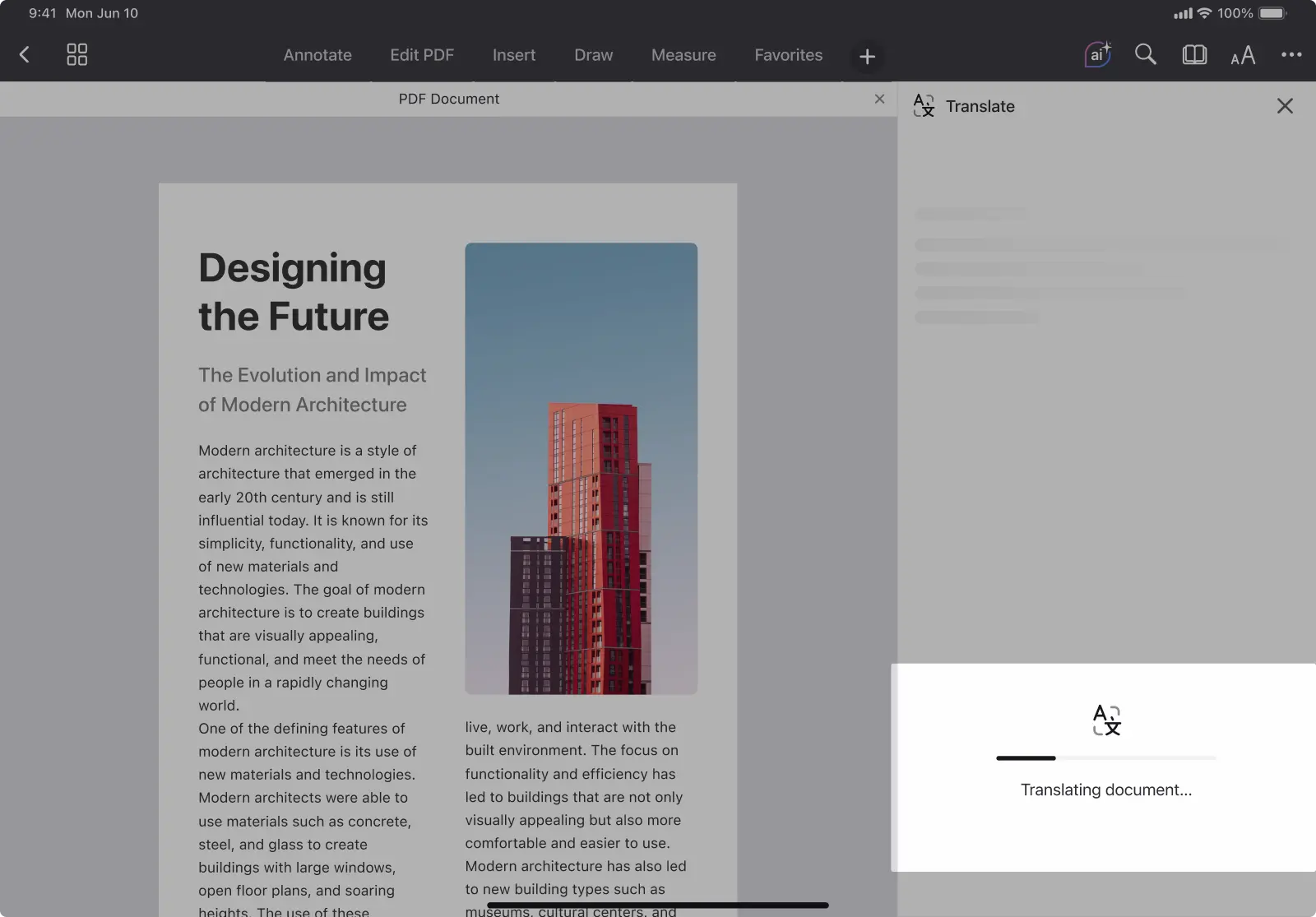
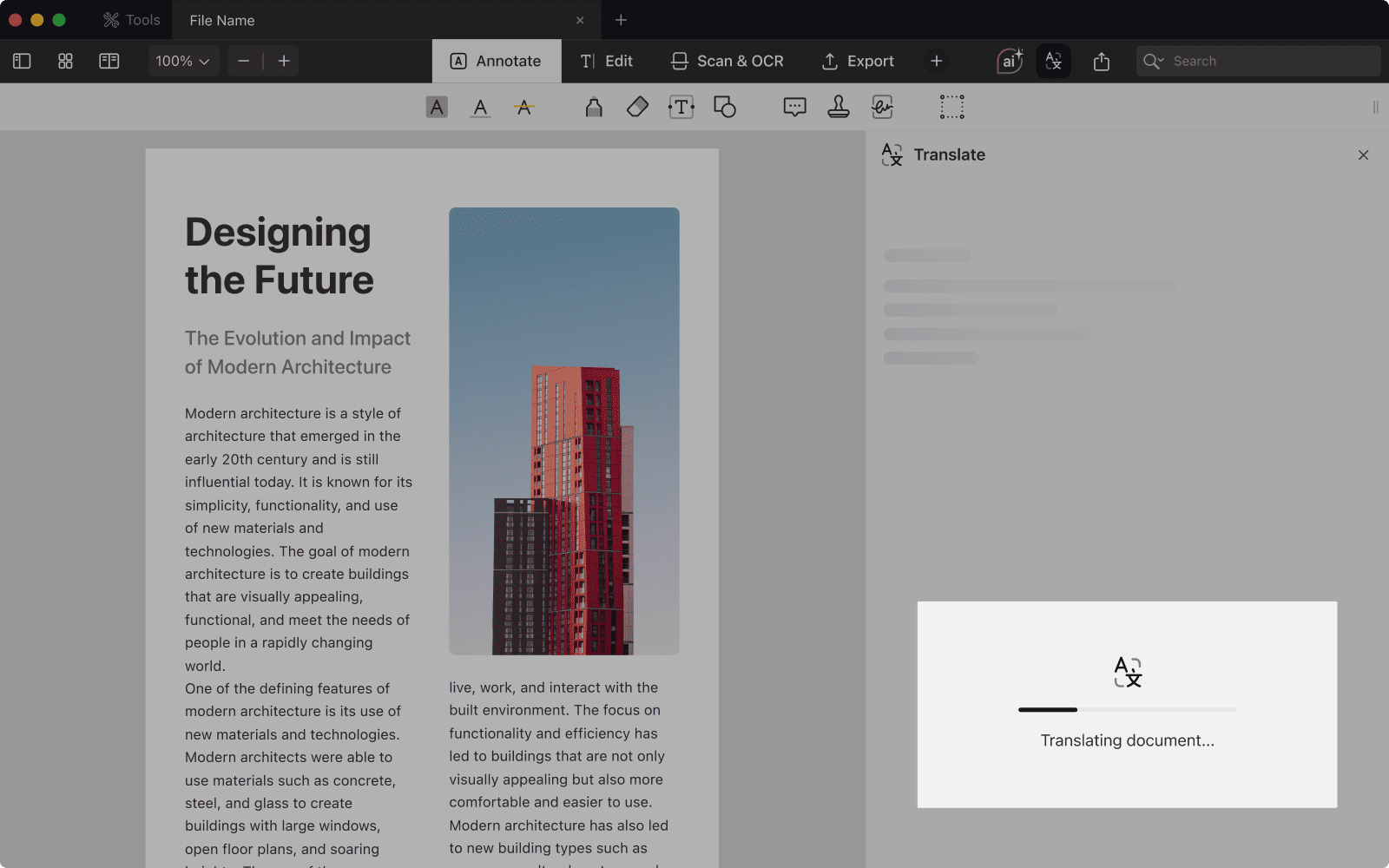
- A progress window will appear showing “Translating document…”.
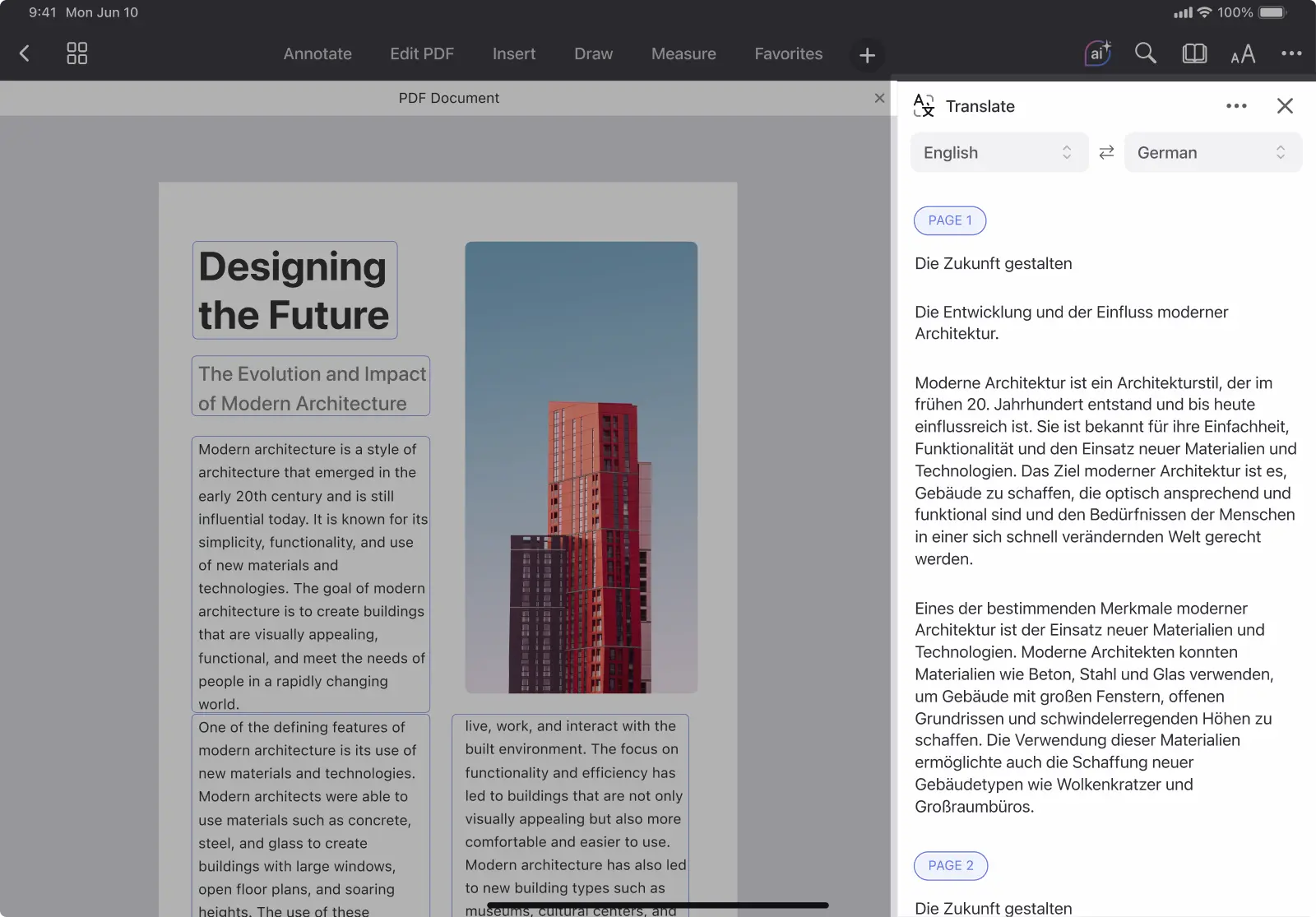
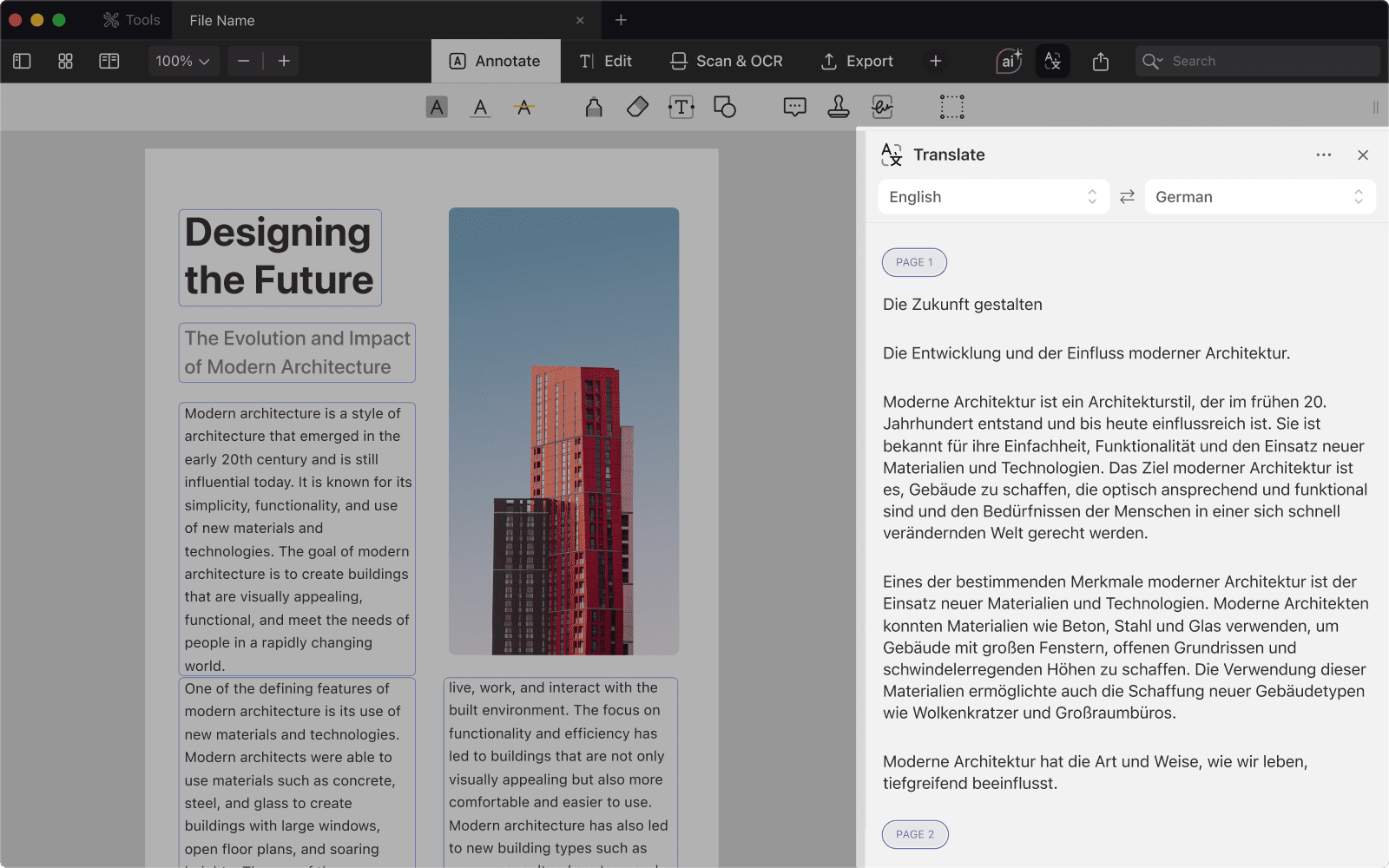
- Once the translation is ready, it appears in a side panel next to the original PDF.
How to translate a PDF on Mac
- Open PDF Expert and select the PDF you want to translate.
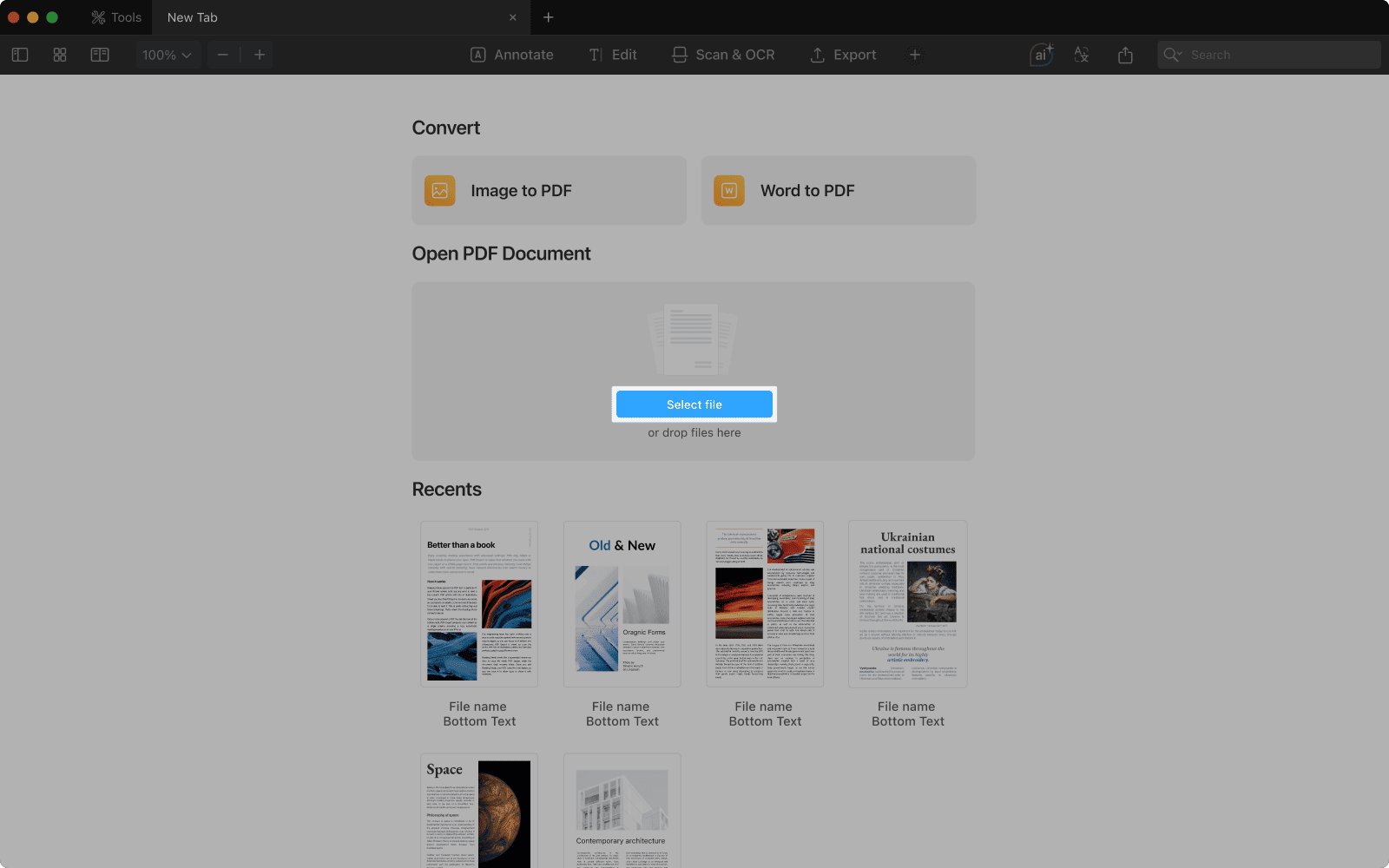
- Tap the icon in the top-right corner of the toolbar.
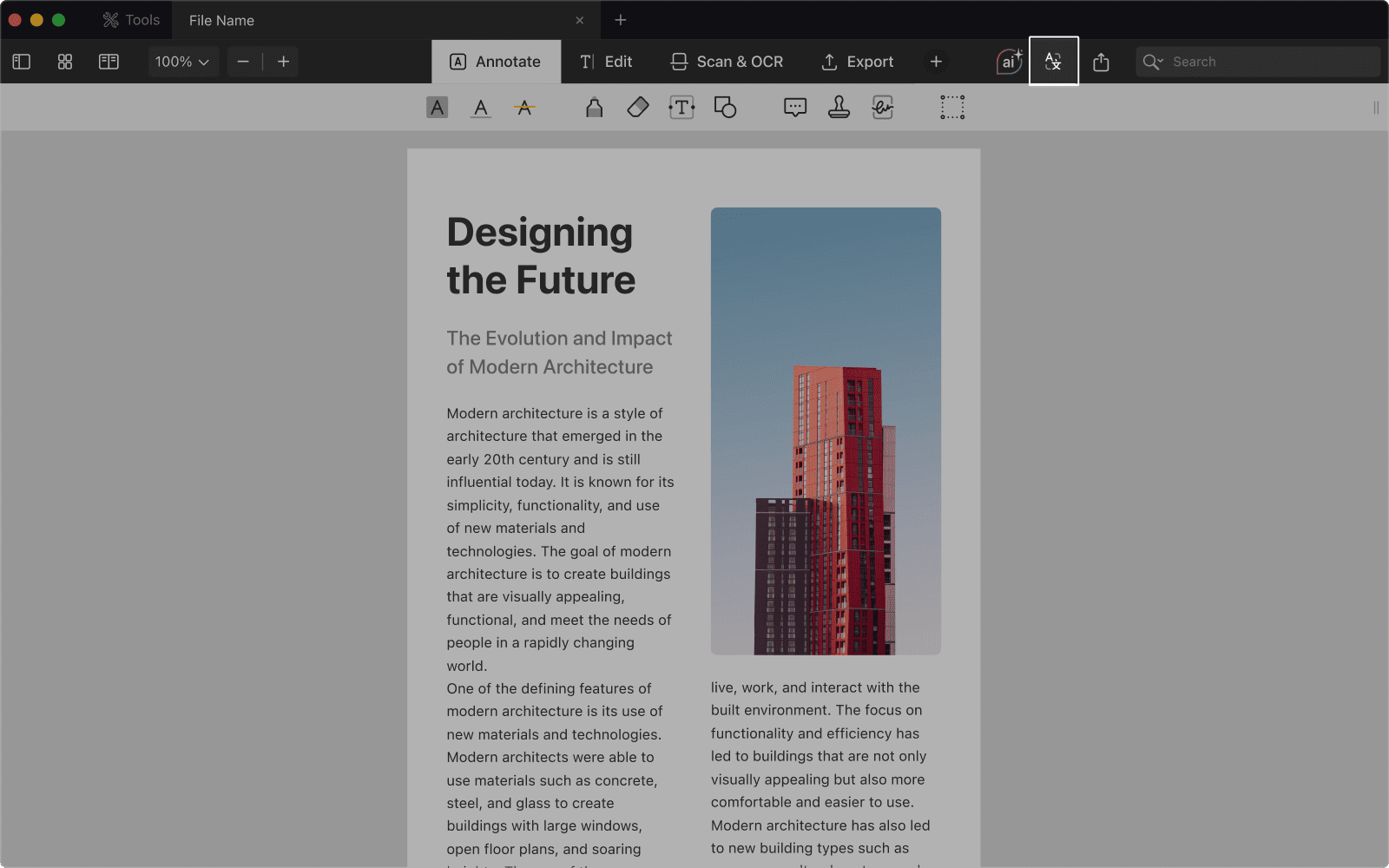
- Select the language you want to translate into.
- By default, it suggests your device’s system language as the target language.
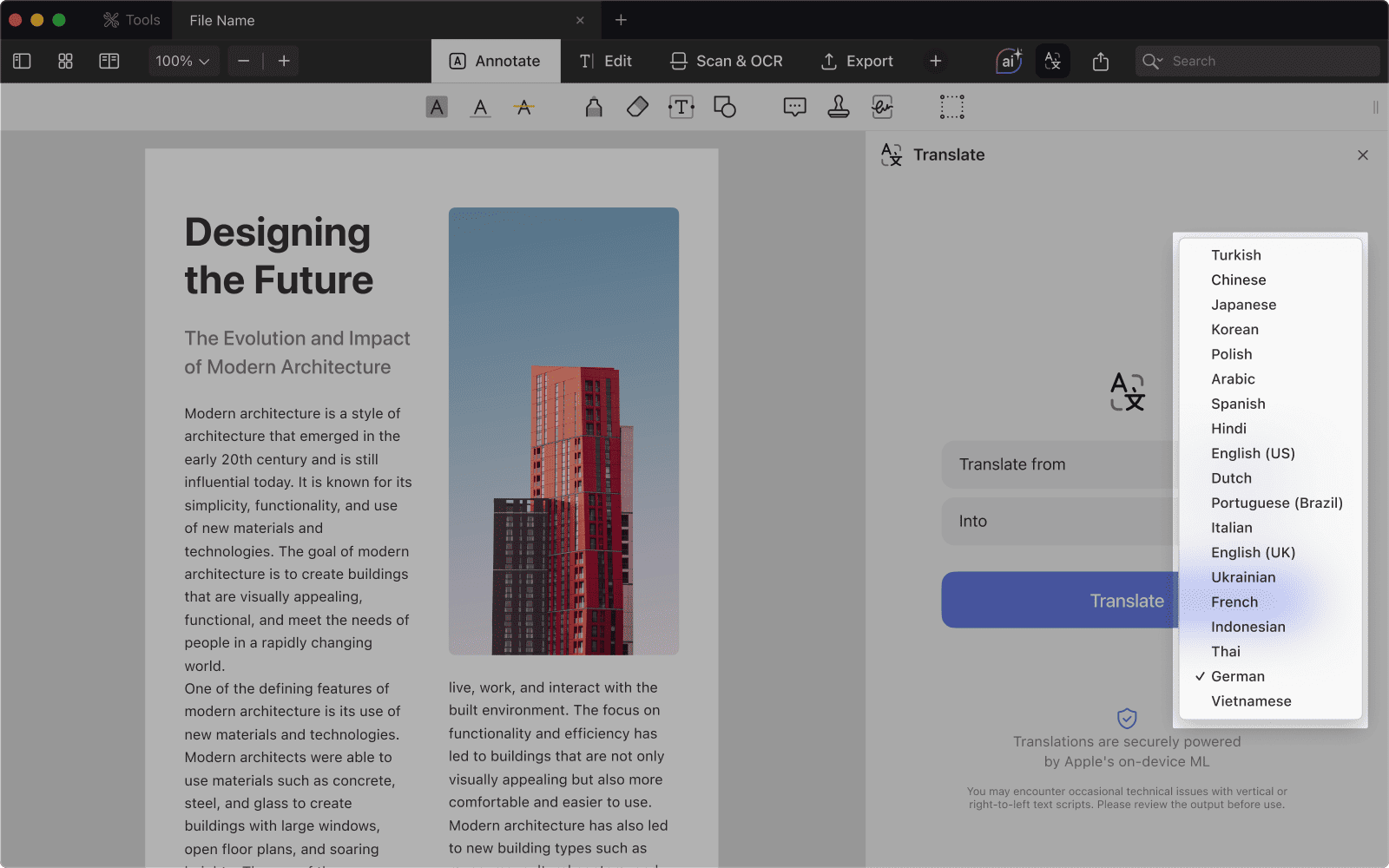
- Tap Translate.
- A progress window will appear: “Translating document…”
- Once complete, your translated text appears in a side-by-side panel. The translation is shown as clean text only, without original formatting or images.
What you can do with your translated PDF
With the Translation tool, you can:
- Open the translation as a new PDF*
- Re-translate the document into another language
- Copy or share the entire translation
- Select specific parts of text to Copy or Share
- Navigate synchronically: as you scroll through the translation, the original PDF automatically follows to the corresponding section. You can also jump to any page instantly by selecting its page number in the translation panel
- Keep translations in sync — even if you edit the original PDF
* The original formatting, images, and layout of your PDF are not preserved in the translated version.
Supported languages
Explore the diverse range of languages supported by Apple’s Translation framework, with the possibility for more to be added in future updates. Currently, you can access the following languages:
English (US and UK), Spanish, German, French, Dutch, Portuguese, Italian, Hindi, Indonesian, Thai, Mandarin Chinese*, Vietnamese, Japanese*, Korean*, Arabic*, Turkish, Ukrainian, Polish, and Russian.
*Limitations apply: translation from Arabic is available, but translation into Arabic is not yet supported. For Mandarin Chinese, Japanese, and Korean, only horizontal text orientation is supported.
If you need a language that isn’t already installed on your device, don't worry – your system will guide you conveniently through the download process.
Offline mode
The Translation tool is fully functional even without an internet connection. Whether you’re traveling, having an unstable internet connection, or simply offline, you can continue translating your PDF documents without interruption.
On-device privacy
It relies on Apple’s secure, on-device translation models, which means all translations are processed locally on your device. This ensures that your sensitive documents never leave your control — no cloud uploads, no external servers, and no risk of data exposure.
Where to find the Translation tool
You can access the tool in several ways:
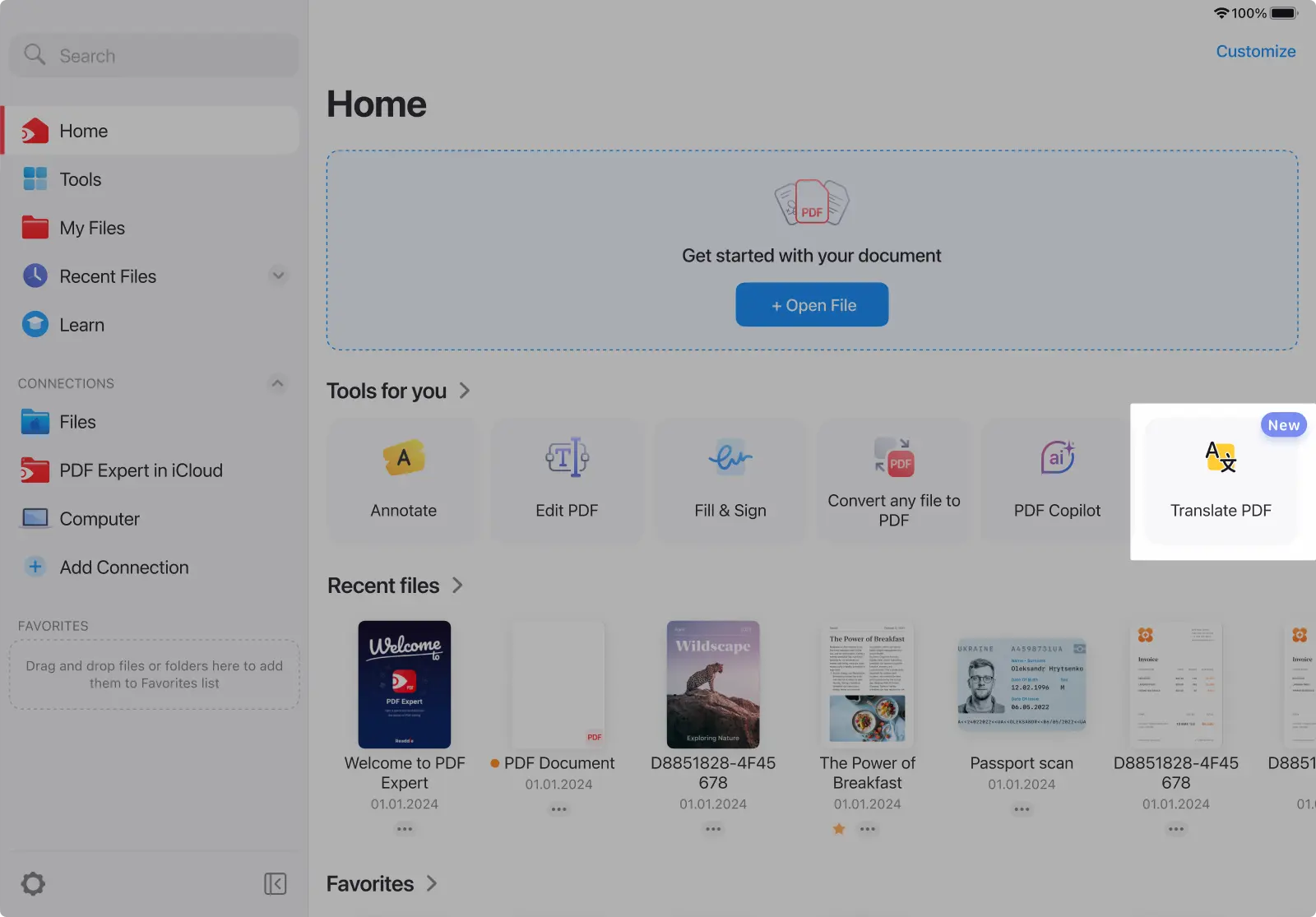
- From the Home Tab or the Tools tab
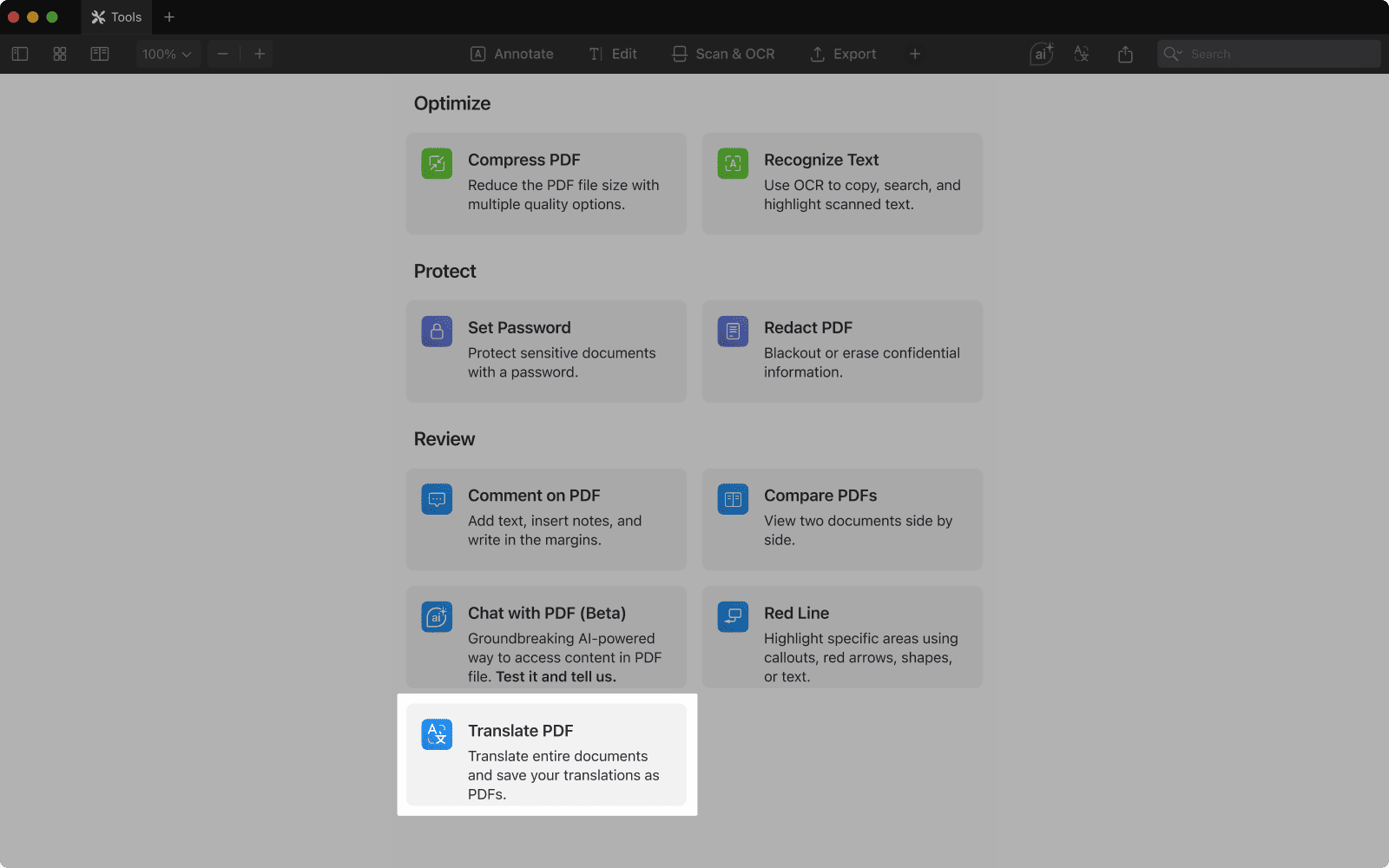
- On Mac, you can access the Translation tool from the dedicated icon in the top-right section of the toolbar. Additionally, you can access this option from the main menu by selecting File > Translate PDF.
- On iOS, you can access the feature from the dialog menu (three dots in the top right corner > Translate PDF)
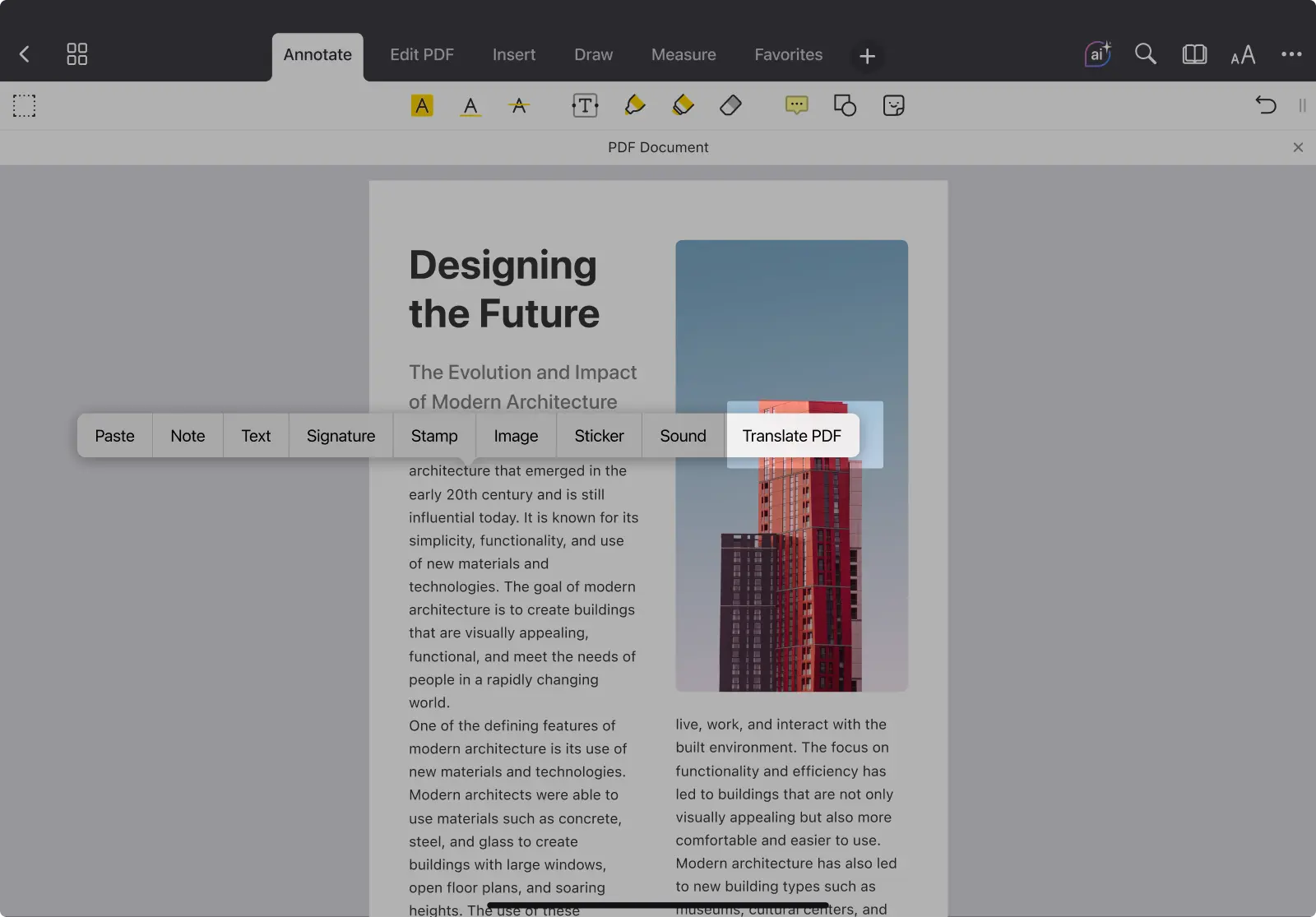
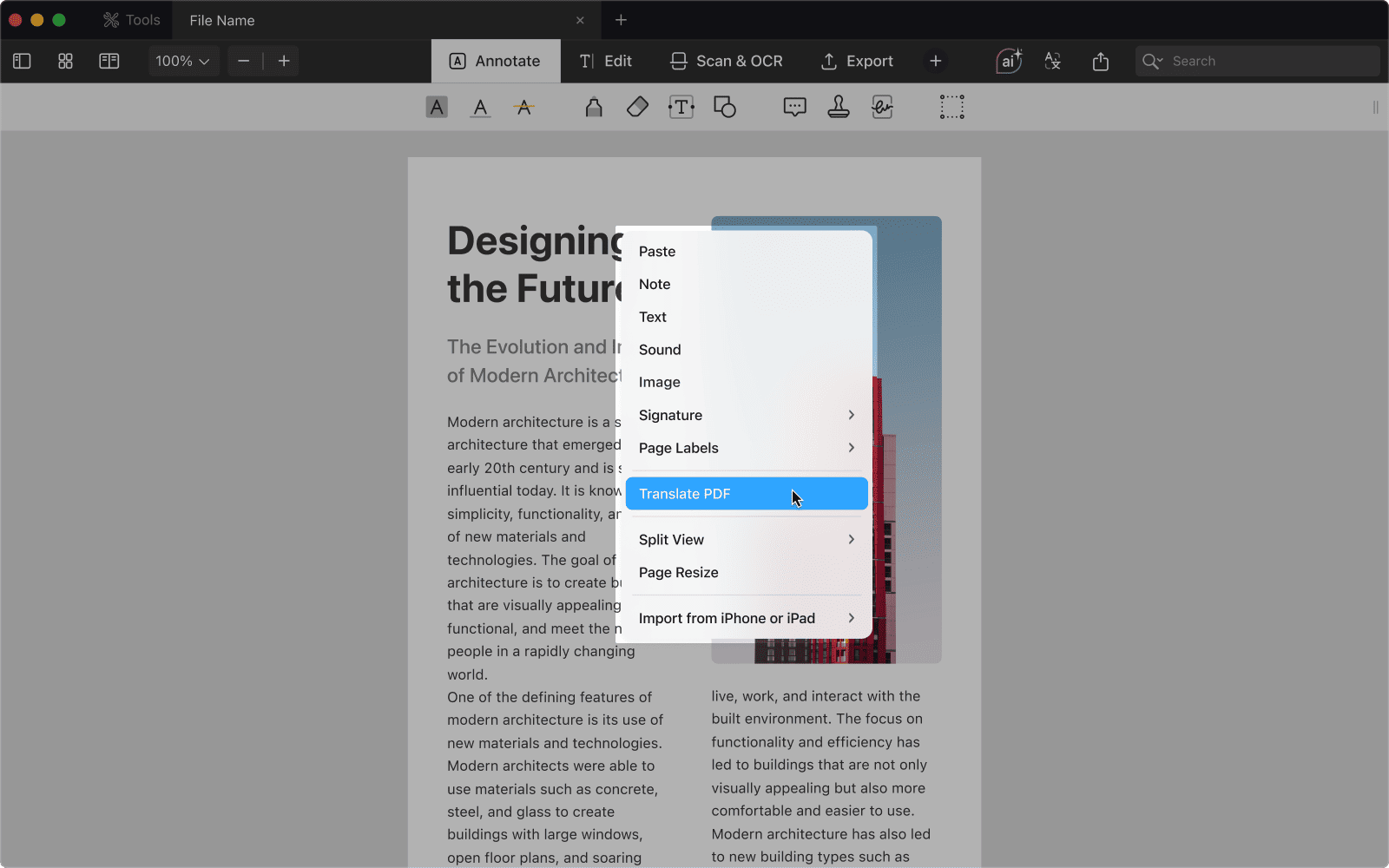
- From the context menu: Long tap on a free area (for iOS) or right click (for Mac) > Translate PDF
Break down language barriers and make your PDFs globally accessible. Whether you’re studying, working, or exploring content in another language, PDF Expert helps you translate seamlessly and securely — all in one place.
Read more about the feature
Start your 7-day free trial of PDF Expert today and discover the Translation tool. Easily make your PDFs readable in any language.
