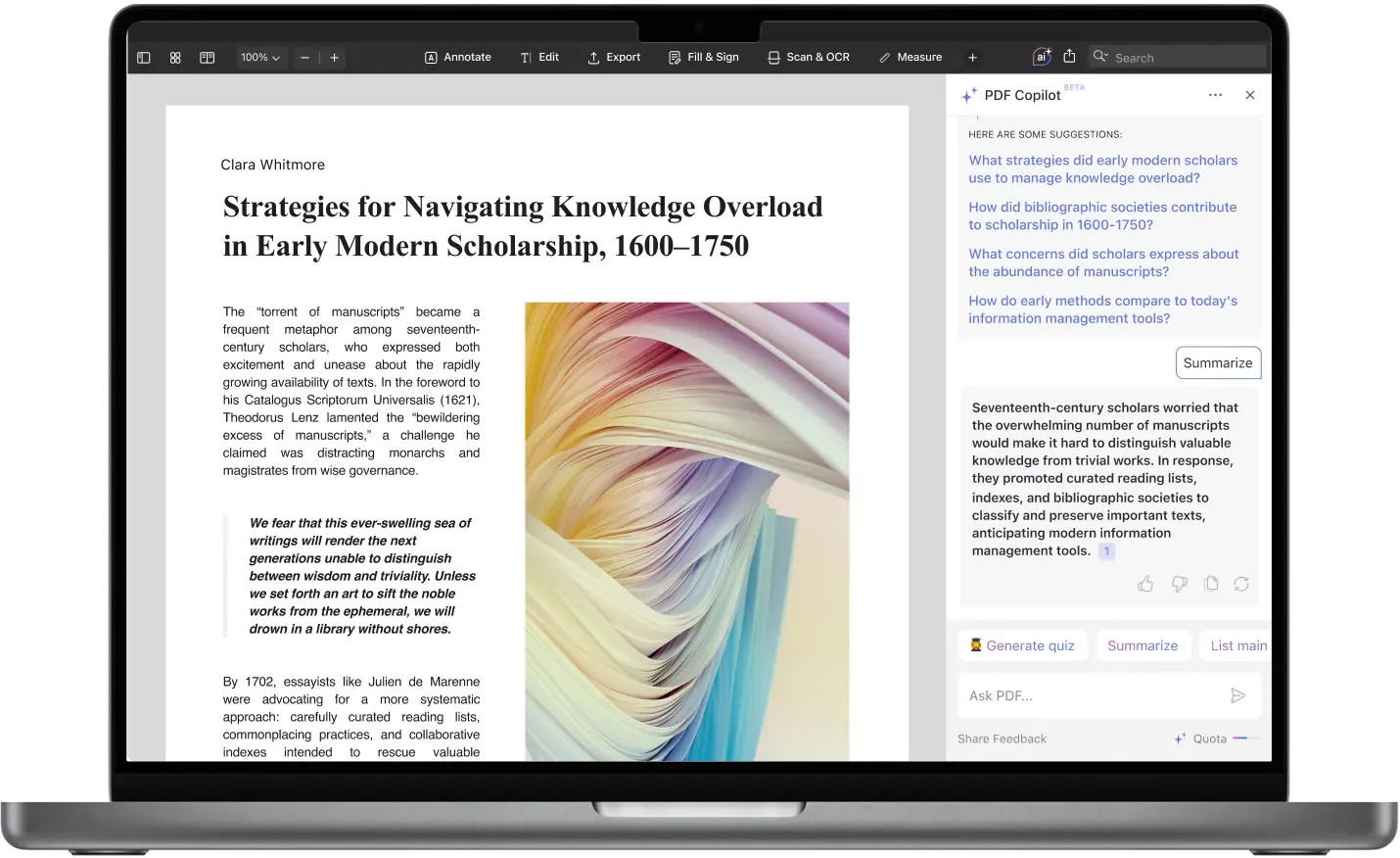
Working with long or complex PDFs is part of modern life — contracts, research papers, reports, manuals, policy docs, and more. The problem isn’t usually accessing them. It’s making sense of them quickly, extracting what matters, and getting from “this is dense” to “okay, I get it.”
PDF Copilot, the built-in AI assistant in PDF Expert, helps you do exactly that on both Mac and iOS. It can summarize content, point you to the exact paragraph it came from, highlight key details, clarify technical terms, or translate confusing passages — all without leaving your document.
How PDF Copilot helps you understand PDFs on Mac and iOS
Before we break down the Mac and iOS experience separately, here’s what you can expect in both versions:
- Understand complex documents faster
- Jump directly to the referenced page or passage
- Quickly highlight or underline from AI suggestions
- Copy or share the answer (or the full chat)
- Save time by asking follow-up questions instead of instead of searching through the document
Your privacy is protected — your files are not used to train any AI model. We also employ strong security safeguards to keep your data confidential.
Where PDF Copilot makes a real difference
People in very different roles rely on PDFs — but the friction is always the same: too much text, not enough clarity. Copilot shortens that gap across a range of everyday use cases:
Students use it to convert long academic papers into digestible takeaways. Lawyers skim contracts for liabilities without re-reading every clause. Project managers pull deadlines and deliverables from spec sheets. Founders use it for quick vendor contract checks before a call. Engineers, doctors, consultants, and analysts get plain-language clarifications of terminology or dense explanations.
Instead of reading everything first and hoping the important parts stick, Copilot helps you understand the important parts first, then choose what to read more deeply.
Why use PDF Copilot in PDF Expert instead of a generic AI summarizer?
Online AI tools are designed for answers, not workflows. They help you once, but they don’t help you work inside the document — because they don’t have context, page linking, highlighting, or a secure reading environment.
PDF Copilot is meant for people who actually work, not one-off curiosity:
- Your privacy is protected. You never upload your documents to any external or unknown service.
- You don’t lose formatting or page structure.
- You stay anchored to the source material.
- Every insight is tied back to the exact location in the PDF.
That’s why the experience feels different: you’re not getting “a summary” — you’re getting navigation with comprehension baked in.
| PDF Copilot by PDF Expert | Random browser AI tools |
|---|---|
| Works inside your document | Requires uploads to someone else’s server |
| Instant page references + highlights | Plain text, no document context |
| Private & secure by design | Privacy policies often unclear |
| Built for real workflows (study, review, legal, business) | Built for generic one-off outputs |
This isn’t just “AI attached to a PDF.” It’s AI integrated into your reading and editing flow.
How to use PDF Copilot on Mac
- Open your PDF in PDF Expert.
- Click the PDF Copilot (AI) icon in the toolbar.
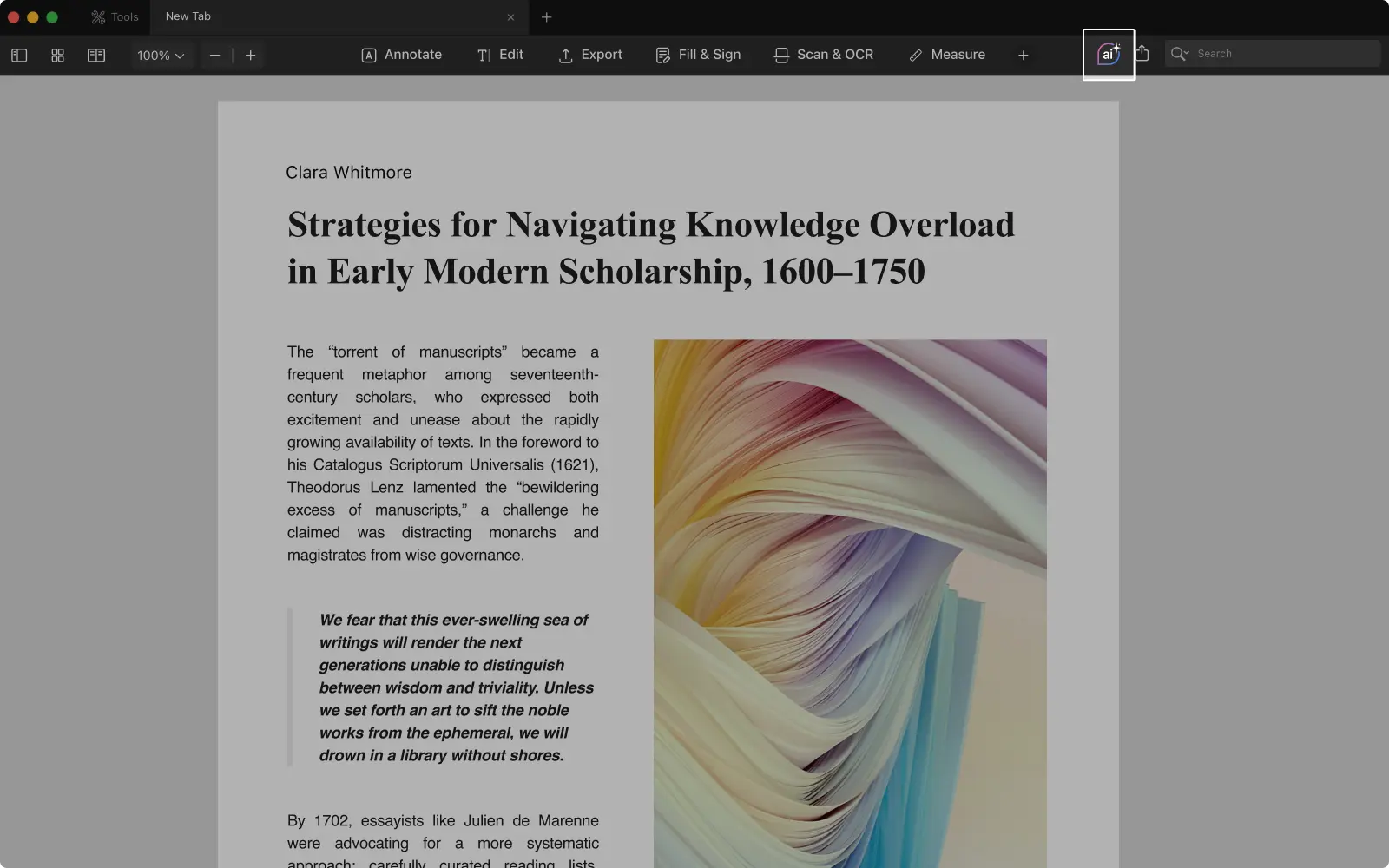
- Type what you want to understand or clarify.
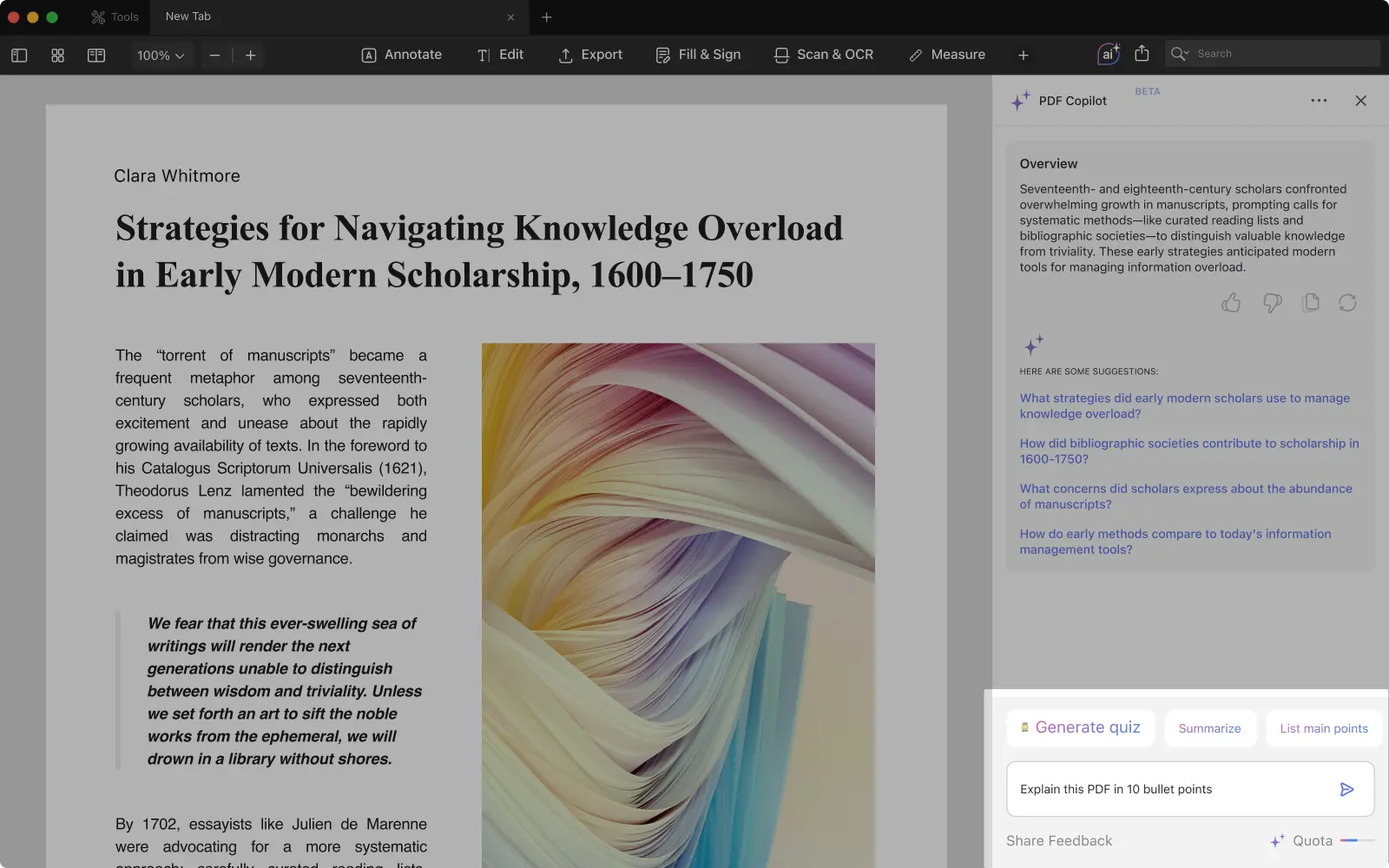
Instead of generic commands, try guided prompts like this:
Context: I’m reviewing this contract for negotiation.
Goal: I need to understand obligations and deadlines.
Format: Bullet list with page references, and highlight the dates.
PDF Copilot will return:
- A clear digest of key points
- Direct links to the pages those points come from
- The option to highlight right from the answer
Other useful quick actions on Mac
- Summarize — turns long sections into a clear digest
- List main points — ideal for reports & policies
- Explain — turns jargon into plain language
- Translate — instantly converts selected text
- Generate quiz — helps retention if you’re studying
You can also trigger Explain and Translate from the context menu — a Mac-only shortcut that feels particularly handy with academic papers or legal text.
How to use Copilot on iPhone and iPad
The flow is similar on iOS but designed for smaller screens and quick reading:
- Open your file in PDF Expert.
- Tap the PDF Copilot (AI) icon.
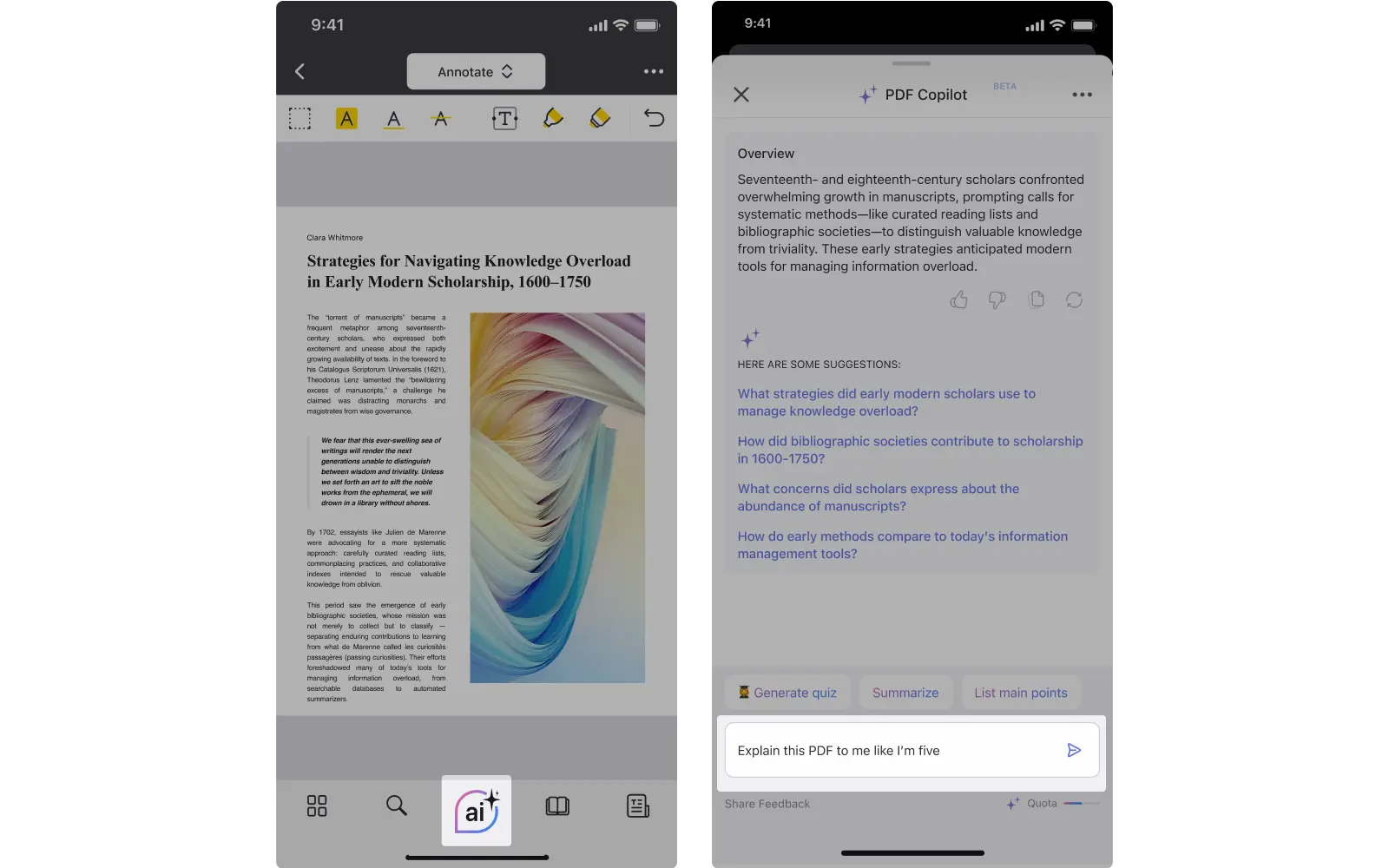
- Ask what you need help understanding.
A good mobile-friendly prompt might look like:
Context: I’m studying this for class.
Goal: I want a simplified explanation of the main ideas.
Format: Short bullets with page links I can jump to.
From there, you can ask follow-ups without losing context. This is especially useful on mobile when you're reading on the go. You can also:
- Copy or share responses
- Jump to the referenced page in one tap
- Keep a running chat conversation while reading — no tab switching
What you can do after getting an explanation
Once Copilot gives you an answer, you can dive straight back into the document with context. On both Mac and iOS, you can jump to the exact page or paragraph it references, highlight or underline that section, and copy or share the summary if you’d like to keep notes or pass it along.
If something still isn’t clear, you can refine your question and continue the conversation without losing your place. Everything stays saved in the chat for easy reference later.
On Mac, you can also take it a step further with quick actions like Explain or Translate directly from the context menu.
Instead of scrolling from start to finish hoping to stumble on the right passage, you get targeted understanding, letting you focus on what actually matters in the document.
Final thoughts
Being able to read a PDF is easy. Being able to understand it quickly, that’s the hard part.
PDF Copilot closes that gap by giving you context, clarity, and navigation in one place. No uploads. No switching apps. No copy-pasting text somewhere else.
Just open your PDF → ask a question → jump straight to the insight.
Download PDF Expert for Mac, iPhone, or iPad and see the difference for yourself.
