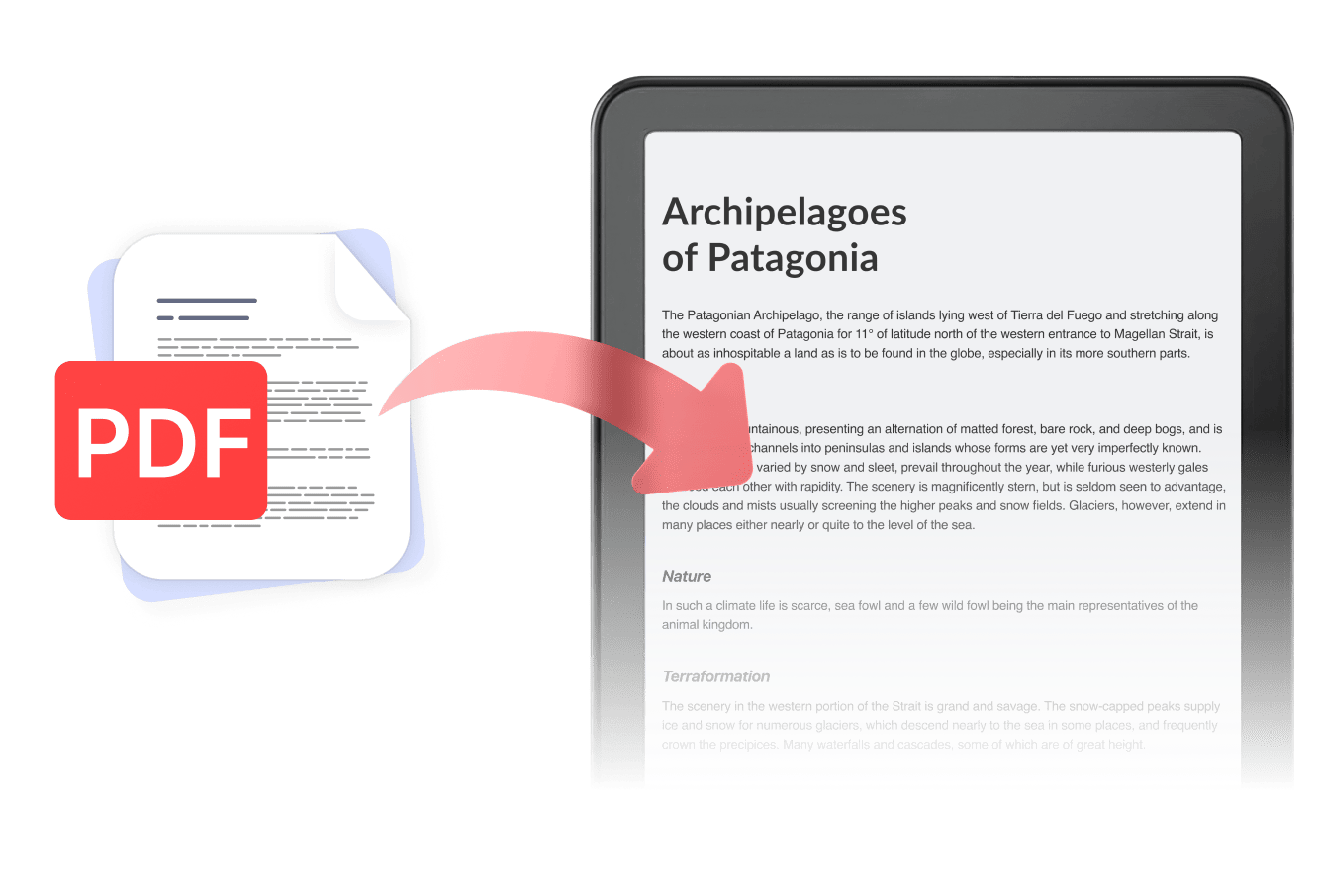
Getting a PDF onto your Kindle sounds simple, until the file is too large to email or the text renders too small to read comfortably.
The good news is that you can send to Kindle in three reliable ways: through the Send to Kindle app or webpage, by emailing the file to your Kindle email address, or by connecting your device with a USB cable. Each method takes just a few minutes once you know the steps.
Before you send anything, run your PDF through PDF Expert to compress it and crop out excess margins; it will make a real difference in how it looks on that smaller screen.
Send a PDF to Kindle through the app
The simplest way to send to Kindle is Amazon's own Send to Kindle tool, available as both a webpage and a desktop app.
It skips email entirely and delivers your file straight to your device over Wi-Fi, making it the fastest option when you're already signed in to your Amazon account.
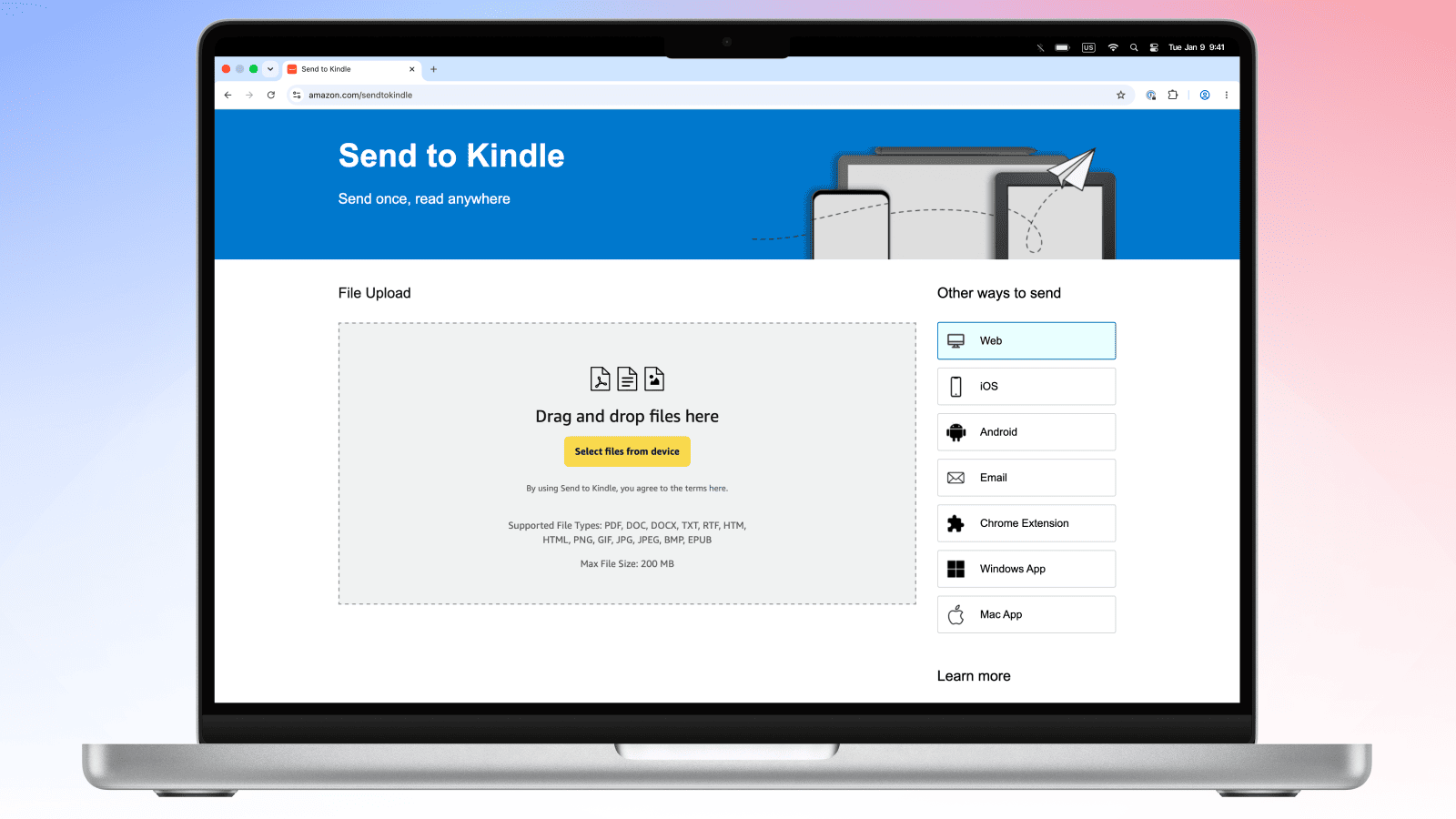
- Go to the Send to Kindle webpage in your browser, or download and install the Send to Kindle app for Mac or PC if you'd rather work from a desktop shortcut.
- Log in with the Amazon account tied to your Kindle library.
- Click "Select files from device" (or drag and drop, depending on the version) and choose the PDF you want to send to Kindle.
- Pick which Kindle device should receive the file. You can usually select more than one if you read across several devices.
- Click "Send."
- Open your Kindle and the PDF should already be there.
Email to Kindle: send a PDF as an attachment
Emailing a file is one of the most familiar ways to send to Kindle, especially if the PDF is already sitting in your inbox rather than on your desktop. It relies on a personal Kindle email address that Amazon generates for every device and app on your account.
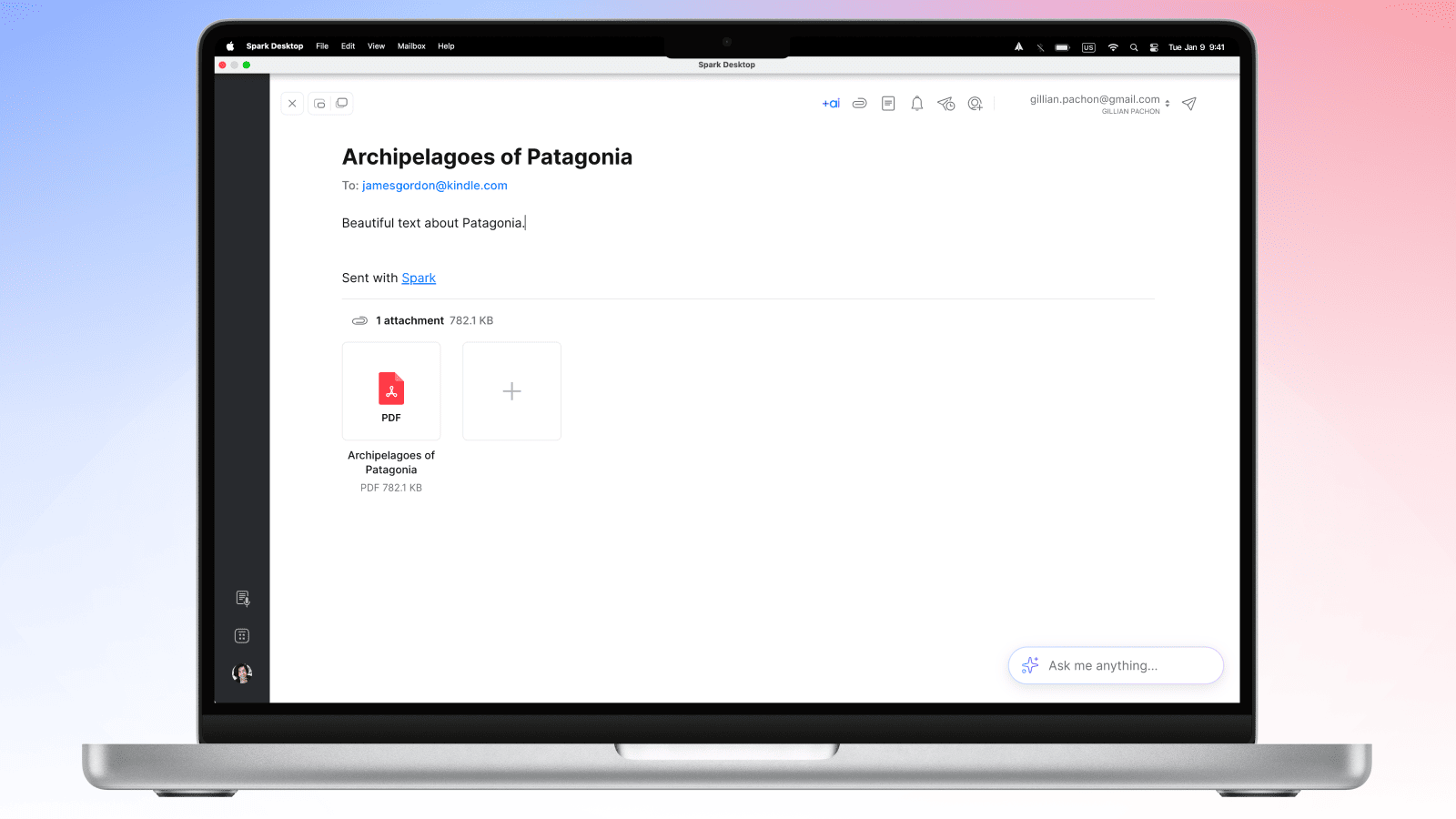
- Find your Kindle email address. Go to Manage Your Content and Devices in your Amazon account, open Preferences > Personal Document Settings. Your Kindle email address is listed there for each registered device or app.
- Under the same settings page, confirm the email address you'll be sending from is on your Approved Personal Document E-mail List. If it isn't, add it because Amazon rejects mail from unapproved senders.
- Open your email app and start a new message, then attach the PDF you want to send to Kindle. Enter your Kindle email address in the "To" field. Hit send.
Pro tip: Keep attachments under 50MB total, since that's Amazon's cap for the email-to-Kindle service, and scanned or image-heavy PDFs can blow past this quickly.
Send a document to Kindle through USB
If you'd rather skip Wi-Fi and email entirely, a direct cable connection is the most reliable way to send a document to Kindle, especially for very large files or when you don't have a reliable internet connection.
- Plug your Kindle into your computer using a USB cord (the same one you use to charge it works fine).
- Open it as a drive. Your Kindle will mount as an external storage drive on your computer, appearing in Finder on Mac or File Explorer on Windows.
- Open the Kindle drive and find the folder labelled "documents."
- Drag and drop your PDF directly into that folder. You can transfer multiple files at once this way.
- Once the transfer finishes, safely eject the Kindle from your computer before unplugging the cable, to avoid corrupting the file. Your file will appear on the Kindle's home screen right away.
This method works entirely offline and skips Amazon's file-size checks, making it a solid backup when the other two methods aren't practical.
What is the best way to transfer a PDF to Kindle?
There's no single best answer here. The best way to transfer a file to Kindle depends on where your PDF is sitting and how much control you want over the process.
If the file is already on your phone or computer and you're online, the Send to Kindle app or webpage is the fastest route. If you're forwarding something from someone else's email, the email-to-Kindle method is more convenient. If you're dealing with a huge file or an unreliable connection, a USB is the most dependable option.
|
Method |
Pros |
Cons |
|
Send to Kindle app |
Fast, no cables, works from phone or desktop |
Requires Wi-Fi and an Amazon account sign-in |
|
Email to Kindle |
Convenient for forwarded files, no app needed |
50MB limit, must be on the approved sender list |
|
USB transfer |
Works offline, no size restrictions from Amazon |
Requires a computer and cable, more manual steps |
Whichever method you choose, a smaller, better-cropped PDF will transfer faster and read more comfortably once it's on your device, which is exactly what the next section covers.
Compress PDF Kindle files before sending to Kindle
Kindle's Send to Kindle email service caps attachments at 50MB, and scanned PDFs or image-heavy documents consistently exceed that limit.
Even when a file does squeeze under the cap, wide margins and dense formatting from a standard letter-size page can make text look cramped and tiny on a 6- or 7-inch Kindle screen.
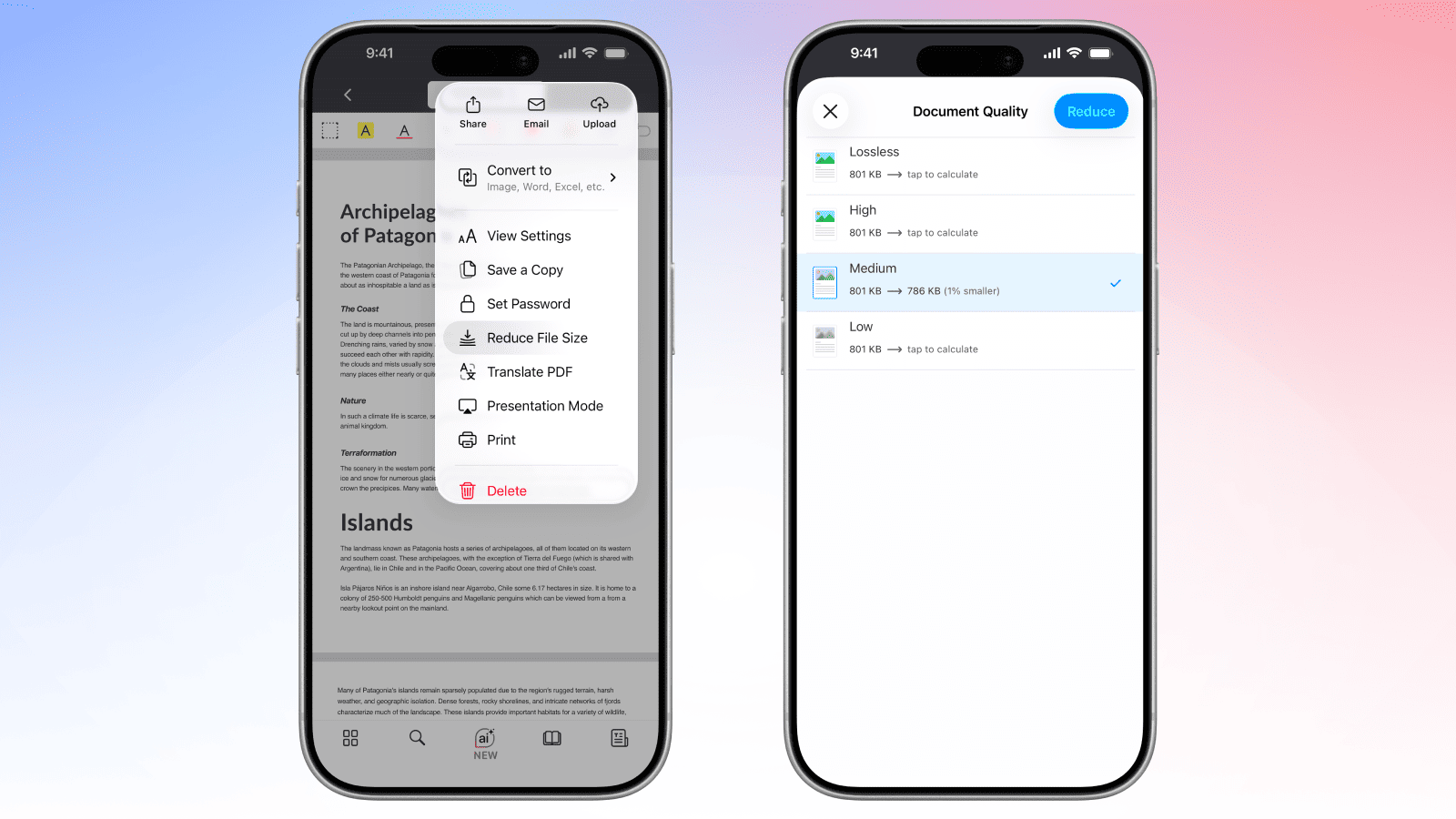
PDF Expert solves both problems at once: its compression tool shrinks file size without visibly degrading text or images, and its crop tool trims away the white space around the edges so more of the actual content fills the screen. In practice, a 100MB scanned PDF full of photos might come down to around 40MB after compression — comfortably under the 50MB Send to Kindle mail limit, with a slight drop in quality.
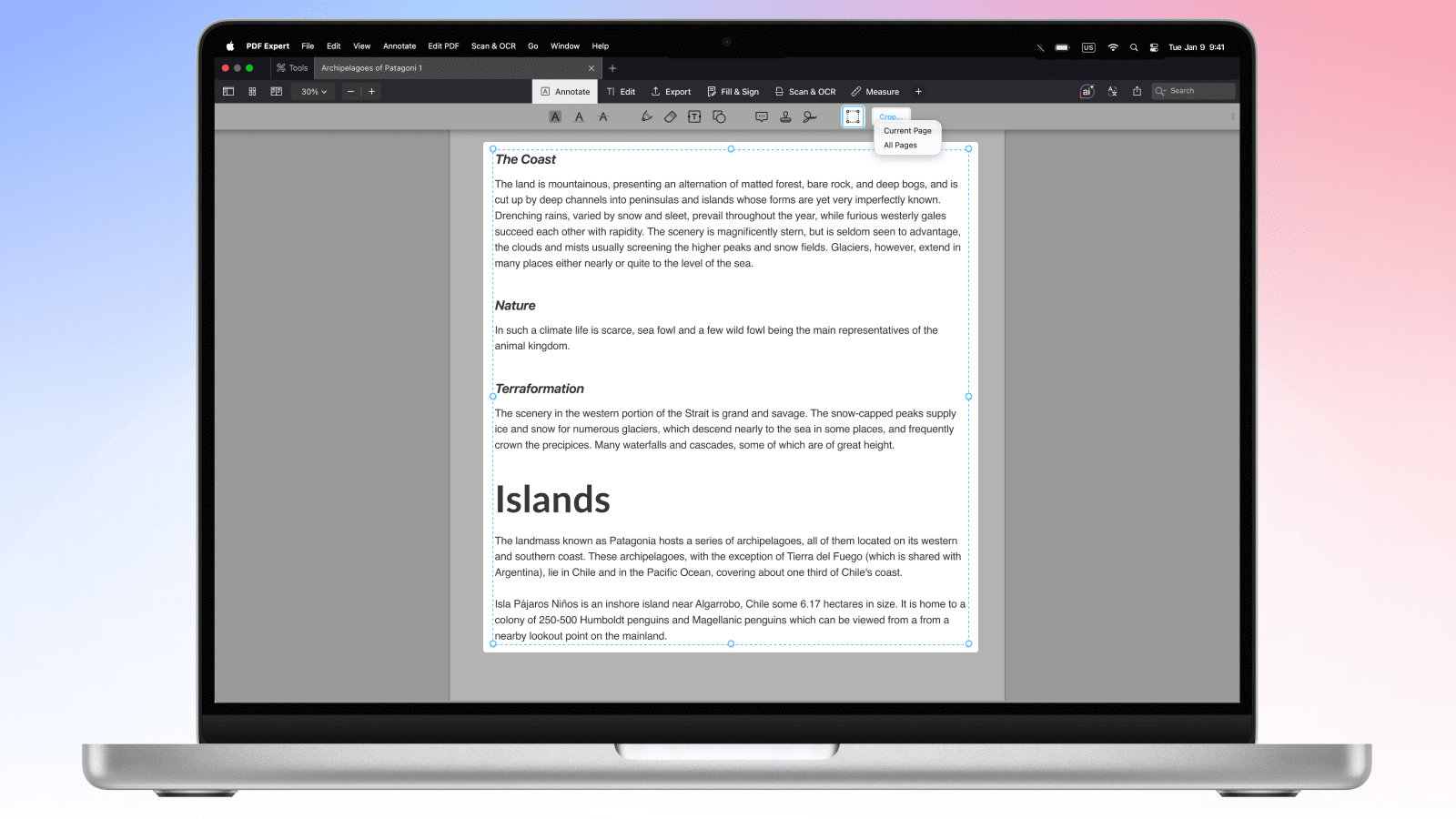
Compressing and, if needed, cropping the PDF's margins before sending it to Kindle ensures it transfers quickly and looks like it was made for the device.
Send PDF to Kindle FAQ
What is the Send to Kindle email address?
It's a unique email address Amazon assigns to each Kindle device and Kindle app on your account. You'll find your Kindle email address by going to Manage Your Content and Devices, then Preferences, then Personal Document Settings. Anything emailed to that address from an approved sender lands directly in your Kindle library.
Can I send a PDF to Kindle for free?
Yes. All three methods covered here —the Send to Kindle app or webpage, emailing your Kindle email address, and USB transfer—are free. Amazon doesn't charge for delivering personal documents to your devices, though your mobile carrier's data rates may apply if you're not on Wi-Fi.
Does Kindle accept PDFs?
Yes, PDF is a natively supported format across Kindle devices and apps. That said, PDFs are typically formatted for standard printer paper, so they don't reflow the way Kindle-native formats do. Compressing the file and cropping the margins with a tool like PDF Expert beforehand goes a long way toward making PDFs read comfortably on a Kindle's smaller screen.
Can I add my own PDF to the Kindle app?
Yes. The Kindle app supports personal documents the same way physical Kindle devices do. Use any of the methods above: Send to Kindle, email to Kindle, or a direct file transfer, to transition the PDF to your Kindle.