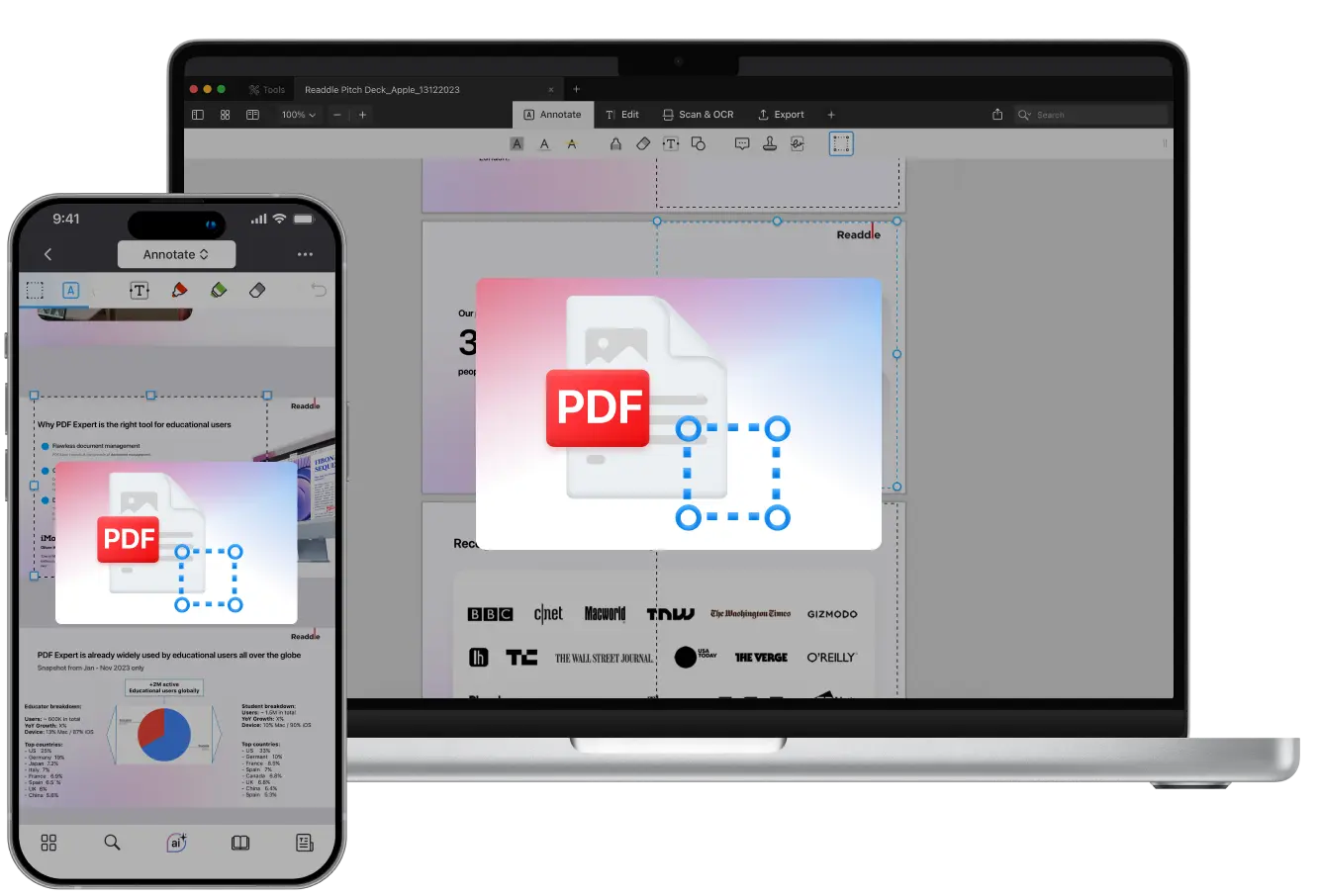
Not all PDFs have the perfect layout. Some may have wide white borders, uneven margins, or extra content you don’t want. Cropping a PDF can help you clean up a scanned file, standardize page sizes, and improve the overall look of your PDF.
PDF Expert makes cropping PDFs as simple as editing photos on your phone. You can cut off page headers, footers, empty spaces, notes, or scanning artifacts, then adjust layout for printing or presentation – all in one application for Mac, iPhone, and iPad.
In this guide, we’ll show you how to crop a PDF, trim PDF margins, cut edges, and manage multiple pages at once, all without affecting your file’s quality and ensuring a professional result every time.
How to crop a PDF on Mac
Cropping PDFs with PDF Expert for Mac takes seconds. Here’s what you need to do:
- Download PDF Expert for Mac for free and open your file.
- Go to the Annotate tab and click the Content Selection icon on the toolbar.
- Then, select the area you’d like to crop – you can zoom in for precision and adjust the sides for your perfect crop.
- Once you’re happy with the area selected, click Crop right next to the icon.
- PDF Expert will offer you two options: Crop Current Page or All Pages.
- Select the option you need, and you’ll instantly see your page(s) cropped. The app automatically adjusts the visible content without affecting the file quality.

If you change your mind and want to reset the page layout, you can go to Edit > Undo.
You can also merge PDFs before cropping for a smoother overall layout. And if you have a document in another format, simply convert Word, Excel, JPG, or PNG to PDF so they’re ready for cropping or annotation right away.
How to crop a PDF on iPhone or iPad
PDF Expert also makes it easy to crop PDFs right from your mobile device. Perfect when you’re traveling or need to adjust a file quickly. Here’s how to do it:
- Download PDF Expert for iPhone or iPad from the App Store.
- Open your PDF and go to the Annotate tool.
- From there, you will see multiple options. You need to find the Content Selection icon, located on the left side of the toolbar. Tap it.
- Tap and cover the area you want to select. Adjust the frame to trim the margins or cut PDF edges as needed.
- Then, tap Create PDF. PDF Expert will create a new cropped PDF from your trimmed page and instantly open it in the app – your original file stays untouched.
- Tap the three dots at the top right corner of the application and share, email, upload, print, or save to favorites.
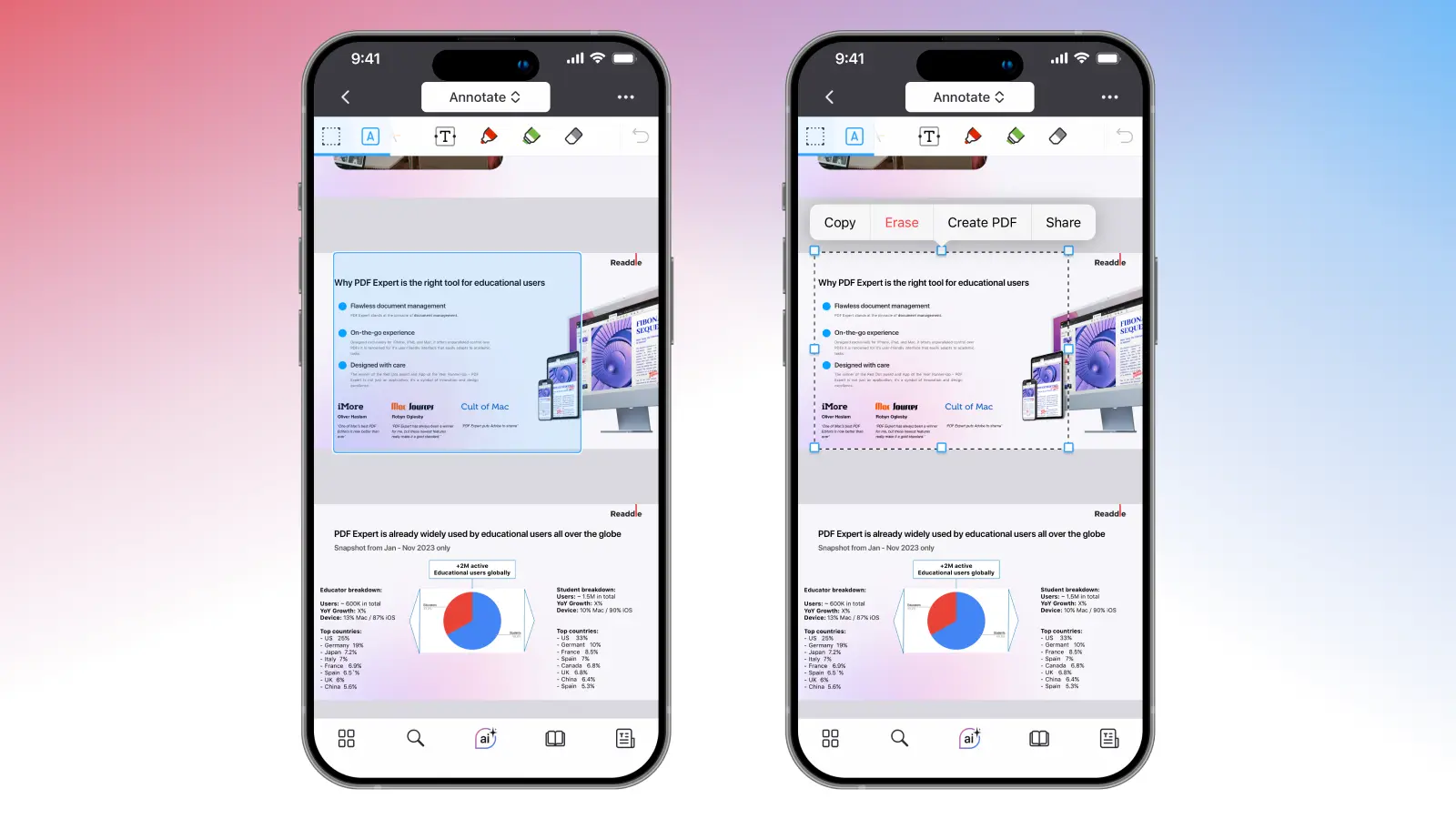
Please note: you can crop one page at a time on your iPhone. For batch cropping, use PDF Expert for Mac.
Will cropping remove content permanently?
When you crop PDF pages in PDF Expert, the trimmed areas aren’t deleted – they’re just visually removed. That means you can always revert your crop later without losing data. And if you’re cropping a PDF page on your iPhone, the app simply creates a new PDF for every trimmed page, keeping your original file intact.
If you want to permanently remove cropped content, export the file as a flattened PDF to lock in your changes.
Crop PDFs for a clean, professional look
If you’re working with scanned documents, this feature is especially helpful to remove white margins and make text appear more uniform. PDF Expert on macOS, iOS, and iPadOS helps you keep your documents polished for all your business and personal tasks.
No matter how much you crop, you can be sure the text and elements stay sharp, while all the necessary elements from the edges are trimmed precisely. It’s fast, accurate, and works across all devices – Mac, iPhone, and iPad.
Do more with your PDFs
Cropping is just one step in creating a well-organized file. After you’ve trimmed margins and cleaned up your pages, you can take things further to perfect your PDFs with PDF Expert’s advanced tools.
Edit text and images directly in the file to modify existing content on the spot. Compress PDF files to reduce the file size after trimming without sacrificing quality. Or password-protect your file before sharing to keep sensitive information secure. With PDF Expert, it’s easy to keep every PDF clean and professional.
Download PDF Expert today and discover how simple it is to edit and organize your PDFs!
PDF cropping: FAQs
Can I crop multiple pages at once?
Yes. Use PDF Expert on Mac if you want to trim PDF margins across multiple pages for consistent formatting. Once you select the area to crop, click Crop All Pages for instant, uniform results. After choosing this option, all pages will have the same size, so you can print, share, or add the clean PDF pages to your presentation.
What’s the easiest tool to crop a PDF?
PDF Expert is a leading app with a crop PDF free tool. The app provides a visual crop mode that’s intuitive and works on all platforms – Mac, iPhone, and iPad. All you need is to select the area to crop – you can adjust it however you want to fit your document style or needs.
How to trim margins on a PDF?
Use the Crop function and drag the selection handles inward to trim white space and align the content properly.
