If you've ever downloaded a tax form, opened an e-book, or received a contract by email, you've used a PDF. But what is a PDF, exactly — and why has it become the world's go-to document format? In short, a PDF is a universal file format that displays documents exactly the same way on every device, regardless of the software, operating system, or screen it's opened on. Today, 90% of knowledge workers describe themselves as PDF-dependent (BPI Network), a statistic that speaks for itself.
What is a PDF?
PDF stands for Portable Document Format, a file format developed by Adobe Systems in the early 1990s. A PDF captures a document's text, images, fonts, and layout in a single file that looks identical no matter where it's opened. Unlike Word documents or spreadsheets, a PDF is designed to be a final, shareable version that is reliable, consistent, and universally readable without special software.
The History of PDF
The story of the PDF is the story of solving one of computing's most persistent frustrations: the inability to share a document that looked the same on everyone's screen.
1991 — The Camelot Project. Adobe co-founder John Warnock published a paper describing a vision for universal document sharing he called "The Camelot Project." His goal was simple but ambitious: create a format where any document, however complex its fonts, layout, or graphics, could be viewed identically on any machine.
1993 — PDF 1.0 is released. Adobe released the first version of the Portable Document Format alongside its free Acrobat Reader application. The format was initially slow to gain traction, largely because creating PDFs required purchasing Adobe's software.
1994–2000 — Growing adoption. As the internet expanded and businesses began distributing documents digitally, the advantages of a consistent, cross-platform format became impossible to ignore. Government agencies, publishers, and corporations began adopting PDF as their standard for shared documents.
2001–2007 — The format matures. New versions added richer support for interactive forms, digital signatures, embedded multimedia, and password protection. PDF became the backbone of legal, financial, and medical document workflows.
2008 — PDF becomes an open standard. Adobe released the PDF specification to the International Organization for Standardization (ISO), which published it as ISO 32000-1. This was a turning point: the format now belonged to no single company, cementing its role as a truly universal standard.
2009–Present — PDF everywhere. The format continued to evolve with new standards: PDF/A for long-term archiving, PDF/UA for accessibility, and PDF 2.0 (ISO 32000-2, 2017), adding modern features while maintaining backward compatibility.
How PDF preserves layout
The key to understanding what a PDF is, and why it remains dominant, lies in how it handles layout. Most document formats are dynamic: a Word file, for example, reflows text based on the fonts installed on your machine, your default page margins, or the version of Word you're running. The result can be unpredictable when the file is opened elsewhere.
A PDF works differently. When a document is saved as a PDF, all the visual elements: fonts, spacing, images, tables, and headers are encoded into the file itself. The PDF format essentially takes a precise snapshot of the document at the time it's created. Fonts are embedded directly in the file, so they don't depend on anything installed on the viewer's device. Page dimensions, margins, and column layouts are fixed, not calculated dynamically.
This is why a PDF of a legal contract looks identical whether it's opened on a lawyer's Mac, a client's Windows laptop, or a colleague's Android phone. It's also why architects, publishers, healthcare providers, and government agencies rely on the format for documents where visual accuracy is non-negotiable.
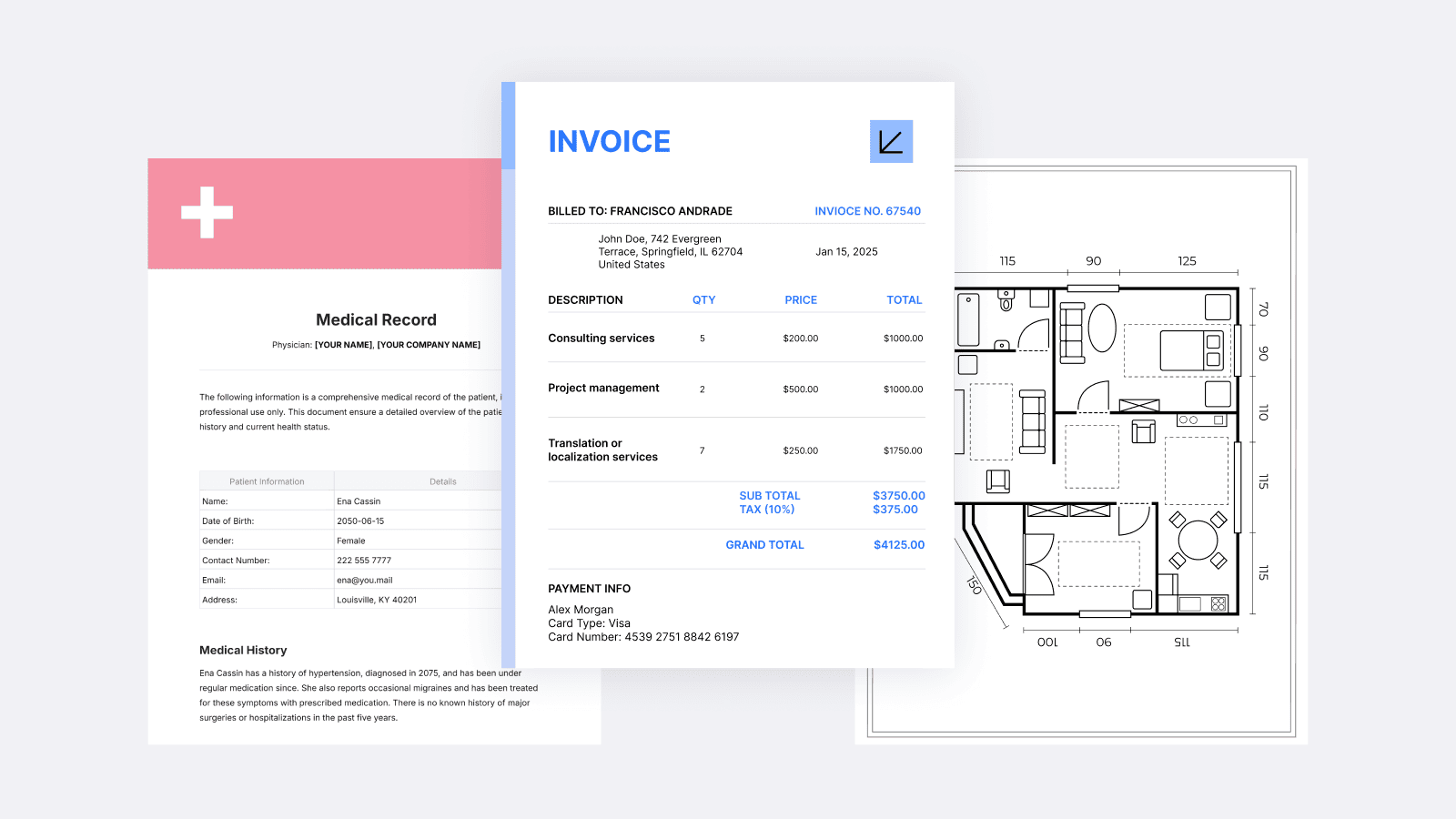
PDF format is used where preserving layout and securing the content is crucial:
- Legal contracts — A signed agreement must look the same for all parties, with no risk of text shifting between page breaks.
- Medical forms — Patient intake forms and prescriptions need precise field placement to remain readable and compliant.
- Technical drawings and blueprints — Measurements, annotations, and diagrams must stay exactly where they were placed.
- Academic papers and journals — Citations, figures, and formatting must be preserved for peer review and archiving.
- Financial reports — Tables, charts, and numerical data need to stay intact and unambiguous.
Advantages and disadvantages of PDF
Advantages |
Disadvantages |
|
Universal compatibility. A PDF opens correctly on virtually every device and operating system — Windows, macOS, iOS, Android, Linux — without requiring the original software that created it. This makes it the most reliably shareable document format in existence. |
Difficult to edit without dedicated software. Unlike a Word document, a PDF is not intended to be easily edited. Making changes to text, swapping images, or restructuring pages requires a proper PDF editor — you can't simply open it in a basic text application and modify it. |
|
Consistent appearance. |
Not ideal for content that needs to be updated frequently. |
|
Security and access control. |
Accessibility limitations. |
|
Compact file size. |
File size can grow large. |
|
Interactivity.
|
Limited reflowability. |
What PDF is best for
Given its strengths, PDF is the ideal format for:
- Documents that need to look the same for all recipients (contracts, invoices, proposals)
- Official forms and government filings
- Documents requiring electronic signatures or secure access controls
- Long-term archiving and regulatory compliance
- Technical documentation, manuals, and reference guides
- Sharing content from design tools without requiring the recipient to have those applications
How to easily read, annotate, and edit PDFs on Apple devices
PDF can be edited with a dedicated PDF editing software. A PDF is designed as a final, presentable version of a document, so editing it requires tools that understand its structure; you can't simply open it in a basic text editor.
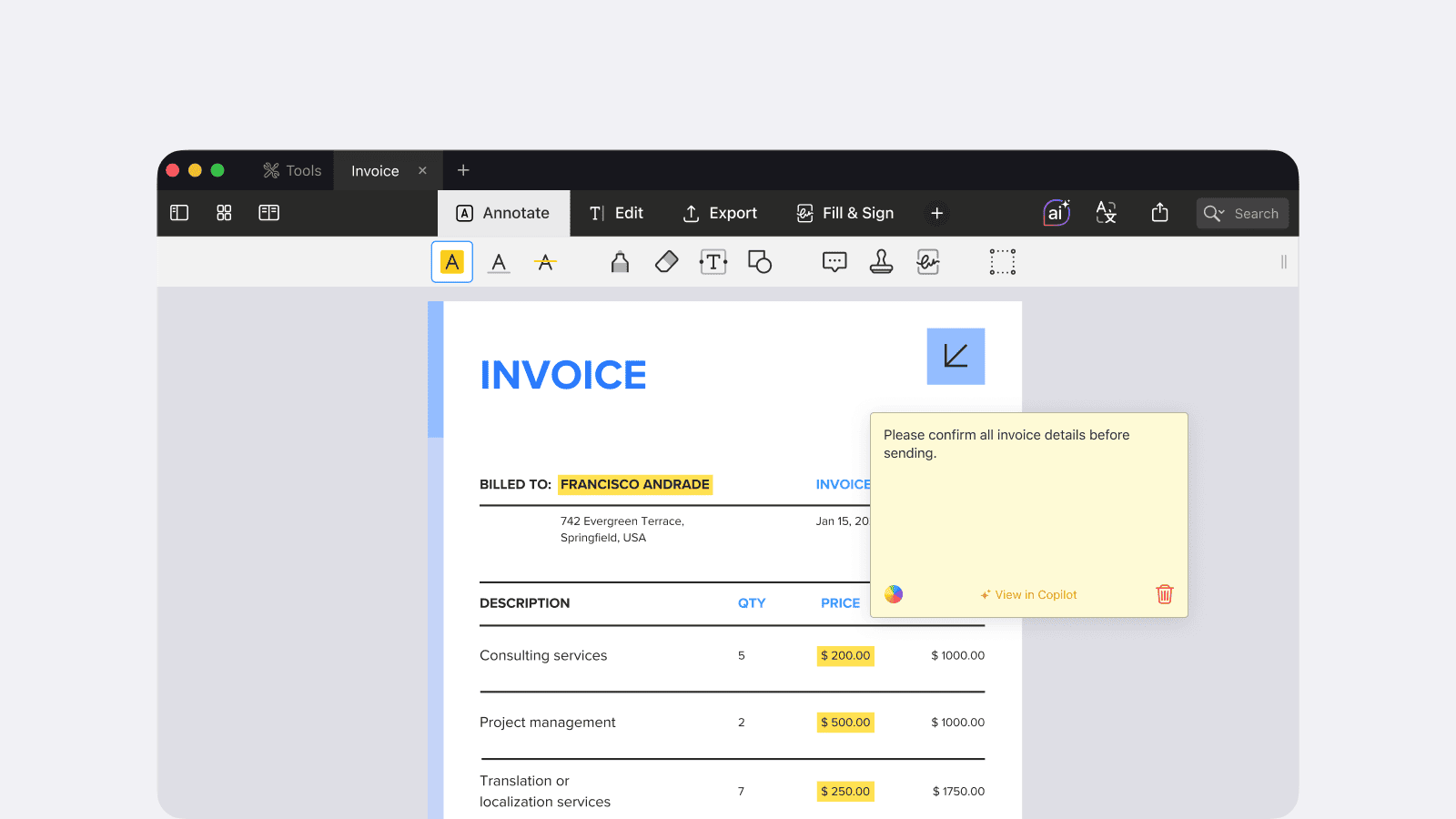
PDF Expert for Mac and iOS lets you edit text and images directly in a PDF, add or remove pages, fill out forms, and more, without first converting the file to another format. For iPhone, iPad, and Mac users, PDF Expert is the go-to PDF app: fast, powerful, and designed with Apple's interface principles at its core.
With PDF Expert, you can read PDFs in Day, Night, or Sepia mode for comfortable reading in any lighting. Annotate documents with highlights, underlines, stamps, shapes, and handwritten notes. Edit text and images directly in the PDF, just as you would in a word processor. Fill out forms, apply electronic signatures, and sign contracts on the go. Merge, split, and rearrange pages with a visual thumbnail view. And when you need to convert a file from Word, Excel, PowerPoint, or JPG to PDF and back, PDF Expert handles it in seconds.
What is a PDF? Frequently Asked Questions
Why are PDFs so commonly used?
PDFs are so common because they solve a fundamental challenge: making sure a document looks exactly the same for every recipient. Beyond consistency, the format offers broad security features, supports digital signatures, can be compressed for easy sharing, and is accepted everywhere from law courts to government agencies to university archives. With the vast majority of businesses using PDF as their default format for external communications, it has effectively become the global standard for sharing important documents.
What is the difference between a PDF and a Word document?
The core difference is intent. A Word document (.docx) is designed for writing and editing: the layout is dynamic and adjusts based on software settings and local fonts. A PDF is designed for sharing and presenting: the layout is fixed and looks identical everywhere. Word documents are better for content you're actively working on; PDFs are better for content you're ready to distribute or archive.
How do I get a PDF file?
There are several ways to get a PDF file. If someone has shared one with you, it typically arrives as an email attachment, a download link, or through a file-sharing service — clicking the link or attachment opens or saves it directly to your device. If you're looking for a specific PDF (a form, report, or manual), most organisations publish them on their websites as downloadable files. On a Mac or iPhone, PDF Expert lets you open PDFs from email, your files, cloud storage like iCloud or Google Drive, or any app that supports the Apple Share menu.
How do I make a document a PDF?
The easiest way to convert a document to PDF depends on what you're starting with. On a Mac, most applications, including Word, Pages, and Google Docs, let you export or print to PDF directly from the File menu. If you're working with a Word, Excel, PowerPoint, or image file and want to convert it to a PDF, PDF Expert can do it in seconds without any extra tools or software. Simply drag and drop the file into PDF Expert, then follow the prompt to convert it.
Is PDF free?
The PDF format itself is free and open — it has been an international open standard (ISO 32000) since 2008, meaning no licence or fee is required to create, share, or view a PDF. Most devices come with a built-in PDF viewer at no cost. However, for more advanced tasks, like editing text, filling out forms, signing, or converting files, you'll need a dedicated PDF app. PDF Expert offers a free download with core reading and annotation features, with a subscription available for full editing and conversion capabilities.
 Yevheniia Dychko