CSV files aren't always easy to share — they can look messy when opened in different programs and offer no protection against accidental edits. Converting your comma-separated values to PDF makes the file universally readable and keeps your data looking exactly as intended. PDF Expert makes CSV to PDF conversion simple on both Mac and iPhone, handling the whole process in a few taps so you can get back to what matters.
Why use PDF Expert as your CSV file converter
PDF Expert is built for Apple users who need reliable, fast results without compromise.
- No risky online uploads. Your data never passes through a random web tool. PDF Expert handles conversion securely, so sensitive spreadsheet data stays private.
- Everything in one app. Once your CSV becomes a PDF, you can annotate, edit, sign, merge, or compress it — all without switching apps.
- Works across all your Apple devices. Convert on your Mac, then pick up and annotate on iPhone or iPad using the same account.
- No watermarks or file-size tricks. You get a clean, professional PDF every time, with no strings attached.
- Trusted by millions. PDF Expert has an App Store rating of 4.7 and is used by over 30 million people worldwide.
Why convert CSV to PDF
CSV is a practical data format, but it has real limitations when it comes to sharing and presenting information. Here's when making the switch makes sense:
- Sharing with people who don't use spreadsheet software. A PDF opens on any device, in any browser, without needing Excel or Google Sheets.
- Locking down data for reports or submissions. PDF format ensures the recipient sees exactly what you intended.
- Archiving records. PDFs are the standard for long-term document storage — far more reliable than a raw CSV for filing purposes.
- Presenting data professionally. A well-formatted CSV-to-PDF table looks polished in a report or proposal, whereas a raw data file simply doesn't.
- Protecting sensitive information. PDF Expert lets you add password protection after conversion, and redact specific data in the PDF.
How to preserve formatting when converting CSV to PDF
CSV files store only raw text and separators (commas or semicolons) — there's no formatting saved in the file, so converting a CSV directly produces a plain-text PDF rather than a table. Things like the table grid, column widths, fonts, and colours aren't created automatically during conversion. To ensure a proper table layout in your final PDF, do some preliminary work in the native Numbers app first.
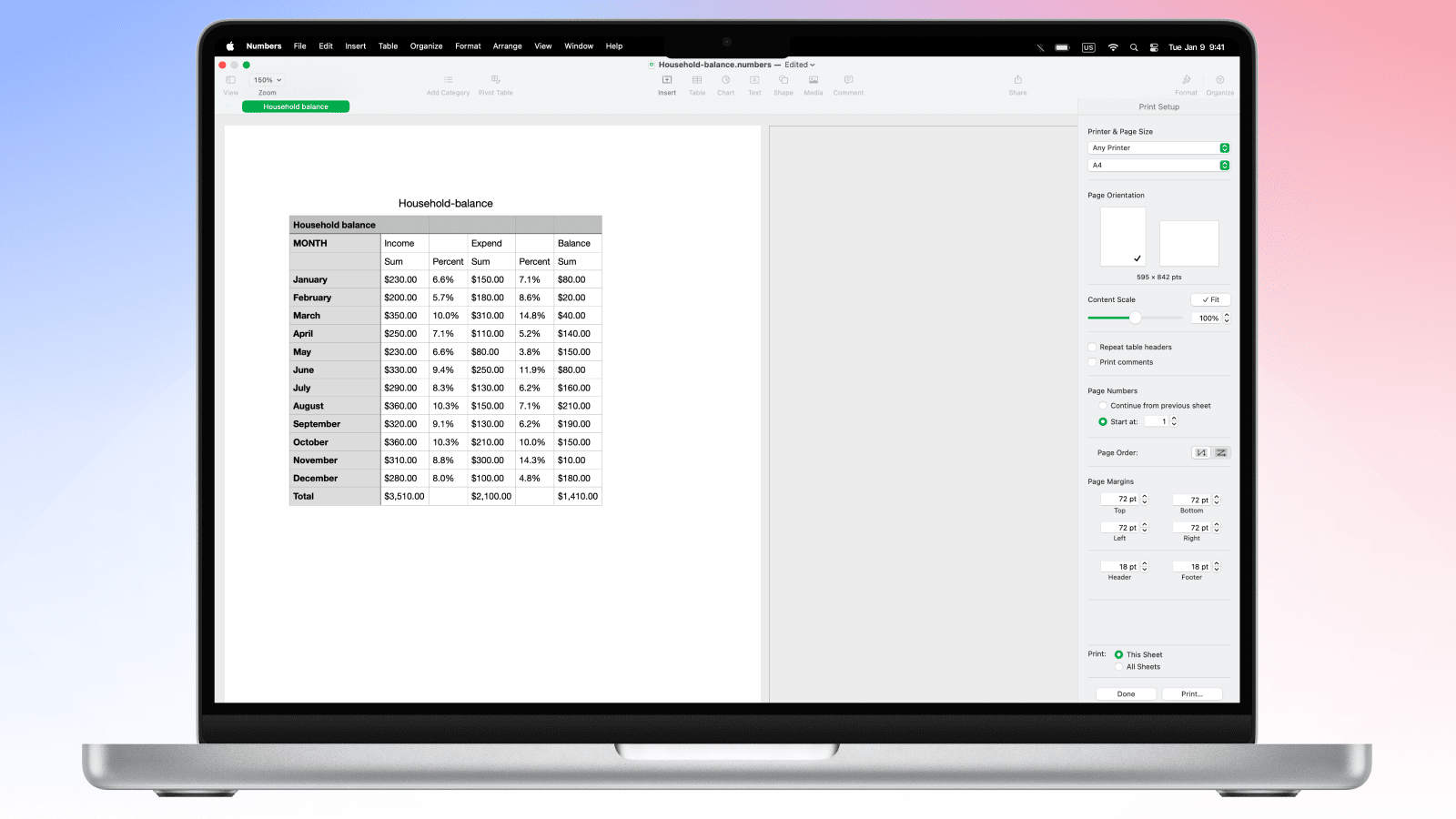
- Open the file in Apple Numbers and make adjustments: fix column widths, style the headers, and ensure data types are formatted correctly.
- Go to File > Print to adjust page orientation and see how the content fits on each page. Use the Fit button if columns are still getting cut off, to ensure everything lands neatly on a single sheet.
- Save a working copy before you convert. Because a CSV can't store formatting, any adjustments you make will be lost if you save back to the original file. Keep your CSV as the raw data source and save a separate working copy as a .numbers file. That way, you always have both the clean data and the formatted version ready to go.
Similar preparation steps can be performed in any other spreadsheet app, such as Google Sheets or Excel.
How to convert your formatted CSV to PDF in PDF Expert on Mac
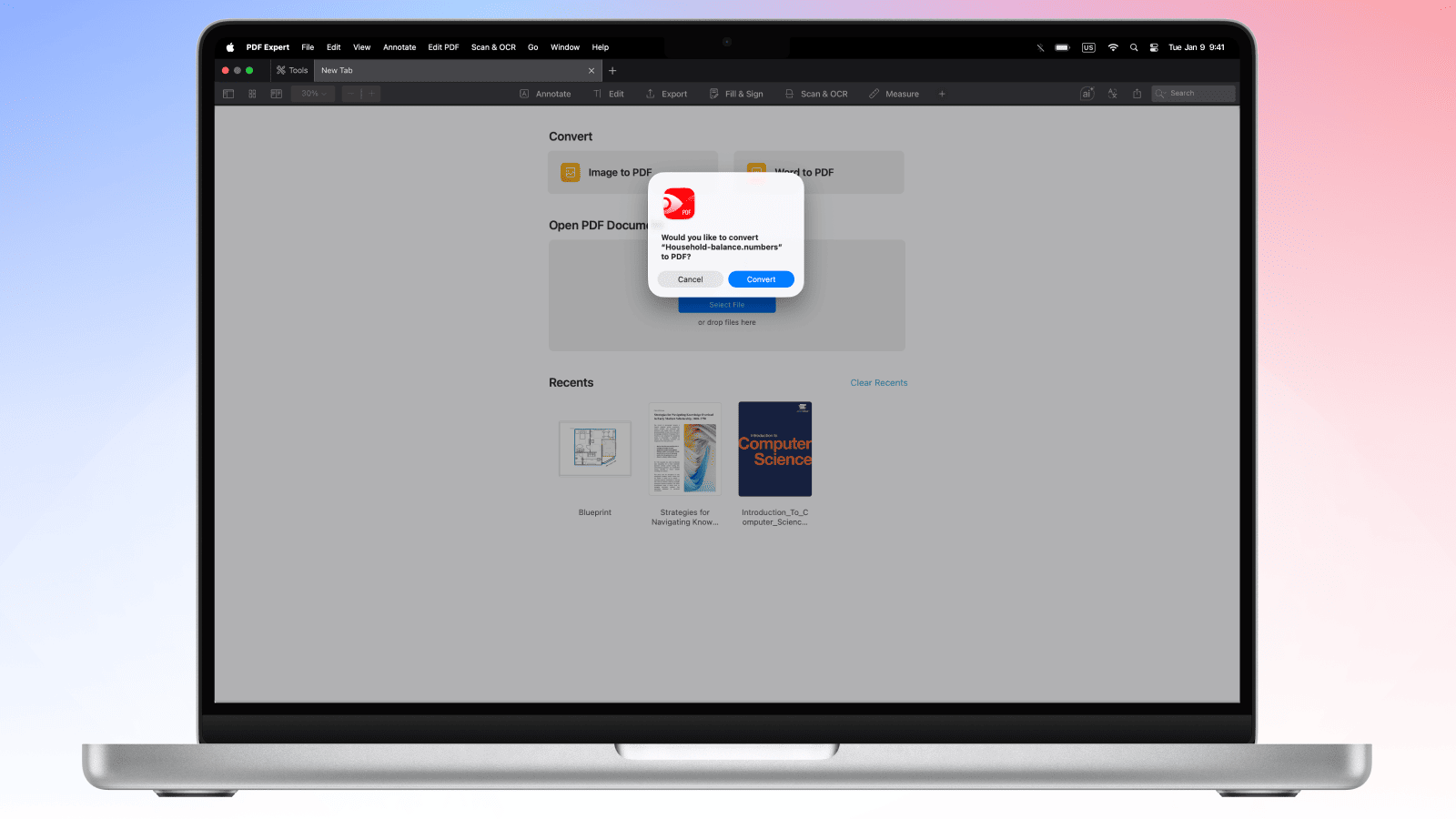
After you have formatted the CSV file and saved it as a spreadsheet, the CSV format PDF conversion takes just a few steps. Here's how to do it:
- Download and open PDF Expert on your Mac.
- Drag and drop your .numbers (or other spreadsheet with saved formatting) file onto the PDF Expert window.
- PDF Expert will prompt you to convert it to PDF. Click Convert.
- The finished PDF will open automatically in PDF Expert once it's ready.
- Go to File → Save (or press ⌘S) to save the PDF to your chosen location.
Pro tip: Use PDF Expert's editing tools to add a title, tweak text, or merge the file with other documents before sharing.
How to convert CSV to PDF in the Numbers app on Mac
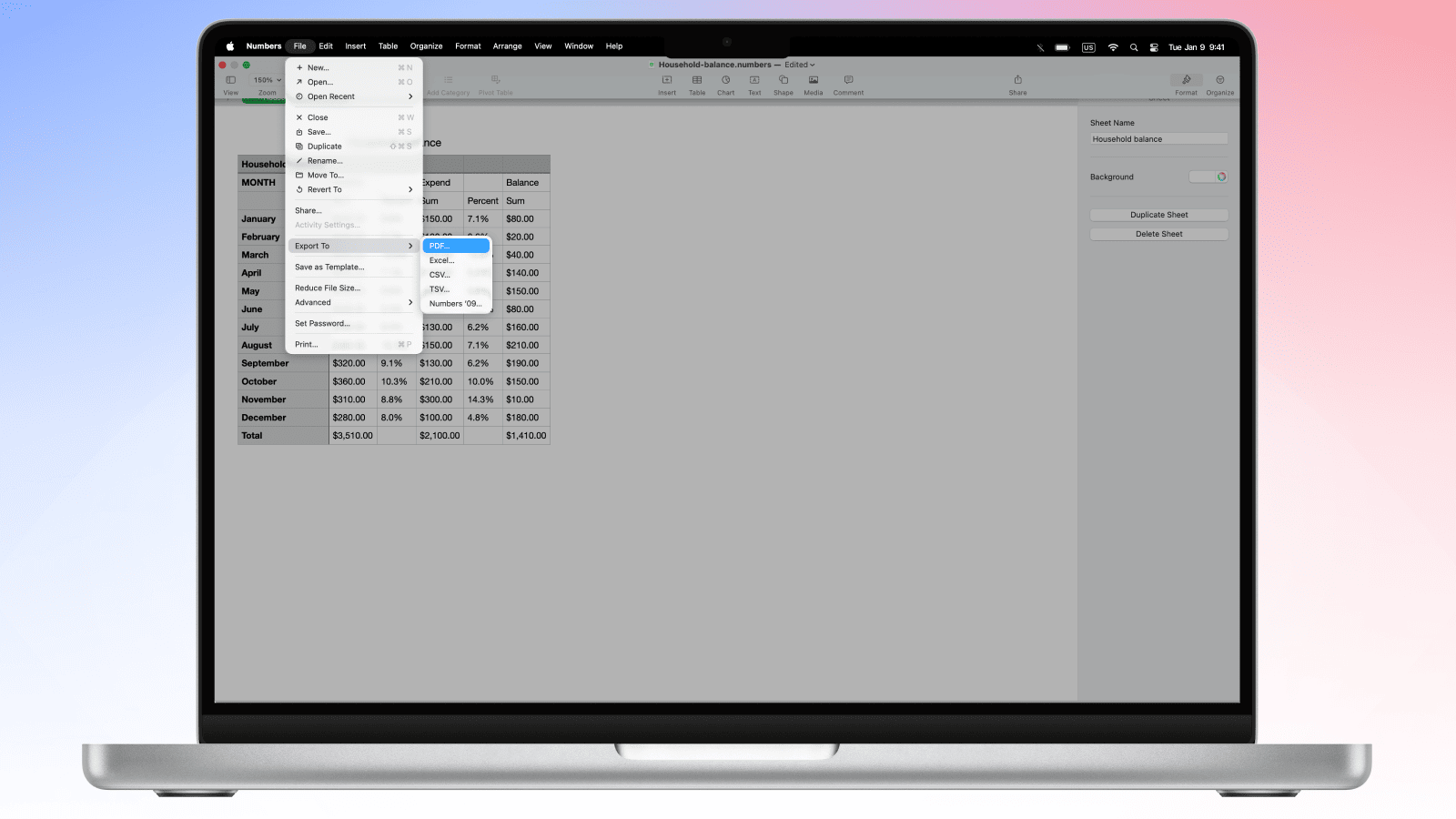
You can also use the native Numbers app to save a CSV file as a PDF on Mac:
- Right-click the CSV file → Open With → Numbers (or open Numbers first, then File → Open and select your CSV.
- Click File > Export to > PDF.
- Choose the ‘Fit each sheet to the single page’ or the ‘Use print settings’. Use the Print Setup button to see how each page will look in PDF. You can adjust page size, orientation, and content scale.
- Click Save and choose a destination for your PDF file.
How to convert CSV to PDF in PDF Expert on iPhone and iPad
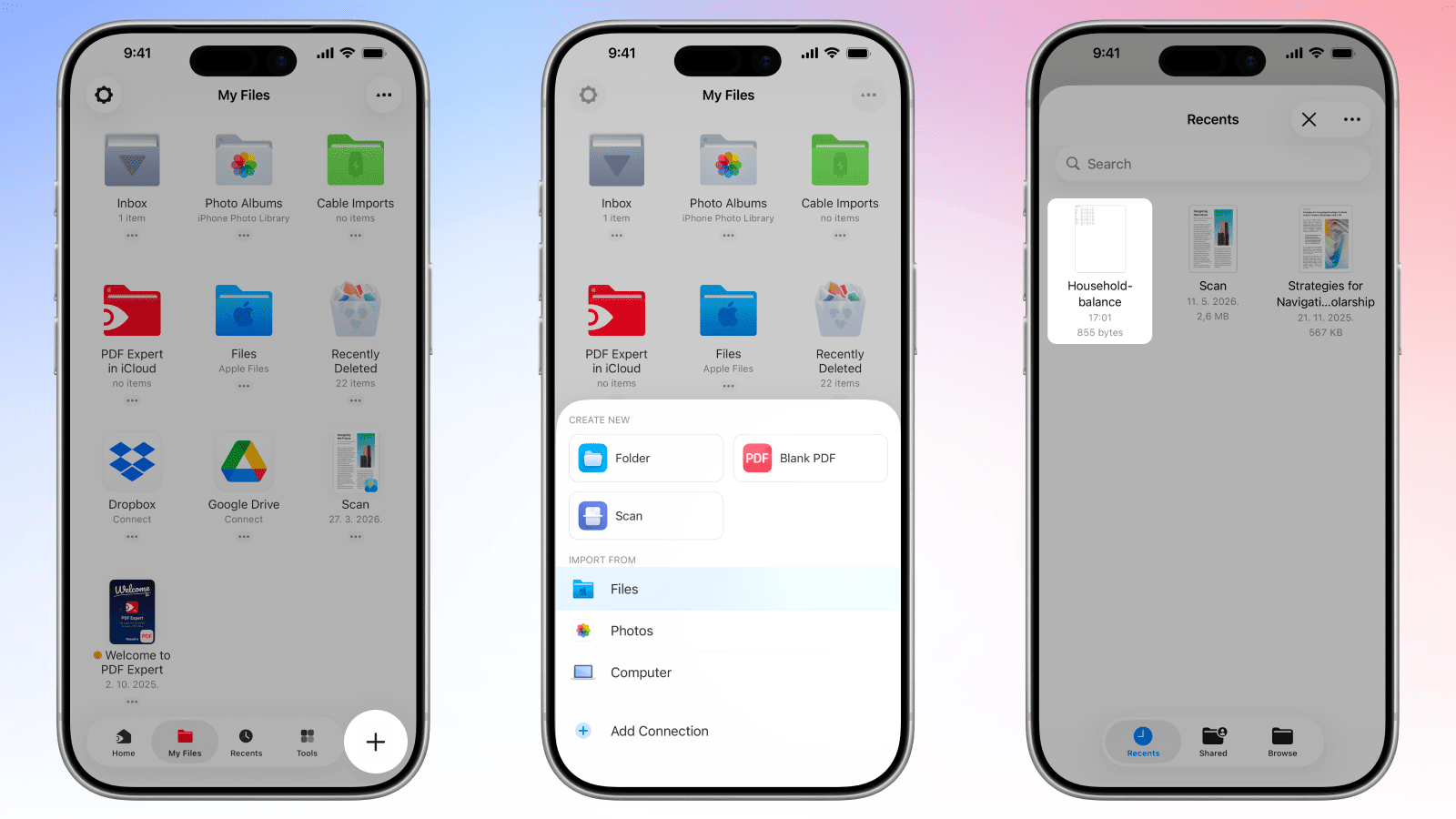
To transform CSV to PDF document on your iPhone or iPad, follow these steps:
- Download PDF Expert from the App Store if you haven't already.
- Tap the + button on the home screen to open a file.
- Browse to your CSV file — from Files, iCloud Drive, or another connected storage location — and tap to open it.
- The CSV file will be saved in the My Files folder in PDF Expert. Tap it, then tap the Convert to PDF icon at the bottom of the screen on iPhone (at the top of the screen on iPad).
- The converted PDF will open in PDF Expert, ready to view, annotate, edit, or share.
- Tap the three dots icon > Share, Email, or Upload icons to save or share the PDF.
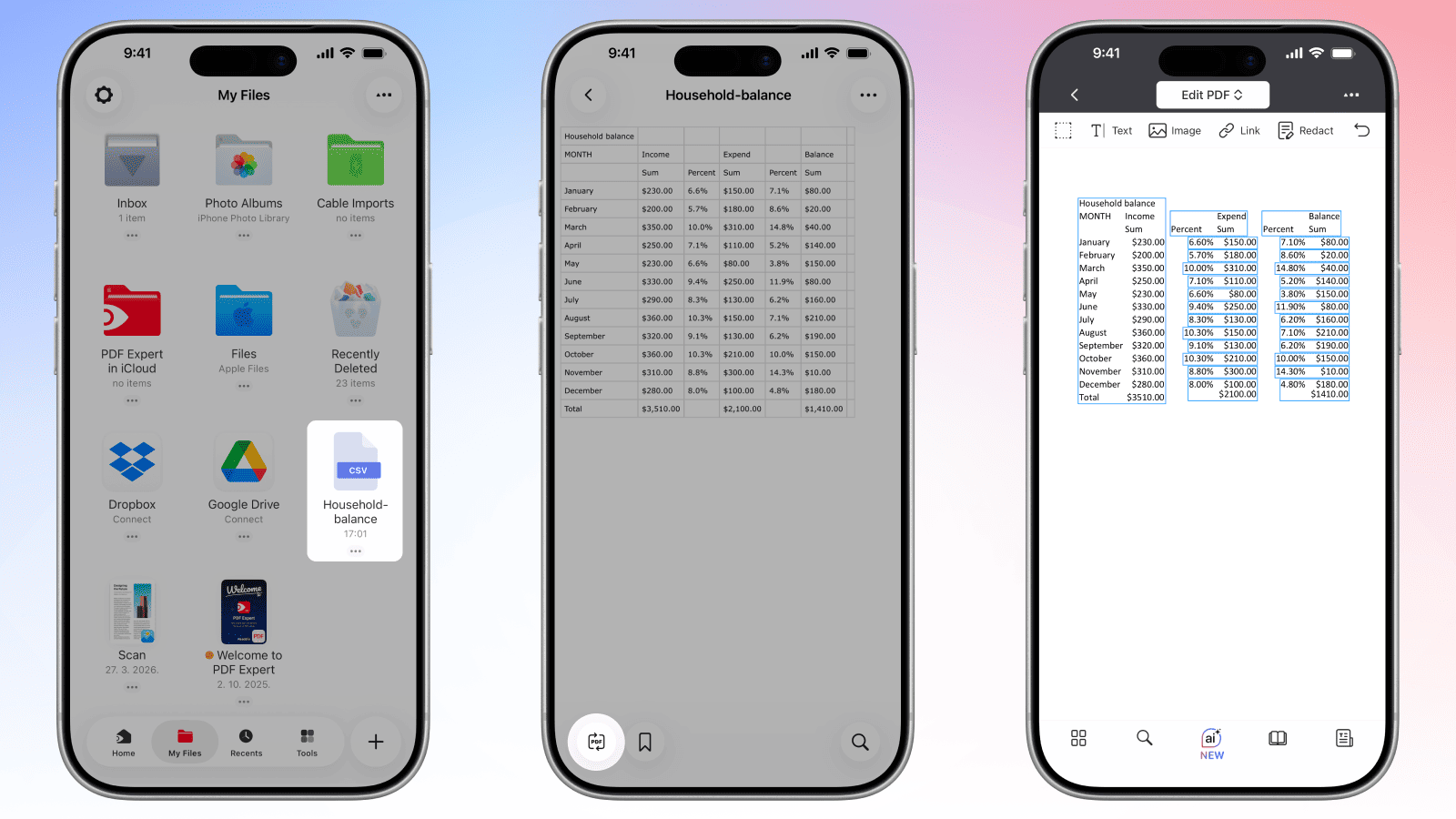
How to convert CSV to PDF using the Numbers app on iPhone or iPad
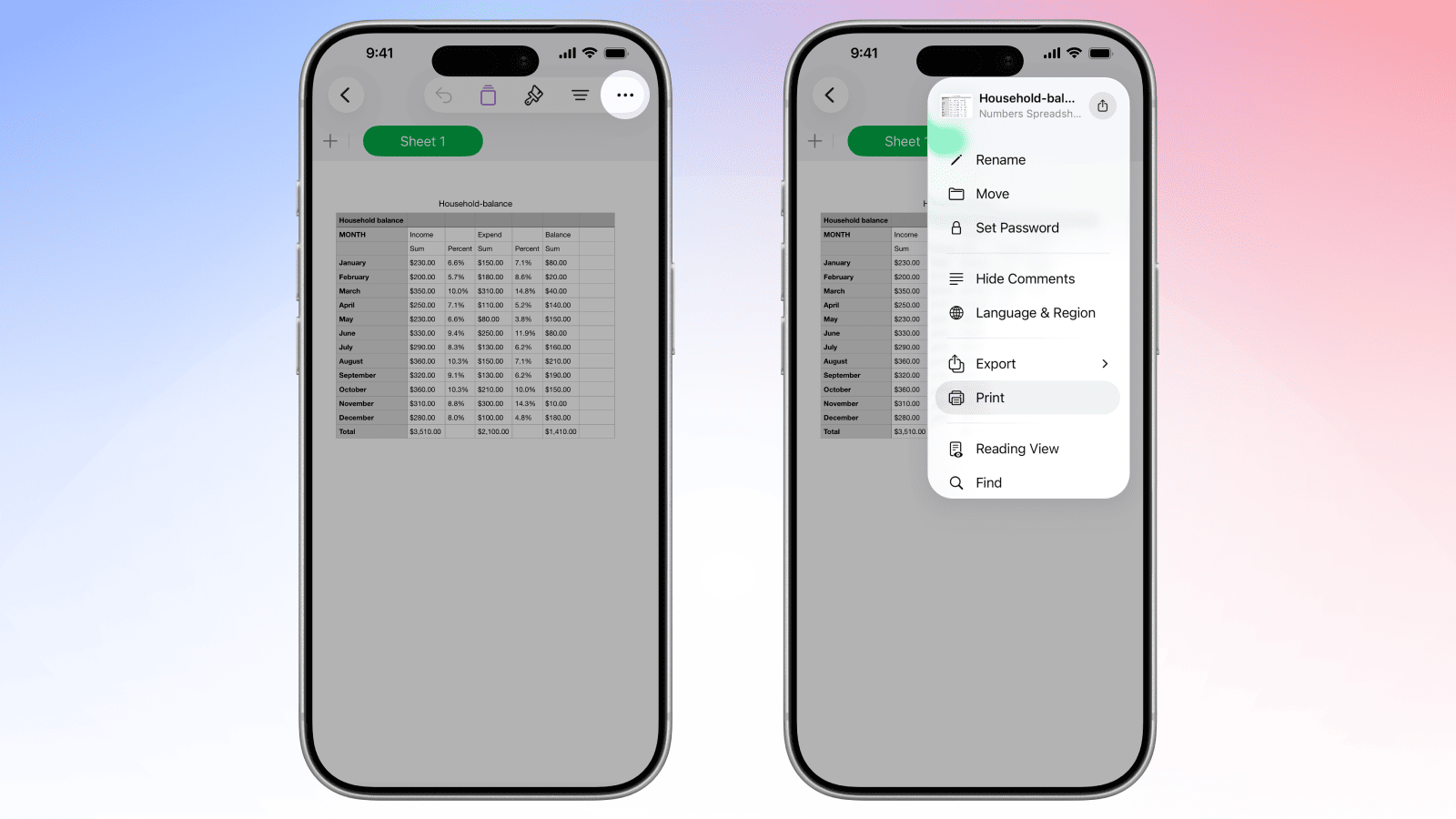
Apple Numbers comes pre-installed on iPhone and iPad, and it's a solid option if you want to quickly convert the file and don’t need to edit the PDF afterwards.
- Save your CSV file to the Files app on your iPhone or iPad.
- Open Numbers and choose the CSV file from the Files app.
- Format the data as needed: adjust column widths, bold headers, or tidy up any layout issues. Use Print Preview (three dots icon > Print) to see how the table will be spread across the document pages. Adjust the layout as needed.
- Tap the three dots icon, select Export, and tap PDF to save the file to your device or share it via email or another app.
Pro tip: If your table is wide, switch to Landscape orientation in Print Preview to avoid columns getting clipped in the final PDF.
CSV to PDF conversion: FAQ
How is CSV data formatted in the PDF?
Because CSV is plain text with no built-in styling, there's no single "default look" when it converts to PDF. The result depends on how the conversion is handled, but the data typically ends up in a grid structure with columns and rows, with the first line of the CSV usually becoming the header row. Sometimes the data is formatted as plain text, separated by commas or spaces, with no grid structure.
Even with a well-structured CSV, common issues such as cut-off text or awkward page breaks can affect the final PDF appearance. CSV files carry no colour, font, or border information, so any formatting needs to be applied manually — either in a spreadsheet app before conversion, or in PDF Expert afterwards.
Will my CSV headers become PDF table headers?
Yes. If your CSV file has a header row (which most do), those headers will appear as the top row of the table in the converted PDF. You can edit the resulting PDF in PDF Expert to apply bold text or other formatting to the header row after conversion.
Can I customize column widths in CSV to PDF conversion?
A raw CSV file carries no width or layout information, so converting it directly produces a plain-text PDF rather than a sized table. To control column widths, open the file in a spreadsheet app first, adjust the widths there, save it as a .numbers or .xlsx file, and convert that — your custom column widths will be preserved in the resulting PDF.
Can I convert large CSV files to PDF?
Yes — PDF Expert handles large data files well. If your CSV has a large number of rows, the content will span multiple pages in the resulting PDF.
How do I add styling to CSV data when converting to PDF?
Styling isn't applied during conversion, but PDF Expert lets you edit text once the PDF is ready. You can change fonts, add colour, insert headers or footers, and annotate the document to suit your needs — all within the same app you used to convert it.
Is CSV to PDF conversion secure with PDF Expert?
Yes, it is secure. PDF Expert conversion requests are processed on our server with the assistance of a third-party provider. Users’ security and privacy are among our top priorities. Before engaging any third party, we conduct a vendor assessment to ensure our providers meet GDPR compliance requirements, ISO certification, and the highest industry standards. Your files are used only to deliver the service you requested. We do not read, persistently store, or share your file content, nor do our engaged processors. All files are deleted within 24 hours after completion of their conversion request.
To ensure additional security, you can add password protection directly in PDF Expert to restrict who can open or edit the resulting PDF.
