Picking a winner in the Kindle Scribe vs reMarkable vs iPad Pro debate isn't easy. All three devices can open a PDF and let you scribble on it, but each one is built around a different idea of what "annotation" should feel like. In this article, we compare Kindle Scribe, reMarkable 2, and iPad Pro head-to-head across the factors that actually matter for marking up documents: annotation depth, file management, app ecosystem, handwriting feel, and price. One thing worth flagging upfront: pairing an iPad Pro with Apple Pencil Pro and the PDF Expert app gives it a real software advantage, with more annotation tools, PDF page organization capabilities, and export options than the other two devices offer natively.
Best device for PDF annotations
If you had to sum up the Kindle Scribe vs reMarkable 2 vs iPad Pro comparison in one line, it would be this: E Ink devices win on comfort and focus, while the iPad wins on capability. Kindle Scribe and reMarkable 2 both use E Ink displays that mimic paper, sip battery for weeks at a time, and are genuinely pleasant to write on for long stretches. The iPad Pro, paired with Apple Pencil Pro and an app like PDF Expert, trades some of that paper-like feel for a dramatically deeper toolset: real text editing, color-coded highlights, shape and stamp libraries, form filling, e-signatures, and one-tap exporting to Word, Excel, or image formats.
Here's how the three stack up side by side:
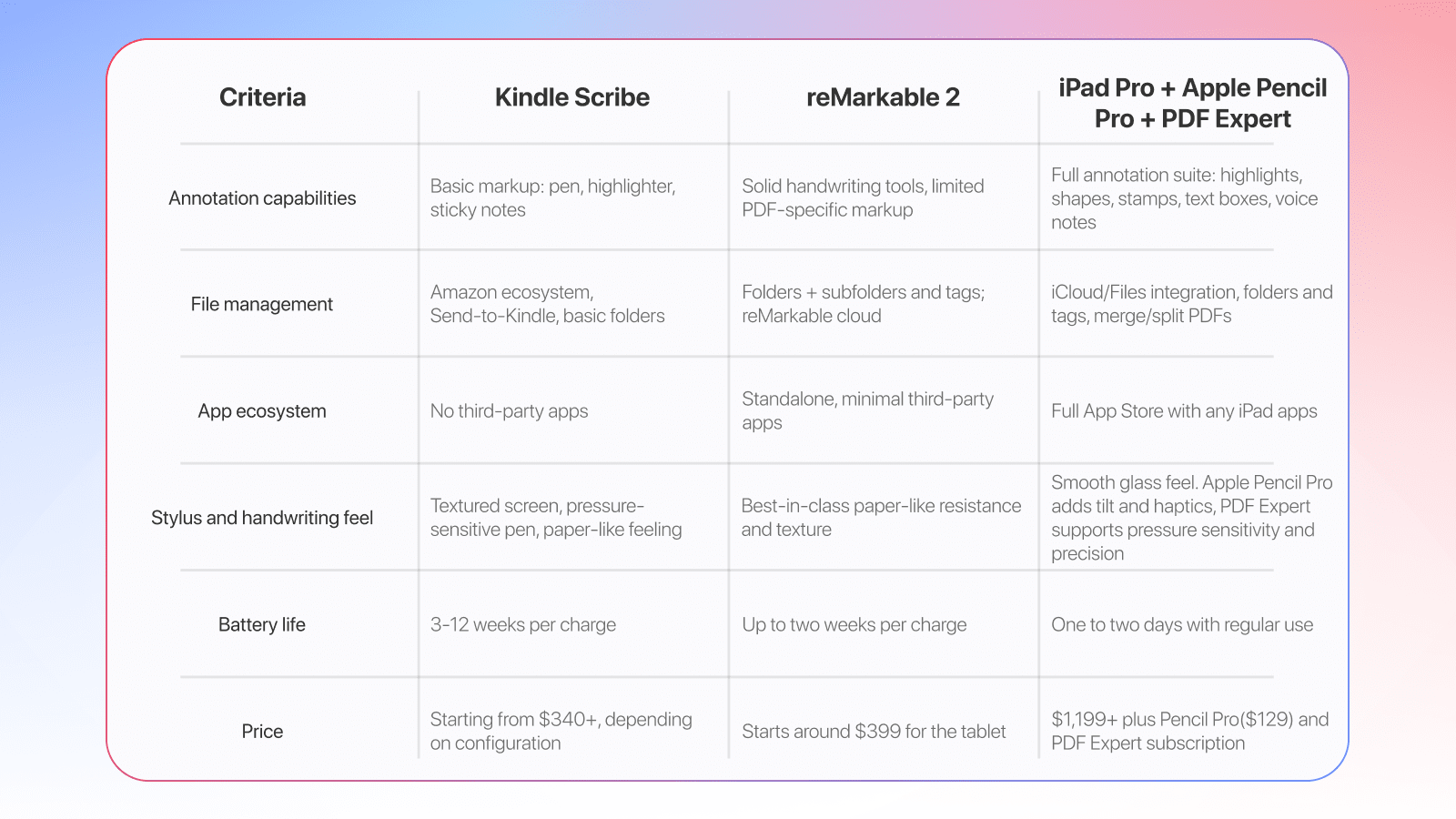
The short version: if you want the closest thing to paper, look at the E Ink pair. If PDF annotation is a real part of your document workflow (not just the occasional note while reading), the iPad Pro with PDF Expert closes the gap by a wide margin.
Kindle Scribe as a tool for PDF annotations: key features and limitations
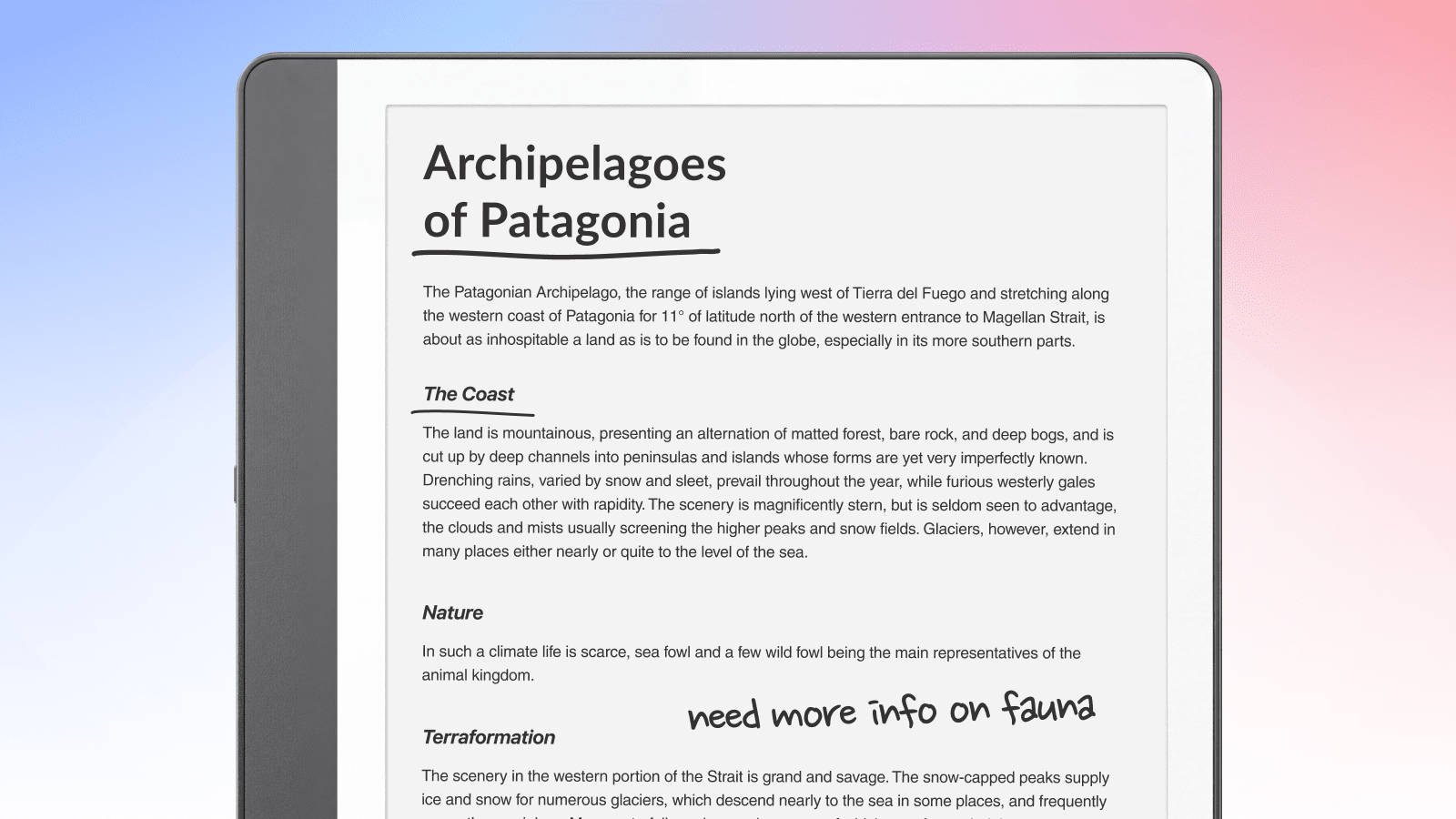
Kindle Scribe is, first and foremost, a Kindle — which shapes everything about how it handles PDF annotation. The 10.2- to 11-inch E Ink display has a built-in adjustable front light, so it's genuinely one of the few devices you can comfortably read in bed with the lights off. That reading-first design is the main reason people search "Kindle Scribe vs reMarkable" in the first place: Amazon's device is trying to be a great e-reader that also happens to take notes, rather than a notebook that also happens to display books.
For Kindle Scribe PDF annotation, you can import PDFs via Send-to-Kindle and mark them up with a pressure-sensitive pen, sticky notes, and a basic highlighter. The writing experience is smooth, and the textured display does a reasonable job simulating paper resistance. Battery life is excellent: weeks of reading, around three weeks of regular writing, so it's not a device you're constantly tethered to a charger.
The limitations show up quickly if PDF markup is your main use case. Kindle Scribe's PDF annotation tools are noticeably shallower than what reMarkable or an iPad offer: no color highlighting variety, no shape tools, and limited export options.
When to choose Kindle Scribe: if you read a lot of books and documents and want light annotations, like margin notes, underlines, and the occasional sticky note, without needing a full advanced annotation suite. If reading with a built-in light is your priority and annotation is secondary, Kindle Scribe is a strong, comfortable choice.
reMarkable 2 for PDF reading and annotations
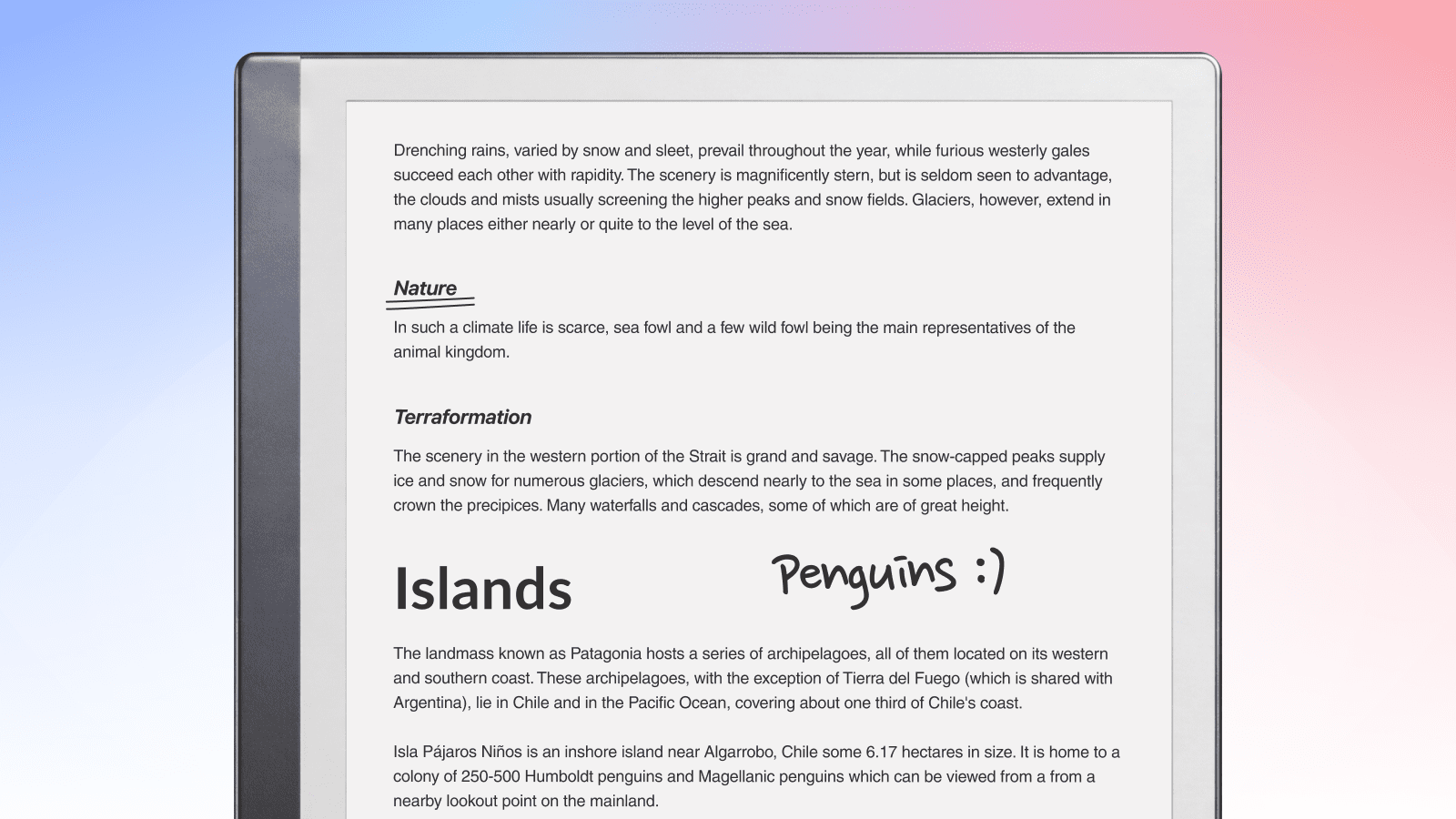
reMarkable 2 built its reputation on one thing: making an E Ink tablet feel like an actual paper notebook, and it still does that better than anything else on this list. The Canvas display and matching stylus produce a texture and a slight drag that are very close to a pen-on-paper effect. For people who write pages of longhand notes and want zero distractions, with no notifications, no browser, no app switching, that writing feel is the whole appeal.
Where reMarkable 2 PDF handling gets interesting is the mix of simplicity and just enough structure. You can import PDFs, write directly on pages, highlight text, and organize documents into folders or notebooks, all synced through reMarkable's own cloud. The screen is genuinely distraction-free, which some people find more valuable for deep reading and thinking than any feature list.
The catch: reMarkable 2 PDF annotation is still fairly limited compared to a full editing app. There's no color-coded highlighting, no shape or stamp library, and editing existing PDF text isn't possible. Battery life is strong at roughly two weeks, and there's no backlight, so you'll need external light in the dark, unlike Kindle Scribe.
When to choose reMarkable 2: If you are a writer, student and note-taker who wants the most paper-like writing experience available and mainly uses PDFs as a canvas for handwritten notes rather than needing deep editing tools.
iPad Pro + Apple Pencil Pro + PDF Expert: best setup for PDF annotations?
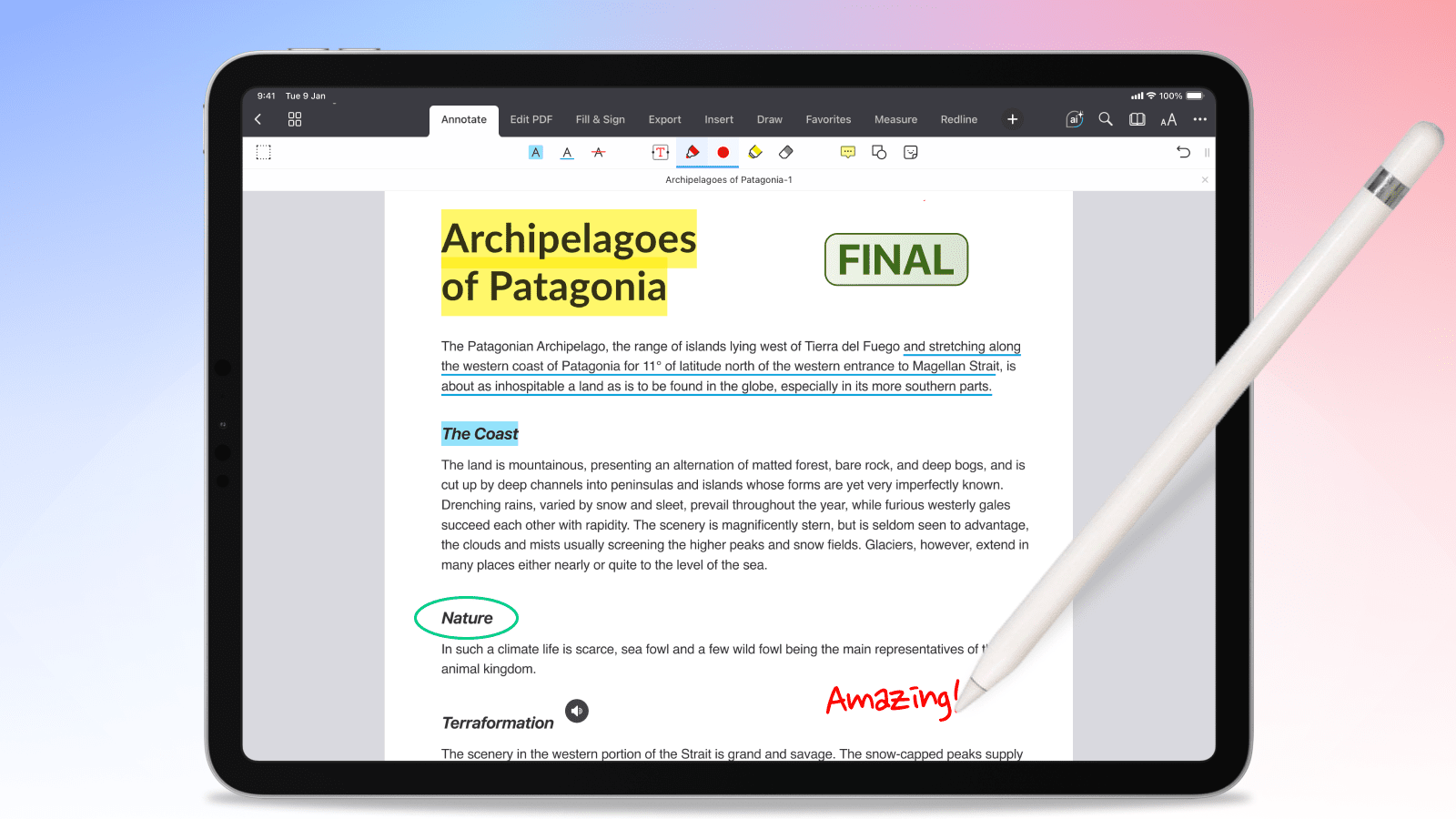
If the Kindle Scribe vs reMarkable 2 comparison is about which device feels most like paper, the iPad Pro conversation is about which one gives you the most control over your documents. Paired with Apple Pencil Pro and the PDF Expert app, the iPad Pro turns from a general-purpose tablet into arguably the most capable PDF annotation setup you can buy. This is where iPad Pro PDF annotation stops being a side feature and becomes a serious productivity tool.
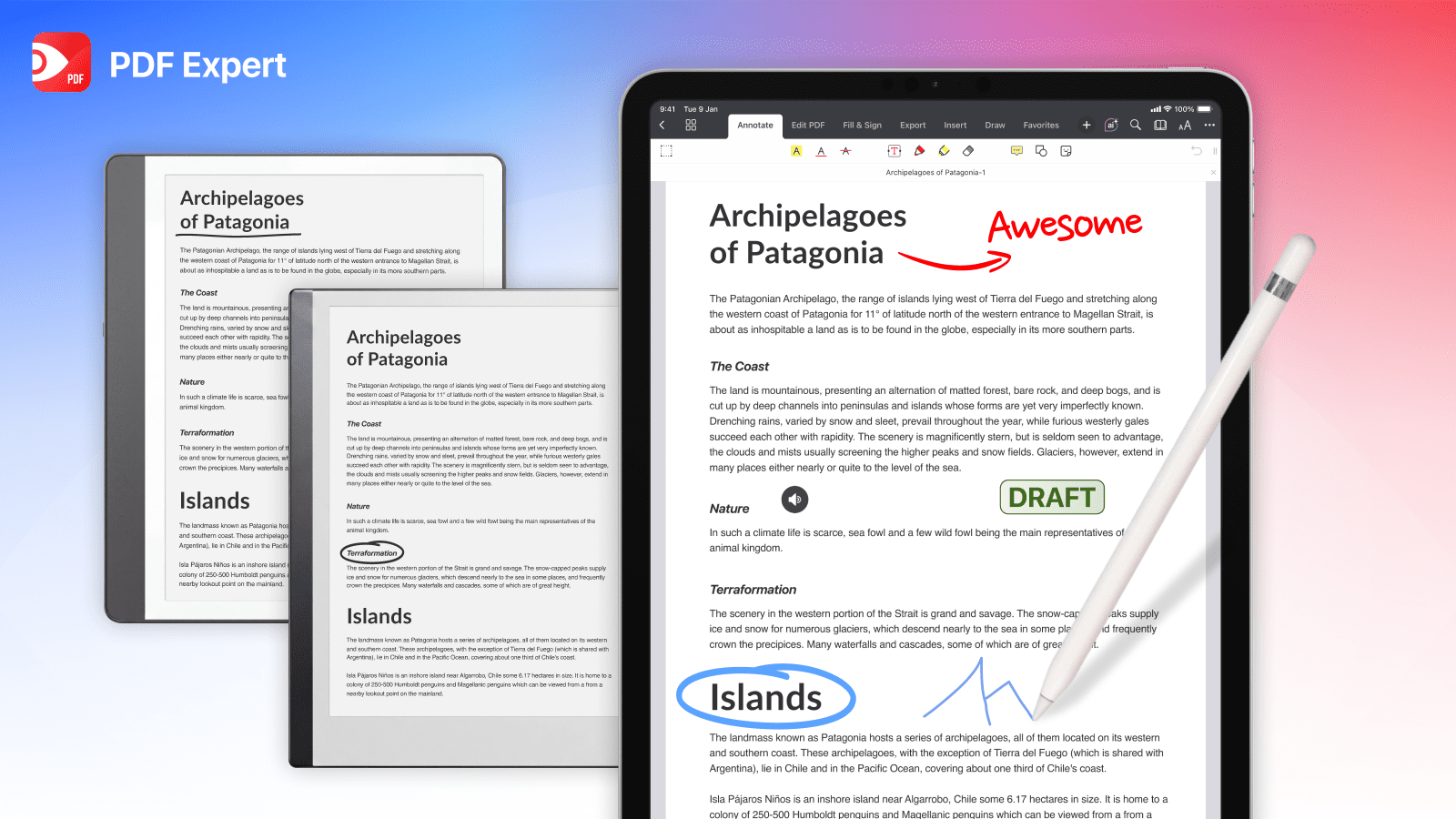
PDF Expert is built specifically for advanced PDF annotation and editing workflows. Instead of basic markup, you get a full annotation toolkit:
- highlight,
- underline,
- strike through text with custom color palettes so you can organize notes by topic or priority;
- add sticky notes,
- stamps (Approved, Confidential, and custom options),
- free-form shapes like arrows, circles, and callouts for diagrams;
- drop in text boxes for typed comments anywhere on the page;
- and even record voice notes attached directly to a document.
Because it's a true editor and not just a markup layer, you can also edit existing text in a PDF, add page numbers and outlines for navigation, fill out forms and apply e-signatures — all without leaving the app.
File management is just as strong. PDF Expert lets you merge multiple PDFs, reorder or delete pages with thumbnail previews, compress oversized files, and redact sensitive information. When you're done annotating, export is where the iPad Pro + PDF Expert setup pulls ahead: convert PDFs to Word, Excel, PowerPoint, JPG, PNG, or plain text in a couple of taps — something neither the Kindle Scribe nor the reMarkable 2 can do natively.
The tradeoffs are real, though. The glass screen doesn't replicate paper texture the way reMarkable does, battery life is measured in a day or two rather than weeks, and the total cost adds up fast: the iPad Pro alone starts at $1,199, Apple Pencil Pro is another $129, and PDF Expert runs roughly $80/year (or a one-time lifetime license) on top. It's also simply a more distracting device, with email, browsers, and every other app one tap away.
When to choose iPad Pro + Apple Pencil Pro + PDF Expert: if you annotate PDFs as part of actual work (contracts, research papers, forms, marked-up manuscripts, construction drawings) and need the fastest, most feature-rich way to review, mark up, and export documents, not just write on top of them. For professionals who deal with dozens of PDFs daily, the combination of the iPad app ecosystem and PDF Expert's annotation and editing toolsets is hard for E Ink devices to match.
PDF Annotation FAQ
Is Kindle Scribe or reMarkable better for PDF annotation?
It depends on what you value more. Kindle Scribe wins if reading with a built-in front light matters as much as writing, since it's fundamentally a Kindle first. reMarkable 2 wins on pure handwriting feel, with a display and pen that feel closer to real paper. Neither offers advanced PDF annotation tools, so in the Kindle Scribe vs reMarkable 2 matchup, the choice usually comes down to whether you read more or write more.
Can reMarkable 2 edit PDFs?
Not in the traditional sense. reMarkable 2 lets you write and highlight on top of a PDF and organize it within its file system, but it can't edit the underlying text, add interactive form fields, or apply the kind of structural changes (merging, page reordering, redaction) that a dedicated editor like PDF Expert handles. It's better described as a paper-notebook experience for PDFs than a PDF editor.
Is iPad better than reMarkable for PDFs?
For raw annotation depth and file management, yes — an iPad Pro with Apple Pencil and PDF Expert offers more annotation types, editing tools, and export formats than reMarkable 2. But "better" depends on the goal: if distraction-free, paper-like writing is what you're after, reMarkable still wins on feel and battery life. The iPad setup is the stronger choice, specifically when PDF work is a regular, functional part of your day rather than a way to unplug.
What's the best writing tablet for PDF work overall?
There isn't a single answer, which is exactly why the Kindle Scribe vs reMarkable comparison keeps coming up. If you want the best tablet experience purely for handwriting feel and battery life, reMarkable 2 or Kindle Scribe are hard to beat. If you need advanced annotation tools and real editing power (colors, shapes, forms, signatures, and exports), the iPad Pro with PDF Expert is the more capable, if pricier, option.
Please note: This article is accurate as of the date of publication. Please refer to the companies’ websites for the most up-to-date information on their features and pricing details.
 Yevheniia Dychko