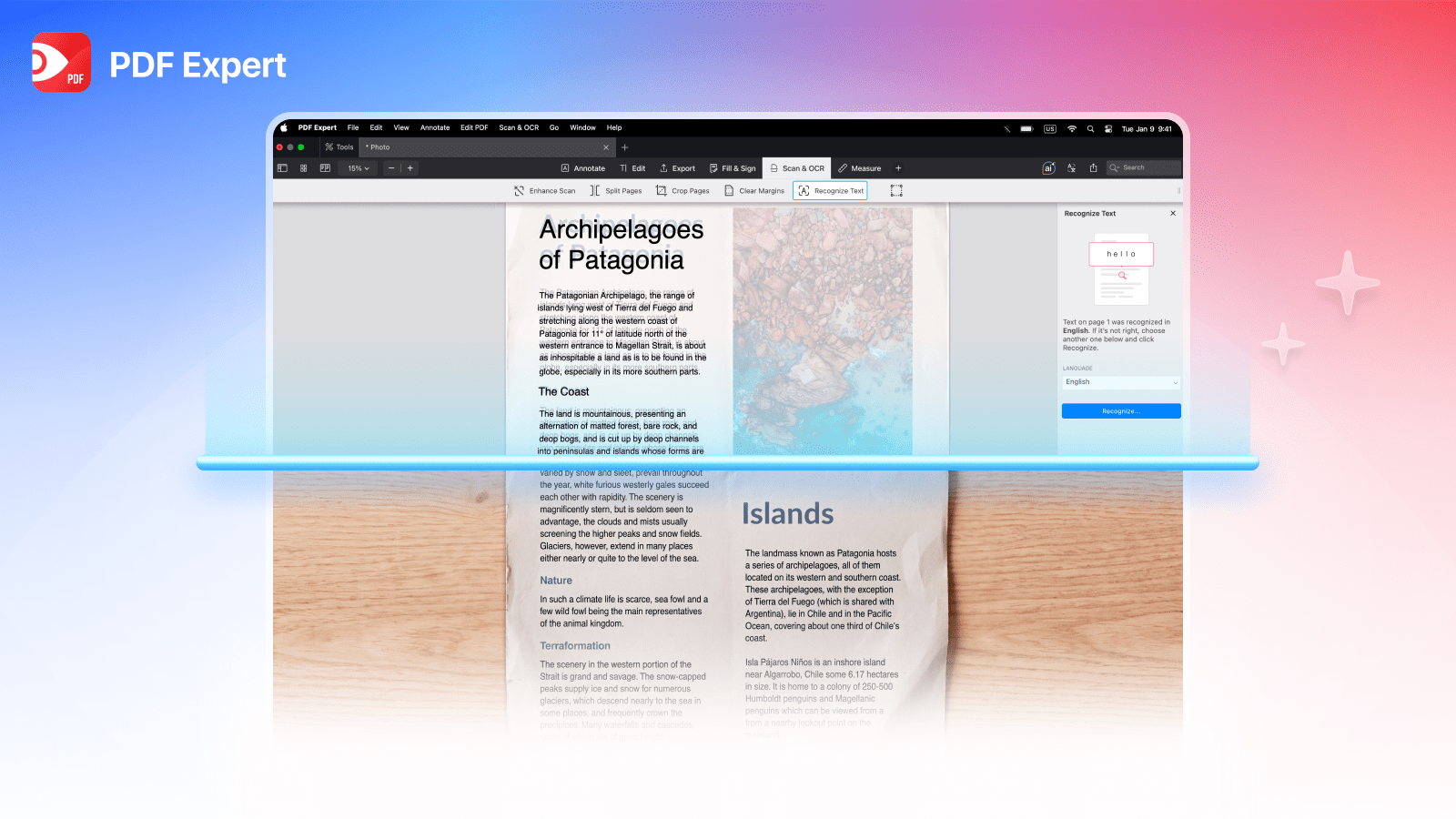
OCR, short for Optical Character Recognition, is the technology that reads text in an image and adds a layer of real, selectable characters.
It’s indispensable for tasks like turning a scanned contract or a photographed receipt into a PDF you can search, copy from, and highlight. Without it, a scanned PDF is just a photo your computer can't read as words, no matter how clear the scan looks to your eyes.
PDF Expert is one of the fastest and easiest ways to run OCR on a PDF on Mac, since it recognizes text and hands you a searchable file in a couple of clicks, without needing any advanced scanning or conversion software.
What is OCR, and how does it work?
OCR is software that recognizes shapes of letters and numbers inside an image and matches them to actual text characters, the same way a person reads a page, but at machine speed. The output isn't a picture of text anymore; it's real, computer-readable text overlaid on the original image.
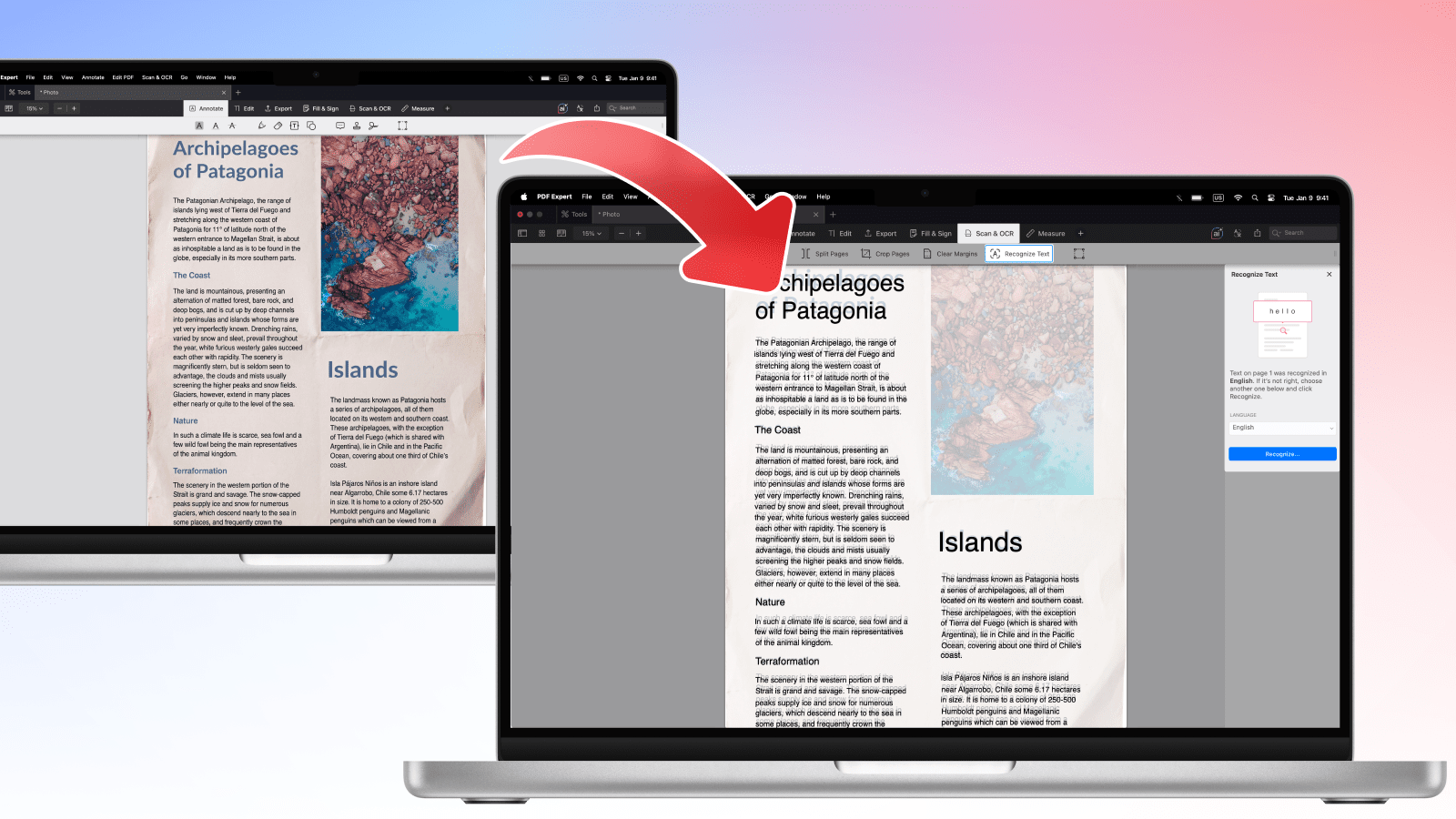
If you've ever searched "how does OCR work PDF" tutorials, the short version is that the process runs in four stages:
Stage 1: Image capture. Either a physical page is scanned, or a PDF is created from a photo, and the OCR engine receives a bitmap image of that page rather than any text data.
Stage 2: Preprocessing. Before recognition starts, PDF Expert prepares a grayscale copy of the page, upscaling it to 300 dpi if the scan is lower resolution, and leaves your actual page untouched. A crooked, grainy, or low-contrast scan drags accuracy down before recognition even begins. The engine works on that copy, breaking it into lines, words, and individual characters before it tries to read a single letter.
Stage 3: Actual recognition. The engine analyzes the shape of each character or word and predicts what each one most likely is. Modern OCR relies on machine learning models trained on large volumes of text, which is why it handles different fonts and multiple languages far better than older, rule-based systems did. In PDF Expert, recognition runs locally on your Mac, and you can select several languages at once for documents that mix them.
Stage 4: Post-processing and output. The recognized text is checked against dictionaries and context rules to catch obvious errors, then it's laid over the scanned page keeping the original layout intact. Once you save the file, your PDF contains an invisible, searchable text layer sitting behind the image, so it looks identical to the scan but behaves like a normal document.
This is also where the meaning of OCR PDF gets clearer: OCR doesn't convert a file from one format to another; it adds a hidden, readable text layer on top of an image that used to be just pixels. Put simply, OCR PDF means "making an image readable as text" without changing how the page looks.
When do you need to use OCR on your PDF?
Not every PDF needs OCR, so it helps to know how to spot the ones that do. Open your PDF in a PDF editor (like PDF Expert), go to the text edit tool, and try selecting a line of text in the file. If your cursor drags across the words like a highlighter and lets you copy them, the PDF already has real text. If nothing is selected, or your whole page gets boxed as one image, you're looking at a scanned or image-based PDF, and that's exactly the file type this scan-to-searchable-PDF process was built for.
Image-based PDFs come with real limits. You can't search them with Cmd+F, can't copy a paragraph into an email, and screen readers can't read them aloud for accessibility. Any file created by a scanner, a phone camera, or a fax machine usually falls into this category by default.
This is where an advanced workflow needs OCR. Turning that flat image into a searchable PDF unlocks the features people actually rely on: pulling quotes from a scanned report, searching a stack of old invoices for a single number, or archiving paperwork in a way that's browsable years later. Common use cases include digitizing old contracts and legal files, making scanned textbooks or research papers searchable, prepping receipts and invoices for expense tracking, and making archived paperwork accessible to screen readers for anyone with a visual impairment.
OCR isn't magic, though, and it has real limits. Recognition accuracy drops sharply on low-resolution scans, heavily creased or water-damaged pages, faded ink, unusual or highly stylized fonts, and most handwriting, since handwriting recognition is a different, far less reliable problem than printed text. Extremely low-contrast scans, like a light pencil mark on off-white paper, can also cause the engine to skip or misread entire lines. In these cases, OCR will still run, but you may need to manually correct sections of the recognized text afterwards.
It's also worth remembering that OCR doesn't erase or replace your original scan. The image stays exactly as it was, and the recognized text is layered underneath it, so if a few words come out wrong, you haven't lost anything from the source document.
How to turn a scan into a searchable PDF with PDF Expert
PDF Expert is built as the go-to PDF app for Mac, and OCR is one of the features that make it truly universal. It's trusted by 30 million users and has earned recognition from Apple along the way, largely because it keeps the process quick and reliable, even for longer, multi-page documents. Because it's a full PDF editor rather than a single-purpose OCR tool, you don't have to jump between five different apps: you can OCR a scan, then immediately annotate it, copy a paragraph, add a signature, or export it, all in the same window.
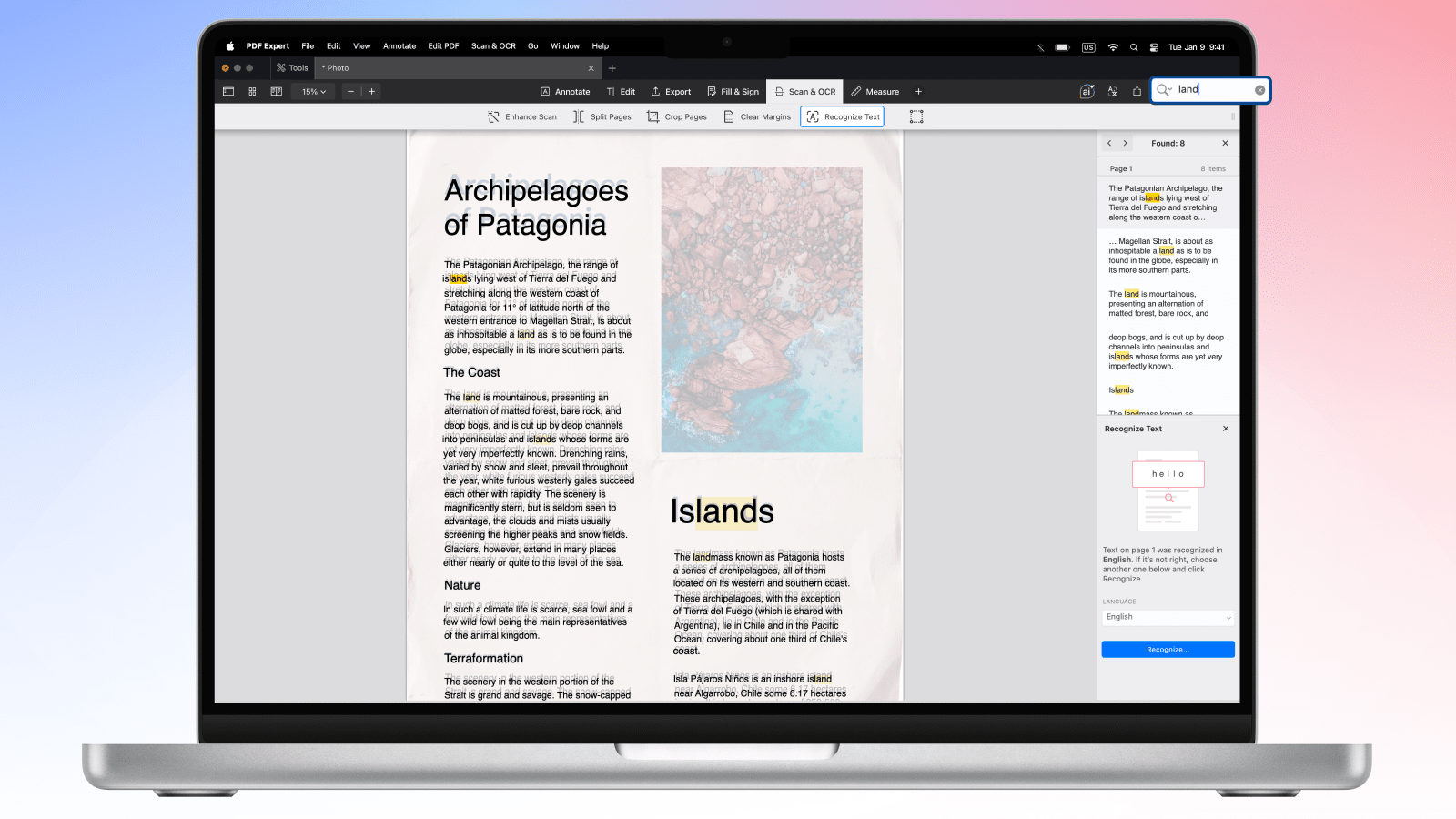
Running OCR in PDF Expert takes just a few steps. Open the scanned PDF, select the option to recognize text, and PDF Expert scans the document, detects the language, and builds a searchable text layer behind your original pages in moments. From there, the file behaves like any other PDF: you can search it, select and copy text, and highlight it directly.
Here is a detailed guide on using OCR in PDF Expert on Mac.
Given how often scanned paperwork shows up in daily work, having that scan-to-searchable-PDF tool built into your everyday PDF app, rather than a separate specialist tool, is what makes the workflow stick.
Frequently Asked Questions
What is the best OCR software for PDFs?
The best option depends on your platform and workflow. Look for software that keeps your original layout intact, supports the languages you actually work in, and lets you keep editing the file afterwards rather than exporting it elsewhere. For Mac users, PDF Expert is a strong choice because OCR is built directly into the same app used for reading and annotating PDFs, so there's no need to juggle a separate conversion tool.
How do I tell if a PDF is OCR'd already?
Open the file and try to select a line of text with your cursor. If the text highlights and can be copied, the PDF already has a text layer, whether from OCR or from being created digitally. If your selection only grabs the entire page as a single image, it hasn't been OCR'd yet.
How can I tell if a PDF is a scanned image or contains real text?
Beyond the selection test, check the file size and appearance: scanned PDFs are often larger per page and look slightly imperfect, with visible grain, skew, or shadows, since they're essentially photographs of paper. A digitally created PDF usually has crisp, uniform text and much smaller file sizes per page.
Is there a free way to OCR a PDF?
Yes. Several tools offer a free OCR PDF option, either as a limited trial or a capped free tier. PDF Expert's trial lets Mac users run full OCR recognition on their own scanned documents before committing to a subscription.
Does running OCR change my original PDF?
No. OCR adds a text layer; it doesn't redraw or replace the page itself. The scanned image remains visually identical, so even if a handful of characters are misread, the underlying document is untouched, and you can always re-run recognition later.
 Yevheniia Dychko