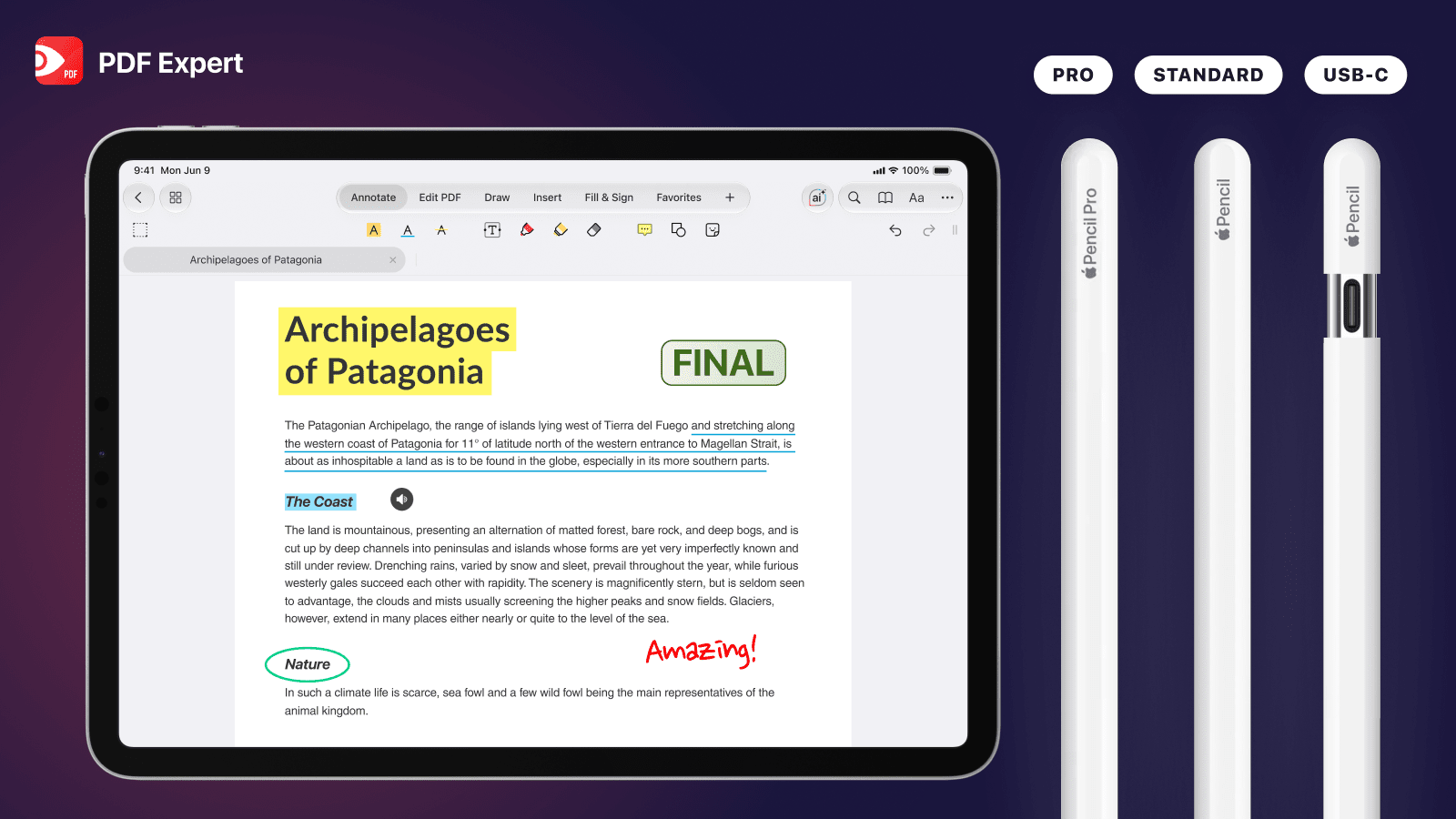
If you read, mark up, and sign PDFs on an iPad, you either use the Apple Pencil often or are thinking about buying one. The iPad + Apple Pencil combo is the ultimate productive setup for any type of document work, from note-taking to marking up contracts. But Apple now has several models, and they differ in terms of features and compatibility. So when it comes to Apple Pencil Pro vs Apple Pencil (2nd generation) vs Apple Pencil (USB-C), the right pick depends on two questions: which iPad you have, and what you do with your documents every day.
In this guide, we compare the three Apple Pencils on price, charging, compatibility, and features. Then we look at how each one performs in real PDF Expert workflows, from handwritten notes to reviewing a stack of contracts, so that you can choose with confidence.
Quick note on naming: in this article, "Standard" refers to the Apple Pencil (2nd generation), the model that sat between the USB-C and Pro versions for years.
Apple Pencil Pro vs Apple Pencil: the specs side by side
Apple Pencils aren't interchangeable, so a newer iPad may simply not work with an older Pencil, and vice versa. Check your iPad model first, then compare features.
|
Apple Pencil Pro |
Apple Pencil (2nd generation) |
Apple Pencil (USB-C) |
|
|---|---|---|---|
|
Price (US) |
$129 |
$129 (being phased out at many retailers) |
$79 |
|
Charging and pairing |
Attaches magnetically to pair and charge |
Attaches magnetically to pair and charge |
Pairs and charges with a USB-C cable; attaches magnetically for storage only |
|
Pressure sensitivity |
Yes |
Yes |
No |
|
Tilt sensitivity |
Yes |
Yes |
Yes |
|
Hover |
Yes, on supported iPads |
Only on iPad Pro (M2) models |
Yes, on supported iPads |
|
Double-tap |
Yes |
Yes |
No |
|
Squeeze |
Yes |
No |
No |
|
Barrel roll |
Yes |
No |
No |
|
Haptic feedback |
Yes |
No |
No |
|
Find My |
Yes |
No |
No |
|
Compatible iPads |
iPad Pro 11 and 13-inch (M4, M5), iPad Air 11 and 13-inch (M2, M3, M4), iPad mini (A17 Pro) |
iPad Pro 11-inch (1st–4th gen), iPad Pro 12.9-inch (3rd–6th gen), iPad Air (4th, 5th gen), iPad mini (6th gen) |
Every model listed for Pro, plus iPad Air (4th, 5th gen), iPad (A16), iPad (10th gen), iPad mini (6th gen), and older USB-C iPad Pro models |
What about battery life?
In everyday use, all three easily last through a long study or work session. The real difference is how you top them up. Apple Pencil Pro and the 2nd-generation Pencil charge whenever they're snapped to the side of your iPad, so they're rarely empty. Apple Pencil (USB-C) needs a cable, which is easy to forget until the battery runs out mid-meeting.
Apple Pencil and the iPhone Duo
Apple's first foldable, the iPhone Duo, adds Apple Pencil support for both its cover screen and inner display. According to Apple, it works specifically with Apple Pencil (USB-C), which makes sense: there's no edge on a foldable for a magnetic Pencil to charge from. Apple notes that Pencil support arrives later this year, after the phone goes on sale in late October 2026. If you're planning to use one Pencil across an iPad and an iPhone Duo, the USB-C model is currently the only option.
Pros and cons of each Apple Pencil
Apple Pencil Pro
Pros:
- The most complete feature set: pressure, tilt, hover, squeeze, barrel roll, and haptics
- Charges and pairs magnetically, so it's always ready
- Find My support if it rolls under a desk or gets left in a meeting room
Cons:
- Works only with recent iPad Pro, iPad Air, and iPad mini models
- It costs $50 more than the USB-C model
Apple Pencil (2nd generation)
Pros:
- Pressure sensitivity and double-tap
- Charges magnetically, just like Pro
Cons:
- Doesn't work with any iPad released in 2024 or later
- No squeeze, haptics, or Find My
- Increasingly hard to buy new, since many retailers have stopped stocking it
Apple Pencil (USB-C)
Pros:
- The most affordable Apple Pencil is at $79
- Works with the widest range of iPads, including the entry-level iPad (A16)
- The only Apple Pencil that works with iPhone Duo
Cons:
- No pressure sensitivity, so stroke thickness doesn't change with how hard you press
- No double-tap or squeeze for switching tools
- Must be charged with a cable
Which Apple Pencil works best for editing PDFs?
All three Apple Pencils work well for editing and annotating PDFs in PDF Expert on iPad. The differences show up in how quickly you can move through a task. Here's how they compare in the workflows we see most often.
|
Workflow |
Best pick |
Why |
|---|---|---|
|
Reading and handwritten notes |
Any of the three |
Handwriting Recognition works with every Pencil, and even your finger |
|
Reviewing and marking up lots of PDFs |
Apple Pencil Pro |
Squeeze and haptics cut down trips to the toolbar |
|
Filling out and signing forms |
Any of the three |
Short, simple input |
Reading and taking handwritten notes
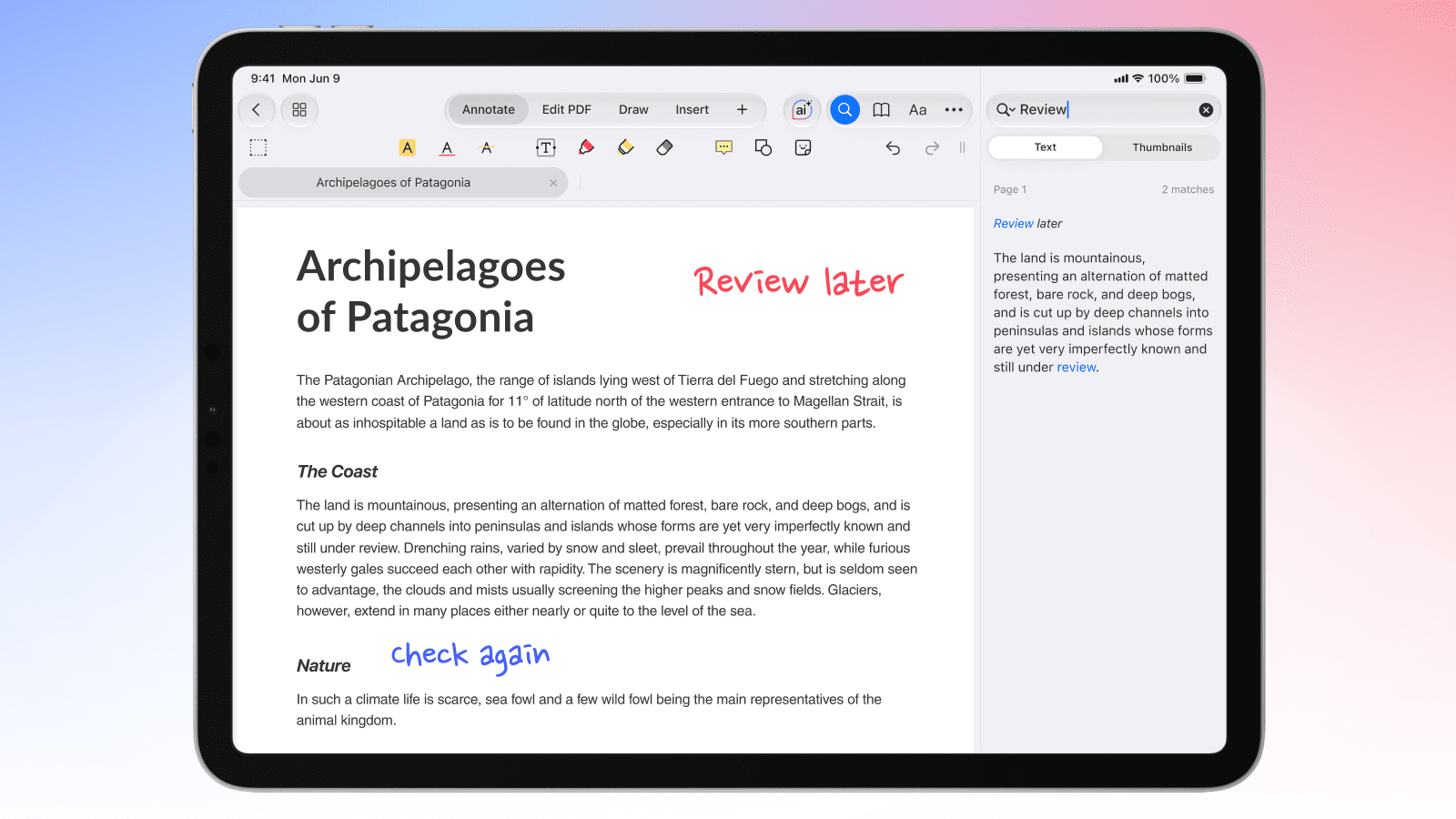
If you mostly read and jot notes in the margins, any Apple Pencil will do the job well. Pick up the Pen or Marker tool and write as you would on paper.
What changes the experience is what happens to those notes afterward. With the iPadOS 27 update, PDF Expert added Handwriting Recognition, so everything you write by hand becomes searchable, without changing how your handwriting looks. Search for a term, and PDF Expert finds it in your handwritten notes, in one document or across your whole library. It even works on notes written before the update or in another app, and it supports 29 languages.
Prefer typed text? Turn on autoconversion for the Pen or Marker tool, and PDF Expert converts handwriting to text as you write. The Text and Note tools do the same automatically when you write in them with Apple Pencil.
Pressure sensitivity on Pro and the 2nd-generation Pencil makes strokes look more natural, but it doesn't affect recognition. Handwriting Recognition is part of PDF Expert Premium, and free users can still use the Text tool for handwriting-to-text conversion.
Reviewing and marking up a lot of PDFs
This is where the gap between the Apple Pencil Pro and the Apple Pencil is widest. When you're reviewing dozens of pages of contracts, papers, and drawings, you constantly switch between a highlighter, a pen, shapes, and an eraser, and each trip to the toolbar adds up.
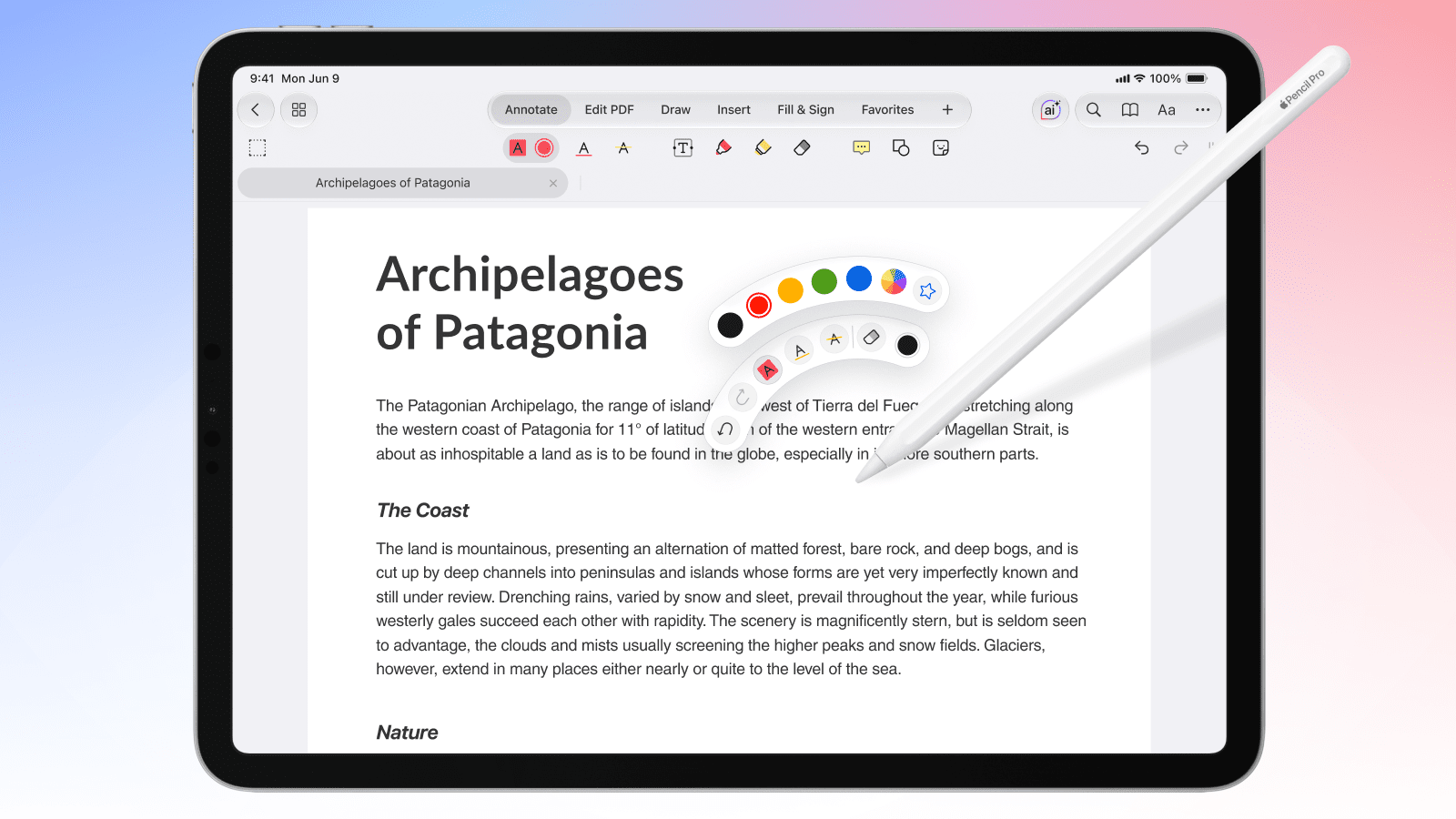
Apple Pencil Pro lets you squeeze to bring up tools right on the page, and haptics confirm the action so you can keep your eyes on the document. Apple Pencil (USB-C) doesn’t offer the Squeeze gesture, so every change goes through the toolbar.
Filling out and signing forms
Forms are mostly short input: a few fields, a checkbox, a signature. Any Apple Pencil handles this comfortably in PDF Expert's Fill & Sign tools, and you can draw a signature once and reuse it. If forms are most of what you do, Apple Pencil (USB-C) is the budget-friendly choice.
Apple Pencil Pro still saves a step here: squeeze while working in Fill & Sign, and you get that toolset's tools, including stamps and signatures, in a couple of taps.
Which Apple Pencil should you get?
Still deciding on Apple Pencil Pro vs Apple Pencil (USB-C)? Start with your iPad's compatibility, then match the Pencil to how you work.
If you're a student or researcher who takes a lot of notes, get an Apple Pencil (USB-C) — or the Pro if your iPad supports it and the budget allows. Note-taking is mostly writing, highlighting, and searching later. The USB-C model handles all of it, and PDF Expert's Handwriting Recognition makes your notes searchable no matter which Pencil wrote them. It's also $50 cheaper, which matters on a student budget. Choose Pro if you want pressure-sensitive strokes that look more like real ink, or if you color-code heavily and switch highlighters often.
If you're a professional who uses Apple Pencil for deep document work, get Apple Pencil Pro. Squeeze puts markup tools, stamps, signatures, and measurement settings within one gesture, and haptics confirm each action without breaking focus. Over a full day of reviews, those saved seconds add up to real time.
If you already own an iPad that only supports the 2nd-generation Pencil, stick with it. It's still a capable stylus with pressure sensitivity and double-tap. There's no reason to upgrade the Pencil until you upgrade the iPad.
If you're buying an iPhone Duo, get an Apple Pencil (USB-C). It's the only model that works with Apple's foldable and every current iPad.
PDF Expert + Apple Pencil on iPad = perfect setup for PDF workflows
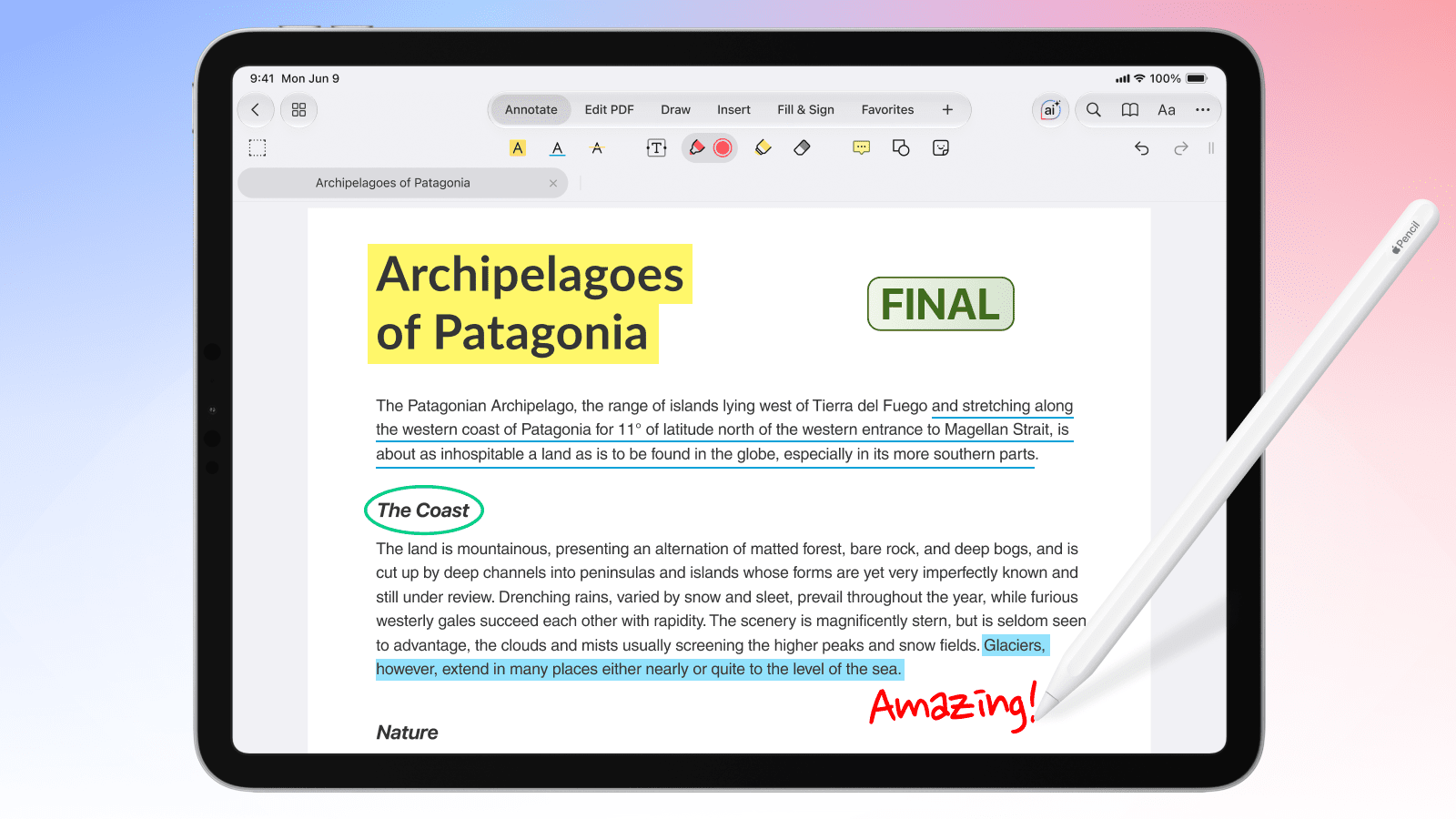
Whichever side you land on in the Apple Pencil Pro vs Apple Pencil debate, the app you use shapes the experience as much as the stylus does. PDF Expert is built for Apple devices, and it adopts new Apple features as they arrive:
- Handwriting Recognition makes every handwritten note searchable across your library, and converts handwriting to typed text when you want it.
- Squeeze support for Apple Pencil Pro opens a tool palette right on the page, tailored to the toolset you're using.
- A full set of annotation tools lets you highlight, underline, draw shapes, add notes and stamps, and measure drawings.
- Fill & Sign lets you complete forms and add a saved signature in seconds.
- Liquid Glass design in iPadOS 27 keeps the interface light and out of the way of your document.
If you're looking for the best app for Apple Pencil when it comes to PDFs, PDF Expert gives every Apple Pencil- Pro, 2nd generation, or USB-C- the tools it needs to make any PDF task enjoyable. Download PDF Expert on your iPad and try it with the Pencil you already have.
FAQ
Which is better for note-taking, the Apple Pencil Pro or the Apple Pencil USB-C?
For most note-takers, Apple Pencil (USB-C) is enough. It's precise, supports tilt and hover, and costs $50 less. Apple Pencil Pro is better if you want pressure-sensitive strokes or switch tools often, since Squeeze brings up your tools without a trip to the toolbar. In PDF Expert, both work with Handwriting Recognition, so your notes are searchable either way.
Is the Apple Pencil Pro worth it for note-taking?
It's worth it if your iPad supports it and you write for long stretches. Pressure sensitivity makes handwriting look more natural, magnetic charging means it's always ready, and Squeeze speeds up switching between pens, highlighters, and the eraser. If you only write occasional notes, the USB-C model covers the basics for less.
Can you use an Apple Pencil on PDF files?
Yes. With an app like PDF Expert, you can use any compatible Apple Pencil to highlight, underline, write notes, draw shapes, fill out forms, and sign PDFs on iPad. PDF Expert also makes handwritten notes searchable and can convert handwriting to typed text.
Which Apple Pencil is better for students?
Apple Pencil (USB-C) is the best value for most students. It's the cheapest model, works with every current iPad, including the entry-level iPad (A16), and handles note-taking and annotation well. Students who draw diagrams often or want a more natural writing feel may prefer Apple Pencil Pro, if their iPad supports it.
 Yevheniia Dychko


