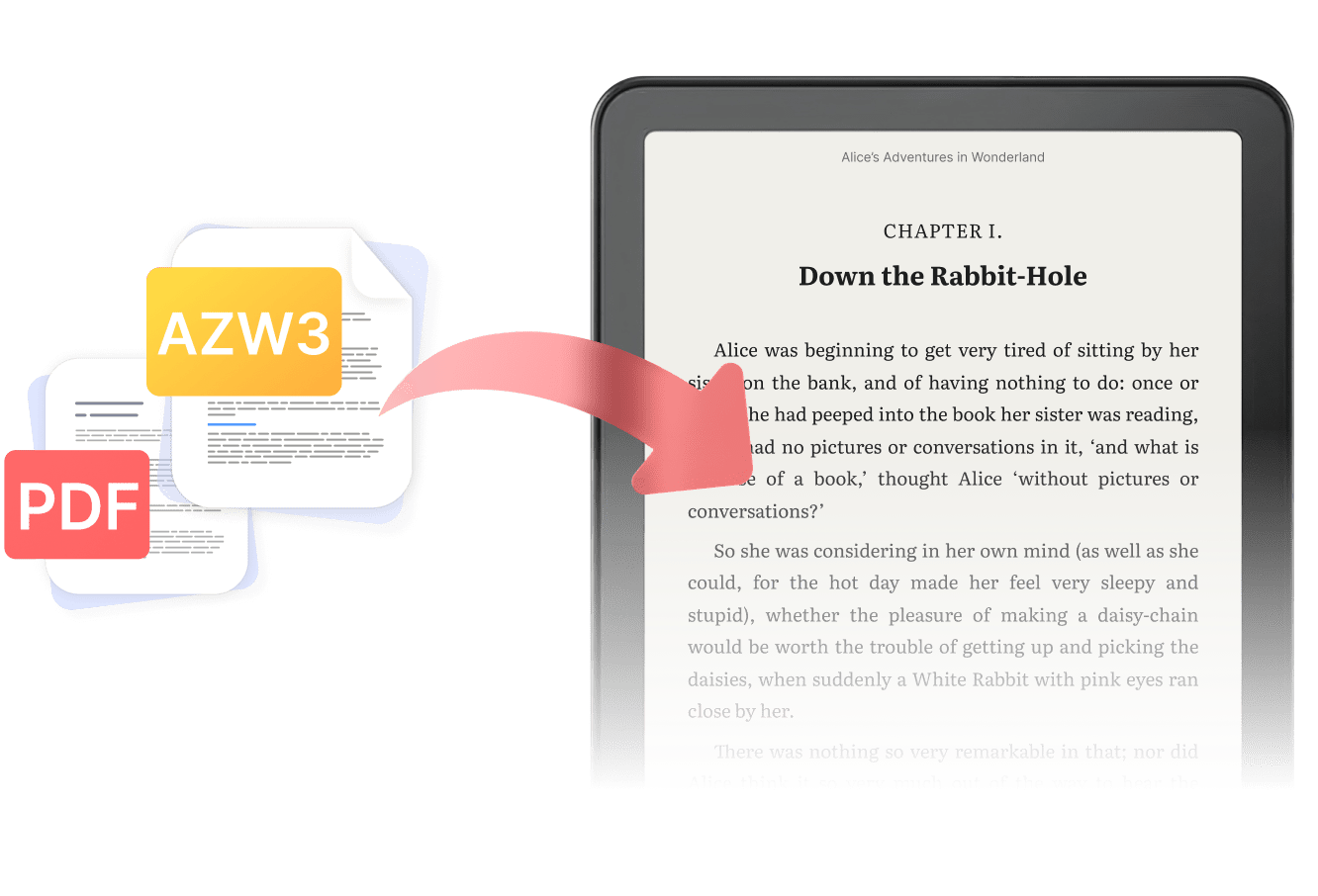
Sending a PDF to your Kindle is simple until you open it and find tiny text, wide white margins, and pages you have to zoom in line by line.
The fix depends on what's inside the file. If it's mostly text, like a novel or a long report, converting it to a reflowable Kindle format makes it feel like a real ebook. If the layout matters (think textbooks, sheet music, comics, or forms), it's better to keep the PDF format and optimize it for a smaller screen.
Below, we'll walk through advantages and disadvantages of each format on Kindle, help you decide whether to convert or optimize, and show a quick prep workflow in PDF Expert.
What is the best format for ebooks on Kindle?
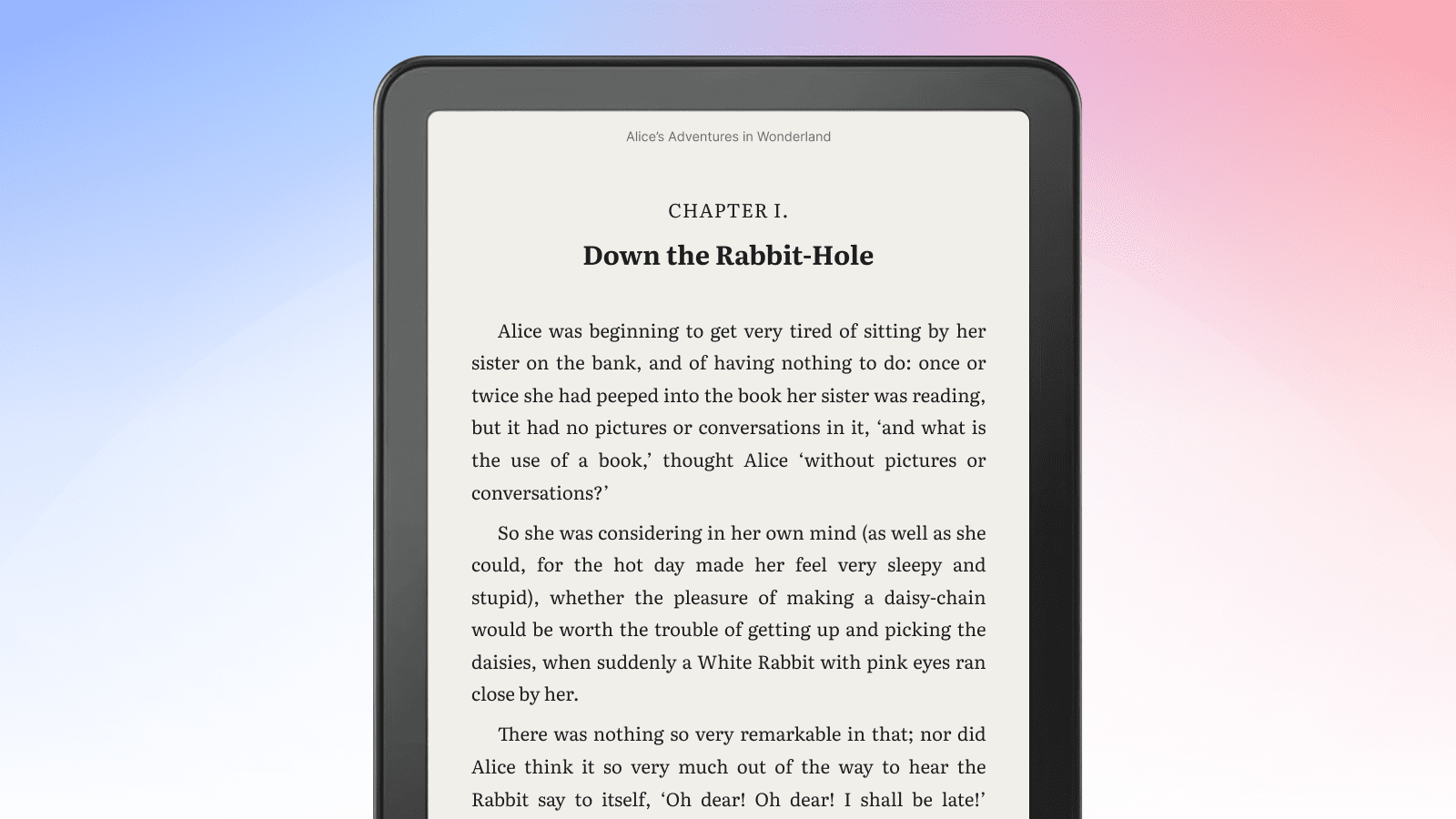
There's no single best Kindle format, as it depends on whether your text needs to reflow or stay fixed. Here's how the main options compare.
EPUB is the open ebook standard and, today, the easiest way to get a book onto a Kindle. When you upload an EPUB through Send to Kindle, Amazon converts it into its own format automatically, so you get adjustable fonts, line spacing, and margins.
- Pros: widely supported, easy to send, text reflows to fit any screen.
- Cons: complex layouts, tables, and footnotes may shift during conversion.
AZW3 (also called KF8) is Amazon's native Kindle format. It supports embedded fonts, richer styling, and a proper table of contents. If you convert a PDF to AZW3 yourself, you'll need to copy the file to your Kindle via USB, since Send to Kindle doesn't accept AZW3 files.
- Pros: native to Kindle, good formatting control, works offline via USB.
- Cons: you need a converter to create it, and it isn't readable outside the Kindle ecosystem. Also, it can't be sent wirelessly via Send to Kindle.
MOBI is Amazon's older format. It still opens on most Kindle devices, but Amazon no longer accepts MOBI files through Send to Kindle and recommends EPUB instead. Converting PDF to MOBI makes sense only for very old Kindle models that don't support AZW3.
- Pros: compatible with legacy devices.
- Cons: outdated, limited styling, no longer accepted by Send to Kindle.
PDF is supported natively on every modern Kindle. Pages stay exactly as designed, but text doesn't reflow, so readability depends heavily on screen size.
Quick rule: for text-first content, EPUB or AZW3 gives the best reading experience. For layout-first content, stick with PDF and optimize it.
When is it better to use a PDF on Kindle?
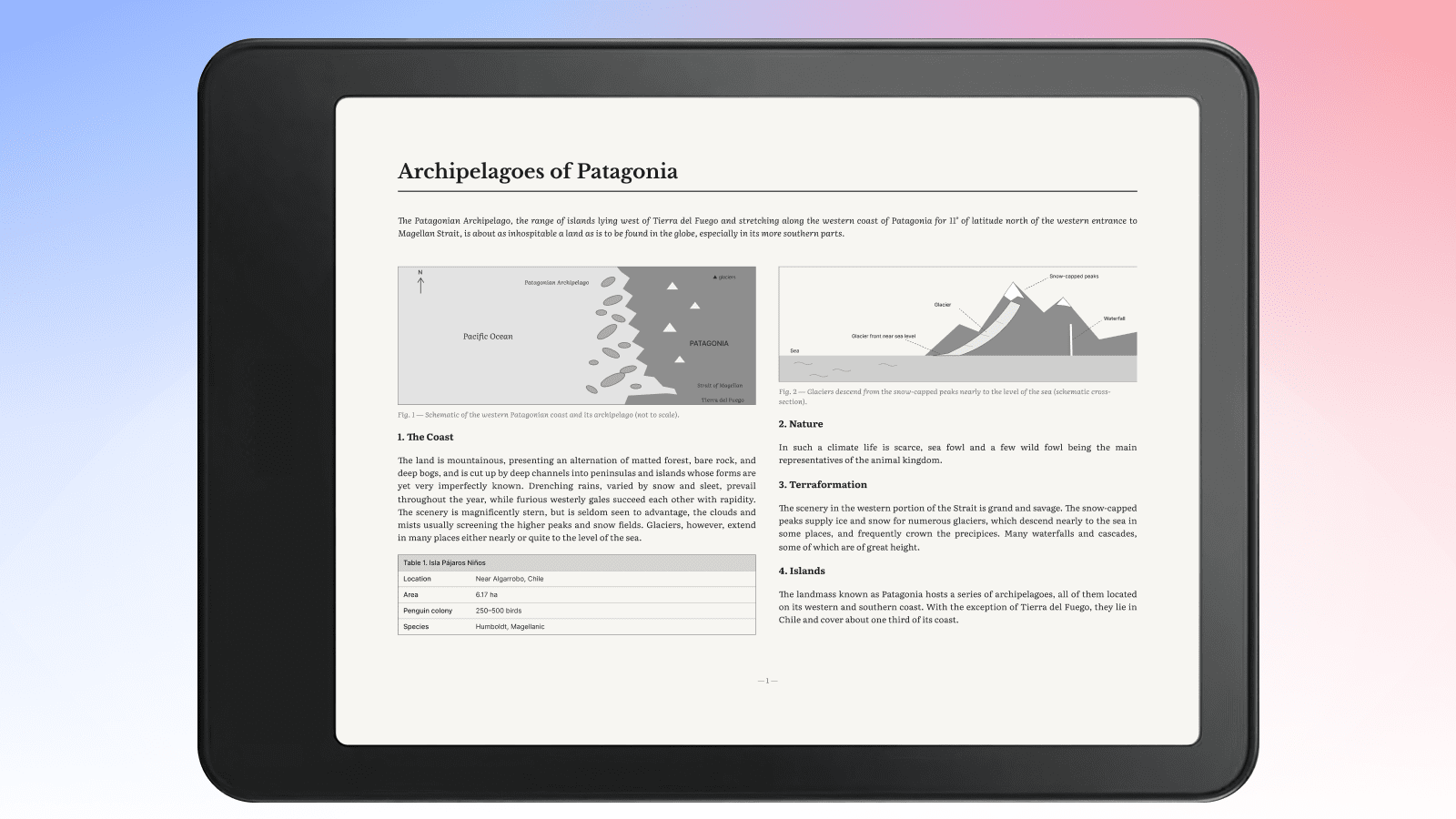
A PDF on Kindle is the right choice whenever the page design carries meaning. Converting a document like that would scramble columns, detach captions from images, and break tables.
Advantages of reading PDFs on Kindle:
- The original layout, fonts, and images stay intact.
- Page numbers match the print version, which is useful for citations and study groups.
- No conversion step and no risk of conversion errors.
Disadvantages:
- Text can't be resized without zooming and panning.
- Wide margins waste space on a 6–7-inch screen.
- Large, image-heavy files load slowly and consume storage space.
When it makes sense to keep the PDF layout on Kindle:
- Textbooks and academic papers with formulas, charts, and footnotes
- Comics, manga, and illustrated children's books
- Sheet music, maps, and technical diagrams
- Forms, contracts, and documents you need to reference page by page
- Anything you'll read on a large-screen Kindle like the Kindle Scribe
How to preserve your PDF formatting on Kindle
The goal is to make each page fit the screen without changing the design. Here is how you can prepare your PDF file for Kindle usage in PDF Expert on Mac, iPhone, or iPad:
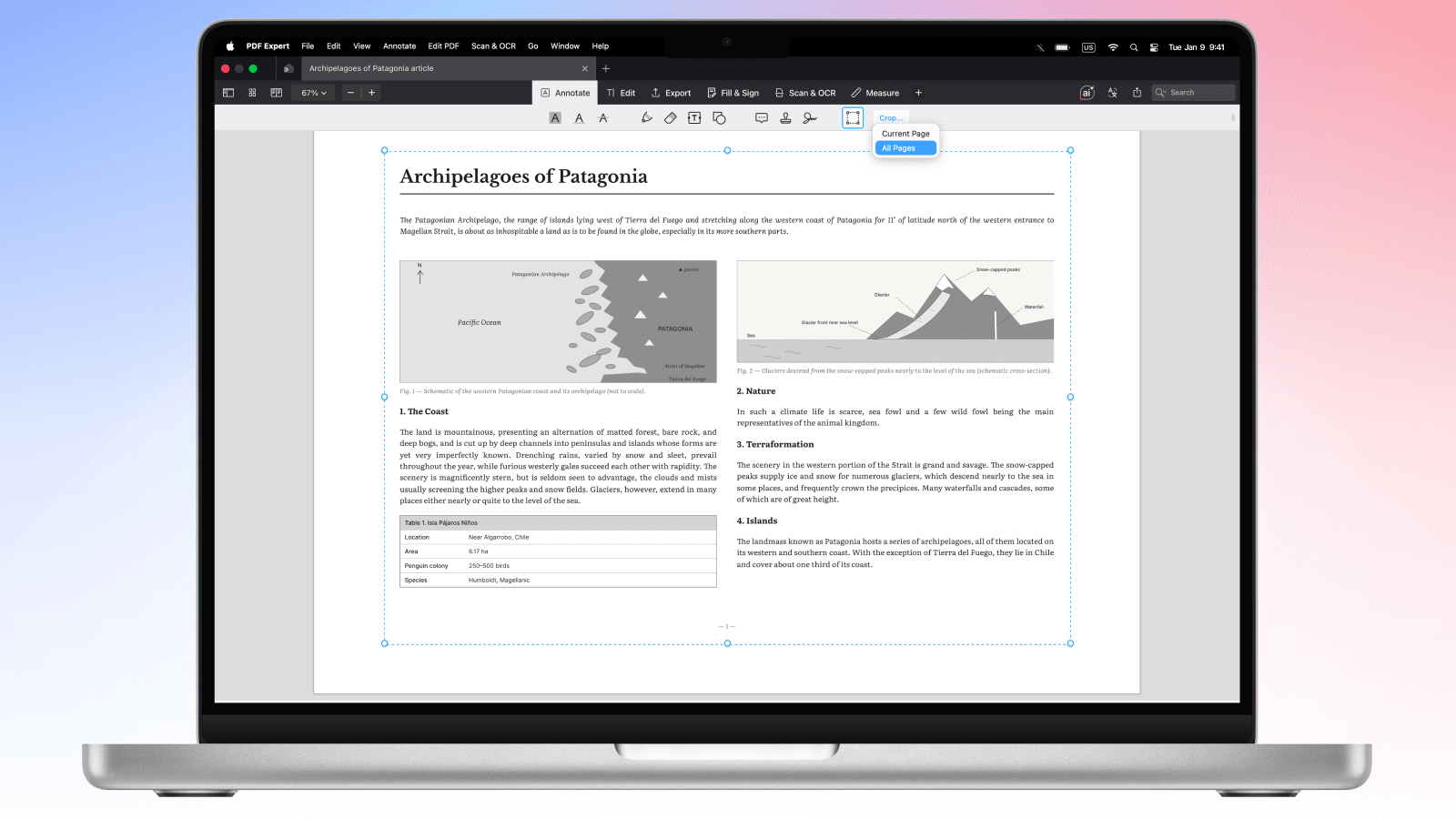
- Crop the margins. Trimming white space makes the text noticeably larger on a small screen. In PDF Expert on Mac, open the Annotate tab, click the Content Selection tool, drag a frame around the content, then click Crop… and choose All Pages.
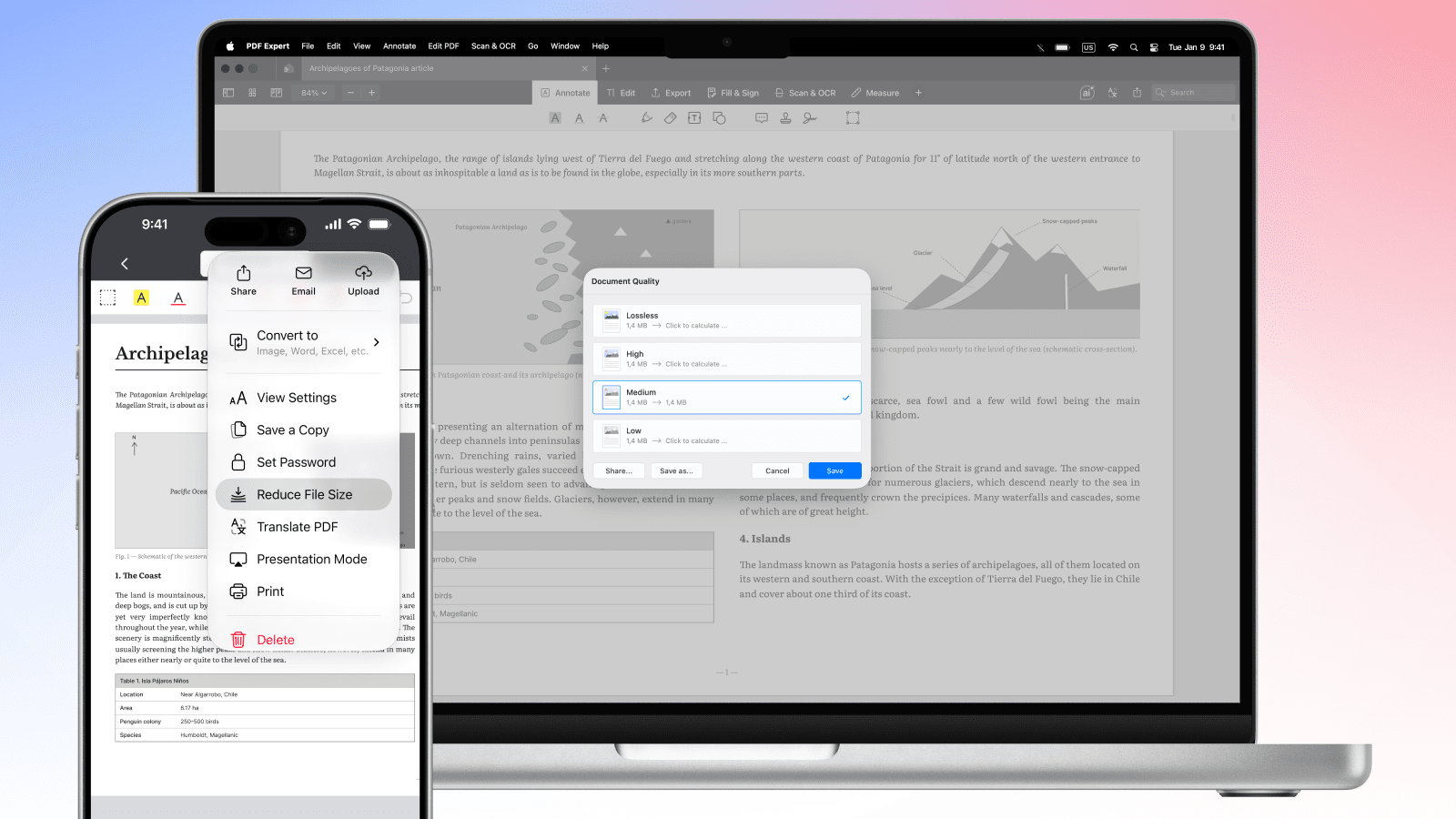
- Compress the PDF. In PDF Expert on Mac, go to File > Reduce File Size; on iPhone or iPad, tap More (…) > Reduce File Size. Pick a quality level (High or Medium usually works well for Kindle reading). On Mac, click Save as... to keep the original file; on iPhone or iPad, tap Reduce, and PDF Expert saves a compressed copy next to the original. Smaller files sync faster and turn pages more smoothly.
Pro tip: on the Kindle itself, switch to landscape mode for two-column documents. It often makes small text readable without any extra zooming.
How to convert a PDF to Kindle format
If your document is mostly text, converting it gives you resizable fonts and a much more comfortable read. A clean source file makes the conversion far more accurate, so start by prepping it.
Step 1: Prepare the PDF in PDF Expert
- Run OCR on scanned documents. Converters can only reflow real text, not images of text. Open the scan in PDF Expert on Mac and use text recognition (OCR) to turn it into selectable, searchable text. To do this, click Scan & OCR in the toolbar, select Recognize Text, and click Recognize.
- Remove page numbers, headers, and footers. Repeating page numbers and running headers often end up mid-sentence after conversion. In PDF Expert on Mac, go to Edit PDF > Header and Footer > Remove Page Numbers. PDF Expert finds the page numbers in your document and lists them in the sidebar, so you can remove them all at once with Remove All. For running headers and other text in the margins, crop the pages as described above."
- Remove pages you don't need. Delete blank pages, ads, or appendices in the page thumbnail view. In PDF Expert on Mac, click the Page thumbnails button in the top left corner, choose the pages you want to delete, and click Delete.
- Reduce file size. Use File > Reduce File Size to keep the file light, especially if it contains photos.
Step 2: Send the PDF with Make layout adjustable
You don't need a separate converter to turn a PDF into a Kindle-friendly book. Amazon's Send to Kindle service converts the file for you as it sends it. The easiest way to use it is the free Kindle app on your iPhone or iPad. The app delivers files to your Kindle e-reader, so you don't need a computer or a USB cable.
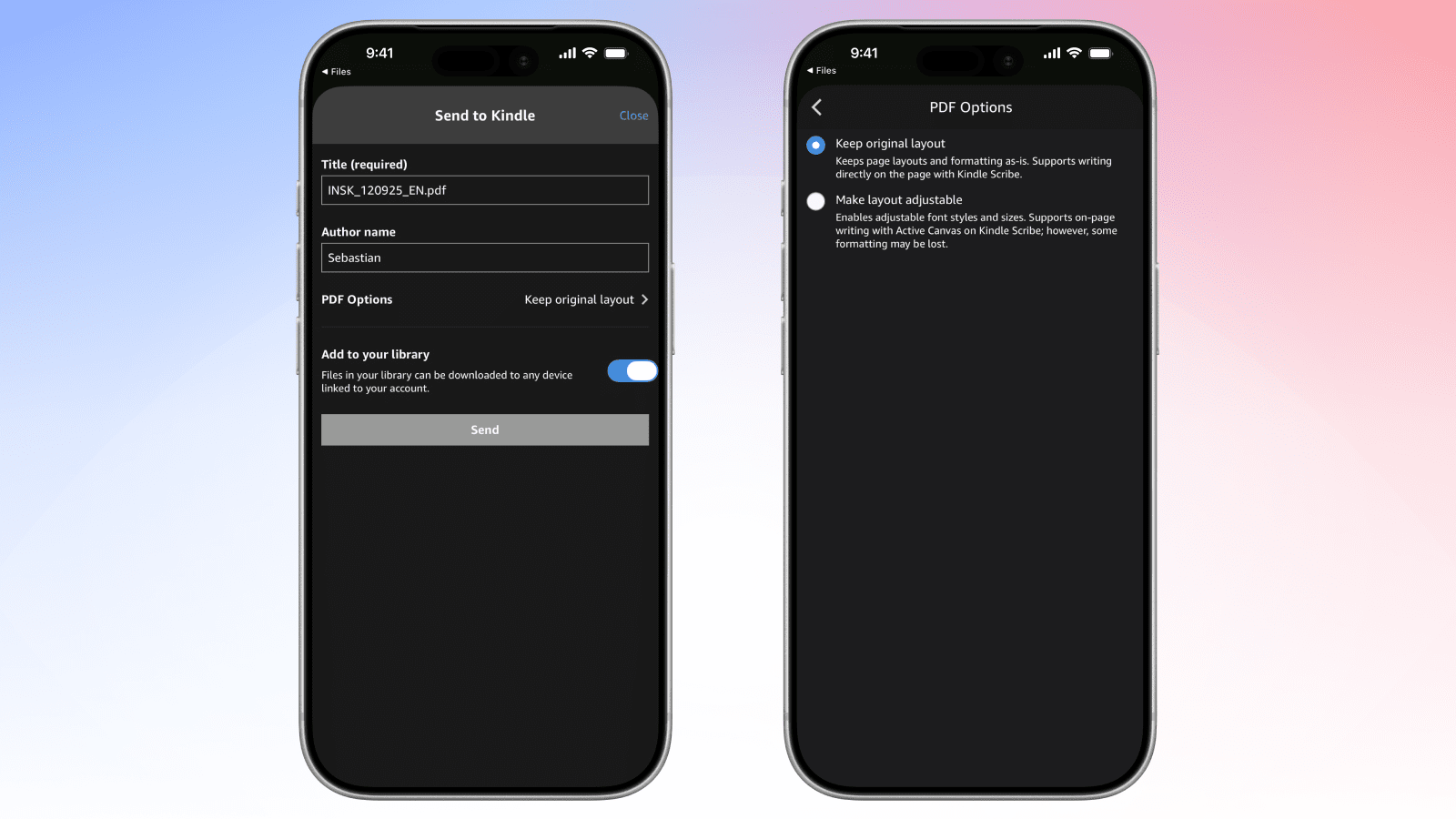
- Open the prepared PDF in PDF Expert on iOS, tap Share, and choose Kindle.
- Check the title and author name, then tap PDF Options and choose a layout:
-
Keep original layout (default): pages look exactly like the original PDF. Best for documents where the layout matters.
-
Make layout adjustable: turns the PDF into a reflowable book, so you can change the font style and size. Best for text-heavy documents, but some formatting may be lost.
-
-
Make sure "Add to your library" is turned on, then tap Send.
In a few minutes, the file appears in your Kindle library. It's available in the Kindle app and on your Kindle e-reader, as long as both are signed in to the same Amazon account. If the file doesn't show up on your e-reader, connect it to Wi-Fi and sync it from the settings.
You can also use Send to Kindle on the web, in the desktop app, or by email. See detailed instructions here. The same layout options apply.
Keep in mind that complex PDFs may still result in shifted images or broken tables. If that happens, that's a sign the document is better read as an optimized PDF.
Step 3: Check the result on your Kindle
Before you settle in to read, open the converted book and run through a couple of pages. If something looks off, go back to the PDF, fix the source (usually by cropping more tightly or running OCR again), and convert one more time. It's faster than trying to fix a broken ebook file.
PDF formatting on Kindle: FAQ
What format does Kindle read best?
Kindle reads its native reflowable formats, AZW3 and KFX best, and EPUB files sent through Send to Kindle are converted into a native Kindle format automatically. For text-heavy books, that's the most comfortable option. For layout-heavy documents, PDF is still the better choice.
How do I keep PDF formatting on Kindle?
Read the file as a PDF instead of converting it. To make it easier to read, crop the margins and compress the file before sending it. In PDF Expert, cropping and reducing file size take less than a minute, and the layout stays exactly as designed.
What is the difference between a PDF and an optimized PDF?
A regular PDF is designed for print or desktop screens, often with wide margins and high-resolution images. An optimized PDF is trimmed and compressed for a smaller screen: margins are cropped so text appears larger, images are downsampled, and the overall file size is smaller, so it loads and syncs faster.
Which format is better for Kindle, EPUB or PDF?
EPUB is better for novels, articles, and other text-first content because it reflows and lets you change the font size. PDF is better for textbooks, reports, comics, and anything where the layout matters. If you're unsure, try both: send the EPUB version and the optimized PDF, and keep whichever reads better.
What are the best Kindle PDF formatting tips for small screens?
Start with the basics: crop the margins, remove running headers and footers, and reduce the file size before sending. On the Kindle, turn on landscape mode for multi-column pages and adjust the contrast setting if scans look faint. If you still have to zoom on every page, the document is probably text-heavy enough to convert instead.
Can I convert a PDF to MOBI for my Kindle?
Yes, but MOBI is an outdated Kindle format. Unless you have an older device, converting PDF to AZW3 or EPUB is the better choice.
