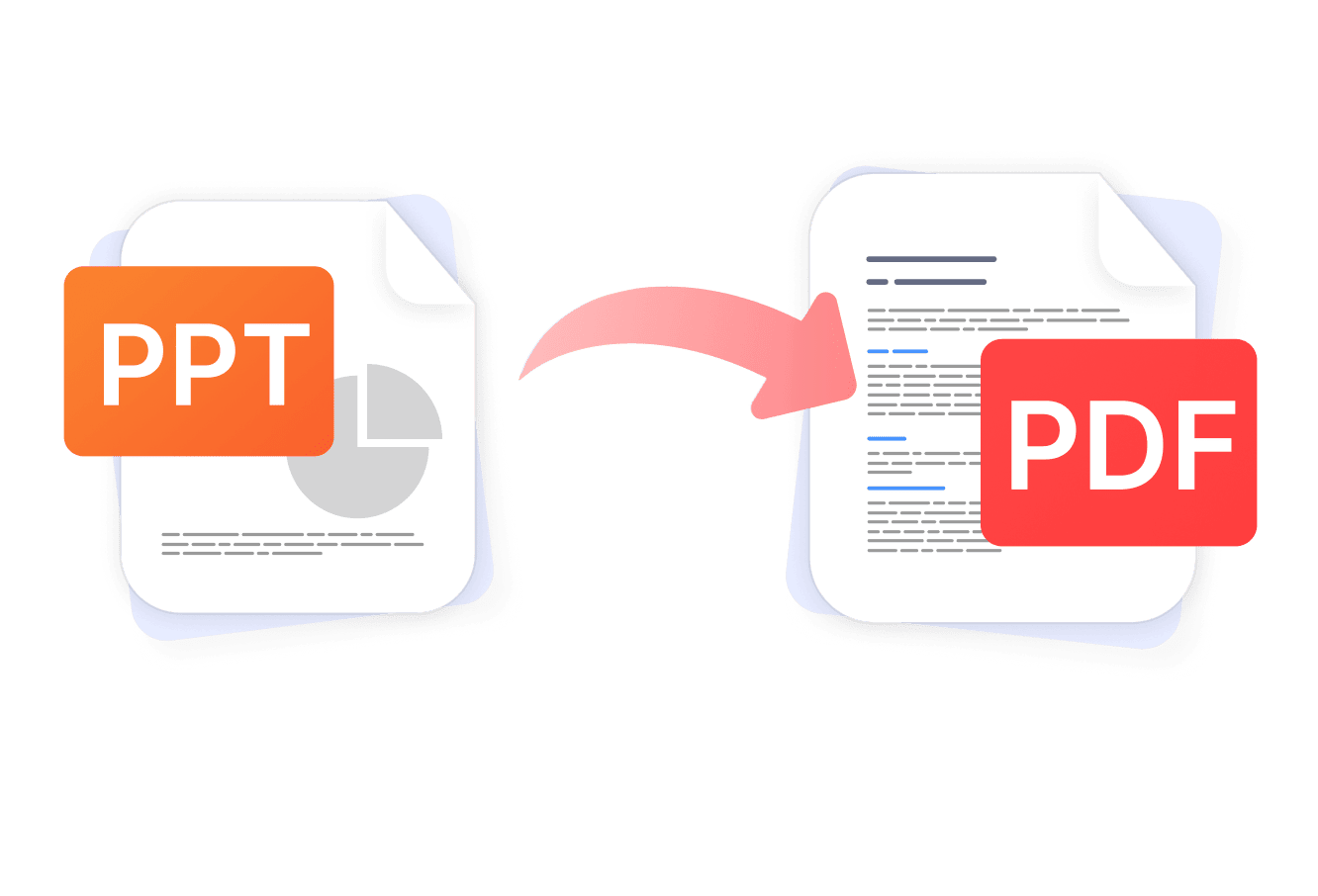
Need to share a presentation without worrying about fonts shifting or layouts falling apart on someone else's device? Converting PPT to PDF is the fastest way to lock in your design exactly as you intended. PDF Expert makes the whole process effortless — open your file, convert, and you're done. No uploading files to a sketchy website, no watermarks, no fuss.
Why use PDF Expert as your PowerPoint to PDF converter
When it comes to PowerPoint PDF conversion, not all tools are created equal. Here's why PDF Expert stands out:
- Your files stay private. Unlike many online PPTX-to-PDF tools, PDF Expert handles conversion securely. PDF Expert is trusted by 30 million professionals all over the world.
- Formatting is preserved. Slide layouts, images, tables, and text styling are all carried over, so the PDF looks like your presentation rather than a garbled version.
- No watermarks or hidden limits. You get clean, professional output every time.
- Works on Mac and iPhone/iPad. Use one account across all your Apple devices — convert on your Mac, review on your iPhone.
- Do more in one app. Once your PDF is ready, you can annotate, merge, compress, sign, or edit it right inside PDF Expert without switching tools.
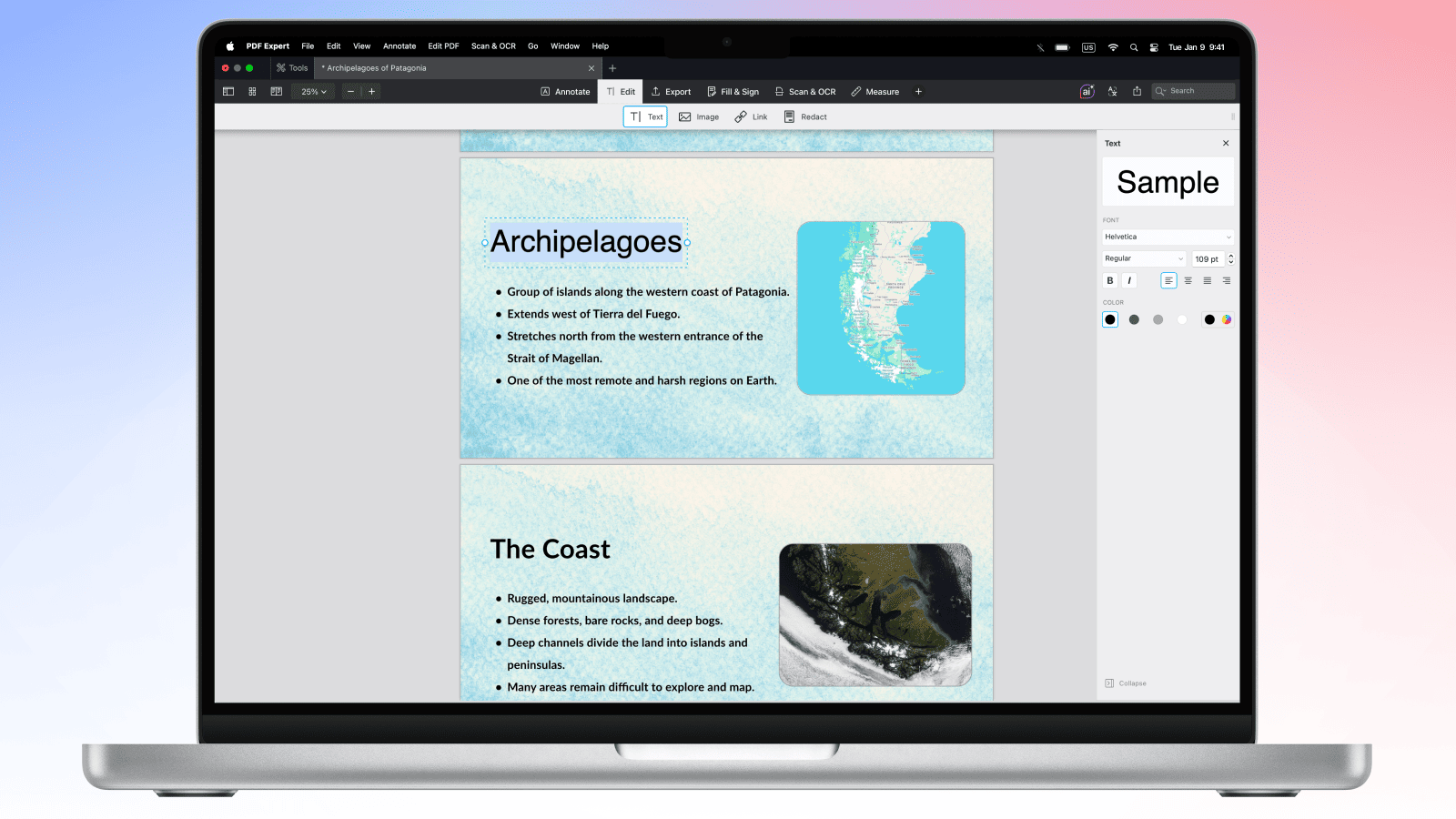
Why convert PPT to PDF
There are plenty of good reasons to reach for a PPT file converter before sharing your work:
- Universal compatibility. Not everyone has PowerPoint installed, but every device can open a PDF. Converting your presentation to PDF removes that friction entirely.
- Lock your layout. A PDF looks identical on every screen, regardless of the viewer's software, fonts, or operating system. No more slides that reflow on someone else's machine.
- Smaller file sizes. You can quickly compress a PDF file, making it easier to email or share.
- Professional delivery. Sending a PDF signals you're presenting a finished, polished document — not a working file.
- Archive-ready. PDFs are the standard format for long-term document storage, making them ideal for compliance, record-keeping, or portfolios.
How to convert PPT to PDF on Mac
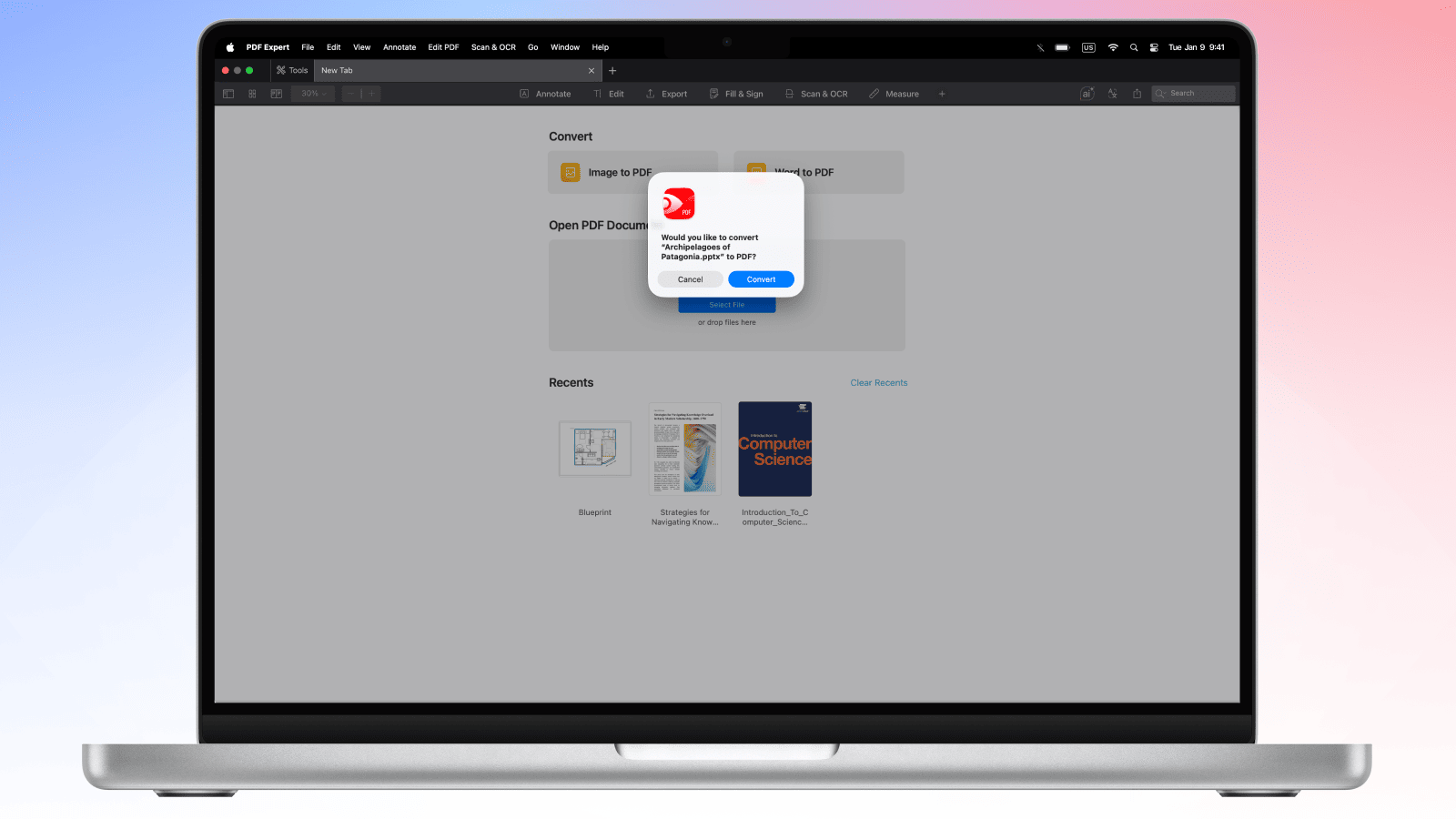
Step-by-step instructions
- Download PDF Expert and open the app.
- Drag and drop the PPT file onto the PDF Expert window.
- PDF Expert will prompt you to convert the file to PDF. Click Convert.
- Your new PDF will open automatically in PDF Expert, ready to review.
- Go to File → Save (or press ⌘S) to save the PDF to your preferred location.
Pro tip: Once your presentation is in PDF format, you can use PDF Expert to merge it with other documents, add annotations, compress the file for easier sharing, or add your signature — all without leaving the app.
How to convert PPT to PDF on iPhone and iPad
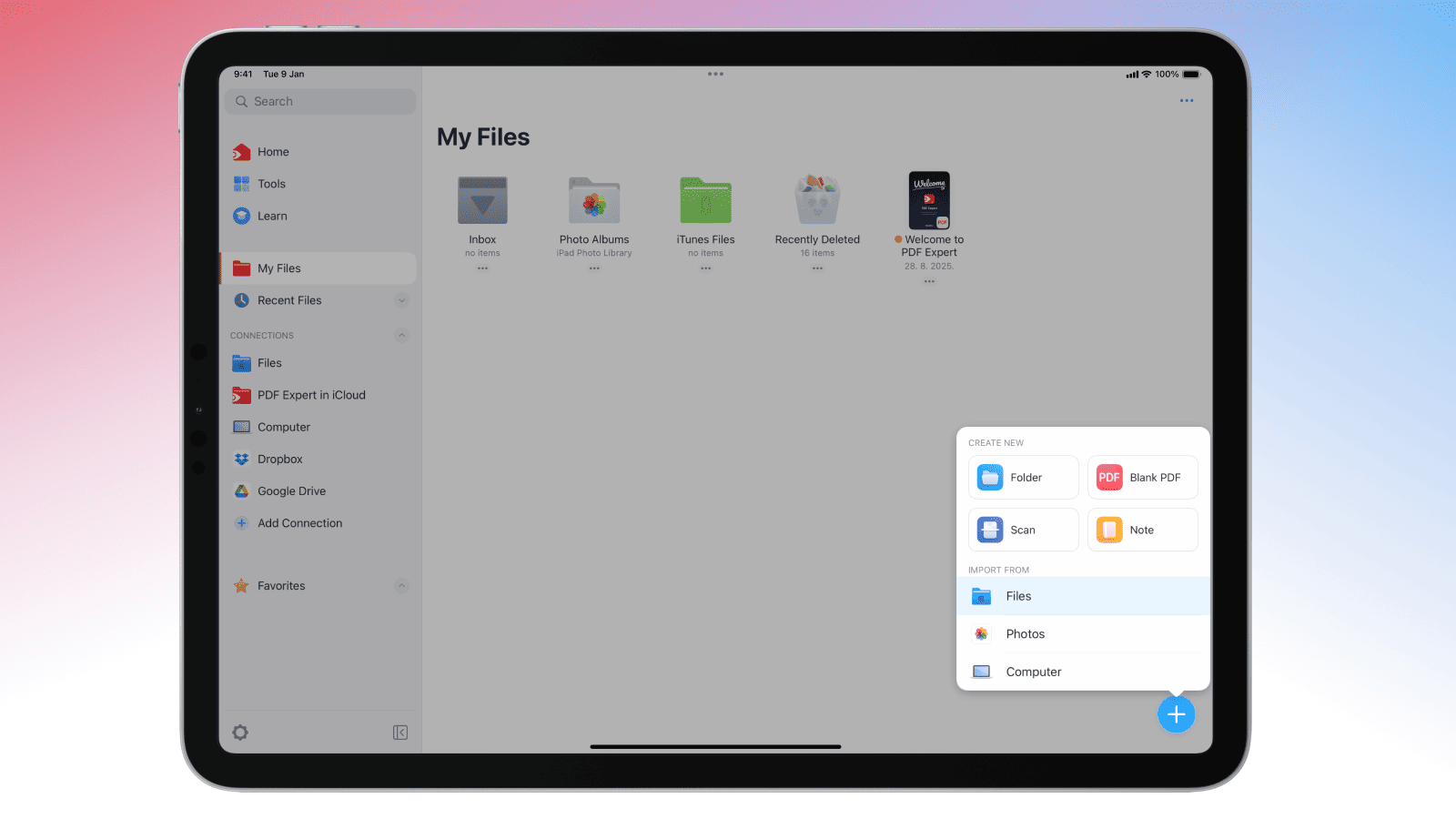
Converting slides to PDF on your iPhone or iPad is just as straightforward. Here's how:
- Download PDF Expert from the App Store if you haven't already.
- Locate your PowerPoint file on your device, tap the share icon and select Open with > PDF Expert. Alternatively, open PDF Expert directly and tap the + button > choose file from Files or cloud storage to import your file.
- Locate your file in PDF Expert and open it. Tap the Convert to PDF icon on the bottom left on iPhone (or top of the screen on iPad).
- Tap the three dots icon > Share, Email, or Upload icons to save the file, send it via email, or share it to any app on your device.
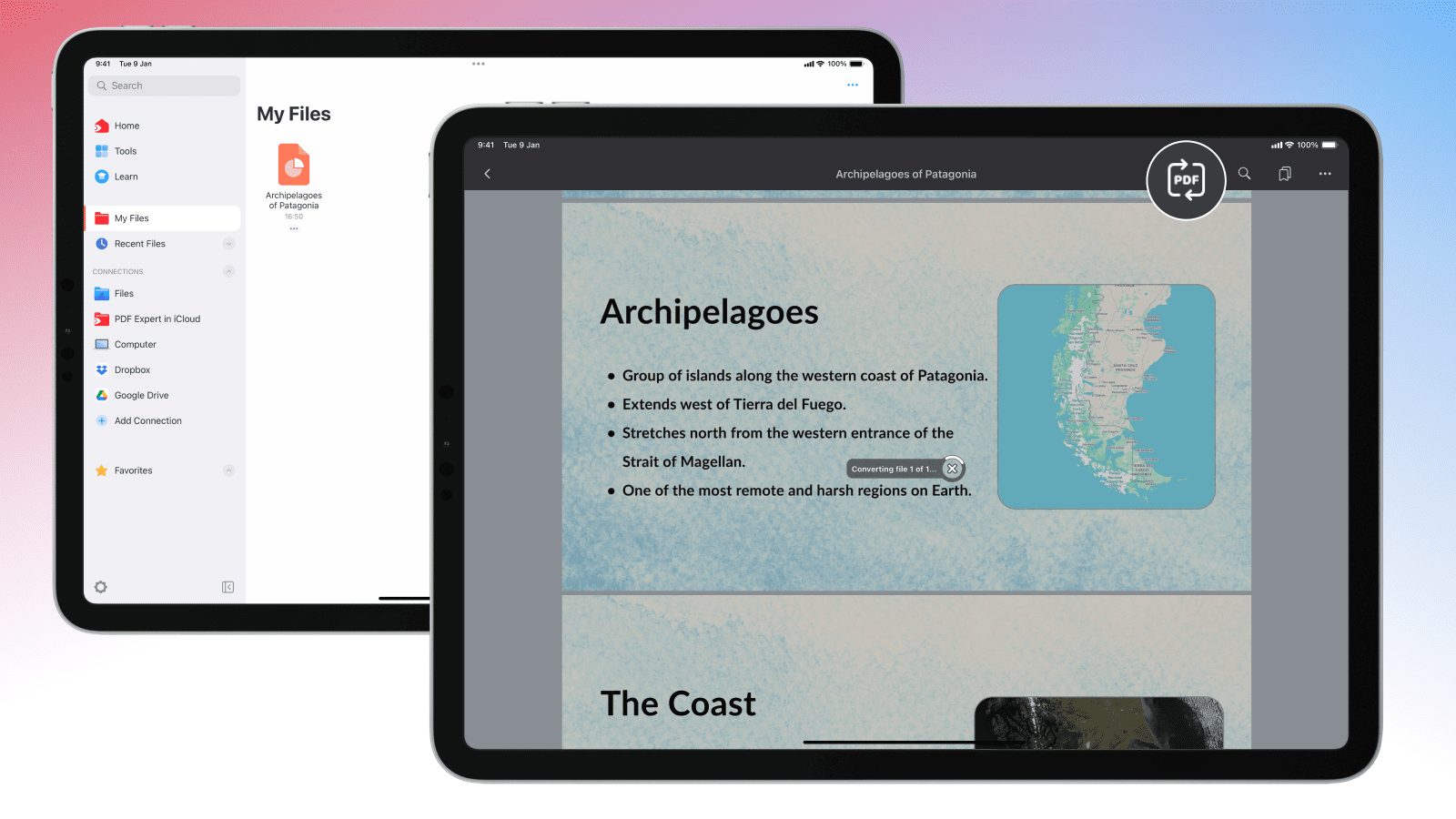
Note: The PDF Expert iOS app provides convenient PDF editing features, so you can adjust the text blocks, edit images or add links to your file on the go. You can also use Audio notes to leave a voice memo on your PDF presentation.
Frequently asked questions
Will animations be preserved when converting PPT to PDF?
No — and this is actually expected behaviour. PDF is a static format, so animations, transitions, and slide effects can't be carried over. What you'll get instead is a clean snapshot of each slide in its final state. If your animations build content progressively (such as bullet points appearing one at a time), each build state may appear as a separate page, depending on how the file is structured.
Can I convert PowerPoint with speaker notes to PDF?
Speaker notes are part of the presenter view in PowerPoint and are not embedded in the slide content itself. When converting to PDF using PDF Expert, the resulting file reflects the slide layout — not the notes panel. If you need to include speaker notes, export your presentation directly from PowerPoint as a PDF with notes before opening it in PDF Expert. For this, in PowerPoint, click File > Print > Save as PDF and change the layout from Full Page Slides to Notes or Notes Pages.
How many slides can I convert at once?
PDF Expert converts the entire presentation in one go — there's no limit on the number of slides. Whether your deck has 10 slides or 100, the whole file is processed as a single conversion. If you need to combine multiple presentations into one PDF, you can use PDF Expert's merge feature after converting each file.
Does PPT to PDF conversion preserve embedded videos?
Videos embedded in PowerPoint slides cannot be rendered in a static PDF. The slide itself will still appear correctly, but the video will typically be represented as a still image or placeholder. If video is essential to your content, consider linking to it externally rather than embedding it directly in the slides.
Will hyperlinks in slides work in the PDF?
In most cases, yes. Hyperlinks added to text or objects in PowerPoint are carried over into the PDF and remain clickable. This includes links to external websites as well as internal slide-to-slide navigation links. PDF Expert allows you to add, remove and edit links in PDF files.
Can I convert PowerPoint handouts to PDF?
PDF Expert converts the standard slide view of your presentation. For handout layouts (multiple slides per page), it's best to export the handout format from PowerPoint directly to PDF, or save them as a Word file, and then convert to PDF in PDF Expert, where you can do further editing, annotation, or sharing.
Is the conversion secure with PDF Expert?
Yes, it is secure. PDF Expert conversion requests are processed on our server with the assistance of a third-party provider. Users’ security and privacy are among our top priorities. Before engaging any third party, we conduct a vendor assessment to ensure our providers meet GDPR compliance requirements, ISO certification, and the highest industry standards. Your files are used only to deliver the service you requested. We do not read, persistently store, or share your file content, nor do our engaged processors. All files are deleted within 24 hours after completion of their conversion request.
To ensure additional security, you can add password protection directly in PDF Expert to restrict who can open or edit the resulting PDF.
