Have you ever thought of the ways you could make your PDF file even more engaging? Do you have any audio snippets that would fit into the context of the PDF better than any text comments or endless annotations? Here’s where adding a sound annotation to your PDFs could come in handy.
Adding audio to PDFs on Mac, iPhone, and iPad lets you go beyond written comments and explain things in your own voice. It’s a simple way to make documents clearer, more personal, and easier to understand, especially when text alone isn’t enough. Voice recordings can add clarity to visuals and help make your content easier to understand and more accessible for a wider audience.
Whether you’re an educator or a student, a marketer, or a professional creating interactive materials, this guide will walk you through the basics of working with audio in PDFs.
Why audio annotations are useful
Audio annotations allow you to record short voice notes and attach them directly to a PDF. Instead of typing long explanations, you can quickly speak your thoughts, clarify complex points, or give context that might be hard to express in writing.
You can use audio notes to:
- Walk someone through a contract, report, draft or design
- Explain why changes are needed in a specific section
- Add commentary to presentations or study materials
- Leave quick reminders or instructions for later
- Give a short brief on why the annotations or edits have been added
Where audio works best in PDFs
Audio annotations are great for contracts and legal documents, design mockups and visual reviews, lecture notes and study materials, business reports and presentations, shared documents in team workflows.
Whether you’re working on a Mac at your desk or reviewing a file on your iPhone or iPad on the go, adding audio to PDFs helps you communicate more clearly without cluttering the page with extra text.
How to add a sound annotation to your PDF in PDF Expert
If you do not want to embed or attach any existing audio to your file, and you simply want to record your own remarks, or a fragment of the lecture, you can do so in PDF Expert on both your iOS and Mac devices. Here’s how:
- Launch PDF Expert on your Mac or iOS device.
- Open the PDF file.
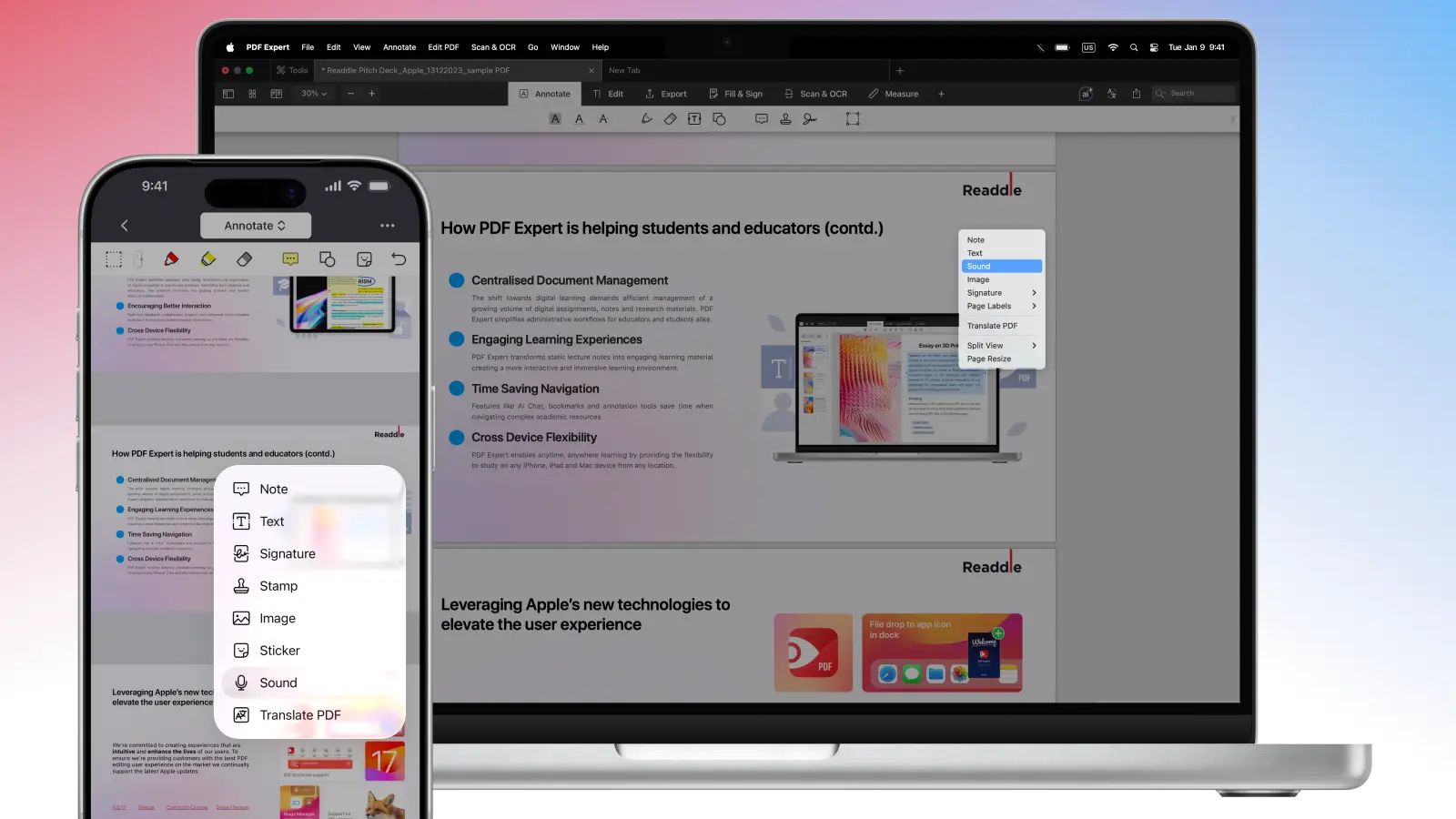
- Tap and hold anywhere on the file to see the pop-up menu. Choose Sound.
- On your Mac, right-click anywhere on the file to see the menu. Choose Sound.
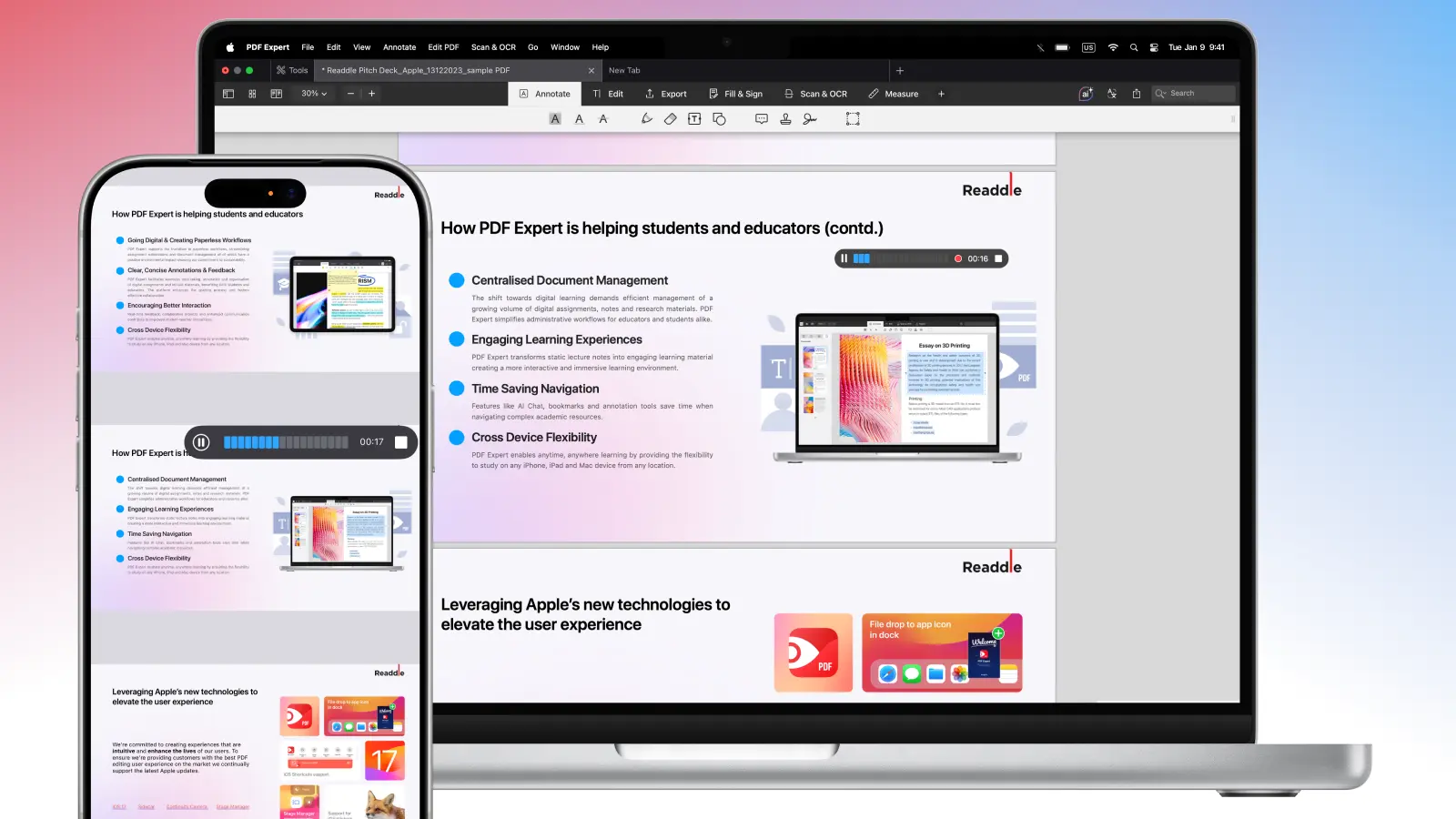
- Begin speaking or recording someone’s voice.
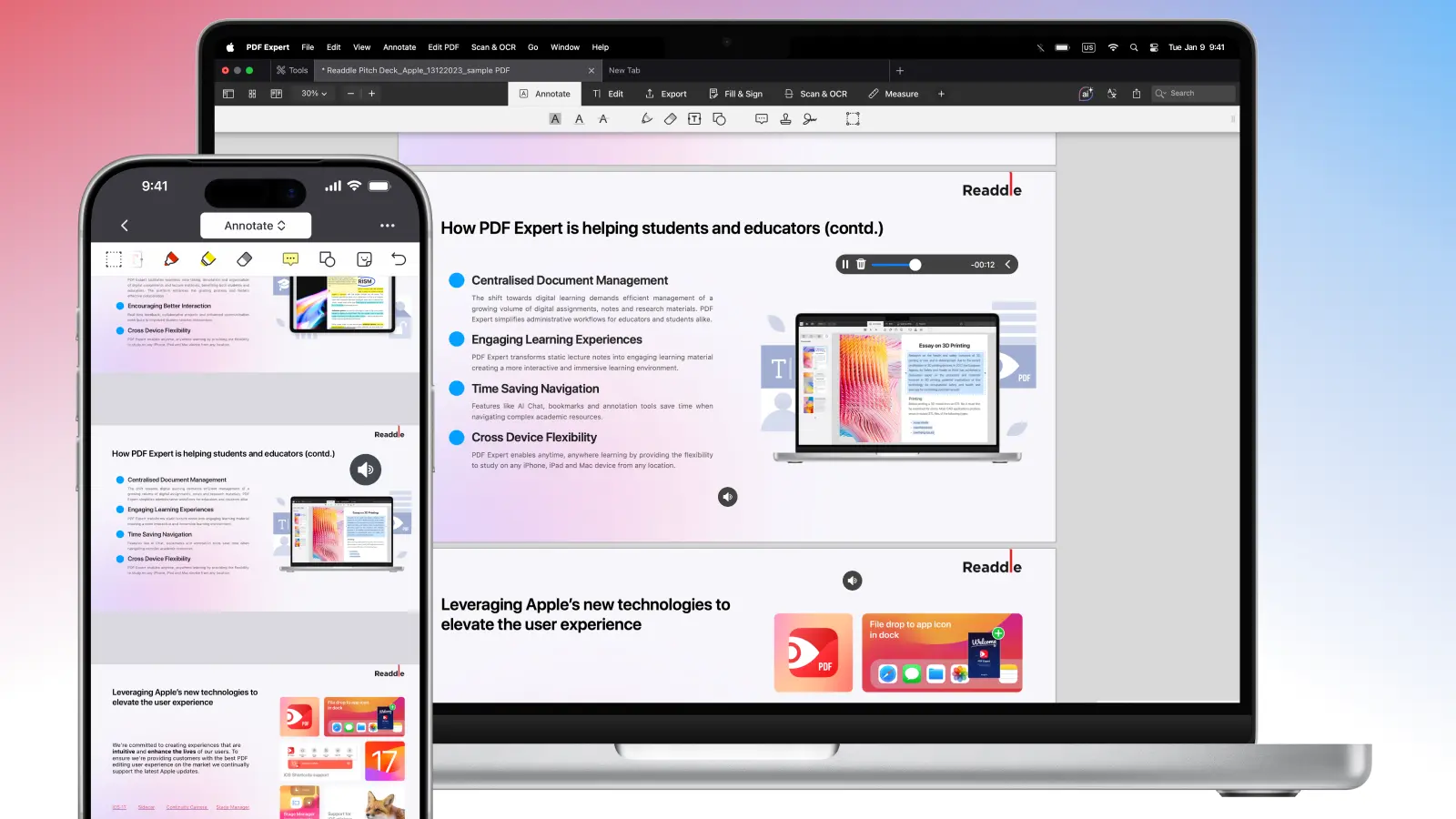
- When you’re done, click or tap the Stop icon.
General tips
When picking a tool to add audio to a PDF, check a few key things first: which audio formats it supports (the compatibility of audio in a PDF), any limits on file size, and whether it offers playback options like autoplay or looping. It’s also worth considering where you’ll be working (on desktop or mobile) and how intuitive the tool feels for everyday use.
Not every PDF viewer can play embedded audio, so it’s a good idea to test your file in a few different readers before sharing it. Also, keep in mind that embedding audio can noticeably increase the file size, which may affect downloading or sending the document: in this case, choose a tool that can also resize or compress your PDF.
Common ways to add audio to a PDF:
- Embed audio directly into the file so it plays when clicked
- Attach audio as a file attachment inside the PDF
- Link to audio stored online (the audio opens in a browser or media app)
Most PDF editors that support multimedia let you place an audio icon on the page, which users can click to play the sound.
FAQ
What audio formats work inside PDFs? Not all audio formats are supported equally. For the best compatibility, use:
- MP3 - the most widely supported and compact format
- M4A /AAC - good quality with smaller file sizes
- WAV - high quality, but larger files (less ideal for sharing)
The most common option is to embed an MP3 in a PDF.
What tools support audio playback in PDFs?
Audio playback depends on both the PDF editor used to add the audio and the PDF viewer used to open it.
PDF editors that support embedding audio:
- Desktop PDF editors with multimedia or annotation tools
- Office suites (via export to PDF with embedded media)
- Some professional PDF authoring tools
What PDF apps can play embedded audio?
PDF viewers that can play embedded audio:
- Desktop PDF readers with multimedia support
- Mobile PDF apps that support audio annotations
- Some browsers (support may be limited or inconsistent)
How do I embed audio in a PDF?
You can embed audio by using a PDF editor that supports rich media. Typically, you insert the audio file as multimedia content, place it on the page, and choose how it should play (on click or automatically).
Why won’t my audio play in the PDF?
Audio may not play if the PDF viewer doesn’t support embedded media. Many browser-based viewers and basic PDF apps block or ignore audio. Try opening the file in a full-featured PDF reader.
Should I attach or embed audio in a PDF?
Embedding places the audio directly inside the document and allows playback within the page. Attaching adds the file as a separate downloadable attachment. Embed audio for a seamless experience; attach it if file size or compatibility is a concern.
How do I add a play button or icon for audio in a PDF?
When embedding audio in a PDF editor, you can place it as an interactive element and customize its appearance. Many tools let you choose a visible play button, poster image, or clickable icon that users can press to start playback.
Does embedding audio increase PDF size a lot?
Yes, embedding audio increases file size because the media file becomes part of the PDF. The impact depends on the audio format and length: compressed formats like MP3 typically keep the size smaller than uncompressed files.