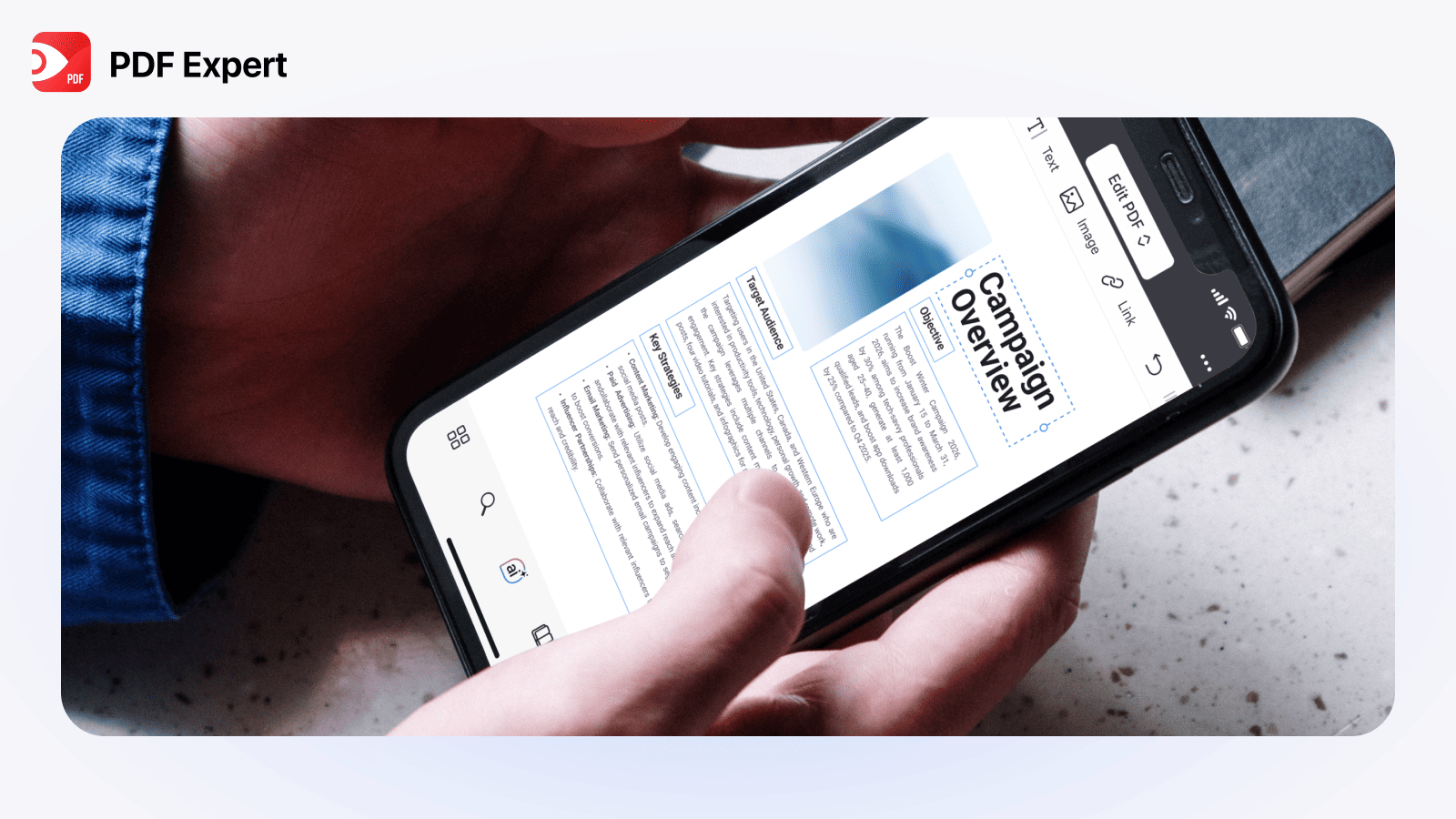
Your iPhone is already great at a lot of things. Working with PDFs should be one of them.
Whether you’re reviewing class notes, signing a document between meetings, or reading a research paper on the train, the right PDF editor for iPhone can turn your phone into a powerful little workspace. And once you’ve used a truly good PDF app, you’ll wonder how you ever managed without one.
If you’re searching for the perfect PDF editor for iPhone, here’s the short version: PDF Expert is built to make working with PDFs feel simple, fast, and satisfying — without forcing you into complicated workflows.
Let’s take a closer look at your options and why PDF Expert stands out.
You can edit PDFs on your iPhone (and it’s easier than you think)
Yes, there are iPhone PDF editing tools available on every iPhone. You can open files, highlight text, and sign documents directly in the Preview app.
But once you need to:
- edit existing text
- fill out forms neatly
- merge or rearrange pages
- add structured comments
- search long documents
- translate a PDF
- gain insights into complex or technical content
You’ll quickly run into limitations. That’s where a dedicated PDF editor makes a difference — and where PDF Expert excels.
Top PDF editor apps for iPhone
Below is a practical comparison of the most popular PDF editor apps for iPhone, based on real everyday use.
|
PDF editor |
Best for |
Edit PDF features |
Annotations features |
Free trial |
App Store rating |
|
PDF Expert |
Smooth reading, annotation & everyday editing on the go |
Edit the text, modify images, add links, create outlines, redact sensitive data, organize pages. |
Highlight text, comment, draw, add stickers, stamps and shapes, add audio notes. |
Free for 1 week |
4.6 |
|
Adobe Acrobat Reader |
Professional workflows & forms |
Edit text and images, fix typos and add paragraphs. Merge and organize PDFs, compress big files. |
Add sticky notes, comments, and highlight text. |
Free for 1 week |
4.6 |
|
PDFelement |
All-around editing, scanning & conversion |
Edit text and images, add paragraphs, import fonts. |
Add text callouts, sticky notes, shapes. Add and modify comments. |
Free for 1 week with limited features |
4.6 |
|
PDFgear |
Free, all-in-one editing |
Organize pages, insert text, edit images. |
Highlight, underline text, draw shapes. |
Free |
4.7 |
|
Xodo |
Essential editing & annotations |
Compress, merge PDFs and rotate PDF pages; edit text and images. |
Mark-up, add stamps and notes |
Free for 3 days |
4.3 |
|
Foxit PDF Editor |
Advanced editing, forms & security features |
Insert audios, videos and links, edit text and images, organize pages. |
Add annotations and stamps |
Free for 1 week |
4.3 |
|
GoodReader |
Reading, annotation & file management |
Add new text boxes |
Add notes, drawings, highlighting text |
Paid |
4.6 |
|
iLovePDF |
Quick basic tools & scanning |
Organize and compress PDFs |
Highlight text, add notes, draw or insert images. |
Free for 1 week |
4.8 |
How to choose the right iOS PDF editor
- Looking for a free solution? Start with PDFgear
- Need professional tools and cloud workflows? Adobe Acrobat Reader offers the broadest feature set (subscription required).
- Care about speed, clarity, and everyday use on iPhone? PDF Expert stands out for reading, annotation, and editing without friction.
- Want strong editing alternatives? PDFelement and Foxit are solid options.
Why PDF Expert feels so natural on iPhone
PDF Expert doesn’t try to turn your phone into a desktop. Instead, it’s designed specifically for touch-first, on-the-go work.
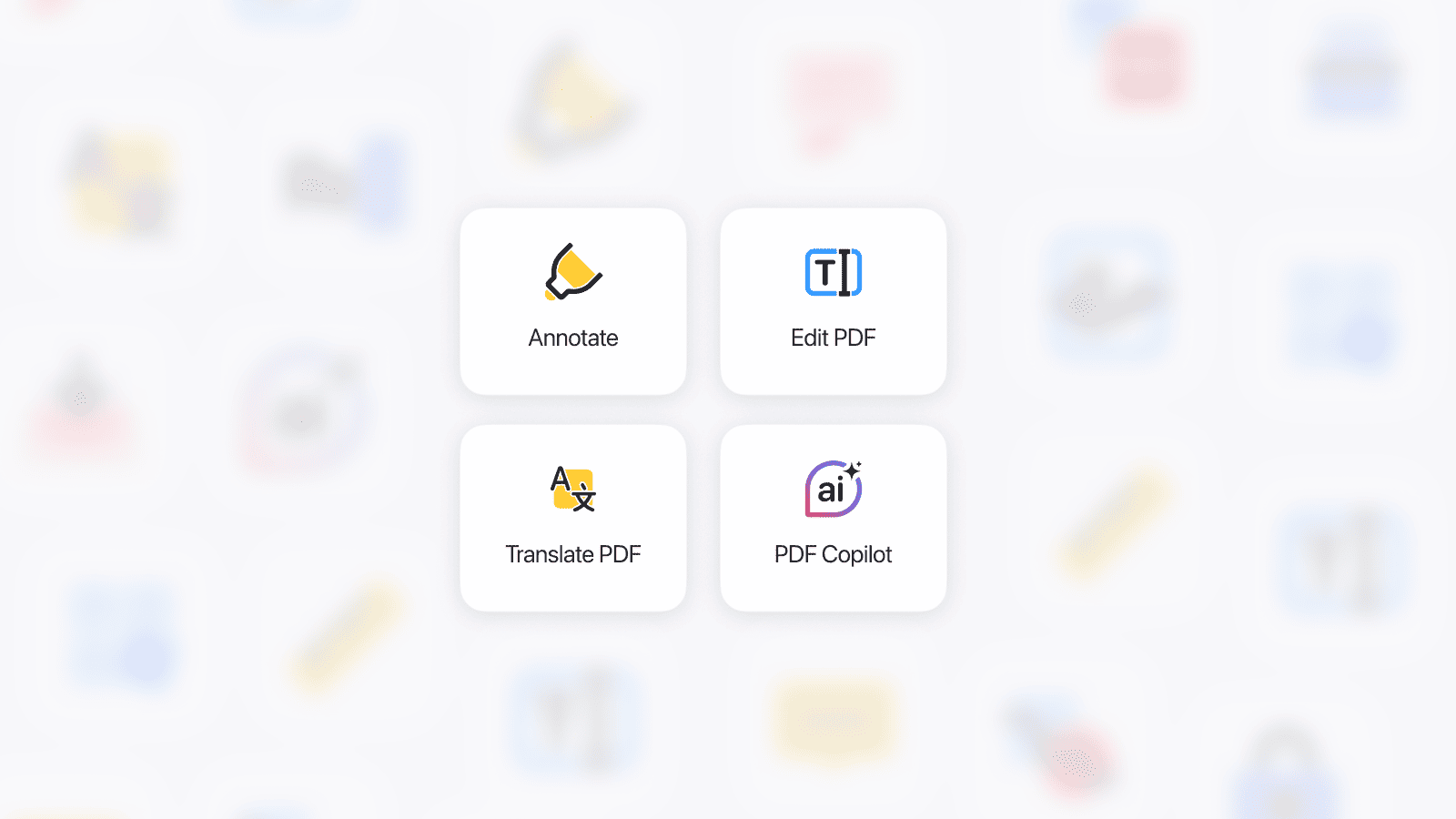
Edit PDF text like a standard document
Fix a typo. Update a paragraph. Change names or numbers. With PDF Expert, you can edit PDF text directly on your iPhone — no file conversion, no desktop required. It feels familiar, like editing a note or document on your phone.
Annotate in your own style
Everyone reads and reviews documents differently. PDF Expert gives you flexible tools to match your workflow:
- highlight and underline text
- add comments and sticky notes
- draw or sketch directly on the page
- insert shapes or arrows
- clearly mark documents for review
It works just as well for studying, teaching, or professional feedback.
Translate documents right on your iPhone (even offline)
One of PDF Expert’s most useful features is built-in PDF translation. You can translate selected text or entire documents directly inside the app — without switching tools.
Even better, offline translation means you can work while:
- traveling
- commuting
- flying
- working without internet access
It’s a practical feature that turns your iPhone into a portable translation tool.
Understand any document with PDF Copilot
Some PDFs are long. Some are technical. Some are simply hard to digest.
PDF Copilot helps you work smarter by letting you:
- ask questions about your document
- get summaries of long files
- locate specific information instantly
- get insights into complex content
Instead of scrolling and searching, you just ask.
Keep your PDFs organized with minimal effort
PDF Expert makes it easy to:
- rename and sort files
- fill out forms
- merge documents
- manage folders
The result is a clean, calm workspace — even if you deal with a lot of PDFs.
One workflow across iPhone, iPad, and Mac
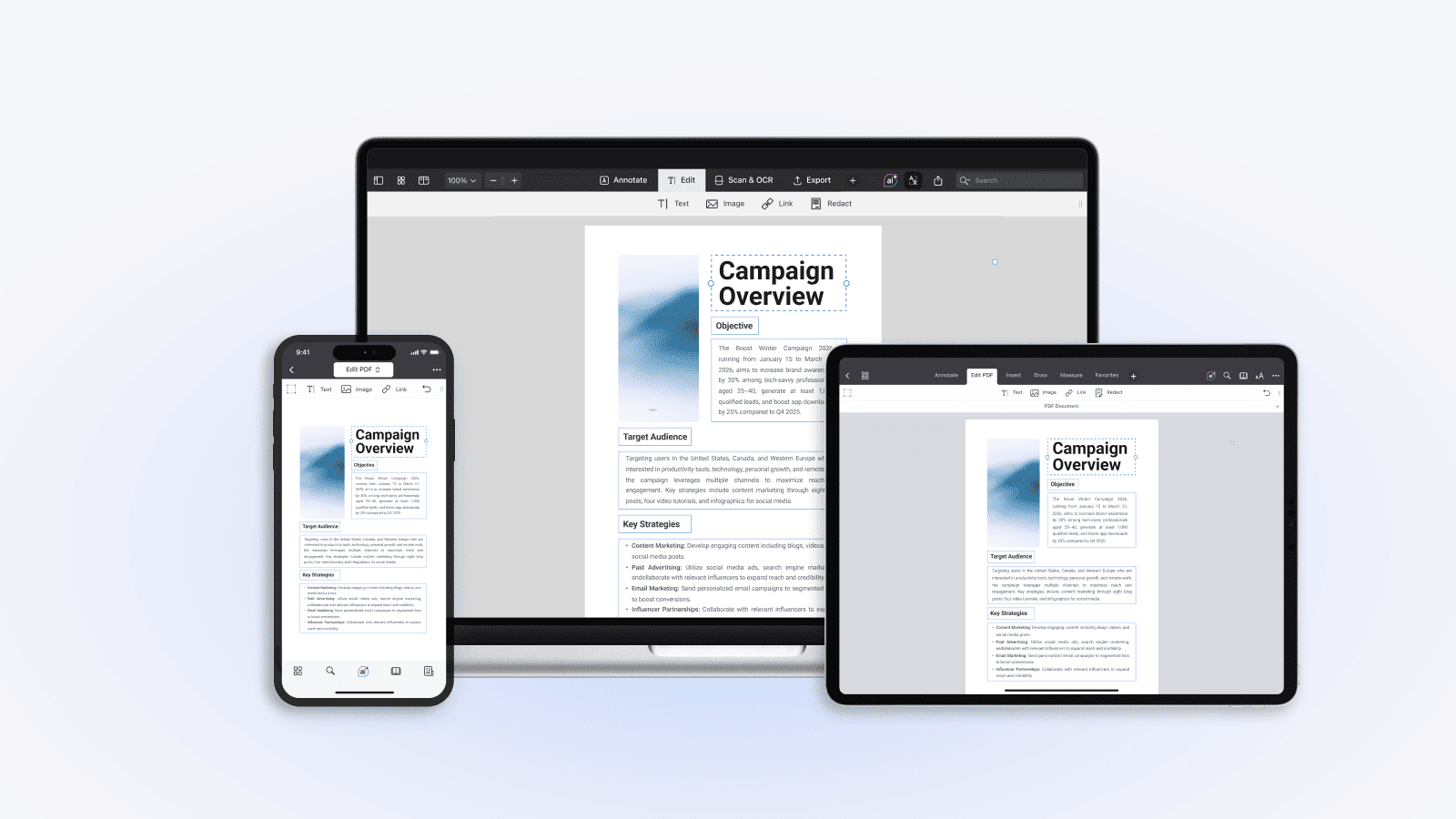
Start reading on your iPhone. Continue editing on your iPad. Finish on your Mac.
PDF Expert keeps everything in sync so your documents are always up to date, wherever you work. All you need to do is enable any cloud storage (iCloud, Dropbox, Google Drive, Box, OneDrive, Office 365, Windows SMB) and save your files to it.
Final thoughts
If you want a PDF editor for iPhone that doesn’t slow you down or complicate simple tasks, PDF Expert is an easy recommendation. It’s built for students, professionals, and everyday readers who want PDFs to feel lighter, clearer, and easier to work with — right on their phone.
FAQs
What is one of the best PDF editors for iPhone?
PDF Expert is widely regarded as one of the best PDF editors for iPhone thanks to its intuitive interface, strong editing tools, and advanced features like PDF translation and PDF Copilot.
Can I edit PDF files directly on my iPhone?
Yes. With apps like PDF Expert, Adobe Acrobat Reader and PDFelement, you can edit text, annotate, fill forms, and manage PDFs directly on your iPhone.
Which iPhone app allows text editing in PDFs?
PDF Expert enables text editing in PDFs on iPhone, including fixing errors and updating content without converting files.
Are there free PDF editors for iPhone?
Yes. Built-in iPhone tools allow basic viewing, annotating, and signing. Apps like PDFgear offer free PDF viewing, annotating, and editing.
Does iPhone support PDF translation?
Yes — with PDF Expert. You can translate PDFs directly on your iPhone, even offline.
What is PDF Copilot?
PDF Copilot is an intelligent assistant inside PDF Expert that helps summarize documents, answer questions, and locate information quickly.
Can I use PDF Expert across all Apple devices?
Yes. PDF Expert works seamlessly on iPhone, iPad, and Mac if cloud storage is connected. Available with a 7-day free trial and Premium subscription.
Please note: This article is accurate as of the date of publication. Please refer to the companies’ websites for the most up-to-date information on their features and pricing details.
Helpful reads
If you’d like to explore more:
 Iryna Oleinikova