PDFs are everywhere these days. One moment you’re signing a contract that just landed in your inbox, the next you’re fixing a report right before a meeting, and later you’re saving a recipe you snapped from a magazine.
Modern document workflows mean files rarely live on your desktop anymore. Instead, you download them from email, upload them to the cloud, share links, and access study materials – often opening them directly on your iPad.
That’s why your PDF app choice matters. You need a tool that responds instantly to your Apple Pencil, can be easily handled with your fingertips, and manages large documents without system errors.
What should a great iPad PDF editor offer
A great PDF editing app should feel like it was built for the device, not just ported from a desktop version. The features should not simply be copied; they need to be reimagined for iPadOS.
Here’s what we looked for when reviewing:
- Editing options. Change text or move images without the layout falling apart.
- Pencil-responsiveness. Highlight, draw, sign – everything should feel as natural as writing on paper.
- File management. Merge, split, or zip files fast, drag-and-drop between apps.
- Syncing options. Work across all your Apple devices with cloud storage.
- Price: Free core features with fair upgrade options.
- Speed: Open, read, and scroll through large files without lag.
- Extras: OCR for scanned pages, document summaries, and file conversion tools.
Does iPad have a built-in PDF editor?
The iPad comes with built-in Markup tools in the Files app that allow iPadOS users to open, read, edit, annotate, and manage PDFs.
Built-in Markup PDF editing tools:
- Sketching and drawing. With the help of your finger or Apple Pencil, you can draw and sketch directly on your document.
- Shapes and stickers. Add circles, arrows, speech bubbles, or even fun stickers to highlight key points or give feedback.
- Redaction. Hide sensitive information securely by blacking out text or entire sections of your file.
- Text selection. Select, copy, or highlight specific text fragments in your PDF for easier referencing or sharing.
- Signatures. Create one or multiple signatures and add them to any of your PDFs.
- Form fill. If your PDF has specific text fields, Preview will recognize them, allowing you to fill in PDF forms easily.
iPad’s built-in Markup tools let you perform basic PDF annotations on iPad if you’re new to the device and don’t want to look for another app. However, for advanced editing and management, you’ll need a dedicated app.
iPad PDF editors comparison
| PDF editor for iPad 2025 | Best For | Apple Pencil Support | Free Trial | App Store Rating |
| PDF Expert | Everyday editing & markup | Yes | 7-day free trial + 14-day PDF Copilot trial | 4.7 |
| Adobe Acrobat Reader | Teamwork & cloud | Yes | 7-day free trial | 4.7 |
| GoodNotes | Handwritten notes on PDFs | Yes | 7-day free trial | 4.7 |
| Foxit PDF Editor | Forms & security | Yes | 14-day free trial | 4.6 |
1. PDF Expert – Our everyday pick

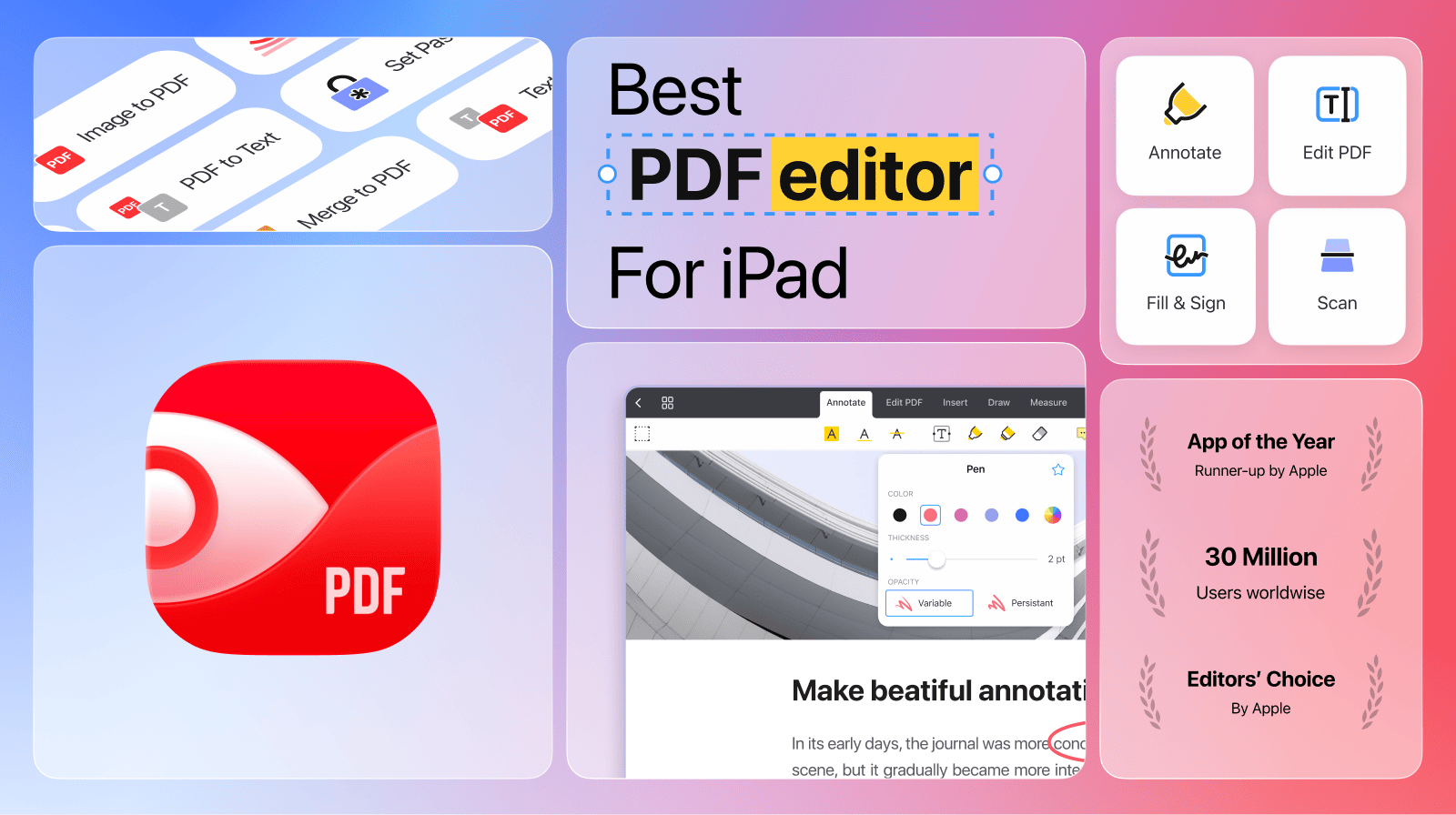
Ask most iPad users for the best PDF editor for iPad, and PDF Expert is the name you’ll hear first. Supercharged by Apple technology, the app was built with usability, speed, and elegance in mind.
Created by Readdle, PDF Expert has everything you need for work, school, and everyday life. Beyond the core features every other PDF editor has, PDF Expert offers advanced tools created specifically for iPadOS.
Why it wins on iPad:
- PDF Copilot. Built specifically for working with documents, this AI-powered tool allows you to explain, summarize, translate into different languages, annotate, and much more – all while staying in context. Because you communicate with your AI assistant directly within PDF Expert, you can stay focused and avoid jumping between tabs. Moreover, you can pick up right where you left off after closing the app, no need to worry about losing your progress.
- Synchronization across devices. PDF Expert works perfectly on iPad, but you can also open it on your iPhone or Mac and access the same files. All you need is to log in to your account and upload the file to your cloud storage – and the app will automatically synchronize it across all your devices (including your annotations and notes).
- Multiple reading modes. Reading on a device is not always easy, but PDF Expert lets you switch between Day, Night, and Sepia modes for optimal eye comfort. You can scroll both vertically and horizontally, bookmark pages, annotate your favorite paragraphs, and quickly find any phrase with the powerful search tool.
- Conversion to and from PDF. Image, Word documents, presentation, spreadsheets – PDF Expert can convert anything to or from PDF in a matter of seconds.
- Advanced annotations. Highlight, add stickers, easily approve or reject PDFs with stamps, add comments and revisions with sticky notes and audio notes, and export your annotations easily.
Pricing: The free download handles reading and light markup, upgrade to Premium ($79.99/year or $139.99 lifetime) for unlimited text changes and compression.
2. Adobe Acrobat Reader – Classic editor
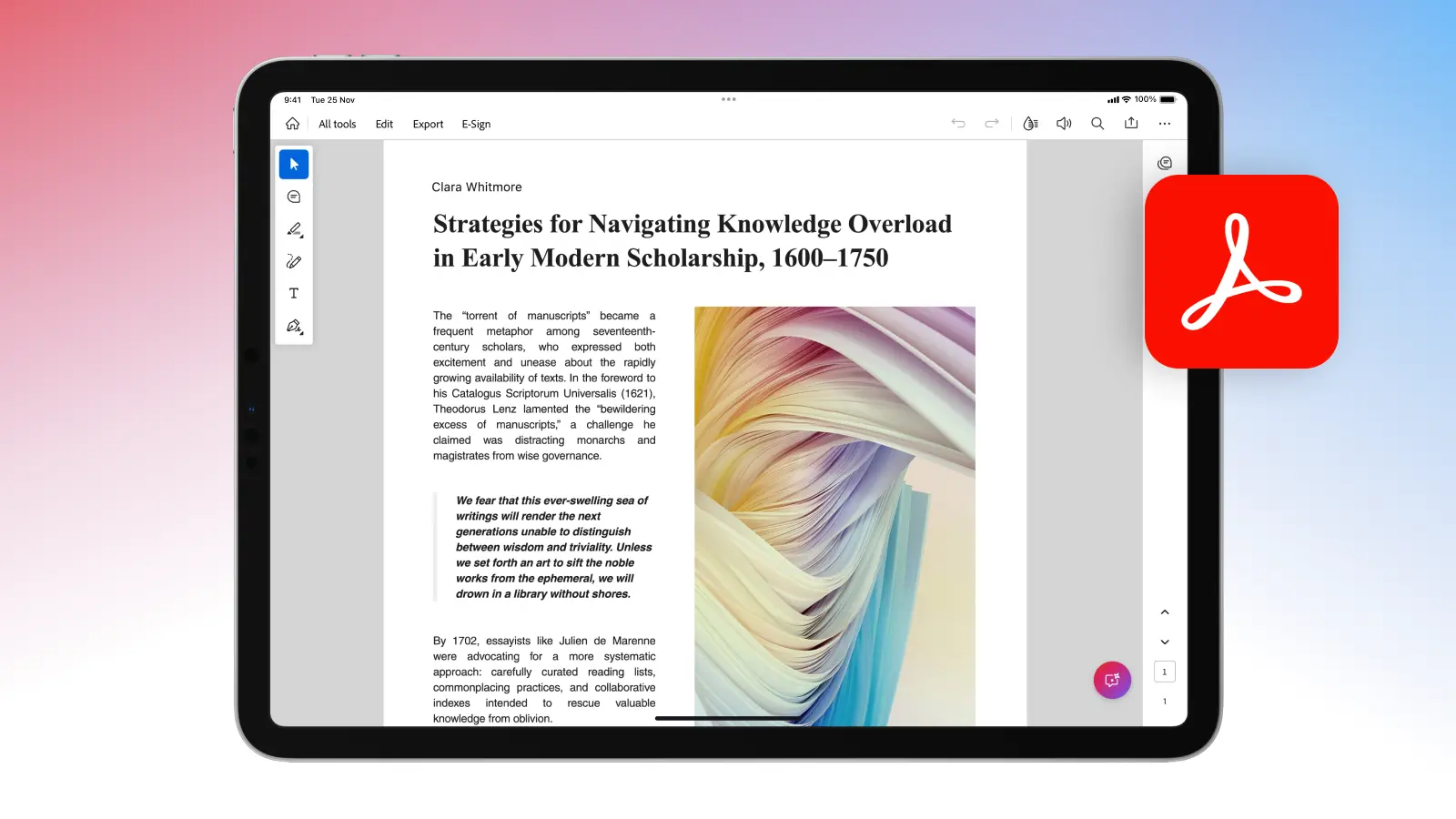
Adobe Acrobat Reader is the classic name among PDF editors for iPad. With a clean, familiar interface, it’s especially popular with designers, enterprises, and legal professionals who already use Adobe tools in their daily work.
Key iPad features:
- Classic annotation tools. Highlight, sticky-note, or draw. This PDF editor for iPad with Apple Pencil support offers a smooth, natural experience, just like a pen on paper.
- Cloud collaboration. Save your PDFs to Adobe Cloud, share a link, @mention your coworker, and collaborate with your team instantly.
- Fill and sign forms. Fill, sign, and email official documents without ever touching a printer. The auto-detect fields help you manage your PDFs easily.
- Pro-level edits. With the subscription, you can modify text and images, reorder pages, or export to Word or Excel while maintaining quality.
Pricing: Acrobat Standard with all core editing features is $155.88 ($12.99/month, billed annually), while Acrobat Pro is $239.88 ($19.99/month, billed annually).
3. GoodNotes – Handwriting for Studying
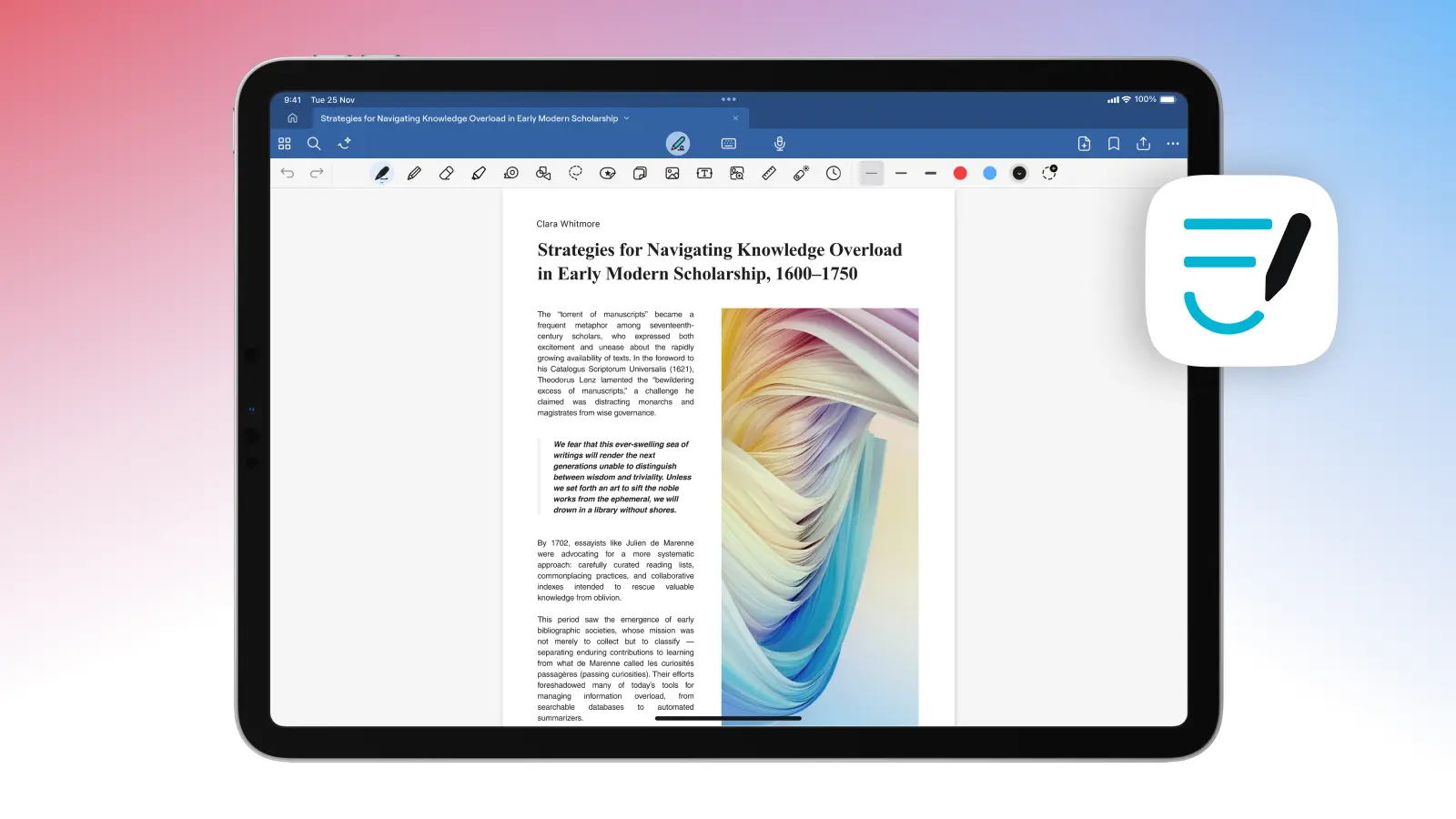
If you love using Apple Pencil for sketching, writing, and drawing on your PDFs, GoodNotes treats every file like a page in your notebook. With powerful search and an AI-driven organization, the app becomes your study companion. However, if you’re looking for a tool to handle large business documents and advanced editing features, GoodNotes may not be the best fit.
Key iPad features:
- Handwriting to text. Scribble a page of notes, tap Convert, and the app will transform it into typed text you can search, copy, or paste, without losing your original style.
- PDF markup. You can drop in a syllabus, highlight like it’s paper, add sticky notes or drawings.
- Organized notebooks. The app lets you drag lecture PDFs, sketches, and flashcards into folders by class or semester to keep everything tidy and easy to find.
- Collaboration tools. Share a notebook with a classmate, and both of you will be able to write, draw, or comment in real time.
Pricing: The Essential plan is $29.99 once or $9.99/month (+$9.99/month for AI Pass).
4. Foxit PDF Editor – Business Heavyweight
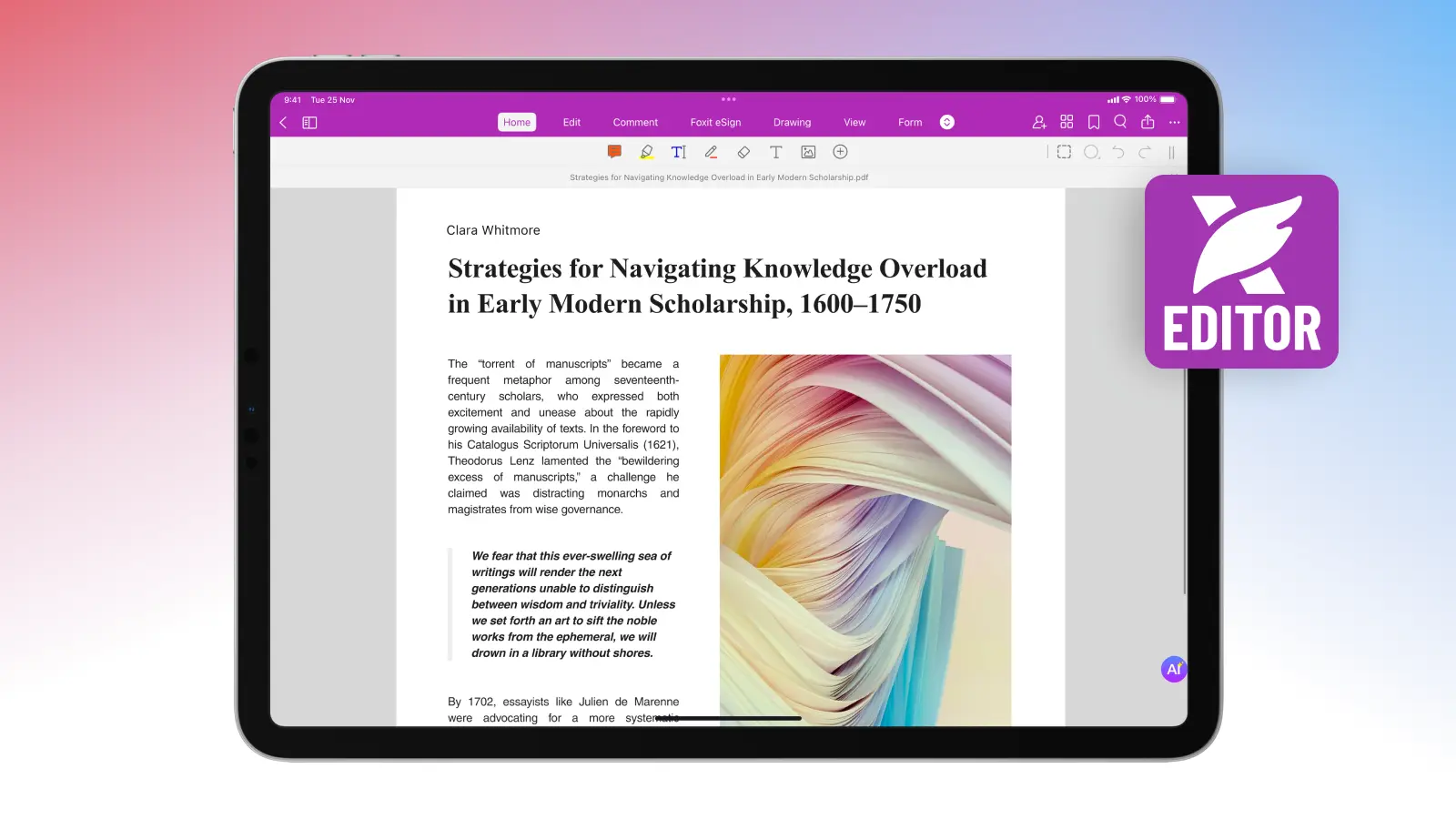
If Adobe can be heavy, Foxit is lightweight and balances performance and functionality. It’s clean, fast, secure, and perfect for individuals who don’t want unnecessary visual clutter.
Key iPad features:
- Customizable interface. Drag tools where you want them to build your perfect toolbar and never hunt for a button again.
- Form creation & filling. Build interactive forms from scratch or fill them on the spot, no Mac required.
- Enterprise-level security. Add encryption, passwords, and digital signatures to protect your data.
- Professional markup tools. Highlight, underline, or strike through text, add stamps, callouts, and typed comments for clear collaboration.
Pricing: It’s $10.99/month for a free reading-only tier or $129.99/year. PDF Editor+ is $13.99/month or $159.99/year.
Power up your PDFs
For most iPad owners, PDF Expert is the top PDF editor for iPad in 2025 – it’s fast, polished, and Apple Pencil-perfect.
Download PDF Expert for free and try it on your next file to experience the full potential of your PDF.
FAQ
Which is the best PDF editor for iPad?
PDF Expert is the best PDF editor for iPad Pro, iPad Mini, and iPad Air. Built with Apple technology in mind and powered by AI, the app helps you manage your PDFs – use it as a reading companion, a study tool, or a work assistant.
Can I edit PDF text or images on an iPad?
Yes. PDF Expert lets you edit text, change images, fill in forms, and much more – all directly on your iPad, in one powerful app.
Are there free PDF editors for iPad?
You can use Markup tools in the built-in iPad app for quick PDF reading and annotation. Alternatively, try PDF Expert by Readdle for free to explore features like OCR, multiple reading modes, conversion, PDF Copilot, and more advanced editing tools on iPadOS.
 The Readdle Team