Why we built it
Many of us handle PDFs in different languages, including research papers, reports, business contracts, and technical manuals. We know how frustrating it can be to switch between the apps or online translators to understand a document.
Now, PDF Expert makes it simple.
Introducing the Translation tool — a secure way to translate entire PDFs offline, right inside PDF Expert. No copying, no pasting, no app-switching required.
Full-document translation inside PDF Expert
PDF Expert’s new Translation tool means you can now translate entire PDFs directly within the app. It keeps your data safe and private while delivering a smooth, offline experience.
This feature is included in PDF Expert Premium and is available on iPhone, iPad, and Mac. The Translate tool requires macOS 15 or higher, or iOS 18 or higher. New users can try it during a 7-day free trial. You can use it on:
- iPhone and iPad: just make sure you have version 7.25.0 or higher, and your device is running iOS 18 or higher.
- Mac: You'll need version 3.11.0 or later, and macOS 15 or higher.
Key benefits
- Translate entire PDFs: quickly understand complete documents in another language.
- Stay productive anywhere: works offline with on-device models.
- Keep your data private: translations happen locally, without sending files to external servers.
- Navigate easily: scroll the original and translation in sync, copy or share translated text, and re-translate into other languages as needed.
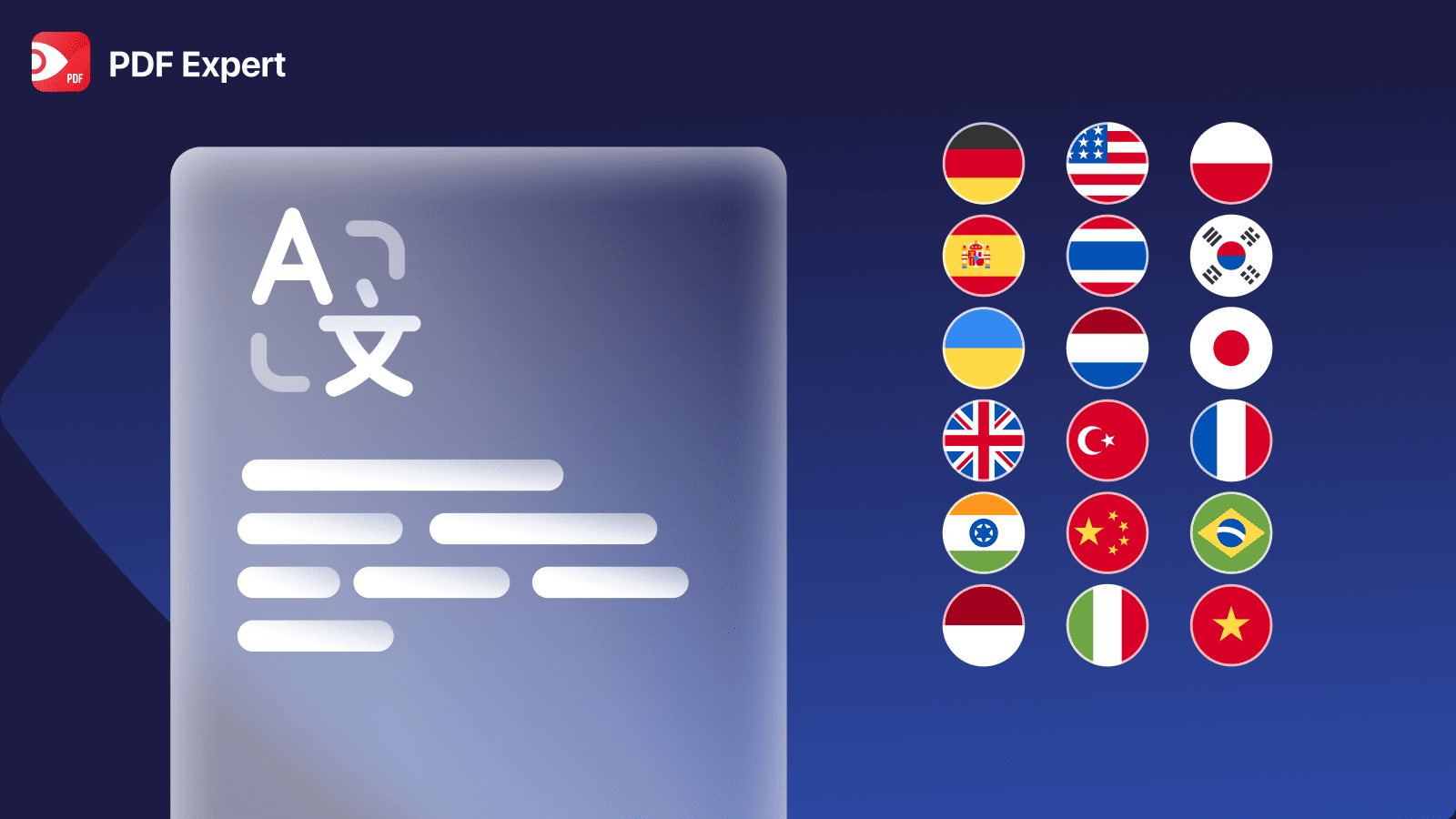
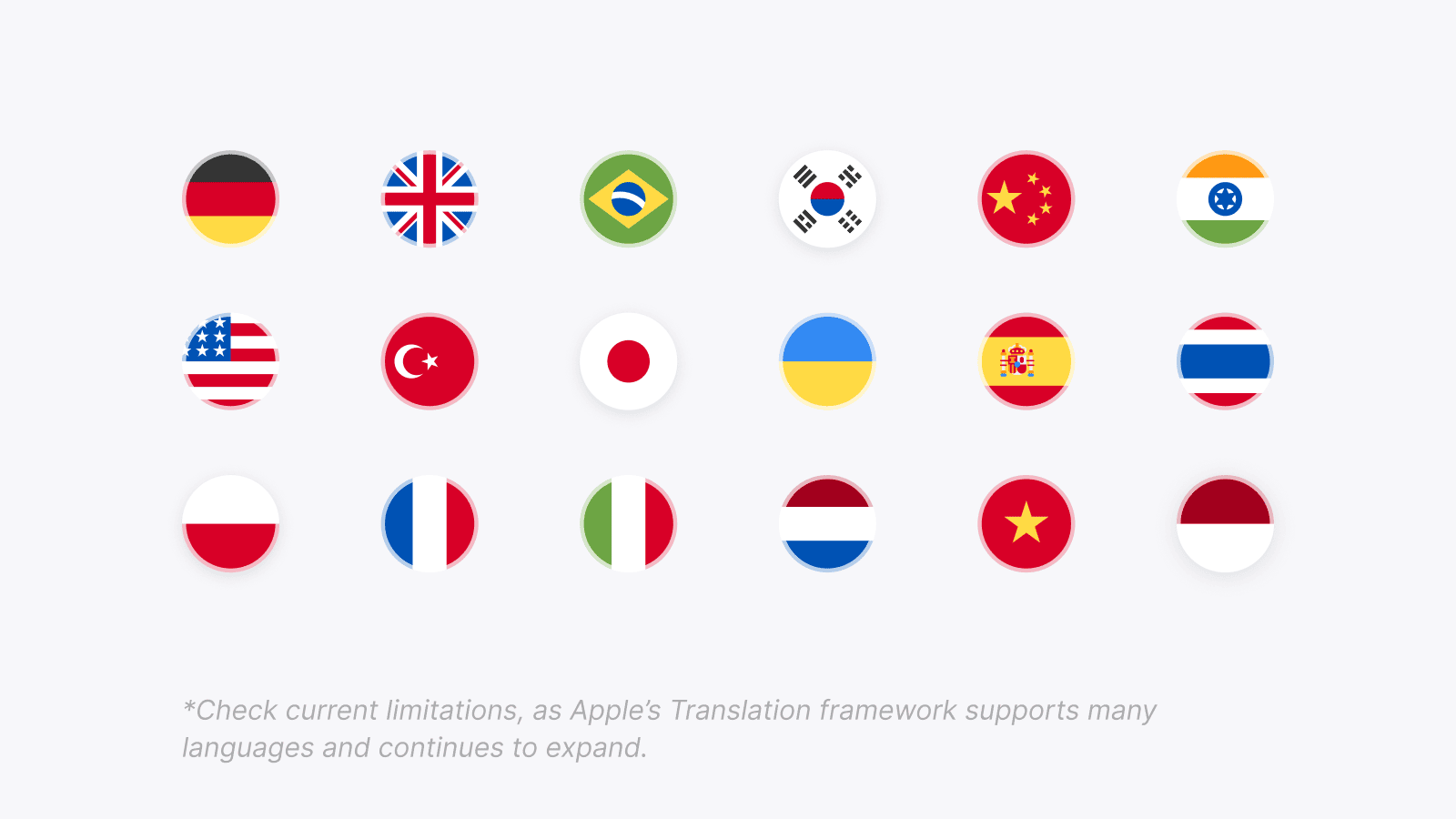
- Support for multiple languages: including English (US & UK), Spanish, German, French, Dutch, Portuguese, Italian, Hindi, Indonesian, Thai, Vietnamese, Turkish, Mandarin Chinese, Japanese, Korean, Ukrainian, Polish, Russian, and more.
Note: Apple provides a list of supported languages, which may change over time. Some limitations apply: Arabic can be translated from, but not to, and vertical text in Mandarin, Japanese, and Korean may not be extracted correctly.
Who it’s for
The Translation tool is designed for anyone who works with multilingual content:
- Students & educators — access global research studies without language barriers.
- Scientists & healthcare professionals — review medical and scientific papers securely and offline.
- Architects, engineers — read technical manuals and specifications from global partners.
- Business & sales teams — translate contracts and presentations instantly for international clients.
But it’s not only for professionals. The Translation tool can help anyone in their daily routine — whether you’re filling out tax forms in another language, reading global news, or simply reading your favorite books. And suppose you’re learning a new language. In that case, PDF Expert becomes an even better companion: you can compare the original text and translation side by side, making studying and reading easier than ever.
How to get started
On iPhone and iPad:
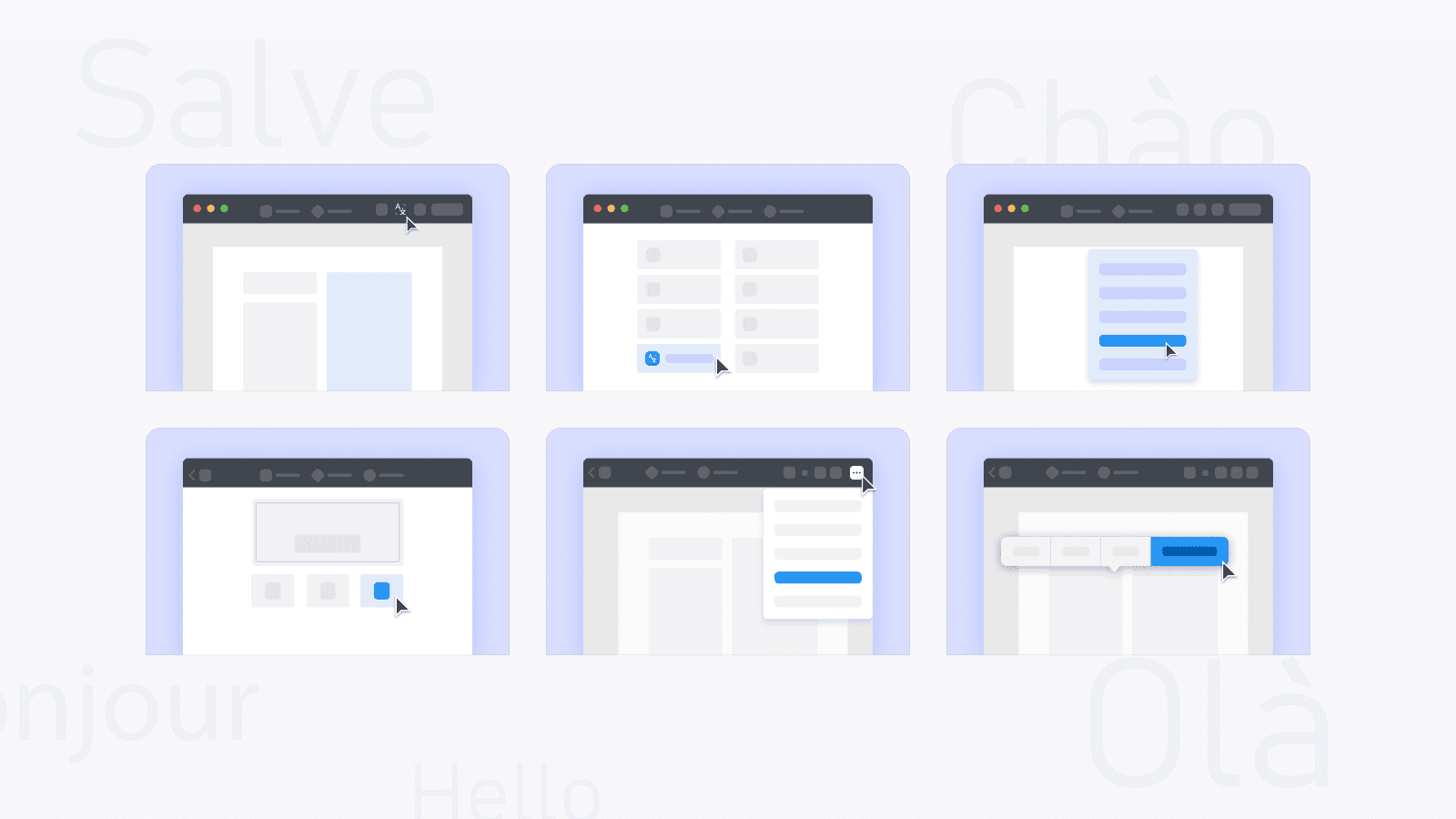
- Open your PDF in PDF Expert.
- Tap the three dots in the top-right corner and select “Translate PDF.”
- Choose your target language (the app automatically detects the original language).
- The translated text will appear side-by-side with the original version in the side panel.
- Copy, share, or export the translation as a new PDF.
On Mac:
- Open your PDF in PDF Expert.
- Click the Translate icon in the toolbar.
- Select your target language (original language is detected automatically).
- The translated text appears side-by-side with the original in a new window.
- Copy, share, or export as a new PDF.
If you edit the original file, the translation updates automatically.
 For a detailed walkthrough, check our How-to guide for iOS and Mac.
Start exploring without barriers
With the Translation tool, language is no longer an obstacle. Whether you’re learning, researching, or working across borders, PDF Expert makes it easier to access knowledge and collaborate globally.
Get the latest version of PDF Expert today and enjoy a smooth workflow with the Translation tool.
FAQs
Q1: Do I need the internet to use the Translation tool?
No, translations happen offline using the Apple translation framework.
Q2: Can I translate only part of a PDF?
Yes — you can translate selected text or the entire document.
Q3: Which languages are supported?
The list of supported languages is not fixed and may evolve with future Apple releases. PDF Expert displays all languages currently available through Apple’s translation framework. At the moment, supported languages include:
English (US/UK), Spanish, German, French, Dutch, Portuguese, and Italian. Plus, we cover Ukrainian, Polish, and Russian, Hindi, Indonesian, Thai, Vietnamese, Turkish, Arabic, Mandarin Chinese, Japanese, and Korean.
Heads up: right now, you can translate from Arabic, as well as Mandarin Chinese, Japanese, and Korean. Please note that we only handle text written horizontally (left-to-right).
Q4: Is this feature available to all users?
The Translation tool is only available to PDF Expert Premium subscribers using macOS 15 or later, or iOS 18 or later. New users can try it as part of the 7-day trial. To use the Translation Tool, ensure your device meets the following requirements:
for iPhone and iPad: You need version 7.25.0 or higher of the app, running on iOS 18 or higher.
For Mac: You need version 3.11.0 or later of the app, running on macOS 15 or higher.
Q5: How do I access the feature?
You can find it in the Tools tab or in the context menu under Translate PDF. It is also accessible on Mac through the app icon in the top right corner, or with three dots in IOS. The Home tab is also the place where you can find the Translation tool.
 Iryna Oleinikova