A PDF, short for Portable Document Format, is a file format designed to display the same text, images, and layout on any device or app that opens it.
That reliability is exactly why the format has split into several PDF types over the years, each with its own file extension and job to do. Among the most used ones are the standard everyday PDF, the archival .PDF/A, and the form-data FDF with .fdf extension, each serving its own purpose rather than being interchangeable with the others.
PDF Expert gives you one simple way to open, edit, and convert PDF files on Mac, iPhone, and iPad.
Main types of PDF
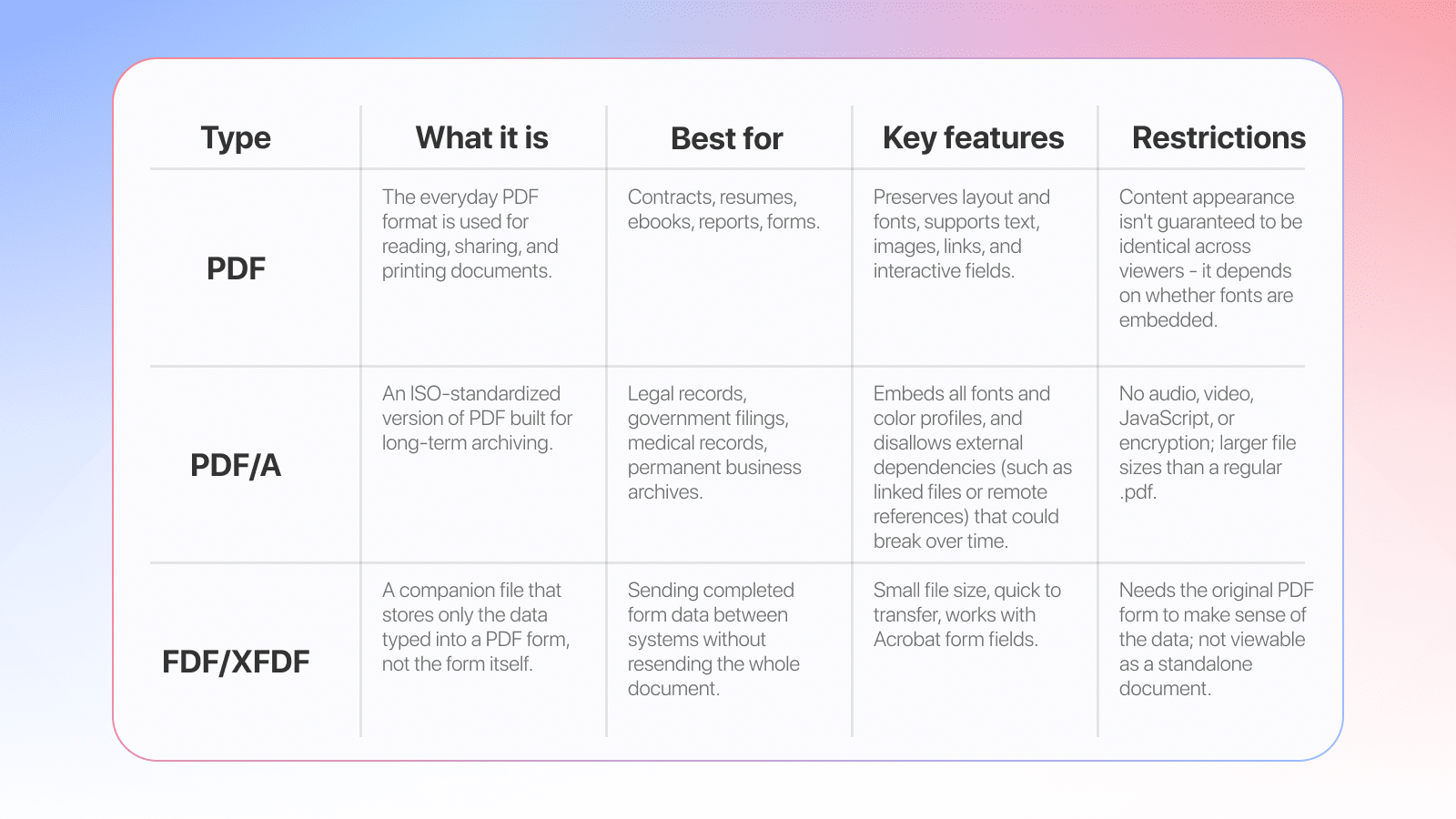
Before choosing a tool or workflow, it helps to know what each PDF type actually does. The table below breaks down everyday PDF, PDF/A, and FDF/XFDF types side by side.
Below is a list of PDF types you encounter day-to-day, grouped into three buckets based on how they were created.
Everyday PDF types
A true PDF is exported directly from software like Word, Excel, or Google Docs, so its text stays crisp, selectable, and the file size stays small — no scanning involved.
A searchable PDF starts life as a scanned page, then gets run through Optical Character Recognition (OCR), which adds an invisible text layer underneath the image so you can select, copy, and search the words even though what you're looking at is really a picture.
An image-only PDF is just a flat snapshot of a page with no text layer at all, so nothing on it can be selected, searched, or edited until it's been through OCR.
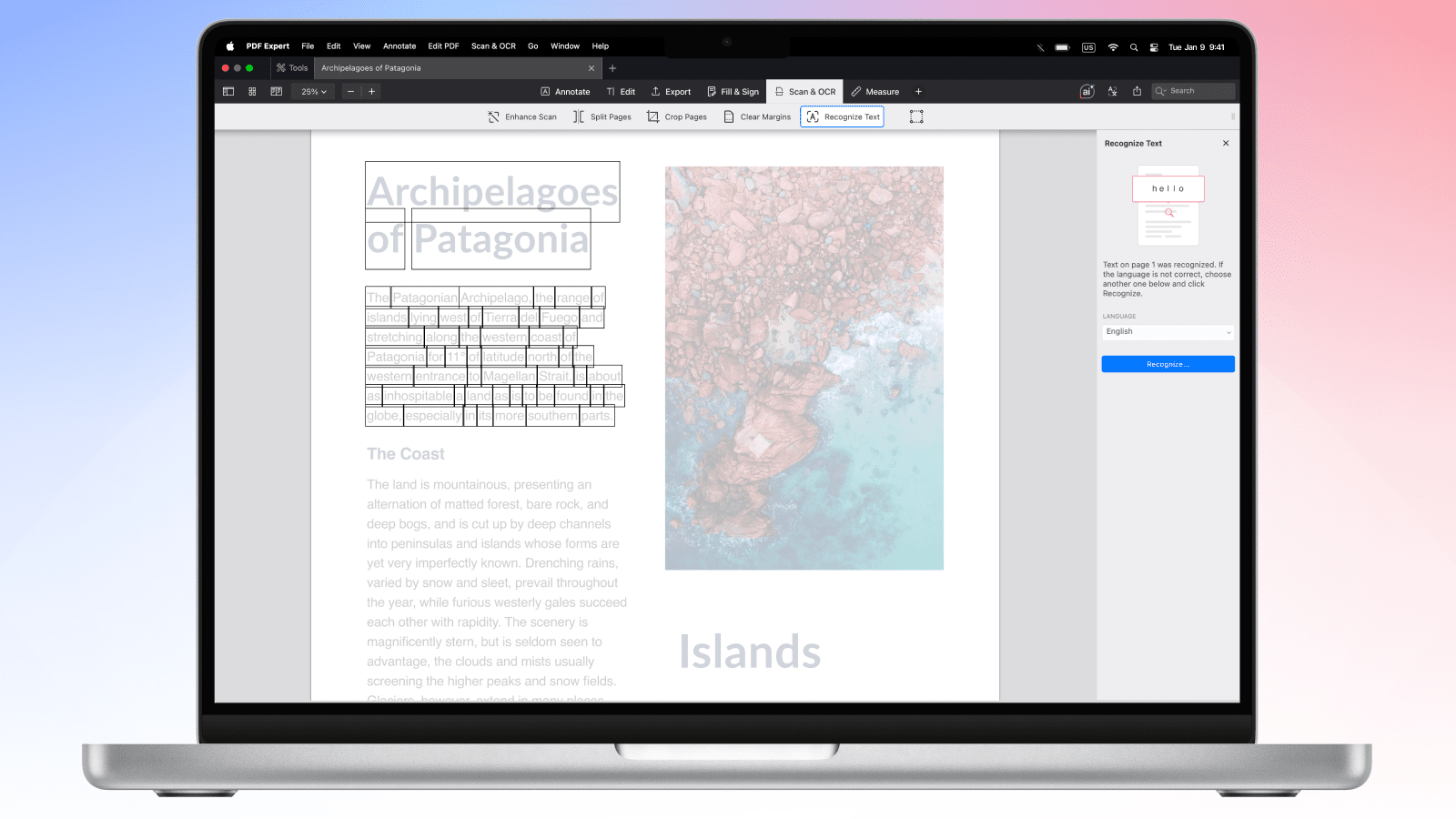
Need to make a scanned PDF searchable? Here is how:
Recognize the text in PDFs with OCR
Specialized, ISO-standard PDFs
Beyond everyday use, the wider PDF ecosystem includes several ISO-standardized formats built for specific industries.
- PDF/A is a family of sub-standards (PDF/A-1 through PDF/A-4) for archiving.
- PDF/X is built for print production, ensuring color and fonts print correctly across printers.
- PDF/E supports engineering and technical documentation, including 3D content.
- PDF/VT is designed for variable and transactional printing, such as personalized statements or mailers.
- PDF/UA (Universal Accessibility) ensures documents are readable by screen readers and other assistive technology.
All these formats have the same .pdf extension.
Static and interactive PDF types
PDF forms come in different types too: static PDFs are flat and can only be printed or filled out by hand, interactive PDFs let you type directly into fields and submit data, and XFA forms (an older Adobe format) can be static or dynamic, with dynamic XFA able to reflow and add fields as you fill them in. Knowing which PDF types you're dealing with makes it much easier to pick the right tool for the job.
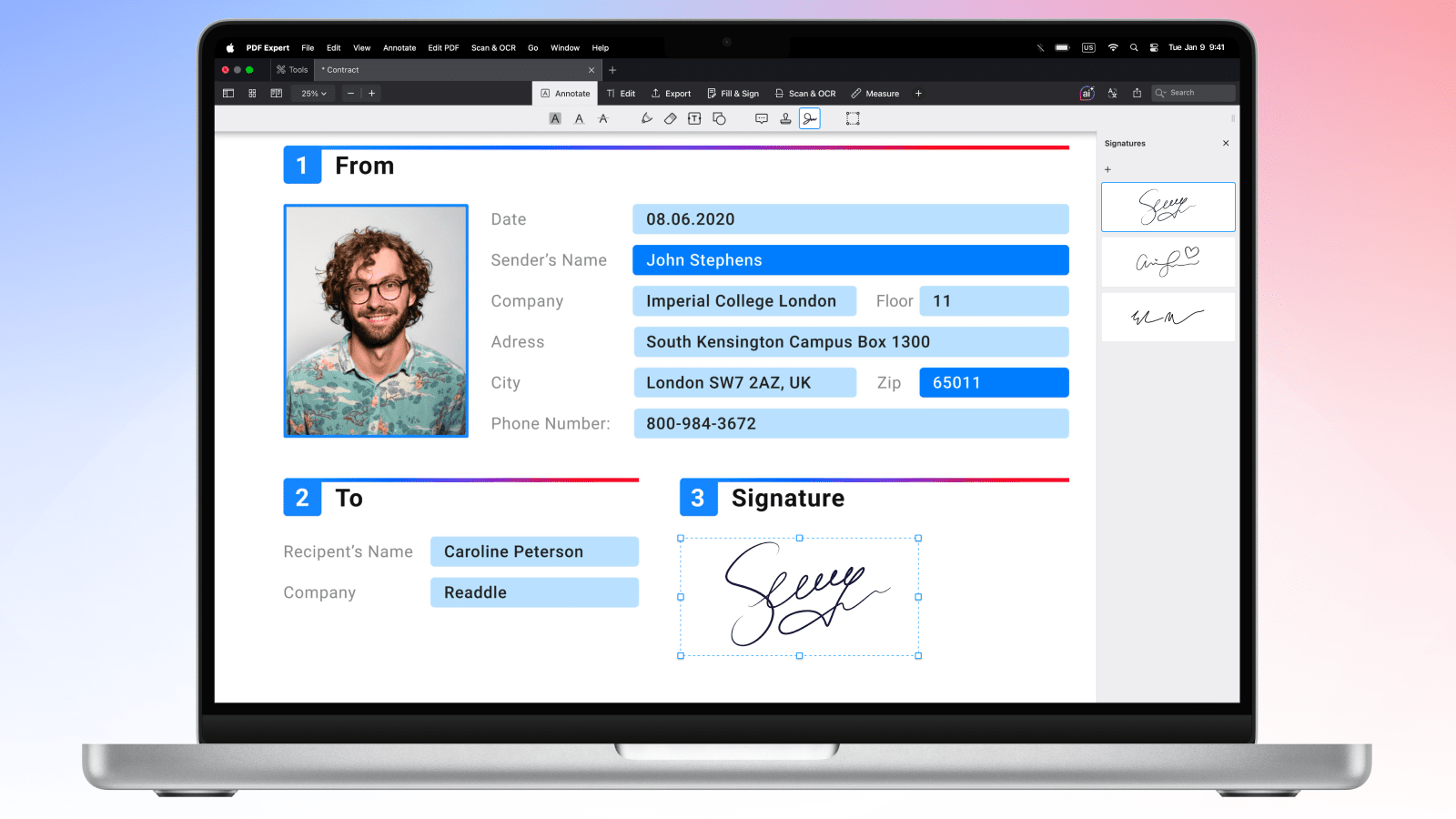
PDF editors like PDF Expert allow you to fill out even static PDF forms, using Annotation and Stamp tools: here is how to do it on your Mac or iPhone/iPad:
How to fill out PDF forms on Mac
How to fill out PDF forms on iPhone and iPad
What are the FDF and XDFD file formats, and when to use them
The FDF file format, short for Forms Data Format, stores only the values a person entered into a PDF form: names, checkboxes, dates, and signatures, without duplicating the entire document. It's commonly used when a business needs to collect data from thousands of filled forms and import it straight into a database, rather than storing thousands of full PDFs.
The XFDF file format is the XML-based version of the same idea. Instead of the compact FDF syntax, it uses readable XML tags, which makes it easier to generate, edit, and pass between web applications and databases. A school collecting online enrollment forms, for example, might export responses in the XFDF format to feed directly into its student information system.
Both formats are best suited to backend and workflow use, not everyday reading, since neither one displays as a normal document. If you just need to fill out and save a form, you can skip FDF and XFDF entirely and work directly with the PDF in an app like PDF Expert.
What is the PDF/A file type, and when to use it
The PDF/A standard is a stricter version of PDF, designed to remain identical decades from now. The core difference between a normal PDF and a PDF/A file is that PDF/A embeds all fonts, forbids external references, and blocks anything that depends on external software, such as JavaScript or linked media, since those could stop working over time.
This makes PDF/A the standard choice for court filings, medical records, tax documents, and any file a company is legally required to keep readable for years. A law firm archiving case files or a hospital storing patient records would typically convert everyday PDFs into PDF/A before filing them away.
The trade-off is flexibility: once a document is saved in this format, it can't include multimedia or certain interactive elements, and file sizes tend to be a bit larger than those of a standard PDF. Most people only need to convert a file into PDF/A when an archive, court, or compliance policy specifically calls for it, rather than by default.
Four versions of the PDF/A standard
PDF/A isn't a single format — it's actually a family of four standards, released over time and numbered PDF/A-1 through PDF/A-4. The reason there are four versions instead of just one comes down to timing. Regular PDF kept gaining new features over the years, like transparency, layers, and file attachments, so a new version of PDF/A was created each time to safely bring some of those upgrades into the archiving world without putting long-term readability at risk.
PDF/A-1 was the first version and is still the strictest. It deliberately excludes features such as transparency and file attachments to keep long-term rendering predictable and predates layers (introduced in a later PDF version). PDF/A-1 sticks to the basics: text, images, and layout. That makes it a bit limited, but it also means PDF/A-1 files open correctly in almost any PDF software, which is why it's still a popular choice for simple documents like contracts and invoices that just need to stay readable forever.
PDF/A-2 and PDF/A-3 came later and are built on a newer, more capable version of PDF. Both support transparency, layers, and better image quality, along with a feature that guarantees text stays searchable. The one real difference between them is attachments: PDF/A-2 only lets you attach other PDF/A files, while PDF/A-3 lets you attach any type of file at all, like the original spreadsheet or data file a document was created from. That flexibility is why PDF/A-3 is often used for e-invoices, which bundle a readable PDF with its underlying data file into a single package.
PDF/A-4 is the newest and most flexible version, simplifying things rather than adding complexity. Instead of several confusing sub-levels, it offers a base standard plus two extensions: one for attaching any kind of file (PDF/A-4F), and one for engineering documents with 3D content (PDF/A-4E). The trade-off is that, as the newest standard, it isn't supported everywhere yet, so PDF/A-1, -2, or -3 are still the safer choice if you need a file to open smoothly on any system.
How to easily create, convert, and edit PDFs on Apple devices
PDF Expert, the go-to PDF app for iPhone, iPad, and Mac, is built to handle the everyday PDF types you throw at it, all in one place.
With PDF Expert, you can read documents in Day, Night, or Sepia mode, mark up files with highlights, sticky notes, and shapes, and edit text directly in a PDF as easily as in a word processor. It supports the major form formats, including AcroForms and static XFA forms, so filling out interactive forms just works. You can also convert files to and from Word, Excel, and other formats in seconds, merge or compress documents, add e-signatures, and password-protect sensitive files.
One PDF Expert account covers all your Apple devices, so a document you start editing on iPad picks up right where you left off on Mac. Awarded by Apple and trusted by 30 million users, it's built to make major PDF types simple to manage without needing separate specialized software.
Frequently Asked Questions
What is the difference between PDF/A and PDF/UA?
PDF/A focuses on long-term archiving, making sure a document displays the same way years or decades from now. PDF/UA (Universal Accessibility) focuses on making documents usable for people who rely on screen readers and other assistive technologies through tagged content and a defined reading order. A document can meet one standard, both, or neither, since they solve different problems.
Should I use PDF/A?
If you need to keep a document readable and unchanged for years, such as a contract, legal filing, or medical record, converting it to PDF/A is a smart move. For everyday documents you're actively editing, sharing, or filling out, a standard PDF is simpler to work with and doesn't impose the added restrictions of PDF/A.
 Yevheniia Dychko