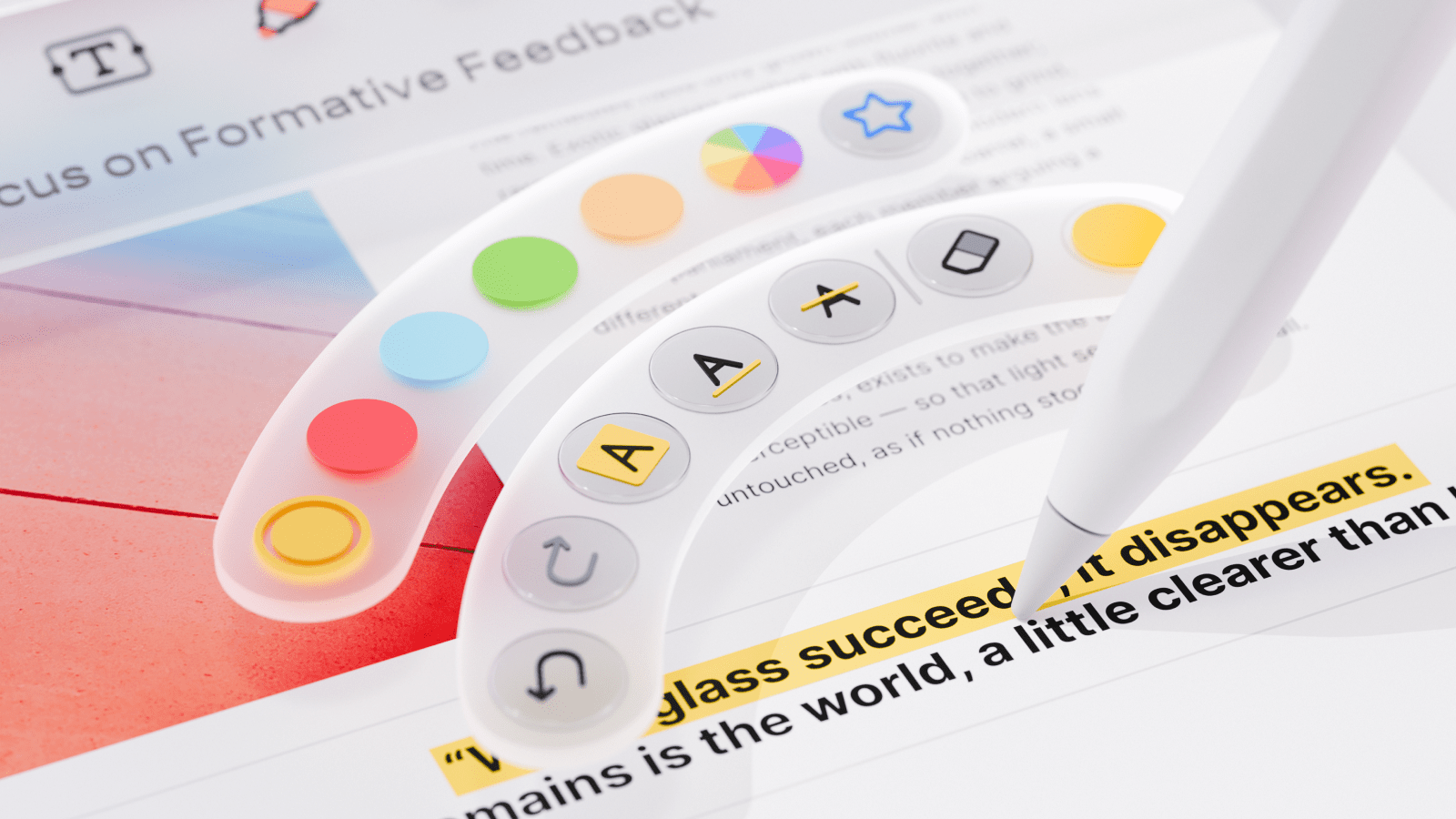
Marking up a PDF with Apple Pencil Pro just got a lot more intuitive: a quick squeeze instantly swaps tools, without ever breaking your flow. PDF Expert now supports the Pencil's native squeeze gesture, bringing up a quick tool menu right on the page, so switching tools or adjusting settings no longer means reaching for the toolbar. It's called Show Tool Palette, and it's built for anyone who marks up documents on an iPad for a living, or for class.
How to use Apple Pencil Pro’s squeeze in PDF Expert
Using it is as simple as it sounds. While you're using Apple Pencil Pro, squeeze it, and PDF Expert brings up a menu of tools tied to the current active tool ribbon. If you're working in the Annotate toolset, you'll see markup tools. Switch to Fill & Sign, and the squeeze menu for this tool appears.
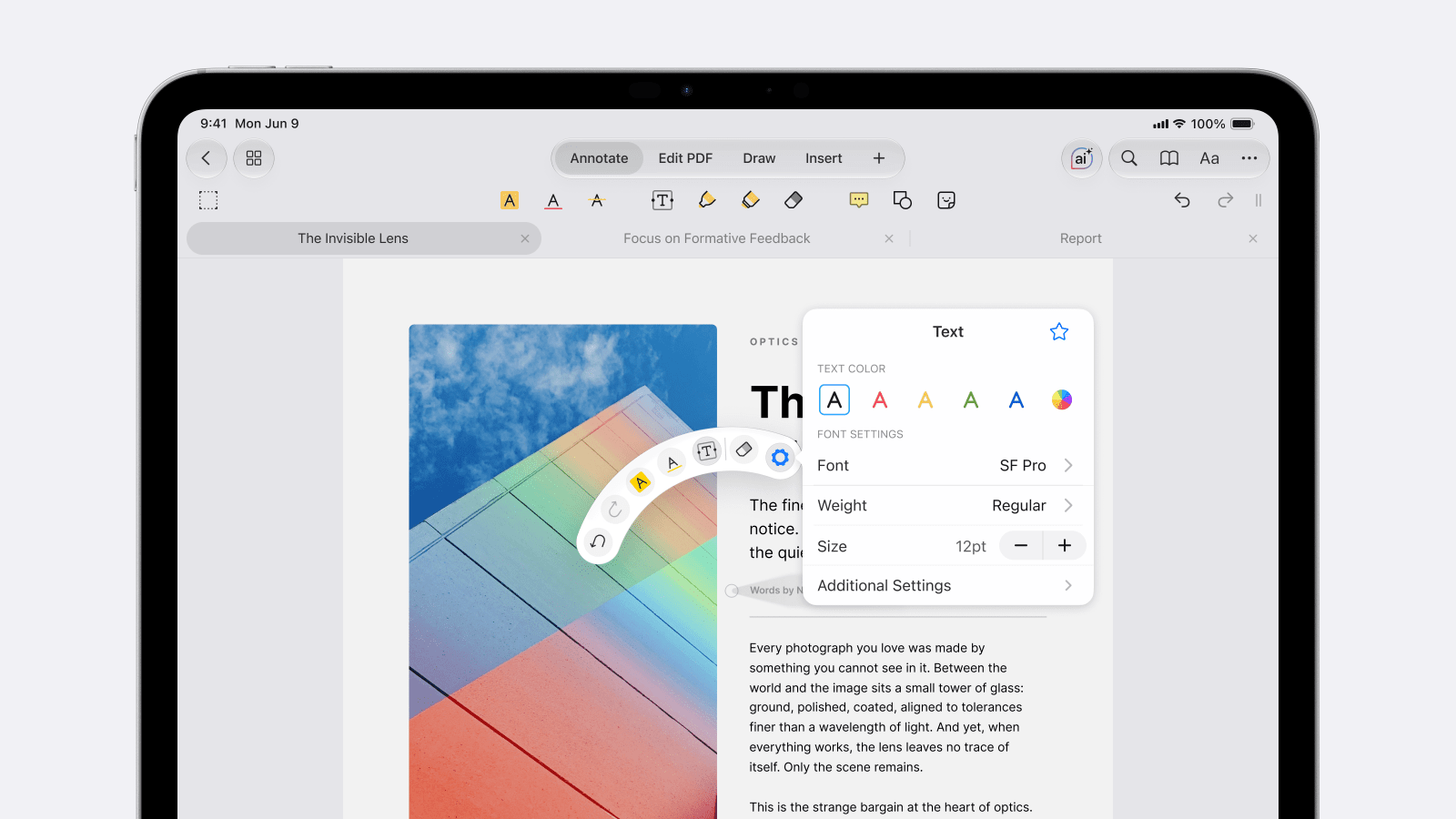
From there, tap any tool in the menu to open a sub-menu with its settings, where you can pick a color or choose a line thickness. As you move the Pencil across the menu, each option zooms in slightly, so it's easy to see exactly what you're about to select before you commit.
Pro tip 1: The menu doesn't show every tool at once. Tap the divider symbol in the pop-up or hover to the side to reveal the tools that are hidden by default.
Pro tip 2: Squeeze is on by default with Apple Pencil Pro, so there's nothing to set up. If you've customized your squeeze gesture for something else, head to Settings → Apple Pencil → Squeeze and choose Show Tool Palette to bring this menu back.
What you can do with a squeeze
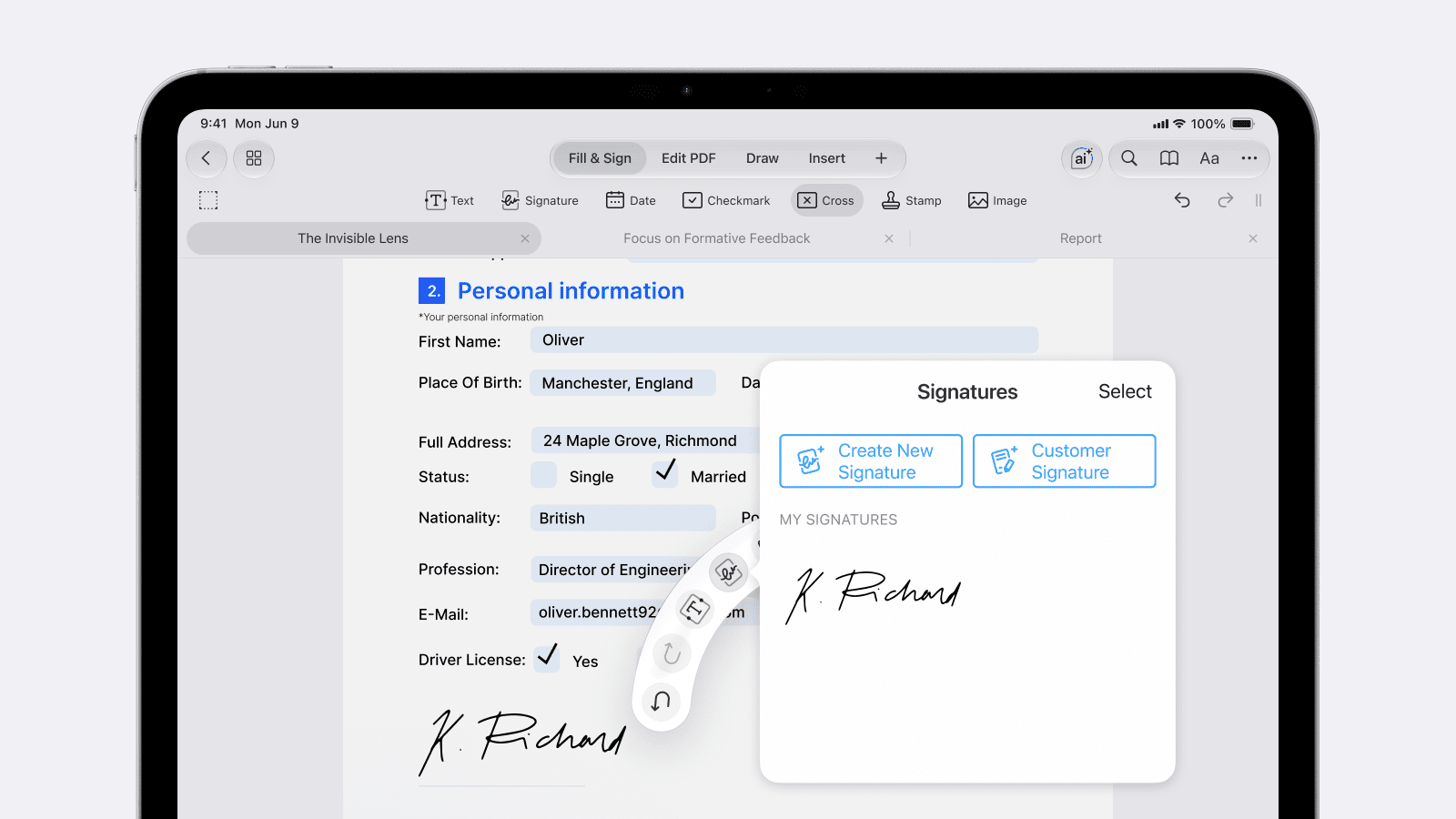
One squeeze covers most of what you'd normally dig through the ribbon for, including:
- Undo, redo, and eraser, for quick corrections without breaking stride
- Jumping fast to the recent tools you used
- Highlighting text and changing colors on the fly
- Sketching with a pen or marker tool and adjusting color, thickness, and opacity
- Adding shapes and tweaking their color and style
- Dropping in stamps and signatures in a couple of taps
- Adding arrows, callouts, and cloud shapes: handy for marking up building plans and technical drawings
- Switching between measurement tool settings, like color and arrow style, mid-task
- Have instant access to your Favorite tools
Whether you're a student color-coding lecture notes, a professional signing a contract, or an architect calling out changes on a floor plan, the tools you reach for most are one squeeze away.
More ways to get the most out of Apple Pencil Pro on iPad
Squeeze is one of several Apple Pencil Pro features that make annotating on iPad faster once you know they're there. Apple Pencil hover lets you preview where a stroke will land before it touches the page, which is useful for lining up precise edits. And haptic feedback confirms every squeeze and gesture with a subtle tap, so you always know an action is registered without needing to look away from your document.
Together with Squeeze action, these enable you to take notes, mark up PDFs, and review documents on an iPad with quick, intuitive hand movements that feel closer to working with a physical pen and paper than with a touchscreen. If you're looking to build better annotation habits on iPad more broadly, our guide to taking notes on iPad is a good next stop.
Try it in PDF Expert
If you're using an Apple Pencil Pro on a 2024 or newer iPad, the squeeze action is ready for you in PDF Expert right now. Open any PDF, start annotating, and give it a squeeze.
 Yevheniia Dychko