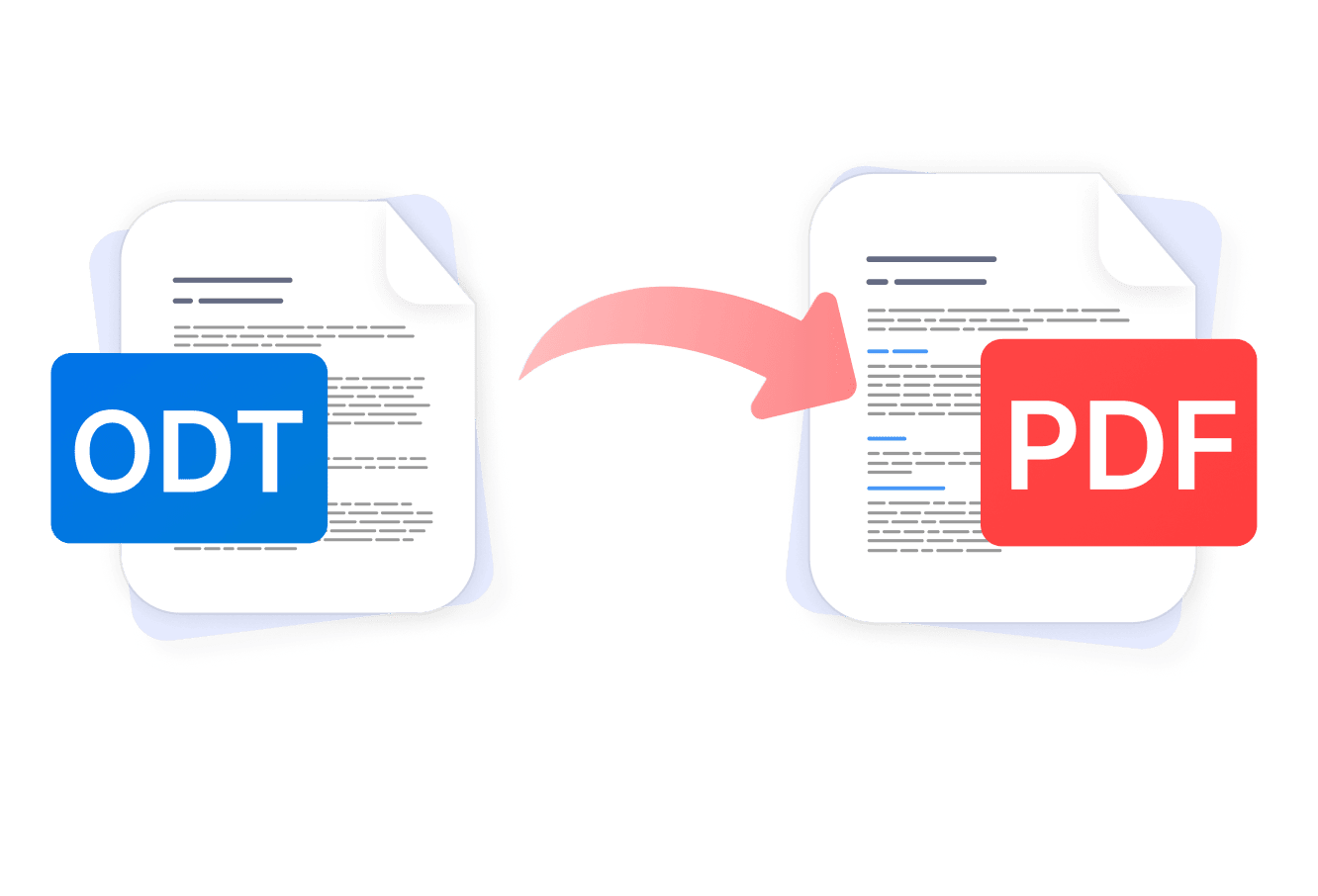
Working in LibreOffice or OpenOffice is great — until you need to share your document with someone who doesn't have the same software. That's where converting ODT to PDF becomes essential. PDF is universally readable and preserves your formatting as intended. PDF Expert makes ODT to PDF conversion effortless on both Mac and iPhone, preserving fonts and layouts, with no file uploads to online converters and no watermarks cluttering your final document.
Why use PDF Expert as your ODT file converter
When you need reliable ODT format PDF conversion, PDF Expert stands apart from browser-based tools:
- Your files stay private. PDF Expert is a safe app, trusted by over 30 million users worldwide. It keeps your document secure — ideal for sensitive contracts, research, or business documents.
- Formatting is preserved. Fonts, spacing, headers, footers, images, and custom styles all carry over from OpenDocument Text to PDF.
- Batch conversion support on Mac. Convert multiple ODT files in one go without repeating the process file by file.
- Works across all your Apple devices. One account covers Mac, iPhone, and iPad, so your workflow travels with you.
- Edit after converting. Annotate, merge, compress, sign, or redact your new PDF without switching apps.
- No watermarks and file size limits. What you convert is what you get.
Why convert ODT to PDF
PDF provides a professional, polished look and locks in both the information and formatting, making it an ideal format for business document workflows.
- Universal compatibility. PDFs open consistently on any device or operating system — no LibreOffice or OpenOffice required on the recipient's end.
- Lock in your formatting. ODT files can render differently depending on the software used to open them. PDF locks everything in place.
- Professional presentation. PDFs look polished and finished, whether you're submitting a report, sending a proposal, or archiving records.
- Smaller, shareable files. PDFs are often easier to compress and share via email or cloud storage.
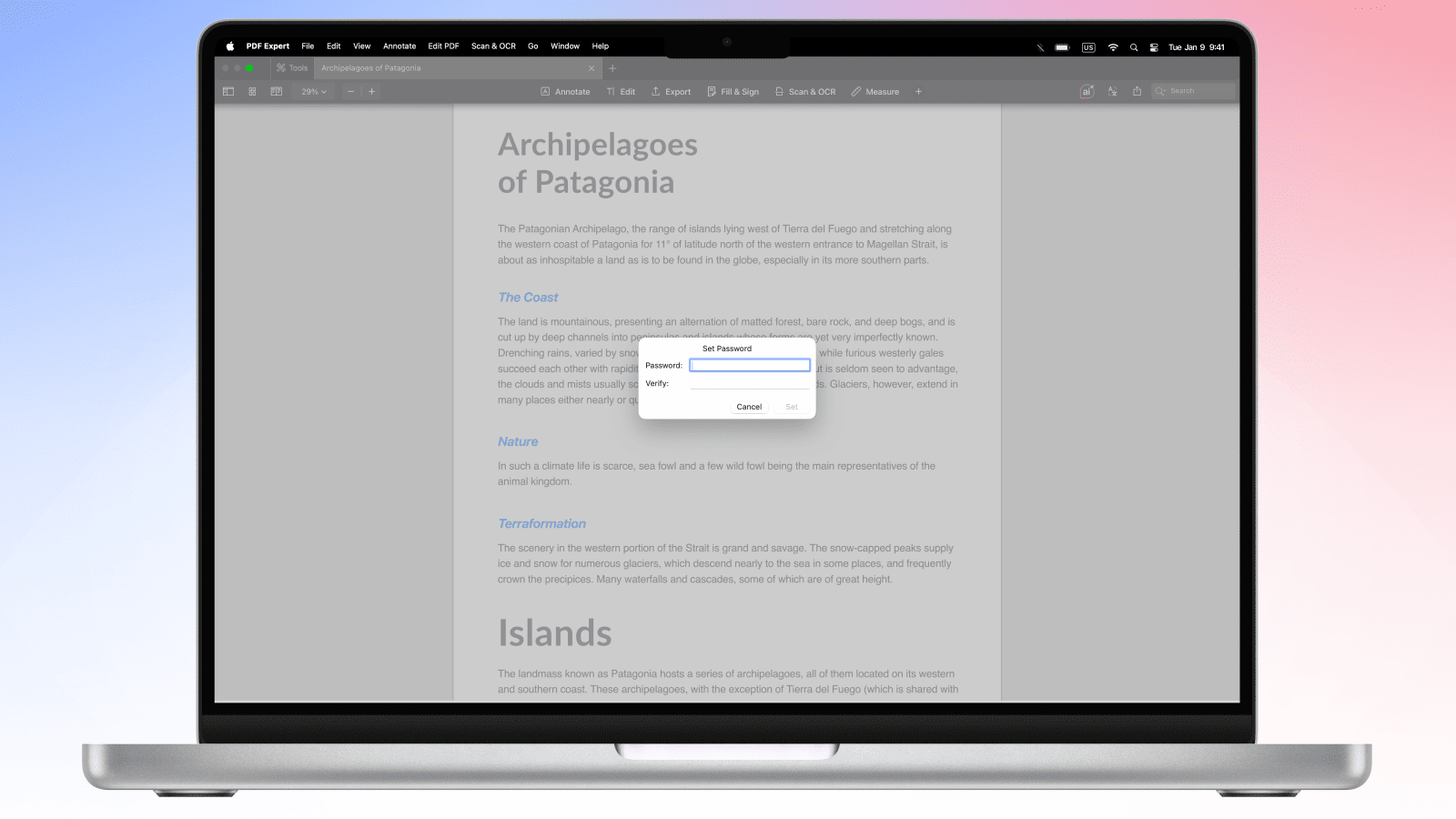
- Security options. Once converted, you can password-protect or redact sensitive sections directly in PDF Expert.
How to convert ODT to PDF in PDF Expert on Mac
PDF Expert handles the conversion in just a few clicks, preserving your document's styles and content.
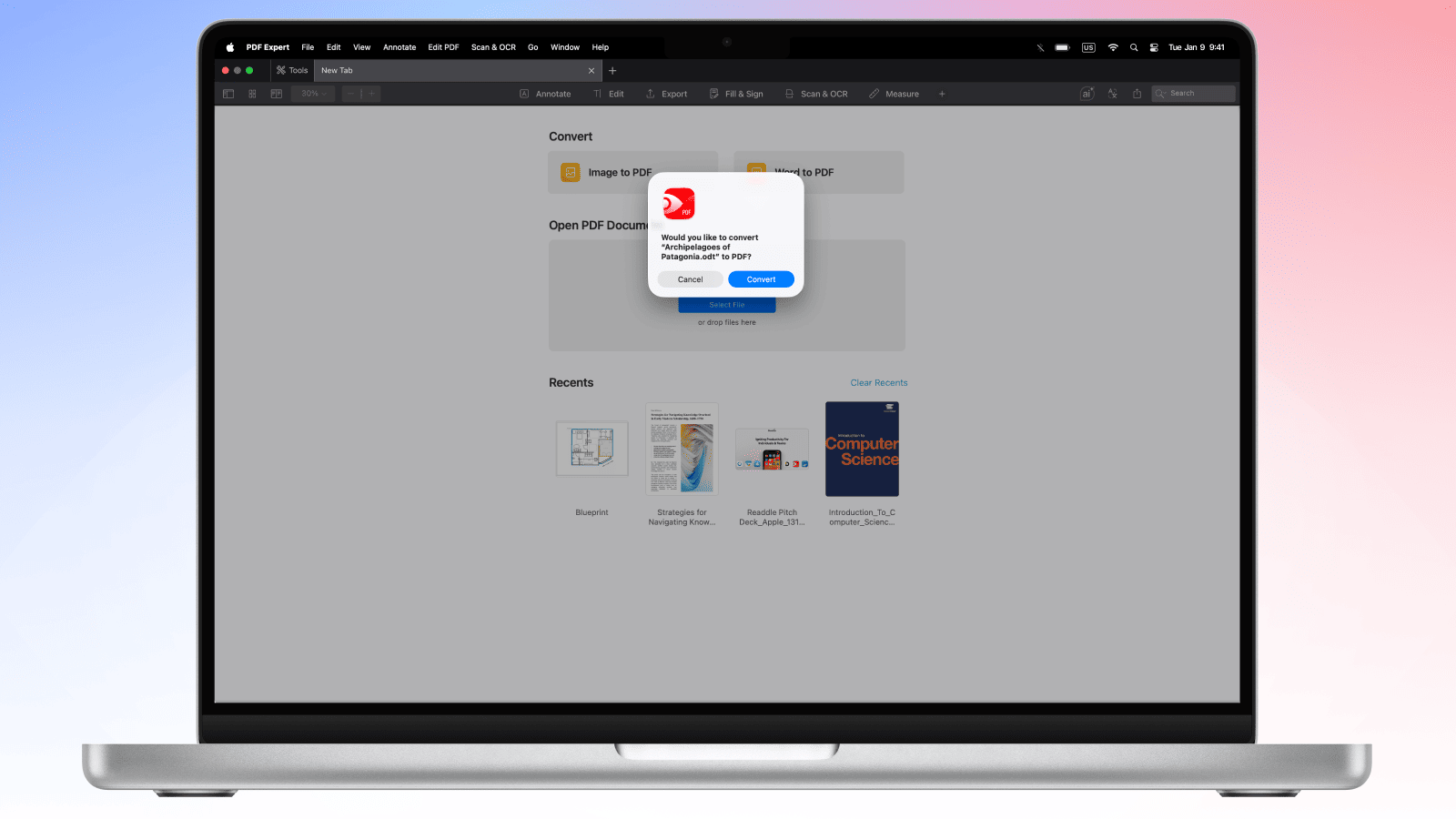
- Open PDF Expert on your Mac.
- Drag and drop your ODT file directly into the PDF Expert window.
- PDF Expert will automatically offer to convert the ODT file to PDF format - click Convert.
- Go to File > Save in the menu to save the PDF on your Mac, or share it through a share icon at the top.
Pro tip: After converting, use PDF Expert's editing tools to add page numbers, merge the PDF with other documents, or compress it before sharing. Have everything you need for efficient document workflows in one app across all Apple devices.
How to save an ODT file as a PDF on a Mac
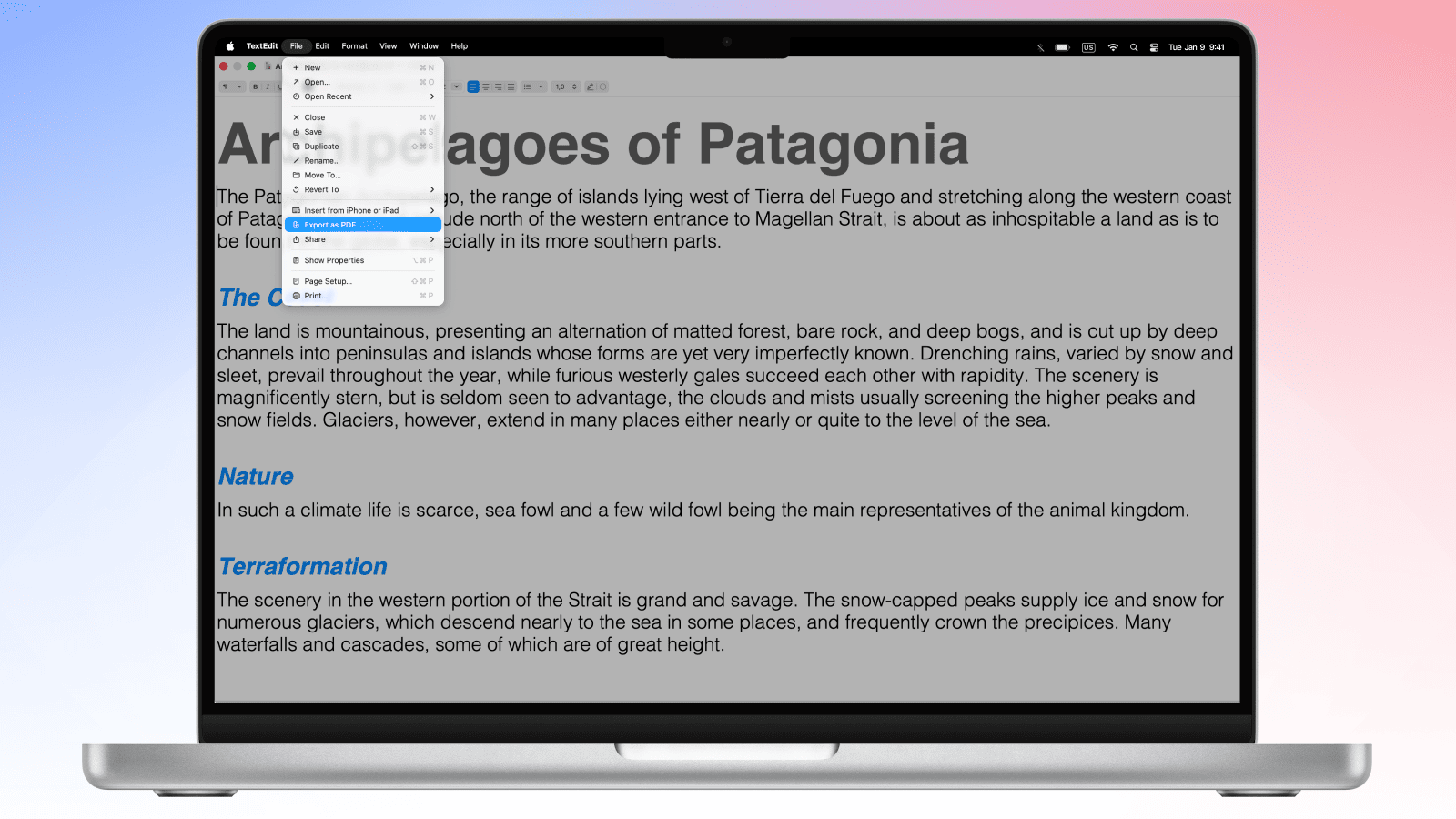
For a quick ODT to PDF conversion, you can also use the native Mac app TextEdit:
- Click the ODT file on your Mac; it will open in TextEdit by default.
- Click File > Export as PDF in the Menu.
- Choose the destination for the PDF file.
Note: With TextEdit conversion, there is no guarantee that fonts, images, or lists will be preserved. The layout could break, so it’s worth checking and adjusting the file after the conversion.
How to convert ODT to PDF in PDF Expert on iPhone and iPad
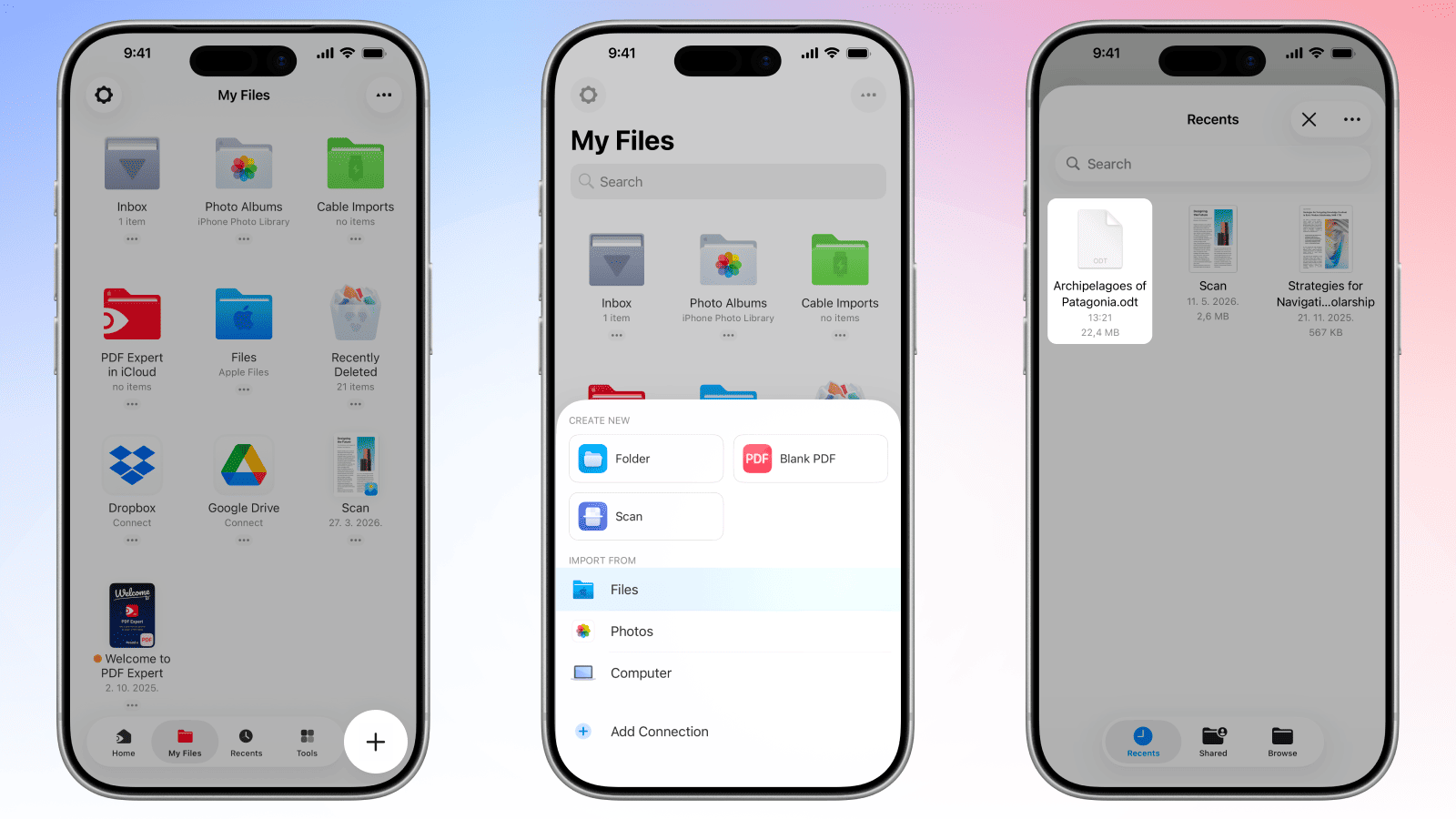
PDF Expert's mobile app makes OpenDocument to PDF conversion just as smooth on iOS as on Mac.
- Download PDF Expert from the App Store if you haven't already.
- Open the app and tap the + button to add a file.
- Select Files (or your preferred cloud storage) and choose an ODT file.
- Navigate to your ODT file in PDF Expert and tap it to open it.
- PDF Expert will automatically offer to convert the file. Alternatively, tap the ‘Convert to PDF’ icon at the bottom of the screen on iPhone or the top of the screen on iPad.
- Tap the three dots in the top-right corner, then choose Share, Email, or Upload the PDF.
You can also edit, annotate or sign your PDF file directly from the app.
ODT to PDF conversion: FAQ
What is an ODT file, and why convert it to PDF?
An ODT (Open Document Text) file is the default document format used by LibreOffice Writer and Apache OpenOffice. It's an open-source alternative to Microsoft Word's .docx format. While ODT is excellent for editing, it requires compatible software to open correctly. Converting ODT to PDF ensures your document looks identical for every reader, on every device, without needing LibreOffice or OpenOffice installed.
Will ODT styles and formatting be preserved in PDF?
Yes. PDF Expert preserves text formatting, headings, bullet points, tables, headers, and footers as much as it is possible.
Can I convert ODT files created in LibreOffice to PDF?
Absolutely. PDF Expert functions as a full LibreOffice to PDF converter — any ODT file produced in LibreOffice Writer (or OpenOffice Writer) will convert cleanly. The conversion keeps all the content, preserves images, and retains columns and tables.
Does ODT to PDF conversion support tracked changes?
When you convert an ODT file that contains tracked changes, PDF Expert renders the document in its current accepted state by default. If you want tracked changes visible in the final PDF, accept or reject them in LibreOffice before converting. This gives you full control over what appears in the finished document.
Can I convert ODT files with custom fonts to PDF?
Yes, most of the fonts will be preserved, and some might be substituted with similar ones. However, to display the resulting PDF correctly, you need to have the fonts installed on your device to render the text properly.
Is it safe to convert ODT to PDF with PDF Expert?
Yes, it is secure. PDF Expert conversion requests are processed on our server with the assistance of a third-party provider. Users’ security and privacy are among our top priorities. Before engaging any third party, we conduct a vendor assessment to ensure our providers meet GDPR compliance, ISO certification, and the highest industry standards. Your files are used only to deliver the service you requested. We do not read, persistently store, or share your file content, nor do our engaged processors. All files are deleted within 24 hours after completion of their conversion request.
To ensure additional security, you can add password protection directly in PDF Expert to restrict who can open or edit the resulting PDF.
