To keep any document organized and easy to digest, you can rely on clear content hierarchy, consistent margins, and plenty of other tricks. But one of the simplest and most effective upgrades? Adding a proper header and footer to your PDF.
A header isn’t technically required, but including extra information like the author’s name, date, company logo, slogan, or page numbers instantly makes your file look polished and professional, especially for business, academic, or legal documents.
In this guide, we’ll explain why headers are worth adding, the different types you can use, and give you step-by-step instructions on how to add headers and footers to a PDF on Mac using PDF Expert.
Why do you need a header in a PDF?
You don’t technically need a header in a PDF, but it’s often a smart choice, especially for longer or more professional documents.
A good header adds instant clarity and polish, helping readers quickly understand what they’re looking at the moment they open the file.
It can show key context like the document title or project name, the section or chapter, and page numbering (for example, “Page 17 of 92”), which makes navigating a long PDF much easier. Headers are also handy for branding, since elements like a company name, logo, or tagline reinforce who the document is from. And when multiple versions of the same file are circulating, labels like “Draft,” “Confidential,” a version number, or a date can prevent mix-ups and keep everyone on the same page.
How to add headers to a PDF on Mac
Nothing makes a long PDF look more professional than a clean header (and it literally takes 15 seconds once you know where to click).
- Download PDF Expert (if you haven’t already) and open your PDF.
- Go to the Edit PDF menu at the top left of the screen and click Header and Footer.
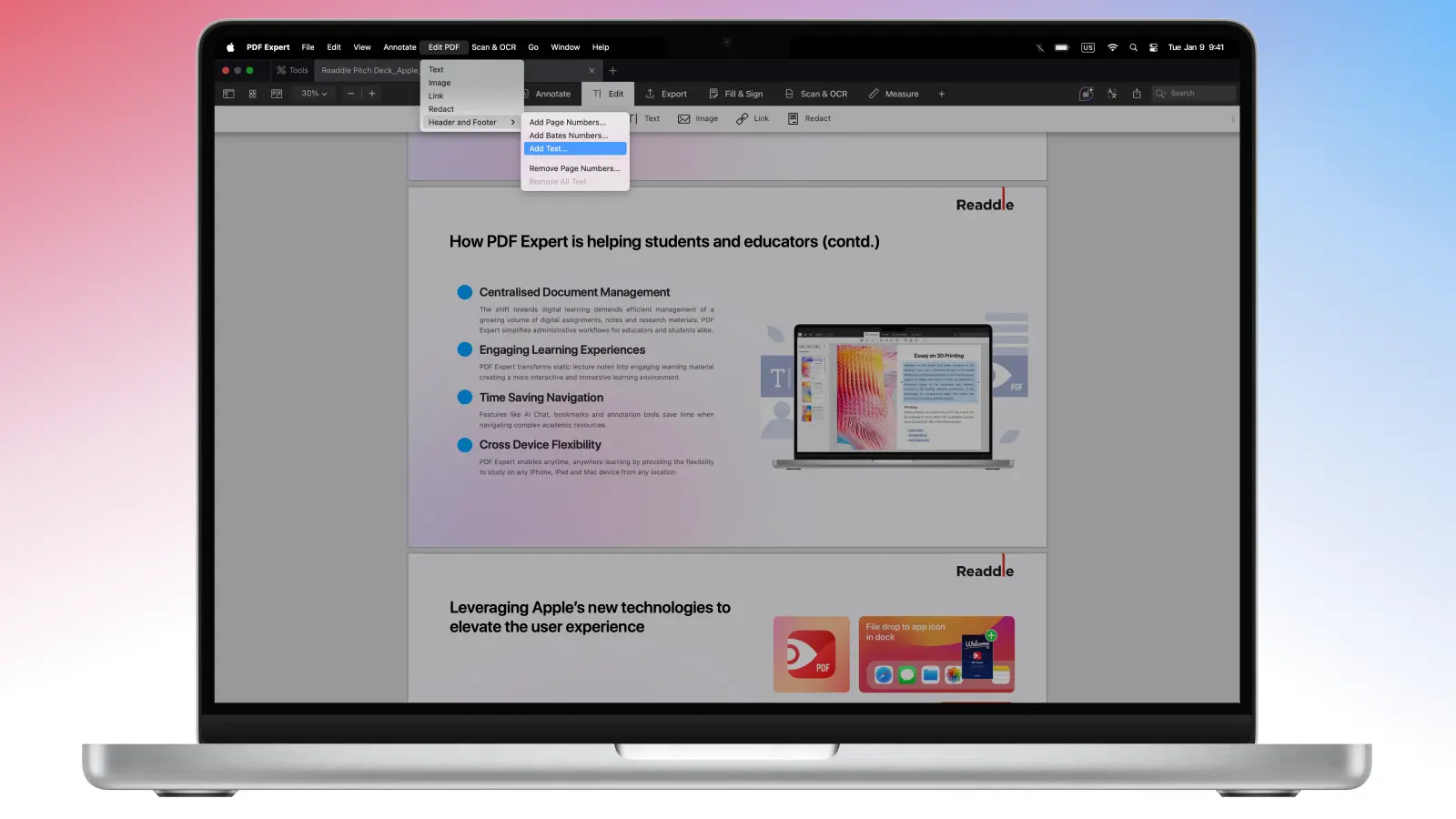
- From there, click Add Text.
- You will see a settings pop-up window where you will be able to edit and add headers to a PDF:
- Choose the page range (first page only, everything except the first, custom range, etc.)
- Type your header text (for instance, “Confidential”, “Draft v2”, “John Doe | 2025 Report”, your company name, etc.)
- Select a layout (left, center, right), font, size, and color
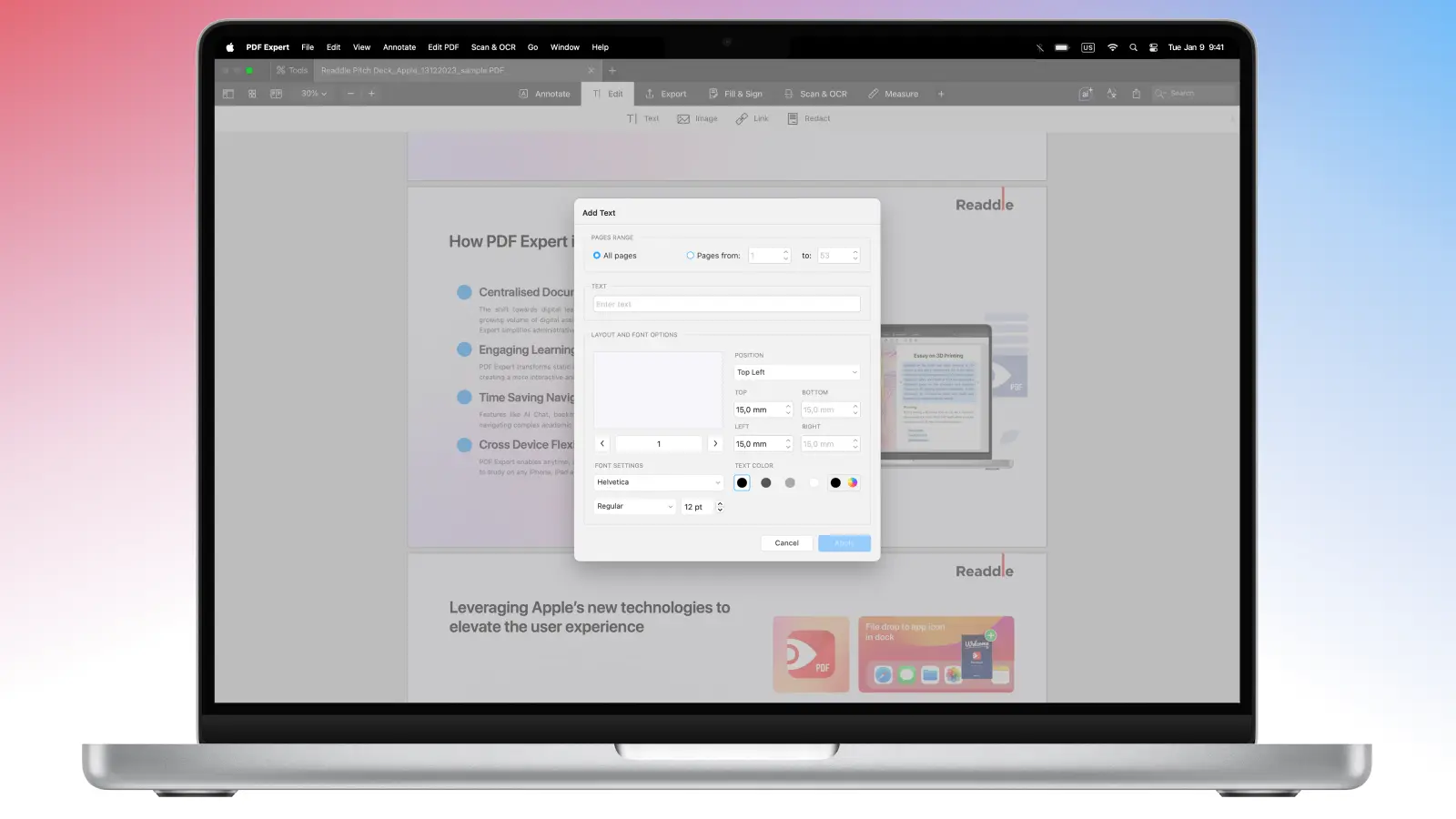
- Once you’re happy with your selection, click Apply.
- If you want to remove the text created, go to Edit > PDF > Header and Footer > Remove All Text. PDF Expert will delete the headers from all pages.
Tips for perfect headers and footers
To make your headers and footers look professional in PDF Expert and avoid the most common headaches, it helps to prep your document before you add anything. Reorder, rotate, delete, or insert pages first, because once headers and footers are applied, they automatically “stick” to the relevant pages and update with your changes.
When you’re designing the header or footer itself, keep it subtle by using a smaller font size (around 8–10 pt) and lighter colors like grey, so it supports the content rather than competing with it. A clean, standard layout also goes a long way, such as placing the document title or project name on the left, page numbers or the date on the right, and leaving the center empty or reserved for chapter names.
Don’t forget to account for margins so your printer won’t clip the text, and consider skipping the first page if it’s a title page and you want a cleaner presentation.
For legal or medical documents, you may also want to use Bates numbering, which you can add in PDF Expert by going to Headers and Footers and selecting “Add Bates Numbers…”.
FAQ
Can I add different headers on different pages in a PDF?
Of course. However, please keep in mind that you will need to manually add headers to different pages every time.
How to add headers to a PDF on iOS?
PDF Expert on iOS doesn’t support headers and footers yet. You can add headers using PDF Expert for Mac, upload it to Cloud, and open your file on your iOS device.
Once it’s there, you can add annotations, edit text and images, and leave comments directly on iOS – perfect for reviewing on the go.
How to add labels to a PDF?
To make sure you have all the pages in order, you can label them in your PDF on Mac using PDF Expert.
- Open your file with PDF Expert.
- Click the Page Thumbnails icon in the upper left corner (or press CMD + 4). Right-click the page and choose your labeling preference: Label This Page Forward as 1,2,3,4…/ Label This Page Forward as i, ii, iii, iv,... / Label as Cover
- PDF Expert will automatically label all your pages.
- You can repeat this action as many times as needed.
Can you add numbers to headers or footers?
If you need to add numbers to headers or footers, PDF Expert can do that on Mac:
- Open your PDF in PDF Expert on Mac.
- Click Edit PDF at the top left of the screen.
- Select Header and Footer > Add Page Numbers.
- Here, you can adjust the page range and layout – most people go with footer-right or footer-center because it looks the cleanest. You can also select a style “1, 2, 3”, “I, II, III”, “i, ii, iii”, “A, B, C”, “a, b, c”, Bates numbering, or create a custom one. Finally, adjust the font, size, and color so everything matches the rest of the document perfectly.
- Click Apply to add the page numbers.
- You can always edit or delete page numbers from the same Header and Footer menu.
