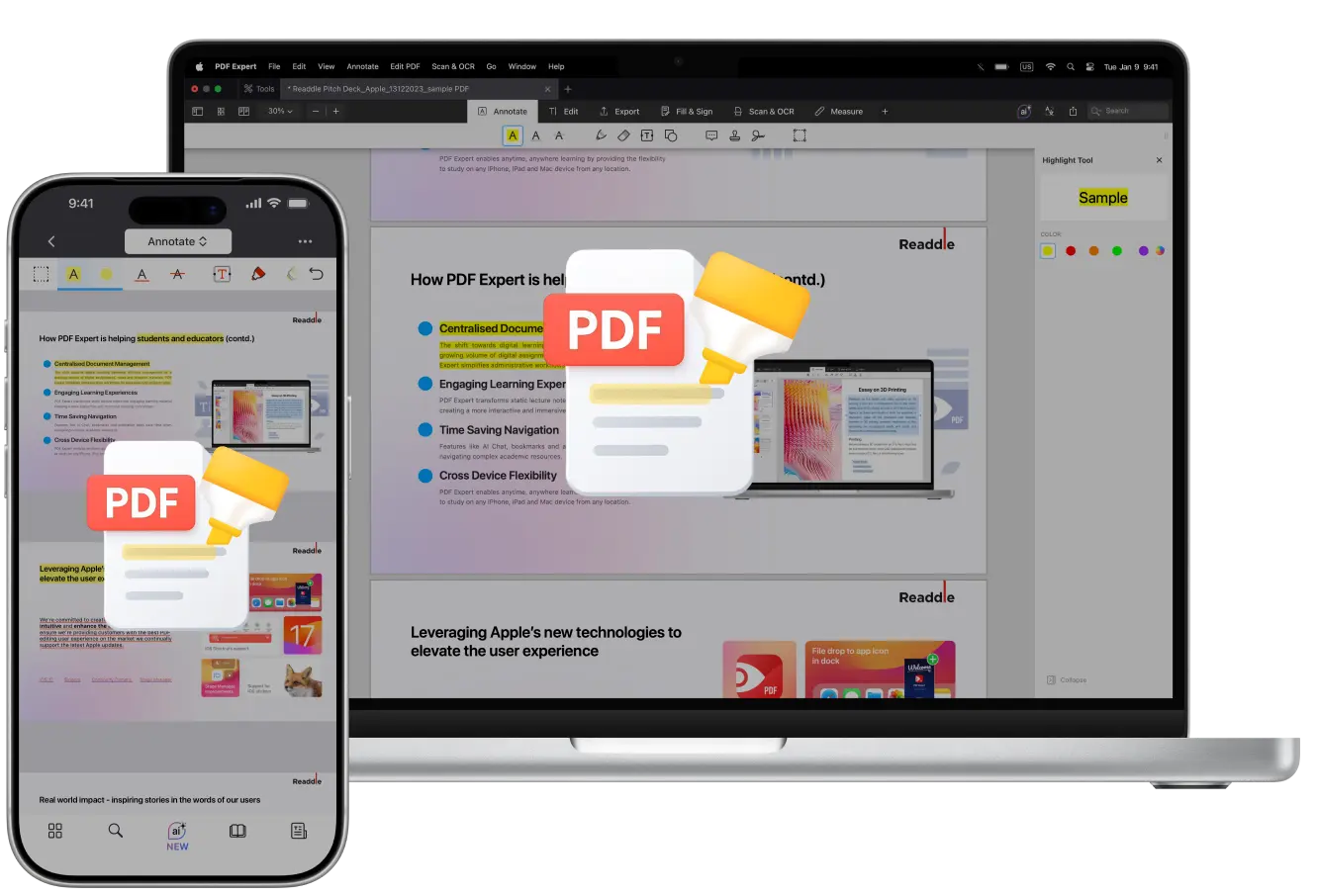
When reviewing a contract, scanning through a research paper, or reading a book, you more often than not spot something you want to highlight and instantly find it when you’re back to that same page.
With a powerful PDF editor for macOS, iPadOS, and iOS, annotation becomes effortless and enjoyable, like using your favourite highlighter on paper.
PDF Expert by Readdle lets users highlight in multiple colors with perfectly straight lines, easily edit or remove highlights as needed, apply OCR to scanned documents (and then highlight the recognized text), and even export annotations separately for focused reviews.
How to highlight in a PDF on Mac
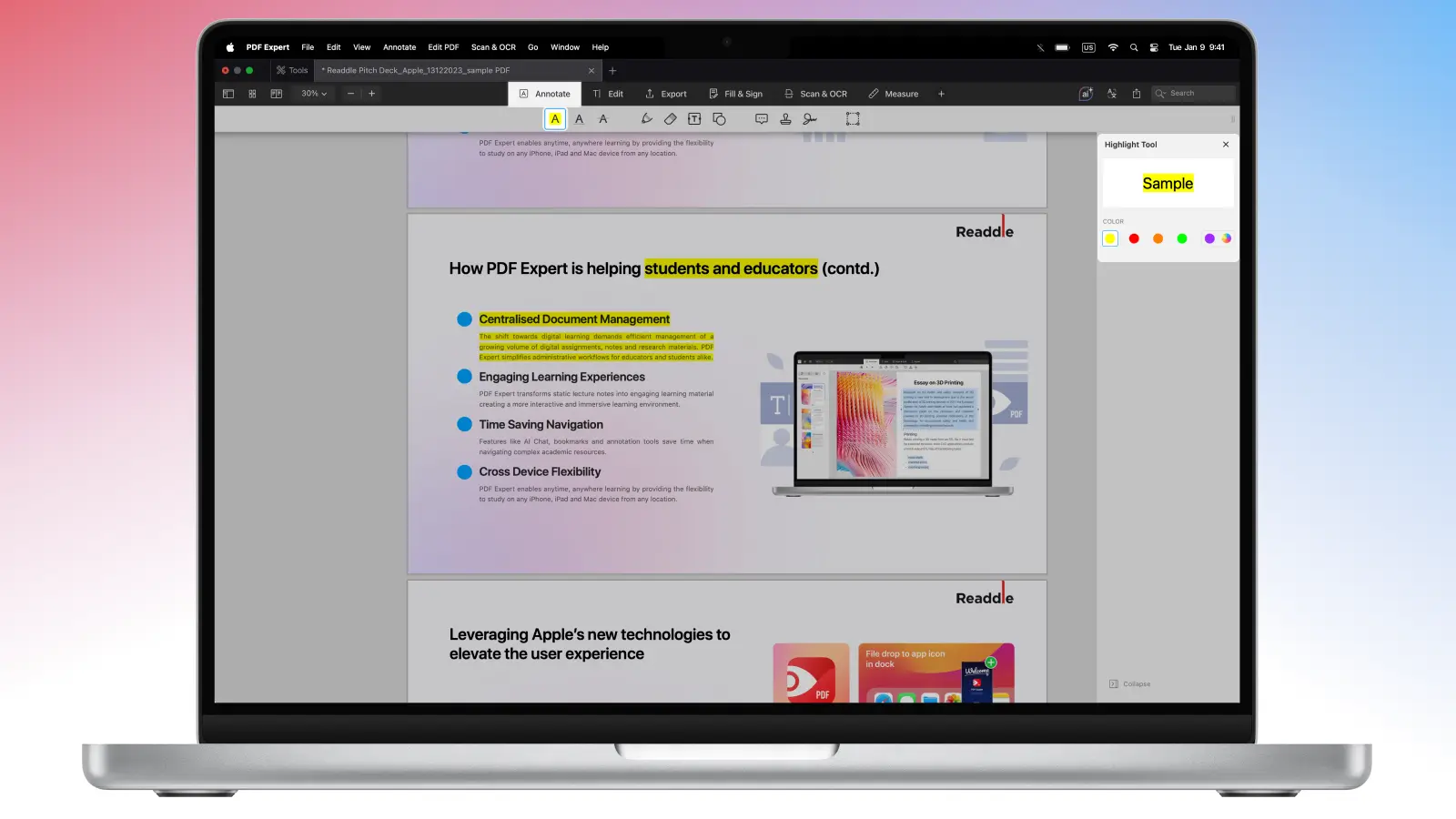
Reading large PDFs on a Mac is convenient because you can scroll smoothly, search instantly, and jump between sections quickly. Highlighting makes it even better, with precise control using a trackpad or mouse.
Here’s how to highlight text in a PDF on Mac:
- Open the PDF file in PDF Expert on Mac.
- From the toolbar, switch to Annotate mode. There, you will find various tools – pick Highlight.
- Select a color from the right sidebar. Choose yellow, red, orange, green, or purple. Alternatively, select your custom palette.
- Now all you need to do is click and drag over the text to apply the markup. The tool automatically snaps to straight lines without extra effort.
To edit or remove a highlight later, right-click the highlighted phrase or paragraph and choose a new color or delete it.
How to highlight in a PDF on iPhone or iPad
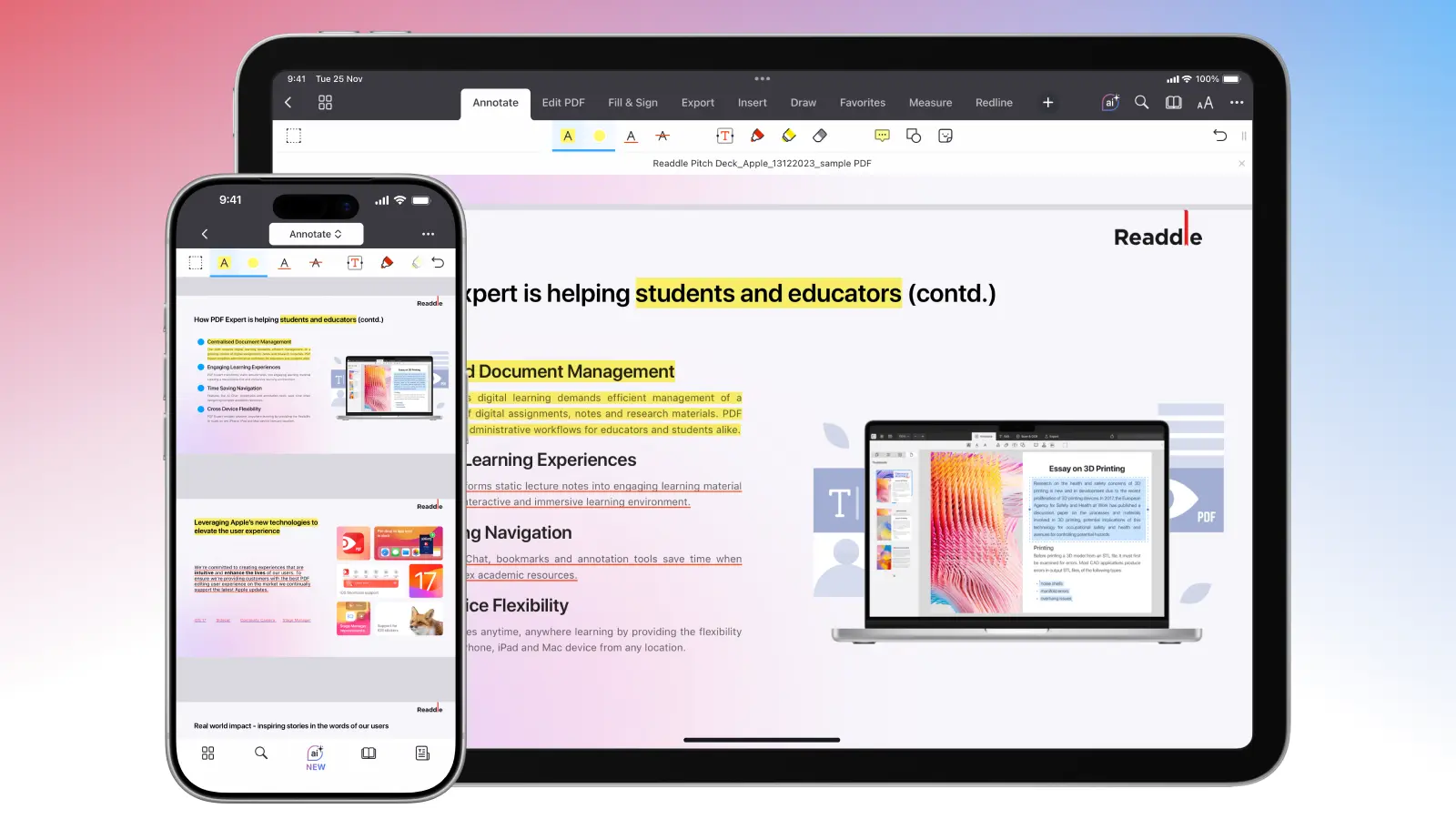
On mobile devices, the experience is equally seamless. PDF Expert provides full Apple Pencil support on iPad for a natural handwriting feel. To highlight a PDF on your iPhone or iPad:
- Open the PDF in PDF Expert.
- Tap the Annotate toolset at the top toolbar and select Highlight.
- Select a color and drag a finger or Pencil across the text.
- For faster highlighting while reading, simply long-press on text, adjust the selection handles, then tap Highlight (or swipe for options like Underline).
Print your PDF with highlights
In order to print your PDF with your annotations, along with highlights, underlines, and notes, you should save a flattened copy of your PDF, then go to File > Print in PDF Expert (on Mac) or use the Share menu on iOS.
Annotate like a pro with PDF Expert
For workflows that involve frequent PDF interaction across Apple devices, PDF Expert delivers speed, consistency, and smart tools that make annotation effortless, not tedious.
Color-coding
You can take organization to the next level with custom color palettes. In Annotate mode, open the color picker to create and save your own set of colors. For instance, assign yellow for main ideas, blue for questions, and pink for quotes. Or use any system that works for you.
Annotation features
PDF Expert offers markup tools beyond simple highlights. Use annotation features like sticky notes (and even audio notes for Mac users), freehand drawing, various shapes, and stamps to add layers of context.
Scan & OCR
For scanned documents, a built-in OCR tool recognizes your text in a PDF. This allows you to search through your file and highlight where it wasn’t possible before. The AI-powered Enhance tool can fix distortions, remove shadows, and boost contrast for cleaner results.
Annotation summary
The real game-changer is Annotation Summary: it gathers every annotation made into one list that you can export as plain text, HTML, or Markdown. This turns hours of reading into concise summaries or reference sheets in seconds, especially valuable for researchers, students, or professionals synthesizing information.
FAQ: PDF highlights
Can I add highlights to scanned PDFs?
Scanned documents do not have a selectable text layer, so standard highlight tools won't work directly. PDF Expert’s built-in OCR feature can recognize text in scans and turn them searchable.
On Mac, go to Scan & OCR from the top toolbar and select Recognize text. The app will automatically scan your PDF and make it ready for highlighting, underlining, or strikethrough.
Can I export annotations separately?
Yes, PDF Expert for Mac can help you export the annotation summary with all highlights, notes, and marks into a searchable overview. Click to open the bookmarks, outlines, and annotations. Move to the Annotations tab, then click More…, and export them as plain text, HTML, or Markdown for quick summaries, study guides, or reports.
Do highlights sync across devices?
To sync highlights and other edits across devices in PDF Expert, store your PDFs in a cloud service like iCloud Drive, Dropbox, or Google Drive, connect the service in the app on each device (or use the dedicated PDF Expert folder in iCloud Drive), and open/edit the files from there on every device.
How to remove or edit an existing highlight?
On Mac, right-click a highlight to change its color or delete it. On iPhone or iPad, tap Highlight and touch the annotated text, then select Clear or adjust via the color options. The changes will apply immediately.
