Plain-text files, such as notes and logs, are notoriously hard to share professionally. Without formatting, consistent fonts, or page structure, a .txt file can look rough in other file readers. Converting your TXT documents to PDF solves this instantly: PDFs preserve fonts and formatting exactly how you intend, display consistently on any device, and look polished every time. PDF Expert makes this conversion effortless on Mac, iPhone, and iPad — no uploading to sketchy online tools, no watermarks, just clean results in seconds.
Why use PDF Expert as your TXT to PDF converter
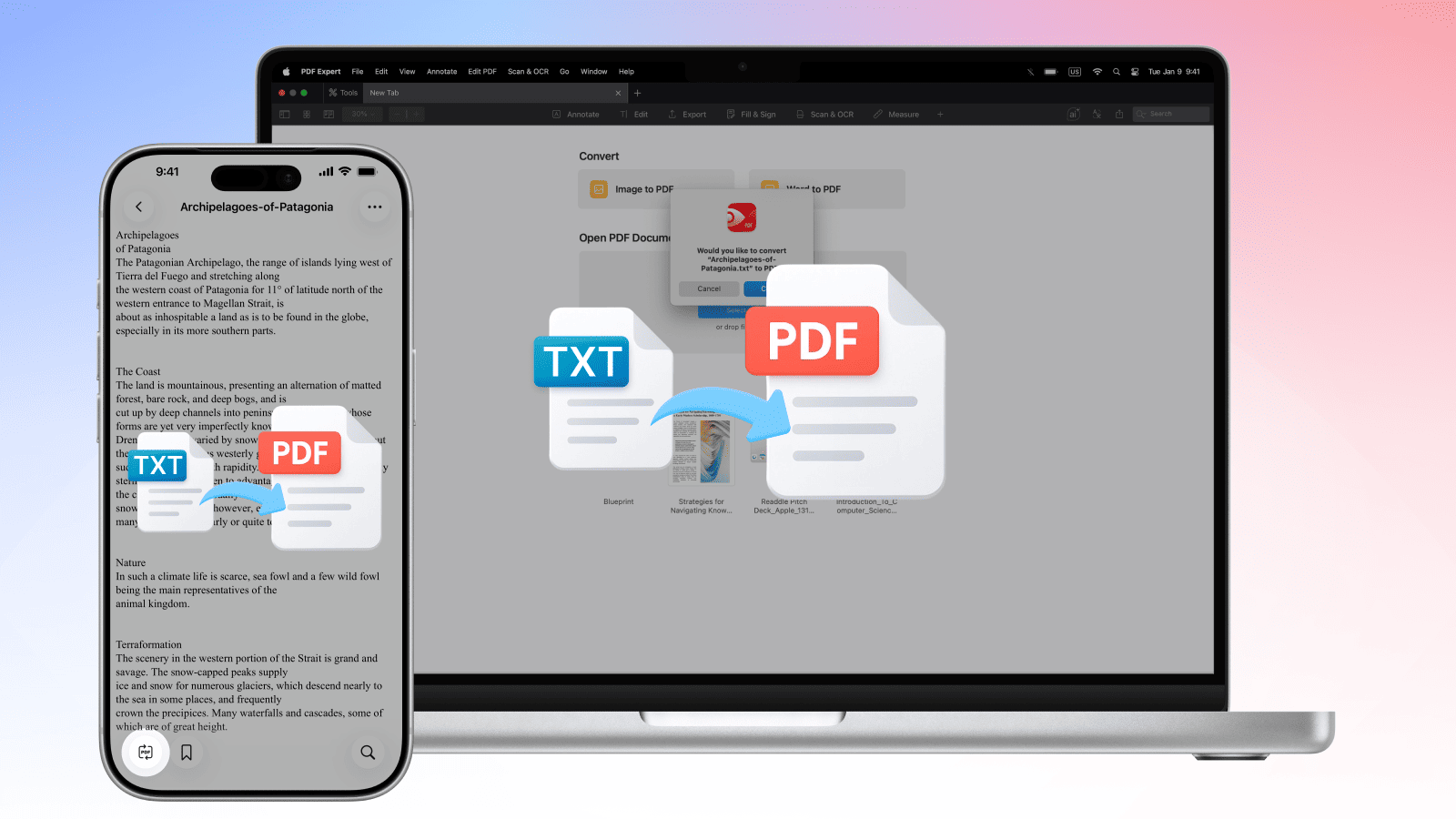
PDF Expert gives you everything you need from a text file to PDF converter— and far more than some online tools ever could.
- Your files stay private. TXT file PDF conversion happens locally on your device. You never upload sensitive text to a third-party server.
- No watermarks, ever. Unlike some free online converters, PDF Expert doesn't brand your output.
- Formatting you control. Change fonts, adjust margins, and add images before you export.
- Batch conversion. Convert multiple TXT files at once instead of repeating the process file by file.
- Works across all your Apple devices. One account covers Mac, iPhone, and iPad — pick up where you left off on any device.
- Edit after you convert. Annotate, merge, compress, or sign your newly created PDF without switching apps.
Why convert plain text to PDF
Plain text files get the job done for storage, but they fall short for sharing, archiving, or presentation. Here's when converting makes sense:
- Professional sharing. A PDF looks intentional and polished; a raw .txt file does not. When sending reports, documentation, or exported data to clients or colleagues, PDF is the expected format.
- Preserving layout. PDFs lock in line breaks, spacing, and structure so the recipient sees exactly what you created. Plain text files carry a risk of messy reformatting.
- Long-term archiving. PDF is an ISO-standardized format built for longevity. Text files can lose encoding or formatting context over time.
- Secure distribution. PDFs can be password-protected and redacted (certain sensitive data being removed).
How to convert TXT to PDF on Mac
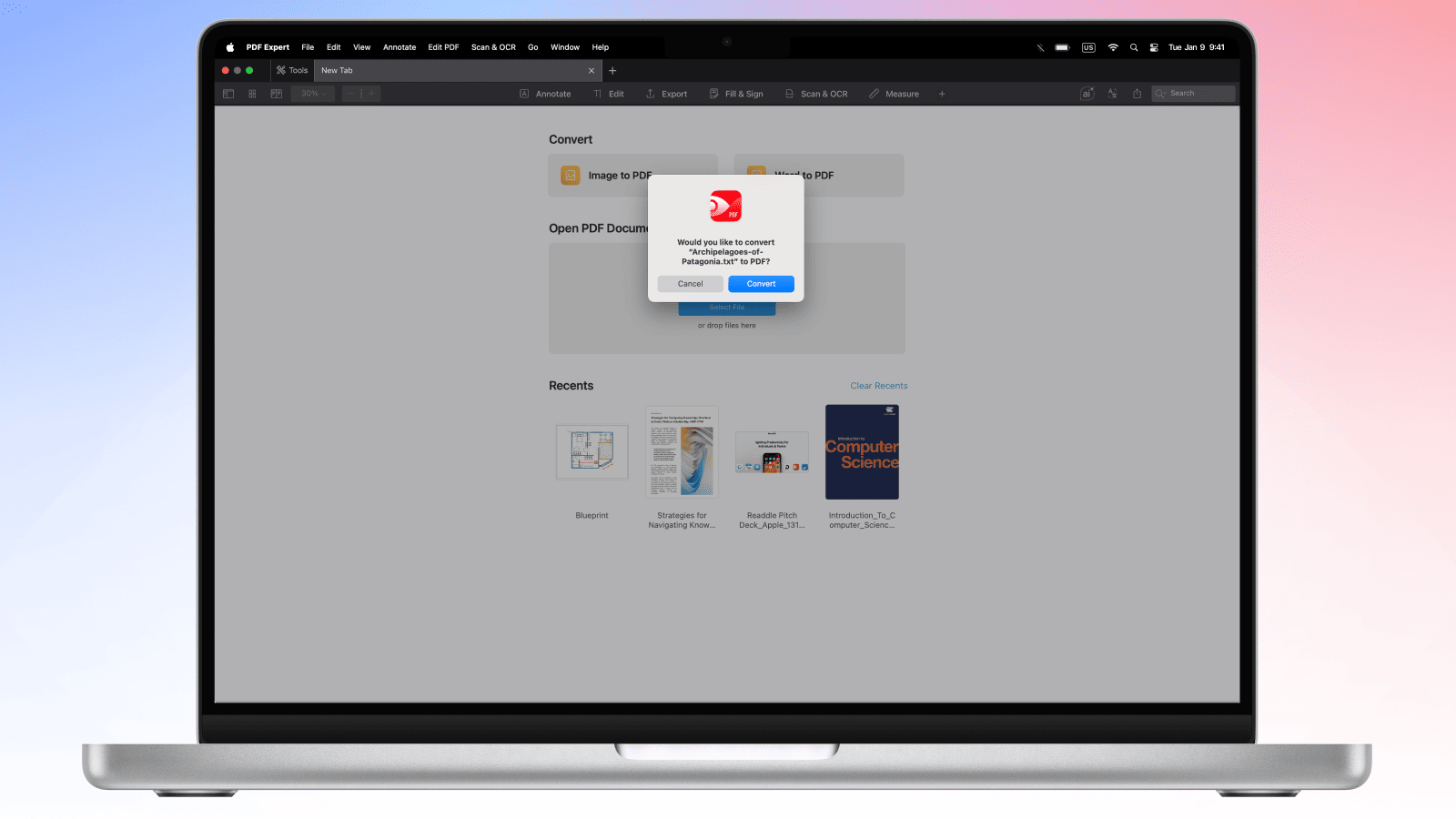
- Open PDF Expert on your Mac.
- Drag your .txt file directly from Finder into the PDF Expert window.
- PDF Expert will display a pop-up offering to convert the TXT file to a PDF. Click Convert.
- Now you edit the PDF if needed, or export the PDF file right away via File > Save as or the Share icon.
Your plain text file is now a properly formatted, shareable PDF.
Pro tip: After converting, you can immediately merge your new PDF with other documents, compress it for email, or add an e-signature — all without leaving PDF Expert.
How to convert TXT to PDF on iPhone and iPad
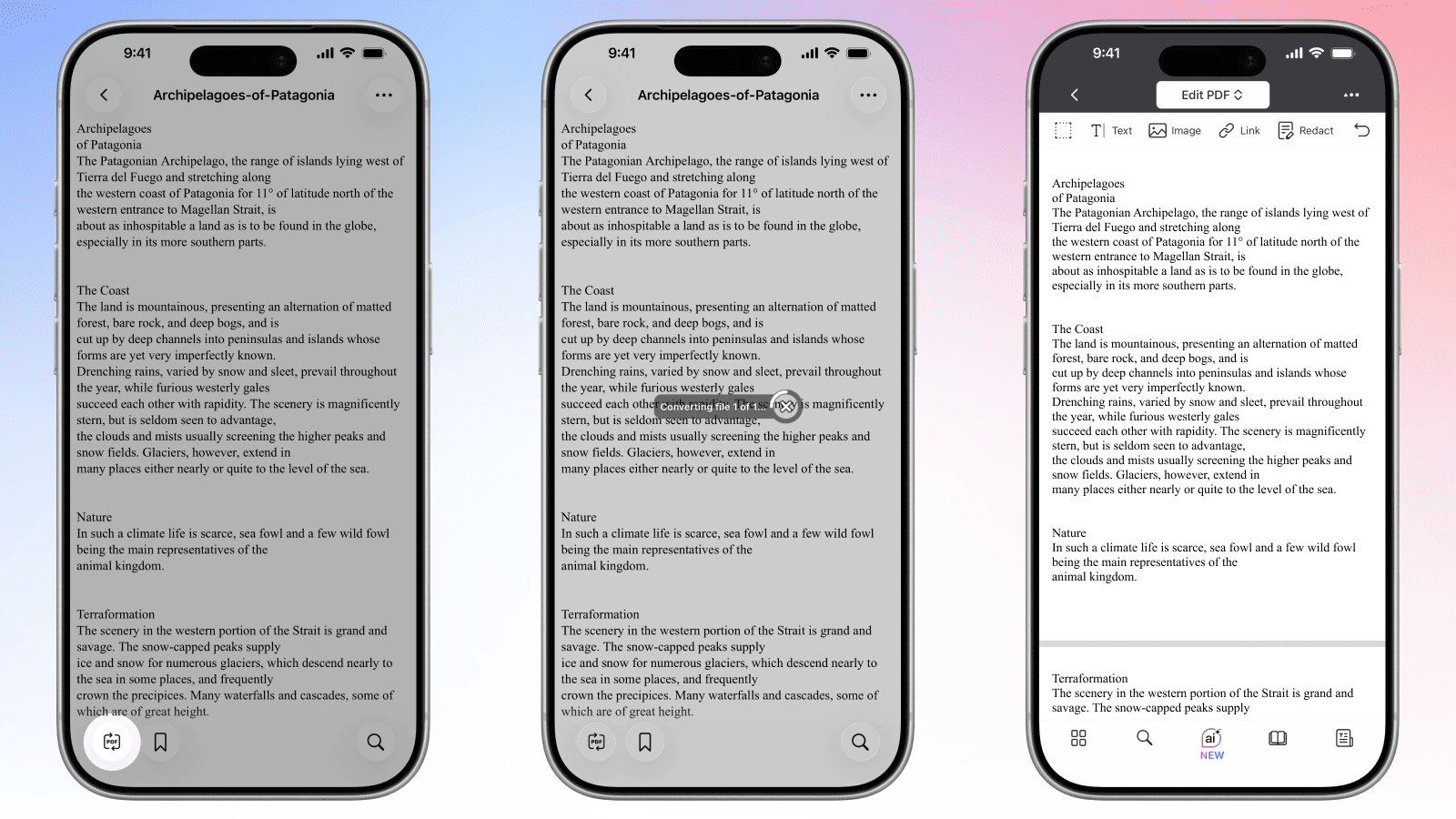
Converting TXT documents to PDF on the go is just as straightforward with PDF Expert for iOS.
- Download PDF Expert from the App Store if you haven't already.
- Open the app and tap + (Add) to import your TXT file.
- Choose your source — Files, iCloud Drive, or another connected storage location — and select your .txt file.
- PDF Expert opens the file in document view.
- Tap the PDF Converter icon in the bottom-left corner. The file will be converted to PDF.
- Your PDF is ready to share, edit or annotate right inside the app.
Plain text to PDF Conversion: FAQ
Can I customize font and formatting when converting TXT to PDF?
Yes. When you open a TXT file in PDF Expert, you can adjust display settings such as font size and margins before exporting. For deeper formatting control on Mac — custom typefaces, line spacing, and heading styles — you can paste your text into a Word or Pages document first, format it there, and then export or convert to PDF through PDF Expert. This gives you full typographic control over the final result.
Will line breaks be preserved in TXT to PDF conversion?
Yes, line breaks in your original TXT file are preserved during conversion. PDF Expert reads the plain text structure and respects hard line breaks and paragraph spacing. The output PDF reflects the same line-by-line layout as your source file, so formatted content like code blocks, numbered lists, or structured logs will look as intended.
Can I convert UTF-8 encoded text files to PDF?
Yes. PDF Expert handles UTF-8 encoded text files without issues, including files that contain international characters, accented letters, and special symbols. Whether your text file was created on Windows, Linux, or macOS, UTF-8 encoding is correctly interpreted and rendered in the PDF output.
How do I add headers and footers to TXT files during PDF conversion?
On Mac, PDF Expert lets you add headers and footers before exporting. After opening your TXT file, go to Edit PDF > Header & Footer in the menu bar. From there, you can insert page numbers (also Bates numbers), file name, date, or custom text into the header or footer fields. These appear on every page of the exported PDF — useful for reports, legal documents, or multi-page reference files.
Can I merge multiple TXT files into one PDF?
Yes. PDF Expert supports batch operations, allowing you to combine multiple TXT files into a single PDF document. Drag and drop all files into PDF Expert (with Shift), convert them to PDFs individually, then use File > Merge PDFs on Mac to combine them into one document. You can reorder pages using the thumbnail view before saving the final merged file. On iPhone and iPad, use the pages icon in the bottom left corner to manage pages across documents.
