Nobody likes scrolling through a massive document trying to find one specific section. So how can you make long PDFs more user-friendly and interactive?
You can turn a static document into a dynamic one by simply adding internal or external hyperlinks. In a business proposal, you can link key phrases to your site for extra details. In a research paper, point readers to sources instead of pasting long URLs everywhere.
PDF Expert by Readdle is a powerful and user-friendly tool to help you with the task.
How to add a hyperlink to a PDF on Mac
Working on a larger screen (like your Mac) makes it easier to navigate and edit long documents.
Here’s how to add hyperlinks in a PDF on Mac:
- Launch PDF Expert and open the file you want to edit. If you don’t have it yet, download PDF Expert.
- Switch to Edit mode by clicking the Edit tab on the top toolbar. This unlocks tools for modifying text, images, and links.
- Click the Link button (it looks like a chain icon ).
- Now, choose your area. Highlight the text or click on the image you want to turn into a hyperlink. You can also draw a rectangle over a blank space for an invisible link.
- In the pop-up, choose the type:
- Link to Web for URLs. Enter the details (e.g., https://example.com) and hit Return. You can also click Go to URL to see if the website you’re entering is working and correct.
- Link to Page for internal jumps. Type the page number (the miniature will appear, showing you the page you’ve selected). Alternatively, click the Target picker. It will allow you to navigate through the PDF for the target page and select the destination area.
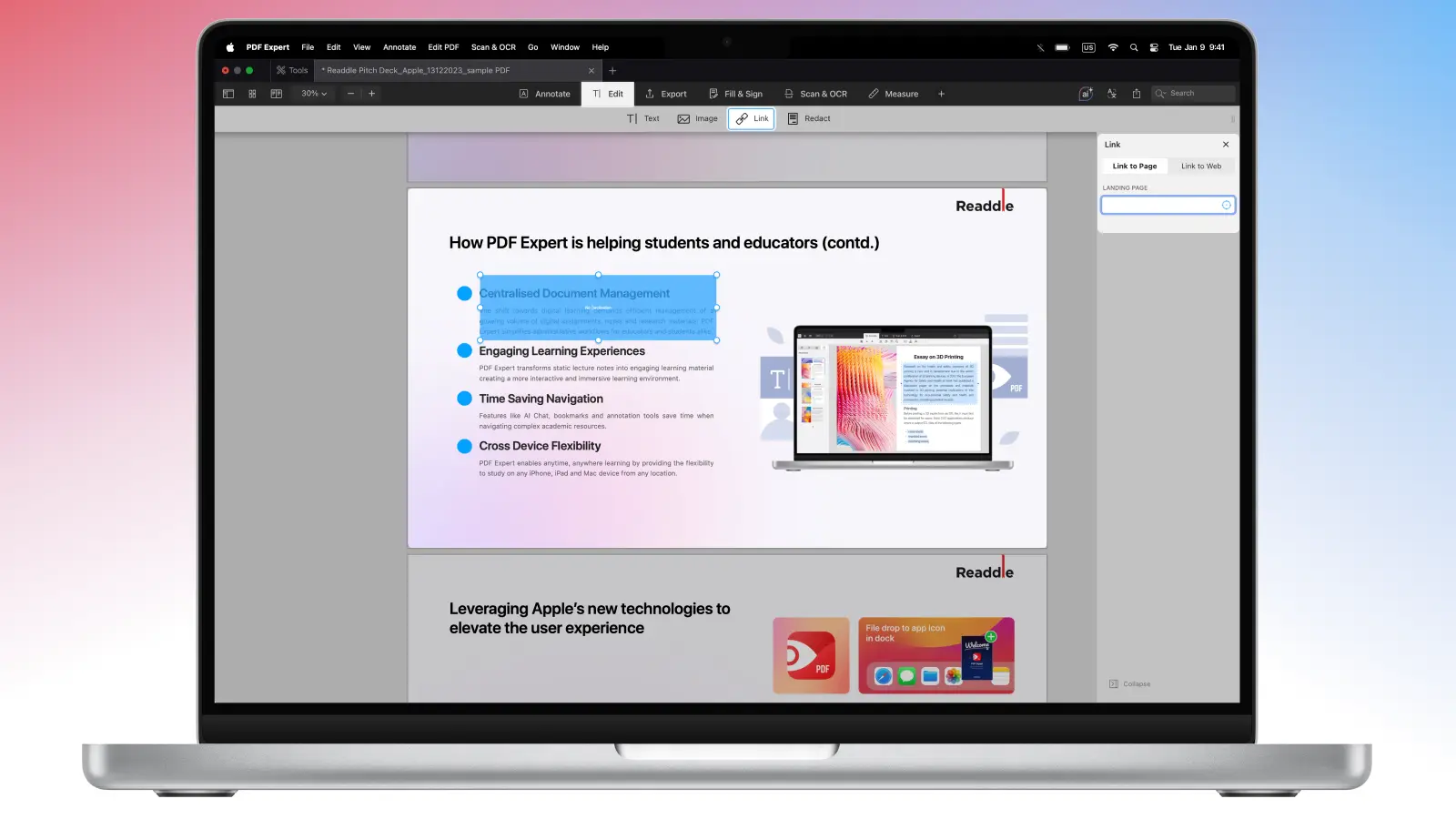
- Where the hyperlink is added, you will see an opaque blue highlight. Test it by clicking!
- Then, save your changes. Go to File > Save, or export as a new PDF.
How to add a hyperlink to a PDF on iPhone or iPad
On the go? PDF Expert’s mobile app is just as capable. It’s great for quick edits without a computer.
- Tap to open your PDF in PDF Expert.
- Enter Edit PDF mode from the top toolbar.
- Then, tap the Link tool.
- Tap and drag over text or an image to select the area for a future hyperlink.
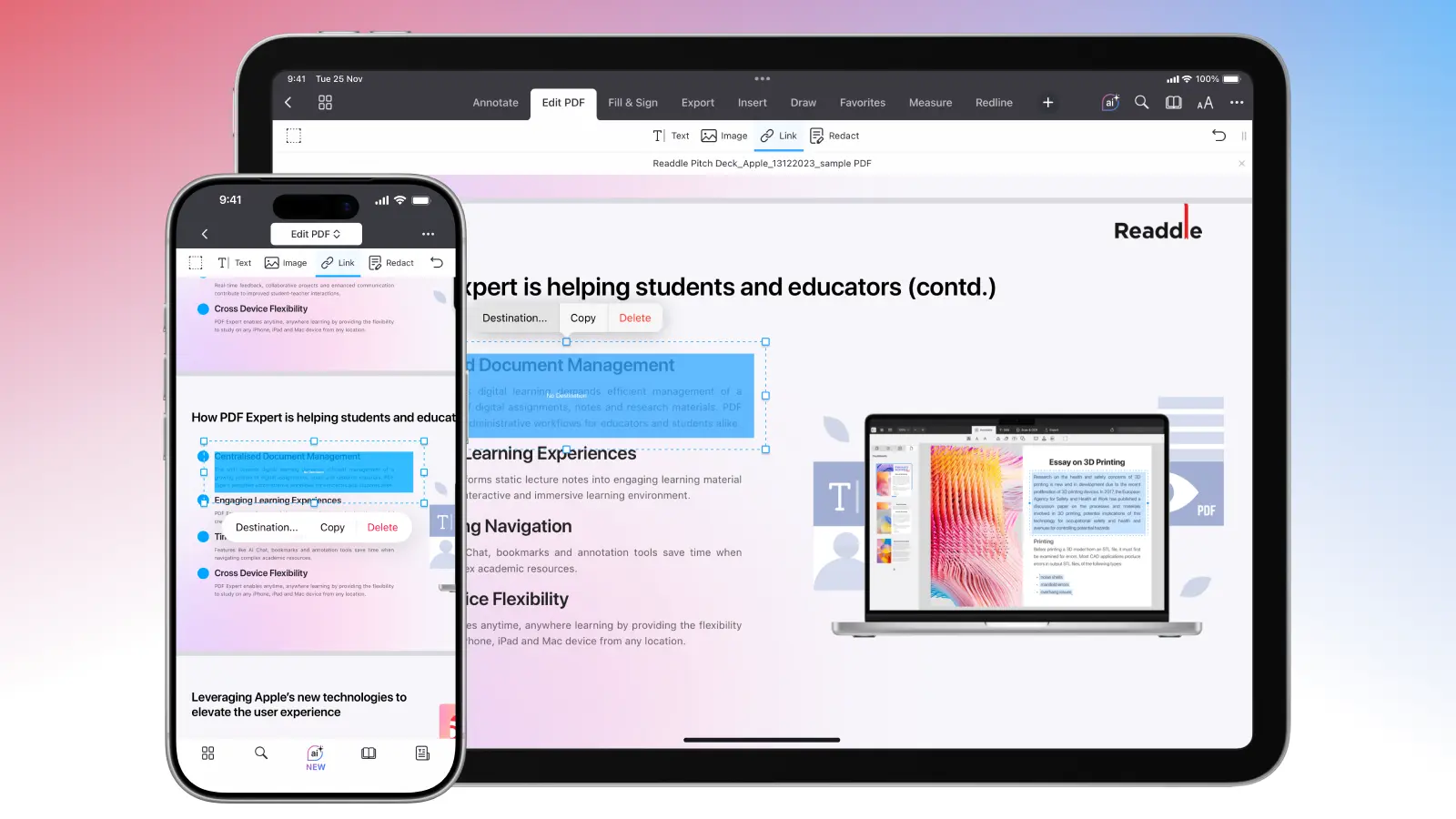
- Tap the area you’ve created, then select Destination… Choose the destination type (To Page or To Web), enter the info, and confirm.
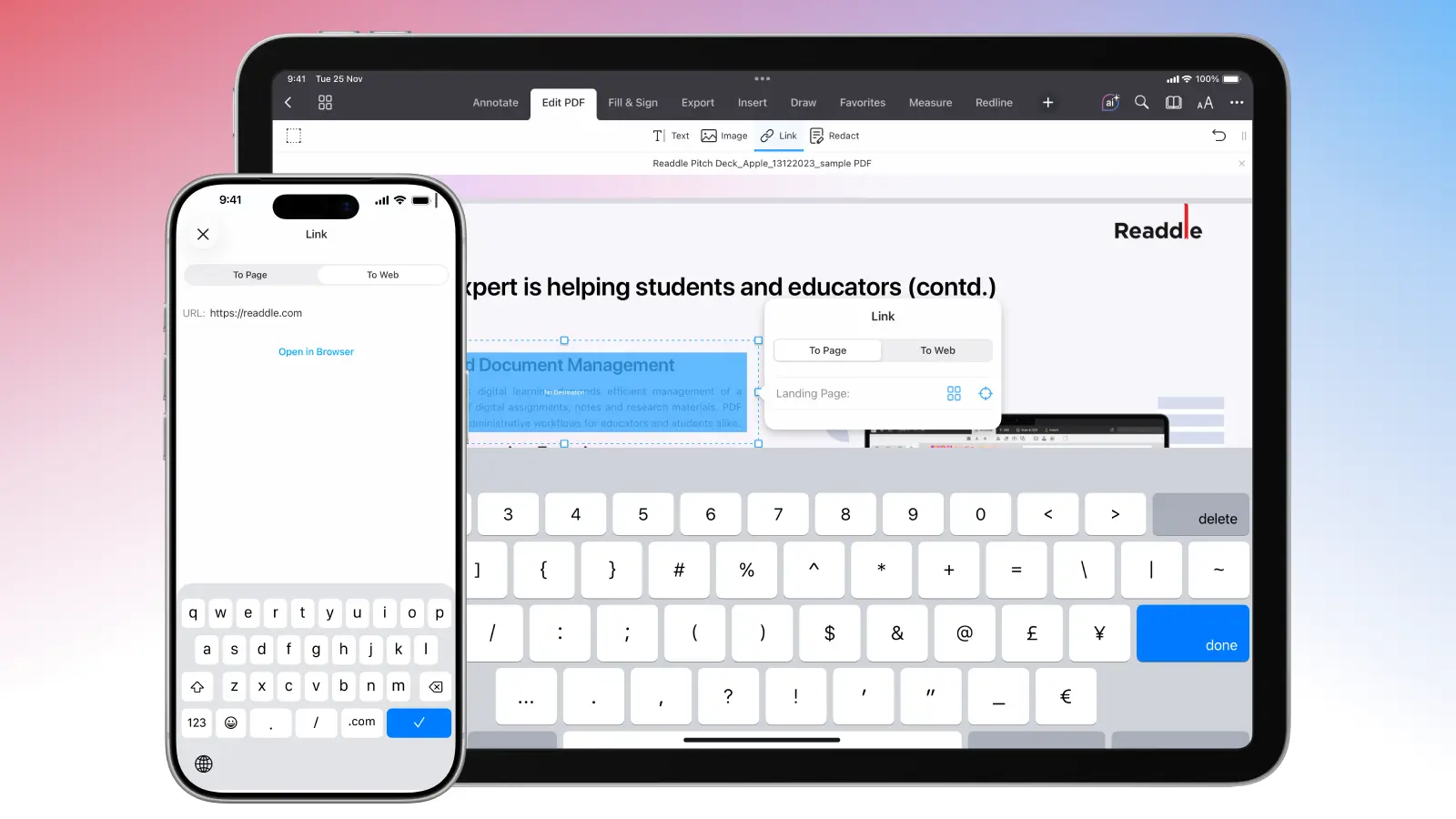
- Tap the blue checkmark at the bottom right when you’re done. Don’t forget to save your changes or export the file as a new one.
Best practices for hyperlinking
If your links in your documents don’t work, it can make your work seem unprofessional. Always double-check that everything functions correctly before sending your document:
- Always include protocol (https://) when adding links to web URLs. PDF Expert automatically inserts it, so make sure you don’t delete it while copying and pasting your resource, as this may result in broken links in your PDF.
- Use canonical URLs. Try to avoid using URL fragments or URLs with long UTM parameters unless you need those for tracking or to jump immediately to a certain part of the page (see below)
- Make sure to double-check the external URL after editing it. Edit by clicking (or taping on mobile) and selecting Go to URL to make sure the website works properly
Pro tip: If you want to link to a specific section, make sure to use a URL with a fragment identifier (https://example.com/page#section). This lets readers jump directly to the relevant part, improving navigation in long documents.
FAQ: PDF hyperlinks
How do I edit or remove an existing hyperlink?
In Edit mode, click the link area (or use the Link tool). From there, update the destination, appearance, or delete it entirely.
Why is my hyperlink not working in the PDF?
This is one of the most common issues. Possible reasons include:
- The link was added incorrectly, or the URL is broken. Double-check by editing the link properties. You can select Go to URL to test whether the link is correct.
- The file was exported/flattened (e.g., via Print to PDF), which removes interactivity. Always save directly in PDF Expert to preserve links.
Explore More with PDF Expert
Adding hyperlinks is just one way to supercharge your PDFs.
Use Outlines for advanced navigation
Outlines (or table of contents) let you build a structured, hierarchical navigation system. Using outlines can help quickly view the document hierarchy and jump to any chapter or section.
Add page numbers
Professional documents almost always need page numbers for easy referencing, printing, and citation. Manually adding headers one by one can be tedious, but PDF Expert handles it automatically.
Redact sensitive information
When sharing confidential files, make sure you redact sensitive information. Simply highlighting and deleting text isn’t enough. PDF Expert’s redaction tool permanently removes content (text, images, metadata) so it can’t be recovered.
Add text and images to your PDF
In addition to hyperlinks, you can also insert text and images into your file. In PDF Expert, these edits happen right in the same Edit mode you already use for hyperlinks.
Just select the Text tool to add or edit paragraphs, captions, notes, or corrections wherever you need them. Or pick the Image tool to drop in photos, charts, logos, diagrams – drag to resize, rotate, or crop.
Ready to try? Download PDF Expert today and see how it transforms your workflow.
