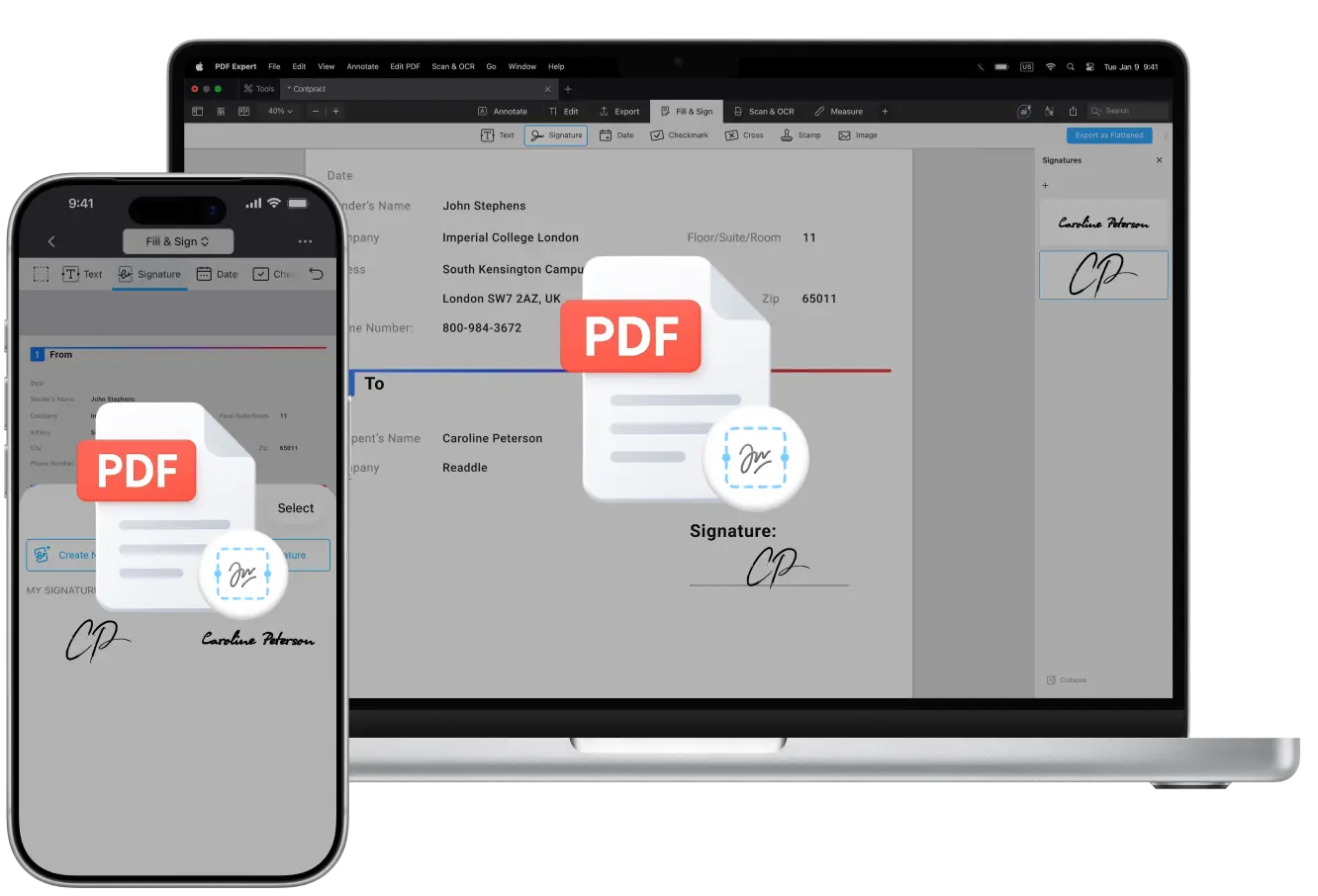
When contracts, forms, or agreements need to be reviewed, or when you need to add multiple signers to a PDF, the process can quickly become confusing, especially when documents are being sent back and forth as PDFs.
Who signs first?
Should everyone sign at the same time or in a specific order?
How do you prevent changes after the final signature?
How can you see a complete audit trail showing who signed and when?
These are common questions when managing sequential signing workflows. To keep things clear and secure, it’s important to understand the difference between parallel signing workflow (where all recipients sign at the same time) and sequential signing workflow (where each person signs in a defined order). You also need a way to share PDFs easily, track their status, and ensure to lock the PDF after the final signature.
Just as importantly, having access to timestamps and audit trail allows everyone involved to verify who signed, when they signed, and whether any changes were made along the way.
When documents are moving between multiple stakeholders, visibility, control, and secure sharing are what make the process smooth and trustworthy.
With a powerful PDF editor for macOS, iPadOS, and iOS, adding multiple signatures to a single PDF feels simple and natural: whether you are interested in sequential signing workflow or parallel signing workflow, you can arrange both in PDF Expert.
PDF Expert by Readdle has a wide range of annotation tools, and signature is one of them. The app allows you to place several signatures anywhere in the document, add dates or names next to each signature and reuse saved signatures. The result is a clean, professional document that’s ready to share or archive.
In this article, you will learn how to countersign a PDF, create multiple signatures and add them to your PDF files across platforms with PDF Expert.
When to use multiple signatures
You’ll often need multiple signatures when:
- Contracts or agreements require approval from several parties (e.g., employee, manager, and legal department)
- Business documents need sign-off from multiple team members or departments
- Legal forms or compliance documents must show that everyone involved has confirmed their consent
- Collaborative projects where all contributors need to acknowledge the final version
Multiple signatures are also useful when you want a single, clean document instead of sending separate copies to each person to sign.
You can create a signature in just a few steps in PDF Expert on your Mac, and you can also add multiple signatures of different kinds in PDF Expert on both iOS and Mac devices.
How to add multiple signatures on one PDF on Mac
You can also add multiple signatures to your PDF file in PDF Expert for Mac - here’s how:
- Download PDF Expert.
- Open the PDF you need.
- Add a signature according to the instructions above.
- Insert the signature to the text.
- Add another signature - you will see a list of all added signatures on the right sidebar.
- Right-click on one of the signatures in the list to remove or edit it.
- Add as many signatures as you want.
If you need to create a one-time signature without saving it, follow these steps:
- Download PDF Expert.
- Open the PDF file you need.
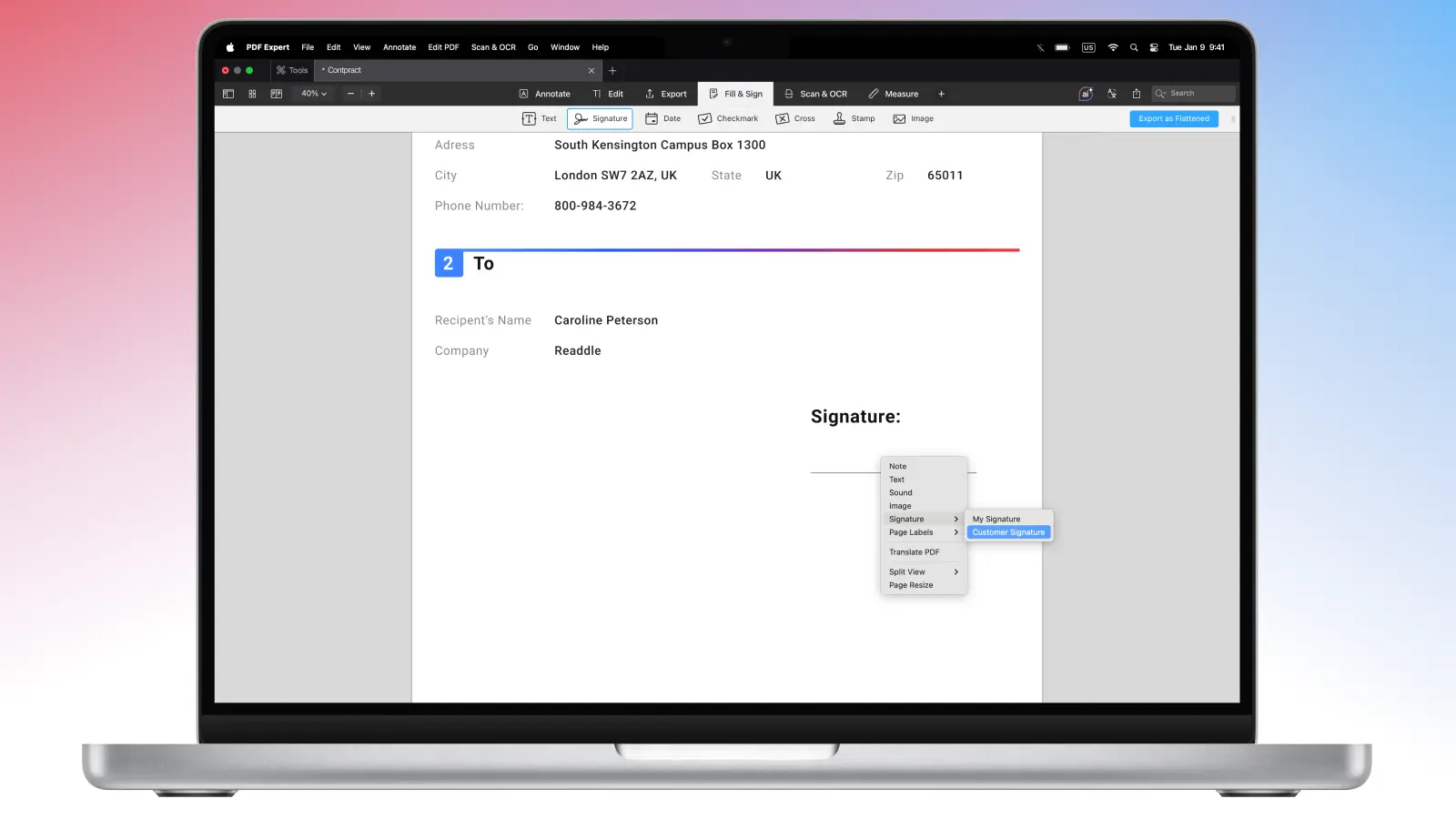
- Right-click anywhere in the document.
- Select Signature > Customer Signature.
- Click anywhere in the file to insert it.
Customer Signature is a secure option when you need to use the signature just once without saving it in the app.
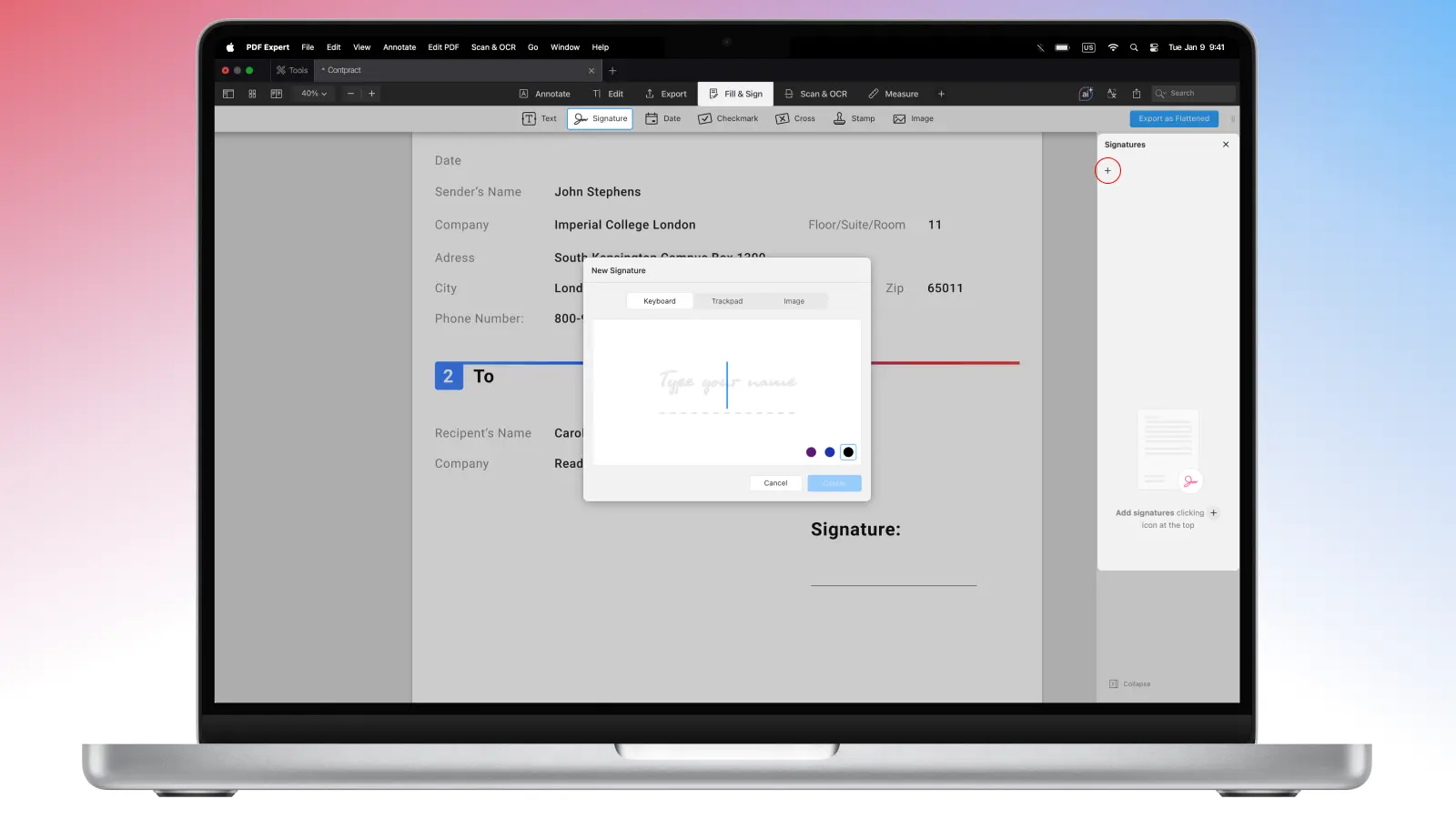
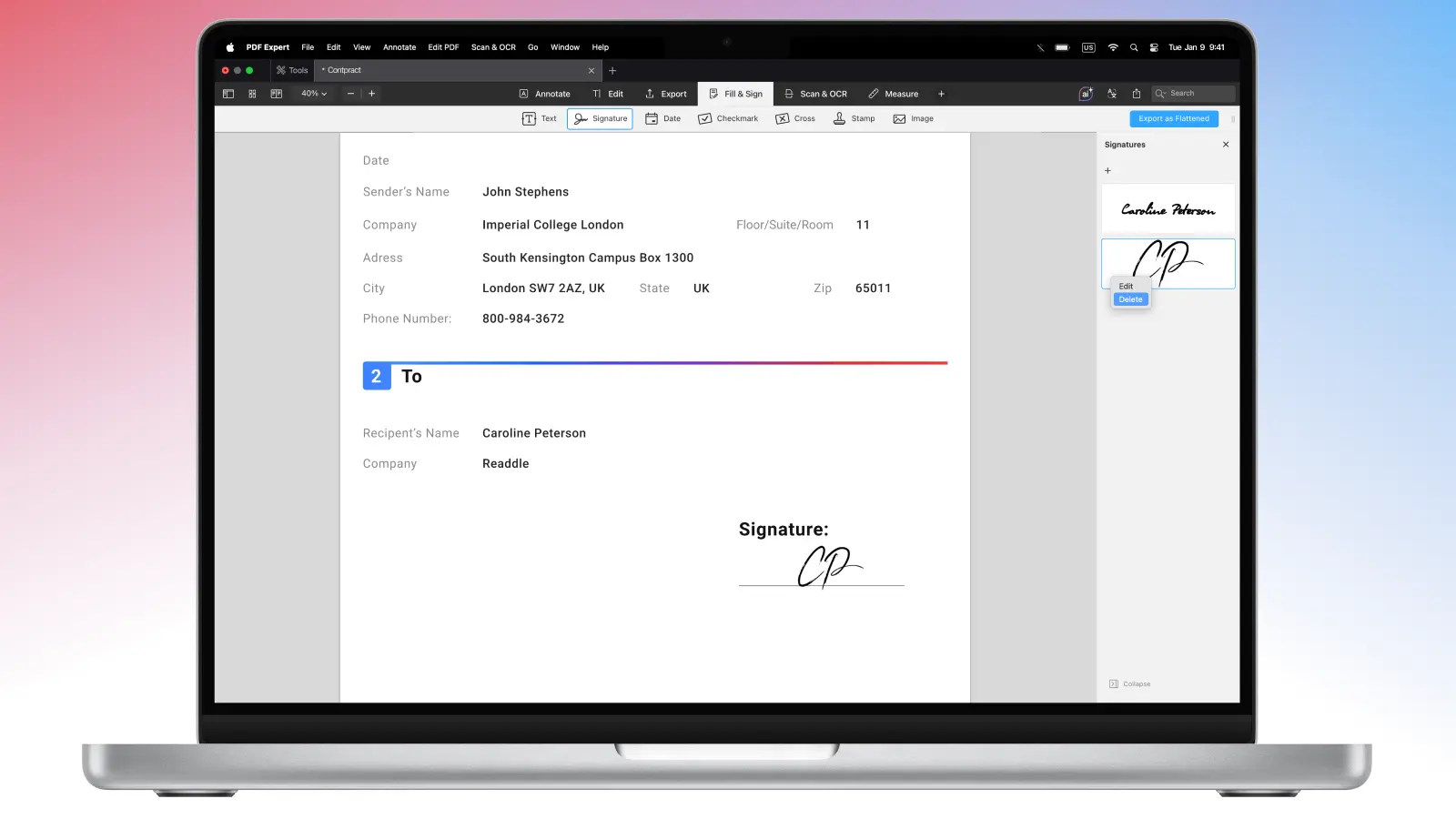
Even cooler than that, signatures actually sync across iOS and macOS in PDF Expert via your iCloud account: use the same iCloud account to keep the list of signatures in sync no matter where they were added.
How to create multiple signatures on iPhone or iPad
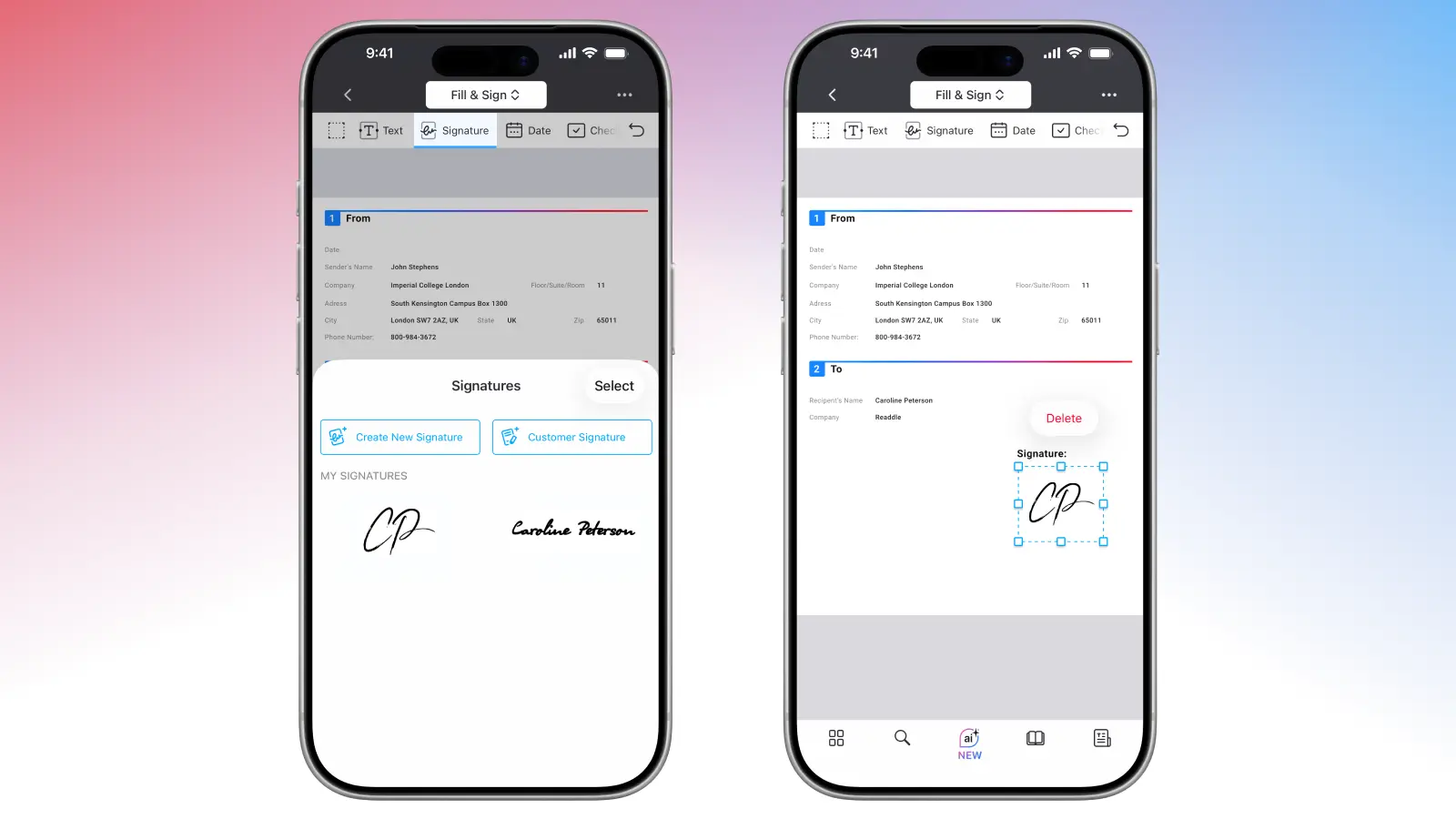
You can be as mobile as you want with PDF Expert for iOS: create, add, store multiple signatures on both iPhone and iPad in PDF Expert:
- Download PDF Expert on the App Store.
- Open any PDF file you need.
- Select Fill & Sign toolset from the Tools at the top of the screen.
- Select Signature.
- Choose if you want to create a new signature for yourself (will be stored in the app) or a one-time Customer Signature.
- Create as many signatures as you want, select the one you need from the list and tap on the file to insert it.
- Create Customer Signature for every new customer or client to sign the PDF safely.
FAQ
What is a sequential signing workflow and a parallel signing workflow?
A sequential signing workflow means the document is signed one person at a time, in a specific order. This method is good for approvals.
A parallel signing workflow means the document can be signed by multiple people at the same time, in any order. This workflow is good for collaboration.
How can another person add his signature to my PDF?
You can share your PDF file with another person - if they have PDF Expert installed, they can create and add as many signatures as needed. These annotations, as well as edits, are autosaved in PDF Expert on your iPhone or iPad - on your Mac, make sure to hit Save.
How do I add multiple signatures to the same PDF?
You can create multiple signatures in PDF Expert on your device and add them to the file. Alternatively, you can share the PDF with another person for the signature.
Can I add a date to a PDF?
Yes. You can use stamps in PDF Expert to add date or time near your signature if needed - this will make your PDF look polished and neat.
Can multiple people sign a PDF in a specific order?
No. It only depends on the order in which you share the file among other people.
How do I add additional signature fields to an existing PDF?
PDF Expert doesn’t have an option to create fields, but you can use annotating and editing tools to mark the space you want to reserve for a signature - for instance, you can add a shape for it.
How do I prevent changes after the final signature?
Once everything is signed, save the file’s copy as flattened to prevent it from any altercations.