Spreadsheets are irreplaceable for working with data, but not the best format for sharing final results. Excel files can look different on every device, and anyone can accidentally edit them. Converting XLS to PDF locks your data and makes your files easy to share with anyone. PDF Expert makes the whole process fast, secure and straightforward, whether you're working on a Mac, iPhone, or iPad.
Why use PDF Expert as your XLS to PDF converter
When it comes to important and confidential files, like financial reports or client data, it is better to use secure software. PDF Expert is trusted by 30 million users worldwide and ensures your spreadsheet data stays safe and private.
Here's what makes PDF Expert stand out:
- Works across all your Apple devices. One account covers Mac, iPhone, and iPad.
- More than just conversion. Annotate, sign, merge, compress, or edit your PDF without switching apps.
- No artificial limits. Convert as many files as you need, without watermarks or limits.
- Your files stay private. PDF Expert keeps your document secure — ideal for financial reports, research, or business documents.
Why convert XLS to PDF
There are a few situations where keeping a file in Excel format just doesn't work:
- Sharing with non-Excel users. Not everyone has Microsoft Excel installed. A PDF opens on any device, in any browser.
- Professional presentations. Reports, invoices, and proposals look more polished as PDFs.
- Archiving records. PDFs are a stable, widely accepted format for long-term storage.
- Smaller, shareable files. PDFs are often easier to compress and share via email or cloud storage.
How to convert XLS to PDF on Mac
Before the conversion: Prepare the XLS file to preserve the formatting
Please note that the formatting of the XLS file is often broken after conversion to PDF, regardless of the converter. This is due to the difference in the formats: an XLS file contains cells and formulas. The concept of a 'page' doesn't exist in it at all; the sheet is infinite. PDF, on the other hand, is a format with a rigid, page-by-page layout. Because of this, the converter is forced to slice the table into pages itself: if it doesn't fit horizontally, columns spill over to the next pages; if it doesn't fit vertically, it gets cut by rows.
How to prepare the XLS file in Excel to preserve formatting:
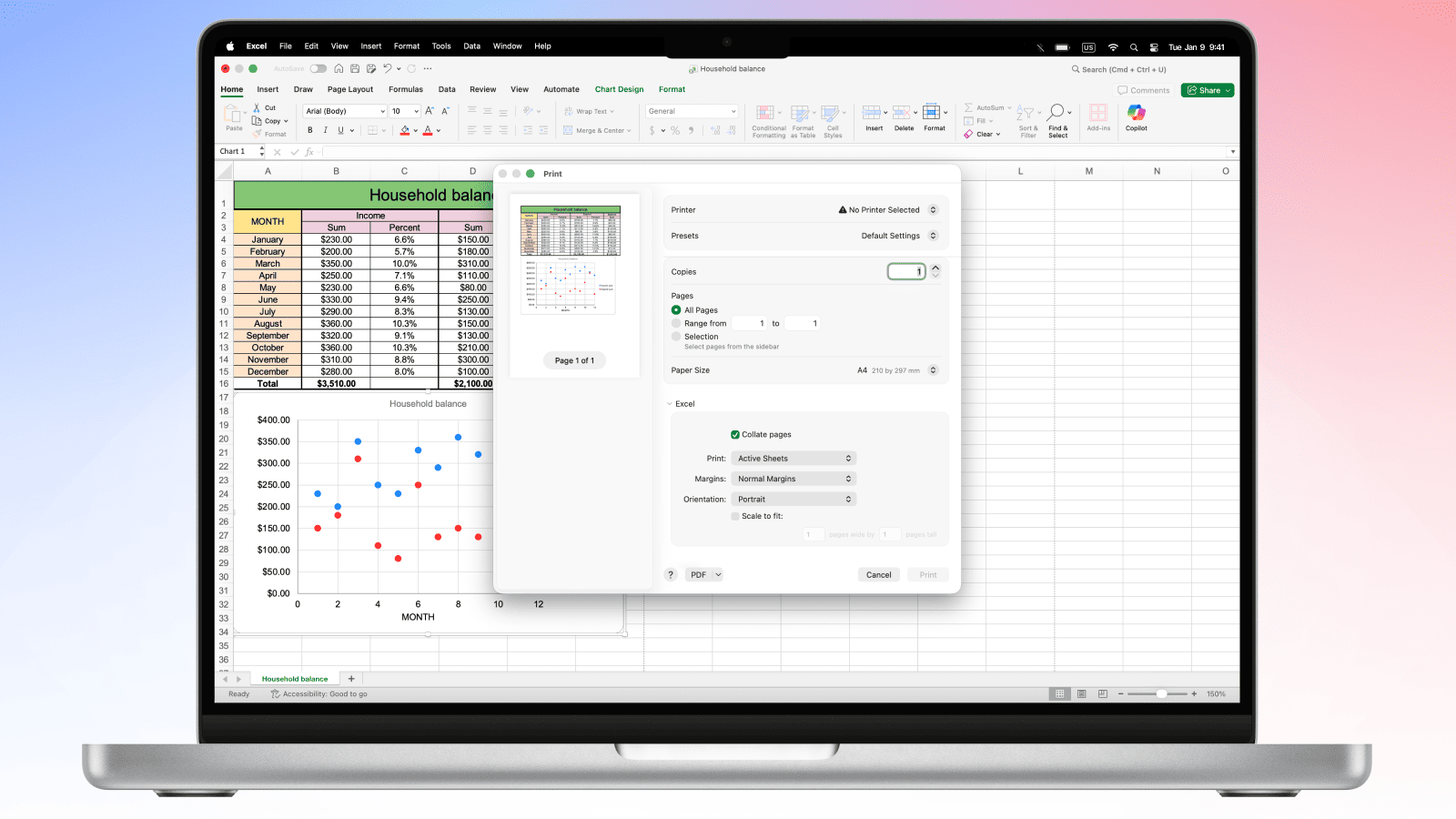
- Check the layout through Print Preview: Open the XLS file in Excel and press Cmd+P—in the Print Preview on the right, you can see how Excel divides the sheet into A4 pages. This will be the likely layout after the conversion. If the Print Preview is already a chaotic mess, then the issue lies within the file itself, and any Excel to PDF converter will slice it up the same way.
- Try to fit the width of your table into a single page. In Excel, open the Page Layout tab, Set Width: 1 page, and leave Height as Auto.
- Save the XLS file.
- All columns are scaled down to fit the width of a single page, while the table's height is sliced neatly by rows—nothing breaks or spills over to the sides.
- For wide tables, it’s best to do the same trick with a landscape orientation: choose Page Layout → Orientation → Landscape.
If there are way too many columns, 'fit to width' will shrink the font until it's unreadable. No converter can make a genuinely massive table both single-page and readable at the same time—that is a limitation of the Excel-to-PDF scenario.
Method 1: Convert XLS to PDF using PDF Expert
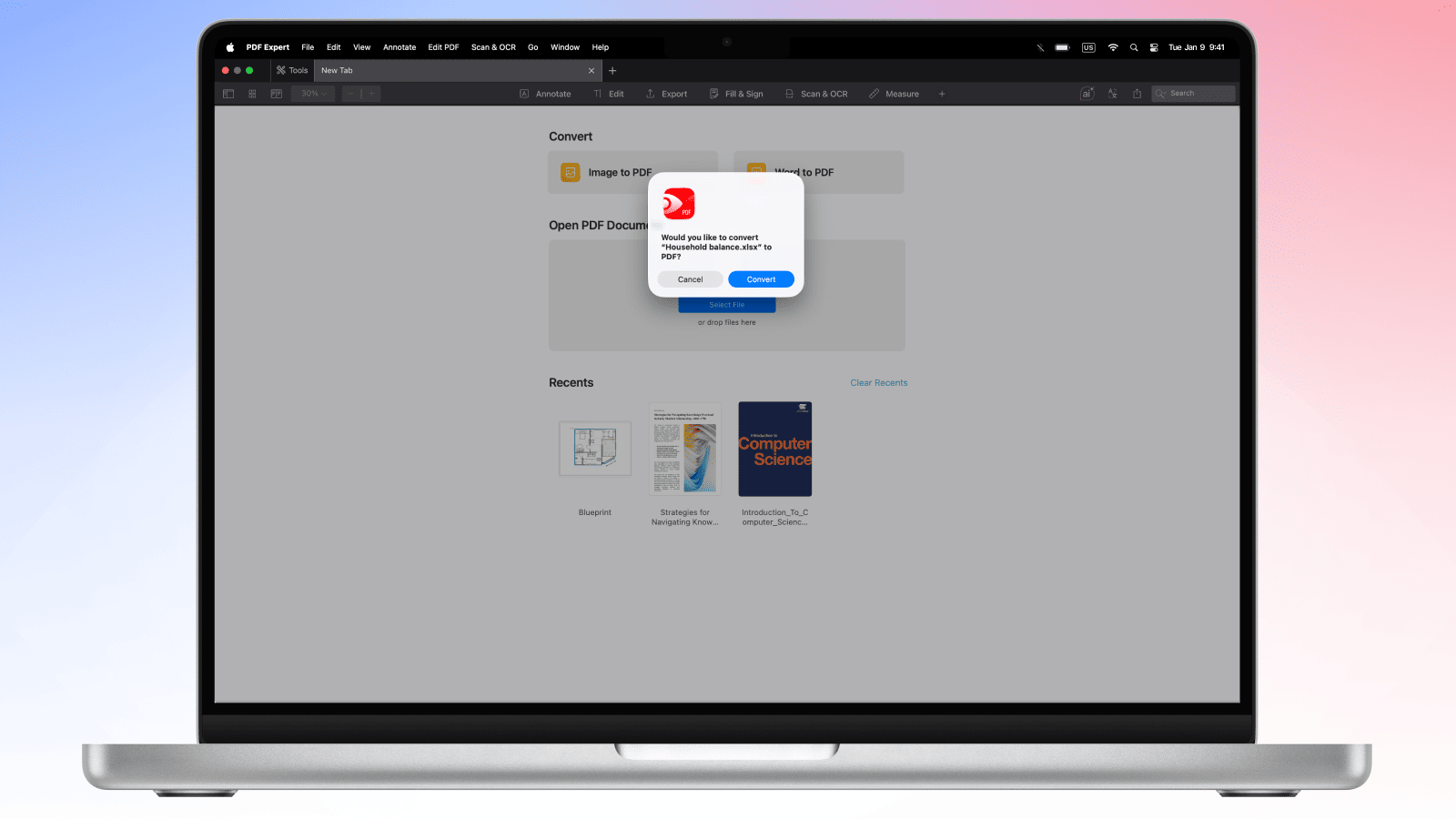
PDF Expert for Mac makes it easy to transform spreadsheets to PDF in just a few clicks, with no quality loss.
- Open PDF Expert on your Mac.
- Drag and drop your XLS or XLSX file into the PDF Expert tab.
- PDF Expert will instantly offer to convert your spreadsheet to PDF, click Convert.
- Review the converted document to make sure everything looks right.
- Click File > Save (or press ⌘S) to save your new PDF wherever you like.
Pro tip: Once your spreadsheet is a PDF, you can use PDF Expert to annotate it, add a signature, merge it with other documents, or compress it before sending. Everything in one app.
Method 2: Export directly from Microsoft Excel to PDF (then edit in PDF Expert)
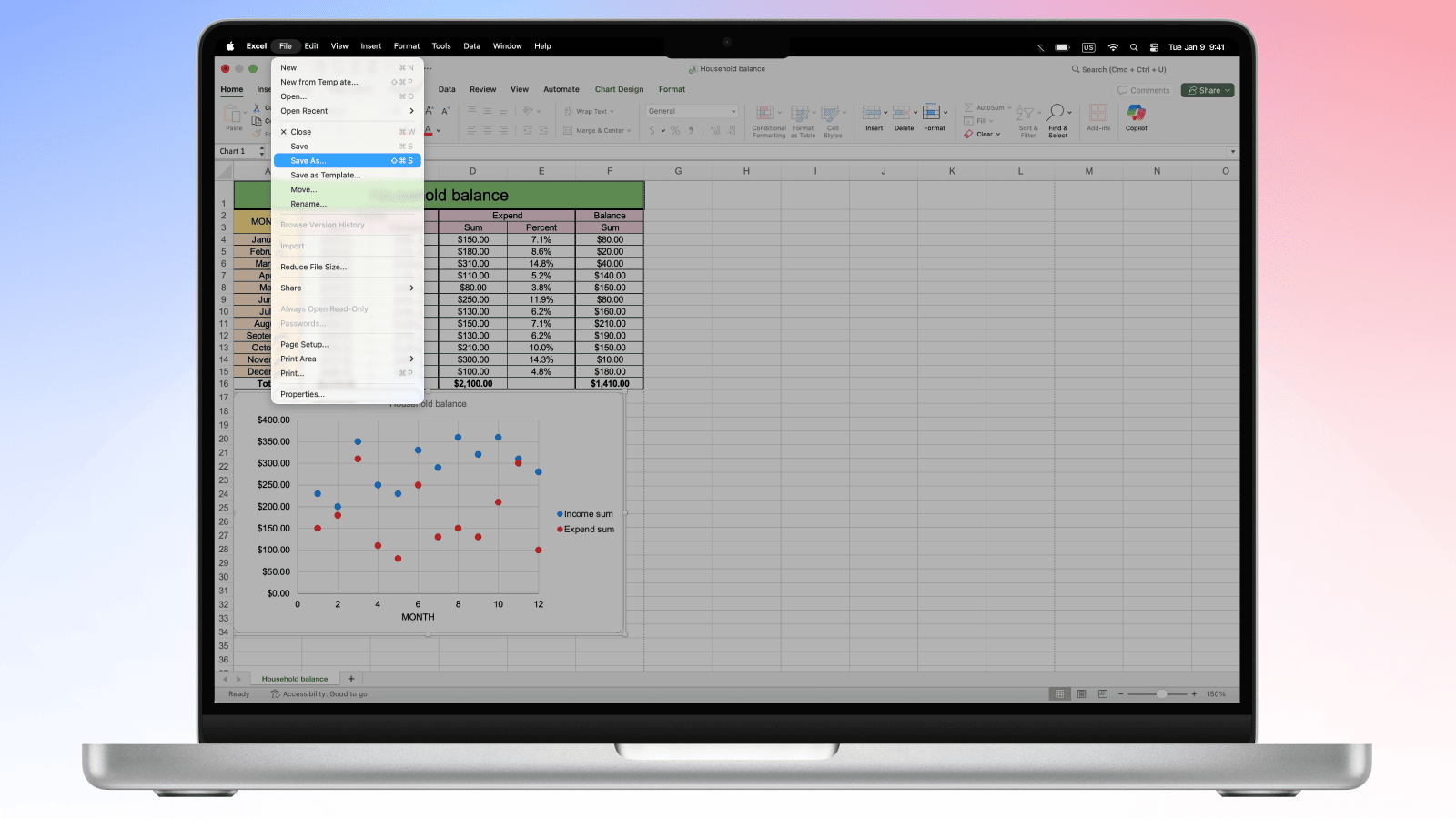
You can also save the file as PDF directly from Excel:
- Open your workbook in Microsoft Excel.
- Go to File > Save As, then choose PDF from the format dropdown.
- Choose the Entire Workbook or the Active Sheet depending on what you need to export.
- Click Save.
- Open the resulting PDF in PDF Expert to annotate, sign, or edit it further.
Method 3: Convert XLS file to PDF in Numbers (Mac’s native app):
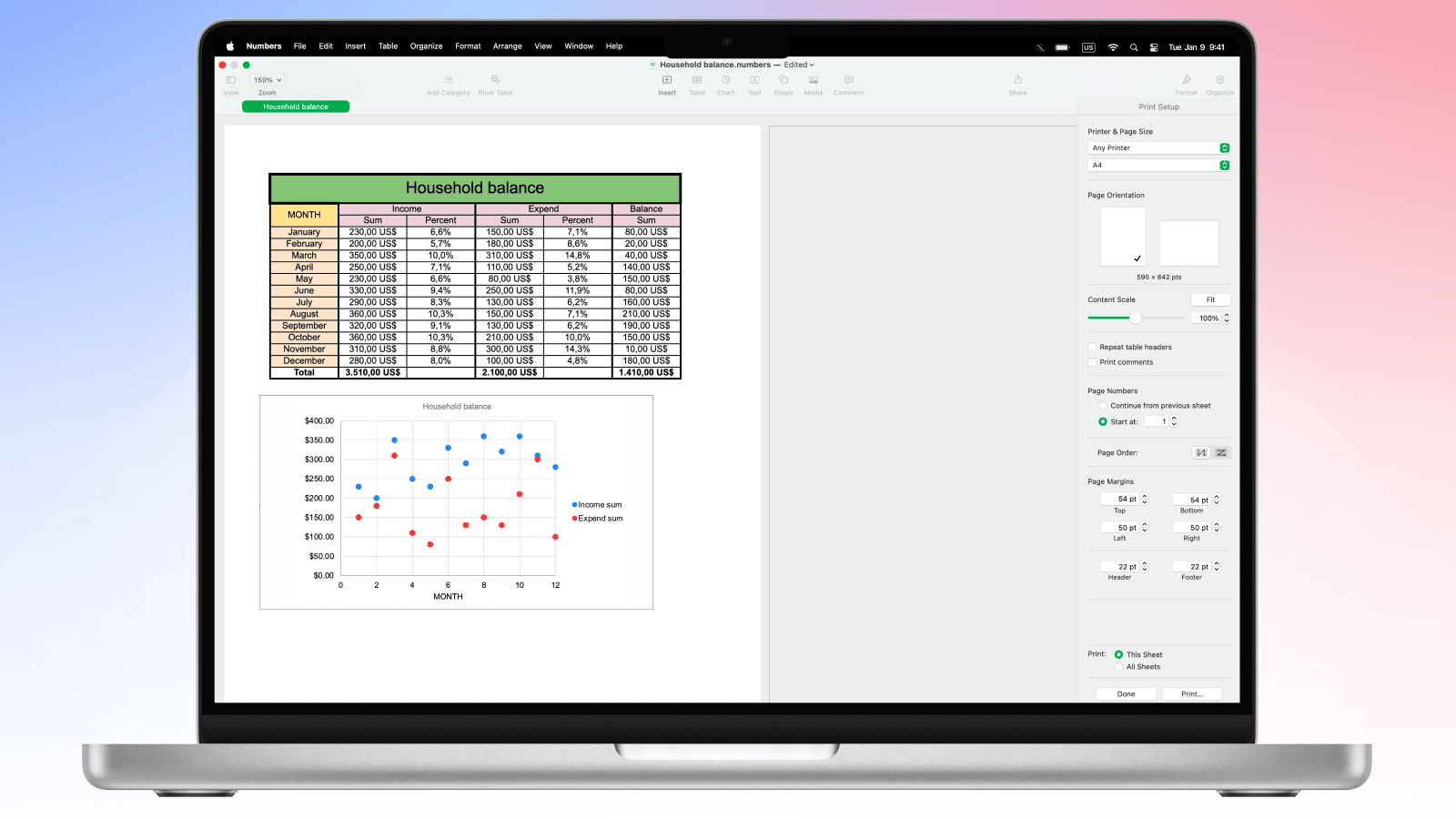
- Check the layout in Print Preview: Open the XLS file in Numbers, then press Cmd+P. In the Print Preview, you can see how the sheet will be divided into A4 pages.
- You can adjust page size, orientation and content scale to ensure the best table layout for the conversion. You can also check the "Fit" box right next to the Content Scale slider: if your table is too wide, Numbers will automatically scale it just enough to fit the page width.
- Click Print > PDF > Save as PDF.
- Open the PDF file in PDF Expert to edit it, sign or delete pages.
How to convert XLS to PDF on iPhone and iPad
Need to convert Excel workbook to PDF while you're away from your desk? PDF Expert on iPhone and iPad handles it just as smoothly.
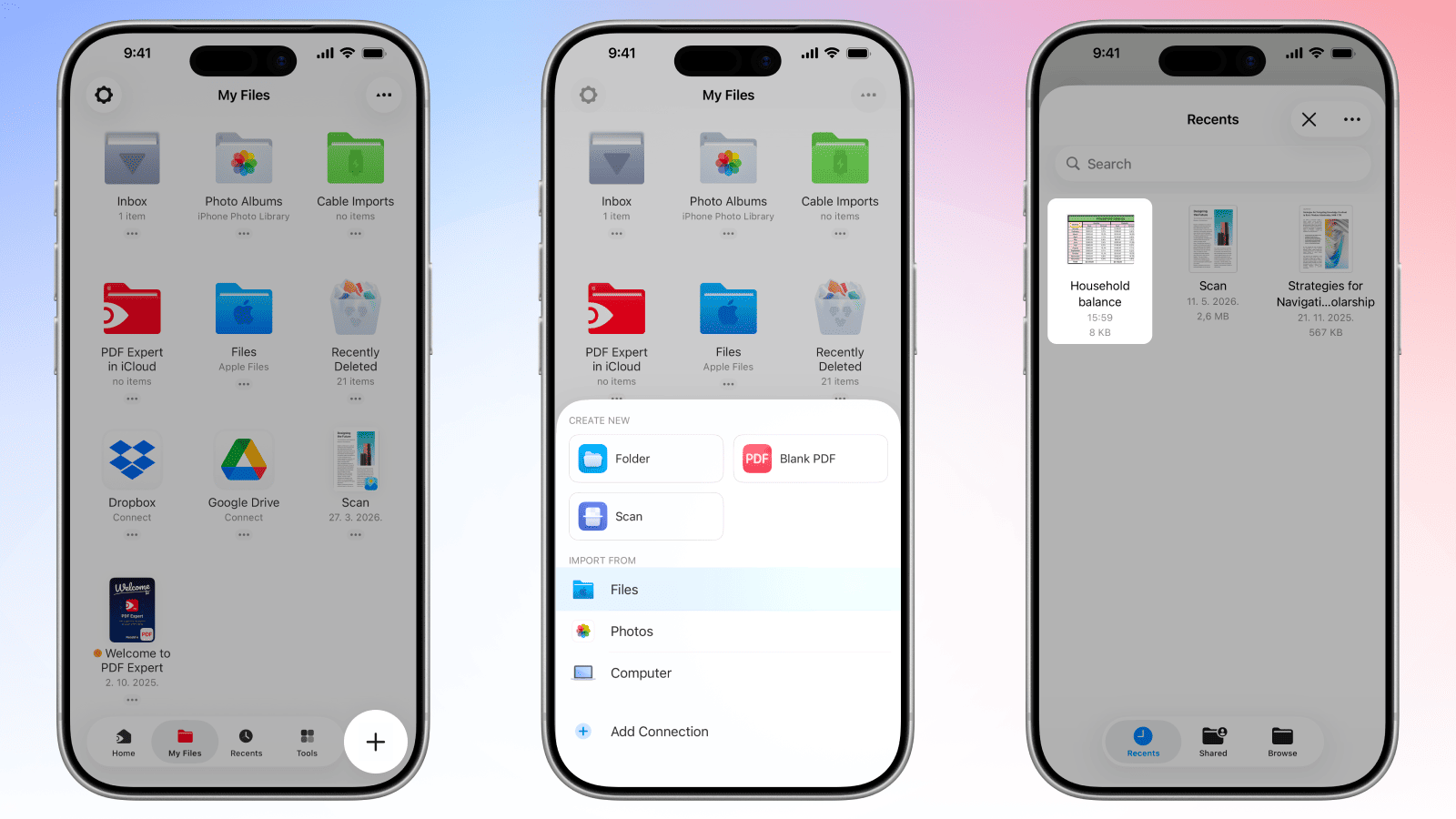
- Download PDF Expert from the App Store if you haven't already.
- Open the app and tap the + button to add a new file.
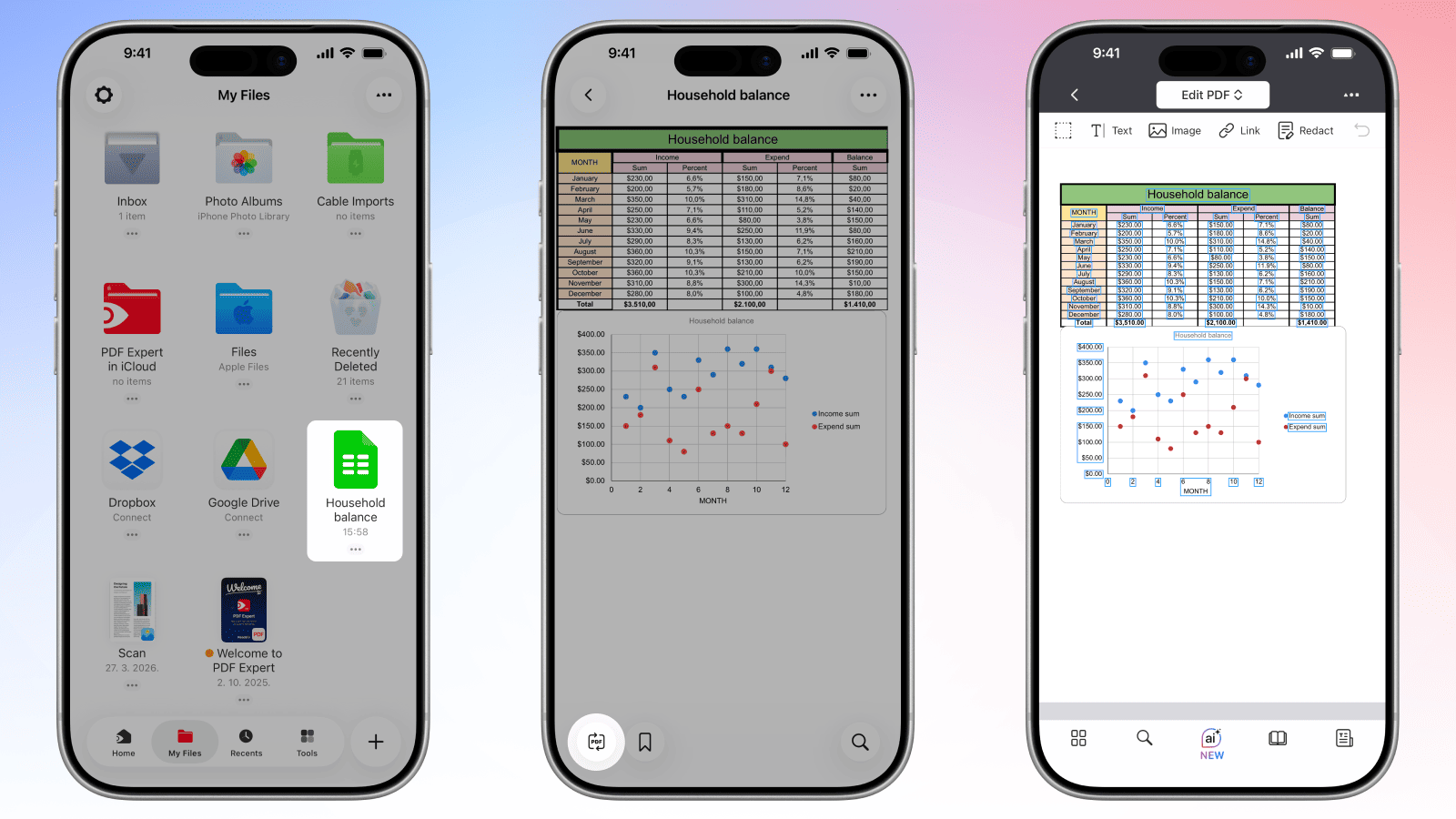
- Tap Files (or your connected cloud storage like iCloud Drive, Dropbox, or Google Drive) and navigate to your XLS file.
- Tap the file to open it, then tap the Convert to PDF icon at the bottom of the screen on iPhone or the top of the screen on iPad.
- Tap the three dots > Share or Upload icon (top right) to save or share your new PDF.
Pro tip: On iPad, you can open two documents side by side using Split View — great for comparing your original spreadsheet with the converted PDF.
XLS to PDF conversion: FAQ
Can I convert multiple Excel sheets to one PDF?
Yes. If your Excel workbook has multiple sheets, you can choose to export the entire workbook as a single PDF. In Excel's Save As dialog, select Entire Workbook under the Options before saving. You can then open the PDF in PDF Expert to reorder pages, merge it with other files, or add annotations.
Will formulas be calculated in the PDF conversion?
Yes — the PDF will show the calculated values of your formulas, not the formula text itself. Whatever result is displayed in your Excel cells at the time of conversion is what will appear in the PDF. This is actually a key benefit: recipients see clean data, with no risk of formula errors being exposed or accidentally edited.
How do I fit Excel columns to PDF page size?
To fit the width of your table into a single page in Excel, open the Page Layout tab, Set Width: 1 page, and leave Height as Automatic. You can also adjust orientation (portrait or landscape) and margins on the Page Layout tab (Orientation and Margins options). These settings ensure your columns don't get cut off in the PDF. PDF Expert will reproduce whatever page layout you've set in Excel.
Can I convert Excel charts and graphs to PDF?
Absolutely. Charts, graphs, and other visual elements embedded in your spreadsheet are fully preserved during the Microsoft Excel to PDF conversion. They'll appear in the PDF exactly as they look in Excel — including colors, labels, and legends. This makes PDF an ideal format for sharing data visualizations.
Does XLS to PDF preserve cell formatting and colors?
Yes. Cell background colors, text colors, bold or italic formatting, borders, and merged cells all carry over when you convert XLS to PDF with PDF Expert.
Can I convert password-protected Excel files to PDF?
You'll need to unlock the Excel file first by entering the password in Microsoft Excel, then save or export it as a PDF. PDF Expert can then open and work with that PDF normally. If you want to add password protection to the resulting PDF — so that only people with the password can open it — PDF Expert supports that too, under File > Set Password.