Navigating long, text-heavy PDFs is overwhelming. Imagine scrolling through a scanned book without built-in navigation, a research paper, or a detailed business proposal - how can you quickly find the necessary information and get a sense of what’s on each page if you don’t use a table of contents in your PDF?
Often called outlines, a table of contents acts as an interactive sidebar that lets you and anyone you share the file with jump straight to key sections with a tap.
Let’s have a look at how to create a clickable table of contents in PDF on your Mac, iPhone, or iPad using PDF Expert by Readdle, the best editor for Apple users.
Why add a table of contents to your PDF?
A good PDF table of contents helps navigate your documents easily and quickly find the necessary information. Here’s when you might find it useful:
- Academic research or theses. You can jump between chapters, references, and appendices without endless scrolling.
- Business reports and proposals. Help your clients or teammates find necessary sections, like executive summaries, financials, or recommendations.
- Ebooks and manuals. Turn a PDF into a navigable book.
- Legal documents or contracts. Navigate multi-page agreements, linking to clauses or exhibits.
- Personal projects. Organize recipe books, travel itineraries, or family histories for quick access on your device.
The best part is that you don’t need a separate PDF table of contents template or third-party software. PDF Expert is a powerful and free-to-download PDF table of contents editor (with optional Pro features) that works entirely on your device. No internet is required, though you can use it as an online-ready tool when syncing via iCloud.
How to create a table of contents in a PDF on Mac
With PDF Expert, adding a table of contents to a PDF takes just a few clicks:
- Get PDF Expert if you haven’t done so yet.
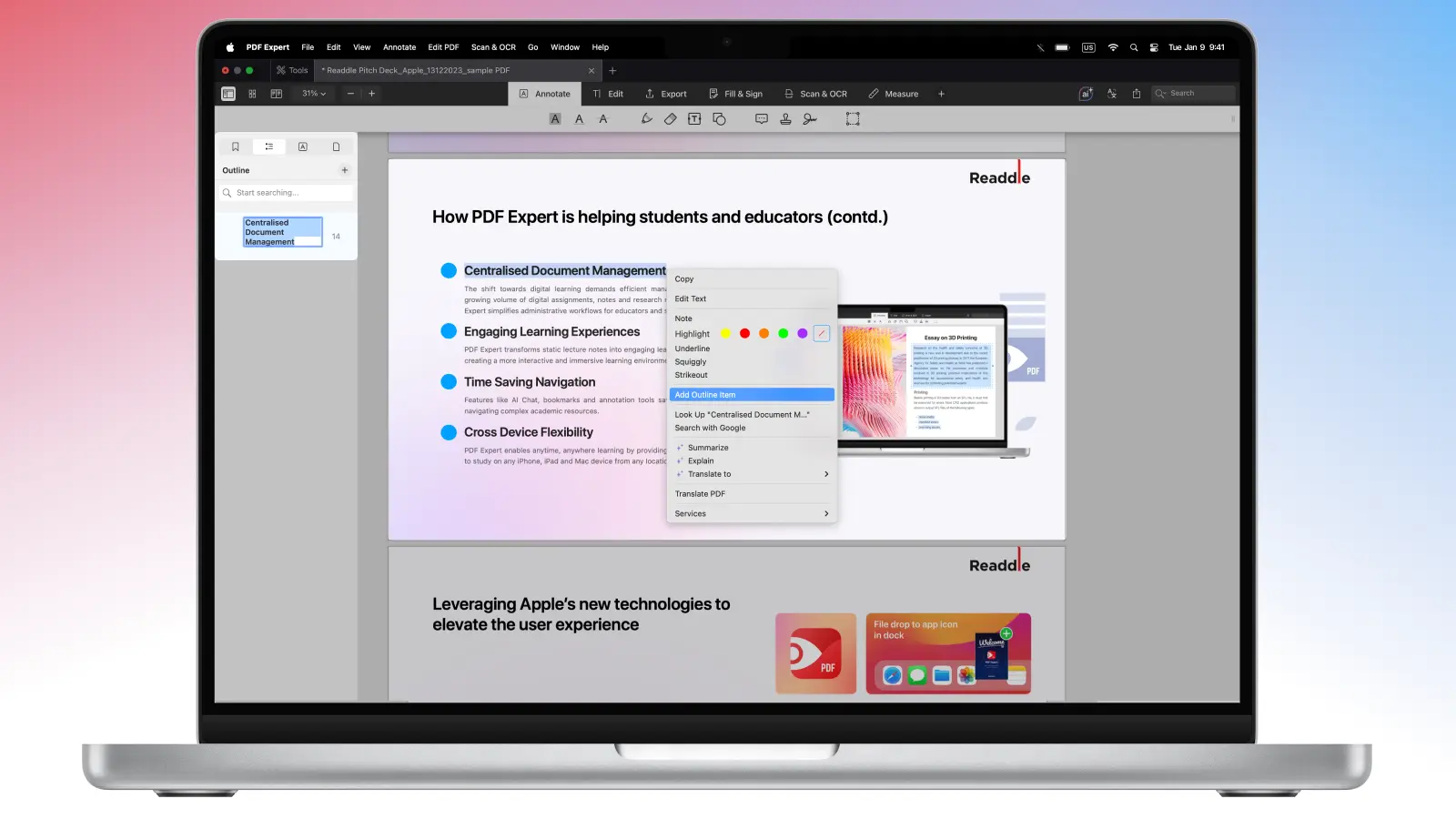
- Open your file and select a few words that should link to this page.
- Right-click and select Add Outline Item. The outline will appear on the sidebar, and you can rename it if needed.
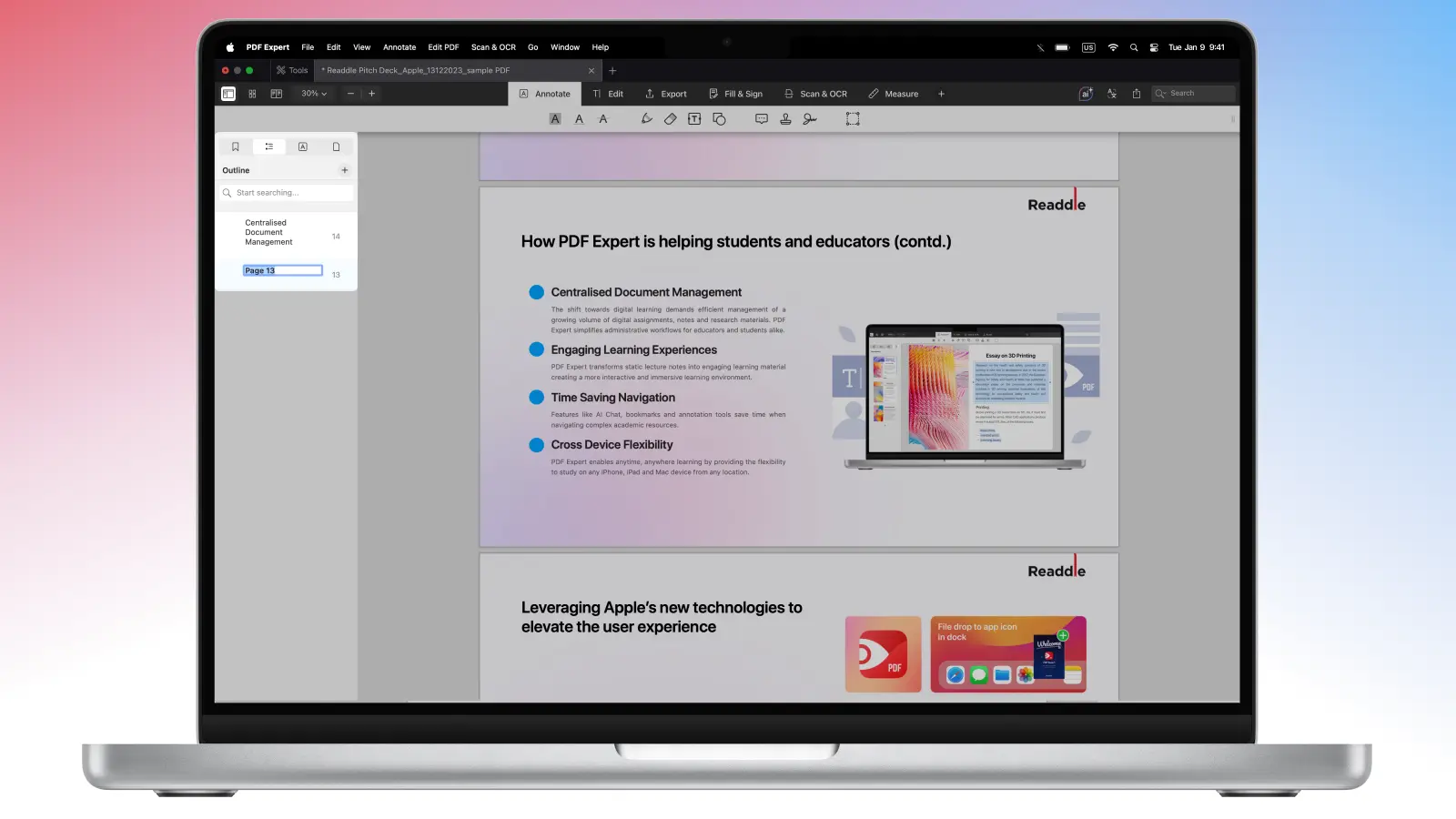
Here’s an alternative way to create a table of contents in PDF Expert:
- Open the sidebar.
- Select the Outlines tab and click the + button.
- That’s it! The outline will link to the currently opened page.
All outlines in PDF Expert are flexible. You can easily rename, delete, or change their destination by right-clicking the existing item in the Outlines sidebar.
Sometimes your table of contents needs a more complex structure with items and subitems. This is handy for creating a thesis or report. With a simple drag & drop, you can transform any paragraph into a subitem for a particular chapter.
How to add a table of contents to a PDF on iPhone
PDF Expert supports creating interactive outlines that function as a dynamic table of contents. These are clickable, hierarchical, and fully editable.
- Open your PDF in PDF Expert.
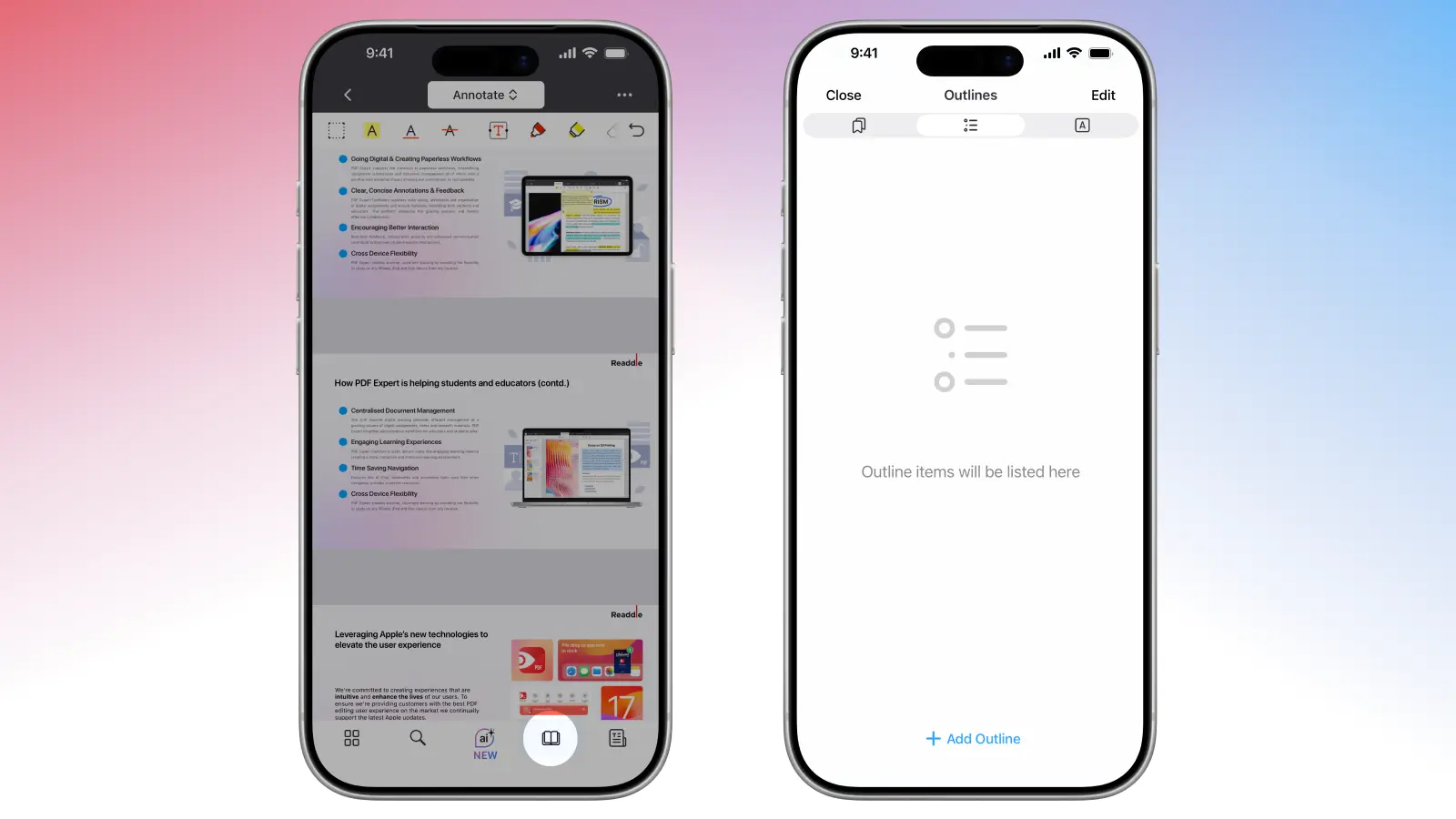
- Go to the desired page and tap the little Book icon at the bottom of your screen. This will open the menu, where you’ll be able to manage your Bookmarks, Outlines, and Annotations.
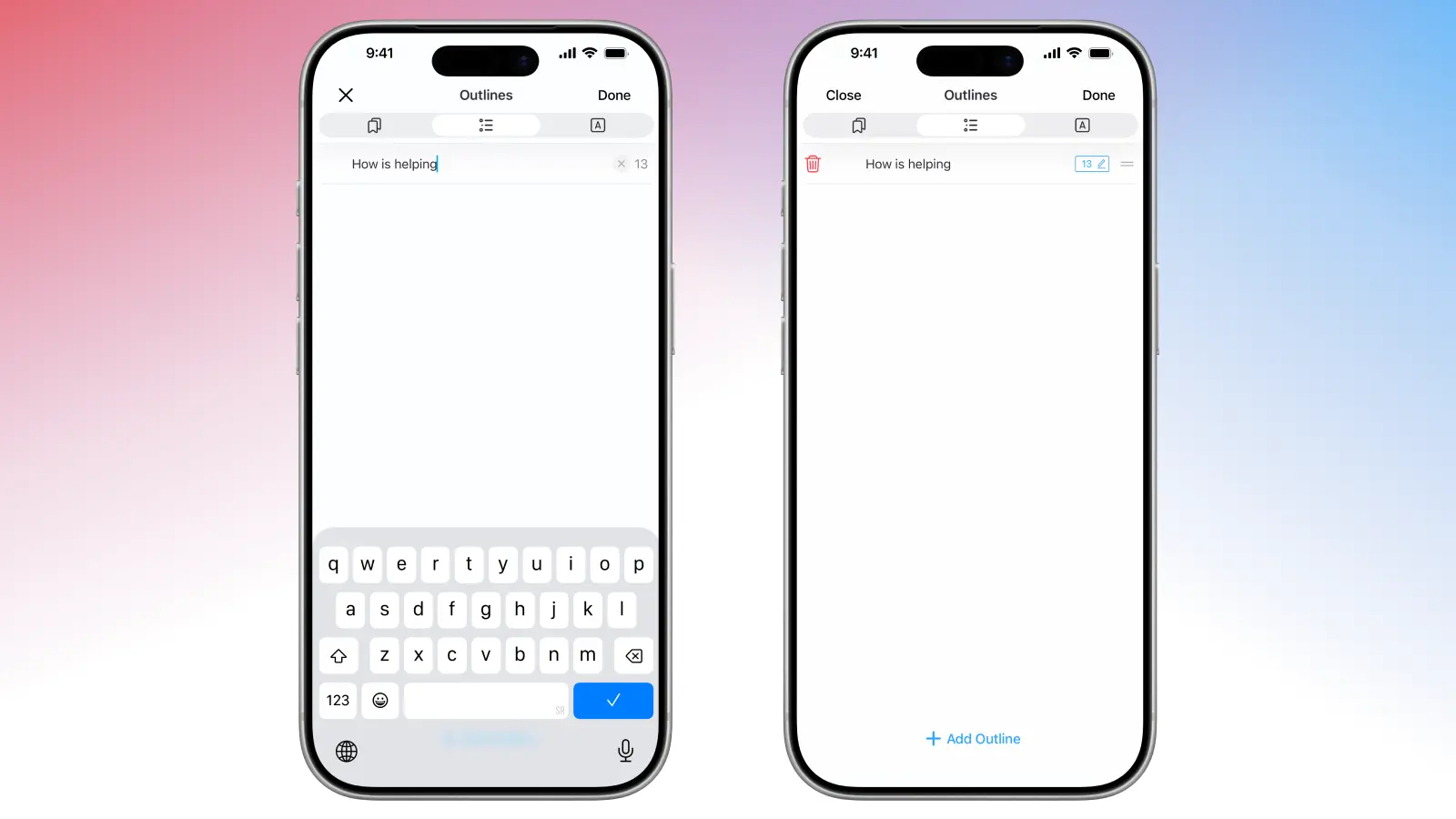
- Select the Outlines tab and tap Add Outline to create an entry for the current page.
- Rename it, and drag to nest sub-items.
- Once you’ve added all your entries, you’ll have a fully clickable table of contents ready to use.
- If you want to rearrange or delete some of the outlines, tap Edit at the top right corner of your screen.
Tips for writing an effective table of contents
Here are a few practical tips for building a table of contents that actually helps you navigate, not just decorate the document:
- Keep it lean. If you add an entry for every tiny section, your table of contents becomes just as hard to scan as the PDF itself. Stick to the main sections and only add sub-sections when they’re genuinely useful.
- Use clear headings and subheadings. A good table of contents should mirror your document structure. Make your main headings broad and your subitems more specific, so you can jump straight to the right spot.
- Write entries that explain the page. Your headings do not have to be fancy. Even a short, plain sentence works if it tells you what that section covers. The goal is to help Future You instantly understand what’s in that part of the document.
- Be consistent with naming. Use the same style for each entry (for example, all verbs or all nouns) so the table of contents feels predictable and easy to skim.
- Think “searchable.” Use words you would naturally look for later. If you know you’ll be hunting for “Pricing,” “Scope,” or “Methodology,” make sure those exact terms appear in your table of contents.
Other ways to make navigation effortless with PDF Expert
Adding a table of contents to your PDF transforms it from a static file into an interactive, professional document. With PDF Expert’s other intuitive tools, you can make navigation through your files effortless.
Add bookmarks for quick access
Beyond full outlines, PDF Expert allows you to add bookmarks to instantly mark important pages. Perfect for flagging key sections while reading.
Just tap the top right corner of the page till the bookmark icon appears, then add, rename, or delete it as needed. These personal bookmarks appear in a dedicated tab for fast jumps.
Annotate while navigating
Pair your new table of contents with annotations to make documents even more useful. Highlight text linked in your outlines, add notes to chapters, or draw on your PDFs – all without leaving the page.
PDF Expert’s annotation toolbar is just a tap away, with tools like highlighters, sticky notes, shapes, stamps, and text boxes.
Add page numbers
When you add an outline item (or bookmark) in PDF Expert on Mac, the corresponding page number automatically appears right next to the entry’s name or title in the Outlines sidebar for easy reference and navigation.
To give your PDF a fully professional finish, you can also add visible page numbers (or Bates numbering) directly on the document pages: go to Edit PDF in the top-left corner, then select Header and Footer > Add Page Numbers.
From there, customize the page range, position (e.g., footer-right or footer-center for a clean appearance), numbering style (like 1, 2, 3 or Roman numerals), and font, size, and color to match your document.
FAQ: PDF outlines
How do I convert Word to PDF without losing the table of contents?
When you convert a Microsoft Word document to PDF, you can preserve your table of contents if you prepare your Word file correctly. Make sure you apply Heading 1, Heading 2, Heading 3, etc., to all section titles (Home tab > Styles). Then, simply open your Word file in PDF Expert by dragging and dropping it into the app window or by using the Select File button on the main page – the app will automatically convert it to PDF. You’ll then be able to open the Outlines tab and see that all of the outline items (your clickable table of contents) are in place.
What’s the difference between outlines and bookmarks?
Outlines (or table of contents) are the interactive, clickable navigation links embedded directly into the PDF file itself. They appear in the sidebar and let anyone who opens the file jump to chapters or sections.
Bookmarks are the little ribbon icons you can add to pages for your own use. They’re stored only in your PDF Expert library. When you share the file or open it on another device, the bookmarks remain visible and clickable in the Bookmarks tab.
Why use PDF Expert to create a table of contents in PDF?
PDF Expert is the best PDF editor for several practical reasons:
- Super-fast and intuitive: open the Outlines tab > Add Outline.
- Works perfectly on Mac, iPad, and iPhone with the same smooth interface.
- Full hierarchy support: drag-and-drop to create chapters and unlimited sub-sections.
- Keep editing text, annotating, filling out forms, and signing the same file without ever breaking your outlines.
Can I add a table of contents to a scanned PDF?
Absolutely! Here’s the easiest workflow in PDF Expert:
- Open the scanned PDF.
- Go to Edit > Recognize Text (OCR) > choose language > wait a few seconds.
- Once OCR is done, text becomes selectable.
- Navigate to a heading > select the text > right-click > Add Outline Item.
- Repeat for every chapter/section.
Please note that the OCR feature is available only for Mac.
