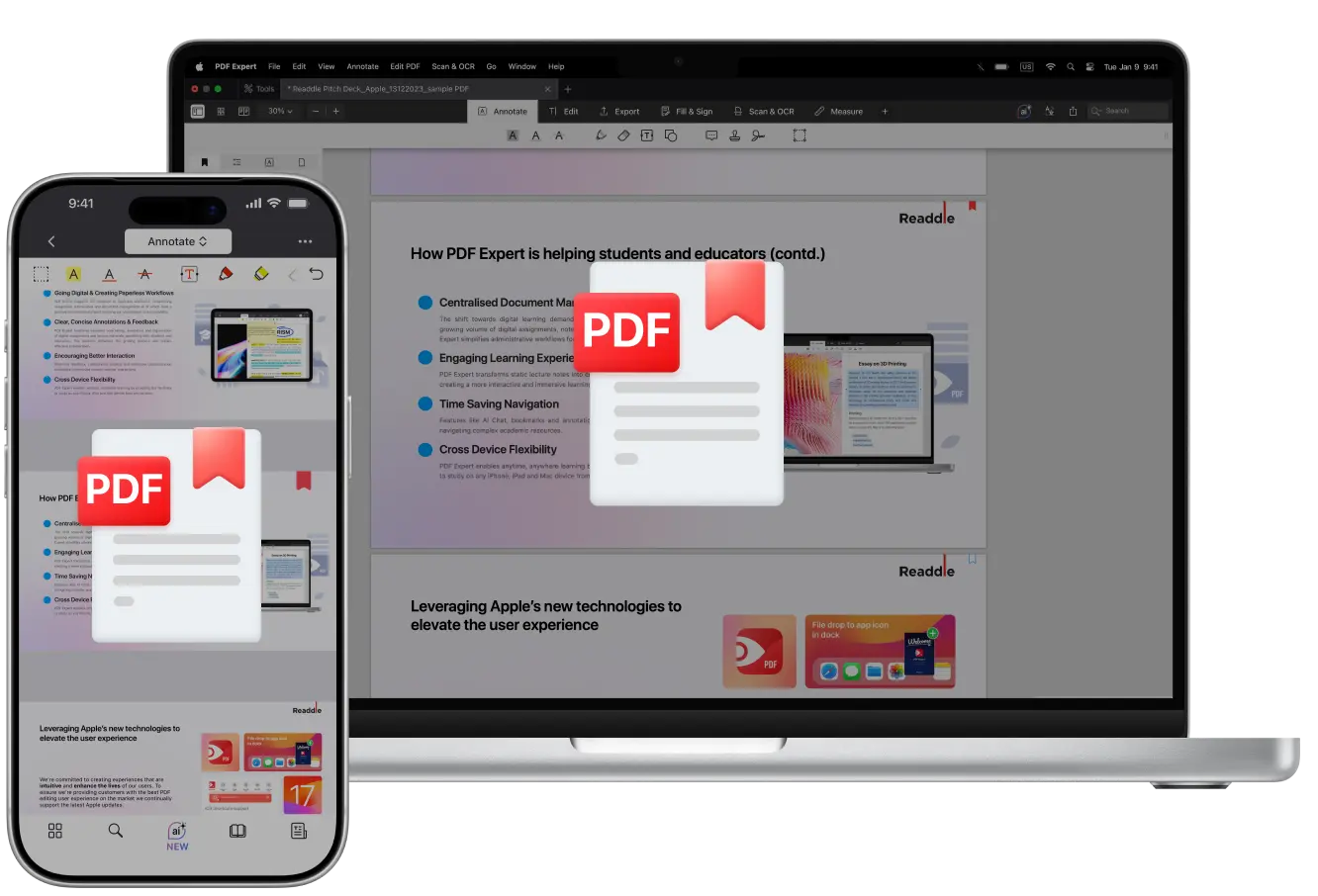
Reading a long PDF, whether it’s a book or a client contract, can feel like trying to find one specific sock in a packed suitcase later on. You spot important sections as you go, but when you need them again… where were they?
Instead of scribbling down page numbers or endlessly scrolling, you can add bookmarks. In PDF Expert, bookmarks are quick page markers you can name, rearrange, and jump back to instantly.
They’re a handy way to save the key bits you’ll want to revisit, without changing the original file at all.
How to add a bookmark in a PDF on a Mac
Long PDFs are easiest to handle on a Mac thanks to the larger screen and better visibility. Plus, adding bookmarks is quick and intuitive. Here’s how to do it with PDF Expert’s bookmarks maker:
- Download PDF Expert for Mac. It’s simple and convenient – use the web link or go to the App Store, type “PDF Expert” and download the app.
- Launch the application and open your PDF directly in PDF Expert.
- Read your PDF book, contract, or any other file. When you see the page you want to bookmark, simply hover your mouse cursor over the top-right corner of the page. A subtle bookmark ribbon will appear.
- Click the ribbon – it turns red to show the page is bookmarked, and the left sidebar auto-opens to the Bookmarks tab. You’ll be able to scroll through all your bookmarks and even search through them to find the right page.
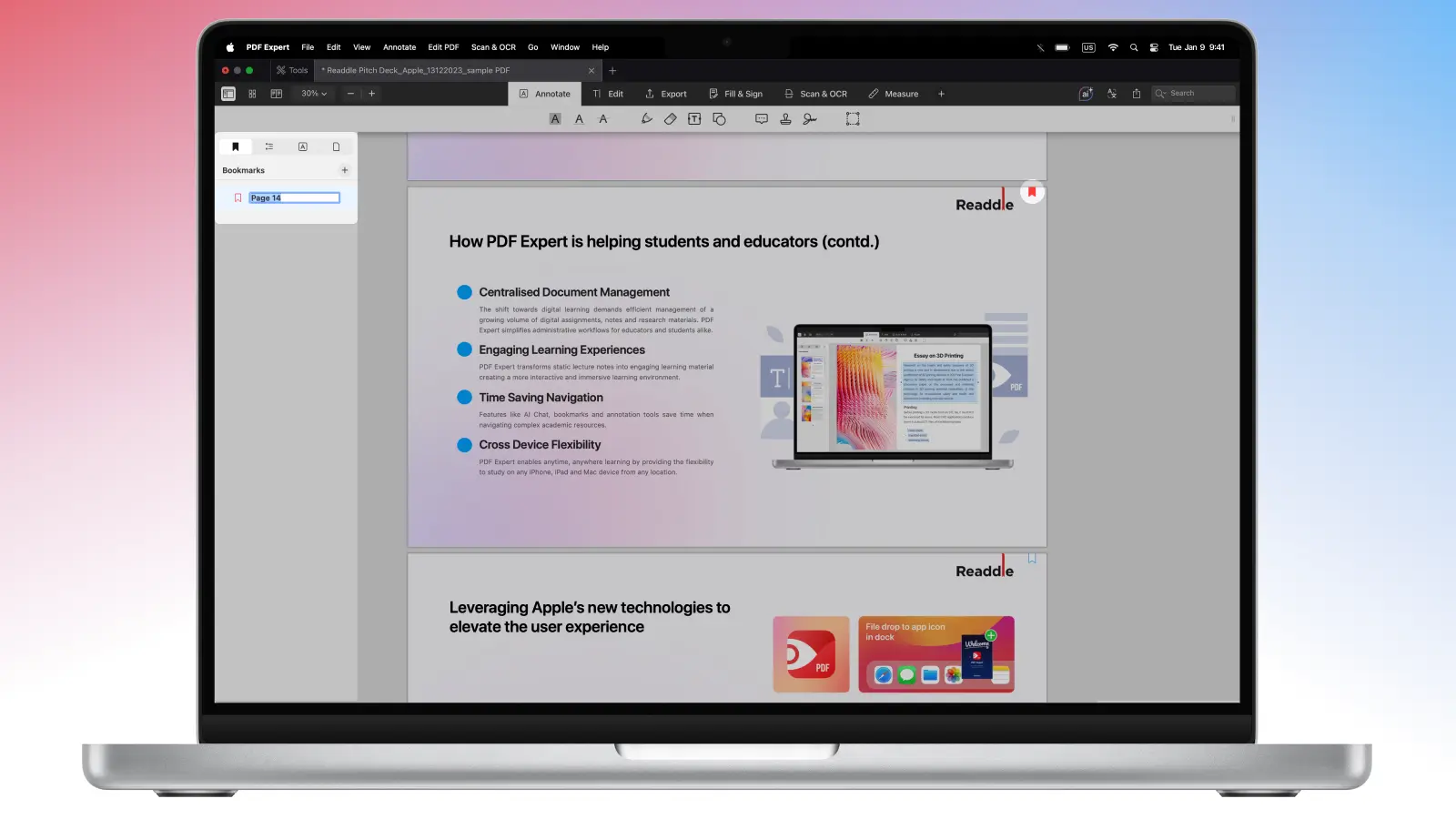
- To rename your bookmark, find it in the Bookmarks tab, right-click the selected item, choose Edit, then enter the new name, and press Return.
- To remove it, right-click on the name and choose Delete. Or simply click on the red bookmark symbol at the top-right corner.
How to add a bookmark to a PDF on an iPhone
Finding the necessary page on a smaller screen is harder, but it’s not impossible with PDF Expert. You can add bookmarks in a PDF in just a few taps:
- Download PDF Expert from the App Store and open the file.
- Navigate to the page you want to bookmark and tap the upper-right corner. You will see the bookmark symbol with the “+” inside it. Tap on it to add the bookmark – the symbol will become red.
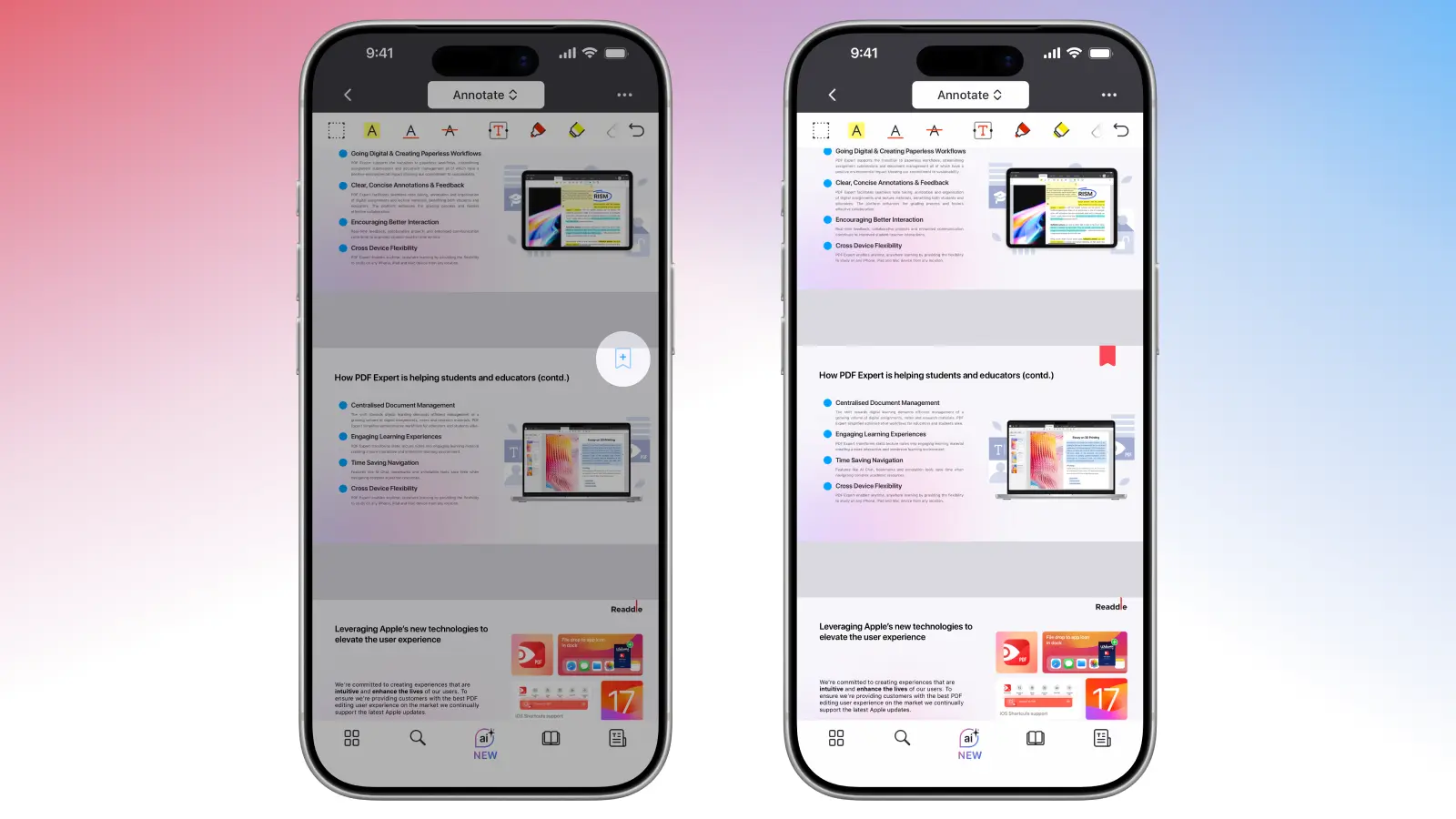
- To remove it, tap on the symbol again.
- If you want to see all the bookmarked pages from this PDF or modify them, tap the little book icon in the bottom menu. PDF Expert will show your bookmarks. You can also bookmark more pages from there by tapping Add a Bookmark at the bottom.
Tips and tricks to bookmark PDFs
You’ve mastered the basics of adding bookmarks – great! PDF Expert has even more power to level up your workflow.
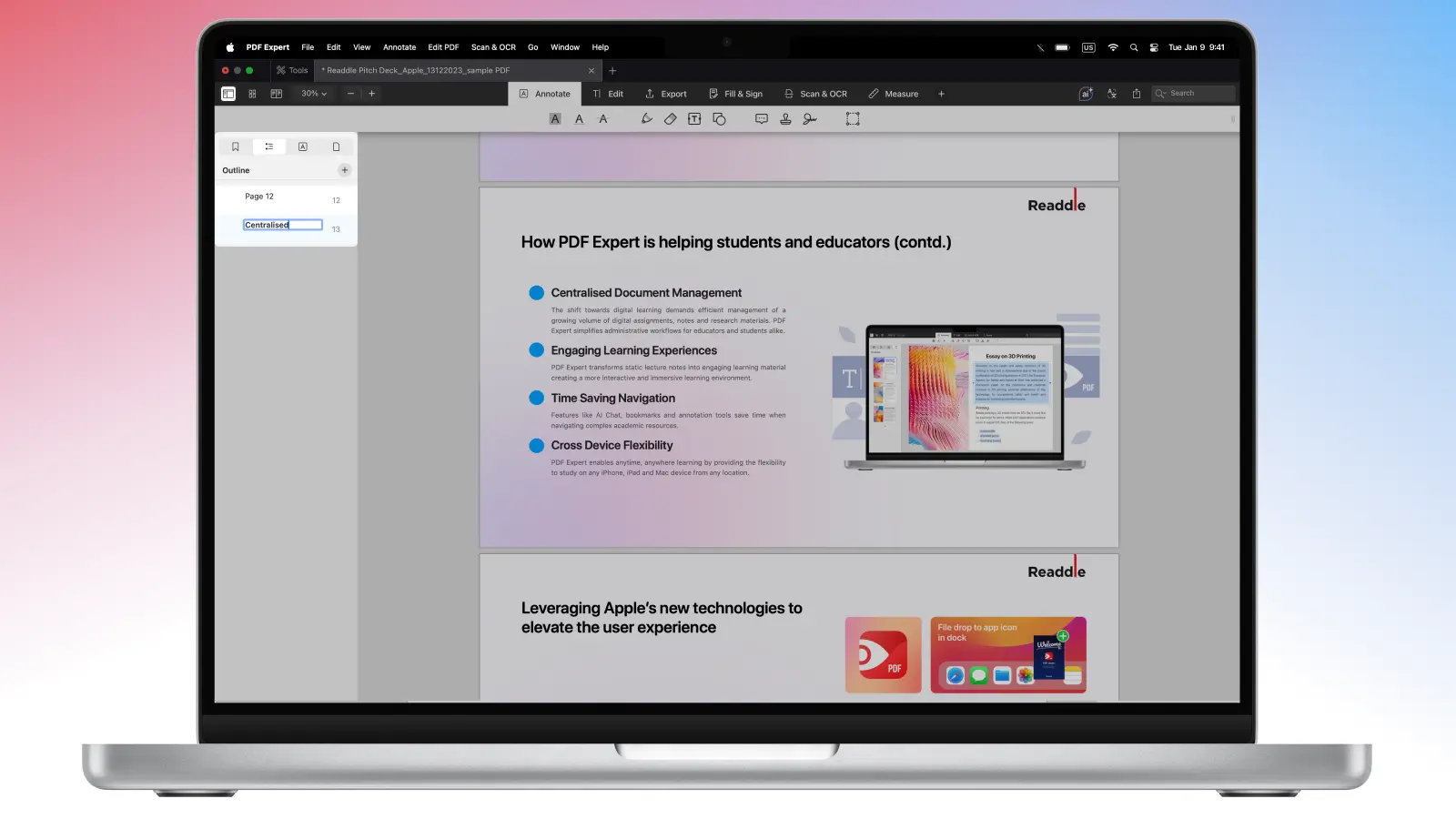
Create a full table of contents with Outlines
While personal bookmarks are flat lists for quick personal markers, you can create a table of contents using Outlines for a professional structure. In the Bookmarks menu, switch to the Outlines tab, tap/click the + button, name your entry, and drag to nest sub-items. These newly created outlines will be embedded in your PDF, visible in other readers, and perfect for reports or ebooks.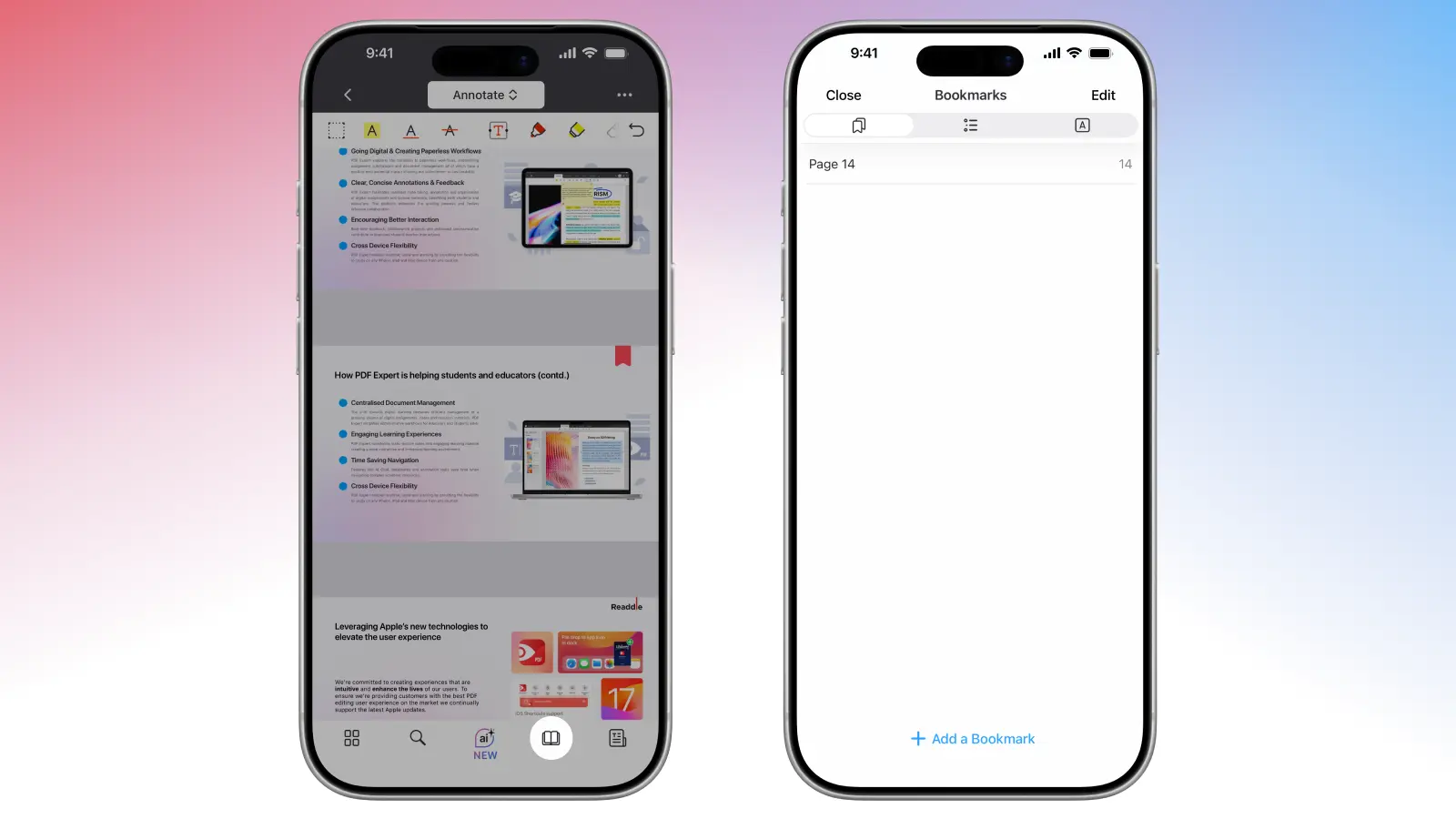
Combine with Split View for comparison
If you need to cross-reference long documents while reading them, PDF Expert can help you. Simply open the same PDF in two panes (View > Split View) and bookmark key pages in one while reading the other.
Use bookmarks with powerful search
Use PDF Expert’s powerful bookmark search to instantly find key sections. Simply open the bookmarks tab, scroll slightly to reveal the dedicated search field at the top of your bookmarks list, and type a keyword from one of your custom bookmark names. PDF Expert will filter the results so that you can jump straight to the exact page without endless scrolling.
Add annotations
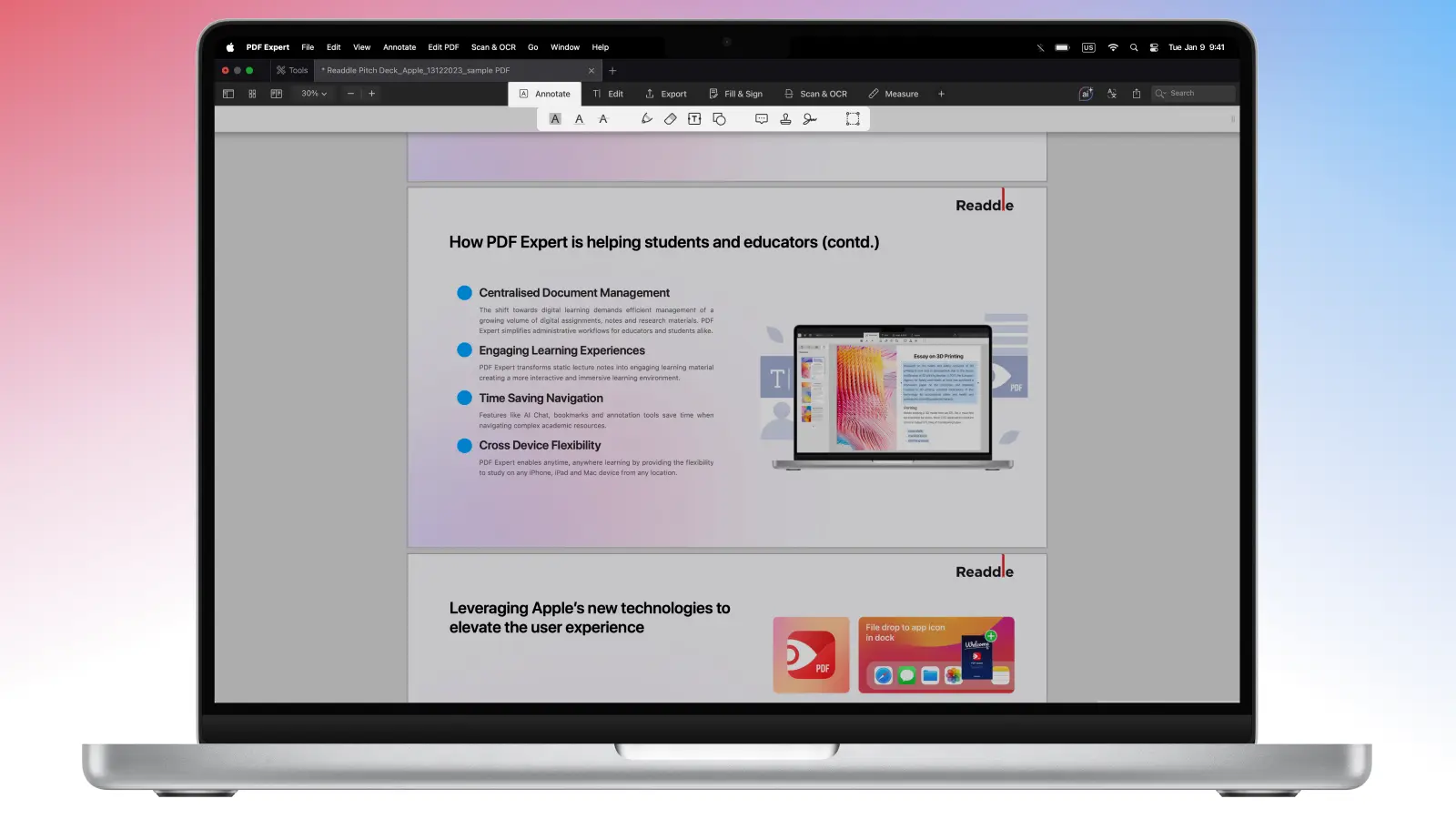
You can capture your thoughts, key insights, or feedback without leaving the document – add annotations like highlights, notes, underlines, or stamps directly on bookmarked pages. The sidebar groups Bookmarks, Outlines, and Annotations together so you can switch to the Annotations tab to view a complete list of all your marks, sorted by page. You can even export all your annotations later to a separate file.
FAQ
Do bookmarks sync across my devices?
Bookmarks are stored locally in the PDF file. If you sync the file itself via iCloud Drive, Dropbox, or another cloud service connected in PDF Expert, your bookmarks will appear on all devices. Annotations sync similarly.
Are there keyboard shortcuts for bookmarks on Mac?
PDF Expert supports customizable shortcuts via System Settings > Keyboard > Shortcuts > App Shortcuts. No default shortcut, but you can create one for common actions.
Can you bookmark a PDF online for free?
Yes! Adding and managing bookmarks is completely free in PDF Expert, no online extension required. The app is free to download on iPhone, iPad, and Mac, and you can explore core reading features, such as bookmarks, using a free trial.
Premium features (such as advanced text editing, redaction, or OCR) require a subscription, but bookmarking your pages works seamlessly in the free version.
