Create better-looking PDFs by adding professional footers on Mac with PDF Expert in a simple, fast, and effective way.
Sometimes, especially while working on scientific research papers or student projects, you need to include as many details as possible, but it could potentially overcomplicate your file or make it look less presentable. A simple solution that could possibly elevate the way your PDF file ends up is to use headers and footers.
A footer is the section at the bottom of a page where you can place helpful information without distracting from the main content. It’s perfect for adding contact details, links, legal info, or quick navigation, making your pages look more professional and easier to use.
Headers and footers help you turn simple PDFs into professional, well-organized documents. Use them to add your logo, page numbers, titles, or important details to every page.
They’re perfect for reports, contracts, guides, invoices, and presentations, making your files easier to navigate, more informative, and instantly more polished.
In this article, you will learn how to use footers, what are their main benefits, and what they could be possibly used for: this, and a user-friendly step-by-step guide on how to add footers to a PDF on Mac in PDF Expert.
How to add footers to a PDF on Mac
Adding a footer to a PDF file on Mac is very easy and intuitive in PDF Expert: here’s what you need to do:
- Download PDF Expert on your Mac.
- Open the PDF file you’re working on. You can do so right from PDF Expert.
- Go to Edit PDF at the top of the screen > select Header and Footer there.
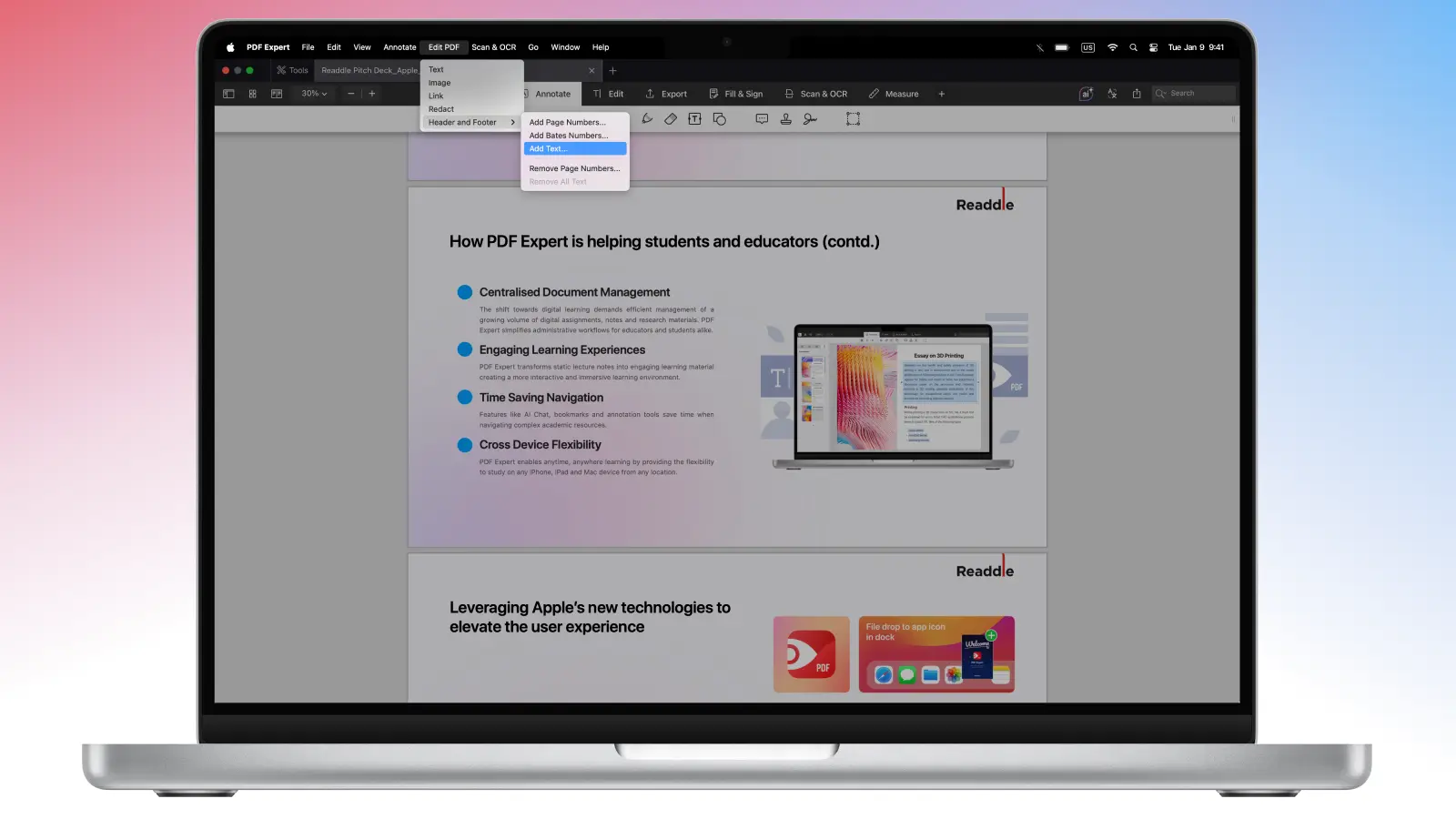
- Choose the Add Text option.
- Set everything you need in this menu: the text you want to add, its position, font, size and color.
- You can also select if you want to add the footer to every page or the selected ones.
- Once you’re done, click Apply.
To remove the footers or edit them, simply go to Edit PDF > Header and Footer > select Edit Text or Remove All Text.
How to add headers to a PDF on Mac
Since headers and footers are often used together, especially in some scientific works, here are simple steps on how to add a header to your PDF in PDF Expert:
- Download PDF Expert on your Mac.
- Open the PDF file you need.
- Go to Edit PDF at the top of the screen > select Header and Footer.
- Choose the Add Text option from the list.
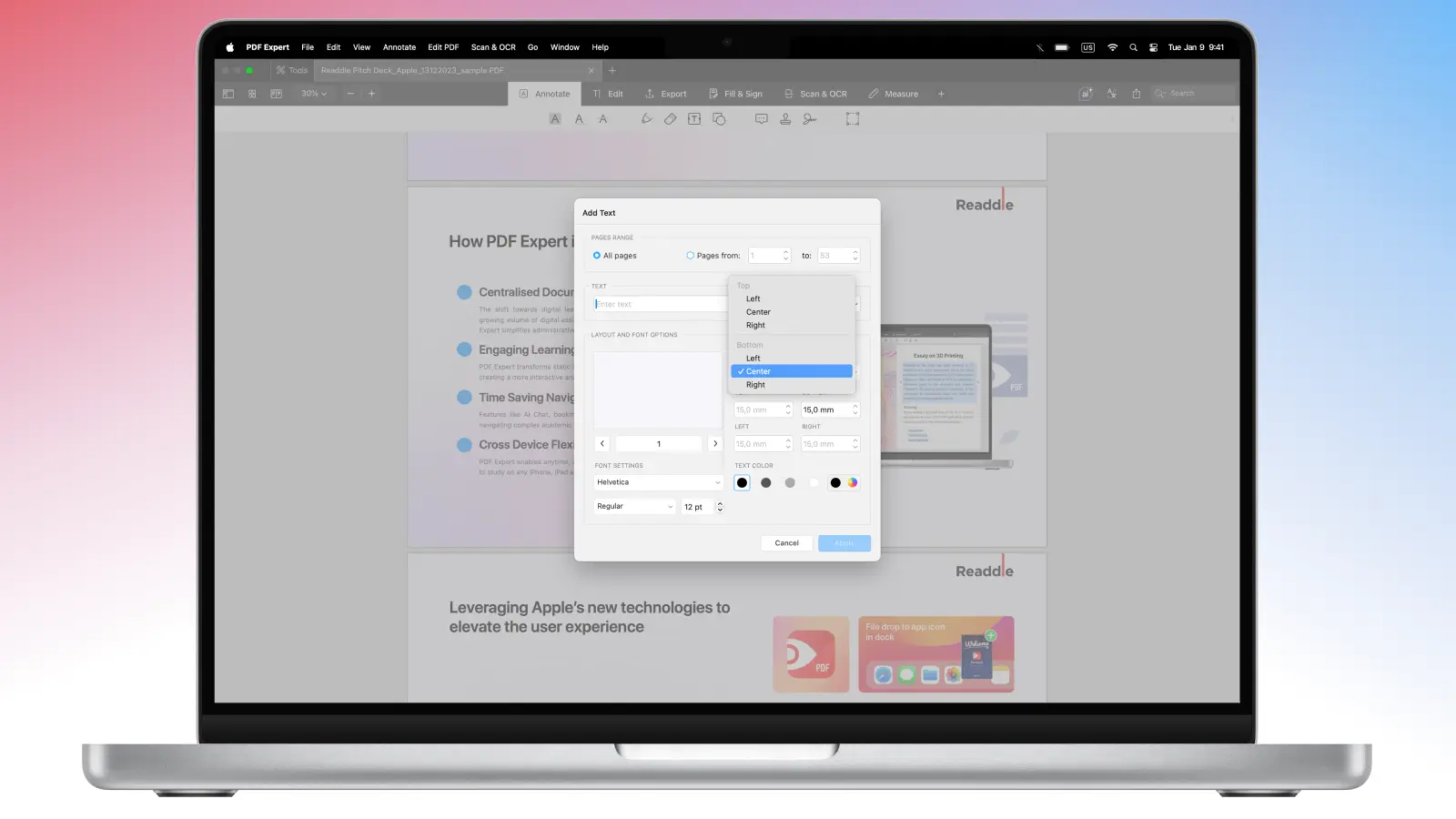
- You can choose all the needed details for the header here: make sure that you use Top positioning for the header and Bottom for the footer.
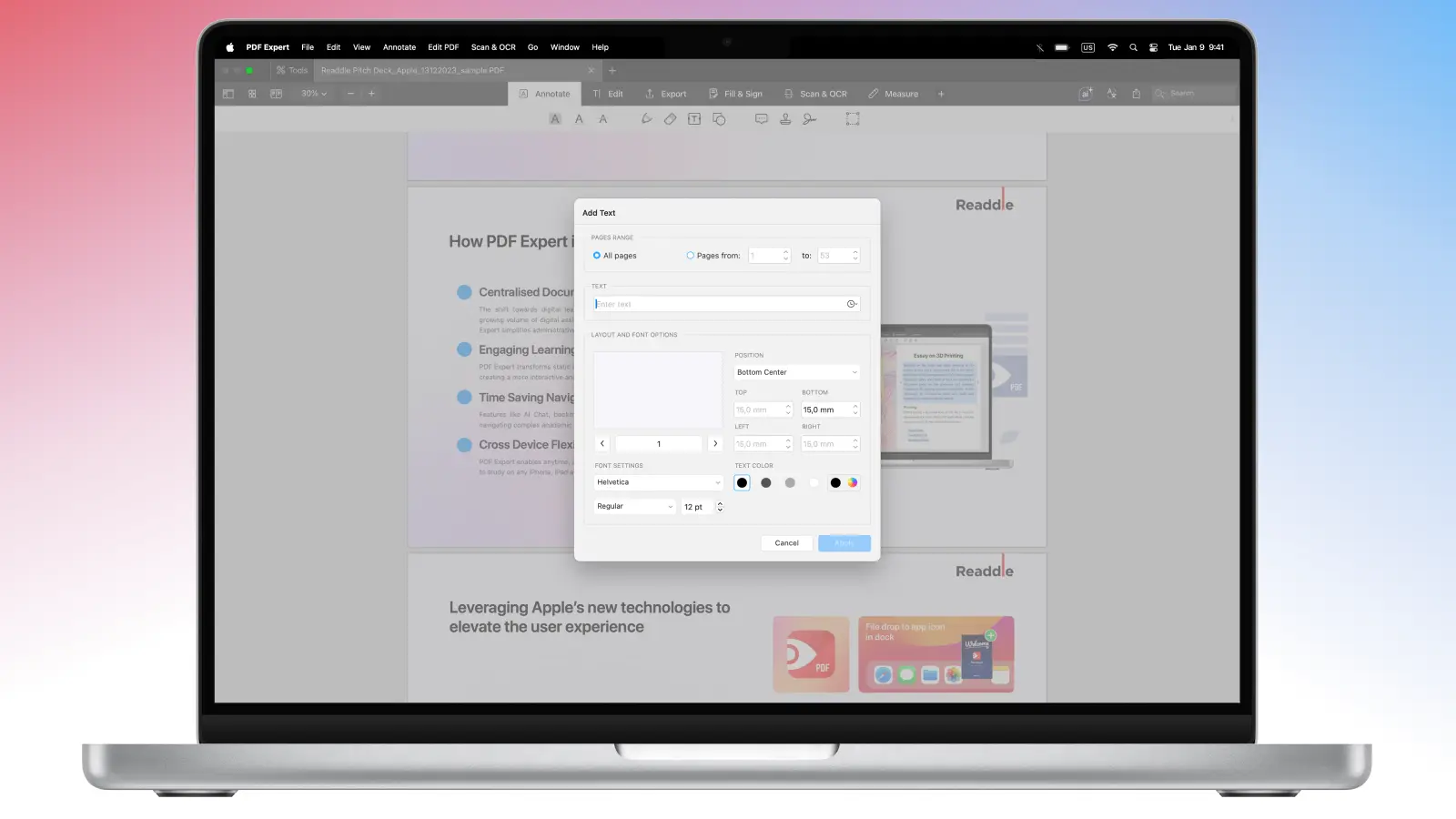
You can also select if you want to add the header to every page or a range of pages.
Once you’re ready, click Apply.
You can organize your files and make them look neat by adding headers and footers in PDF Expert.
What’s even better, you can also create PDF files in PDF Expert seamlessly from scratch for all sorts of academic purposes: headers, footers, page numbers and more can be added in PDF Expert to make your work presentable and high quality.
How to add custom footers and headers
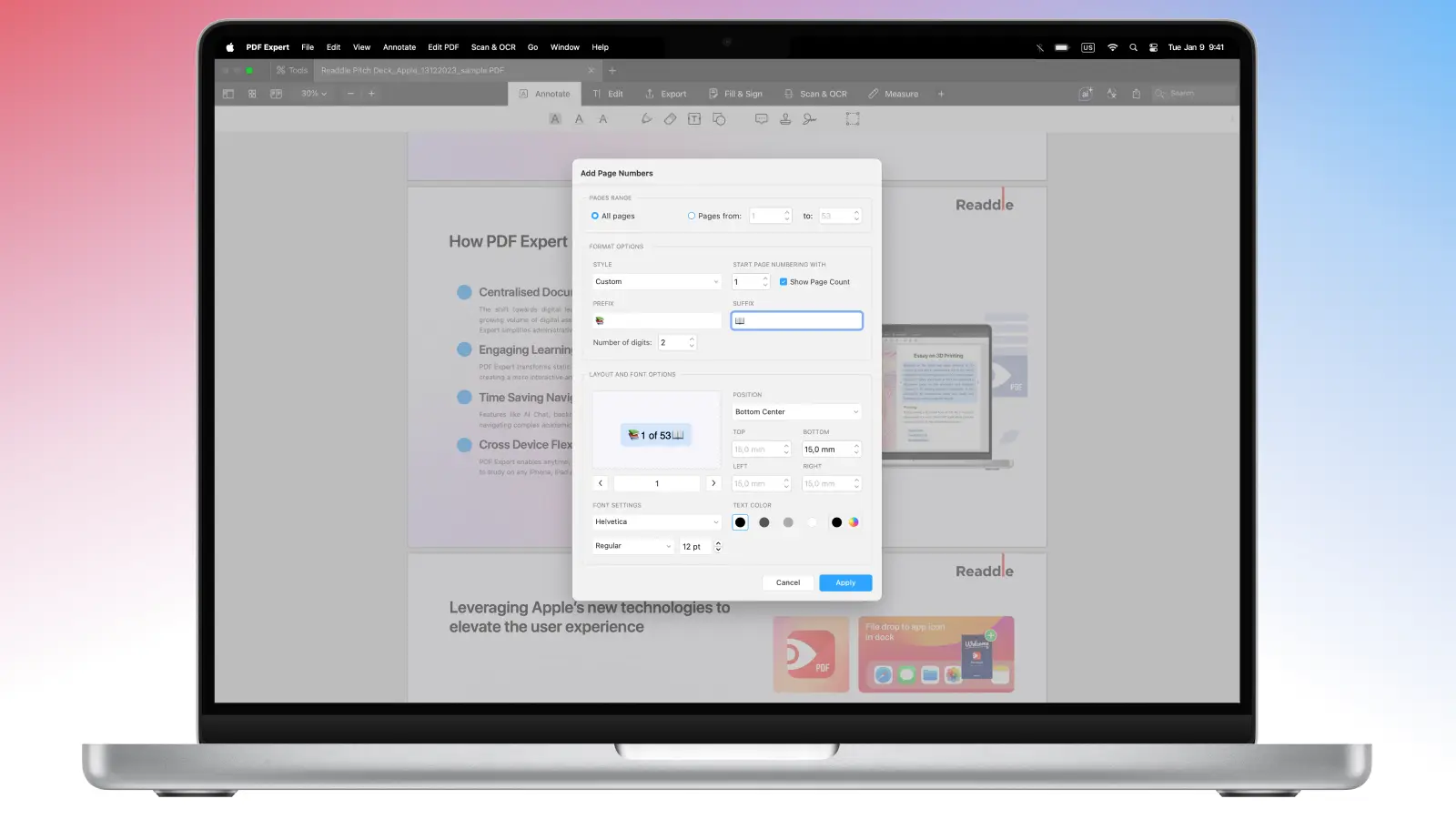
If you want to make the PDF look more fun by adding an emoji, or, on the contrary, make it look more branded by adding any specific symbols, here’s a simple trick on how to do that in PDF Expert:
- Download PDF Expert on your Mac.
- Open the PDF file you want to adjust.
- Go to Edit PDF at the top of the screen > select Header and Footer.
- Choose the Add Page Numbers option from the list.
- Here, go to Style and choose Custom.
- You can choose the prefix and suffix, as well as further details for your future header and footer.
- Use the Control+Command+Space Bar shortcut to open the emojis menu.
- Once you’re ready, click Apply.
FAQ
What are footers used for?
Footers are great for keeping your PDF file clear, helpful, and professional. They give readers easy access to important information without cluttering the main text.
Here’s what footers are especially good for:
- Version control: Version number, revision date, draft/final status, change code.
- Confidentiality and classification: “Confidential,” “Internal use only,” legal disclaimers, distribution restrictions.
- Dates and references: Print date, publication date, document ID, reference number, contract number.
- Branding (subtle): Small logo or brand line, consistent styling across templates.
A well-designed footer makes your PDF feel more helpful, trustworthy, and easy to use, right down to the last scroll.
Can I edit the footer I’ve already added in PDF Expert?
Yes. PDF Expert allows you to edit PDFs in a plenty of ways, including the option to edit or remove your header, footer or page numbers in a few clocks.
Can I add a footer in PDF Expert on my iPad?
No, right now the headers and footers can’t be added in PDF Expert on iOS. You can add a footer to your file in PDF Expert on your Mac, and simply transfer the PDF to your iPhone or iPad.
How do I add an image to my header or footer?
You can only add text or emojis/special symbols to your PDF as a header or a footer in PDF Expert.
As an alternative, you can actually add any image to your PDF file, adjust it by cropping or resizing, and drag and drop it to the needed position in the file.
