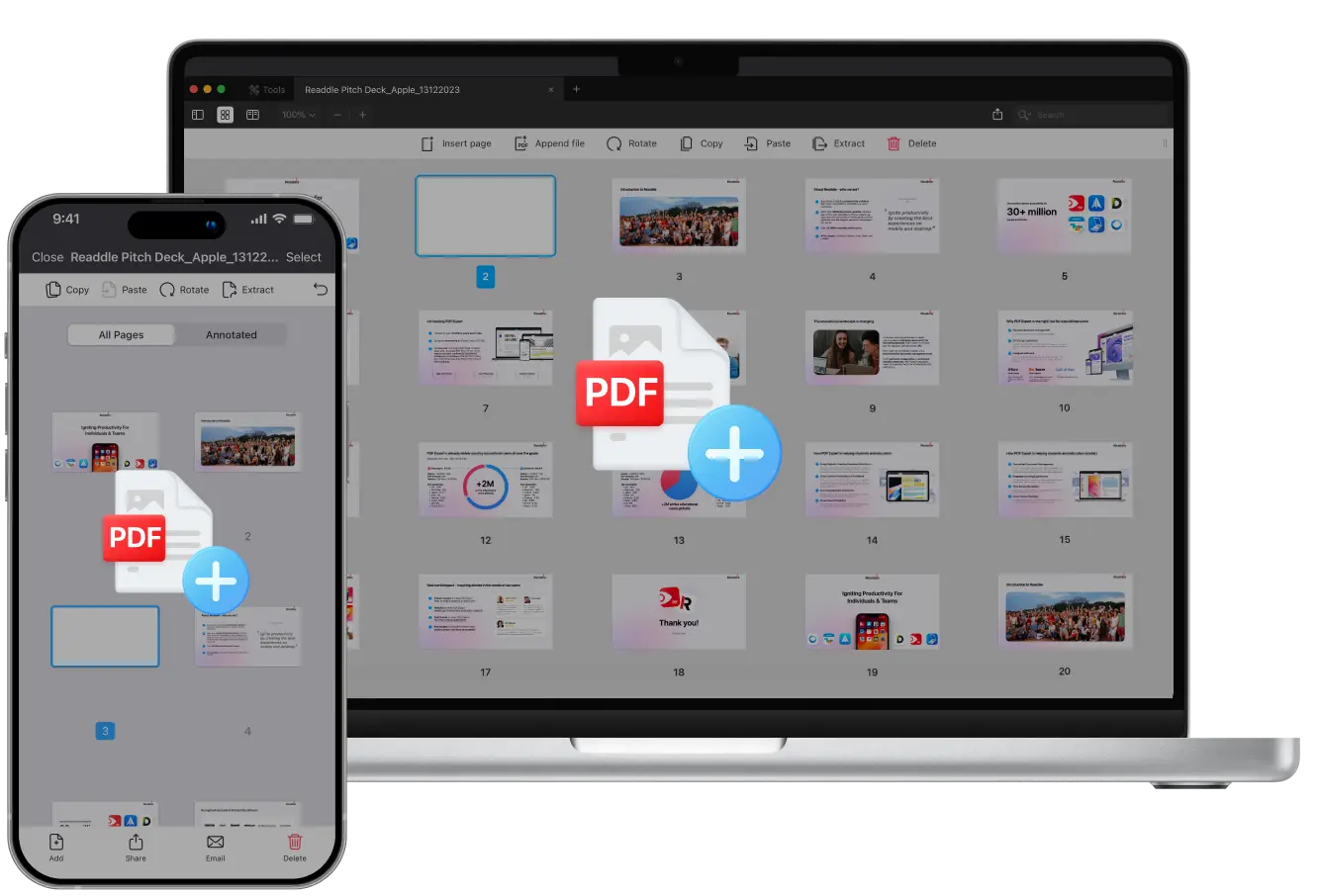
Looking to add new content to an existing PDF?
Maybe you want to update a report, merge scanned pages, append pages to a PDF from another file, or insert blank pages for notes, PDF Expert simplifies it all. In just a few clicks or taps, you can add, reorder, or merge pages into a PDF for a clean, professional file.
In this guide, we’ll show you how to add pages to a PDF, insert blank pages, extract specific pages, and even combine multiple files using one powerful and intuitive tool, PDF Expert.
How to insert a blank page into a PDF
Sometimes you need to add a blank page to your PDF for taking notes, adding signatures, or leaving room for feedback. Here’s how to do it on your Mac or iPhone.
On Mac
- Download PDF Expert for free and launch the app.
- Click the Page Thumbnails icon in the top left corner, or choose View > Thumbnails from the menu bar.
- In the top toolbar, select Insert Page. PDF Expert will automatically add a blank page to a PDF. Alternatively, you can click Edit > Insert Blank Page in the menu bar. You can insert as many blank pages as you want.
- Choose the exact spot in your document – before, after, or between pages. To reorder pages, simply hold and drag the newly created page.
- If you need to add text, edit, sign, or annotate a blank page, you can do it directly in PDF Expert.
- Click File > Save As…, add a name, and select the destination folder of your new file.
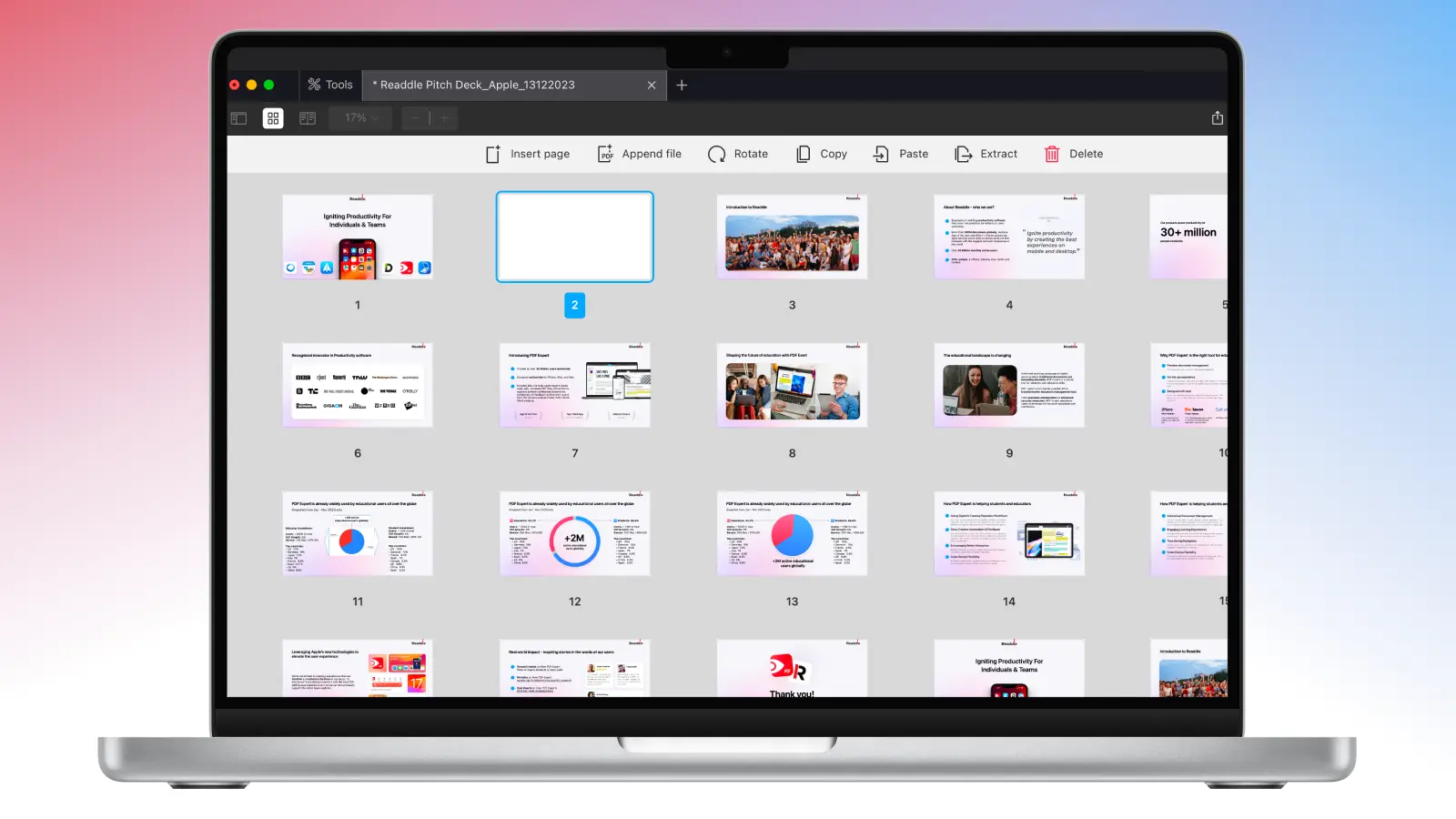
Your new blank page appears instantly. You can then use PDF Expert’s editing tools to add text, images, or drawings directly on it.
On iPhone
Need to add a space for notes or comments while you’re on the go? PDF Expert for iPhone makes it just as easy to insert new blank pages into your document. Plus, you can add as many blank pages as you wish. Just follow this step-by-step guide:
- Download PDF Expert for free from the App Store and open it. Make sure you have the latest version for the best experience.
- Tap the blue “+” button at the bottom of the screen to pick a PDF. Alternatively, you can open the file from My Files if it’s already uploaded to the app.
- Tap the Page Thumbnails icon in the bottom left corner to view all your pages.
- From there, tap Add in the bottom left corner, then select Blank Page.
- Choose the page type and color.
- The app will create a blank page, right where you have your page open. In order to move it, simply hold and drag it to the right spot.
- Once you’re done, you can annotate, sign, add stamps, or leave the page blank for further notes from your team members.
How to add pages from another file to a PDF
Sometimes, you might want to pull in pages from another PDF on your Mac or iPhone. It may be for a presentation, report, or even a school project. Adding new pages to your PDF in PDF Expert won’t take longer than inserting a blank page. Follow these steps:
On Mac
- Open your PDF in PDF Expert. Use the convenient Drag & Drop feature. Alternatively, click Select File and choose the PDF you need, then click Open.
- Click the Page Thumbnails icon in the top left corner, or go to View > Thumbnails from the menu bar.
- In the top toolbar, select Append File.
- Choose the file that you want to add and click Add. PDF Expert will insert it at the end of your document.
- If two documents have different page sizes, the app will offer you the option to resize all pages (US Letter, A4, or another format).
- If you want to reorder your pages, simply hold and drag the newly added page.
- If some pages are not needed, simply select one and click Delete in the top toolbar.
- Once you’re done rearranging pages, click File > Save As…, enter a file name, and choose the destination folder for your updated PDF.
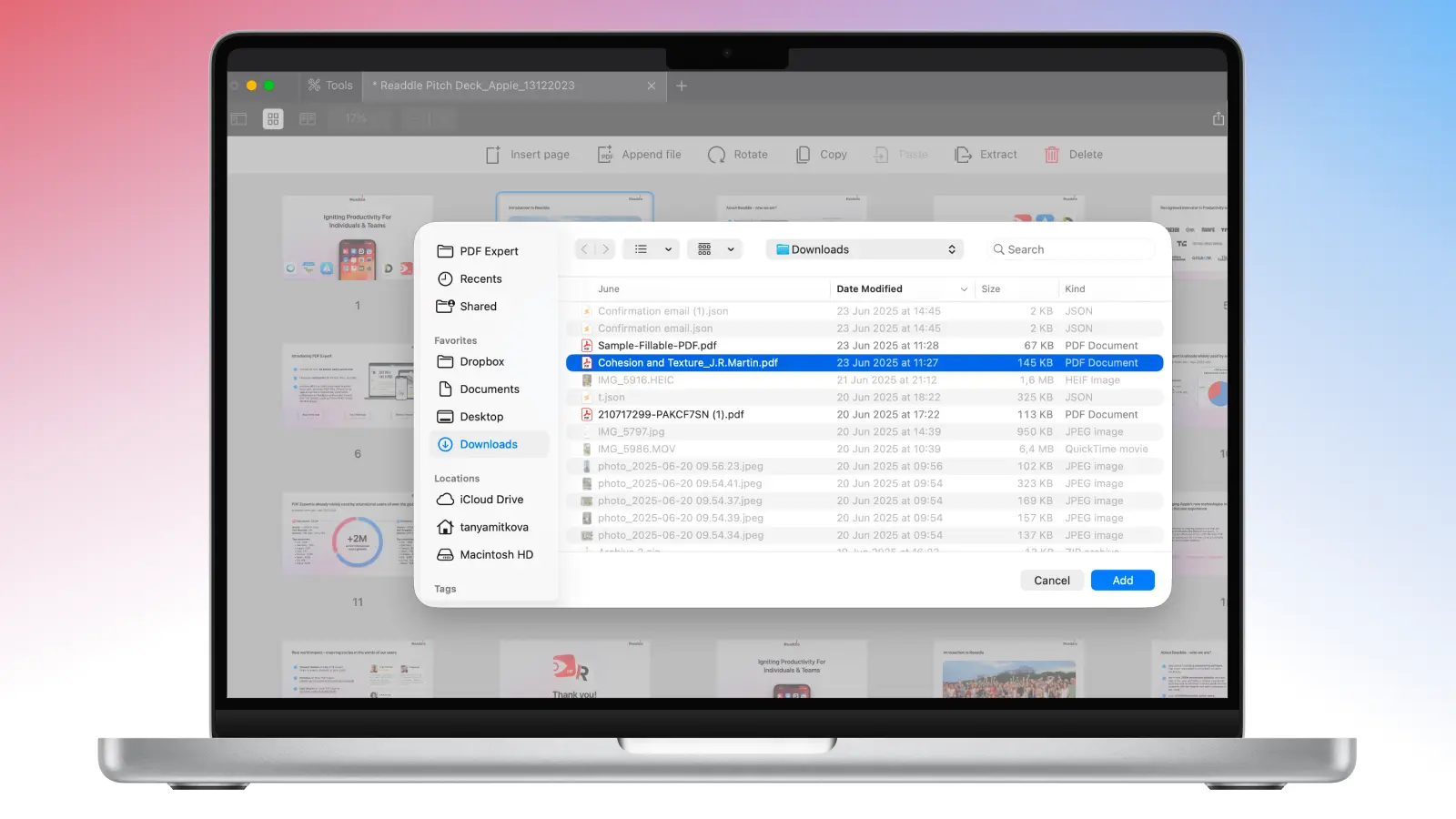
That’s it – your document now includes the newly added pages, perfectly integrated into your PDF layout.
On iPhone
- Open your PDF by clicking the big blue “+” button at the bottom of the screen. Then, select to import your document from File, Photos, scan your file, or import from cloud storage.
- Tap on the Page Thumbnails icon in the bottom left corner of the screen. You will see all the pages of your file.
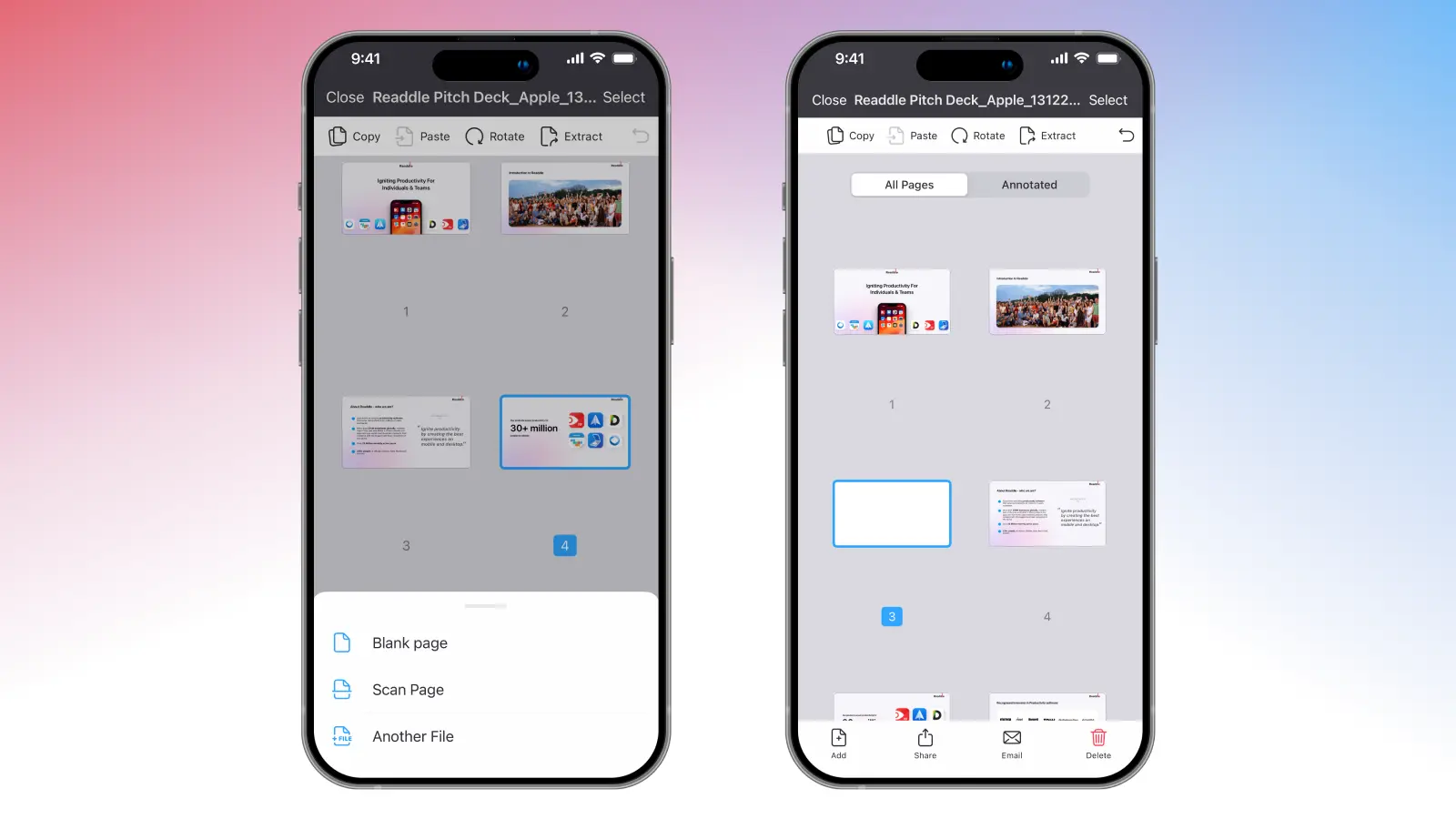
- From there, click Add and select Another File. You can choose from My Files, PDF Expert in iCloud, or Files on your device.
- If you don’t have the file and need to scan the page instead, you can simply select Scan Page.
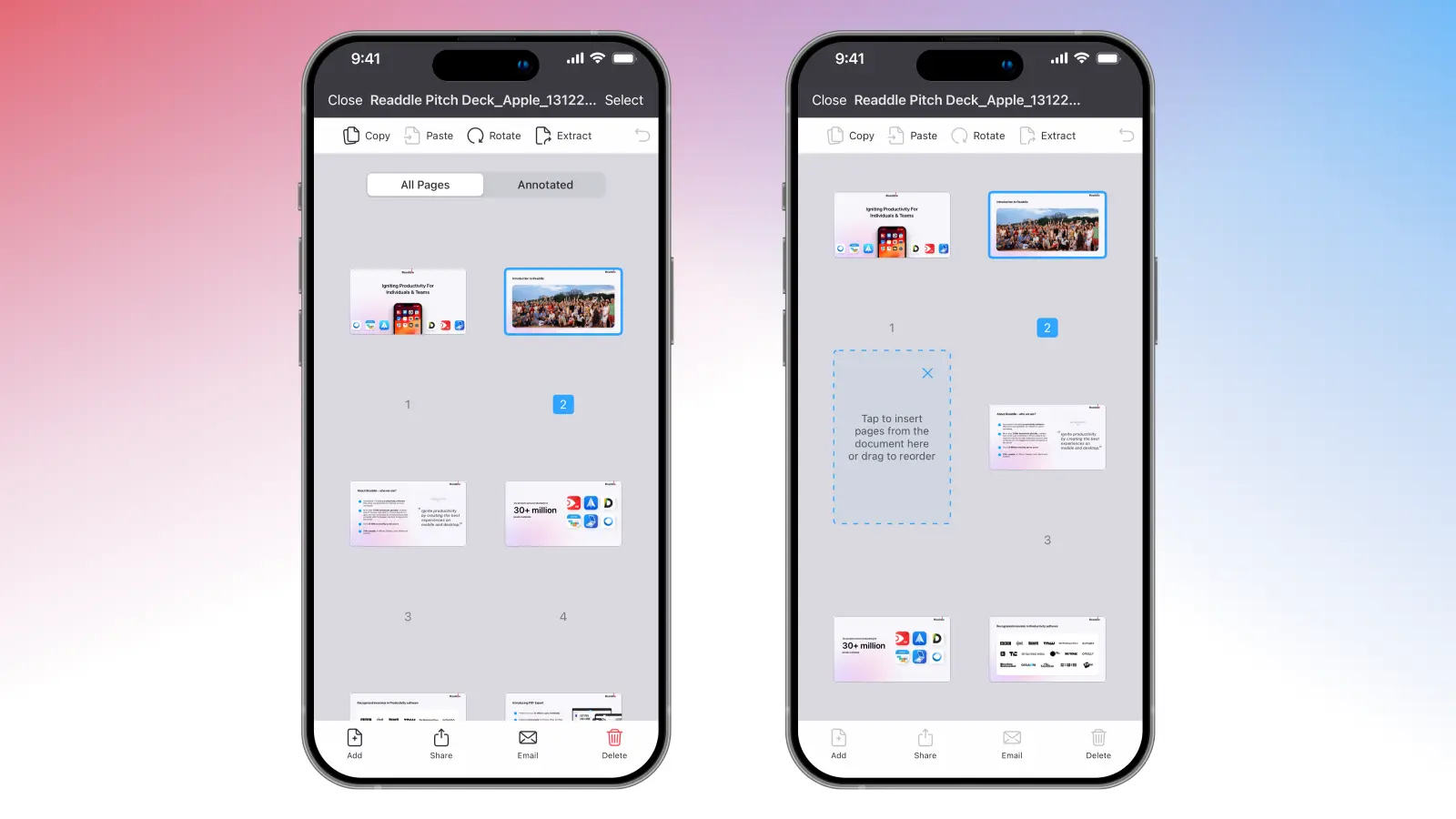
- PDF Expert will suggest that you tap in a designated field to insert pages from the document. Then, drag the pages to reorder them in the desired order.
- Once you’re done, feel free to edit, sign, annotate, password-protect, and share your file.
How to extract a page from an existing PDF
If you need a specific page from a PDF but don’t want to import the entire file, you can simply extract one page and then insert it into another document. Here’s how to do it:
On Mac
- Open your PDF in PDF Expert.
- Click the Page Thumbnails icon in the top left corner, or choose View > Thumbnails from the menu bar.
- Select one by clicking on it. If you want to extract several pages, simply press CMD and select all the pages you need.
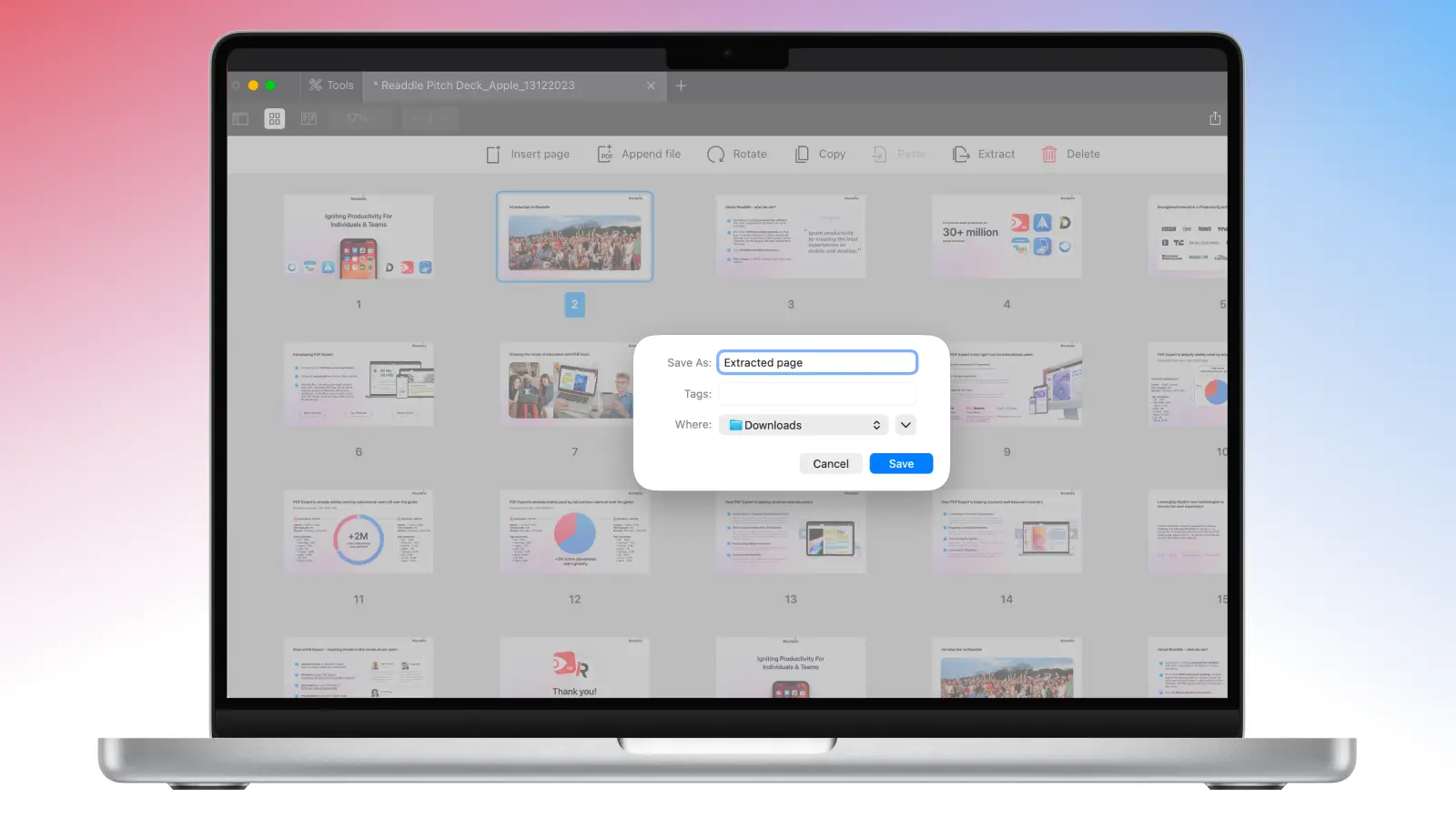
- Click Extract.
- Choose the name of your new PDF and the destination folder. Then, click Save.
That’s it! Now you can open the newly created PDF and add the extracted page to another PDF document using the steps above.
On iPhone
- If you need to quickly extract one or multiple pages from a PDF on an iPhone, all you need to do is follow these steps:
- Open your PDF in PDF Expert on your iPhone.
- Tap the Page Thumbnails button to view all pages.
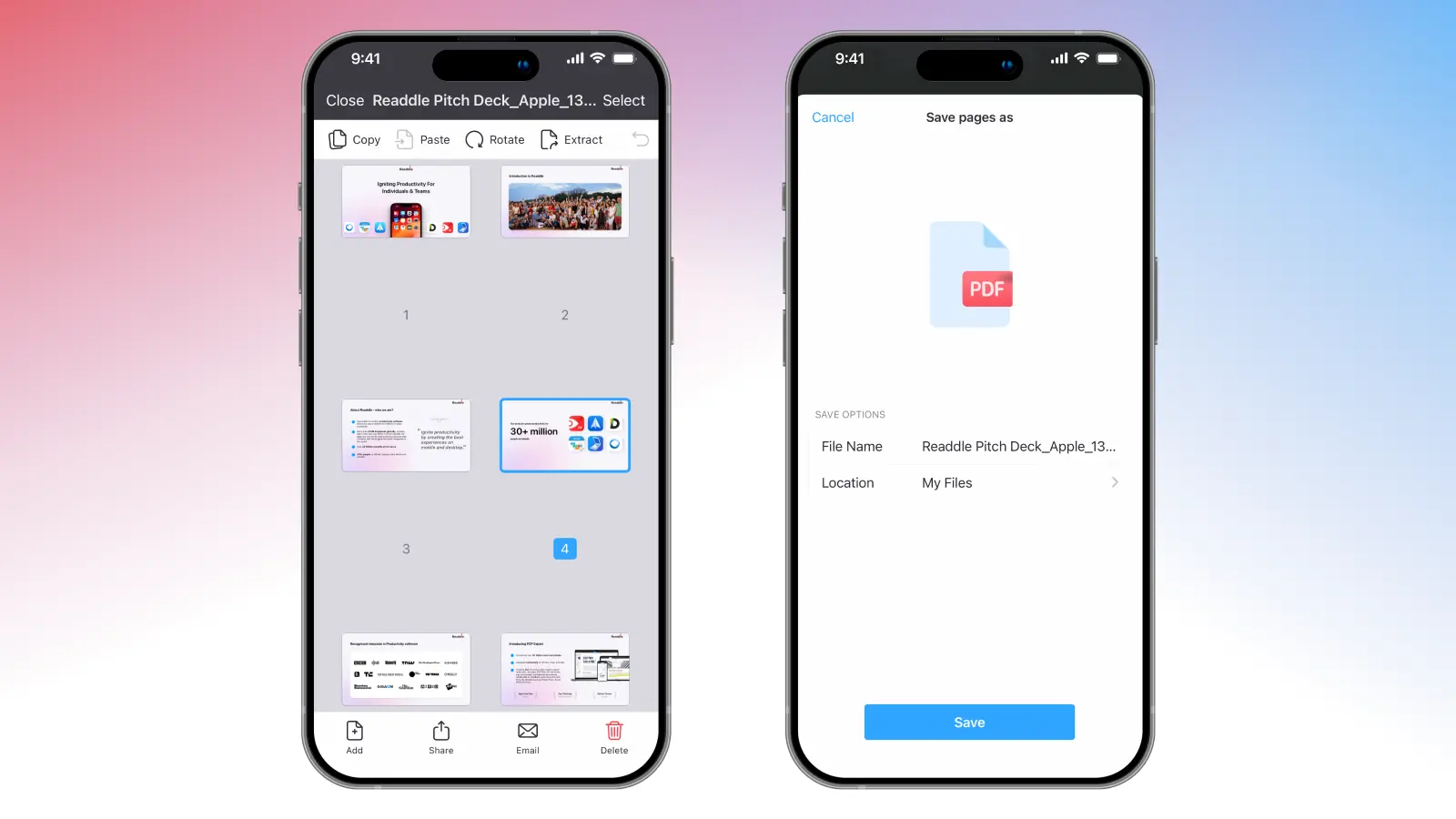
- Tap Select in the top right corner of the app to pick the page(s) you want to extract.
- Once all the pages are selected, tap Extract in the top toolbar, then hit Save.
- PDF Expert will save the extracted pages in My Files in the app, so you will be able to further manage that file as needed.
Add pages to a PDF in seconds
PDF Expert offers a free trial so you can explore its powerful editing tools – including the ability to rearrange, merge, and add pages to a PDF document. You can test all features and experience the smooth native interface on both Mac and iPhone without limitations. And with powerful extras like annotation, signing, and file protection, your entire document workflow stays in one place.
Download PDF Expert for free today and try it for yourself!
PDF editing: FAQ
Which tool is the best for adding pages to a PDF?
PDF Expert offers a complete PDF insert page tool for Mac, iPhone, and iPad – with a visual thumbnail view for intuitive editing.
Can I add scanned pages to a PDF?
Absolutely. PDF Expert lets you add scanned pages directly to your document without losing quality or formatting. On Mac, use Append File in Page Thumbnails mode, or on iPhone, select Another File or Scan Page. For best results, make sure your scan is clear and properly aligned before importing.
If your scan is a JPG or PNG, PDF Expert converts it to PDF automatically during the import. You can then adjust the page size or orientation to match your document’s design for a consistent, professional look.
How to delete pages from a PDF?
If some pages are unnecessary in your PDF, you can delete them using PDF Expert on your Mac, iPhone, or iPad. To remove pages, simply open the Page Thumbnails view, select the pages you want to remove, and click Delete. If the action was done by accident, you can always click Undo to undo your last action.
How to reorder pages in a PDF?
PDF Expert’s user-friendliness helps users easily perform actions on a PDF in seconds. In order to reorder your PDF pages, simply open your file in the Page Thumbnails mode, hold, and rearrange the pages as needed.
How do I merge pages into an existing PDF?
PDF Expert allows you to merge pages or files in seconds.
On Mac, launch the PDF Expert app. Then click File > Merge Files, and select the PDFs you want to combine. If you want to combine pages on iPhone, go to Tools > Merge to PDF, then select the files you’d like to merge. PDF Expert will do the heavy lifting and combine them, creating and saving a new document in the app.
If you need to extract specific pages from the file before merging them with another file, you can also do that directly in PDF Expert.
