Whether you're saving a client proposal built in HTML, archiving a web-based report, or converting an HTML email into a permanent record, turning an HTML document to PDF is one of those tasks that should take seconds — not require a detour through a sketchy online webpage to PDF converter.
PDF Expert is a trusted app that makes the conversion effortless on any Apple device and provides a built-in PDF editor.
Why use PDF Expert as your HTML to PDF converter
PDF Expert provides a secure, reliable file converter and editor for over 30 million people worldwide. Here is what sets it apart:
- Trusted service. PDF Expert, an app trusted by over 30 million people worldwide, processes your HTML files and webpages securely.
- CSS styling preserved. Custom fonts, colors, flexbox layouts, and media-query overrides all carry through to the final PDF.
- Batch conversion. Need to convert an entire folder of HTML reports? Process multiple files at once and save time on manual work.
- One app, all your Apple devices. Your converted PDFs could sync via iCloud Drive, so a file you create on a Mac is instantly available on your iPhone or iPad.
- Edit right after converting. Unlike standalone converters, PDF Expert opens the resulting PDF in the built-in editor — annotate, sign, redact, or merge PDFs without switching apps.
- No watermarks, no file size caps. Convert large HTML documents without hidden limitations.
When to convert HTML document to PDF
HTML is designed for browsers; PDF is designed for permanence. Here are the most common reasons to make the switch:
- Archiving web content. Save an article, invoice, or report before it disappears or changes behind a paywall.
- HTML emails. Convert richly formatted email newsletters or legal notices into PDF records you can store and search.
- Sharing layouts. Send a design mockup or web prototype as a PDF so recipients see it exactly as you built it, regardless of their browser.
- Signature and form workflows. Convert an HTML form or contract into a PDF that can be filled and signed electronically.
- Securely share documentation. Lock HTML reports into PDFs with password protection.
How to convert HTML to PDF on Mac
Method 1: Open and convert an HTML file into PDF with PDF Expert
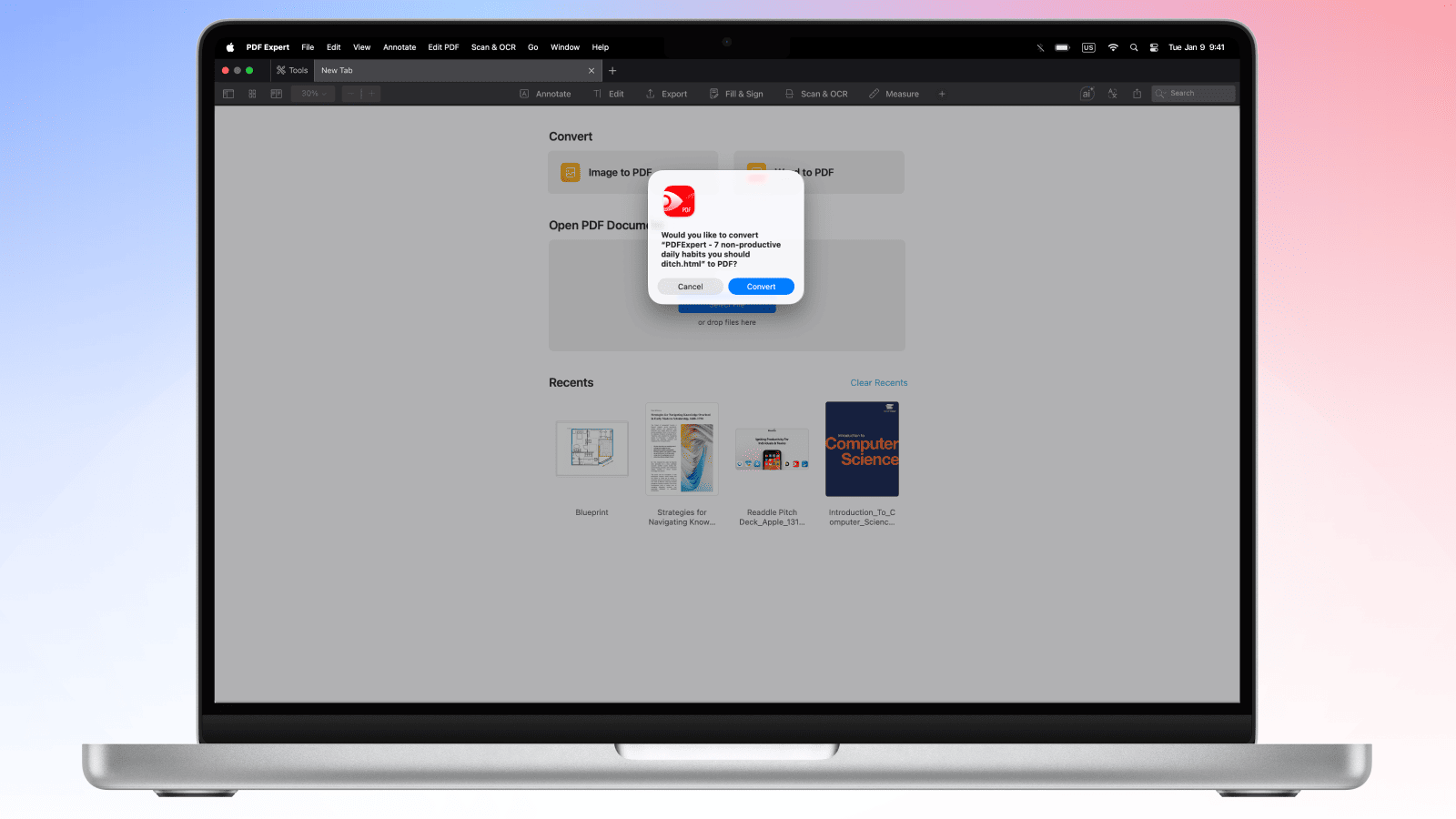
This is the fastest route when you have an HTML file saved locally on your Mac.
- Open PDF Expert on your Mac. If you don't have it yet, download it here.
- Go to the Finder > locate the HTML file > right-click it > Open with PDF Expert, or drag your .html file directly onto the PDF Expert window.
- PDF Expert will offer to convert the file to a PDF. Choose ‘Convert’, and PDF Expert will return a PDF file that preserves your CSS styles, embedded images, and web fonts.
- Your PDF is ready. Choose File → Save as or a sharing icon from the toolbar.
Pro tip: Once converted, use PDF Expert's editing tools to annotate, redact sensitive sections, or merge multiple PDFs — all without leaving the app. You can also compress the file before sharing to reduce its size.
Method 2: Convert a webpage (URL) from Safari to PDF on Mac
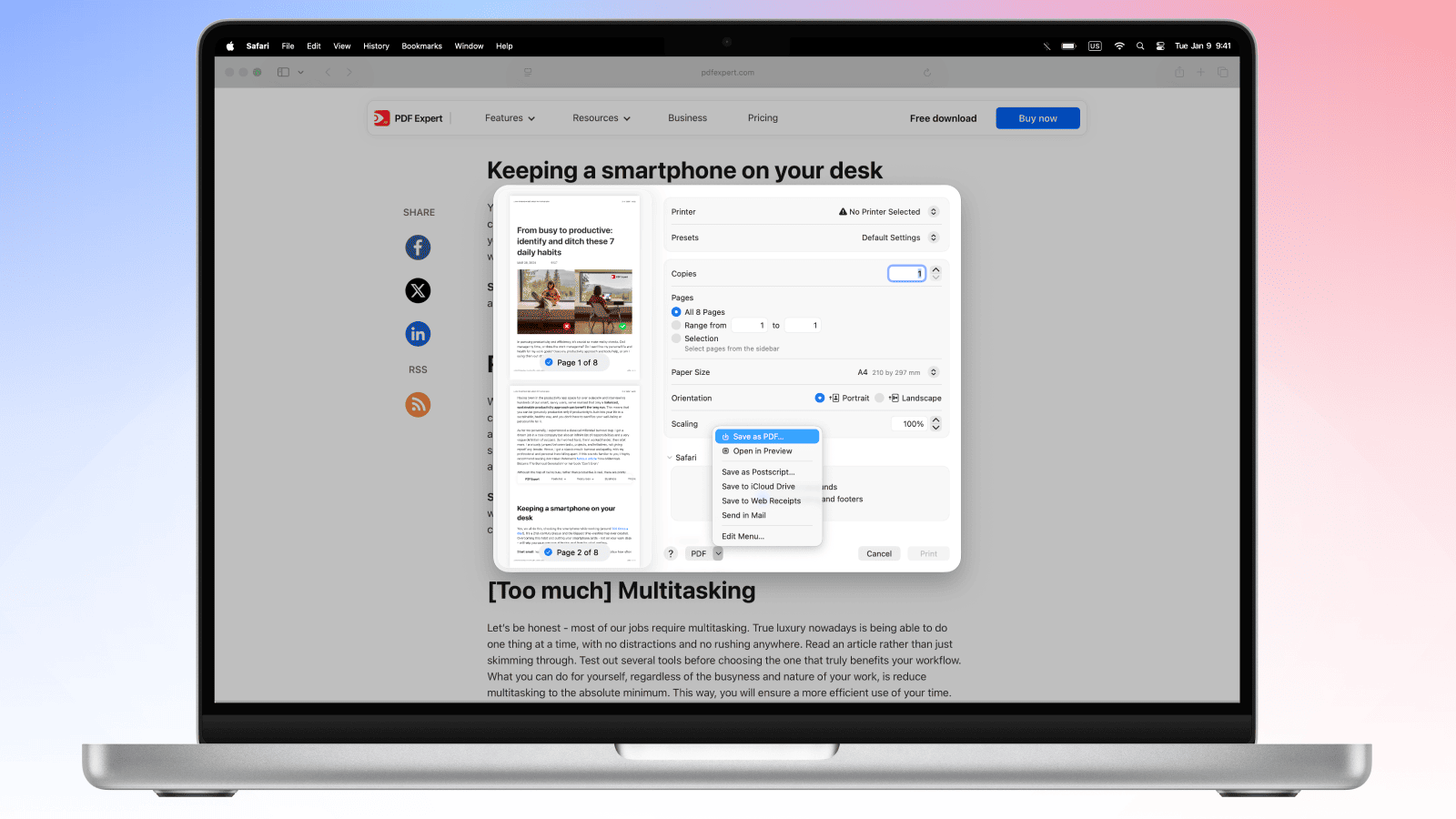
To convert website to PDF, use Safari's built-in print dialog:
- Open the webpage you want to save in Safari.
- Press ⌘ + P to open the Print dialog.
- In the bottom-left corner, click the PDF dropdown menu.
- Select Save as PDF. The file will be saved on your Mac.
- You can open the PDF in PDF Expert to edit or annotate it.
Note on JavaScript-rendered content: Some modern web apps load content dynamically with JavaScript. For best results, wait for the page to fully load in your browser before converting — this ensures all dynamically loaded elements appear in the PDF.
How to convert HTML to PDF on iPhone and iPad
PDF Expert for iPhone and iPad makes on-the-go HTML conversion quick, whether you're working from a local file or a live webpage.
Convert an HTML file on iPhone or iPad
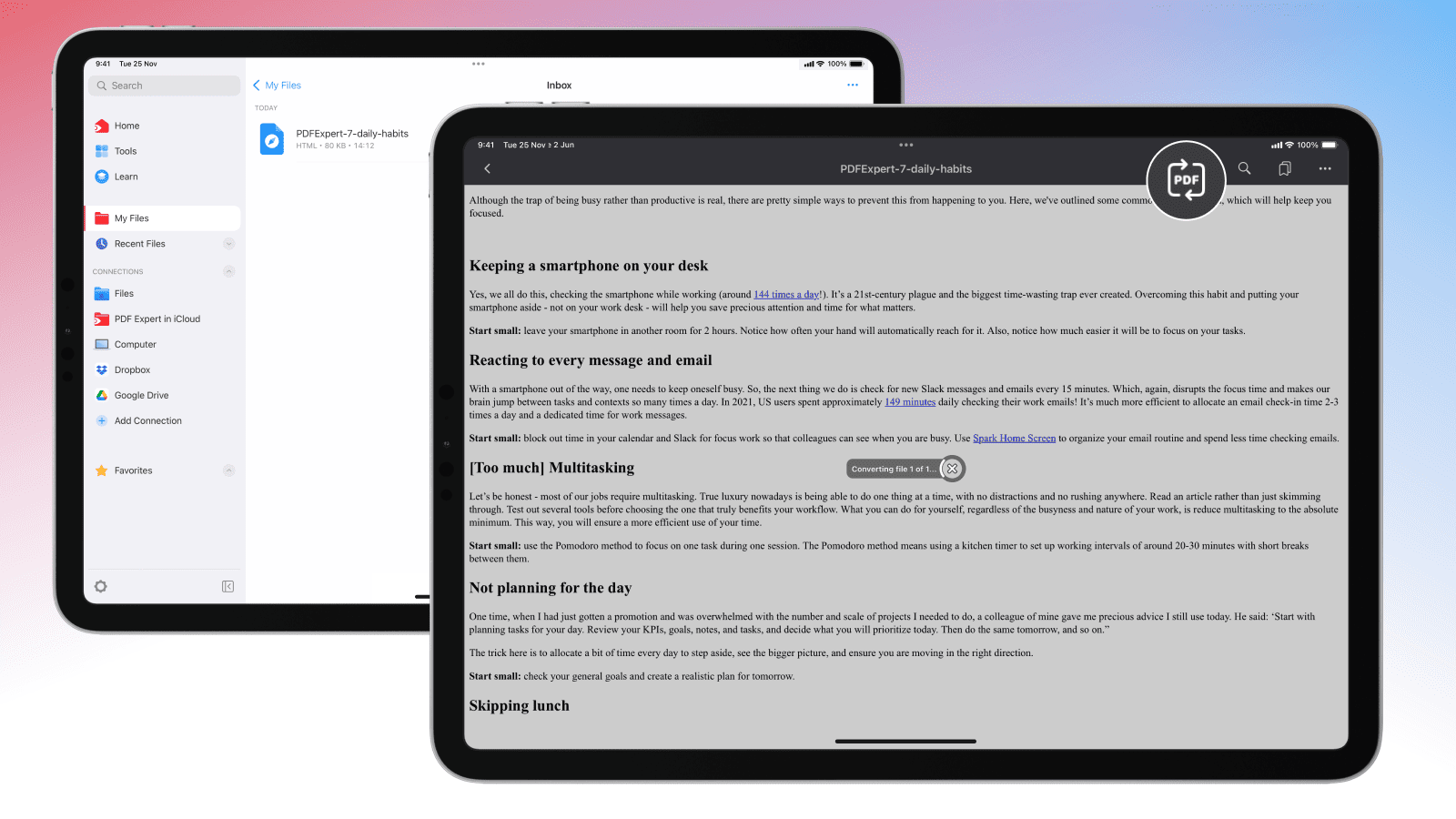
- Download PDF Expert from the App Store if you haven't already.
- Open the app, tap the + icon at the bottom, and add your HTML file from the Files app or a Cloud storage.
- After the file is added, open it.
- Tap the Convert PDF icon at the bottom (on iPhone) or at the top (on iPad), and PDF Expert will quickly convert it to PDF.
- Choose where to save or share your PDF file. You can also edit, annotate or compress it right away in the app.
Convert website to PDF on iPhone or iPad
- Download PDF Expert from the App Store.
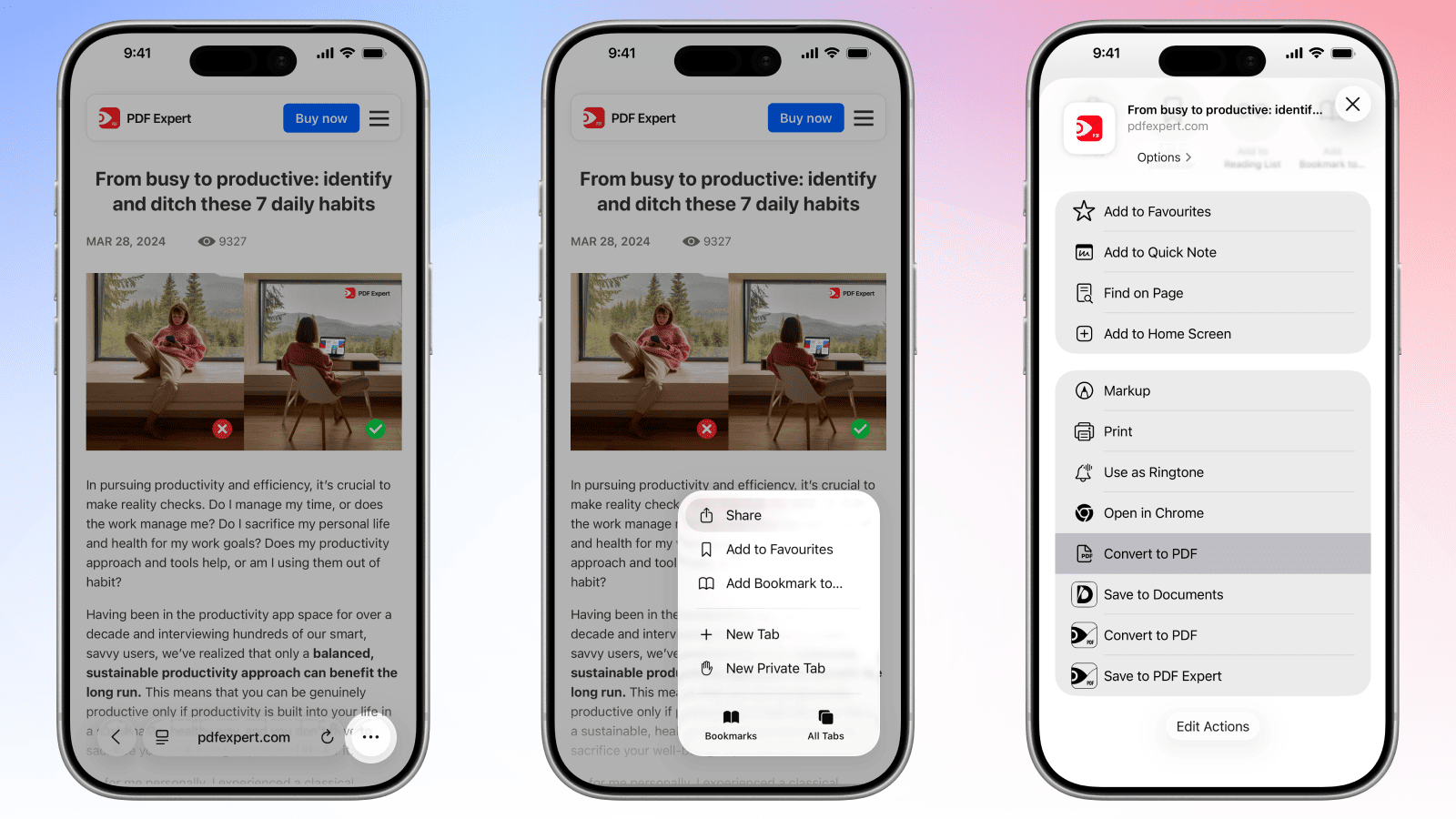
- Open the webpage in Safari on your iPhone or iPad.
- Tap three dots at the bottom > the Share button (the box with an arrow).
- Scroll the share sheet and tap Convert to PDF.
- The page will be converted to PDF and opened in PDF Expert.
There is another option to convert website to PDF directly via PDF Expert: open the app > go to the Tools tab > choose Web to PDF > choose a website and tap ‘Save as PDF’.
HTML to PDF conversion — FAQ
Does HTML to PDF conversion preserve CSS styling?
Yes — including custom fonts, colors, flexbox and grid layouts, borders — all are reproduced in the output PDF. Inline styles, internal stylesheets, and external stylesheets linked within the HTML file are all supported.
Will JavaScript elements be included in the PDF?
Static content rendered by JavaScript before conversion is captured in the PDF, but dynamic interactivity (click events, animations, form logic) cannot carry over to a PDF file — PDF is a static format. For pages with heavy JavaScript rendering, wait for the page to finish loading in your browser before initiating the conversion to ensure all content is visible.
Can I convert responsive HTML pages to PDF?
Yes. When converting a webpage via the browser print dialog, the page renders at the current viewport width. For responsive pages, resizing your browser window before printing lets you choose whether to capture a desktop or mobile layout. HTML files opened directly in PDF Expert render at the standard page width used for print output.
Does the converter support external stylesheets and images?
For local HTML files opened in PDF Expert, the converter works best with self-contained files - HTML that uses inline styles, embedded (base64) images, or links to publicly accessible online resources such as CDN-hosted stylesheets and images. Links to files stored elsewhere on your local disk are not included in the conversion. Before converting, make sure any local resources are either embedded directly in the HTML or replaced with public URLs.
Can I convert HTML emails to PDF?
Yes. To convert an HTML email, open it in your email client, use the Print option, and save or open it in PDF Expert. This captures the rendered email exactly as it appears, including images and formatting. It's an effective way to create permanent records of contracts, receipts, or formal communications received by email.
Is HTML to PDF conversion secure with PDF Expert?
Yes, it is secure. PDF Expert conversion requests are processed on our server with the assistance of a third-party provider. Users’ security and privacy are among our top priorities. Before engaging any third party, we conduct a vendor assessment to ensure our providers meet GDPR compliance requirements, ISO certification, and the highest industry standards. Your files are used only to deliver the service you requested. We do not read, persistently store, or share your file content, nor do our engaged processors. All files are deleted within 24 hours after completion of their conversion request.
To ensure additional security, you can add password protection directly in PDF Expert to restrict who can open or edit the resulting PDF.
