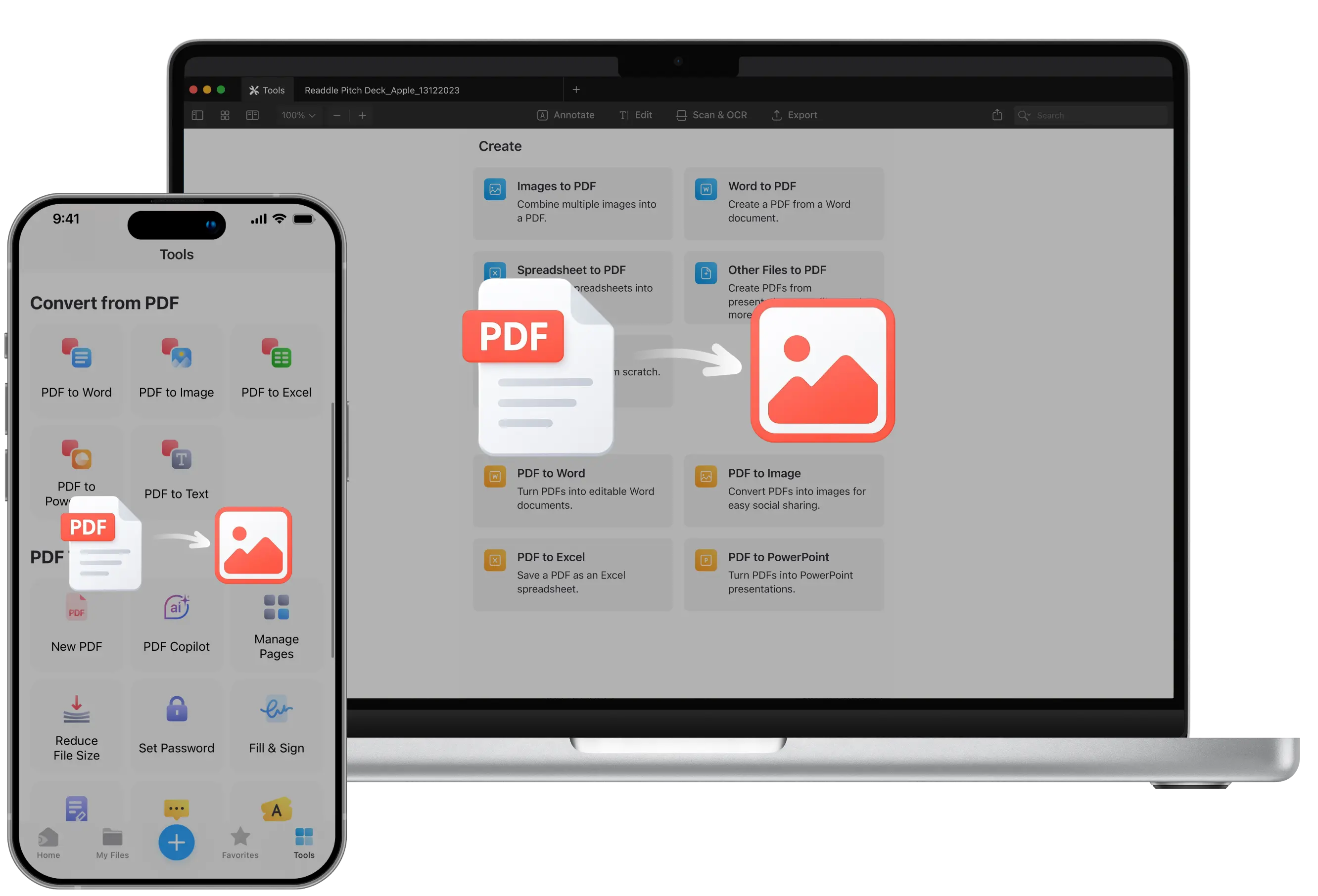
Need to extract high-quality images from a PDF for presentations, reports, or creative projects? Converting your PDF to PNG format is the perfect solution.
PNG images remain crisp and are ideal for charts, scanned pages, or marketing materials.
With PDF Expert, you can convert files quickly on your Mac, iPhone, or iPad, without uploading files to online services.
In this guide, you’ll learn how to convert a PDF to PNG using PDF Expert, and how to turn PNG images back into a PDF when you need it. PDF Expert’s built-in PDF to PNG converter can help you gain full control over your files – quickly, securely, and without losing quality.
Why choose PDF Expert to convert your files
Most free online converters compress your files, upload potentially sensitive documents to unknown services, or sometimes even watermark your images unless you pay up.
PDF Expert works differently – instead of handling files on unknown servers, the app converts your PDFs to PNGs locally on your device so your data stays private. It preserves image quality, supports unlimited batch conversions, and lets you edit files in one app, without the need to switch between tools, saving you time.
How to convert PDF to PNG on Mac
Method 1: Export via File Menu
With PDF Expert, you can convert any PDF page or the entire document into PNG format in just a few clicks. Here’s how:
- First, download PDF Expert for free and launch the app.
- Import your file to PDF Expert. Use the convenient Drag & Drop feature or click Select File and open the PDF you want to convert.
- From there, head to File > Export to on the top toolbar.
- Choose the Image… option from the dropdown menu.
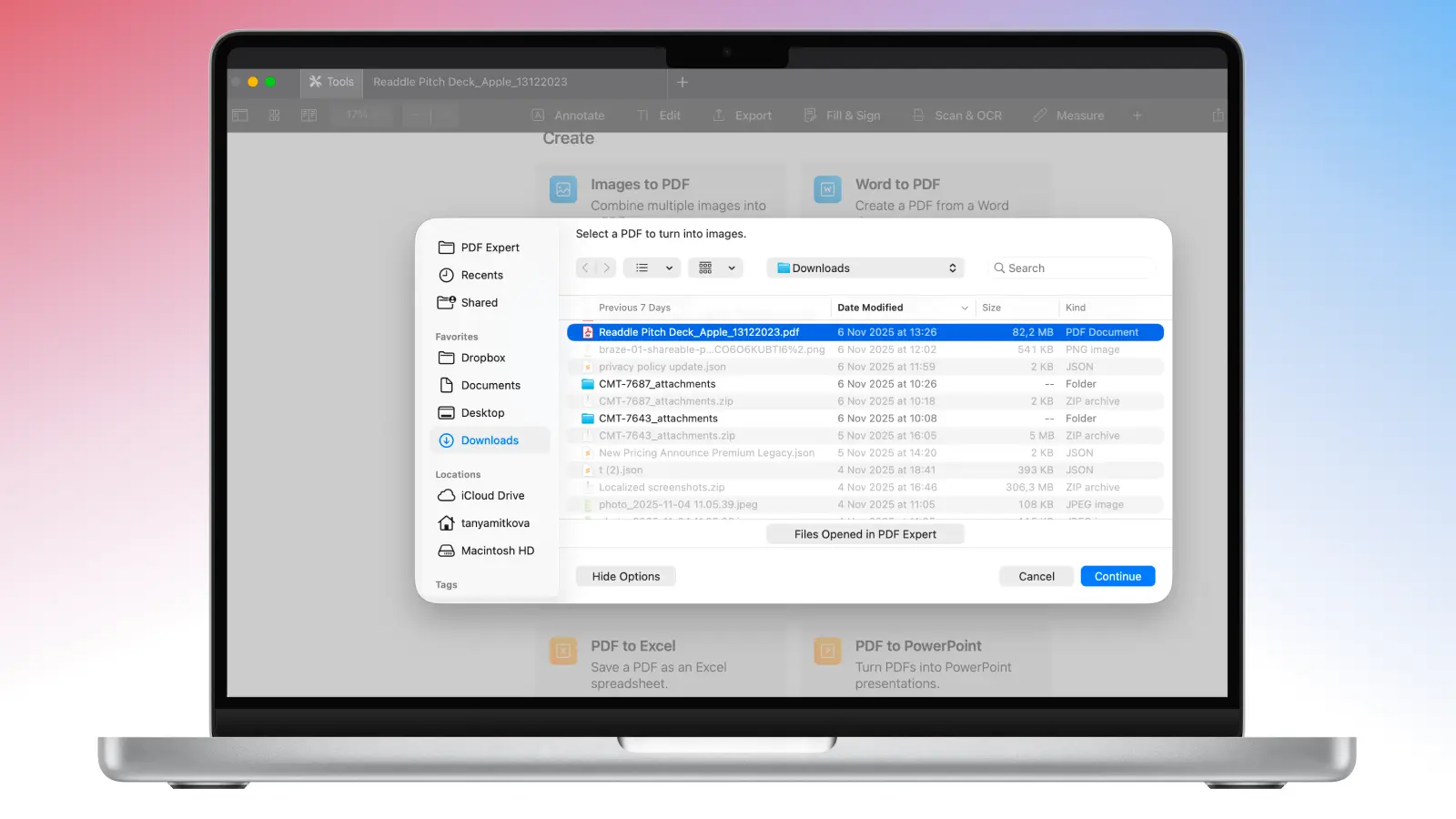
- Name your new file and choose where to save it.
- In the File format field, select PNG.
- Click Save, and your PNG image will appear instantly in the folder you choose, ready to use.
If you have multiple pages in your PDF, PDF Expert lets you batch-convert the entire document to PNGs in one go, creating separate high-resolution PNGs for each page in one folder. You can then use them for large reports, manuals, or eBooks.
Pro tip: If you need to merge two PDFs or reorder your pages before converting, PDF Expert lets you rearrange everything first, all in the same app.
Method 2: Using the Tools Menu
Alternatively, you can convert PDF to PNG on Mac with these steps:
- Open PDF Expert for Mac.
- Click Tools in the top left corner, next to New Tab.
- Scroll down to the Convert menu and select PDF to Image.
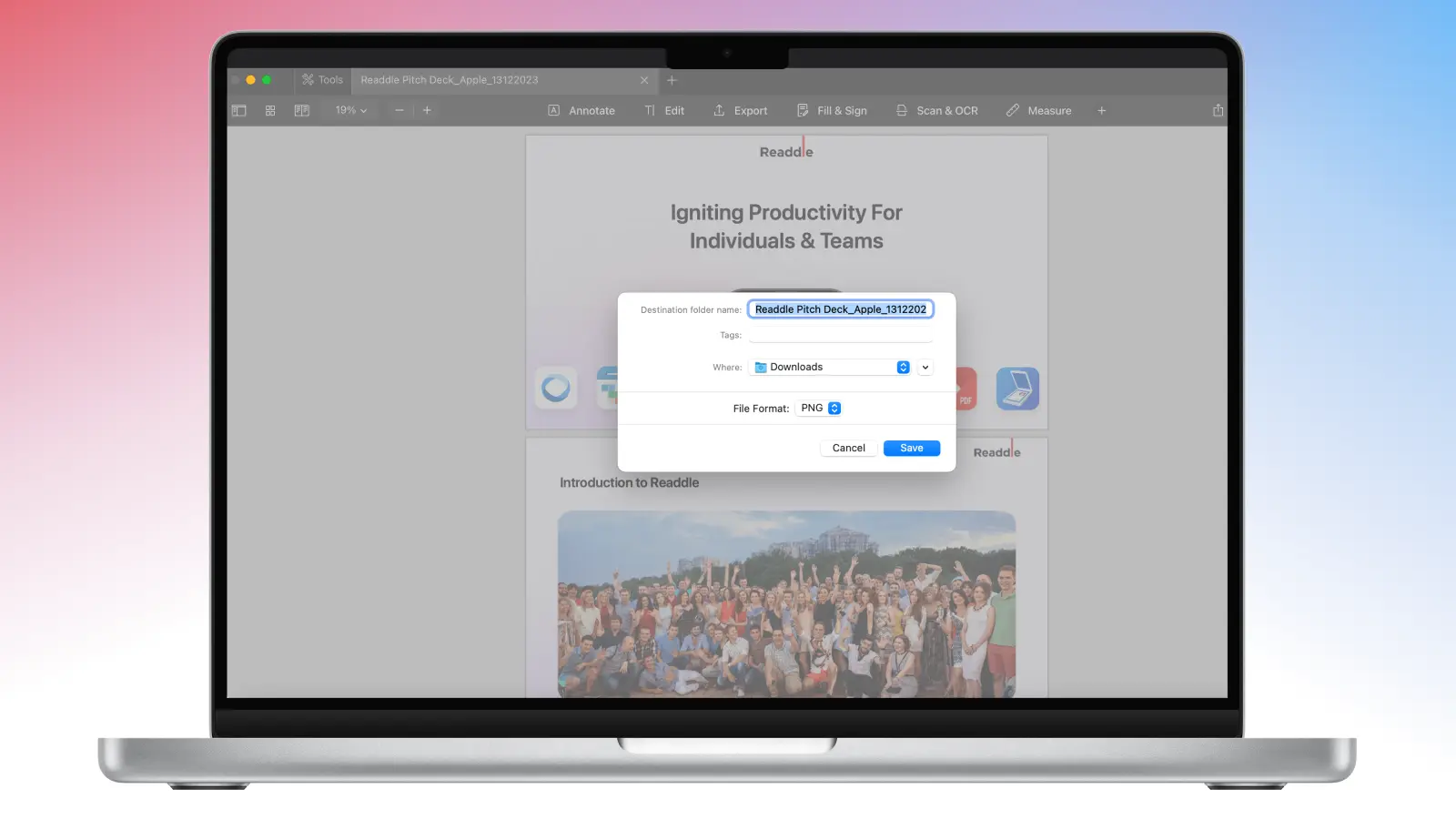
- Find the PDF on your Mac that you want to convert, then click Continue.
- In the window that pops up, name your file, pick a folder, and choose PNG as the file format.
- Click Save, and you’re set.
Pro tip: Need to share quick visuals with teammates? PDF Expert’s built-in annotation tools let you mark up PDFs before exporting them to PNG for feedback or collaboration.
How to convert PDF to PNG on iPhone
Method 1: Quick Convert from File Menu
Here’s a simple step-by-step guide to convert your PDF to PNG images (it’ll export each page as a separate PNG if your document has multiple images).
This works on iPhone and iPad.
- Launch PDF Expert. If you haven’t already, download it from the App Store.
- Tap the blue “+” sign at the bottom of the app. There, you will be able to import the doc from Files.
- Alternatively, if you don’t have the file ready, you can scan it by using the Scan feature.
- Once you select the file, it will be added to your folder My Files.
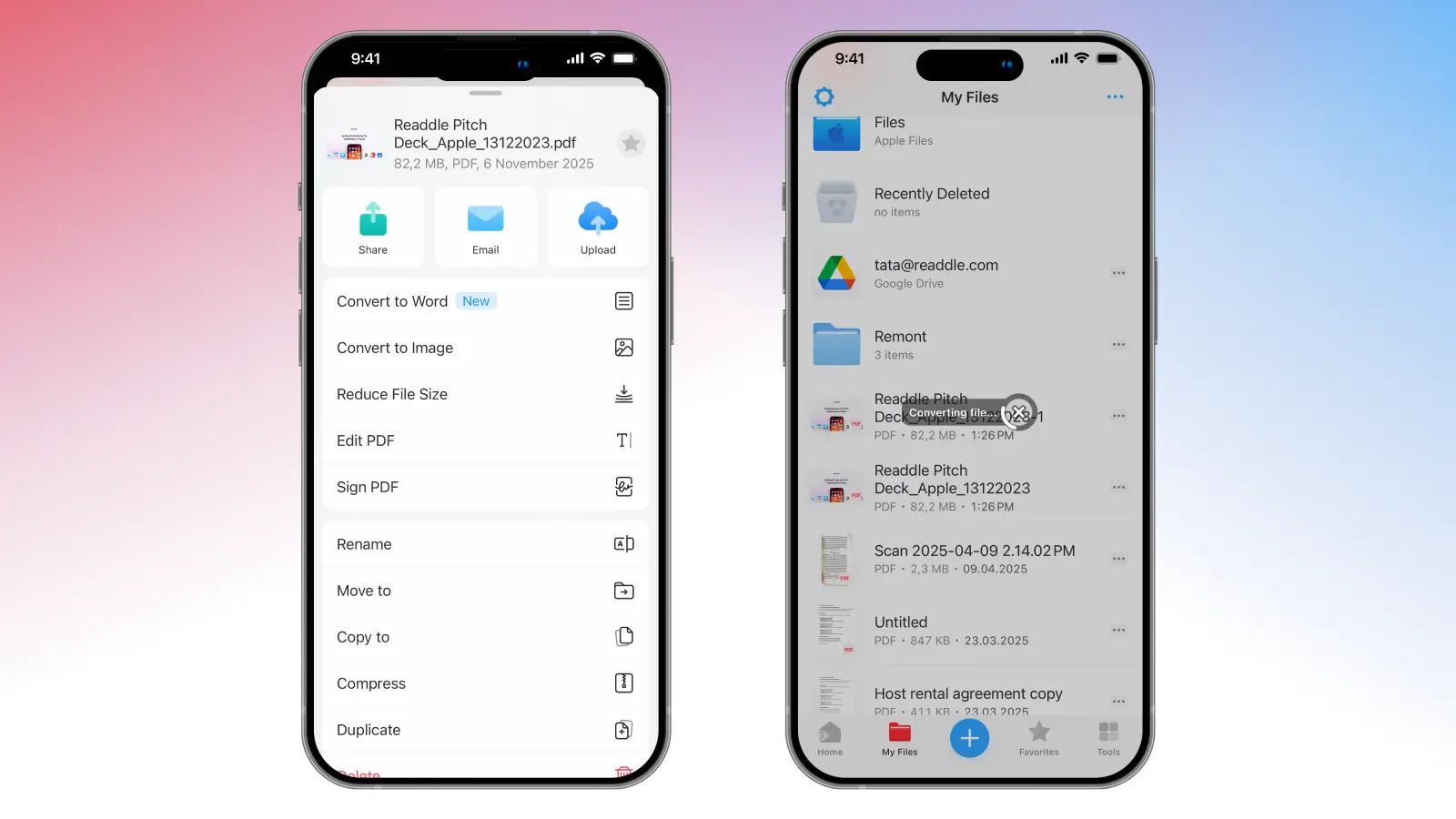
- Tap the three dots next to the file. From there, you will see the option Convert to Image.
- PDF Expert will create a PNG and save it in the same folder, where you can move, open, or delete it as needed.
Method 2: Using the Tools Tab
Alternatively, you can convert PDF to PNG on your iPhone directly from the Tools tab. Here’s how:
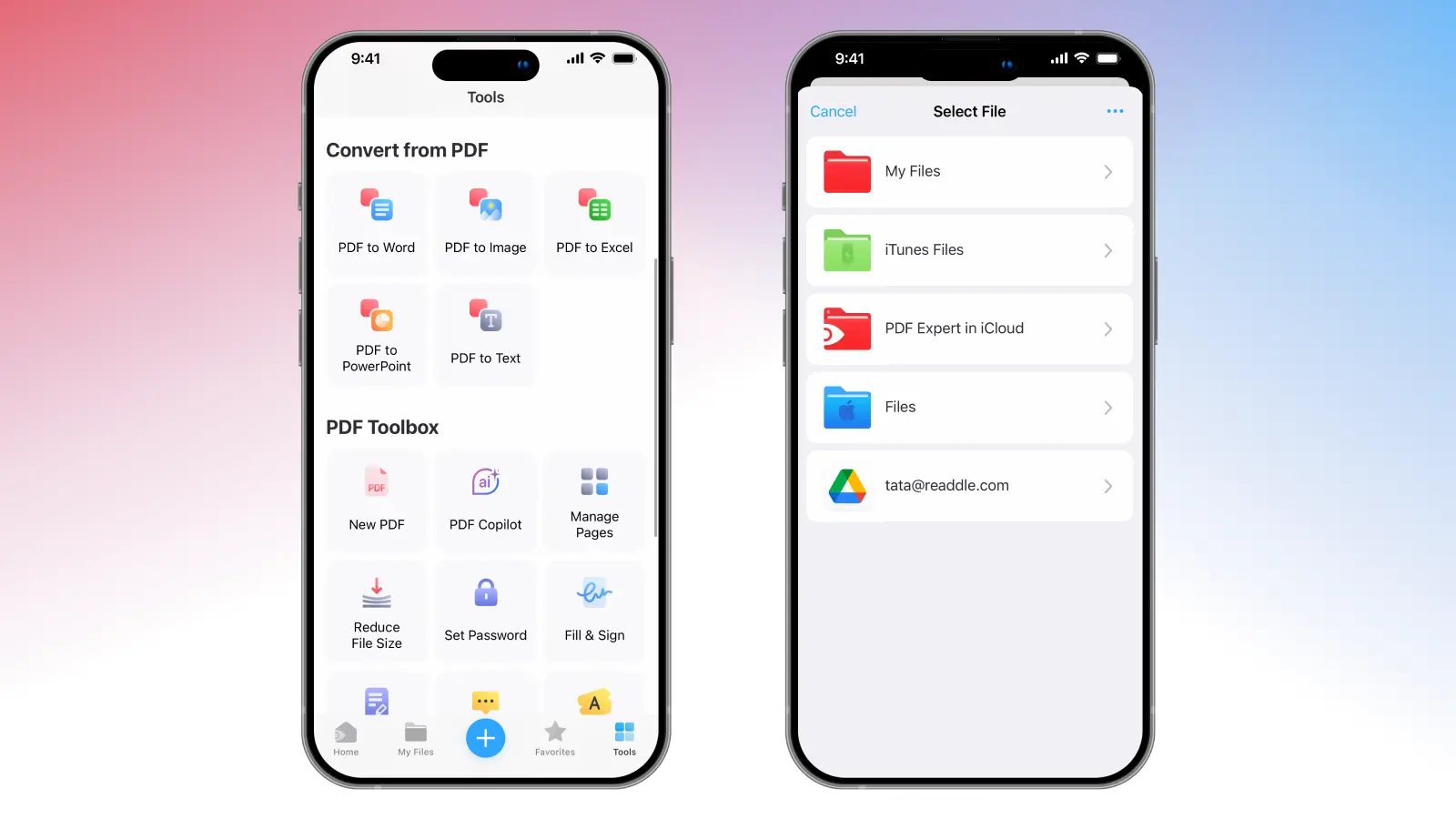
- Go to the Tools section at the bottom right corner of the app.
- Find the Convert from PDF section, where you’ll see different conversion options.
- Select PDF to Image.
- PDF Expert will show you different folders, where you will be able to select the necessary document.
- Once you select, the app converts your file and saves it in My Files. If the PDF has multiple images, PDF Expert will create a folder with all the pages as separate images.
How to convert PNG to PDF
Sometimes you might need to go the other way and convert PNG to PDF. Let’s see how to turn one or several PNGs into a single, organized PDF that you can edit, annotate, and share. With PDF Expert, that’s just as simple.
Converting PNG to PDF on Mac
Here’s how to convert PNG to PDF on your Mac:
- Open PDF Expert.
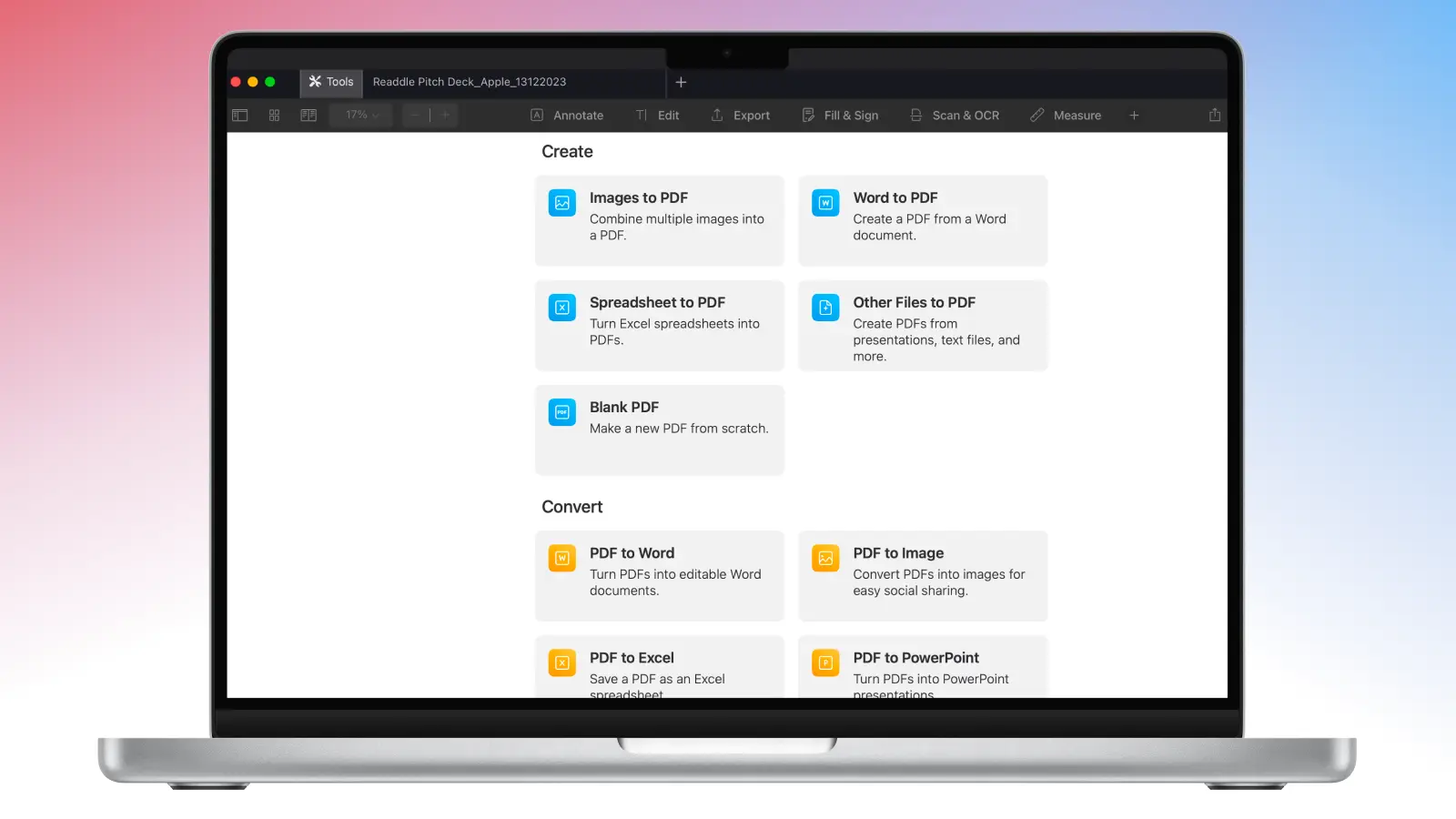
- Click Tools in the top left corner, next to New Tab.
- Scroll down to the Create menu and select Images to PDF.
- Find and select the PNGs you want to convert. If you have multiple images to convert, press and hold the CMD key to select multiple images.
- Then, click Continue, and PDF Expert will automatically process your PNGs and convert them into a PDF file.
- If you need to rearrange the pages, click the Page thumbnails icon in the top left corner of the app and drag to reorder pages.
- To save as PDF, go to File > Save As…, and you’re done.
From there, you can annotate, edit, sign, and password-protect the PDF, all within one app.
Converting PNG to PDF on iPhone
- Open PDF Expert on your iPhone.
- Go to the Tools section at the bottom right corner of the app.
- From there, you will find the Convert to PDF tools.
- Find and tap Image to PDF.
- You will be able to select a PNG from your Files, Photos, or even Google Drive.
- Once you find the right photo, click Convert, and the PNG will be transformed to PDF and stored in My Files.
Convert PNG to PDF on any device
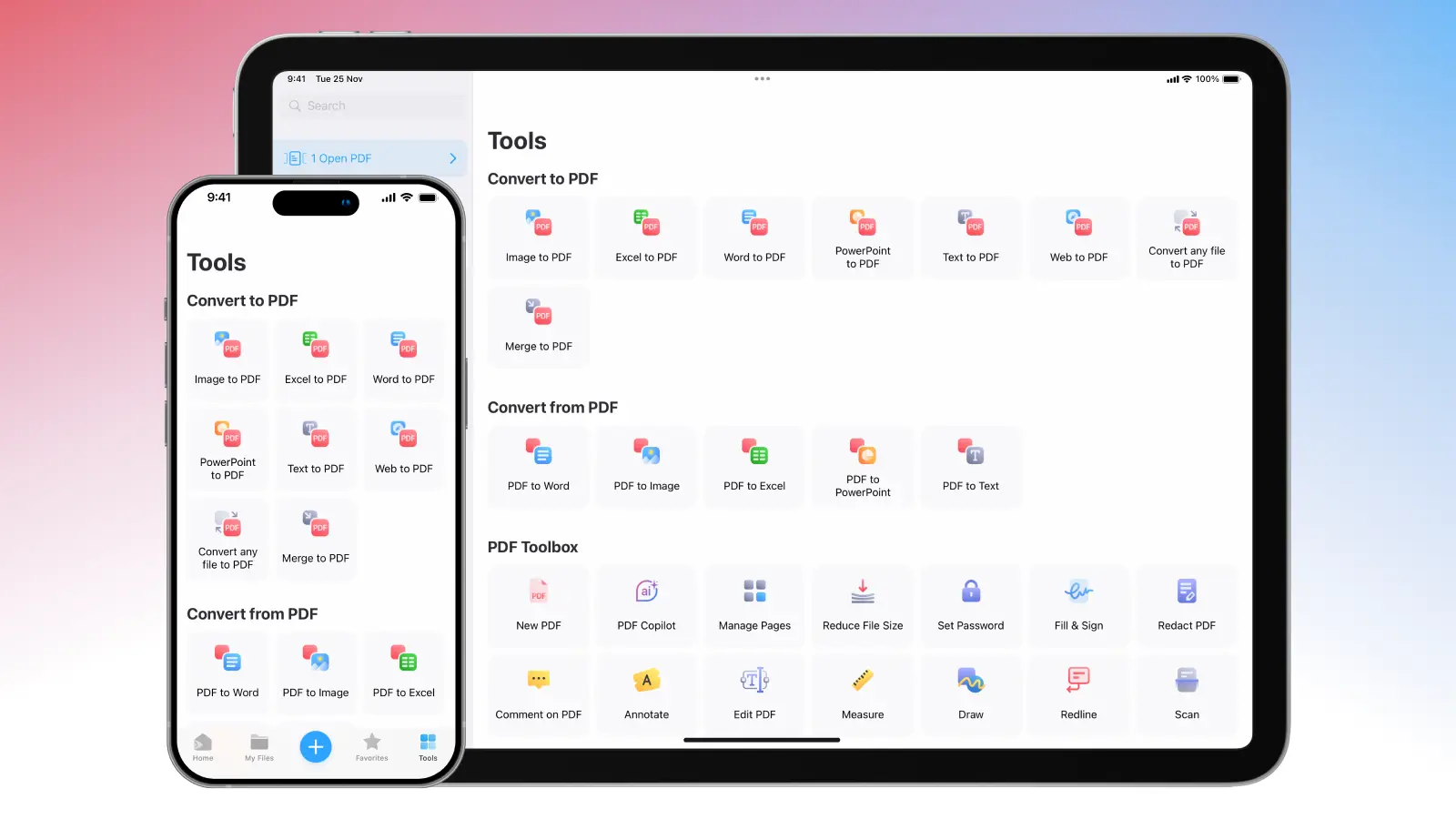
PDF Expert works seamlessly across Mac, iPhone, and iPad, allowing you to easily sync your PDF files via iCloud, Dropbox, or other storage services.
Once you upload your PDF to a cloud storage from your Mac, PDF Expert will automatically sync it to your iPhone and iPad, so that you can continue reading, editing, and sharing the document on the go.
Download PDF Expert on Mac, iPhone, or iPad today to start converting PDFs to PNGs effortlessly.
PDF conversion: FAQ
Are there online tools to convert PDFs to PNGs?
Yes, you’ll find plenty of web-based PDF-to-PNG converters, but they often come with trade-offs. Most online tools:
- Compress images to reduce file size, leaving you with blurry or pixelated PNGs.
- Upload your files to external servers, risking data privacy if your PDF contains sensitive or personal information.
- Require an internet connection, slowing you down if you’re working offline or on the go.
- Limit the number of pages or conversions per day unless you pay for a subscription.
With PDF Expert, all conversions happen locally and securely on your device. There’s no need to upload anything, no hidden file size limits, and no risk of exposing sensitive data. You get high-resolution, professional-quality PNGs in seconds, even when you’re offline.
What is the best free PDF to PNG converter?
If you’re looking for a simple tool for your Mac, iPhone, or iPad, PDF Expert is hands-down the best app on the market. It lets you convert PDFs into sharp, high-quality PNGs right on your device, preserving every detail for later use. You can do one page or a bunch at once – offline, with no annoying ads or uploads required, keeping your files secure and private.
Will image quality degrade when converting PDF to PNG?
Not with PDF Expert. Unlike many basic online converters that rasterize your PDF at a low resolution, the built-in converter uses a lossless conversion tool that preserves PNG quality and ensures the images stay pixel-perfect and true to the original design. You can use your exported PNGs in presentations or print without any quality drop.
Can I convert a PDF to other formats?
Definitely. PDF Expert lets you convert PDFs to JPG, PPT, and even Word documents. Just go to the Export menu, choose your format, and save. The process is quick, and your files stay high-quality across the board.
