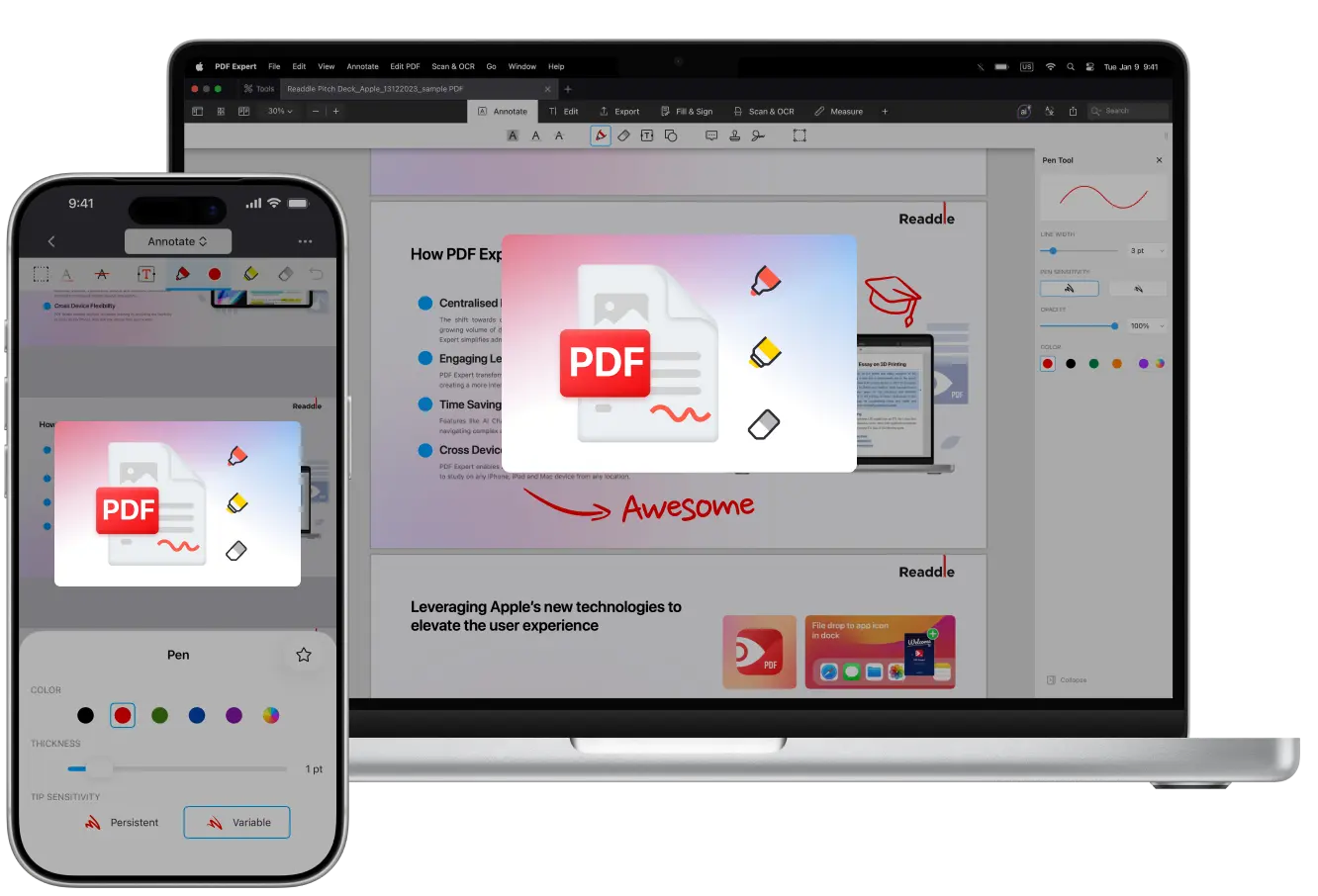
Do you like adding annotations, taking notes, highlighting text, sketching ideas, and leaving memos in the margins?
You’re not alone! Drawing on PDFs is one of the most popular ways people interact with documents on Apple devices.
It helps you remember information more effectively, quickly locate key points in lengthy documents, add notes for your teammates to review, and make reading PDFs more engaging and visually appealing.
You can use your Apple Pencil on iPad for natural handwriting, your finger on iPhone for quick markups, or a trackpad/mouse on Mac for precise work. PDF Expert saves your drawings automatically, lets you export annotations only, and helps you flatten the file to prevent further edits.
Drawing on your Apple device becomes a real pleasure.
In this guide, we’ll show you how to easily draw anywhere with PDF Expert by Readdle, then save it and share your work.
Reasons to draw on PDFs
Students, professionals, educators, or anyone who works with PDFs daily (contracts, reports, research papers) sometimes need to leave annotations for themselves or others.
Using visual notes is one of the most effective ways to work with annotations.
Reason #1. Faster than typing
Sometimes you just need to add a quick note, circle something important, or sketch a diagram. Typing requires you to think and find the right words, but drawing lets you add text, different shapes, and notes in different colors much faster.
Reason #2. Perfect for sharing and collaborating
Once you’ve marked up a PDF, you can send it to your team, classmates, or clients. You won’t need to explain things like “See page 5, paragraph 3”, your arrows and notes will do it for you, making your feedback crystal clear. Plus, you can keep all your comments in one file.
Reason #3. Better for learning and memorising
When you’re studying or reading something dense (like textbooks or articles), highlighting key parts, underlining, or doodling quick notes can help you process and retain information way better. Research shows that annotating and creating study aids boosts comprehension and recall.
Drawing on PDFs with PDF Expert on Mac
Mac is perfect for deep work on a bigger screen, and PDF Expert can turn your Mac into a digital notebook. So here’s how to draw on PDFs on Mac:
- Open your PDF in PDF Expert (download the app if you haven’t already).
- Head to the Annotate tab at the top. You will find all sorts of tools you can use to draw and sketch.
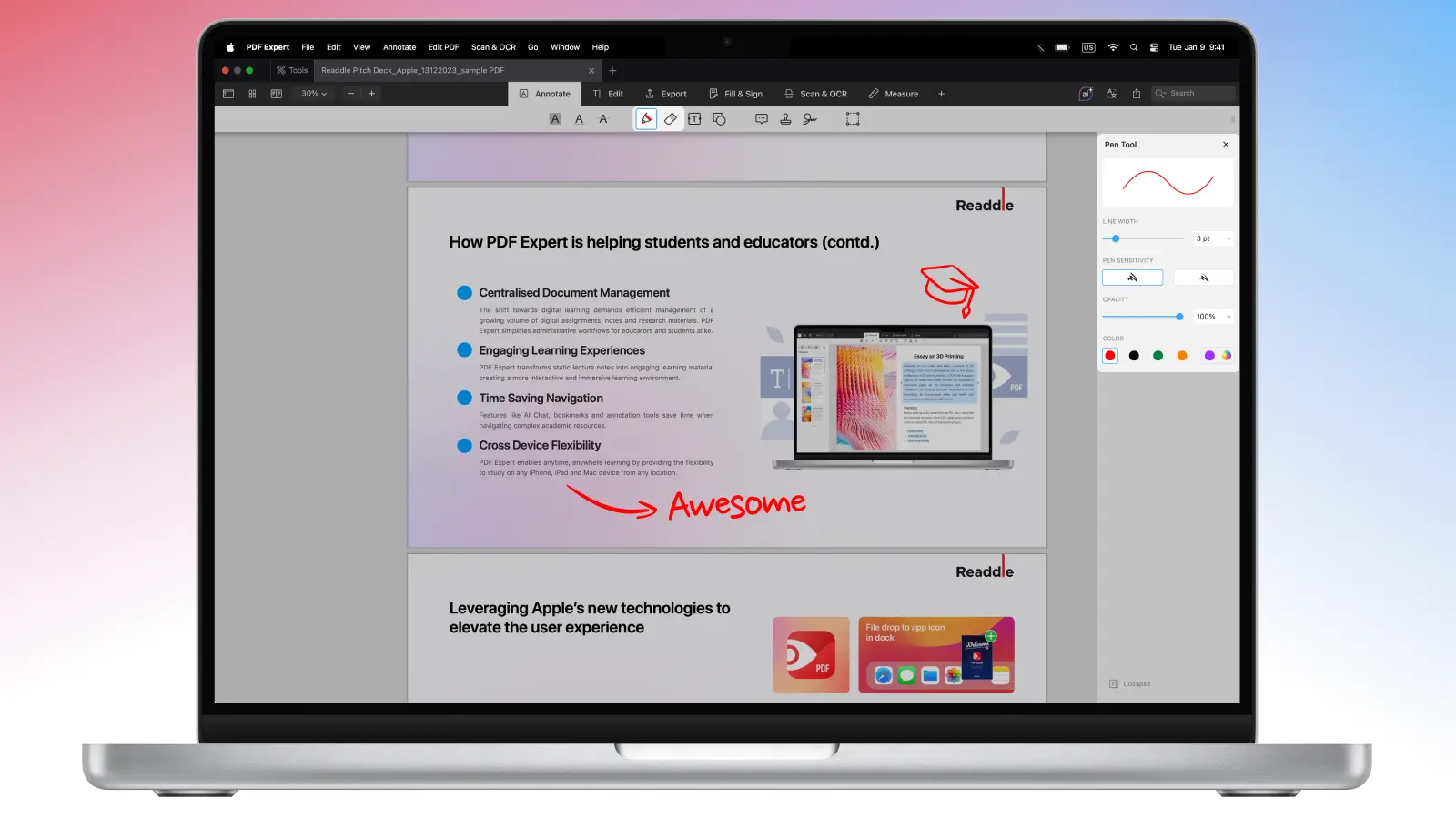
- Grab the Pen tool for freehand drawing or click the plus icon next to all the tool sets on the toolbar, and you should see the Draw toolset on the list. You can pick a color, adjust thickness, tweak opacity, and even create your own customized color palette.
- Then, click, hold, and drag with your mouse or trackpad to start drawing freely.
- If you made a mistake, you can use the Eraser tool. Alternatively, you can undo your drawing using the CMD + Z combination.
- Navigate without interrupting: Use two-finger scrolling to pan and zoom while the drawing tool (Pen or Marker) is active.
- Once you’re done with drawings, simply click File > Save As… and PDF Expert will create a new file with all your annotations saved. Alternatively, use File > Save to save the annotations directly to the original PDF, and thanks to the app’s autosave feature, changes are periodically saved to the original file automatically. You can also make edits permanent by flattening to ensure nothing shifts or gets edited later.
How to draw on a PDF on your iPhone
If you need to create quick markups on the go, you can draw on PDFs using your iPhone. Here’s how:
- Open the PDF in PDF Expert and choose Annotate from the Tools menu at the top of the app. Alternatively, use the Draw tool set on iOS.
- Choose Pen for drawing or Marker for a translucent highlight effect.
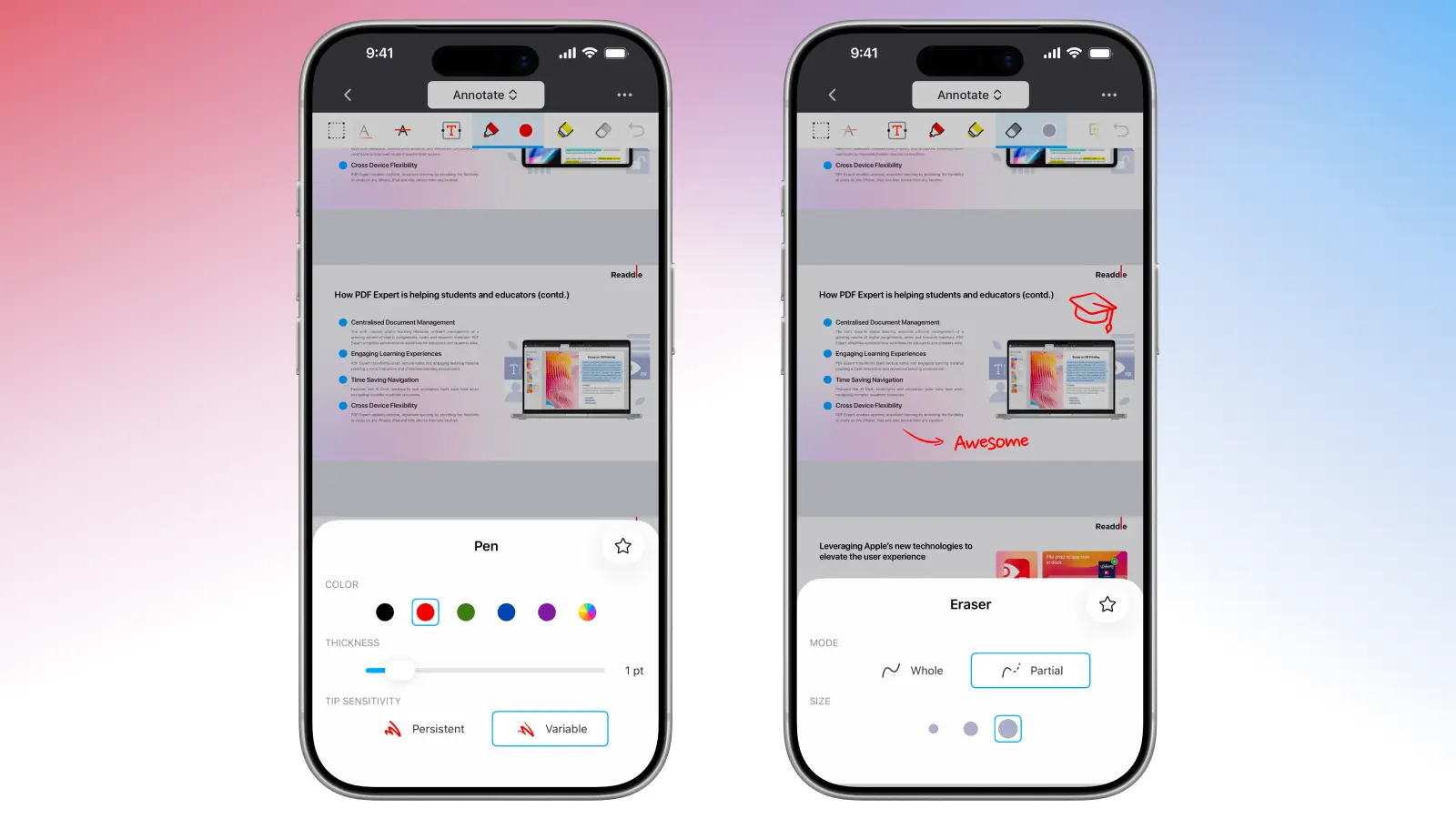
- Tap the settings icon (or the current color swatch) next to it to access further settings for colors, thickness, or opacity. Then, simply draw away with your finger – it’s surprisingly responsive.
- To create perfect shapes, draw an oval, line, rectangle, or arrow and hold it for a second. PDF Expert will automatically refine it.
- Erase mistakes with the Eraser tool or simply use the undo button.
How to draw on PDFs on your iPad with Apple Pencil
With full Apple Pencil support, using PDF Expert on an iPad is incredibly natural. Here’s how you can draw and annotate on your iPad:
- Open the file and tap Annotate.
- Then, select Pen (multiple variants available) or Marker.
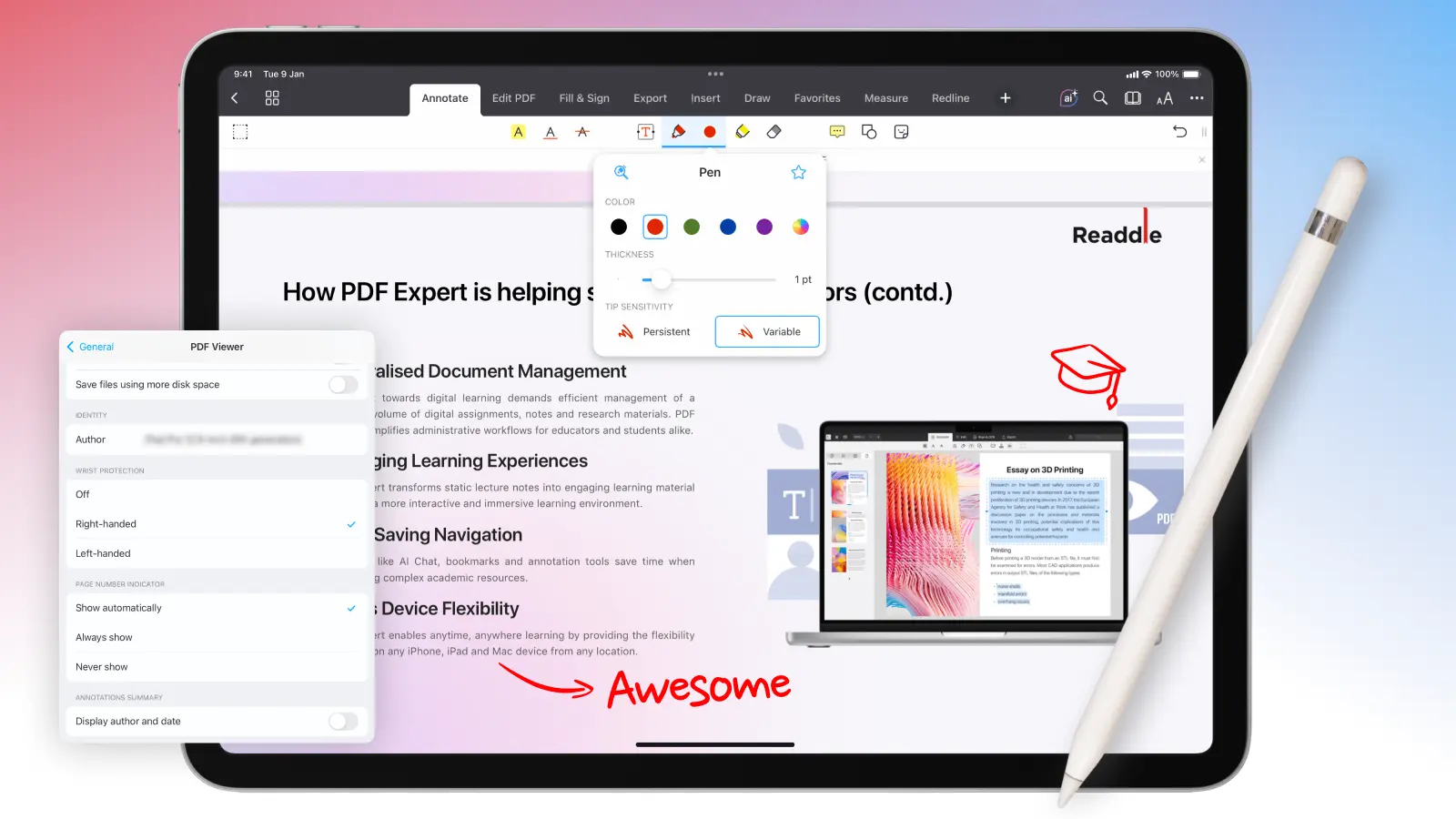
- Customize extensively: Colours, thickness, opacity, and tip sensitivity – press harder for thicker lines, lighter for fine details.
- Enable Wrist Protection in PDF Expert Settings > General > PDF Viewer for even better comfort. It will allow you to rest your palm directly on the screen while you’re writing.
- Erase, undo, or try the Zoom Writing box for precise notes in a magnified area.
Extra tips to take the most out of your PDFs while drawing
Drawing on PDFs isn’t just fun – it’s also productive.
Take notes in the margins. Free margin space is perfect for adding notes and drawing. But if you don’t have enough space, you can always resize margins in PDF Expert’s View Settings on iPad.
Use sound notes, shapes, and other annotation tools. In addition to a simple Pen tool, you can always add shapes – rectangles, squares, circles with hatch patterns, lines, and arrows. In addition, you can add sticky notes (and even sound notes), add stamps, highlight, and strikeout with PDF Expert.
Advanced features for construction professionals. With the PRO subscription, access the polygon/polyline tools to draw complex shapes with exact dimensions and hatching for materials.
Measure on the fly. Calibrate scales and use measurement tools for distances, areas, or perimeters – PDF Expert even auto-detects scales on plans.
Add signatures. Once you’ve reviewed or annotated a document, you can easily sign a PDF directly in PDF Expert to approve, confirm, or finalize it.
Download PDF Expert today and try drawing – it’s much better than on a piece of paper!
Drawing on PDFs: FAQ
How do I remove or edit drawings?
Select the annotation with the Content Selection Tool, then delete or resize. Undo with Command + Z (Mac) or the toolbar arrow (iOS). You can also delete the annotations from the Annotations tab (accessible via the sidebar panel that includes Bookmarks, Outlines, and Annotations).
Can I draw on scanned PDFs?
Yes, you can draw (and add other annotations like pen strokes, markers, shapes, or highlights) directly on scanned PDFs in PDF Expert. However, for text-based annotations like precise highlighting, underlining, or strikethrough on words, we recommend OCRing the document first via the Recognize Text feature (under the Scan & OCR tab) to make the text searchable and selectable.
What’s the difference between Pen and Marker?
Pen is opaque with pressure sensitivity. It's good for handwriting and line work: notes in margins, underlines that look like ink, sketchy arrows, signing with a stylus, etc. It also has pressure-sensitive width (Apple Pencil): PDF Expert has multiple Pen presets, and pressure sensitivity works only on specific Pen options. There is also sensitivity control: there’s a setting for how reactive the Pen is (so it can feel more like a felt tip or a firm ballpoint).
Marker is translucent like a highlighter.
How to export only annotations?
On your Mac, click the Outlines icon > Annotations. Then click More… and Export annotations as HTML/Text/Markdown.
On iPhone/iPad you can select Share > choose Annotated Pages.