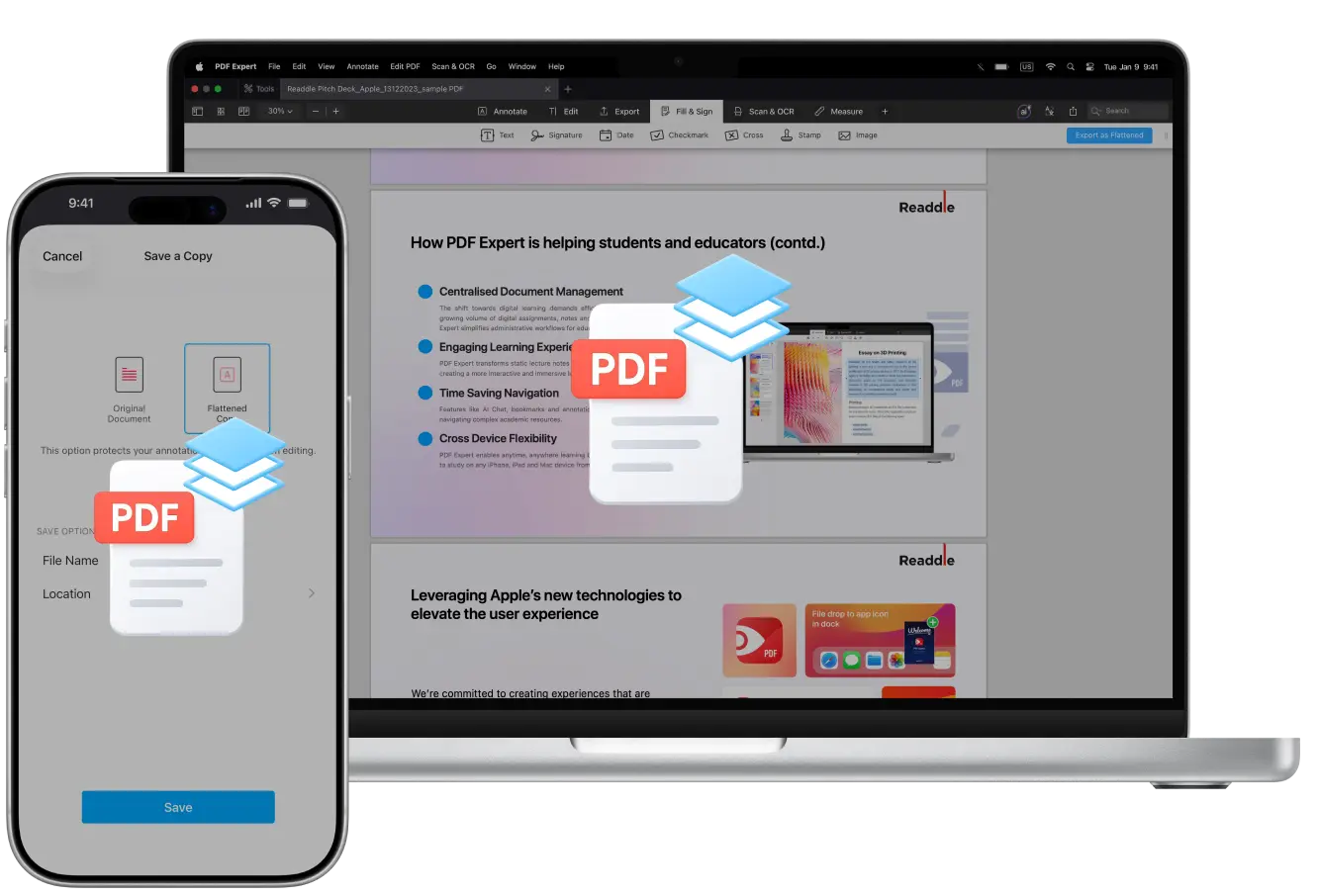
Oftentimes, when you share a file for review or printing, the recipient may be using a different system or PDF reader, and the document doesn’t display how you wanted it to. These compatibility issues and errors can be easily avoided by flattening your PDF.
In this guide, we’ll explain what a flattened PDF actually is, why it’s useful, and show you the quickest way to do it using the best PDF editor available, PDF Expert.
What does it mean to flatten a PDF?
A typical PDF can contain electronic signatures, text boxes, various images, fillable form fields, buttons, and annotations. Each of these elements is added as a separate layer to your document.
Flattening essentially combines all the layers of your PDF into a single, static layer that cannot be modified.
When do you need to flatten a PDF?
By merging layers of your PDF, you “freeze” the document and gain the following benefits:
- Universal compatibility: The PDF will look perfect on any device or app, with no missing fonts or shifted elements.
- Perfect results for print: Easily print PDFs even with the most complex layouts, forms, and graphics.
- Protection against data tampering: All content is embedded into the document, preventing anyone from modifying signatures, annotations, or form data.
How to flatten a PDF on Mac
Saving your PDF as flattened on Mac is incredibly simple:
- Download PDF Expert for Mac from the website or the Mac App Store.
- Open the PDF you want to flatten.
- If it opens with another application, you can always change that and right-click on the PDF and select Open With > PDF Expert. You can also make sure all your future files open in PDF Expert. For that, when right-clicking the file and selecting Open With, choose Other. Then, find PDF Expert and make sure to tick the box Always Open With.
- Click File > Save As Flattened.
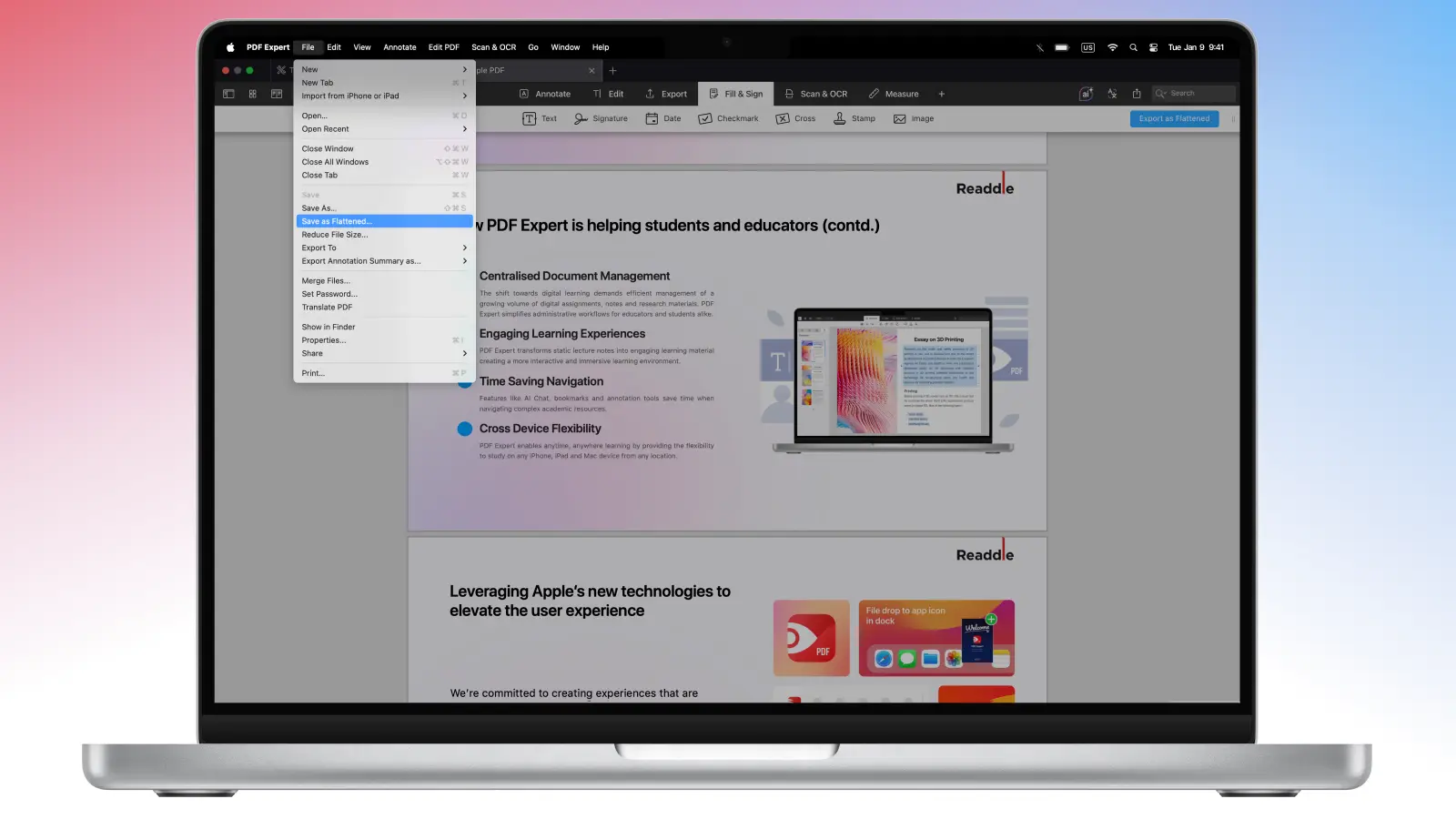
- Choose a name (the app usually suggests “[Original file name] flattened”). Then, click Save.
If you want to keep your original file with editable annotations and comments, you can export your file as flattened from Fill & Sign > Export as Flattened.
You’ll have a perfect, tamper-proof copy to send to clients, lawyers, or printers. Fromthat same export window, you can also drag the flattened file straight into an email, Messages, AirDrop, or anywhere else you might need to use it.
How to flatten a PDF on iPhone
If you need to flatten a PDF on iOS, it takes a couple of taps.
- Download PDF Expert on your iPhone.
- Open the PDF in PDF Expert (if it opens somewhere else, tap Share > Open in PDF Expert).
- Tap More ... in the upper right corner of the app.
- Select Save a Copy > Flattened Copy. Your annotations, forms, and signatures are now locked in, tamper-proof, and ready to share without any compatibility surprises.
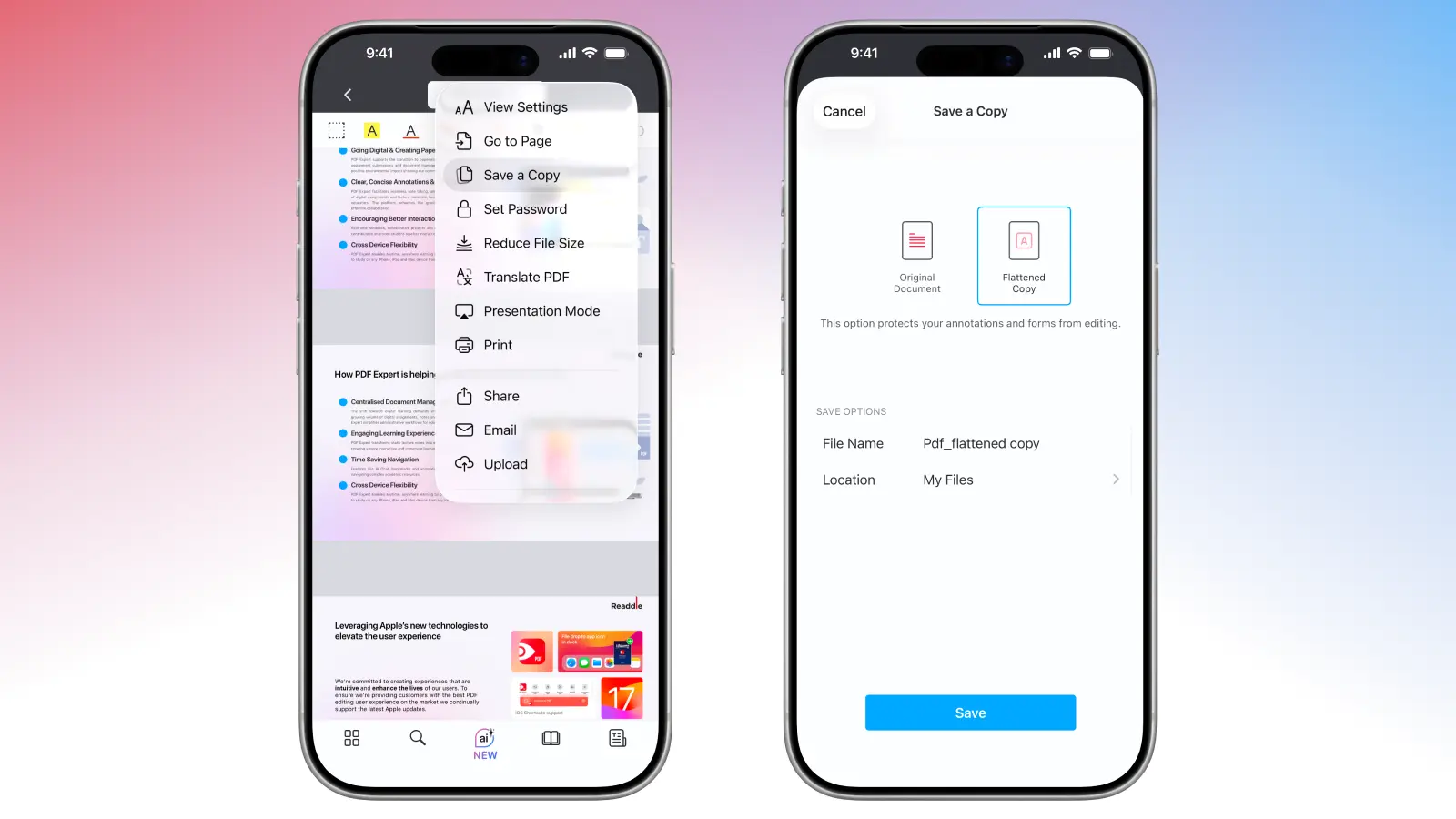
- From there, give the new file a quick name (something like "Contract_Final_Flattened" to keep things organized), pick where to save it (iCloud, Files, GDrive), and that’s it. PDF Expert always keeps your original untouched, so no worries about accidentally overwriting edits.
Edit your PDFs before flattening
PDF Expert offers powerful editing tools, helping you accomplish more with your PDFs. Before you make edits permanent by flattening your PDF for sharing or printing, here’s what you can do:
- Annotate your files: Highlight, underline, strikeout, leave comments, add stamps, all in a single application.
- Add images or text: Make changes in contracts, insert new graphics to your PDF, or add hyperlinks within minutes.
- Sign your PDFs easily: Create a reusable signature or draw it directly in the app. All you need is a click to add a signature where you want it.
FAQ: PDF flattening
Is a flattened PDF of better quality?
No. Flattening a PDF doesn’t improve or degrade the quality. Instead, it preserves the current appearance and prevents future edits.
Does flattening a PDF reduce size?
No. Since flattening a PDF only merges layers, this process doesn’t reduce PDF size.
If you want to reduce PDF size, upgrade to Premium, and use a built-in PDF compressor:
On your Mac: Go to File > Reduce File Size. Select the document quality: Lossless, High, Medium, or Low. If you have images that need to preserve the quality, select the Lossless option. Click Save or Save As if you want to save a copy, or click Share to instantly share the compressed file.
On your iPhone: Tap More ... at the top right corner > Reduce File Size. Select the needed quality: Lossless, High, Medium, or Low. Tap Reduce.
What’s the difference between flattening and compressing a PDF?
Compressing a PDF reduces the file size so it’s easier and faster to upload, email, or store. Flattening a PDF, on the other hand, does not change the file size at all. It simply merges all interactive layers (annotations, form fields, signatures, comments, etc.) into the page content itself, turning the document into one static, non-editable layer.
Is it possible to undo flattening a PDF?
Flattening a PDF cannot be undone. However, you don’t need to worry about your original file with PDF Expert. When you flatten a PDF on your iPhone, a copy of your file is saved every time you flatten your original one. When you choose to work on a Mac, make sure you use the Export as Flattened option to preserve your comments and annotations in the file after you export it.
