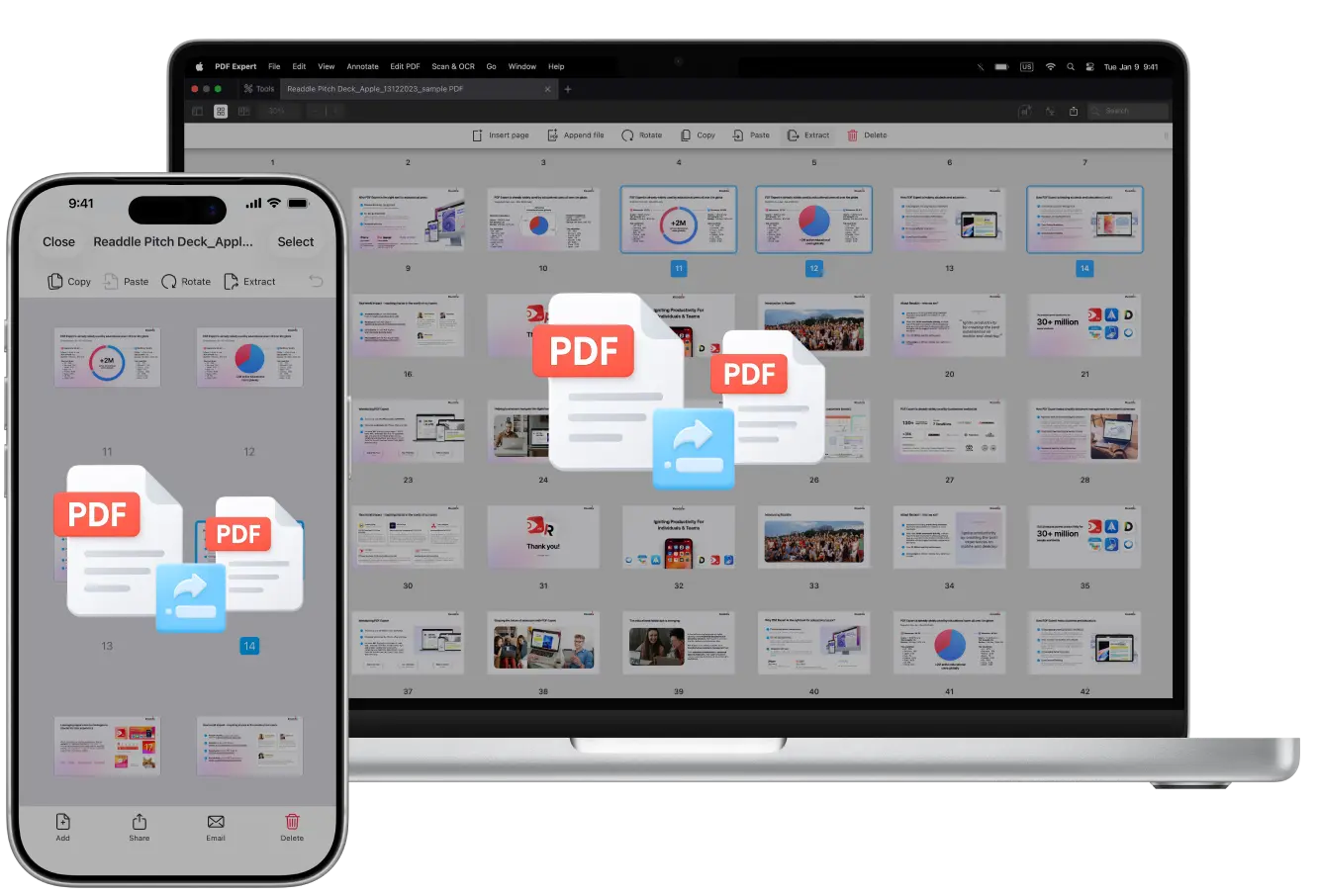
Have you ever had a giant e-book that you wanted to split into chapters? Or maybe double-page scans that you wanted to turn into separate pages? Or perhaps you simply wanted to extract one page from a PDF?
Equipped with PDF Expert, the best PDF app for Apple users, editing PDFs becomes a breeze, even for tedious tasks like splitting PDFs.
In this guide, we’ll show you exactly how to split PDF pages to keep your documents organized and tidy.
How to split PDF pages on Mac using the Extract tool
PDF Expert can quickly help you split PDFs into multiple files with the help of the Extract tool. While it’s not automatic for advanced splits, you can do it efficiently on your Mac. Here’s how:
- Download PDF Expert on Mac.
- Open the file in the application. Go to View > Thumbnails (or click the sidebar thumbnail icon).
- Hold CMD and select the pages you want to split (for instance, non-consecutive ones like every odd page: 1,3,5...).
- Click Extract from the top toolbar (or right-click the selection > Extract).
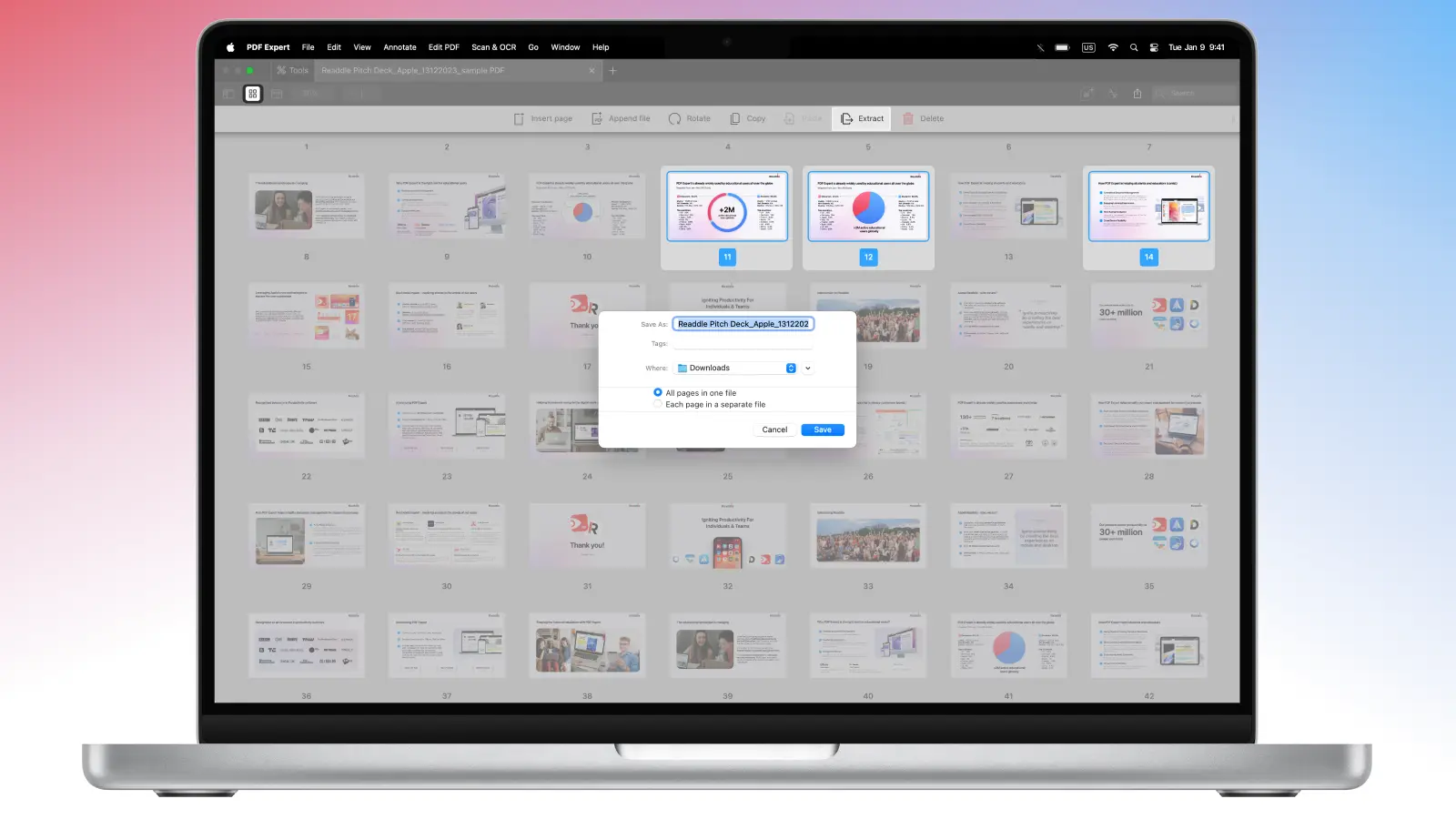
- Choose a name for your new file and a destination folder.
- Save and repeat for remaining pages (e.g., evens) to “split” the document.
How to split pages in PDF on iPhone using the Extract tool
If you want to split your PDF pages on your iPhone by extracting the specific ones, follow the steps below:
- Download PDF Expert for iPhone.
- Open the file you want to split in the app.
- Tap the thumbnails icon (bottom toolbar) for page view.
- Tap Select (top right) and choose pages (tap multiples for ranges or even/odd).
- Then, tap Extract from the top toolbar.
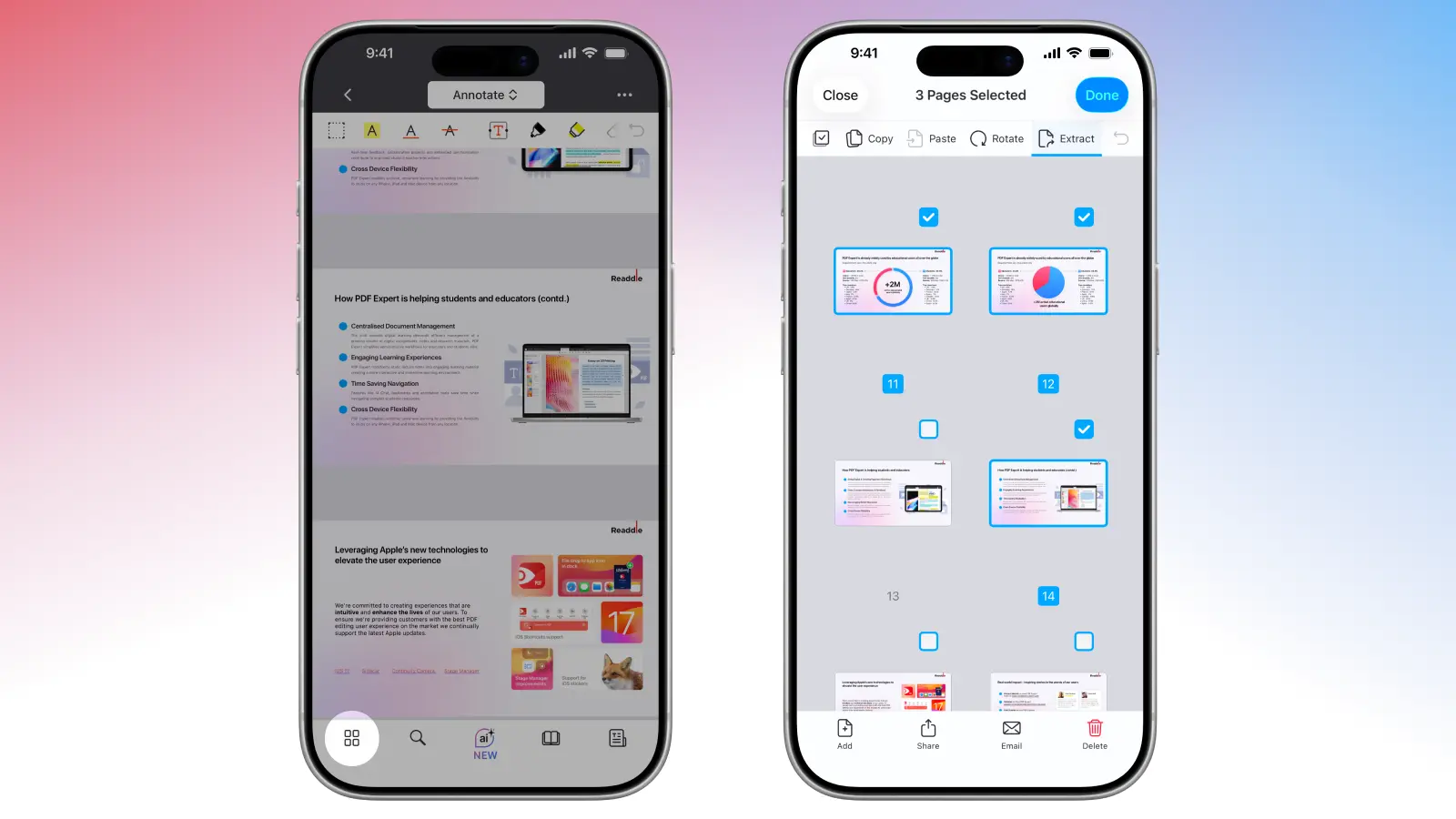
- Select a name for your file and location. Then, tap Save.
- PDF Expect will automatically save your document directly in the app, where you will be able to access, edit, or share it.
For bookmarks: PDF Expert doesn't have auto-split, but you can view the Bookmarks sidebar and manually select pages around each bookmark and extract as above.
How to split double-page scans on Mac
Have you ever scanned PDFs where two pages are captured on one wide sheet? With PDF Expert, you can split the page in half and crop one or all pages in your PDF. It auto-splits the page in half, creates two new pages, and lets you crop out margins/gutters.
Here’s how to split double-page scans on Mac:
- Open the scanned PDF.
- Select the Scan & OCR tab from the top toolbar.
- Click Split Pages to enter preview mode – it auto-detects double-page layouts and shows a draggable line down the middle.
- Adjust the split line (e.g., to avoid binding gutter) or leave it as is.
- Click Split from the right sidebar to apply the changes – select all pages if you have a multi-page PDF.
- If you want to remove margins, click Clear Margins in the Scan & OCR toolbar. You will then be able to drag crop boxes on each half to trim white space and undesired edges.
- Click Clear Margins… and select how to apply the edit: all pages for uniformity, the current page only, or a certain page.
- Then click Apply, and you will get a new PDF with separated pages with no extra margins.
If your scan has any kind of distortion, such as curved edges from a book spine, you can use Enhance Scan in the same tab. First, apply color filters, click Remove Distortions, and Set Page Size if needed, then split pages in PDF.
How to organize your PDF after splitting
After you extract or split pages from a PDF in PDF Expert, the app makes it easy to organize and store your files. Here’s what you can do with the help of the built-in tools:
- Manage PDF pages easily – Remove, rotate, insert, or reorder pages as needed to refine your document.
- Merge pages if needed – Combine the newly created files with one or several others for a consolidated PDF.
- Add bookmarks or outlines – In the Bookmarks sidebar, create a table of contents for easier navigation in the new files.
- Compress files for sharing – Go to File > Reduce File Size to make your split PDFs lighter without losing quality.
FAQ: Questions about splitting PDFs in PDF Expert
How do I split a PDF into individual pages?
Extracting multiple pages (via Select > Extract) always creates a new PDF containing all selected pages.
If you want to split PDF into pages, open the file and go to the Thumbnails mode. Select the page you want to extract and click Extract. The app will automatically create a new PDF from the page selected. Repeat the same process as many times as needed.
Can I undo a split if I make a mistake?
When you split your PDFs, PDF Expert creates new files every single time, leaving the original intact. If needed, you can merge the split files back using PDF Expert’s Merge tool.
Why is PDF Expert the best tool for PDF splitting?
PDF Expert is a powerful tool that stands out thanks to its intuitive features and Apple-optimized design.
- Split PDFs from your preferred device. Work on a Mac or on the go with an iPhone or iPad – PDF Expert lets you split and separate PDF pages conveniently across all your devices.
- Unlimited splits. Edit one or 1,000 files without worrying the app will block access or slow down (Premium unlocks advanced editing for seamless performance).
- Download or share easily. Once your files are split, download and share documents effortlessly via third-party apps like email or cloud services.
- Seamless multi-device workflow. Split pages on Mac, upload to Cloud, and open on iPhone to edit or annotate further – PDF Expert lets you work across devices with perfect sync.
