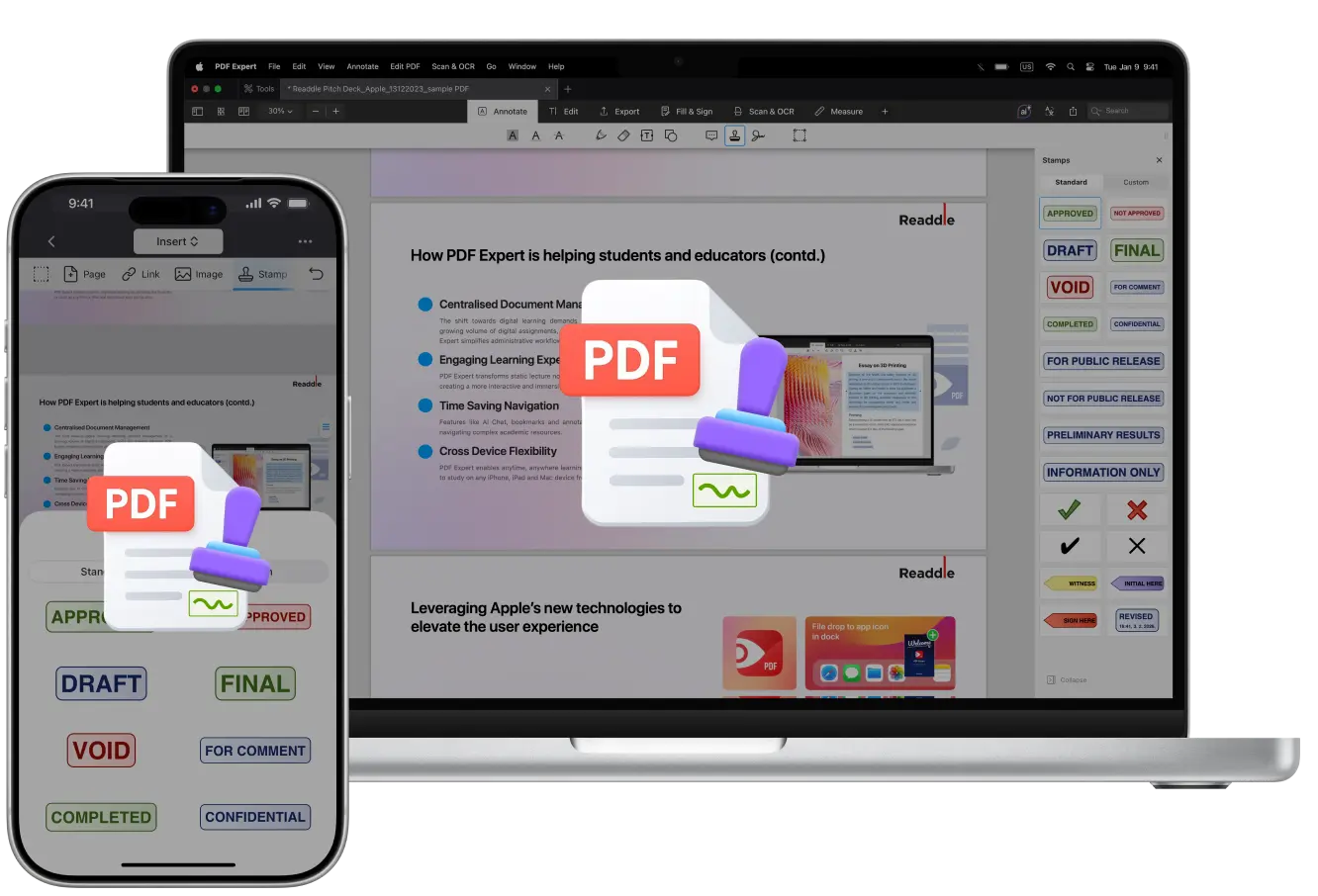
Stamps are widely used on paper documents – contracts, manuscripts, and engineering drawings when you often need to sign off, approve, or mark a file. However, on paper, you might need to keep dozens of physical stamp models on hand and apply them manually each time.
Well, not with digital PDFs. With the right editor, you don’t even need to hunt down and download stamp packs online.
PDF Expert by Readdle offers 20 ready-to-use stamps. You can also create your own custom stamps from scratch within seconds. On Mac, iPhone, or iPad, adding stamps is easy and fun. We’ll show you how.
What are PDF stamps
PDF stamps are like digital overlays that you can place anywhere on a document. They can include text, images, dates, or times. Unlike watermarks, which sit in the background for security, stamps are foreground elements. They’re convenient in workflows like legal reviews, civil engineering projects, or editorial processes, where quick markups save time.
In PDF Expert, stamps are part of the annotation toolkit, making them ideal for:
- Approving documents without full signatures (“Approved”)
- Indicating confidentiality (“Confidential”)
- Marking status in team collaborations (“Draft”)
- Adding professional seals in regulated fields
- Marking invoices as “Paid” or reports as “Confidential” to keep things organized
- Adding dates or timestamps
- Providing feedback like “Great Job!” on student papers or assignments
- Adding ticks or crosses for fillable forms
- Guiding others on where to sign or add information (“Initials here,” “Sign here”)
How to add stamps to a PDF on Mac
PDF Expert comes with a library of built-in stamps.
- Launch the app and select your file. If you haven’t downloaded it yet, grab it from our download page.
- Click the Annotate tab in the toolbar. You will find all the annotation features here, including highlighting, strikeout, notes, signature, and others.
Select Stamp and choose a built-in stamp. You’ll see standard options like “Approved,” “Not Approved,” “Reviewed,” “Confidential,” “Information Only,” and others. Select one.
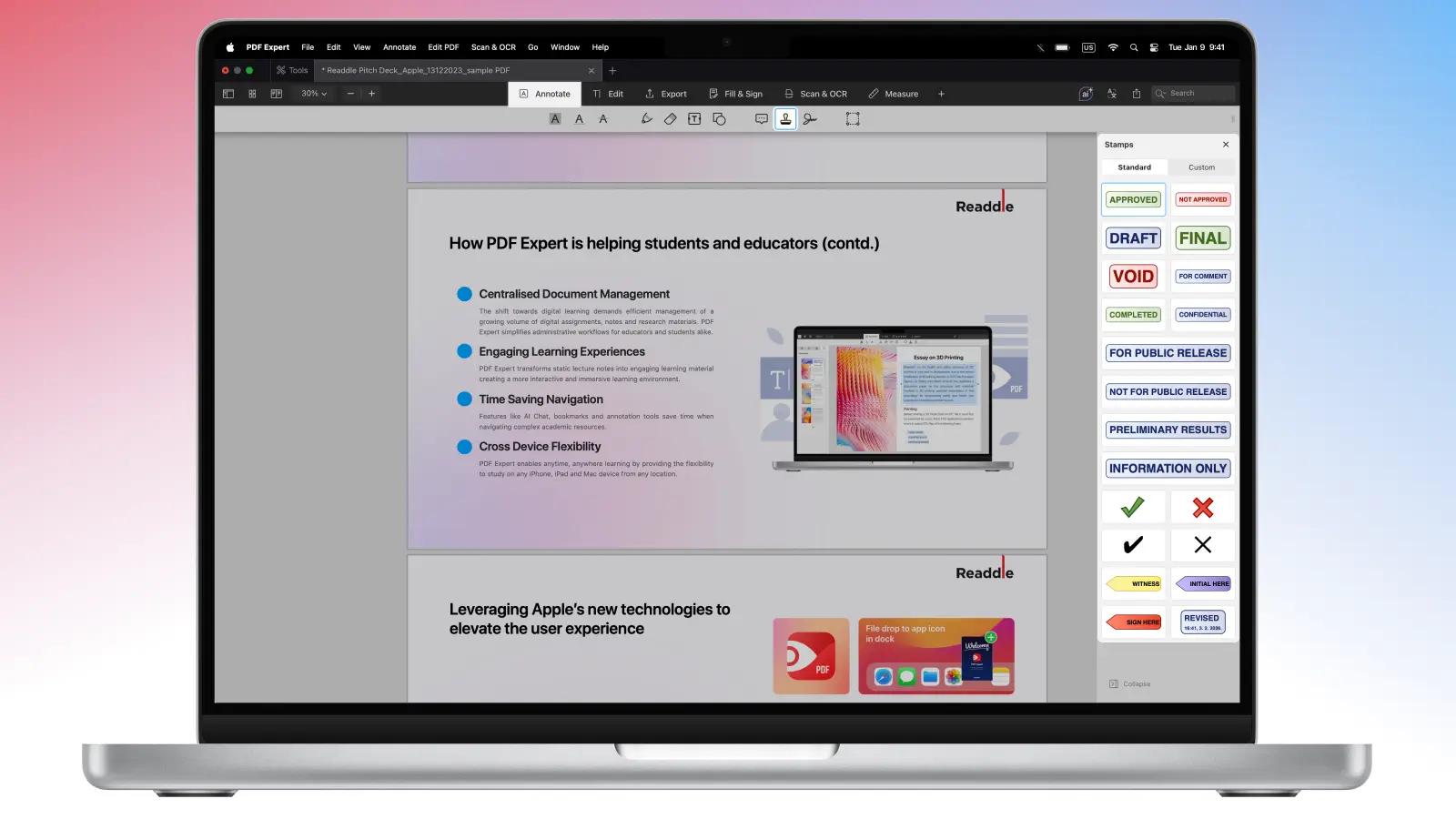
- To place the stamp, click on the page where you want it to appear. Once placed, grab the corners to resize, drag to move, or rotate by hovering over the handle.
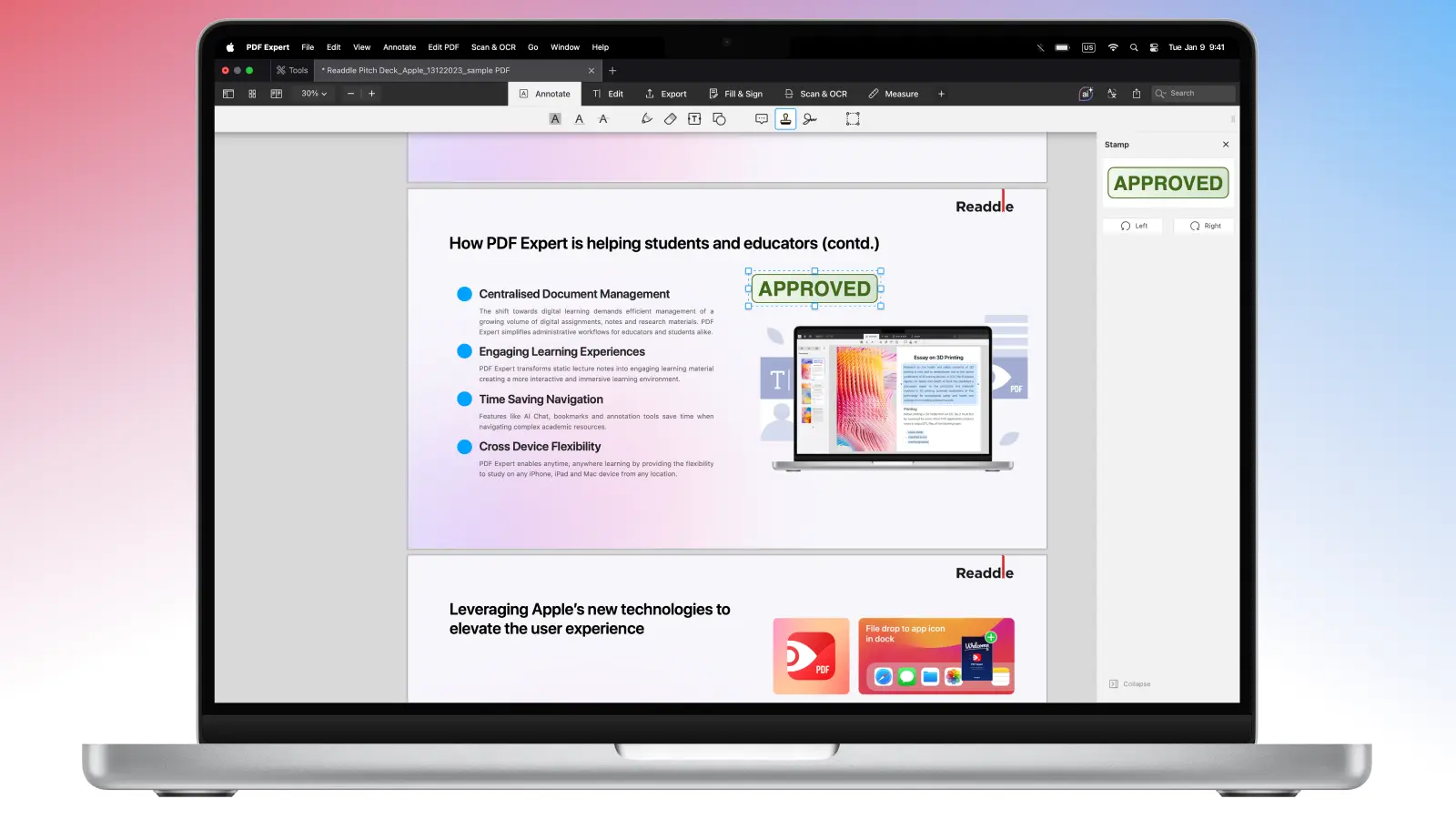
- Hit File > Save or export as a new file to keep the original intact. If you’re sharing with a team, flatten the annotations to make the stamp part of the document’s base layer.
How to add stamps to a PDF on iPhone or iPad
If you need to approve your PDF or add a custom mark on the go, PDF Expert makes adding stamps quick and intuitive. The steps are quite similar to the Mac version, here’s how to add stamps to a PDF on iPhone and iPad:
- Open your PDF on your device.
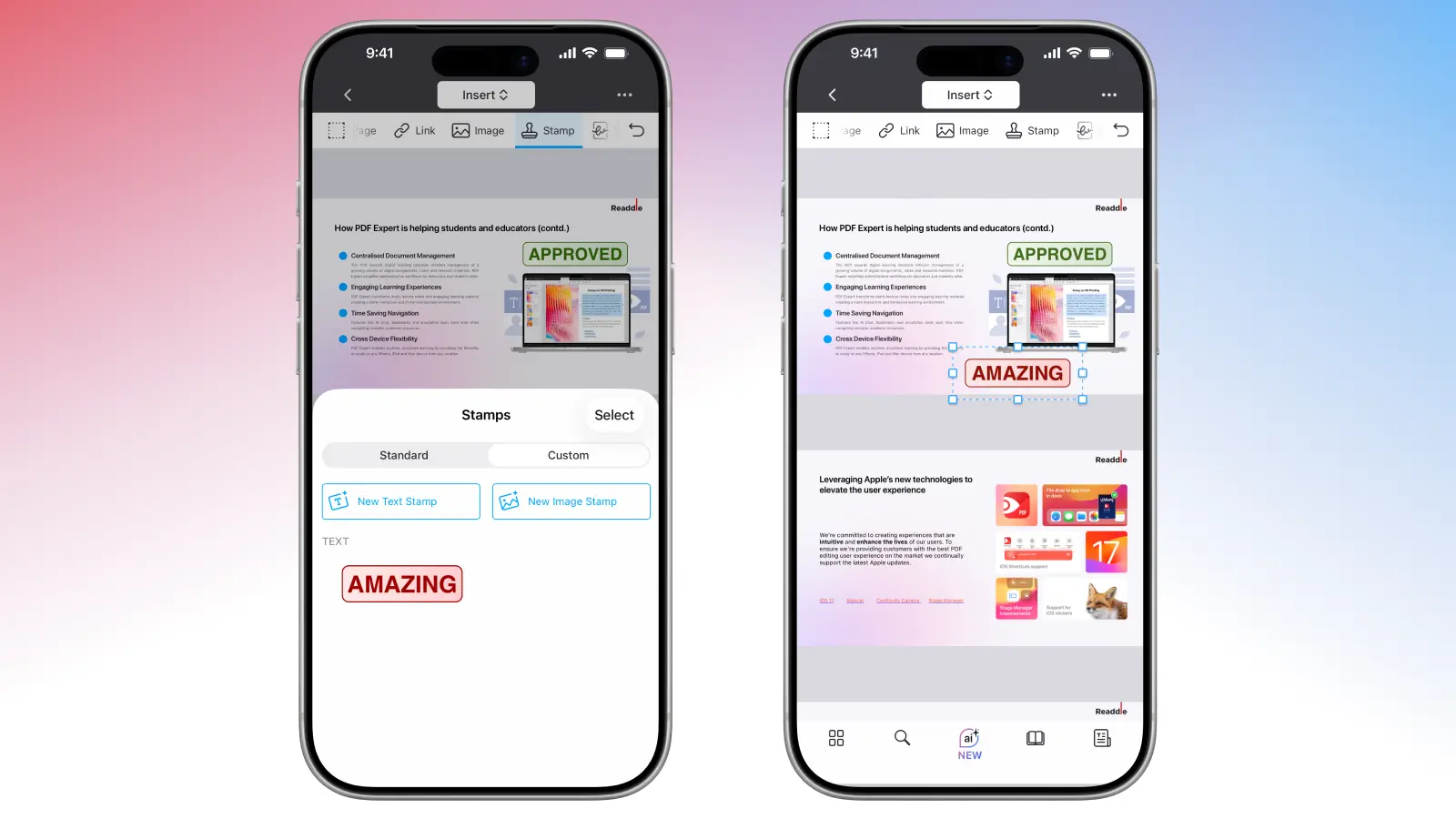
- Open the Insert tools and find Stamp.
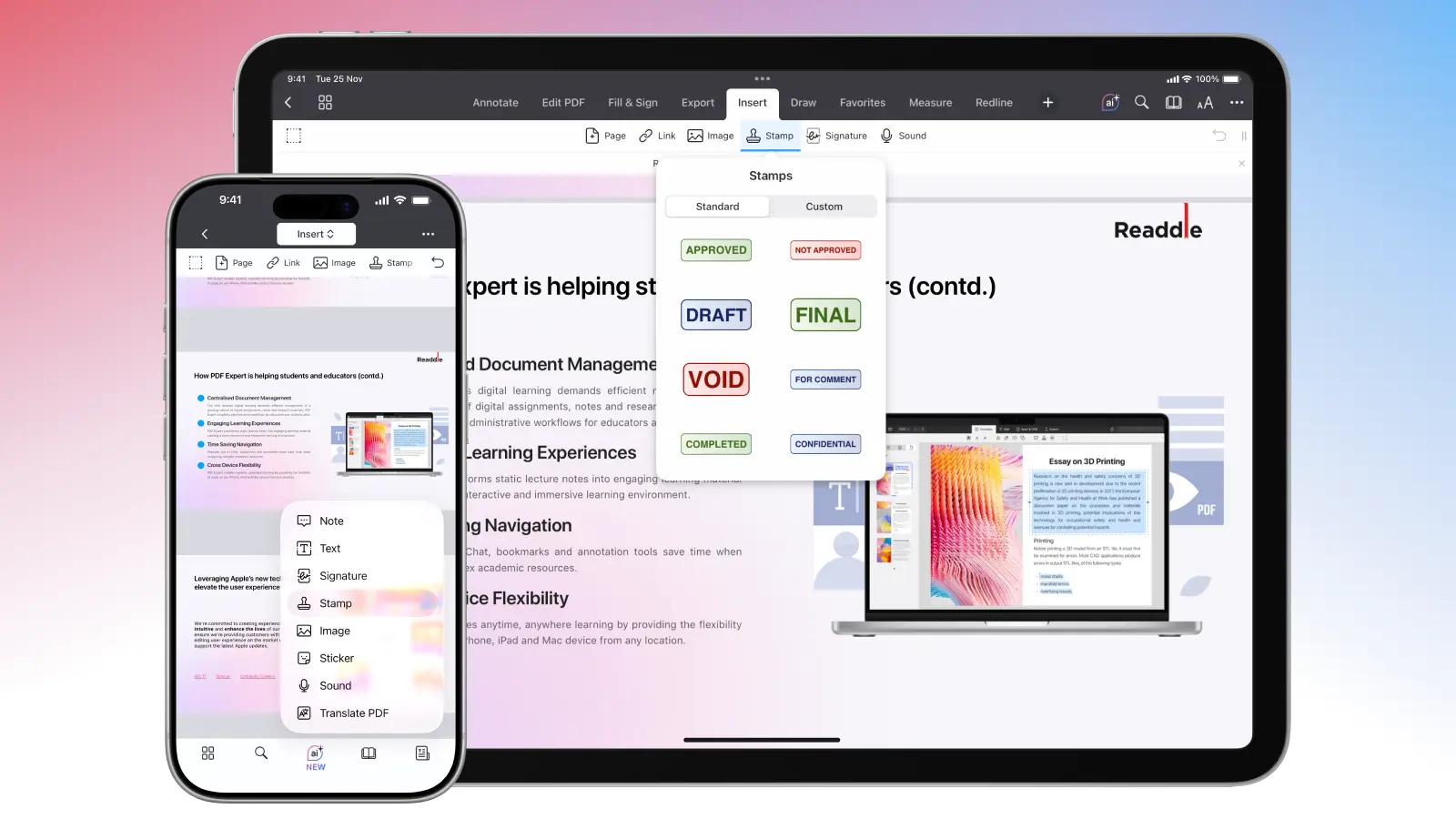
- Alternatively, just tap and hold on the place in the document where you want to insert the stamp. A pop-up menu will appear. Select Stamp (on iPhone, you may need to swipe or tap the arrow to find this option).
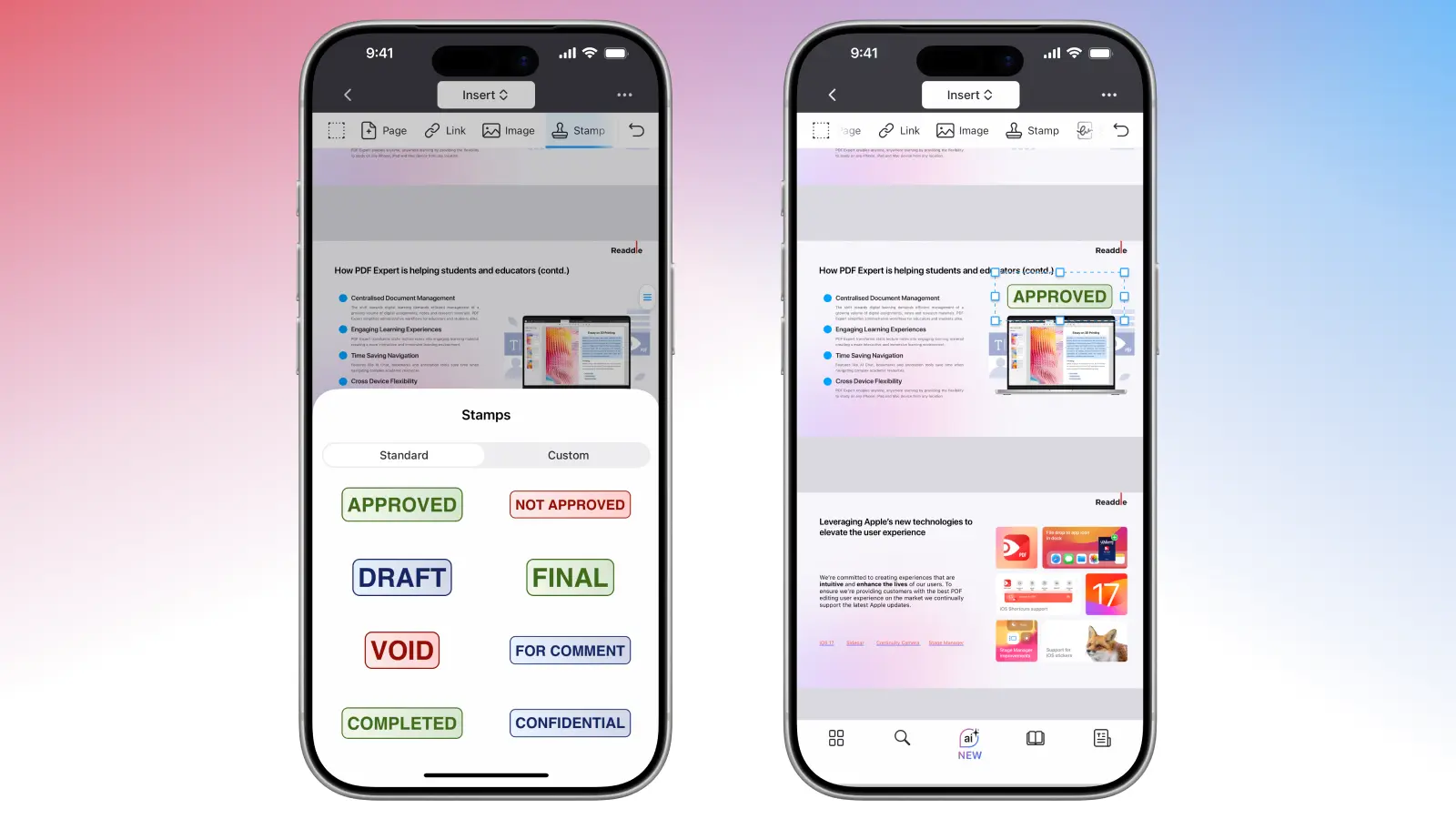
- Select the stamp from the built-in options. Tap the one you need, then place it on the page. You can tap and hold to move it, or drag the corners to resize.
- Tap More… > Share to save a copy, share, or flatten the annotations (making the stamp permanent). This keeps your original file safe if needed.
How to create new stamps with PDF Expert
Built-ins are great, but custom stamps let you personalize your PDFs. Maybe you need a stamp with your company logo or specific text like “Reviewed by John on [Date].” PDF Expert makes this straightforward:
- Enter custom mode. From the Stamp tool in Annotate mode, tap or click “Custom” (or the plus icon) to start fresh.
- Click + and choose your stamp type:
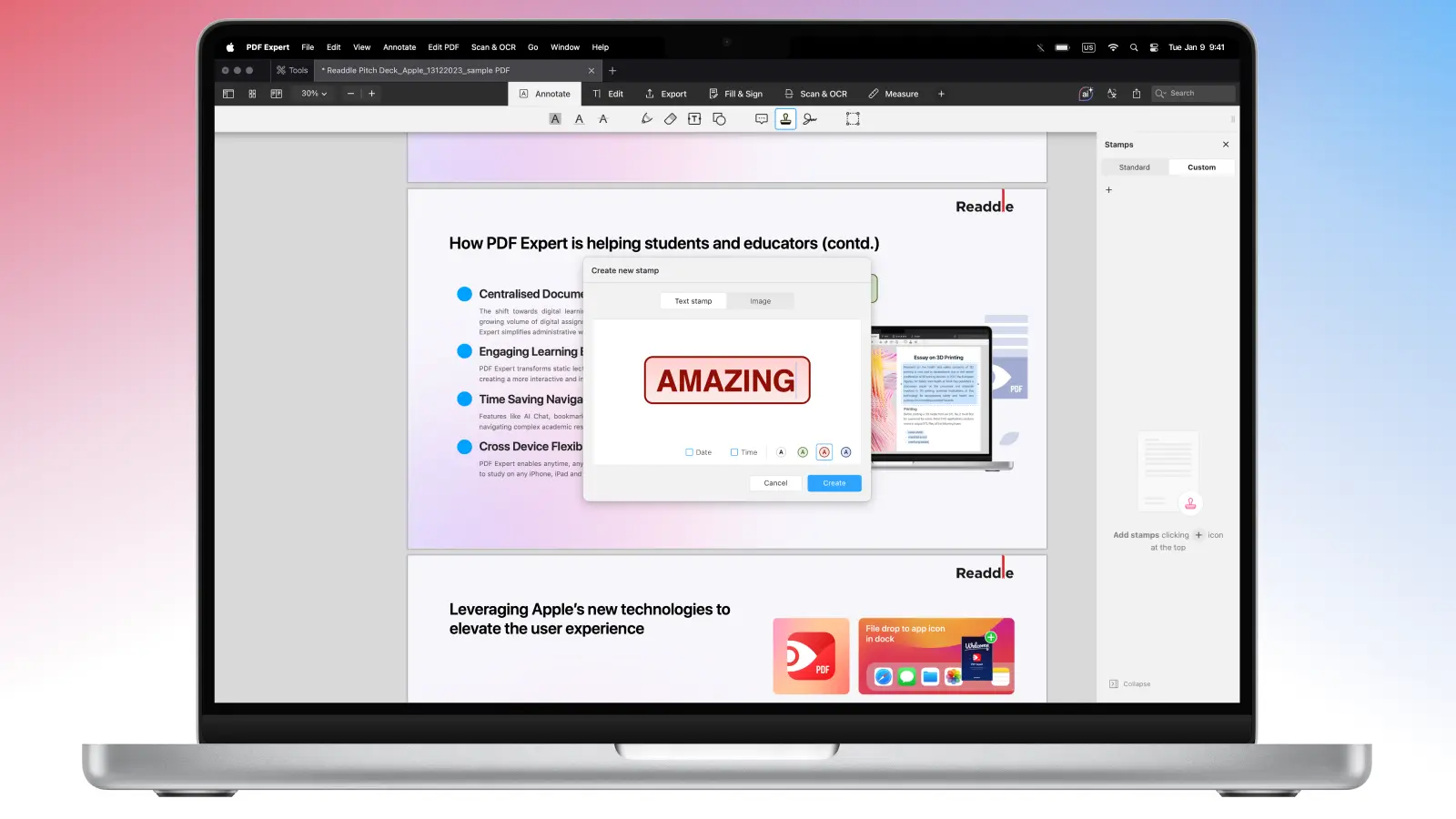
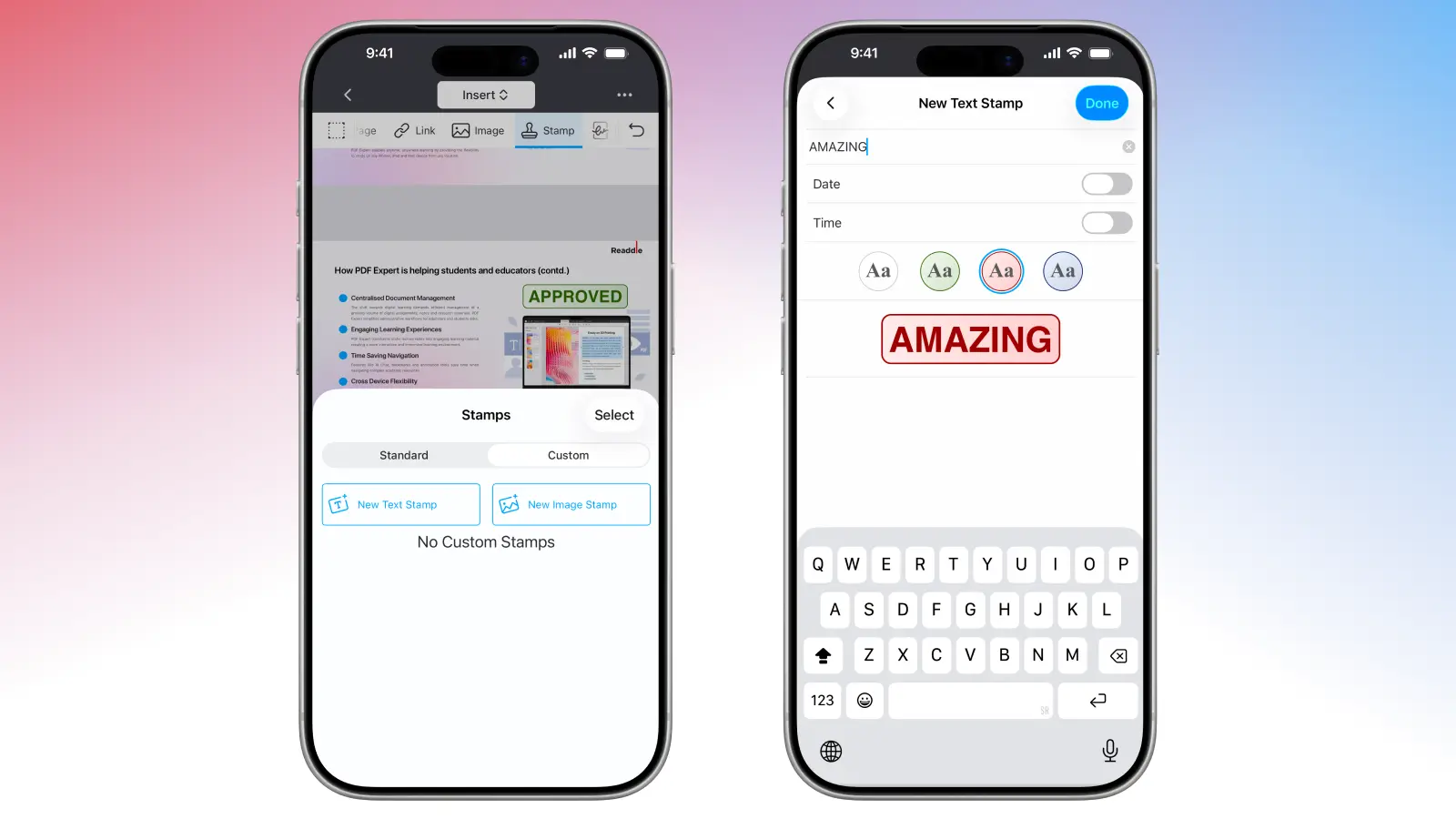
- Text Stamp: Type your message, like “Confidential – Do Not Distribute,” or select auto-inserting the current date or time. Customize font, size, color, and even rotation for that perfect angle.
- Image: Upload a PNG or JPEG from your files or photos. Pro tip: Use transparent backgrounds, so it overlays cleanly without white boxes.
- iPhone: If your phone is right near your Mac, you can take a photo, scan a document, or add a sketch directly from your iPhone.
On Mac:
On iPhone:
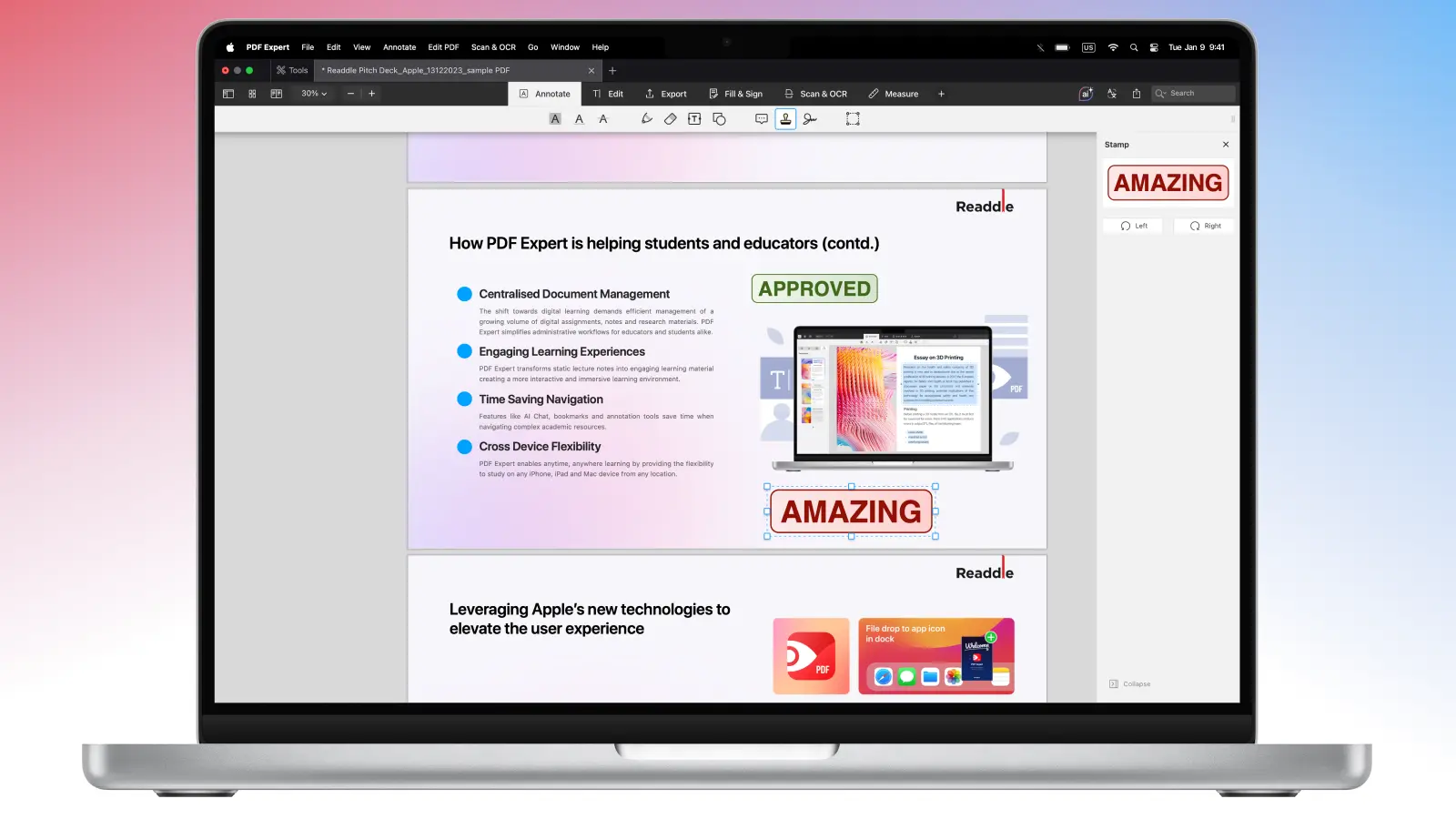
- Click anywhere in the document to add the stamp, then resize and adjust as needed. Your custom stamp will now be saved in your PDF Expert so that you can use it for future files or pages. You can always delete it by right-clicking on the custom stamp.
On Mac:
On iPhone:
Handle your PDFs like a pro
Take your document workflow to the next level with these powerful features in PDF Expert. In addition to stamping, you can enjoy other tools.
- Integrate with other tools. Combine stamps with electronic signatures, highlights, text notes, drawings, or shapes for complete, professional markups.
- Boost security. After adding stamps and other annotations, make them permanent and tamper-resistant by flattening the document. This embeds everything into the PDF base layer so that nobody can edit your document later.
- Password-protect your PDFs. For extra protection, add password encryption directly in PDF Expert. Only those with the password will be able to open and view the content.
FAQ: PDF stamps
What’s the difference between a PDF stamp and a watermark?
Stamps are interactive, foreground annotations you can place, resize, move, rotate, copy, or delete. Watermarks, on the other hand, are fixed, background elements embedded into the page for security or branding.
Can I use stamps on forms or scanned documents?
Stamps work great on fillable forms and scanned PDFs. Just ensure the document isn’t locked, and you’re good to go.
How can I manage or organize multiple annotations, including stamps?
PDF Expert collects all annotations (stamps, highlights, notes, signatures, etc.) in one view. Go to the sidebar or tap the annotations icon to see, search, jump to, or remove them. You can also export an Annotation Summary as a separate PDF; it lists highlights, notes, stamps, and more for quick reviews or team sharing.
