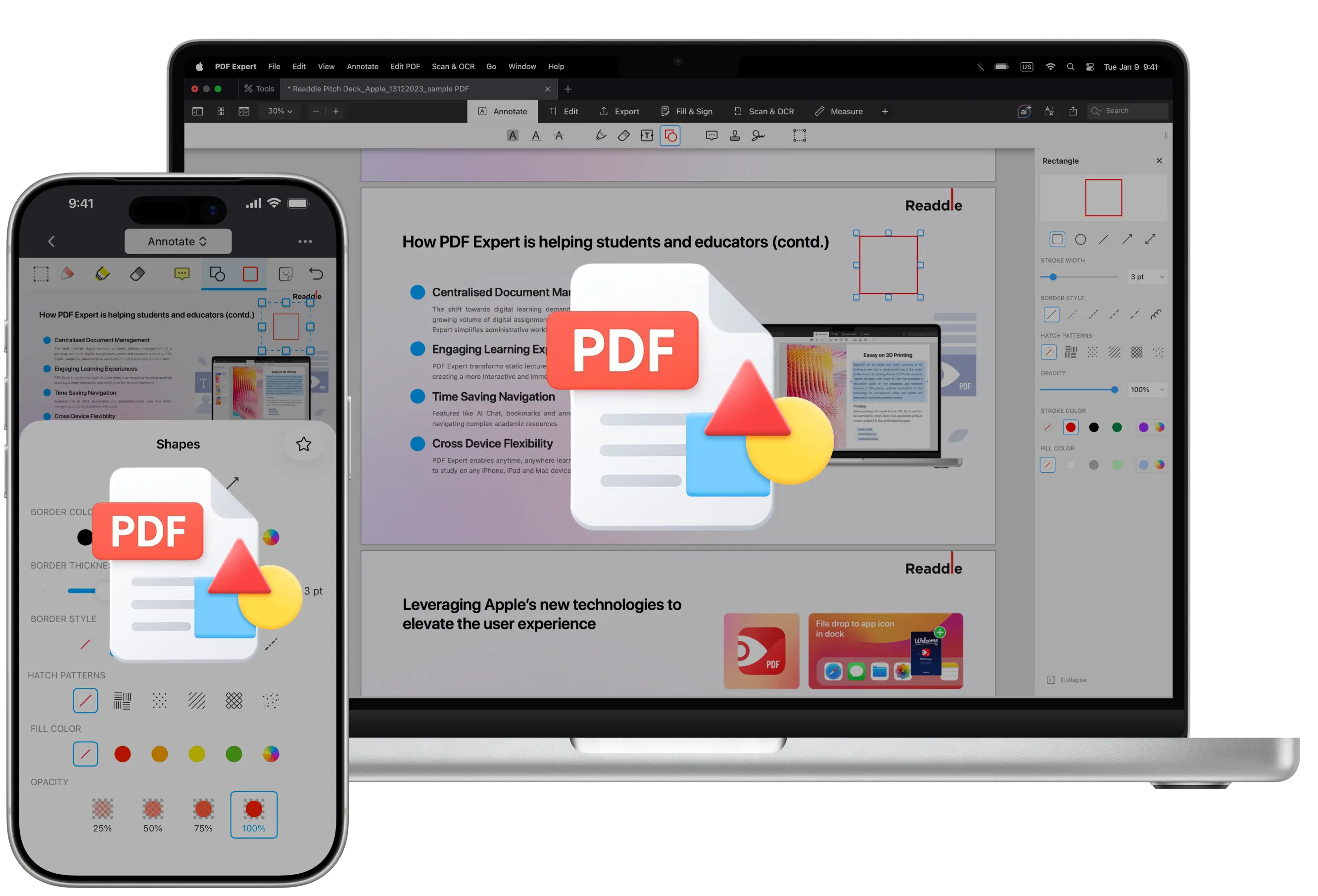
Want your feedback to be easier to notice in a PDF? Annotations can help, and adding shapes is one of the simplest ways to draw attention.
Shapes are a simple but powerful way to make your PDFs clearer and easier to understand. They help put emphasis on important areas, organize information visually, and guide readers through content without changing the original text.
You can use shapes to highlight key sections, outline parts of a document, point to specific details, or visually group related information. This is especially useful when reviewing documents, collaborating with others, or explaining complex ideas.
In this guide, you will learn how to add shapes to a PDF in a few simple steps on your Mac, iPad and iPhone using PDF Expert.
How shapes can improve your PDFs
Adding shapes to a PDF makes your feedback more visual and easier to follow. For example, rectangles can frame important text or sections, circles can quickly mark items that need attention, and arrows can show direction or relationships between elements.
Shapes are commonly used in:
- Document reviews and approvals
- Design and layout feedback
- Forms and instructions
- Reports and presentations
- Collaboration and team reviews
Because shapes don’t alter the original content, they’re a safe and clear way to add context without confusion.
How to add shapes to a PDF on Mac
PDF Expert by Readdle is one of the top solutions for annotating your PDFs: while having a variety of PDF markup tools, it also works greatly for shapes, and here are some quick steps to follow:
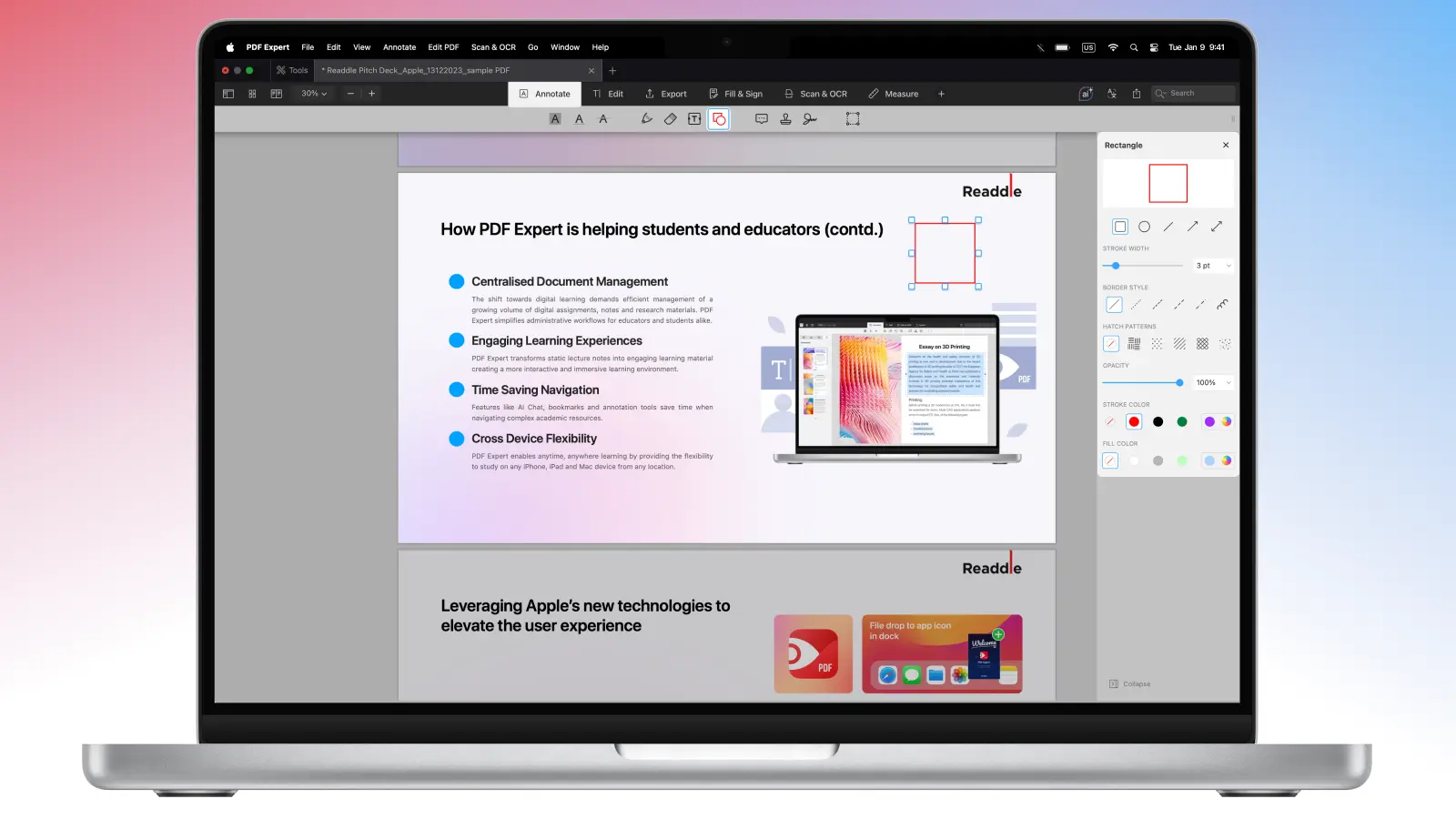
- Download PDF Expert.
- Open a PDF file and select the Annotate tab or the Draw tool tab.
- Click the Shapes tool.
- Select the shape, set opacity, choose hatch patterns and border style, and customize its color on the sidebar on the right.
- Click where you’d like to add the shape. Use the mouse or your trackpad to drag out the shape.
You can delete the shape quickly if you select it by clicking on it and press Delete on your keyboard.
How to add shapes to a PDF on iPhone or iPad
It’s just as easy to add shapes to a PDF on iPhone and iPad in PDF Expert: here’s how you can do it:
- Open a PDF in PDF Expert.
- Tap Annotate or Draw on the toolbar.
- Select Shapes. Here, you can choose a shape, its border color, style, hatch pattern and thickness.
- Adjust the fill color and opacity.
- Tap where you want to insert a shape.
- To move the shape, select it by tapping on it once. After this, tap and hold it.
- To resize the shape, just drag its corners.
- To edit the shape, tap it and select Properties in a pop-up menu.
- To remove the shape, tap it and select Delete.
If you frequently use a particular shape, e.g. the red arrow, you can add it to the Favorites to work even faster.

When to use shapes instead of text
Shapes work best when you want to show, not just tell. Instead of explaining where to look, you can simply draw a shape around the relevant area or point to it with an arrow, add callouts and lines to bring attention to a certain part of the text. This saves time, reduces misunderstandings, and makes your feedback instantly clear.
You can combine several shapes to create and annotate diagrams in your PDF and elevate the file’s look.
You can also combine shapes with other annotations, like comments or highlights, to create a clean, well-structured review that’s easy for anyone to understand.
FAQ
Can I customize the hatch patterns of my shape?
Yes. Once you select the shape you need, you can also choose the hatch pattern and use Rotate to change the way the shape looks.
Can I lock or align shapes in my PDF?
Yes. PDF Expert has a feature that allows you to align your text annotations as well as shapes - it’s called Snapping, and you can just move the shape around slightly for it to be applied.
How can I print all my annotations?
You can save your file as a flattened copy in PDF Expert to preserve all your annotations and edits while printing.
Can I edit the color and thickness of shapes in a PDF?
Yes. You have multiple options on the sidebar once you activate the tool and choose the shape you want to use on the PDF. You can also change fill and stroke, opacity and layer order (send to back/bring to front) for your shape.
What’s the difference between drawing and annotating in a PDF?
While annotating is a general way of using plenty of tools like highlight, underline, adding shapes, sticky notes, etc., drawing is specifically a type of a free-hand annotation, which allows you to add sketches or hand-written notes.
How do I add shapes on iPad or mobile in a PDF?
You can simply use PDF Expert for iOS for this purpose: open a PDF in PDF Expert > tap Annotate or Draw on the toolbar > select Shapes. You can also choose a shape, its border color, style, hatch pattern and thickness.
How do I add arrows and boxes to a PDF?
Use PDF Expert for this: select the Shapes tool > choose an arrow, rectangular, circle or other shape there and place it on your PDF file.
How do I remove or edit existing shapes in a PDF?
You can easily remove or redo the shapes you’ve already created in your file in PDF Expert: just click or tap the shape to select it and alter it further.