
Students, creatives, and professionals often work with PDF files full of charts, infographics, and other illustrations.
However, trying to get those images out of the document usually requires additional maneuvers – taking screenshots or redrawing everything by hand. The former usually reduces the image quality, while the latter takes too much time and effort.
Extracting images directly from a PDF solves both problems: you get the original high-resolution files, with transparency preserved when available, and ready to reuse instantly.
In this guide, we’ll show you the fastest and cleanest ways to extract images from a PDF on Mac, iPhone, and iPad using PDF Expert, the most powerful PDF editor for Apple devices.
Why you might need to extract images from PDFs
Proper image extraction goes beyond preserving quality – it’s your key to seamless, everyday productivity. If the image is embedded or part of the PDF’s content, this process pulls it out cleanly without needing third-party tools.
Here are some common scenarios where image extraction comes in handy:
- Reuse in PowerPoint/Keynote/Google Slides presentations without quality loss
- Edit or crop the images
- Build an image archive
- Create social-media graphics or blog post visuals from existing reports
- How to extract images from a PDF document on Mac
If you want to pull images without quality loss on your Mac, all you need is PDF Expert. Here’s how to extract images from a PDF file on Mac:
- Download PDF Expert for Mac (free 7-day trial available).
- Then open your file in the application. You can use the convenient Drag & Drop feature or simply click File > Open…
- Once you have your file in front of you, click Edit on the toolbar.
- Move your cursor over any image – a blue frame will appear around it. Click the image to select it.

- In the right sidebar, click the Export button.
- Choose a name and a destination folder to save your image in PNG. The image is instantly saved to your Mac in original quality.

- Repeat for every image you want to extract. The process is extremely fast, even with 100+ page documents.
How to extract images from a PDF file on iPhone
If you need an image for a last-minute report or you simply need to extract an image on the go, PDF Expert lets you extract images right on your iPhone. Here’s how:
- Download PDF Expert for iPhone.
- Open the PDF file in PDF Expert.
- Tap the Edit PDF button on the top toolbar.
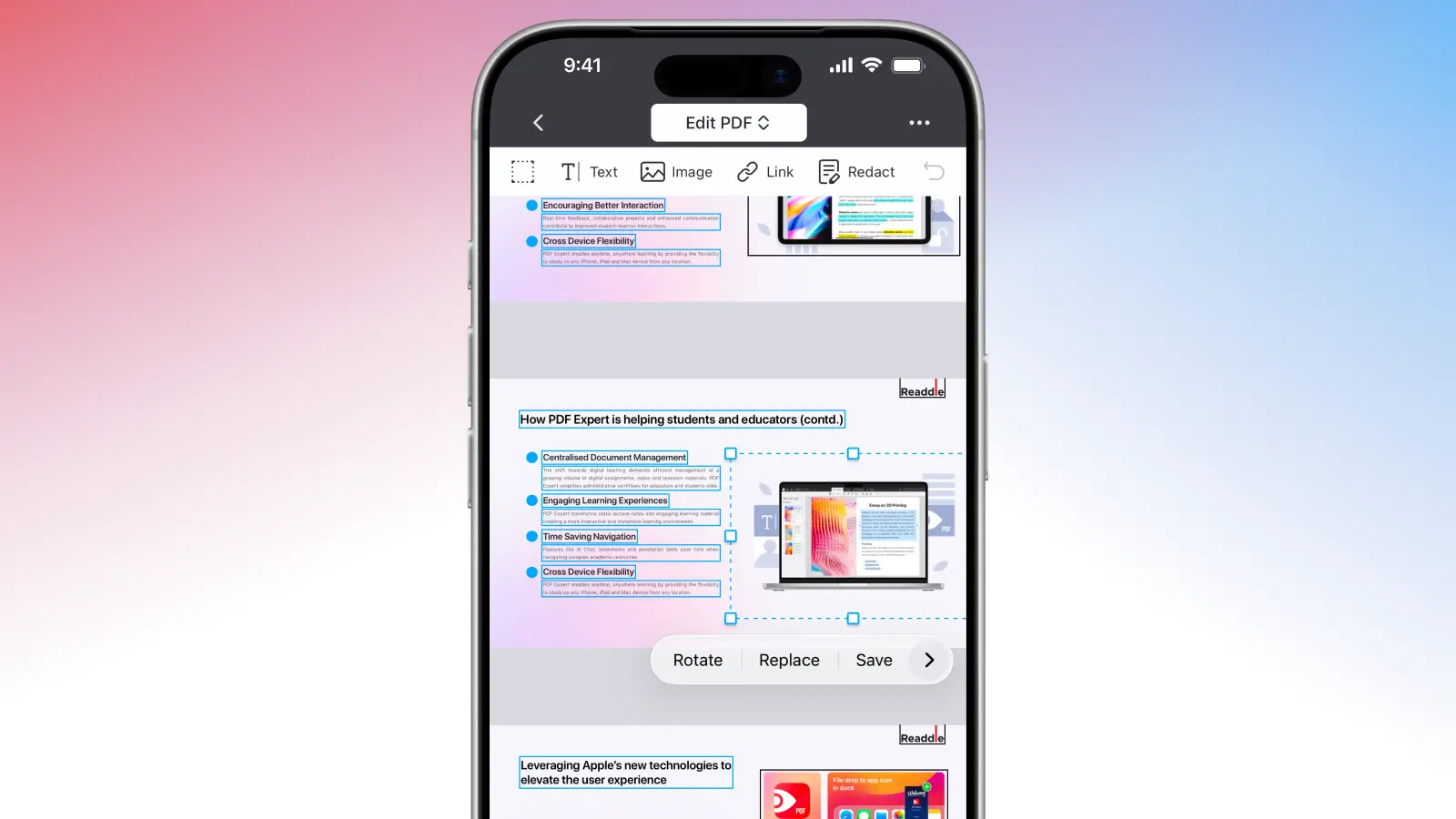
- Tap the specific image you want to extract.
- In the pop-up menu that appears, select Save. This will save the image as a separate file (e.g., PNG or JPEG) to your Photos app.
How do I turn a PDF into separate images?
Sometimes you don’t need one specific image – you want every page as a high-quality picture. PDF Expert can help you with this, too.
On your Mac:
- Open your PDF file.
- Click File > Export to. Then select the Image… option.
- Choose a name for your new file and select the file format: PNG or JPG.
- PDF Expert will automatically export your PDF file into separate images, which you will then be able to use for your presentations, append to another PDF file, or share.
On your iPhone:
- Open the PDF.
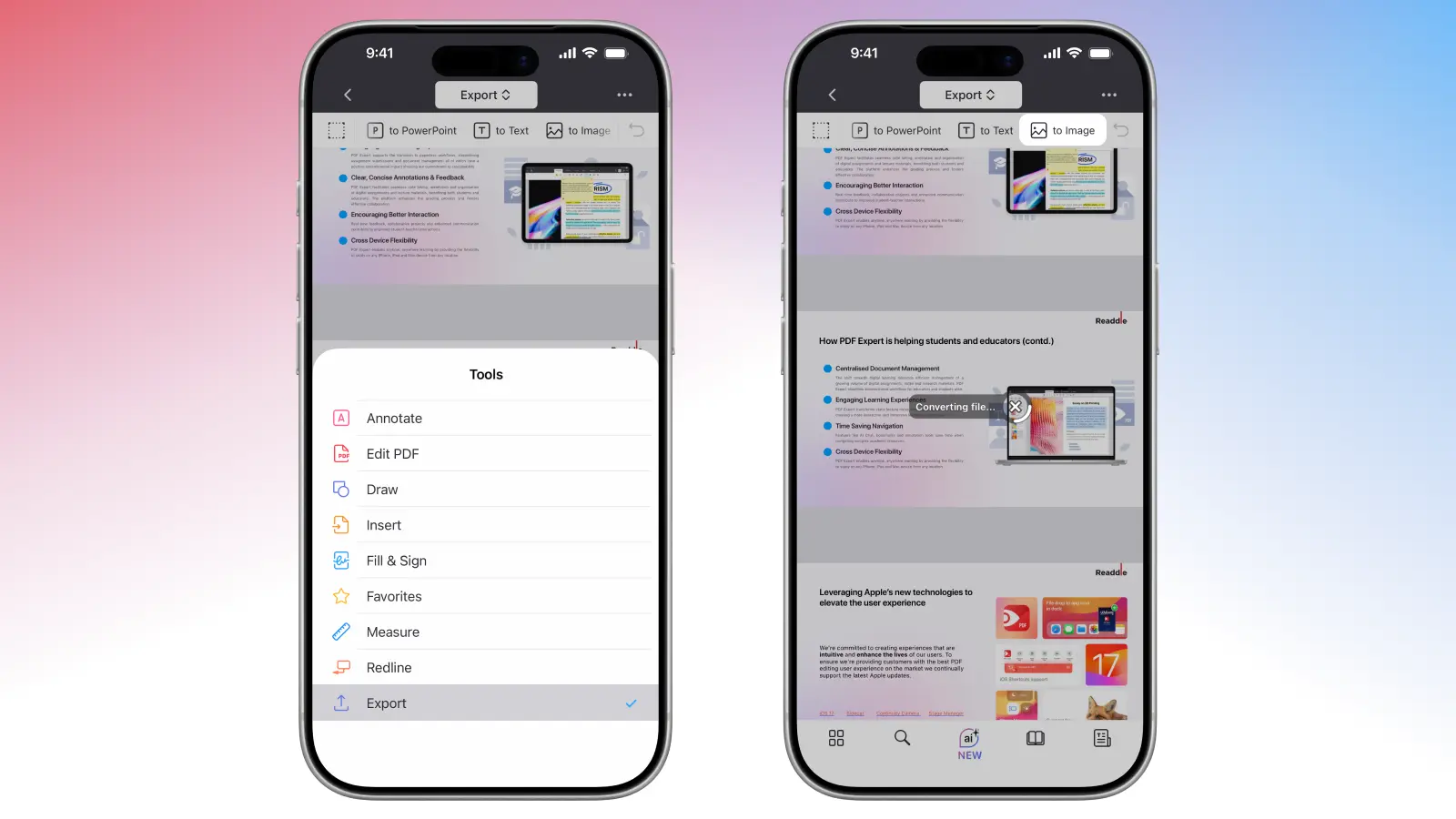
- Tap Export on the top toolbar.
- Select To Image and PDF Expert will transform your file into separate PNG images and offer you two options: Share the File to your favorite app or Save the File in PDF Expert.
Before exporting, you can also use PDF Expert to crop pages, add annotations, or include signatures if needed.
Try PDF Expert today and experience seamless image extraction, effortless PDF editing, and powerful tools that make working with documents smooth on your Mac, iPhone, or iPad.
Can I extract images from a scanned file?
Scanned PDFs don’t contain embedded images like regular documents. Instead, each page is essentially one big image. PDF Expert treats it as such, so you can’t extract individual images directly. However, there’s a simple workaround: export the page(s) as high-quality images, then crop as needed.
This keeps the original sharpness without screenshots. For text-heavy scans, consider running Scan & OCR first (under the toolbar) to make content searchable, though it won’t separate images.
FAQ
Will image quality degrade when extracting an image?
No. PDF Expert extracts the original embedded files, not a screenshot, so you get 100% of the original resolution and color fidelity.
How to extract all images from a PDF?
PDF Expert currently extracts images one by one (very quickly), but does not yet offer a “Extract All Images” button. For very large batches, use PDF Expert on Mac for faster processing, extracting one by one or exporting pages as images.
Can I turn images into a PDF with PDF Expert?
Yes, you can convert one or several images into a PDF with PDF Expert on your Mac or iPhone.
To convert an image on your Mac: In the tools, select Images to PDF. Click the image you want to convert (hold CMD to select multiple for combining). Then, click Continue. PDF Expert will transform your image(s) into PDF and open it directly in the app for you to edit, rearrange, or annotate your new file.
To convert an image on your iPhone: Go to Tools at the bottom right and select Image to PDF. Select where to choose your images from (My Files, Photo Albums, iCloud, Files) and select one or several images. PDF Expert will do the rest.
