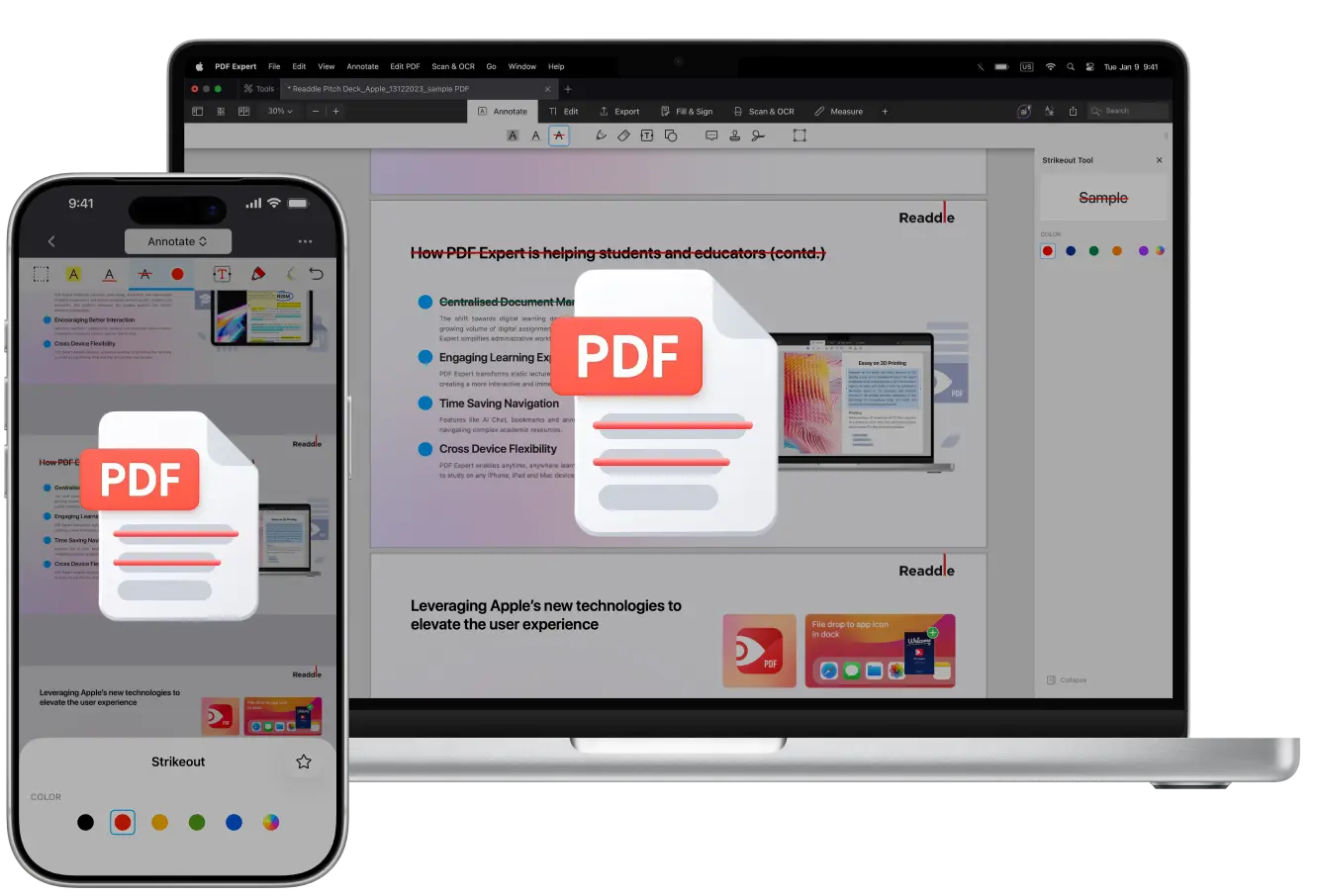
Want a quick way to show edits in a PDF without permanently deleting anything? Strikethrough is perfect for that. It lets you cross out text while keeping it visible, so it’s easy to review changes and understand what was updated. Whether you’re proofreading a draft, fact-checking the information in a research paper, or just want to mark something as a text that doesn’t fit, the strikethrough tool would be a great addition to your workflow.
Strikethrough is basically a line placed through words, sentences, or even full paragraphs. It’s often used when editing or collaborating with others to highlight what should be removed or corrected. Since the original text stays in place, your changes remain clear, transparent, and easy to follow.
In this guide, you’ll find a few simple ways to add strikethrough to a PDF on both your Mac, iPhone and iPad in PDF Expert.
How to strikethrough text in a PDF file on Mac
PDF Expert for Mac has a wide range of annotation tools to choose from, and all of them are quite intuitive and easy to use: you can highlight the words you want to put emphasis on, underline the core ideas, or strikethrough something that seems out of place in the PDF file - here’s how to do this on Mac in a few clicks:
- Download PDF Expert.
- Open the PDF file you want to add annotations to.
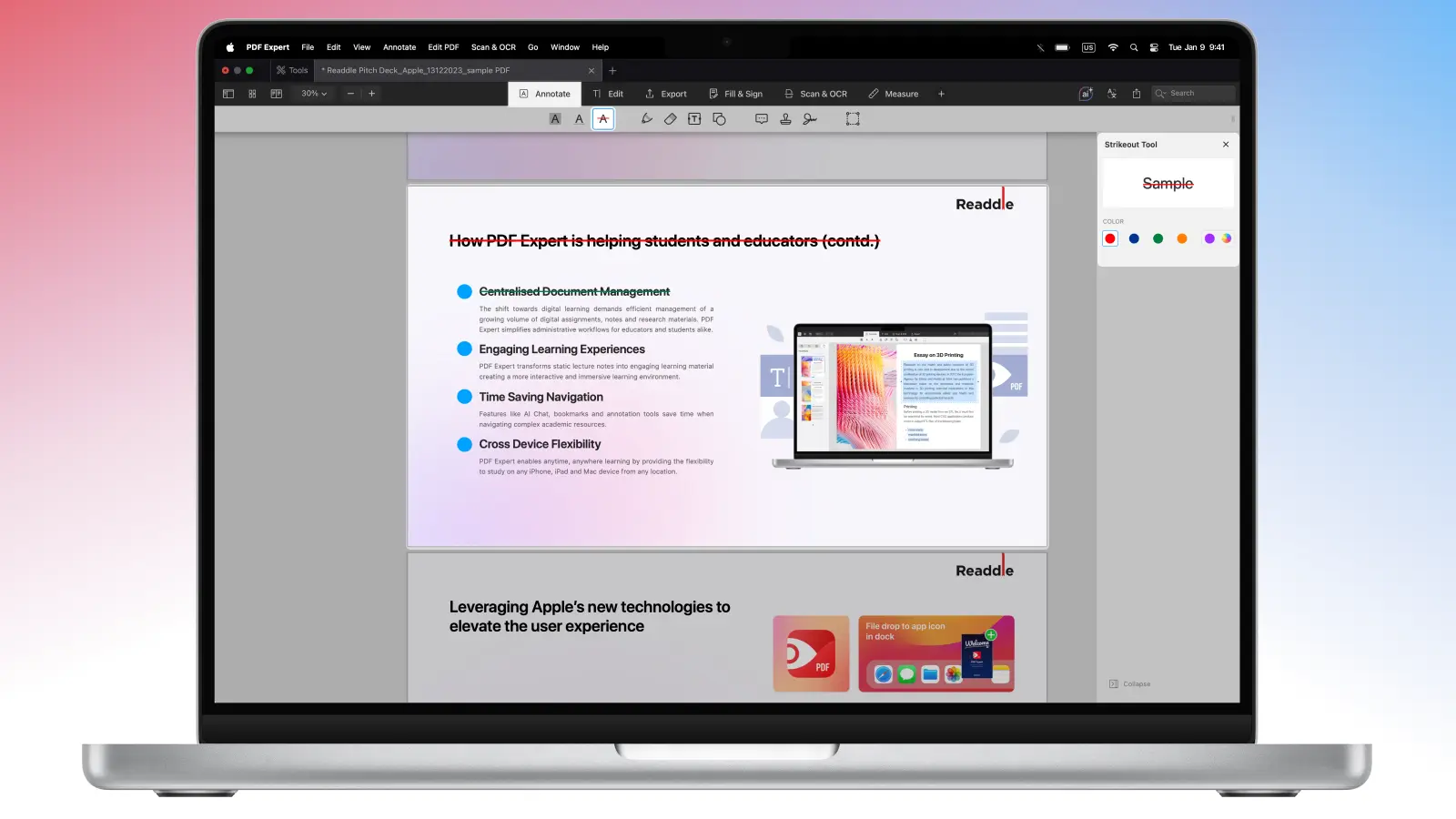
- Go to the Annotate toolset on the main toolbar at the top and select Strikethrough.
- You can select the color on the sidebar - choose the existing one or select your own preset from the color palette.
- Drag the mouse or your trackpad over the text you want to annotate.
Alternatively, you can select the text while reading, right-click on it and select Strikethrough from the list.
The easiest and the fastest way to activate the strikethrough tool in a PDF on Mac is to use a shortcut: Control+Command+S.
How to delete the strikethrough annotation from a PDF on Mac
If you want to edit or remove the annotation, it could be done very swiftly in PDF Expert:
- Open the needed PDF file in PDF Expert on your Mac.
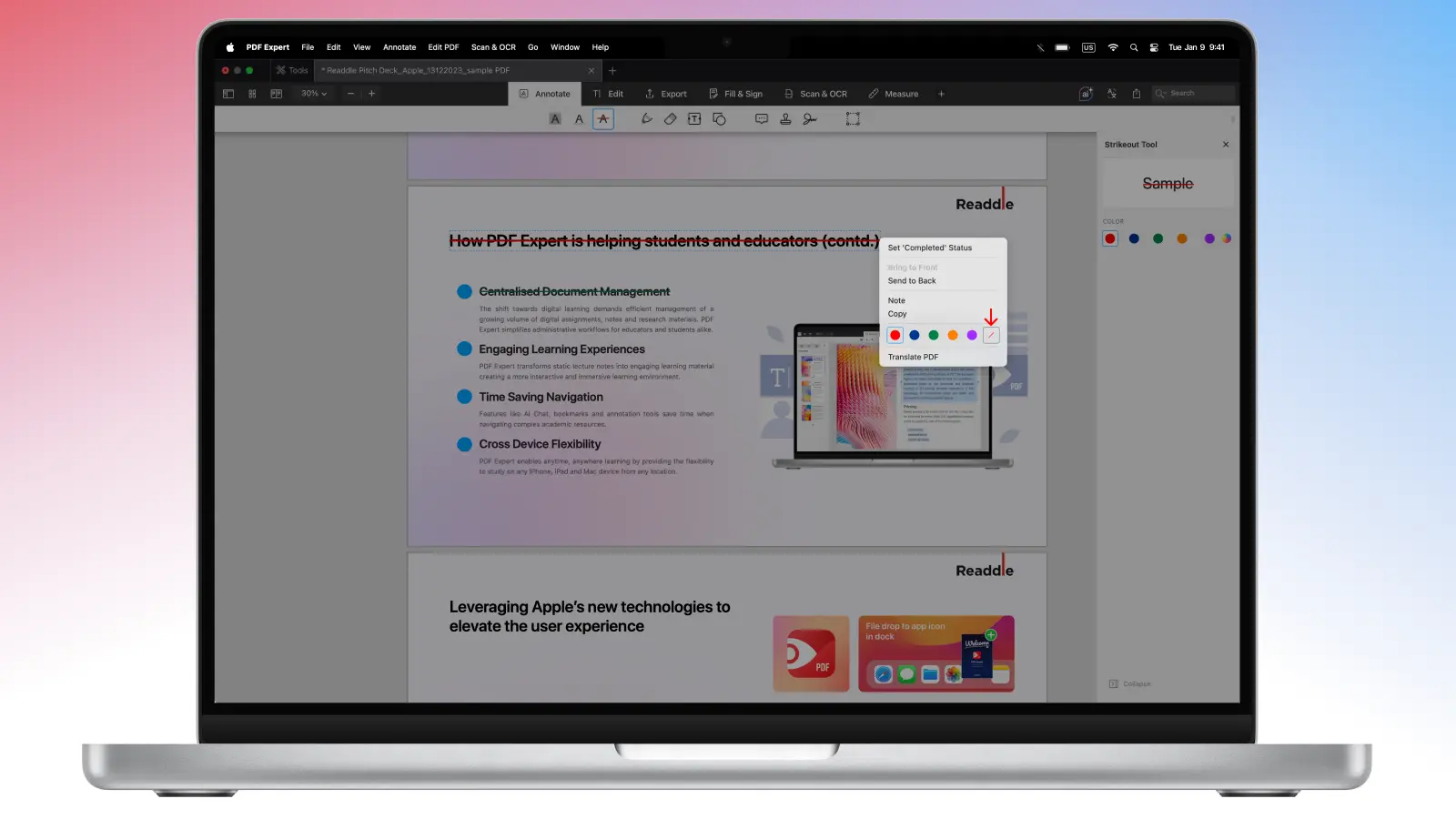
- Click on the strikethrough annotation in the text to select it.
- Use right click to open the options and change the color or remove the annotation.
- You can also delete any of your annotations in the Outlines > Annotations tab, if you right-click on the annotation in the list and click Remove.
How to strikethrough text in a PDF file on iOS and iPadOS
Annotating your PDFs on-the-go is something that can be effortlessly done in PDF Expert on both your iPhone and iPad - here’s how:
- Download PDF Expert from the App Store and launch the app on your iPhone or iPad.
- Open the PDF file you want to annotate.
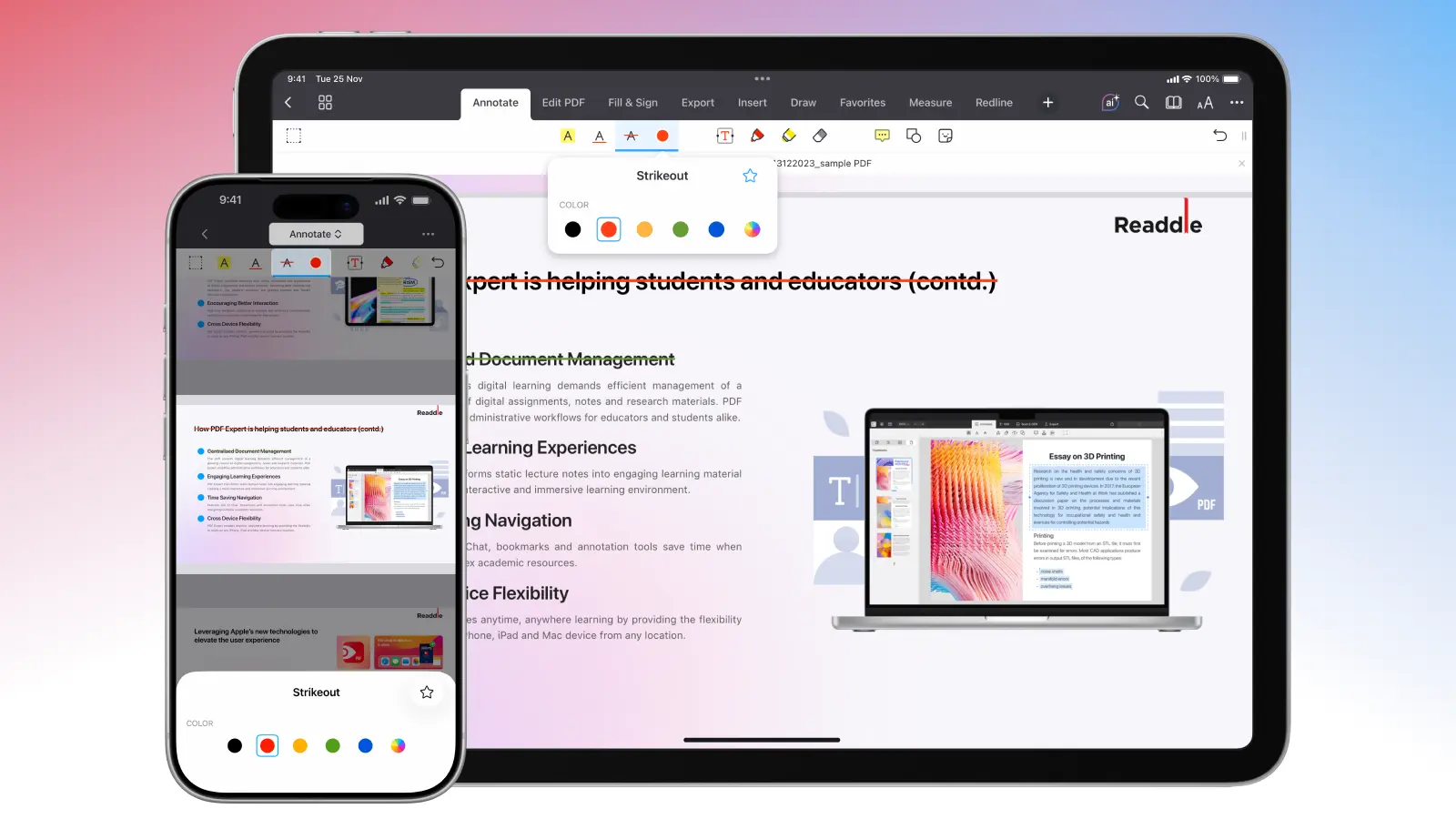
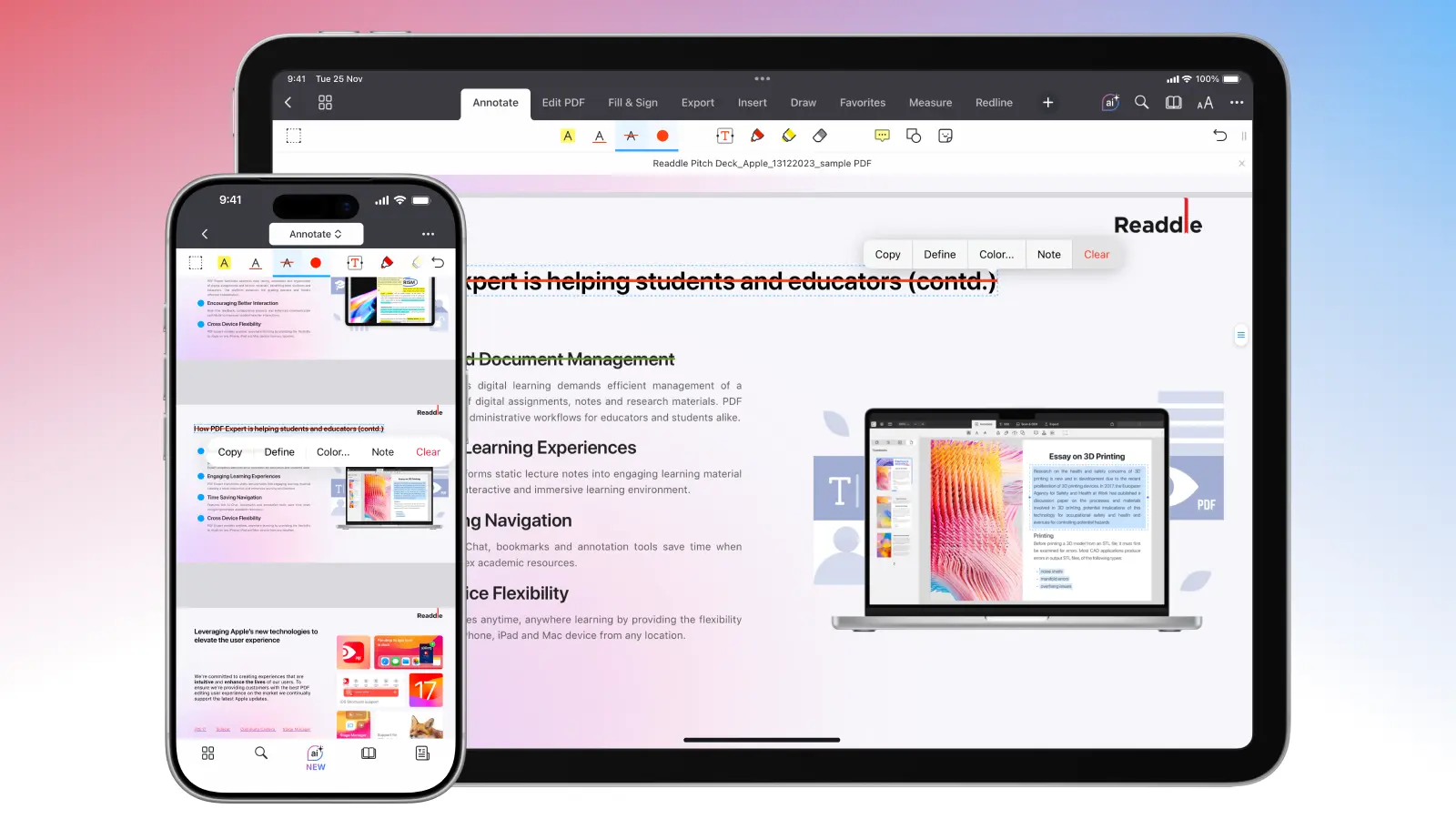
- Choose the Annotate toolset at the top of the screen.
- Select the Strikeout tool and choose the color by tapping on the color near it.
- Use your finger or Apple Pencil to strikethrough the text in your PDF.
How to delete the strikethrough annotation from a PDF on iOS and iPadOS
In case you’d like to change the color or you’ve decided to remove the annotation, you can do so quickly by following these simple steps:
- Open the needed PDF file with annotations.
- Tap on the annotated text to make the pop-up menu appear.
- Choose Color… to change the color of the annotation.
- Choose Clear to remove the annotation entirely.
Tips for annotating in PDF Expert
Since PDF Expert is one of the most feature-packed apps on the PDF market, you can not only annotate and edit your file, you can also share the PDF documents effectively, sync them, print, password-protect and much more.
A good annotation workflow could look like this:
1) Scan for key info
- Highlight what’s important
- Underline key terms and numbers
2) Mark issues
- Strikethrough what should be removed
- Use shapes to mark areas that need attention
- Add arrows to show what connects to what
3) Add corrections
- Add text annotations for exact replacement wording
- Add sticky notes for explanation or context
- Use the pen tool only for quick marks or visual clarity
Instead of looking for different online solutions for these tasks, you can use all of these tools in PDF Expert across all platforms, and even keep your changes in sync!
FAQ
What can I use the strikethrough annotation for?
If you’re interested in trying this tool out but don’t know where to start, here are some tips:
Use strikethrough for content that must go, not content that just needs rewriting
Combine with a comment or sticky note to explain why it should be removed
Use it for edits where transparency matters (legal, contracts, reviews)
Can you strikethrough text in a PDF?
Yes, you can use this annotation in advanced PDF viewers, like PDF Expert.
Can I use the strikethrough tool for free in PDF Expert?
Yes. This tool can be used for free during the trial period, as well as all the other features of PDF Expert. If you decide to upgrade to the paid subscription, you will have access to all the advanced tools of PDF Expert across all platforms.
How do I send only the annotated pages to another person?
PDF Expert has a unique feature for cases when you want to bring the attention to the annotated pages only, especially if the original file is just too large to read through. Simply go to the Page Thumbnails view in PDF Expert on your iPhone or iPad > select the Annotated pages section > tap Select at the top right to choose the range of the pages > share, extract, email them out, or rearrange your PDF pages.
What is the shortcut key for strikethrough in PDF?
You can use the Control+Command+S shortcut in PDF Expert on Mac to quickly activate the strikethrough tool.